> ## Documentation Index
> Fetch the complete documentation index at: https://www.courier.com/docs/llms.txt
> Use this file to discover all available pages before exploring further.
# Slack
> Send Slack messages with Courier by creating a Slack app, configuring it in Courier, designing a notification template, and delivering messages via the Send API. This guide covers setup, message targeting, advanced features, and troubleshooting.
## Prerequisites
**To get started, you'll need:**
* A Courier account ([Sign up](https://app.courier.com/signup))
* A Slack account ([Sign up](https://slack.com/get-started))
**What you'll do:**
1. Add the Slack integration in Courier
2. Create and configure a Slack app
3. Design a notification template
4. Send a test message
* [Courier API Reference](/reference/get-started)
* [Slack API Documentation](https://api.slack.com/)
* [Slack Block Kit Builder](https://app.slack.com/block-kit-builder/)
***
## Step-by-Step: Send Your First Slack Message
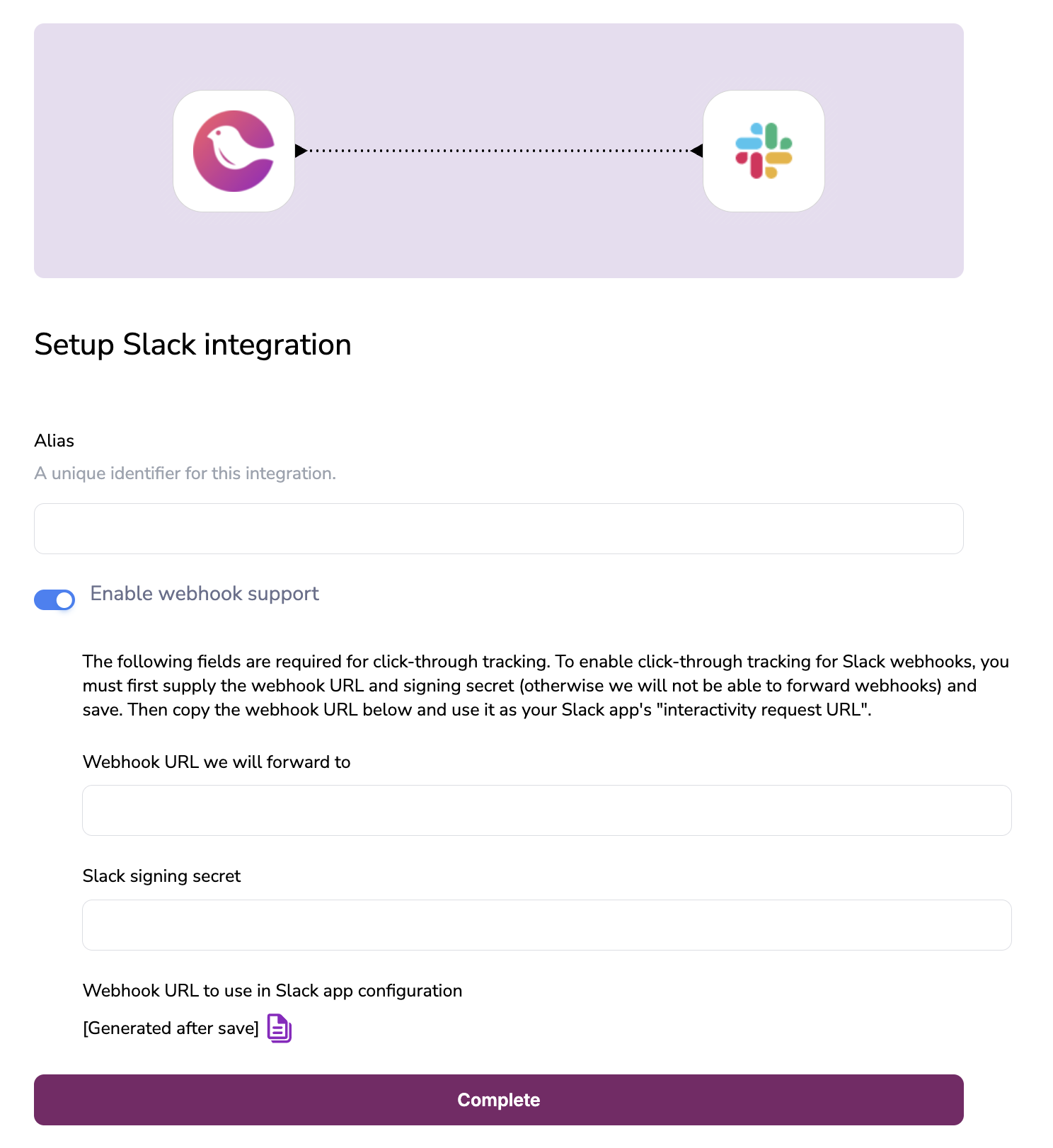
Once logged in to Courier, go to the [Integrations page](https://app.courier.com/integrations) and select Slack. Click "Install" to add the integration.
 1. Go to the [Slack Apps page](https://api.slack.com/apps) and click "Create an App".
2. Choose "From scratch", give your app a name, and select your development workspace.
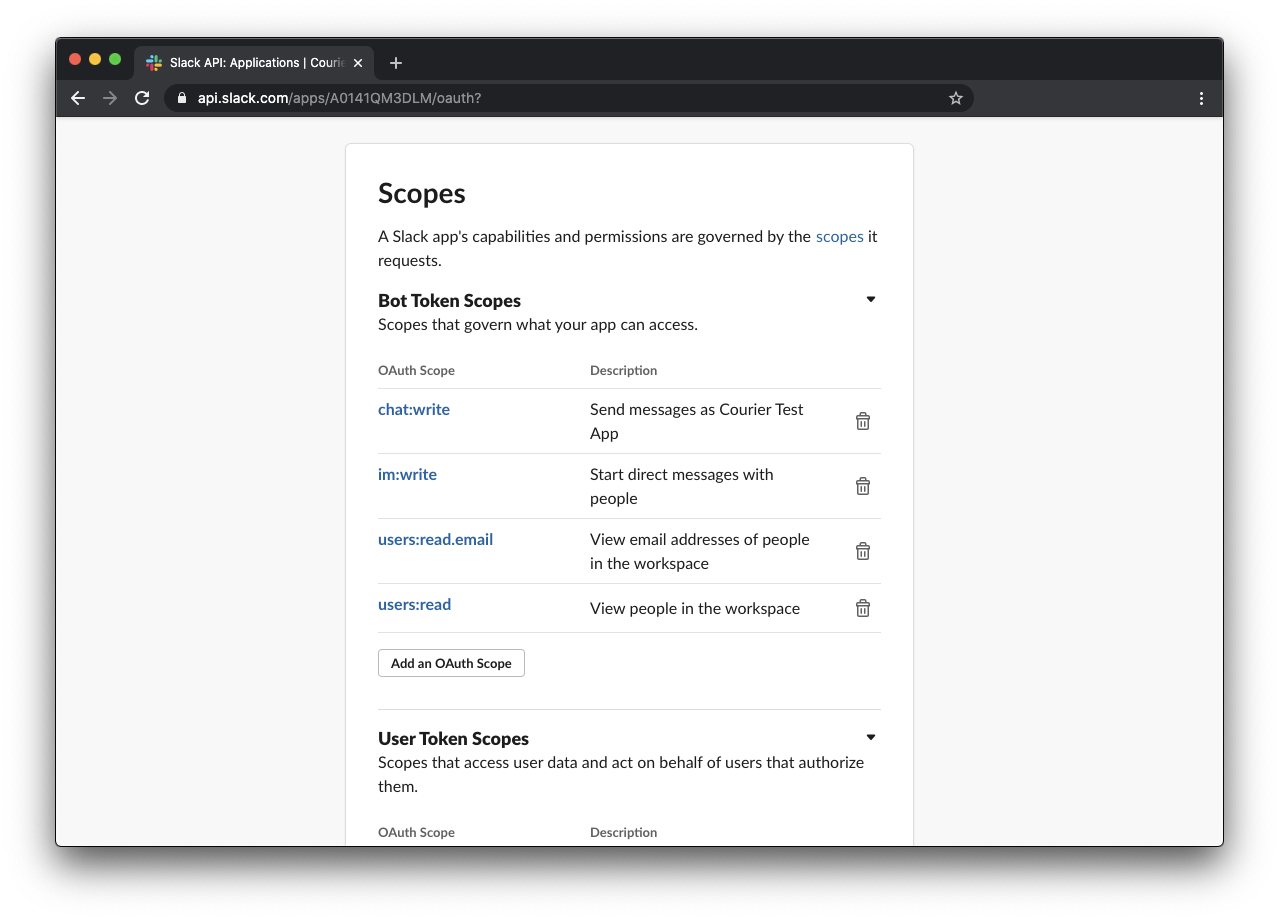
3. Under "OAuth & Permissions", add these Bot Token Scopes: `chat:write`, `im:write`, `users:read`, `users:read.email`.
4. Click "Install App to Workspace" and authorize.
5. Copy the **Bot User OAuth Access Token** (starts with `xoxb-`).
1. Go to the [Slack Apps page](https://api.slack.com/apps) and click "Create an App".
2. Choose "From scratch", give your app a name, and select your development workspace.
3. Under "OAuth & Permissions", add these Bot Token Scopes: `chat:write`, `im:write`, `users:read`, `users:read.email`.
4. Click "Install App to Workspace" and authorize.
5. Copy the **Bot User OAuth Access Token** (starts with `xoxb-`).
 Go to the Courier [Assets page](https://app.courier.com/assets/templates) and click + New > Message Template.
Select Slack from your list of integrations.
In the sidebar, click the newly added Slack block to open the Slack template editor.
Add your desired message content to the template.
Click Preview, then select Create Test Event.
Enter your bot token in the Access Token field.
Click Send—your message should appear in Slack!
***
## Message Targeting Reference
Courier supports sending Slack messages to users and channels in several ways. Here are the most common targeting methods:
```json Direct Message by Email theme={null}
{
"message": {
"to": {
"slack": {
"access_token": "xoxb-xxxxx",
"email": "user@example.com"
}
}
}
}
```
```json Direct Message by User ID theme={null}
{
"message": {
"to": {
"slack": {
"access_token": "xoxb-xxxxx",
"user_id": "UEFNTF6QL"
}
}
}
}
```
```json Message a Channel theme={null}
{
"message": {
"to": {
"slack": {
"access_token": "xoxb-xxxxx",
"channel": "CL2MR6HEX"
}
}
}
}
```
Order of Precedence: If you provide more than one of
Go to the Courier [Assets page](https://app.courier.com/assets/templates) and click + New > Message Template.
Select Slack from your list of integrations.
In the sidebar, click the newly added Slack block to open the Slack template editor.
Add your desired message content to the template.
Click Preview, then select Create Test Event.
Enter your bot token in the Access Token field.
Click Send—your message should appear in Slack!
***
## Message Targeting Reference
Courier supports sending Slack messages to users and channels in several ways. Here are the most common targeting methods:
```json Direct Message by Email theme={null}
{
"message": {
"to": {
"slack": {
"access_token": "xoxb-xxxxx",
"email": "user@example.com"
}
}
}
}
```
```json Direct Message by User ID theme={null}
{
"message": {
"to": {
"slack": {
"access_token": "xoxb-xxxxx",
"user_id": "UEFNTF6QL"
}
}
}
}
```
```json Message a Channel theme={null}
{
"message": {
"to": {
"slack": {
"access_token": "xoxb-xxxxx",
"channel": "CL2MR6HEX"
}
}
}
}
```
Order of Precedence: If you provide more than one of channel, user\_id, or email, Courier will use them in this order: channel > user\_id > email.
***
## Overrides
You can override the payload sent to Slack's [chat.postMessage](https://api.slack.com/methods/chat.postMessage) using `providers.slack.override.body`. This is useful for advanced formatting, interactivity, and threading.
#### Unfurl Links
```json theme={null}
{
"providers": {
"slack": {
"override": {
"body": {
"unfurl_links": true
}
}
}
}
}
```
#### Slack Blocks (Block Kit)
Send rich, interactive layouts using [Slack blocks](https://api.slack.com/block-kit):
```json theme={null}
{
"providers": {
"slack": {
"override": {
"body": {
"blocks": [
{ "type": "header", "text": { "type": "plain_text", "text": "Welcome!" } },
{ "type": "section", "text": { "type": "mrkdwn", "text": "This is a *section* block." } }
],
"text": "Fallback plain text."
}
}
}
}
}
```
Design and preview your blocks visually with the [Slack Block Kit Builder](https://app.slack.com/block-kit-builder/).
#### Replying in a Thread
To reply to a thread, set the `thread_ts` value:
```json theme={null}
{
"providers": {
"slack": {
"override": {
"body": {
"thread_ts": "1234567890.123456"
}
}
}
}
}
```
### Mentioning Users
Mention a user in your message using `<@USER_ID>` syntax in your template:
```
Hello <@UEFNTF6QL>, you have a new notification!
```
You can also use variables for dynamic mentions.
### Preventing Unwanted Mentions
Slack automatically parses text for `@name` patterns and turns them into mentions. If your message content includes text that resembles a mention but shouldn't trigger one, set [`verbatim: true`](https://docs.slack.dev/reference/block-kit/composition-objects/text-object/) on the Block Kit text object to disable this parsing.
Courier's standard template blocks (text, quote, etc.) don't expose the `verbatim` flag. To use it, either pass raw Block Kit JSON via `providers.slack.override.body.blocks` or use a [Jsonnet block](/platform/content/content-blocks/jsonnet-blocks) in the template designer:
```json theme={null}
{
"type": "section",
"text": {
"type": "mrkdwn",
"text": ">>> Message from @jennifer about the deployment",
"verbatim": true
}
}
```
### Slash Command Responses
If responding to a [Slash Command](https://api.slack.com/interactivity/slash-commands), use the `response_url` as an incoming webhook:
```json theme={null}
{
"to": {
"slack": {
"incoming_webhook": {
"url": "https://hooks.slack.com/commands/1234/5678"
}
}
}
}
```
Set `override.slack.body.response_type` to `in_channel` or `ephemeral` as needed.
### Incoming Webhooks
You can send messages to a channel using a Slack [Incoming Webhook](https://api.slack.com/messaging/webhooks):
```json theme={null}
{
"to": {
"slack": {
"incoming_webhook": {
"url": "https://hooks.slack.com/services/T00000000/B00000000/XXXXXXXXXXXXXXXXXXXXXXXX"
}
}
}
}
```
### Updating Notifications
To update a previously sent Slack message, set a "replacement key" (usually `ts`) in your notification template's Slack channel settings. Courier will use this key to update the message instead of posting a new one.
***
## Tracking Delivery
When Courier sends a Slack message via Bot OAuth (`chat.postMessage`), it captures Slack's `ts` (message timestamp identifier) and `channel` (conversation ID) from the API response. You can use these values to thread replies, update messages, or link back to the original Slack message.
### Where delivery data appears
Slack-specific fields are returned in the `providers` array of the [GET /messages/{id}](/api-reference/sent-messages/get-message) response and in [`message:updated`](/platform/workspaces/outbound-webhooks#messageupdated) webhook events:
```json theme={null}
{
"providers": [
{
"provider": "slack",
"status": "DELIVERED",
"channel": {
"key": "direct_message:slack",
"name": "Slack",
"template": "SFTYJKSF0241SVH2TWY97TTFFTQG"
},
"reference": {
"channel": "C04EXAMPLE",
"ts": "1630512468.000700"
},
"sent": 1630512468691,
"delivered": 1630512468700
}
]
}
```
| Field | Description |
| ------------------------------- | --------------------------------------------------------------------------------------------------------------------------------- |
| `providers[].reference.ts` | Slack message timestamp. Use this to [reply in a thread](#replying-in-a-thread) or [update the message](#updating-notifications). |
| `providers[].reference.channel` | Slack conversation ID where the message was posted. |
| `providers[].channel` | Courier routing metadata (template and channel key); not the Slack channel ID. |
Slack messages are marked as `DELIVERED` immediately after sending because Slack's API confirms delivery synchronously. The `delivered` and `sent` timestamps will be very close together.
Incoming Webhook sends may not include `reference` data because Slack's Incoming Webhook API does not return `ts` or `channel` in its response.
***
## Troubleshooting
* **Missing or incorrect Slack scopes:**
* Double-check your app has all required scopes (`chat:write`, `im:write`, `users:read`, `users:read.email`, and `chat:write.public` for channels).
* Reinstall your Slack app after updating scopes.
* **Bot not invited to channel:**
* Make sure your Slack app/bot is a member of the channel you want to message.
* **Invalid or missing tokens:**
* Ensure you are using the correct Bot User OAuth Access Token (starts with `xoxb-`).
* Never use a user token or an expired token.
* **Permission errors or message not delivered:**
* Check the [Courier Message Logs](https://app.courier.com/logs/messages) for error details and troubleshooting tips.
* **User or channel not found:**
* Double-check the email, user\_id, or channel ID. For channels, copy the ID from the Slack URL.
* **Message Truncated:**
* Slack blocks [limit the characters](https://api.slack.com/reference/block-kit/blocks#section) in a single section to 3k characters. Courier automatically truncates Slack messages over 3k characters by removing escape and formating characters that are added by Slack after submitting the block.
If you're still stuck, reach out to Courier support at [support@courier.com](mailto:support@courier.com).