> ## Documentation Index
> Fetch the complete documentation index at: https://www.courier.com/docs/llms.txt
> Use this file to discover all available pages before exploring further.
# Opsgenie
> Trigger alerts in Opsgenie from Courier by using a template with the Opsgenie channel, optional dynamic data, and override support for custom messages and API keys.
## Setup
Install the Opsgenie integration from the [Courier integrations catalog](https://app.courier.com/integrations/catalog/opsgenie).
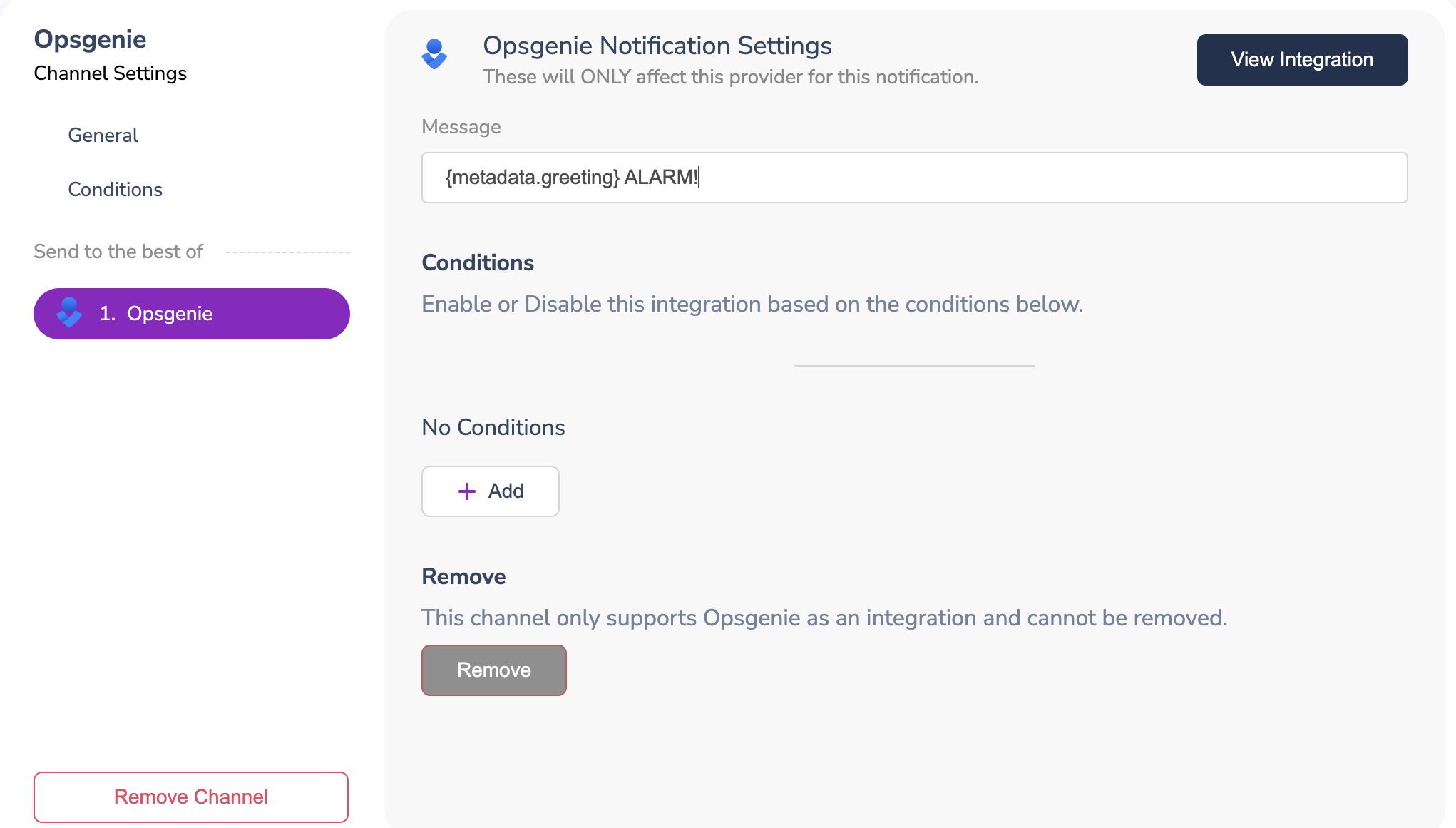
To configure the Opsgenie provider, you must set a value in the `Message` field in the channel configuration. You can use a static message or enhance it with the `data` property in the API call payload.
 ## Profile Requirements
Opsgenie does not require any profile data. If you include the Opsgenie channel in your notification template, Courier will route the notification to Opsgenie.
```json theme={null}
{
"message": {
"to": {},
"template": "TEMPLATE_ID"
}
}
```
To add dynamic content to your message, include the `data` property in the API call payload:
```json theme={null}
{
"message": {
"data": {
"metadata": {
"greeting": "Hey... DO NOT PANIC..."
}
},
"providers": {
"opsgenie": {
"override": {
"config": {
"apiKey": "YOUR_OPSGENIE_API_KEY"
}
}
}
},
"template": "TEMPLATE_ID",
"to": {}
}
}
```
After processing the request, the notification will include the value from the `data` property.
## Profile Requirements
Opsgenie does not require any profile data. If you include the Opsgenie channel in your notification template, Courier will route the notification to Opsgenie.
```json theme={null}
{
"message": {
"to": {},
"template": "TEMPLATE_ID"
}
}
```
To add dynamic content to your message, include the `data` property in the API call payload:
```json theme={null}
{
"message": {
"data": {
"metadata": {
"greeting": "Hey... DO NOT PANIC..."
}
},
"providers": {
"opsgenie": {
"override": {
"config": {
"apiKey": "YOUR_OPSGENIE_API_KEY"
}
}
}
},
"template": "TEMPLATE_ID",
"to": {}
}
}
```
After processing the request, the notification will include the value from the `data` property.
 ## Overrides
You can use overrides to change the configuration or request body that Courier sends to Opsgenie. For example, you can change the API key or the message body.
If you are using Opsgenie in the Europe region, use the URL `https://api.eu.opsgenie.com/v2` and the API key associated with your EU instance.
```json theme={null}
{
"message": {
"template": "TEMPLATE_ID",
"to": {},
"providers": {
"opsgenie": {
"override": {
"config": {
"apiKey": "YOUR_OPSGENIE_API_KEY",
"url": "https://api.eu.opsgenie.com/v2"
},
"headers": {},
"body": {
"message": "YOUR MESSAGE"
}
}
}
}
}
}
```
## Overrides
You can use overrides to change the configuration or request body that Courier sends to Opsgenie. For example, you can change the API key or the message body.
If you are using Opsgenie in the Europe region, use the URL `https://api.eu.opsgenie.com/v2` and the API key associated with your EU instance.
```json theme={null}
{
"message": {
"template": "TEMPLATE_ID",
"to": {},
"providers": {
"opsgenie": {
"override": {
"config": {
"apiKey": "YOUR_OPSGENIE_API_KEY",
"url": "https://api.eu.opsgenie.com/v2"
},
"headers": {},
"body": {
"message": "YOUR MESSAGE"
}
}
}
}
}
}
```