> ## Documentation Index
> Fetch the complete documentation index at: https://www.courier.com/docs/llms.txt
> Use this file to discover all available pages before exploring further.
# Apple Push Notifications Service (APNS)
> Step-by-step guide for integrating Apple Push Notifications Service (APNS) with Courier, including setup instructions, sending options with and without SDKs, manual token management, tracking, and advanced APNS overrides.
## Setup
1. Go to your [Apple Developer Account](https://developer.apple.com/account)
2. Click "Certificates"
3. Click "Keys"
4. Click the "+" button
5. Name the Key
6. Click "Enable" on "Apple Push Notifications Service (APNs)"
7. Click "Continue"
8. Click "Register"
9. Click "Download"
10. Go to the [APNS Provider Configuration](https://app.courier.com/channels/apn)
11. Enter the required information
12. Click "Install Provider" or "Save"
## Profile Requirements
APNS requires device tokens. You can provide them directly via `apn.token` or `apn.tokens` in the recipient profile, or use a Courier Mobile SDK which syncs tokens automatically and lets you send to a `user_id` instead.
## Getting APNS Tokens
### With a Courier Mobile SDK
Using a Courier Mobile SDK is the best way to set this up. All Courier Mobile SDKs sync APNS tokens to Courier and will be automatically managed. This allows you to send pushes directly to a `user_id` rather than APNS tokens.
| Mobile SDK | APNS Token Management | Tracking Analytics |
| :------------------------------------------ | :-------------------: | :----------------: |
| [iOS](/sdk-libraries/ios) | Automatic | Automatic |
| [Android](/sdk-libraries/android) | Not Supported | Not Supported |
| [React Native](/sdk-libraries/react-native) | Automatic | Automatic |
| [Flutter](/sdk-libraries/flutter) | Automatic | Automatic |
### Without a Courier Mobile SDK
Follow [Apple's Documentation](https://developer.apple.com/documentation/usernotifications) to setup push notifications on your iOS device.
What APNS tokens look like:
```bash theme={null}
469d754f85604fa6bcf98c4299ba9aa760a5a3b01c5ca7277342cf3fbcea5c91
```
You will need to sync, store, and manage your user's APNS tokens. This likely will require you to create entries in your database, deploy separate endpoints, and add extra development time that can be avoided with a [Courier Mobile SDK](#with-a-courier-mobile-sdk).
If you'd like Courier delivery and click tracking, you will also need to manually make a request to the `trackingUrl`.
## Sending Messages
This is a common example request you can make to the [`send`](/api-reference/send/send-a-message) api that shows:
1. `providers.apn.override.body.aps.YOUR_CUSTOM_KEY` for adding custom data to your payload. This is usually used for opening a specific screen in your app when the user takes action on a push notification.
2. `providers.apn.override.body.aps` for applying iOS specific values. You can learn more about these [here](https://developer.apple.com/documentation/usernotifications/setting_up_a_remote_notification_server/generating_a_remote_notification).
### ClickAction and Data Mapping
To pass a click action link into your push notification, enable the data mapping toggle in the Push [channel settings](/platform/content/template-designer/template-designer-overview).
You can then perform a send request that looks similar to this, passing the clickAction in the data payload.
```json theme={null}
{
"message": {
"to": {
"user_id": "mike_mill_made_it"
},
"template": "HY59FFJQTR4JGEGT25HQD2D201GK",
"data": {
"click_action": "https://courier.com"
}
}
}
```
Sounds and badges can only be configured in the override schema of a send request at this time, and are not compatible with a `template` field attached. If your push notifications require sounds and badges, shape your push request with `sound` and `badge` in the override as shown below.
### Sending to a `user_id` (Recommended)
```bash theme={null}
curl --request POST \
--url https://api.courier.com/send \
--header 'Authorization: Bearer YOUR_AUTH_KEY' \
--header 'Content-Type: application/json' \
--data '{
"message": {
"to": {
"user_id": "YOUR_USER_ID"
},
"content": {
"title": "Hey there 👋",
"body": "Have a great day 😁"
},
"routing": {
"method": "all",
"channels": [
"apn"
]
},
"providers": {
"apn": {
"override": {
"body": {
"aps": {
"alert": {
"title": "Hey there 👋",
"body": "Have a great day 😁"
},
"sound": "ping.aiff",
"badge": 99,
"YOUR_CUSTOM_KEY": "YOUR_CUSTOM_VALUE"
}
}
}
}
}
}
}'
```
#### Silent Messages
```bash theme={null}
curl --request POST \
--url https://api.courier.com/send \
--header 'Authorization: Bearer YOUR_AUTH_KEY' \
--header 'Content-Type: application/json' \
--data '{
"message": {
"to": {
"user_id": "YOUR_USER_ID"
},
"content": {
"title": "...",
"body": "..."
},
"routing": {
"method": "all",
"channels": [
"apn"
]
},
"providers": {
"apn": {
"override": {
"silent": true,
"body": {
"badge": 123
}
}
}
}
}
}'
```
### Sending to a `token`
```bash theme={null}
curl --request POST \
--url https://api.courier.com/send \
--header 'Authorization: Bearer YOUR_AUTH_KEY' \
--header 'Content-Type: application/json' \
--data '{
"message": {
"to": {
"apn": {
"token": "YOUR_APNS_TOKEN"
}
},
"content": {
"title": "Hey there 👋",
"body": "Have a great day 😁"
},
"routing": {
"method": "all",
"channels": [
"apn"
]
},
"providers": {
"apn": {
"override": {
"body": {
"aps": {
"alert": {
"title": "Hey there 👋",
"body": "Have a great day 😁"
},
"sound": "ping.aiff",
"badge": 99,
"YOUR_CUSTOM_KEY": "YOUR_CUSTOM_VALUE"
}
}
}
}
}
}
}'
```
### Sending to multiple `tokens`
```bash theme={null}
curl --request POST \
--url https://api.courier.com/send \
--header 'Authorization: Bearer YOUR_AUTH_KEY' \
--header 'Content-Type: application/json' \
--data '{
"message": {
"to": {
"apn": {
"tokens": ["APNS_TOKEN_ONE", "APNS_TOKEN_TWO"]
}
},
"content": {
"title": "Hey there 👋",
"body": "Have a great day 😁"
},
"routing": {
"method": "all",
"channels": [
"apn"
]
},
"providers": {
"apn": {
"override": {
"body": {
"aps": {
"alert": {
"title": "Hey there 👋",
"body": "Have a great day 😁"
},
"sound": "ping.aiff",
"badge": 99,
"YOUR_CUSTOM_KEY": "YOUR_CUSTOM_VALUE"
}
}
}
}
}
}
}'
```
To send to specific devices when a user has multiple APNS tokens, see [Targeting Specific Devices](/external-integrations/push/intro-to-push#targeting-specific-devices).
## Troubleshooting
### `BadDeviceToken`
APNs returns `BadDeviceToken` when the token you sent does not match any registered device for the environment (production vs. sandbox) you are targeting. Common causes:
* **Wrong environment**: A token registered against the sandbox environment will fail in production and vice versa. Check the environment toggle in [APNS channel settings](https://app.courier.com/channels/apn).
* **Stale token**: The user uninstalled and reinstalled the app, generating a new token. Update the stored token via the [Device Tokens API](/api-reference/device-tokens/add-single-token-to-user) when your app receives a new registration token.
* **Token never registered**: The token was never added to a Courier user profile. Ensure your app calls the registration step on every launch.
### `BadEnvironmentKeyInToken`
The key you used to sign the APNs JWT belongs to a different team or bundle ID than the token. Verify that the **Team ID** and **Key ID** in your Courier APNS configuration match the app whose tokens you are sending.
### Token status cascade (14-day lockout)
When APNs marks a device token as invalid — due to a failed send, a wrong-environment send, or the user disabling push — that status is **global across all providers**. Any subsequent send attempt through any APNs integration using the same token will fail for up to 14 days, even if you switch providers or channels.
One failed send through a misconfigured APNS environment can poison the token globally for 14 days. If you see sudden spikes in `BadDeviceToken` errors after a configuration change, audit your environment setting first. Tokens that hit this state must be refreshed from the device.
## Automatic Courier Mobile SDK Formatting
By default, Courier automatically formats parts of the APNS payload to make a better developer experience for you if you are working with a [Courier Mobile SDK](#with-a-courier-mobile-sdk). Here you can manage the [automatic APNS settings](https://app.courier.com/channels/apn).
What this setting does:
1. Creates a simple toggle to send to Apple's production or sandbox push notification environment. Production (switch is on) is used in your production app and Sandbox (switch is off) is used for testing and development. [More Details](https://developer.apple.com/documentation/usernotifications/setting_up_a_remote_notification_server/sending_notification_requests_to_apns#2947606)
2. "Attach Mutable Content" supports Courier's [iOS Notification Service Extension](https://github.com/trycourier/courier-ios/blob/22baf9b577c6e8182f0dad10bab532596f26ade9/Docs/3_PushNotifications.md#4-add-the-notification-service-extension-optional-but-recommended) for better push notification delivery tracking.
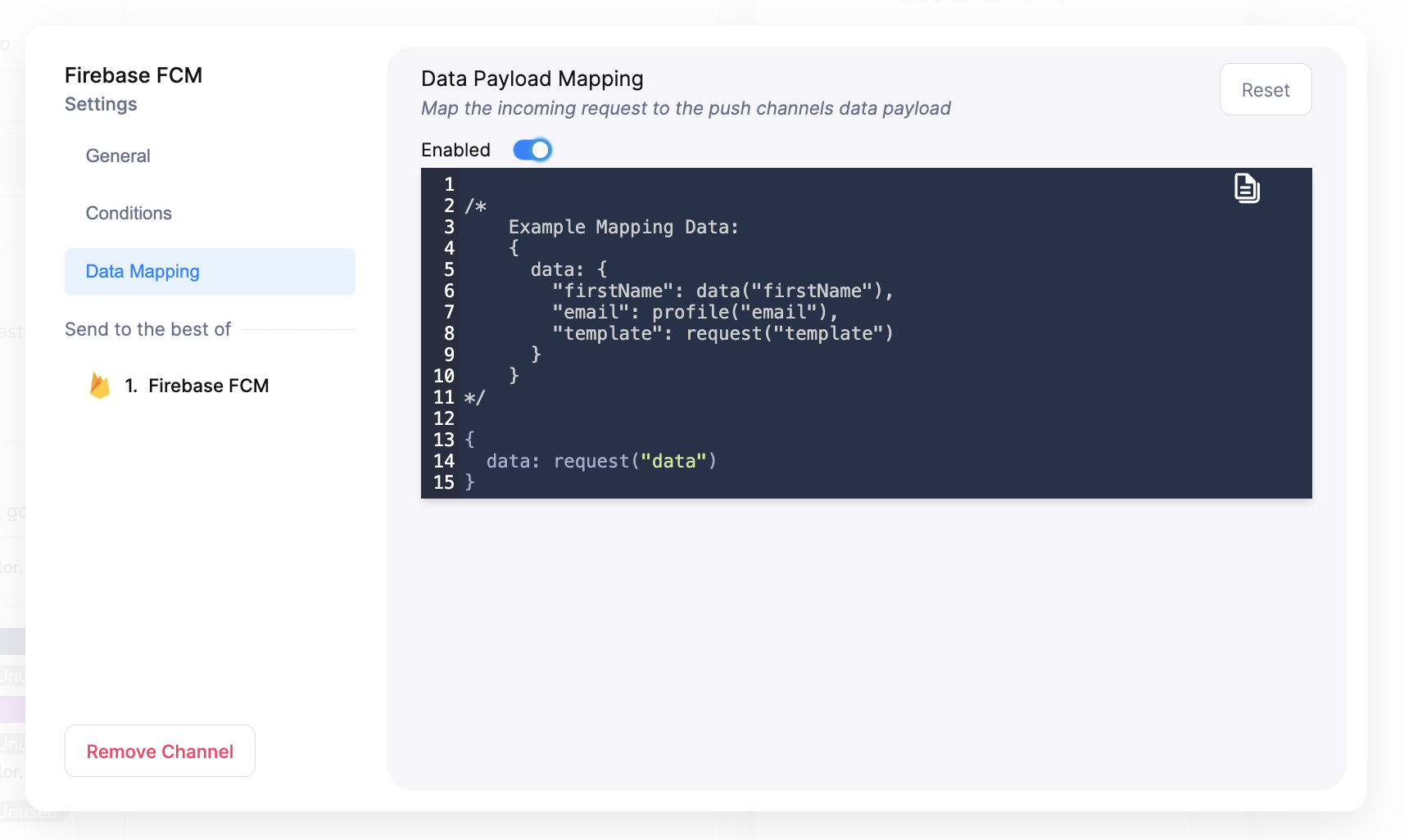 You can then perform a send request that looks similar to this, passing the clickAction in the data payload.
```json theme={null}
{
"message": {
"to": {
"user_id": "mike_mill_made_it"
},
"template": "HY59FFJQTR4JGEGT25HQD2D201GK",
"data": {
"click_action": "https://courier.com"
}
}
}
```
You can then perform a send request that looks similar to this, passing the clickAction in the data payload.
```json theme={null}
{
"message": {
"to": {
"user_id": "mike_mill_made_it"
},
"template": "HY59FFJQTR4JGEGT25HQD2D201GK",
"data": {
"click_action": "https://courier.com"
}
}
}
```
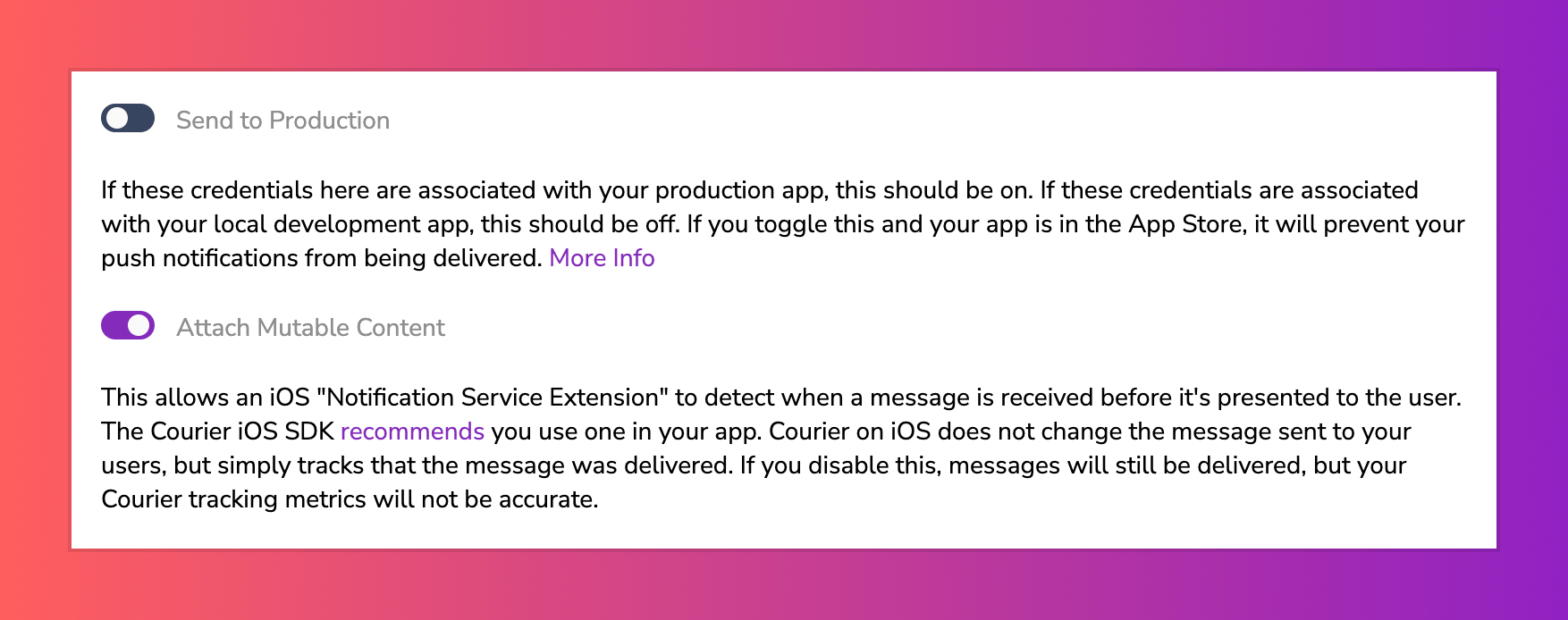 What this setting does:
1. Creates a simple toggle to send to Apple's production or sandbox push notification environment. Production (switch is on) is used in your production app and Sandbox (switch is off) is used for testing and development. [More Details](https://developer.apple.com/documentation/usernotifications/setting_up_a_remote_notification_server/sending_notification_requests_to_apns#2947606)
2. "Attach Mutable Content" supports Courier's [iOS Notification Service Extension](https://github.com/trycourier/courier-ios/blob/22baf9b577c6e8182f0dad10bab532596f26ade9/Docs/3_PushNotifications.md#4-add-the-notification-service-extension-optional-but-recommended) for better push notification delivery tracking.
What this setting does:
1. Creates a simple toggle to send to Apple's production or sandbox push notification environment. Production (switch is on) is used in your production app and Sandbox (switch is off) is used for testing and development. [More Details](https://developer.apple.com/documentation/usernotifications/setting_up_a_remote_notification_server/sending_notification_requests_to_apns#2947606)
2. "Attach Mutable Content" supports Courier's [iOS Notification Service Extension](https://github.com/trycourier/courier-ios/blob/22baf9b577c6e8182f0dad10bab532596f26ade9/Docs/3_PushNotifications.md#4-add-the-notification-service-extension-optional-but-recommended) for better push notification delivery tracking.