> ## Documentation Index
> Fetch the complete documentation index at: https://www.courier.com/docs/llms.txt
> Use this file to discover all available pages before exploring further.
# Message Logs
> Courier Message Logs track each message's status—Queued, Sent, Delivered, Opened, Clicked—with filtering by status, provider, recipient, and timeline events. Includes inbox sync, automation logs, and error insights.
The Courier Message Logs provide a timeline and insights into the status of your notifications, recipients, lists, and automations. Each step in the send status has a visual representation.
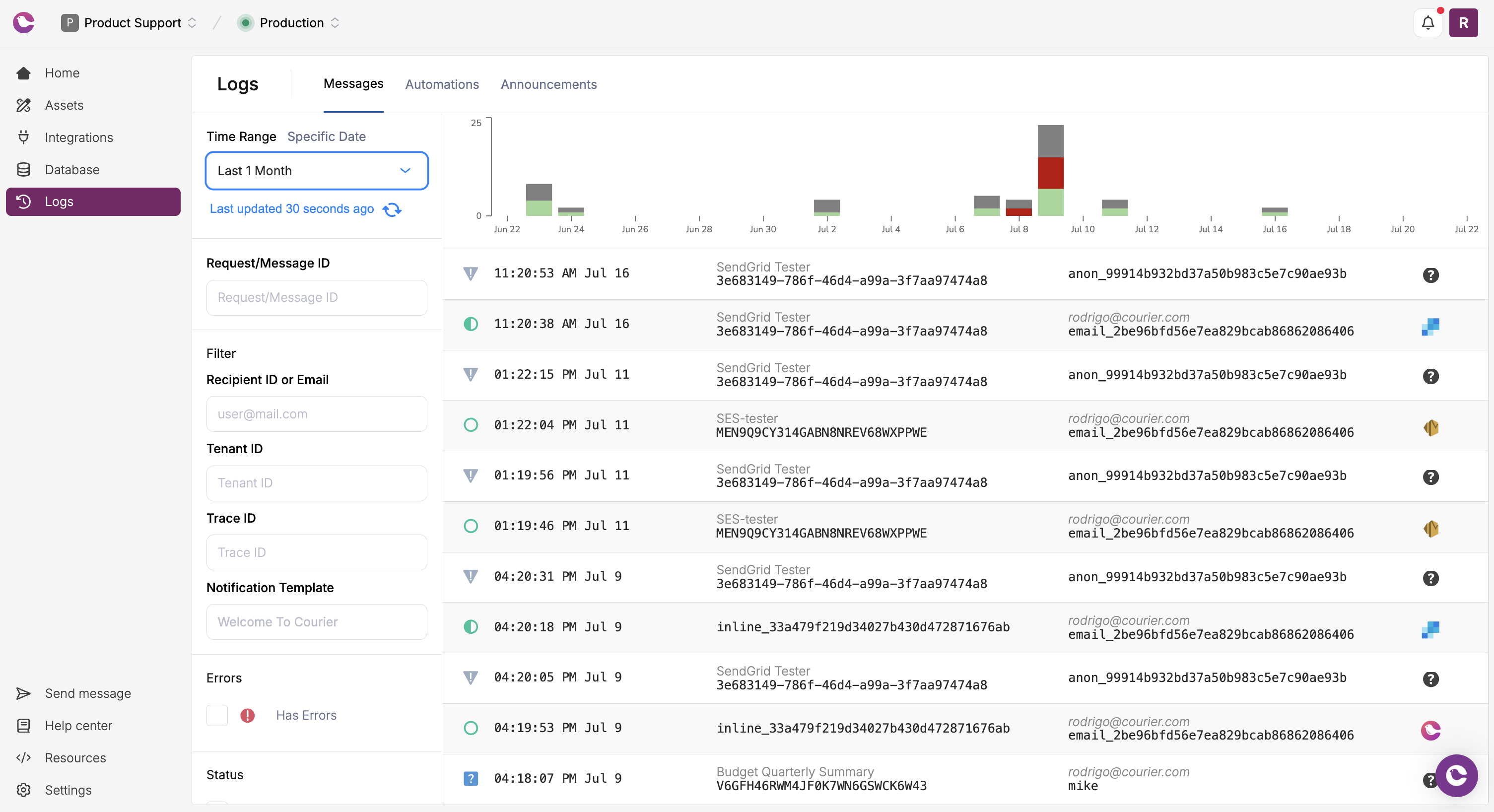 The message logs display key information in the summary view:
* The **Status** of each message send request
* The **Notification** and **Recipient** associated with each send
* The **Provider** channels for the notification
## Message Statuses
Every message in Courier progresses through a series of statuses. The diagram below shows the delivery and engagement lifecycle for a typical message.
### Status Lifecycle
```mermaid actions={false} theme={null}
flowchart TD
A[ENQUEUED] --> B[ROUTED]
B --> C[SENT]
C --> D[DELIVERED]
C --> E[OPENED]
C --> F[CLICKED]
D --> E
E --> F
A -.-> U[UNROUTABLE]
C -.-> X[UNDELIVERABLE]
```
Statuses are tracked by two independent systems:
* **Provider confirmation**: `DELIVERED` depends on your email provider asynchronously confirming that the recipient's mail server accepted the message. This can be delayed by minutes or hours depending on the provider, and may never arrive at all.
* **Courier tracking**: `OPENED` and `CLICKED` are tracked by Courier directly via a tracking pixel and link redirect. They fire as soon as the recipient acts, independent of provider delivery confirmation.
Because these systems operate independently, you may receive `OPENED` or `CLICKED` before `DELIVERED`, or without `DELIVERED` arriving at all. If you're monitoring delivery, treat `OPENED` and `CLICKED` as confirmation that the message was received.
### Delivery Statuses
| Status | Description |
| ------------- | ---------------------------------------------------------------------------------------------------------------------------------------------------------- |
| **Queued** | Courier has received a valid Send API request and is processing the notification. |
| **Routed** | Channel routing is complete; the message is ready for delivery. |
| **Sent** | Courier sent the request to the downstream provider. A `200` response from Courier does not guarantee delivery; the provider may still reject the message. |
| **Delivered** | The provider confirmed the message was accepted. For email, this means it reached the inbox. For SMS, not all providers return delivery confirmation. |
| **Opened** | The recipient opened the notification (email with open tracking enabled, or inbox/push via SDK events). |
| **Clicked** | The recipient clicked a link in the notification (requires link tracking enabled). |
### Processing Statuses
| Status | Description |
| ------------- | ---------------------------------------------------------------------------------------------------------------------------------------------- |
| **Delayed** | The message is scheduled for future delivery. |
| **Digested** | The message was added to a digest queue and will be sent as part of a batched notification. |
| **Filtered** | The message was filtered out by routing rules, preferences, or send conditions. |
| **Throttled** | The message is being rate-limited due to [send limits](/platform/sending/send-limits) or workspace quota. |
| **Simulated** | The message was sent with a [mock key](/platform/workspaces/environments-api-keys), simulating the lifecycle without delivery to the provider. |
### Error Statuses
| Status | Description |
| ----------------- | ---------------------------------------------------------------------------------------------- |
| **Undeliverable** | The provider rejected the message or delivery failed. |
| **Unmapped** | The Notification ID does not exist or the Event ID is not mapped to a notification. |
| **Unroutable** | No valid delivery route was found (e.g., missing recipient address or no configured channels). |
| **Canceled** | The message delivery was canceled before being sent. |
**Has Errors** is not a status but a filter indicator showing that the message timeline includes an error response.
### Terminal vs. Intermediate Statuses
Courier's status model is **monotonic** — a message's status only moves forward through the lifecycle. Understanding which statuses are terminal (final) and which are intermediate (in-progress) helps you build accurate delivery tracking:
| Category | Statuses | Meaning |
| ------------------------- | ------------------------------------------------ | ------------------------------------------------------------------------------------------------------------------------------------------------------------------------------------------- |
| **Intermediate** | `ENQUEUED`, `ROUTED`, `SENT` | The message is still being processed or awaiting provider confirmation. These are not final outcomes — a message at `SENT` may still progress to `DELIVERED`, `OPENED`, or `UNDELIVERABLE`. |
| **Terminal (delivery)** | `DELIVERED`, `UNDELIVERABLE` | The delivery attempt has a final outcome. `DELIVERED` means the provider confirmed acceptance; `UNDELIVERABLE` means the provider rejected the message or delivery failed. |
| **Terminal (engagement)** | `OPENED`, `CLICKED` | The recipient interacted with the message. These can follow `DELIVERED` or even `UNDELIVERABLE` in edge cases (e.g., a security scanner loading the tracking pixel on a bounced email). |
| **Terminal (routing)** | `UNROUTABLE`, `CANCELED`, `FILTERED`, `UNMAPPED` | The message never reached a provider. |
`SENT` is not a terminal status. A message at `SENT` means Courier handed it to the provider, but the provider has not yet confirmed delivery. If a message stays at `SENT` indefinitely, it typically means delivery tracking is not configured (e.g., missing provider webhooks or polling). Check your provider's webhook or delivery status configuration.
### Channel-Specific Behavior
| Event | Email | Push (APNS/FCM) | Inbox | SMS | Chat |
| ------------- | -------------------------------- | --------------------------------- | --------------------------------- | ---------------------------------------- | -------------------------- |
| **Delivered** | Provider confirms inbox delivery | Delivery Rate = 100% - Error Rate | Delivery Rate = 100% - Error Rate | Not all providers return delivery status | Provider confirms delivery |
| **Opened** | Requires open tracking | Not supported | SDK push events | n/a | n/a |
| **Clicked** | Requires link tracking | SDK click events | SDK click events | n/a | Requires link tracking |
### Inbox and Channel Sync
Notification event states are synchronized between the [inbox](/platform/inbox/inbox-overview) and other channels within a notification template. For example, if a notification was sent with both `inbox` and `email` channels, opening the email will mark the inbox notification as `read`.
This sync only works one way. Reading an inbox message will not mark an email as `opened`.
## Viewing Logs
### Histogram
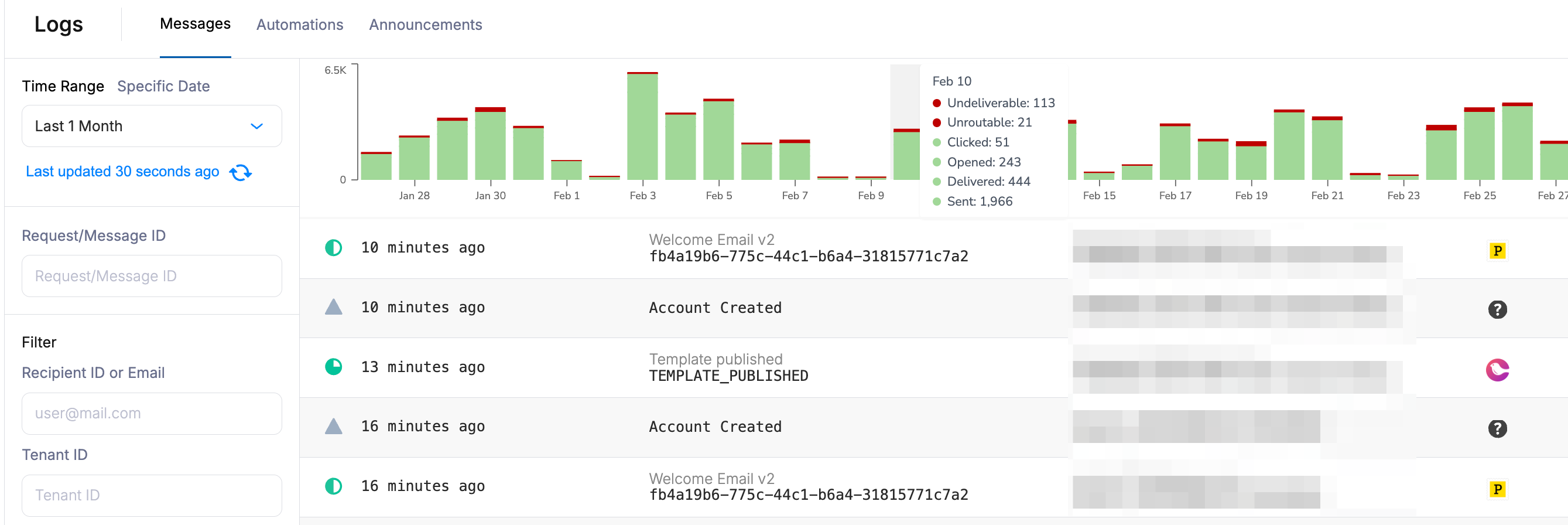
The logs histogram breaks down delivery metrics for specific days, grouping events in color-coordinated graphs.
The message logs display key information in the summary view:
* The **Status** of each message send request
* The **Notification** and **Recipient** associated with each send
* The **Provider** channels for the notification
## Message Statuses
Every message in Courier progresses through a series of statuses. The diagram below shows the delivery and engagement lifecycle for a typical message.
### Status Lifecycle
```mermaid actions={false} theme={null}
flowchart TD
A[ENQUEUED] --> B[ROUTED]
B --> C[SENT]
C --> D[DELIVERED]
C --> E[OPENED]
C --> F[CLICKED]
D --> E
E --> F
A -.-> U[UNROUTABLE]
C -.-> X[UNDELIVERABLE]
```
Statuses are tracked by two independent systems:
* **Provider confirmation**: `DELIVERED` depends on your email provider asynchronously confirming that the recipient's mail server accepted the message. This can be delayed by minutes or hours depending on the provider, and may never arrive at all.
* **Courier tracking**: `OPENED` and `CLICKED` are tracked by Courier directly via a tracking pixel and link redirect. They fire as soon as the recipient acts, independent of provider delivery confirmation.
Because these systems operate independently, you may receive `OPENED` or `CLICKED` before `DELIVERED`, or without `DELIVERED` arriving at all. If you're monitoring delivery, treat `OPENED` and `CLICKED` as confirmation that the message was received.
### Delivery Statuses
| Status | Description |
| ------------- | ---------------------------------------------------------------------------------------------------------------------------------------------------------- |
| **Queued** | Courier has received a valid Send API request and is processing the notification. |
| **Routed** | Channel routing is complete; the message is ready for delivery. |
| **Sent** | Courier sent the request to the downstream provider. A `200` response from Courier does not guarantee delivery; the provider may still reject the message. |
| **Delivered** | The provider confirmed the message was accepted. For email, this means it reached the inbox. For SMS, not all providers return delivery confirmation. |
| **Opened** | The recipient opened the notification (email with open tracking enabled, or inbox/push via SDK events). |
| **Clicked** | The recipient clicked a link in the notification (requires link tracking enabled). |
### Processing Statuses
| Status | Description |
| ------------- | ---------------------------------------------------------------------------------------------------------------------------------------------- |
| **Delayed** | The message is scheduled for future delivery. |
| **Digested** | The message was added to a digest queue and will be sent as part of a batched notification. |
| **Filtered** | The message was filtered out by routing rules, preferences, or send conditions. |
| **Throttled** | The message is being rate-limited due to [send limits](/platform/sending/send-limits) or workspace quota. |
| **Simulated** | The message was sent with a [mock key](/platform/workspaces/environments-api-keys), simulating the lifecycle without delivery to the provider. |
### Error Statuses
| Status | Description |
| ----------------- | ---------------------------------------------------------------------------------------------- |
| **Undeliverable** | The provider rejected the message or delivery failed. |
| **Unmapped** | The Notification ID does not exist or the Event ID is not mapped to a notification. |
| **Unroutable** | No valid delivery route was found (e.g., missing recipient address or no configured channels). |
| **Canceled** | The message delivery was canceled before being sent. |
**Has Errors** is not a status but a filter indicator showing that the message timeline includes an error response.
### Terminal vs. Intermediate Statuses
Courier's status model is **monotonic** — a message's status only moves forward through the lifecycle. Understanding which statuses are terminal (final) and which are intermediate (in-progress) helps you build accurate delivery tracking:
| Category | Statuses | Meaning |
| ------------------------- | ------------------------------------------------ | ------------------------------------------------------------------------------------------------------------------------------------------------------------------------------------------- |
| **Intermediate** | `ENQUEUED`, `ROUTED`, `SENT` | The message is still being processed or awaiting provider confirmation. These are not final outcomes — a message at `SENT` may still progress to `DELIVERED`, `OPENED`, or `UNDELIVERABLE`. |
| **Terminal (delivery)** | `DELIVERED`, `UNDELIVERABLE` | The delivery attempt has a final outcome. `DELIVERED` means the provider confirmed acceptance; `UNDELIVERABLE` means the provider rejected the message or delivery failed. |
| **Terminal (engagement)** | `OPENED`, `CLICKED` | The recipient interacted with the message. These can follow `DELIVERED` or even `UNDELIVERABLE` in edge cases (e.g., a security scanner loading the tracking pixel on a bounced email). |
| **Terminal (routing)** | `UNROUTABLE`, `CANCELED`, `FILTERED`, `UNMAPPED` | The message never reached a provider. |
`SENT` is not a terminal status. A message at `SENT` means Courier handed it to the provider, but the provider has not yet confirmed delivery. If a message stays at `SENT` indefinitely, it typically means delivery tracking is not configured (e.g., missing provider webhooks or polling). Check your provider's webhook or delivery status configuration.
### Channel-Specific Behavior
| Event | Email | Push (APNS/FCM) | Inbox | SMS | Chat |
| ------------- | -------------------------------- | --------------------------------- | --------------------------------- | ---------------------------------------- | -------------------------- |
| **Delivered** | Provider confirms inbox delivery | Delivery Rate = 100% - Error Rate | Delivery Rate = 100% - Error Rate | Not all providers return delivery status | Provider confirms delivery |
| **Opened** | Requires open tracking | Not supported | SDK push events | n/a | n/a |
| **Clicked** | Requires link tracking | SDK click events | SDK click events | n/a | Requires link tracking |
### Inbox and Channel Sync
Notification event states are synchronized between the [inbox](/platform/inbox/inbox-overview) and other channels within a notification template. For example, if a notification was sent with both `inbox` and `email` channels, opening the email will mark the inbox notification as `read`.
This sync only works one way. Reading an inbox message will not mark an email as `opened`.
## Viewing Logs
### Histogram
The logs histogram breaks down delivery metrics for specific days, grouping events in color-coordinated graphs.
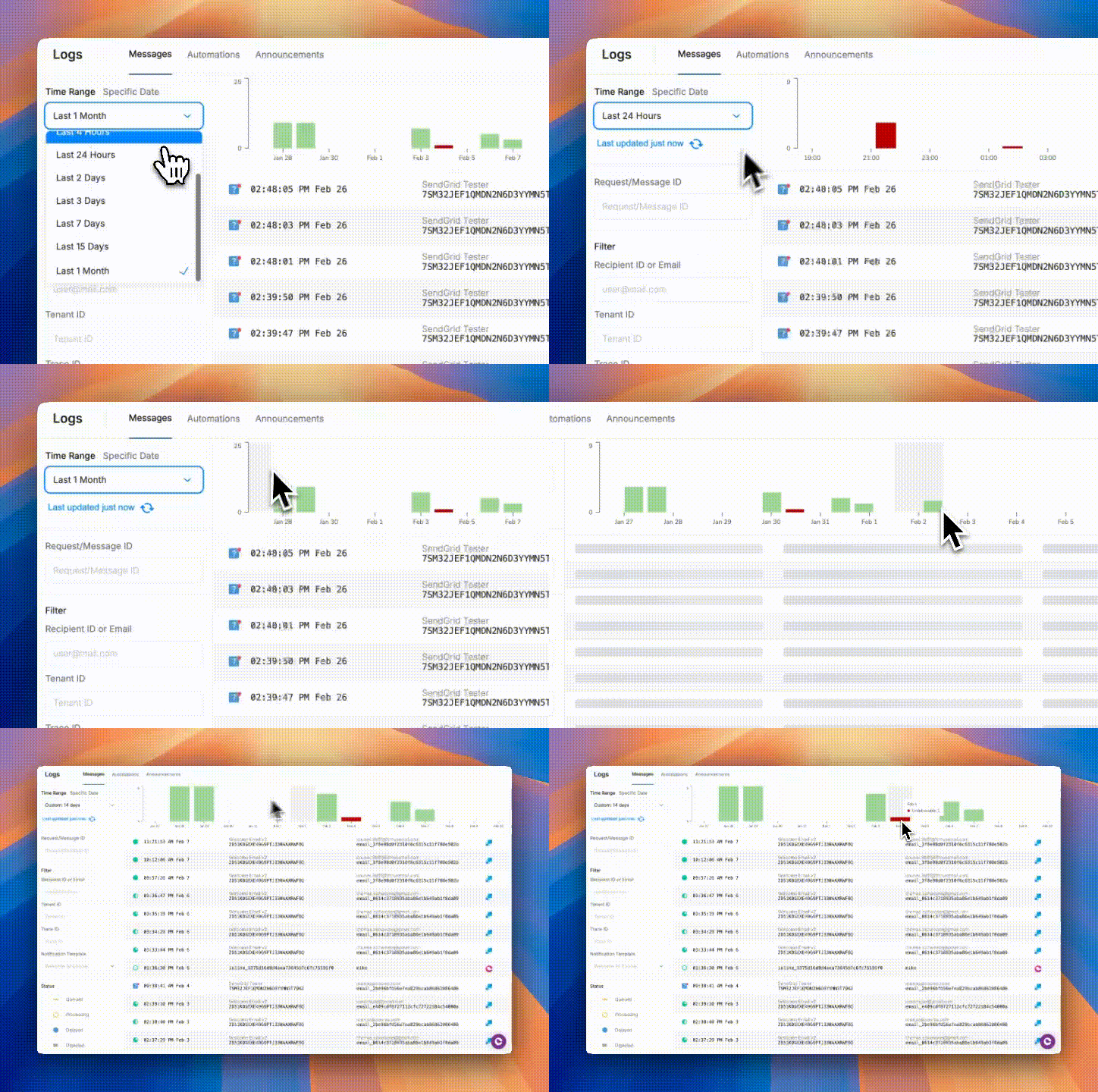
 You can drag-select within the histogram to filter to a custom date range.
 ### Log Detail View
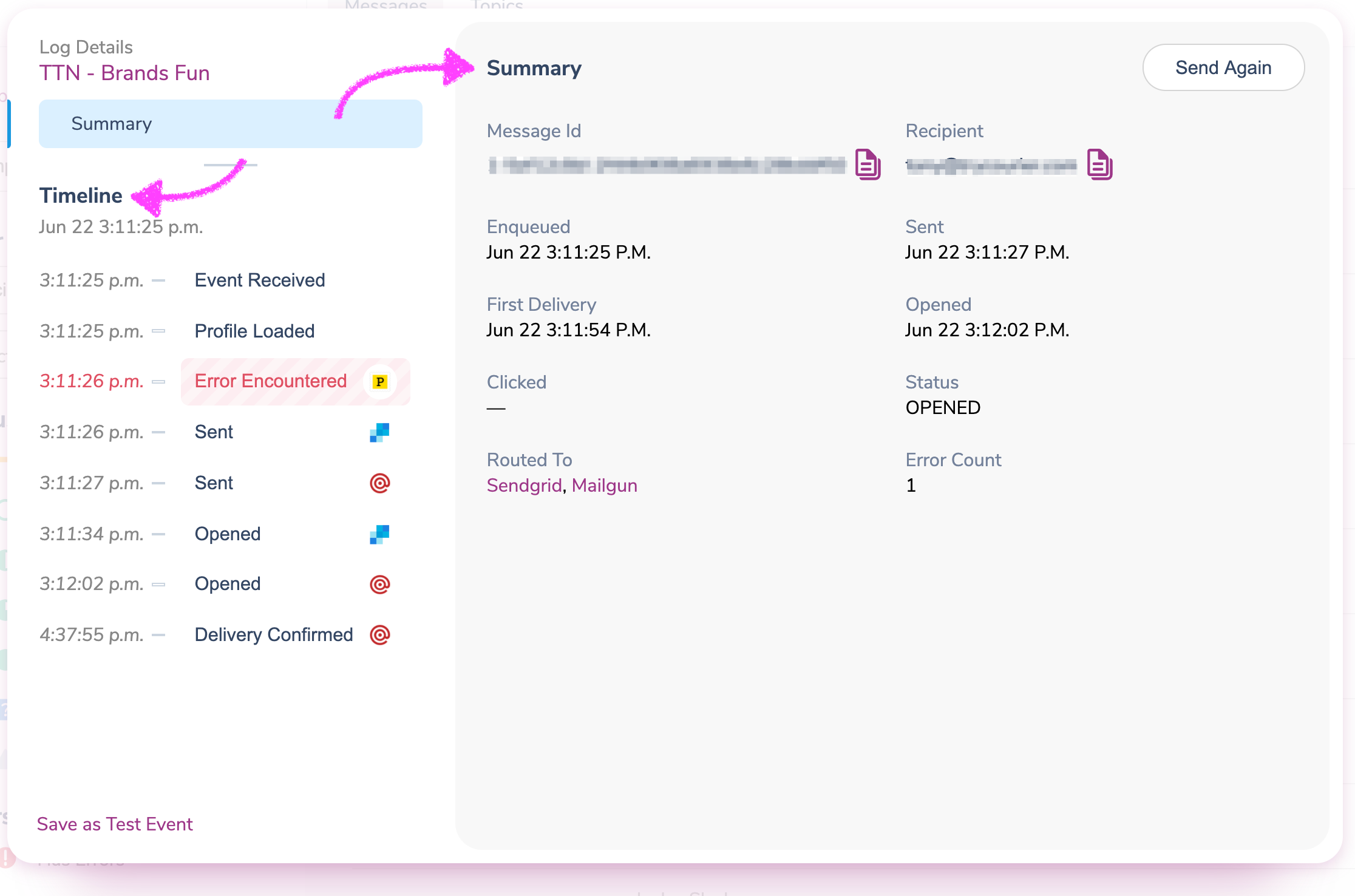
Click any notification in the list view to open the log details, which includes:
* **Summary** - Message and Recipient IDs, timestamps for each stage (Enqueued, Sent, First Delivery, etc.)
* **Timeline** - Detailed timeline of every step; click any event to view additional details
### Log Detail View
Click any notification in the list view to open the log details, which includes:
* **Summary** - Message and Recipient IDs, timestamps for each stage (Enqueued, Sent, First Delivery, etc.)
* **Timeline** - Detailed timeline of every step; click any event to view additional details
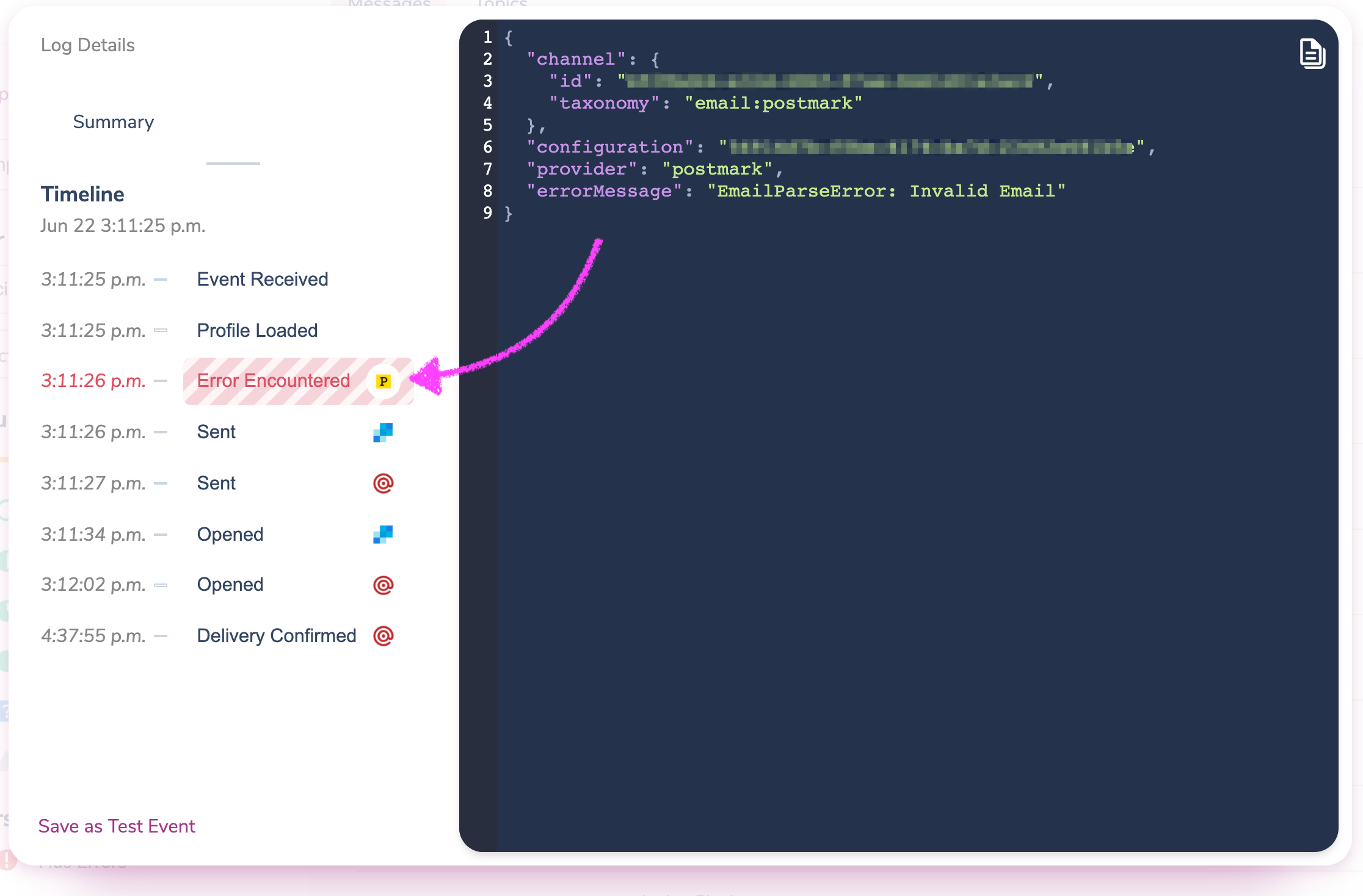
 To investigate errors, click the `Error Encountered` event in the timeline to review the error message.
 ## Filtering Logs
Filter your message logs to find specific notifications:
* **Date** - Filter by date range (limited by your account's [log retention](#log-retention) period)
* **Recipient** - Filter by email address or Recipient ID
* **Notification** - Filter by specific notification template
* **Status** - Filter by one or more statuses: Queued, Sent, Delivered, Opened, Clicked, Undeliverable, Unmapped
* **Errors** - Show only notifications with errors in their timeline
* **Provider** - Filter by one or more integrated providers
Unmapped means the Event ID does not [map to a notification](https://help.courier.com/en/articles/4189555-send-basics-how-notifications-are-triggered-and-sent-with-courier) or the Notification ID is invalid.
## Rendered Content
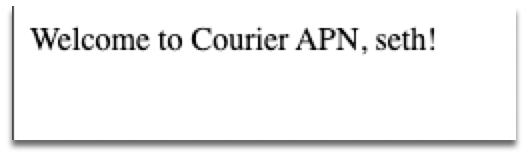
The Courier [Messages API](/api-reference/sent-messages/get-message-content) lets you retrieve the rendered output of any notification in your send history. This is useful for debugging and verifying what was actually sent to providers.
To fetch the rendered content for a message:
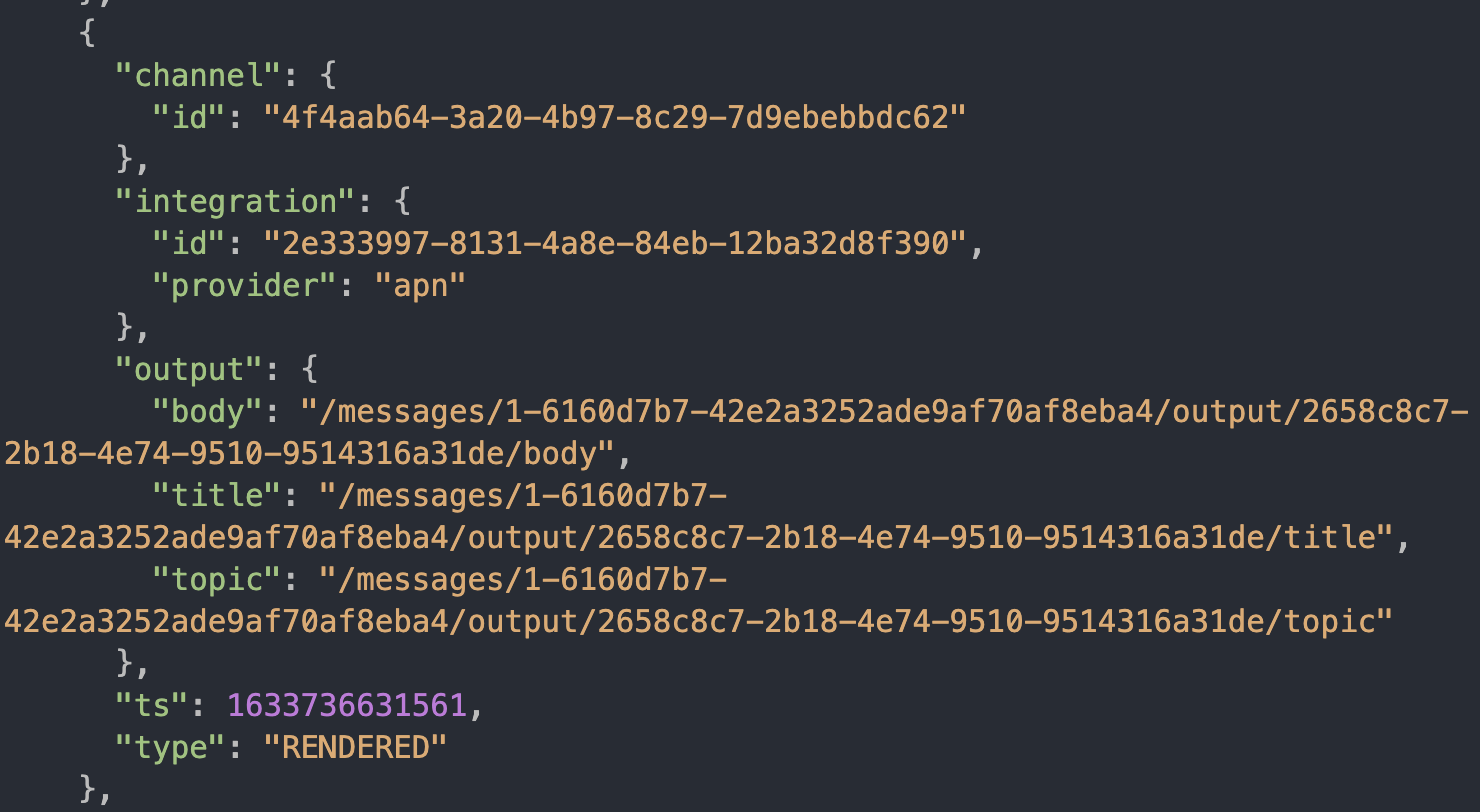
1. **Fetch message history** - Use GET `/messages/:message_id/history` with the message ID from your send response. You can use the history [endpoint](/api-reference/sent-messages/get-message-history) or the `getMessageHistory` SDK function.
2. **Fetch message content** - Use the root-relative URL from the `RENDERED` event in the history response, appended to the Courier API host: `https://api.courier.com`
## Filtering Logs
Filter your message logs to find specific notifications:
* **Date** - Filter by date range (limited by your account's [log retention](#log-retention) period)
* **Recipient** - Filter by email address or Recipient ID
* **Notification** - Filter by specific notification template
* **Status** - Filter by one or more statuses: Queued, Sent, Delivered, Opened, Clicked, Undeliverable, Unmapped
* **Errors** - Show only notifications with errors in their timeline
* **Provider** - Filter by one or more integrated providers
Unmapped means the Event ID does not [map to a notification](https://help.courier.com/en/articles/4189555-send-basics-how-notifications-are-triggered-and-sent-with-courier) or the Notification ID is invalid.
## Rendered Content
The Courier [Messages API](/api-reference/sent-messages/get-message-content) lets you retrieve the rendered output of any notification in your send history. This is useful for debugging and verifying what was actually sent to providers.
To fetch the rendered content for a message:
1. **Fetch message history** - Use GET `/messages/:message_id/history` with the message ID from your send response. You can use the history [endpoint](/api-reference/sent-messages/get-message-history) or the `getMessageHistory` SDK function.
2. **Fetch message content** - Use the root-relative URL from the `RENDERED` event in the history response, appended to the Courier API host: `https://api.courier.com`
 ### Rendered Content for Emails
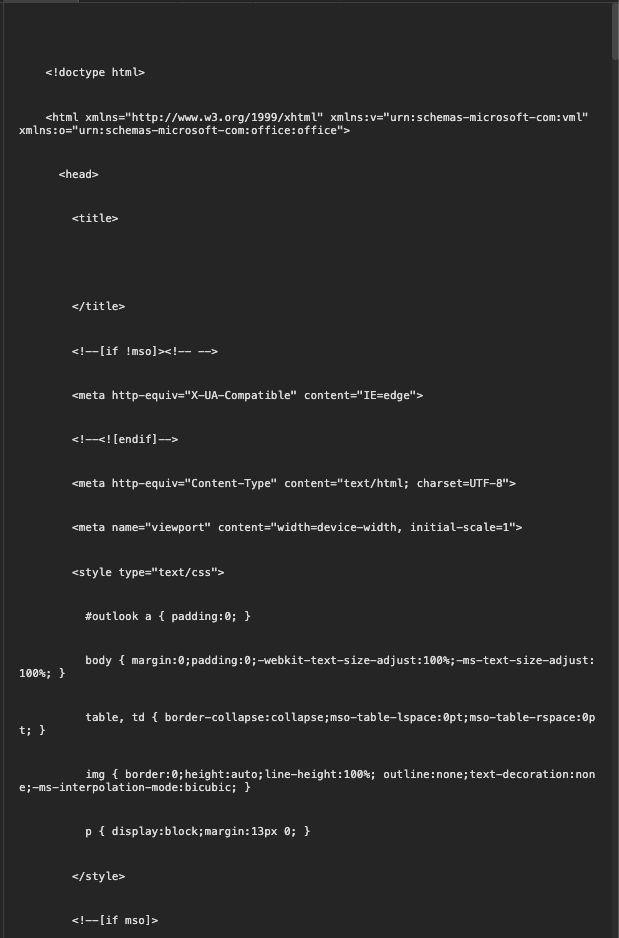
HTML content is returned with `content-type: text/html` as raw HTML:
```plaintext theme={null}
content-type: text/html
content-length: 32015
date: Tue, 26 Oct 2021 17:10:10 GMT
x-amzn-requestid: e9d54717-3cb0-4f1e-a47a-b64317738596
access-control-allow-origin: *
strict-transport-security: max-age=31536000;includeSubDomains;preload
```
### Rendered Content for Emails
HTML content is returned with `content-type: text/html` as raw HTML:
```plaintext theme={null}
content-type: text/html
content-length: 32015
date: Tue, 26 Oct 2021 17:10:10 GMT
x-amzn-requestid: e9d54717-3cb0-4f1e-a47a-b64317738596
access-control-allow-origin: *
strict-transport-security: max-age=31536000;includeSubDomains;preload
```
 ## Log Retention
Courier retains message logs for different periods depending on your account type:
* **Free and Pro accounts**: Logs are retained for **30 days**
* **Contracted accounts**: Logs are retained for **1 year**
The Log date filter in the Message Logs interface will only allow you to filter and view logs within your account's retention period. Logs older than the retention period are automatically deleted and cannot be recovered.
**Enterprise Customers**: If you need longer log retention periods, contact [Courier Support](mailto:support@courier.com) to discuss extended retention options.
## Troubleshooting Delivery Issues
If a message shows **Sent** but the recipient hasn't received it, use the timeline in the log detail view to identify where the problem is:
1. **Check the provider response.** Click the Sent event to see the raw response. If the provider returned an error, the details will be here.
2. **Check your provider's dashboard.** Cross-reference the message ID with your provider's activity feed (SendGrid Activity, Postmark Activity, SES console, etc.) for bounce, block, or deferral events.
3. **Verify sender authentication.** Confirm that SPF, DKIM, and DMARC records are correctly configured for your sending domain.
If the message shows **Delivered** but the recipient still hasn't received it, the issue is on the recipient's side; their mail server accepted the email, but an internal filter or email security gateway may be quarantining it.
For a full walkthrough, see [How to Debug Email Delivery Issues](/tutorials/monitoring/how-to-debug-delivery-issues).
## Automation Logs
The [Automation](/platform/automations/automations-overview) logs provide detailed insights into the status of an automation run as well as step details.
### Automation Run List
## Log Retention
Courier retains message logs for different periods depending on your account type:
* **Free and Pro accounts**: Logs are retained for **30 days**
* **Contracted accounts**: Logs are retained for **1 year**
The Log date filter in the Message Logs interface will only allow you to filter and view logs within your account's retention period. Logs older than the retention period are automatically deleted and cannot be recovered.
**Enterprise Customers**: If you need longer log retention periods, contact [Courier Support](mailto:support@courier.com) to discuss extended retention options.
## Troubleshooting Delivery Issues
If a message shows **Sent** but the recipient hasn't received it, use the timeline in the log detail view to identify where the problem is:
1. **Check the provider response.** Click the Sent event to see the raw response. If the provider returned an error, the details will be here.
2. **Check your provider's dashboard.** Cross-reference the message ID with your provider's activity feed (SendGrid Activity, Postmark Activity, SES console, etc.) for bounce, block, or deferral events.
3. **Verify sender authentication.** Confirm that SPF, DKIM, and DMARC records are correctly configured for your sending domain.
If the message shows **Delivered** but the recipient still hasn't received it, the issue is on the recipient's side; their mail server accepted the email, but an internal filter or email security gateway may be quarantining it.
For a full walkthrough, see [How to Debug Email Delivery Issues](/tutorials/monitoring/how-to-debug-delivery-issues).
## Automation Logs
The [Automation](/platform/automations/automations-overview) logs provide detailed insights into the status of an automation run as well as step details.
### Automation Run List
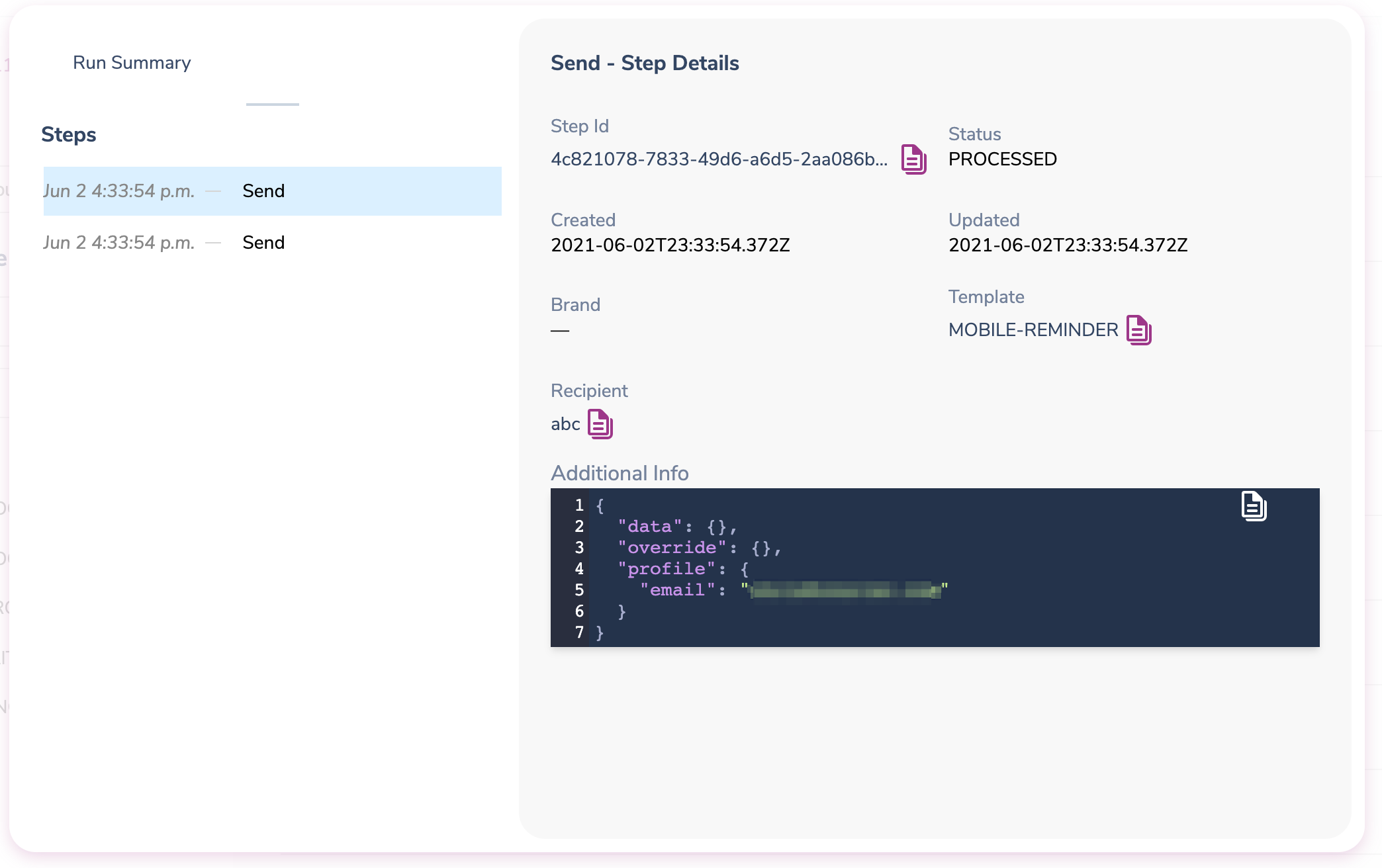
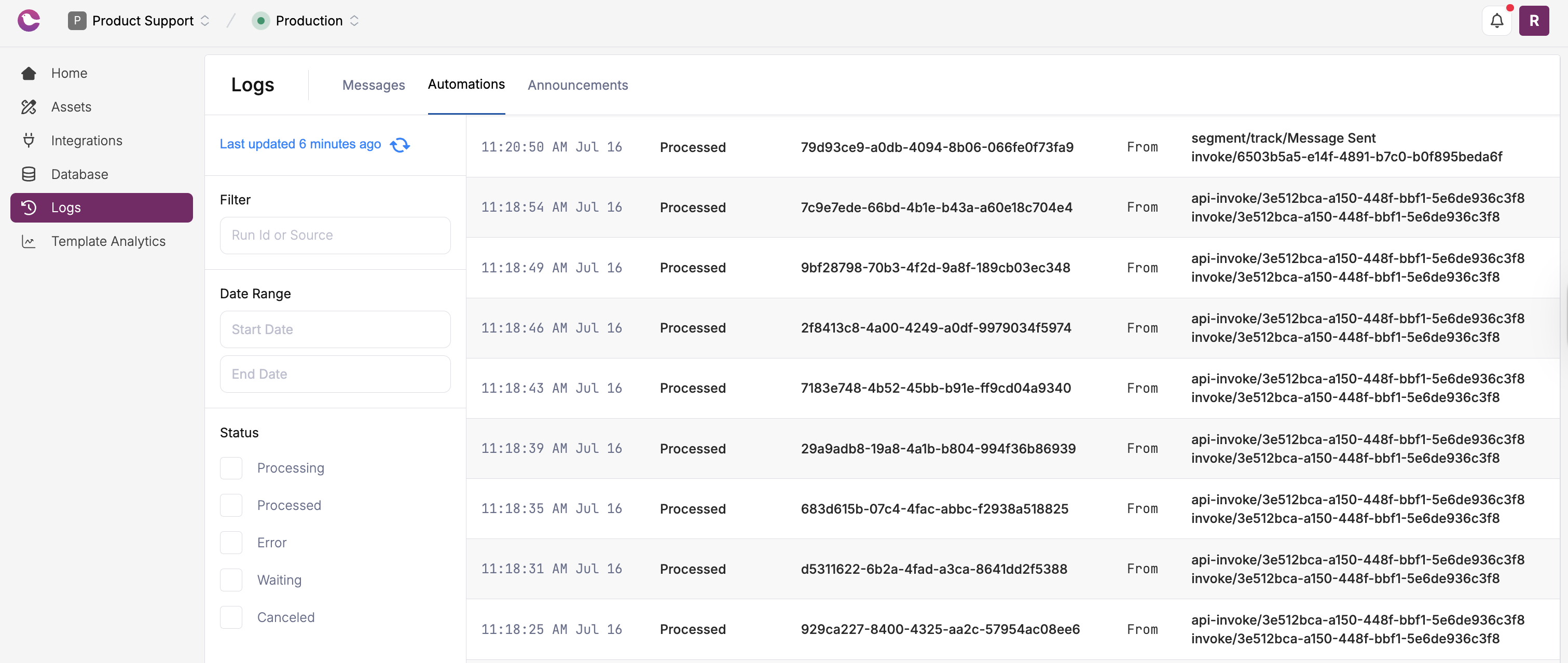 Clicking into one of the automation in log opens the run summary, providing details on each of the steps in the automation.