> ## Documentation Index
> Fetch the complete documentation index at: https://www.courier.com/docs/llms.txt
> Use this file to discover all available pages before exploring further.
# Cancelling An Automation
> Courier Automations can be cancelled using a dynamic cancellation token. Add the token in settings, then invoke a separate automation with a “Cancel Automation” node referencing the same token.
## Add a Cancellation Token
To allow an automation to be cancelled, add a cancellation token to the automation.
1. Navigate to the settings tab of the automation you want to cancel.
2. Add a cancellation token. This can be any value desired. Its best to use a dynamic value so
a specific automation invocation may be cancelled, rather than all running instances. For
example, you may use `refs.data.user_id`, which would allow the automation run to be associated
with the user the automation would send to. You can also reference profile fields with `refs.profile.*`.
3. Publish the Automation.
4. Create a new automation
5. Add the `Cancel Automation` node
6. Set the token to the same token from step 2.
7. Publish
## Canceling From the UI
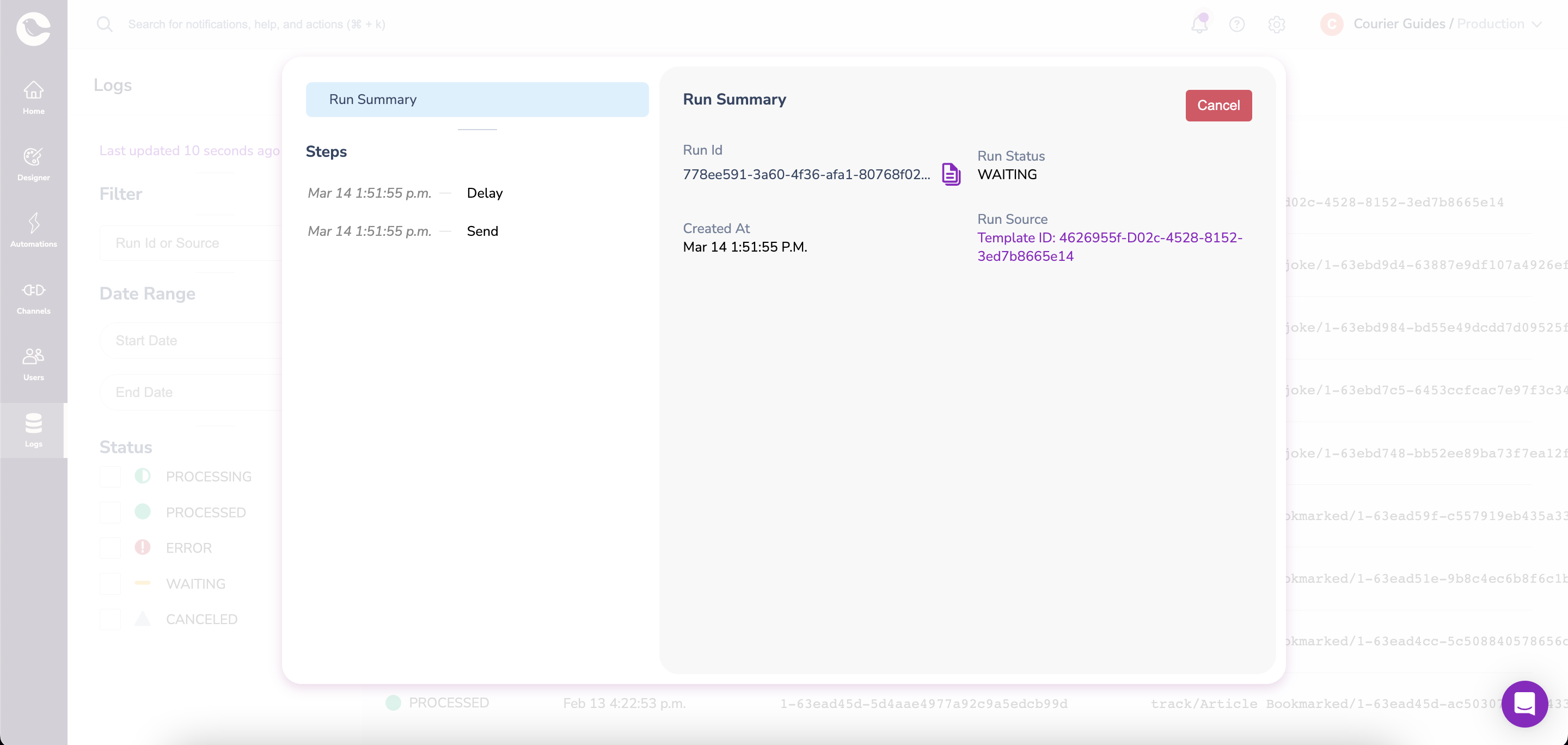
An automation can also be canceled from automation logs.
1. Navigate to the [automation logs page](https://app.courier.com/logs/automations) in Courier.
2. Find your automation in the logs, you can search with a run Id or source.
3. If your automation has not finished processing, a cancel button will be shown in the run summary.
4. Clicking this button will cancel your automation.
 ## Canceling Multiple Automations
When multiple automations share the same cancellation token and a cancel automation is invoked, all automations that have the same token will be simultaneously canceled.
## Templated Cancellation Token
It may be advantageous to create a compound key for your cancellation token. For example, if you want to have a cancellation token that combines two different fields, or a data field and a static string. In automations, most fields support Javascript string interpolation and the cancellation token is an example of one. The documentation above says you can use `refs`, for example `refs.data.user_id` and the following would be identical in the cancellation token field, `${data.user_id}`. For more advanced interpolation you can perform nested interpolations as well.
**Static Fields**
```javascript theme={null}
${`onboarding-flow-${data.user_id}`}
```
**Combining Fields**
```javascript theme={null}
${`${data.user_id}-${data.tenant_id}`}
```
## Canceling Multiple Automations
When multiple automations share the same cancellation token and a cancel automation is invoked, all automations that have the same token will be simultaneously canceled.
## Templated Cancellation Token
It may be advantageous to create a compound key for your cancellation token. For example, if you want to have a cancellation token that combines two different fields, or a data field and a static string. In automations, most fields support Javascript string interpolation and the cancellation token is an example of one. The documentation above says you can use `refs`, for example `refs.data.user_id` and the following would be identical in the cancellation token field, `${data.user_id}`. For more advanced interpolation you can perform nested interpolations as well.
**Static Fields**
```javascript theme={null}
${`onboarding-flow-${data.user_id}`}
```
**Combining Fields**
```javascript theme={null}
${`${data.user_id}-${data.tenant_id}`}
```