> ## Documentation Index
> Fetch the complete documentation index at: https://www.courier.com/docs/llms.txt
> Use this file to discover all available pages before exploring further.
# Debugger
> Courier’s Automation Debugger simulates test events through automation workflows. It allows inspecting node-level data, verifying run context, and debugging errors before triggering automations via API or production events.
# Automation Debugger
Courier's automation debugging tool can be used to run a test event through your automation template and debug any errors you may come across.
## Creating a Test Run Context
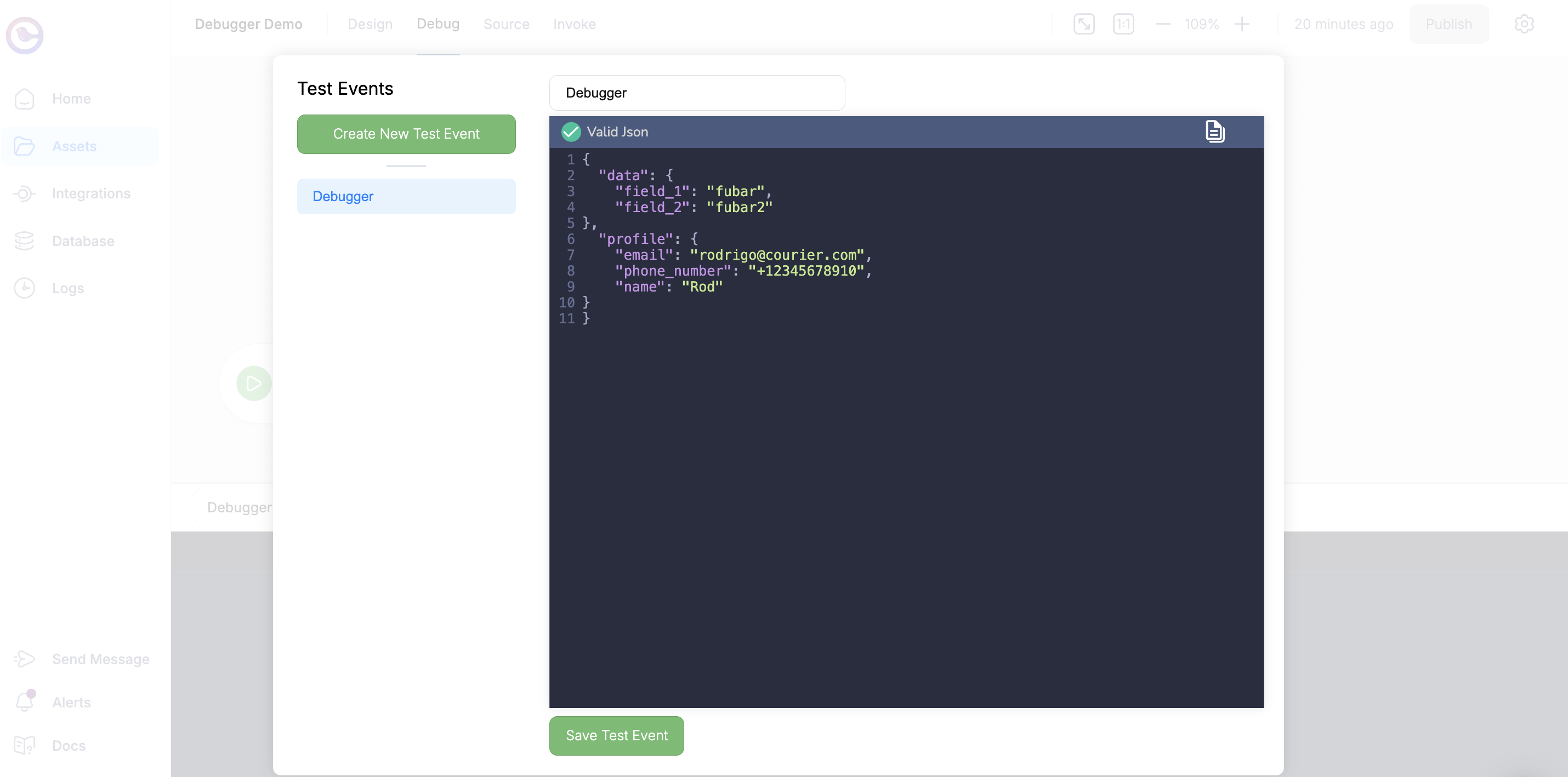
Similar to notification templates, automations can now be tested with test run contexts passed in and saved as test events. These tests can mimic an incoming payload passed through [Segment](/platform/automations/segment), [inbound events](/platform/automations/inbound-events), or an [adhoc automation call](/platform/automations/steps). You can create a test event from the `Debug` tab in your automation template.
 ## Running The Test Run Context
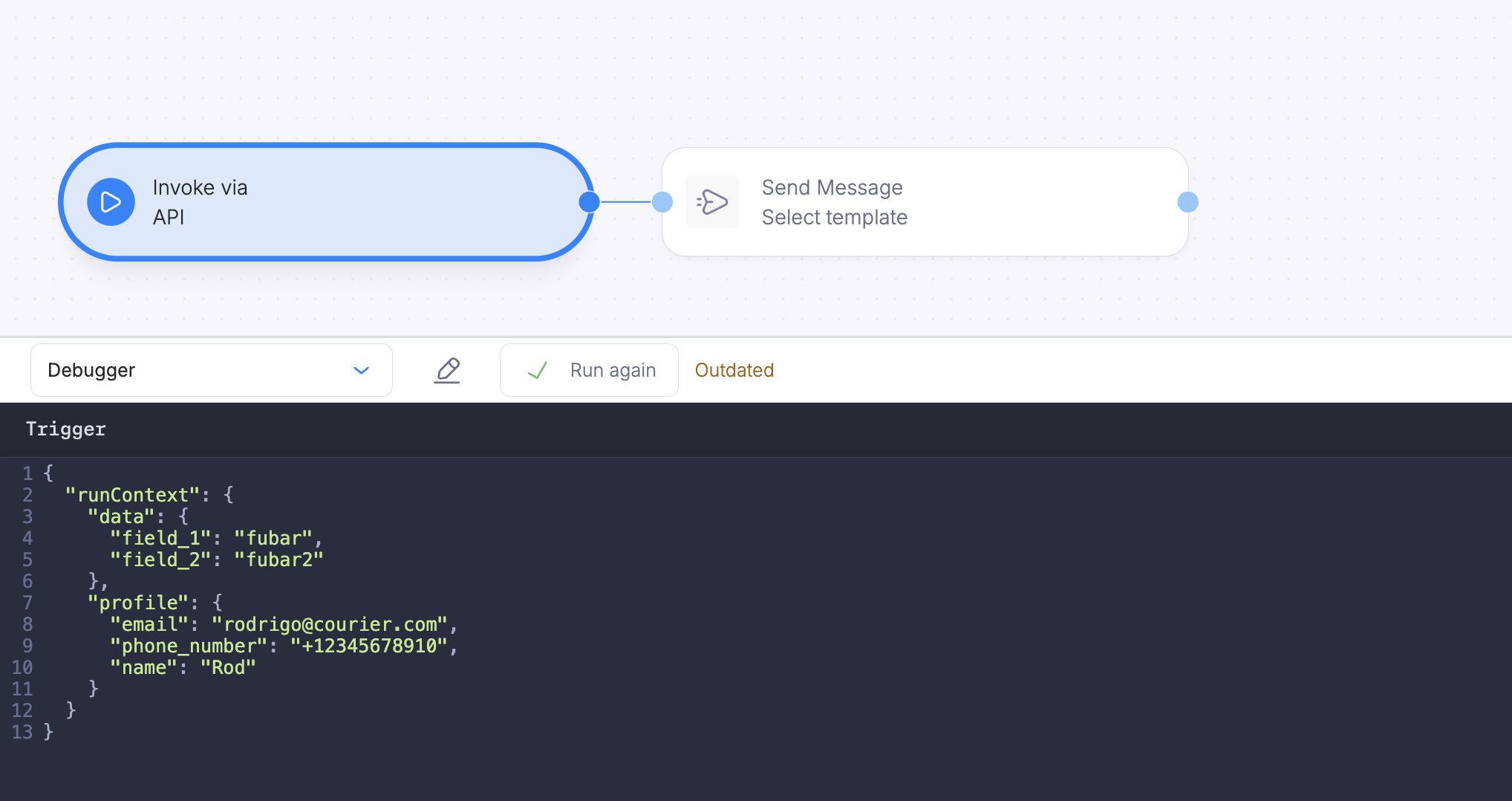
With your automation test event configured, you can execute a test run through the debugging tool to simulate the event passed through the automation workflow. When ready, click on the `Run Again` button and select each node to see the data being passed.
## Running The Test Run Context
With your automation test event configured, you can execute a test run through the debugging tool to simulate the event passed through the automation workflow. When ready, click on the `Run Again` button and select each node to see the data being passed.
 ### Verifying Test Data
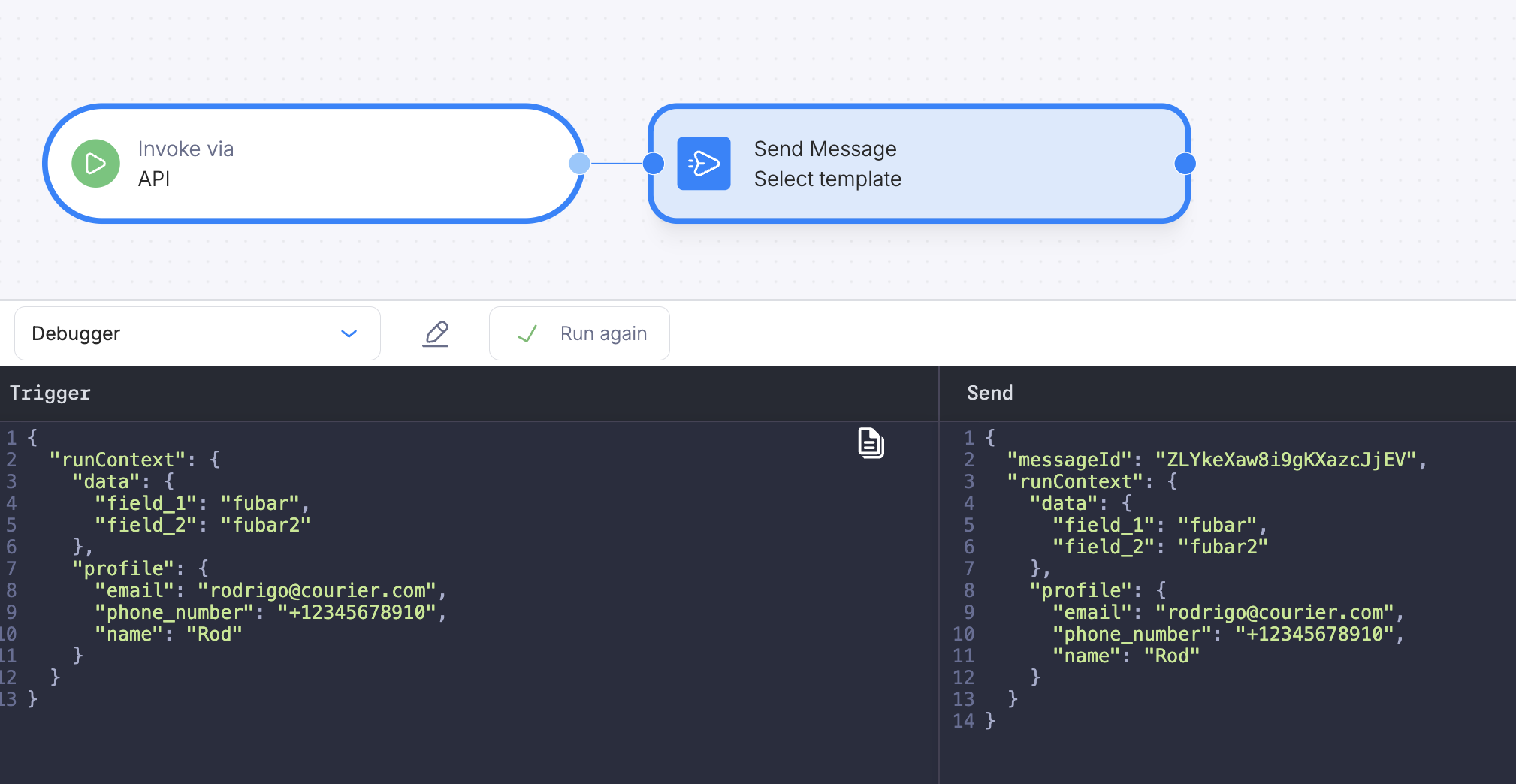
After running your simulated run, you can select each node in your workflow to verify that the data is passed through to each consecutive node. This can be helpful if you have several nodes that rely on incoming data payloads.
### Verifying Test Data
After running your simulated run, you can select each node in your workflow to verify that the data is passed through to each consecutive node. This can be helpful if you have several nodes that rely on incoming data payloads.
 ## Run your Automation
After testing with the debugger, invoke your automation via API with the data payload you want to pass.
`POST https://api.courier.com/automations/:template_id/invoke`
```json theme={null}
{
"data": {
"order_id": "ORD-12345",
"status": "shipped"
},
"profile": {
"email": "user@example.com",
"phone_number": "+12345678910",
"name": "Jane"
}
}
```
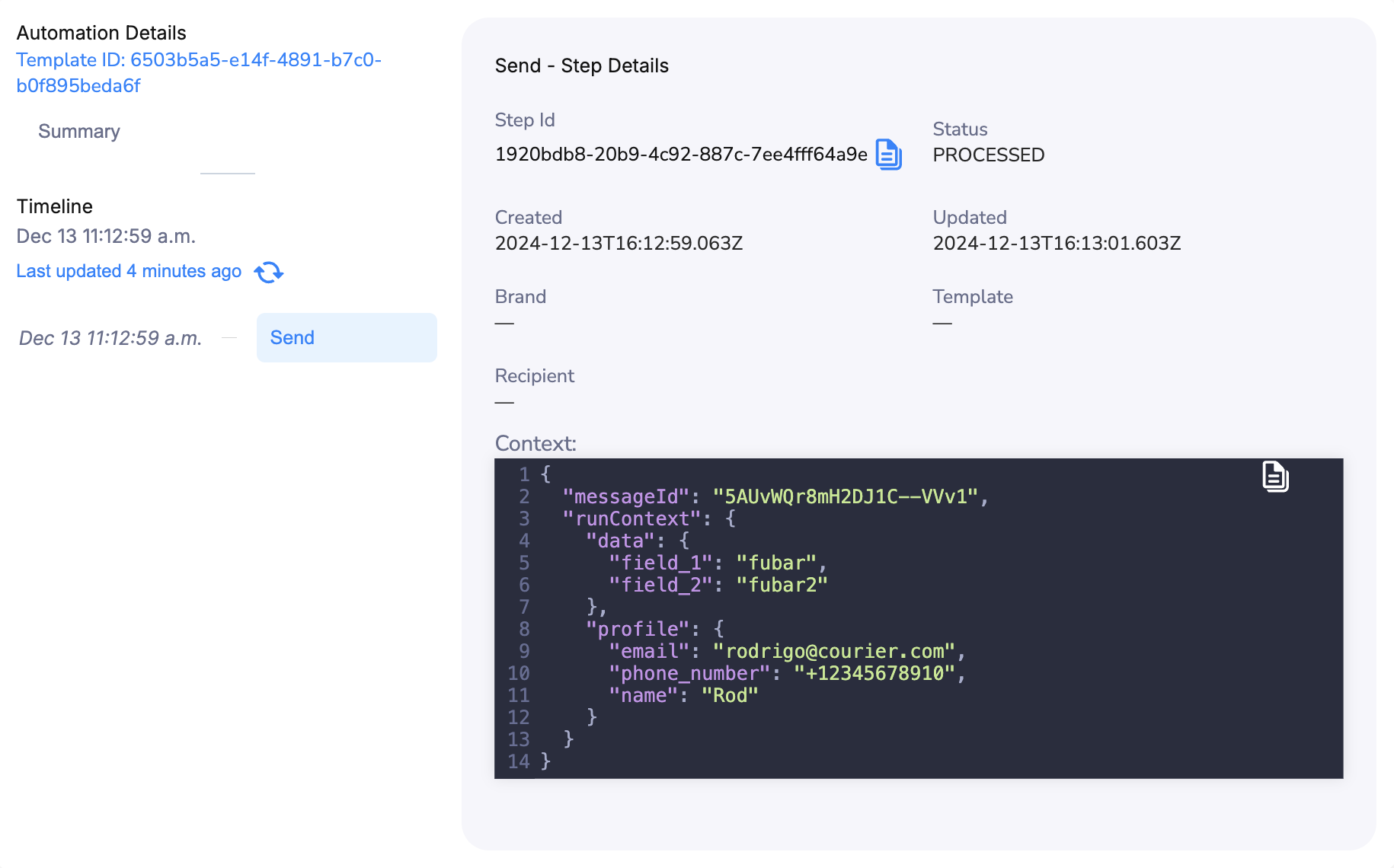
The automation run context shows a successful run with the data you passed.
## Run your Automation
After testing with the debugger, invoke your automation via API with the data payload you want to pass.
`POST https://api.courier.com/automations/:template_id/invoke`
```json theme={null}
{
"data": {
"order_id": "ORD-12345",
"status": "shipped"
},
"profile": {
"email": "user@example.com",
"phone_number": "+12345678910",
"name": "Jane"
}
}
```
The automation run context shows a successful run with the data you passed.
 ## Testing GET Profile Nodes
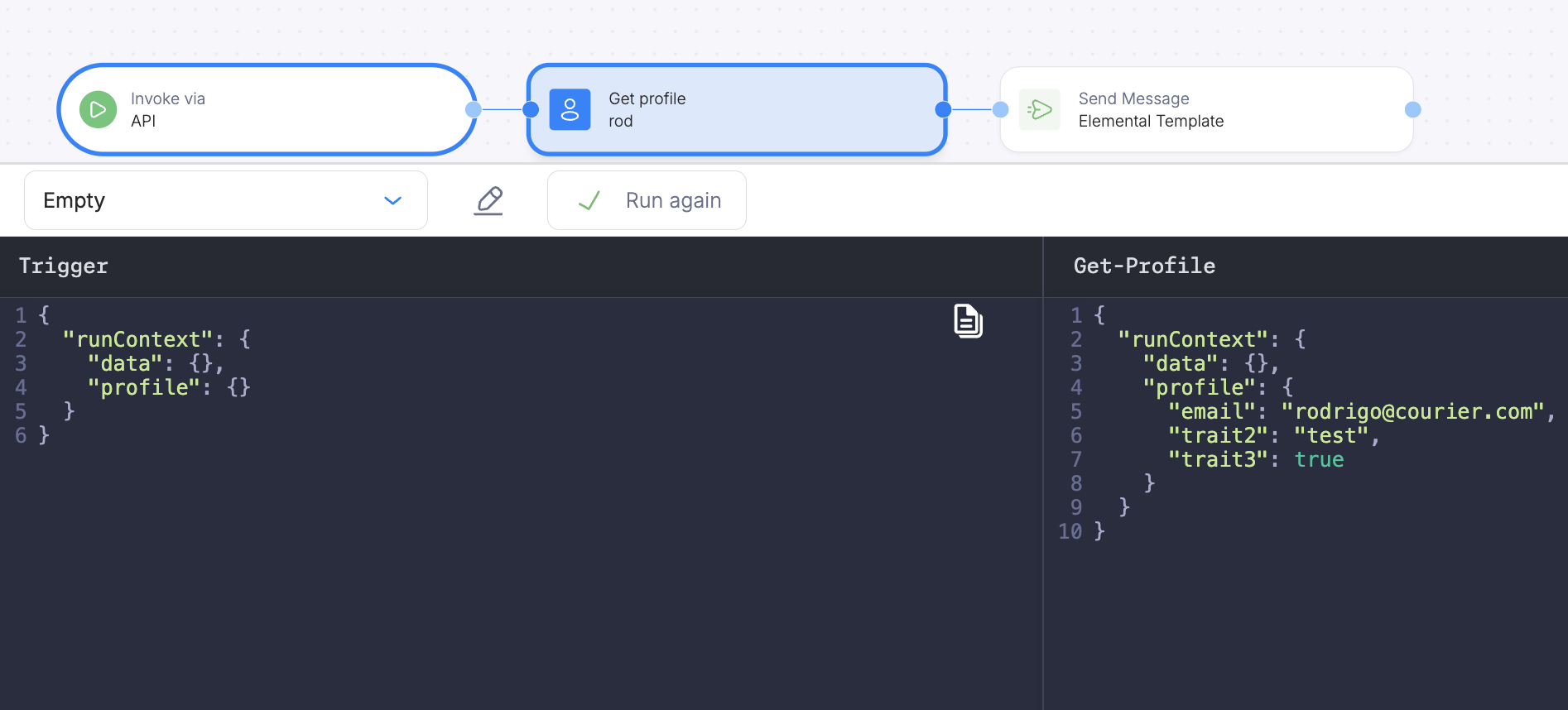
Use the debugger to test a [GET Profile](/platform/automations/get-profile) node before promoting your template to production. The debugger shows the run context passed down your automation after fetching a profile.
## Testing GET Profile Nodes
Use the debugger to test a [GET Profile](/platform/automations/get-profile) node before promoting your template to production. The debugger shows the run context passed down your automation after fetching a profile.
 ## Related Resources
Build workflows visually
Access and map data in automations
## Related Resources
Build workflows visually
Access and map data in automations