> ## Documentation Index
> Fetch the complete documentation index at: https://www.courier.com/docs/llms.txt
> Use this file to discover all available pages before exploring further.
# Segment
> Courier Automations can trigger from Segment events. Use Segment tracks like “Checkout Visited” or “Checkout Complete” to delay, send, or cancel notifications using user-based cancellation tokens.
## Segment Automation Trigger Example
In this example, we'll imagine an e-commerce site that sends out an email when a user successfully
checks out, or a reminder to finish checking out when they visit the page, but do not finish their
purchase.
For this, we'll need two automations. One for the reminder condition, the other for the checkout
success condition. We'll start with the reminder condition.
1. Create a new automation
2. Select the Segment trigger and choose correct `track` event. In our case, that is
"Checkout Page Visited". Note: The track event dropdown is populated with events Courier has
already received from Segment.
3. The reminder should be sent out a couple of hours after the checkout page was visited, so
add a delay node with the desired delay time
4. Connect the delay node to a new send node and select the desired template. We set the userId to
`refs.data.userId`, which is the userId sent to us by segment.
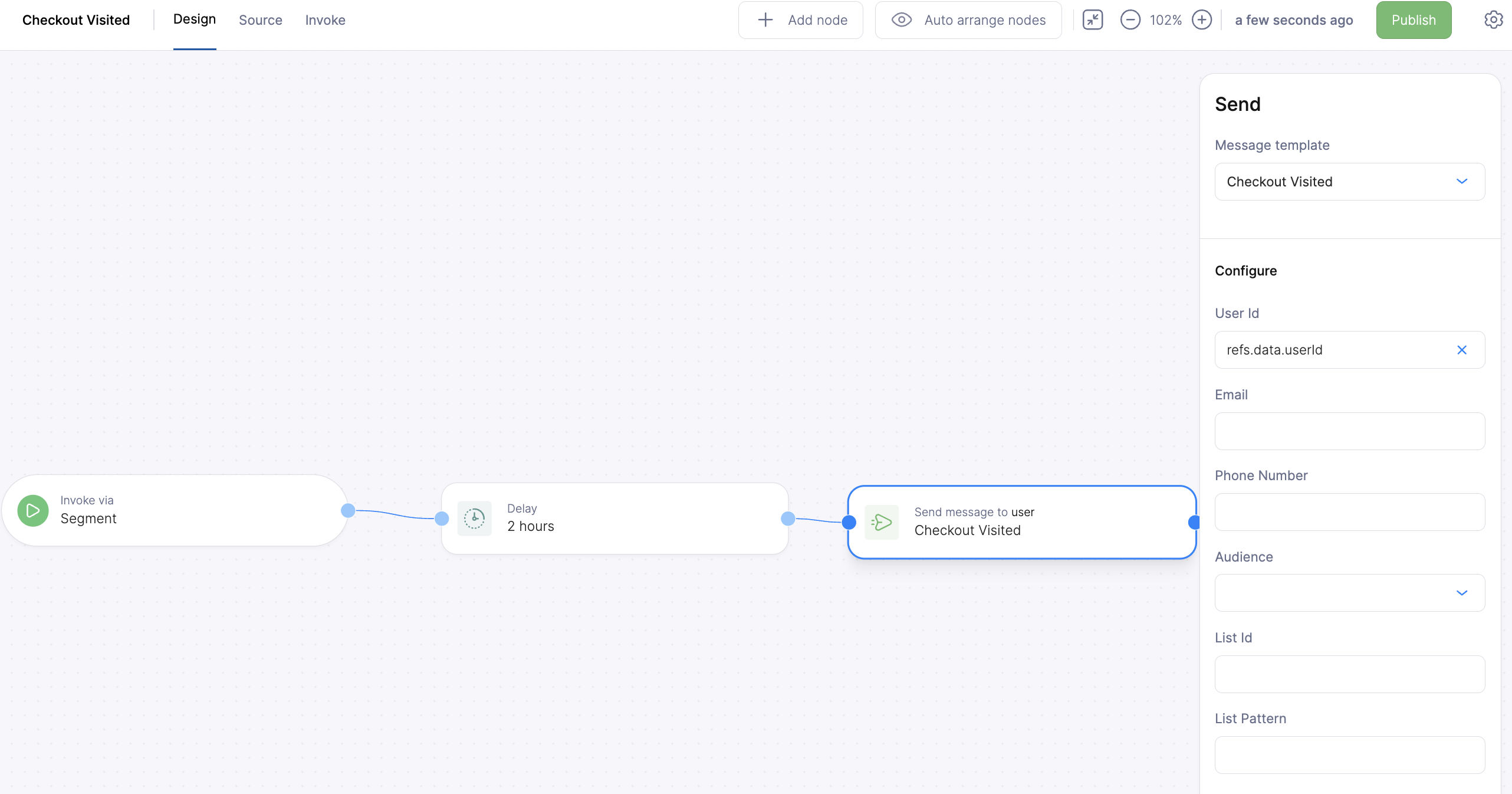 5. If the user successfully checks out, we won't want to send this notification. We'll add a
cancellation token so we can cancel this run in from our next automation. Navigate to the
settings tab and set `cancellation` to `refs.data.userId`. This way we can cancel any instance
of this automation associated with the same user the notification would otherwise be sent to.
6. Click publish to finalize the template
The next automation will cancel the reminder automation from above, and send an invoice on
successful checkout.
1. Create a new automation.
2. Add a Segment trigger node with a track event set to "Checkout Complete"
5. If the user successfully checks out, we won't want to send this notification. We'll add a
cancellation token so we can cancel this run in from our next automation. Navigate to the
settings tab and set `cancellation` to `refs.data.userId`. This way we can cancel any instance
of this automation associated with the same user the notification would otherwise be sent to.
6. Click publish to finalize the template
The next automation will cancel the reminder automation from above, and send an invoice on
successful checkout.
1. Create a new automation.
2. Add a Segment trigger node with a track event set to "Checkout Complete"
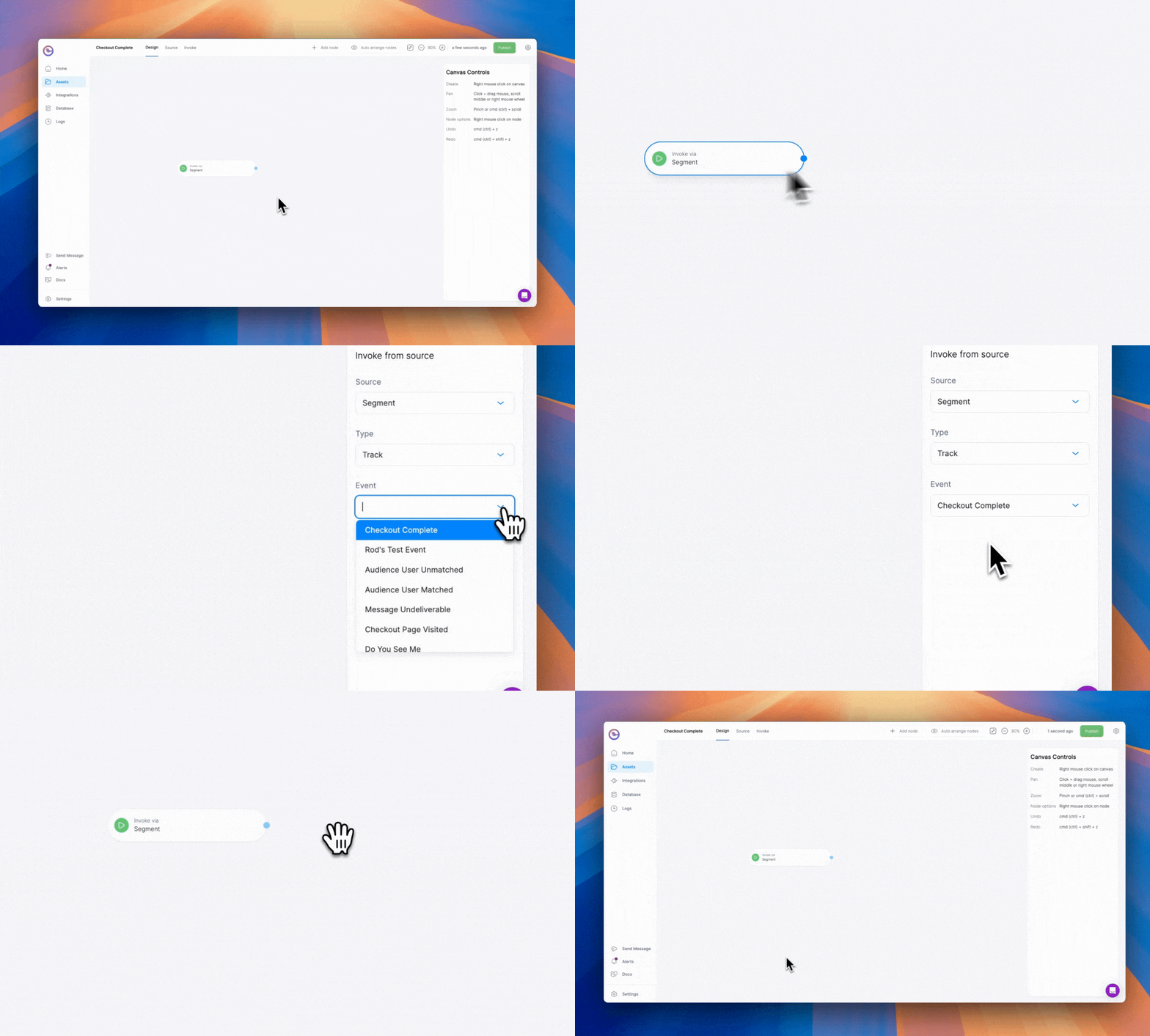 3. Add a cancel automation node and set the token to the user id. This will prevent the reminder
to finish checking out from sending.
4. Send the Checkout Complete notification
3. Add a cancel automation node and set the token to the user id. This will prevent the reminder
to finish checking out from sending.
4. Send the Checkout Complete notification