> ## Documentation Index
> Fetch the complete documentation index at: https://www.courier.com/docs/llms.txt
> Use this file to discover all available pages before exploring further.
# Create a Broadcast
> Build a broadcast's content, choose a list or audience, and send it now or schedule it for later.
Creating a broadcast takes four steps: name it and pick a channel, design the message, choose who receives it, and decide when it sends.
To start, go to **Broadcasts** under Orchestration in the Courier app and click **Add broadcast**. Give it a name and choose the channel it will send on.
Each broadcast sends over a **single channel**, and you can pick any channel you already have an [integration](/docs/external-integrations/integrations-overview) connected for.
 ## Design the content
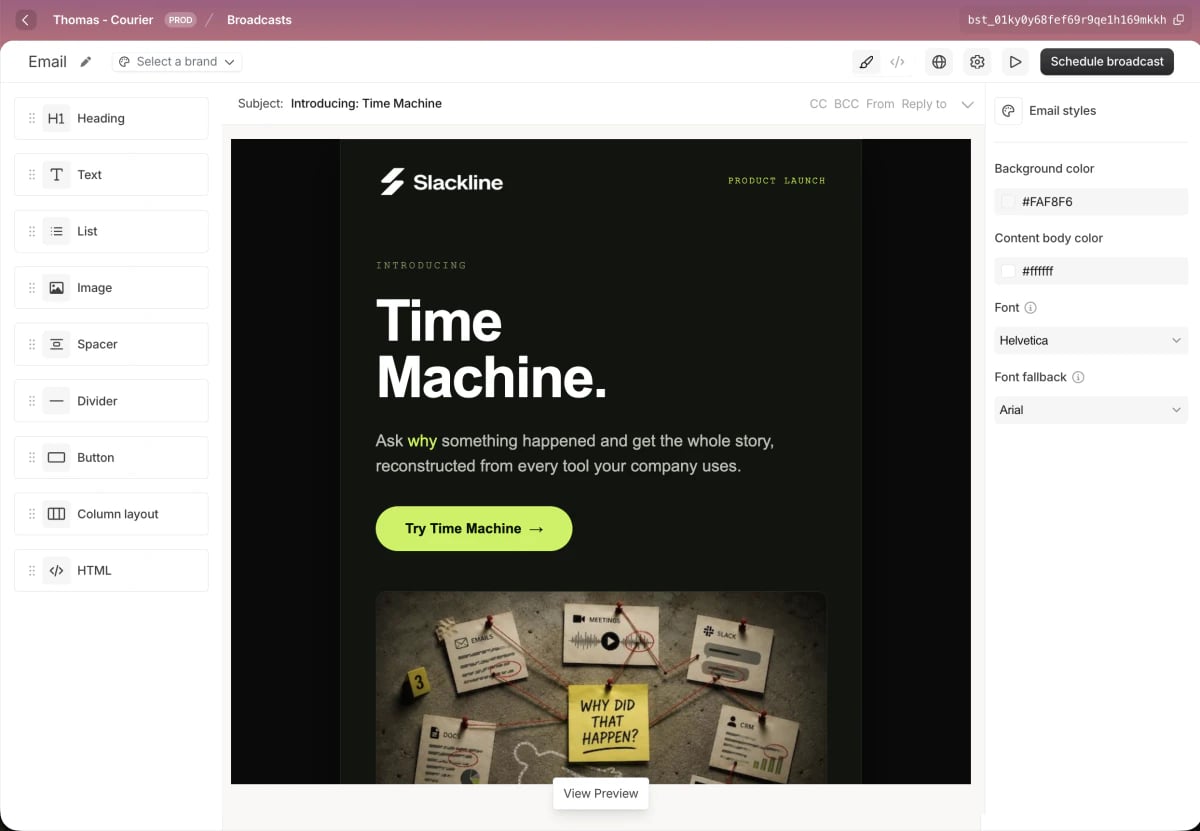
Design the message in the built-in editor. For email, use **block mode** to assemble it from building blocks like headings, text, images, and buttons, or **HTML mode** to write full custom HTML.
The rest of Courier's content tools work here too. Apply a [brand](/docs/platform/content/brands/brands-overview), add variables to personalize each recipient's version, and use built-in [AI translations](/docs/platform/content/design-studio/ai-translations) and previews to check the rendering before you send. Email also lets you set the **subject** and, when you need them, **CC**, **BCC**, **From**, and **Reply-to**.
## Choose recipients
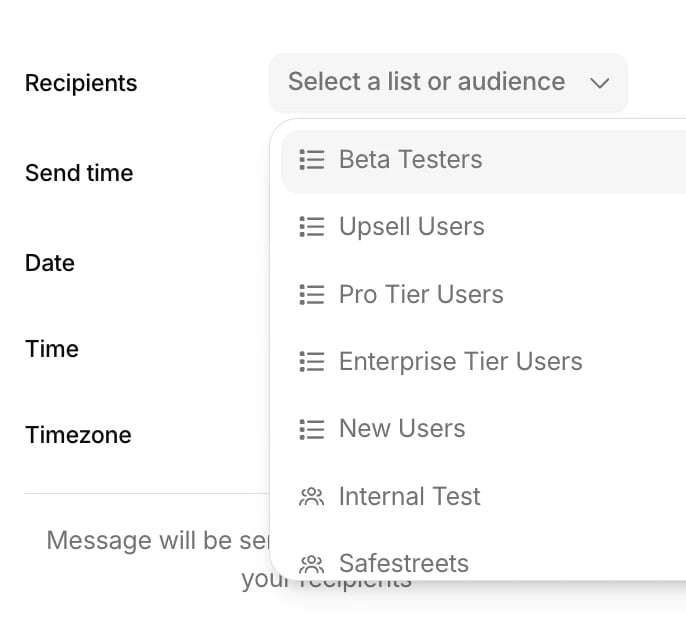
A broadcast goes to a **list** or an **audience**. Open the **Recipients** dropdown and select one.
A [list](/docs/platform/users/audiences#static-lists) is a group you curate by hand, so it is a good fit for fixed sets like beta testers or an internal team. An [audience](/docs/platform/users/audiences#dynamic-audiences) is a segment defined by rules, such as `plan = enterprise`, that Courier keeps current on its own as user profiles change.
## Design the content
Design the message in the built-in editor. For email, use **block mode** to assemble it from building blocks like headings, text, images, and buttons, or **HTML mode** to write full custom HTML.
The rest of Courier's content tools work here too. Apply a [brand](/docs/platform/content/brands/brands-overview), add variables to personalize each recipient's version, and use built-in [AI translations](/docs/platform/content/design-studio/ai-translations) and previews to check the rendering before you send. Email also lets you set the **subject** and, when you need them, **CC**, **BCC**, **From**, and **Reply-to**.
## Choose recipients
A broadcast goes to a **list** or an **audience**. Open the **Recipients** dropdown and select one.
A [list](/docs/platform/users/audiences#static-lists) is a group you curate by hand, so it is a good fit for fixed sets like beta testers or an internal team. An [audience](/docs/platform/users/audiences#dynamic-audiences) is a segment defined by rules, such as `plan = enterprise`, that Courier keeps current on its own as user profiles change.
 ## Send now or schedule
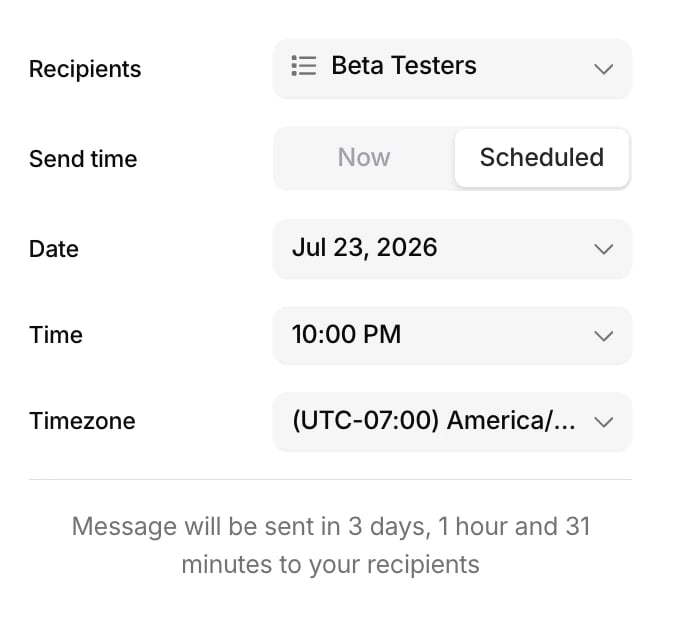
With content and recipients set, choose when the broadcast goes out. Select **Now** to send immediately to everyone in the list or audience, or **Scheduled** to set a date, time, and timezone. When you schedule, the editor confirms exactly when the message will be sent.
## Send now or schedule
With content and recipients set, choose when the broadcast goes out. Select **Now** to send immediately to everyone in the list or audience, or **Scheduled** to set a date, time, and timezone. When you schedule, the editor confirms exactly when the message will be sent.
 ### Editing, rescheduling, and canceling
A scheduled broadcast stays flexible until it fires. You can reschedule it to a different date or time, or cancel it to stop the send altogether.
Editing the content works differently. The content is locked while a broadcast is scheduled, so to change the message you cancel the send, make your edits, and schedule it again.
## Broadcast states
As it moves through this flow, a broadcast is always in one of three states:
* **Draft.** Created but not yet sent or scheduled.
* **Scheduled.** Queued to send at a set time. Can be rescheduled or canceled.
* **Sent.** Delivered to recipients. Metrics are available.
## Next steps
Track delivery, opens, and clicks, and inspect per-recipient sends
How broadcasts fit alongside Journeys
### Editing, rescheduling, and canceling
A scheduled broadcast stays flexible until it fires. You can reschedule it to a different date or time, or cancel it to stop the send altogether.
Editing the content works differently. The content is locked while a broadcast is scheduled, so to change the message you cancel the send, make your edits, and schedule it again.
## Broadcast states
As it moves through this flow, a broadcast is always in one of three states:
* **Draft.** Created but not yet sent or scheduled.
* **Scheduled.** Queued to send at a set time. Can be rescheduled or canceled.
* **Sent.** Delivered to recipients. Metrics are available.
## Next steps
Track delivery, opens, and clicks, and inspect per-recipient sends
How broadcasts fit alongside Journeys