> ## Documentation Index
> Fetch the complete documentation index at: https://www.courier.com/docs/llms.txt
> Use this file to discover all available pages before exploring further.
# Image
> Courier Image Blocks let you add visuals to notifications across email, SMS, push, and direct message channels. They support conditional display, channel-specific behavior, and best practices like alt text.
# Image Blocks
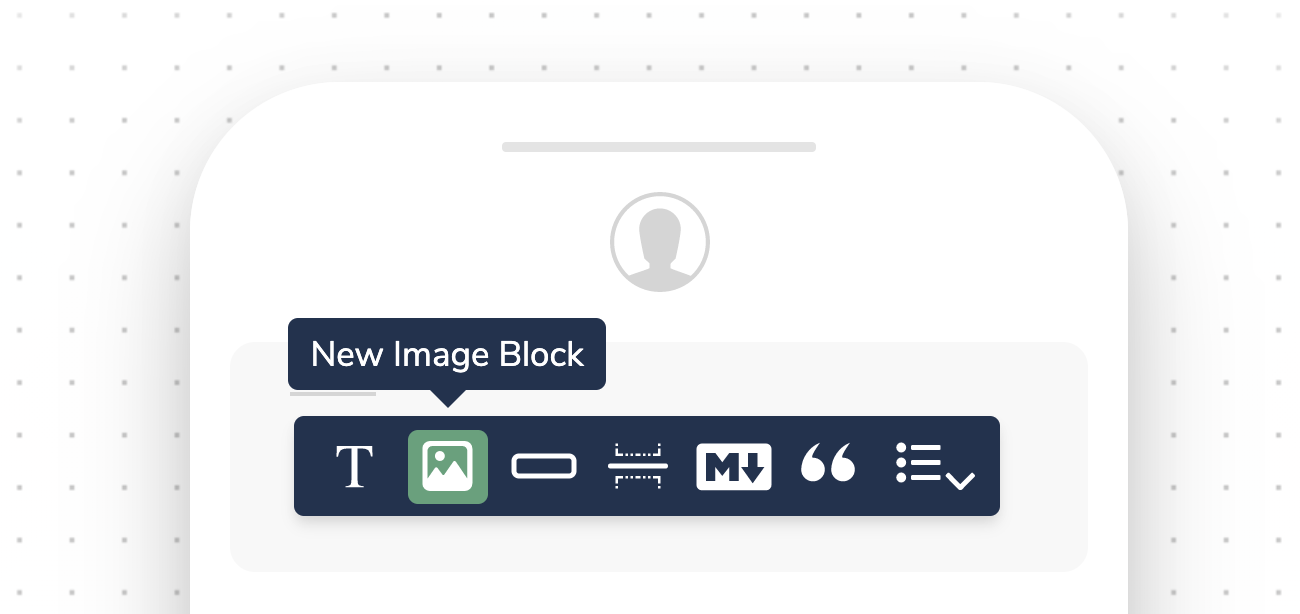
Image Blocks allow you to enhance your notifications with visual content across various channels.
Image Blocks can improve the engagement and effectiveness of your notifications by providing visual context or appeal.
 ## Channel-Specific Behaviors
### Email
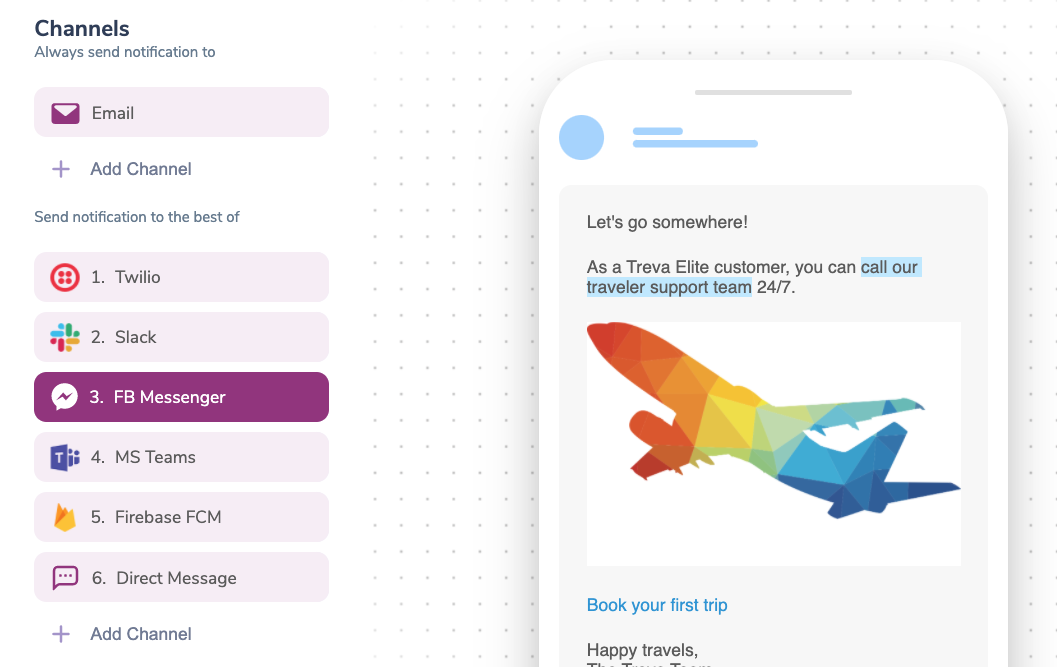
In email notifications, Image Blocks display as embedded images, allowing for rich visual content.
### SMS, Push
For SMS and push notifications:
* Image Blocks appear as URLs
* The rendering of these URLs depends on the integrated channel provider
### Direct Message
For supported direct message integrations:
* Images are displayed in real-time within the Courier editor
* No preview links are shown
## Channel-Specific Behaviors
### Email
In email notifications, Image Blocks display as embedded images, allowing for rich visual content.
### SMS, Push
For SMS and push notifications:
* Image Blocks appear as URLs
* The rendering of these URLs depends on the integrated channel provider
### Direct Message
For supported direct message integrations:
* Images are displayed in real-time within the Courier editor
* No preview links are shown
 ## Advanced Usage
### Conditional Display
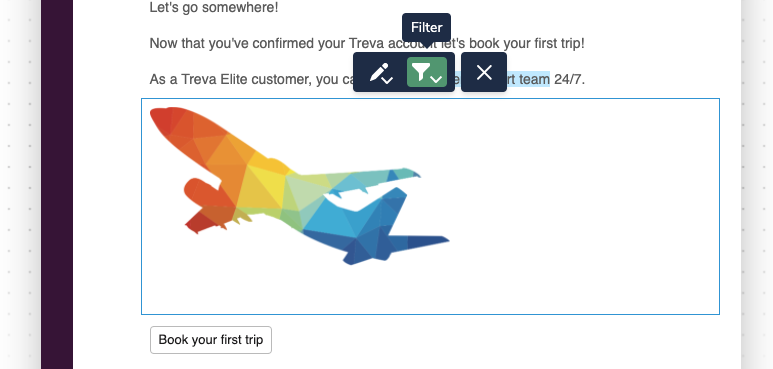
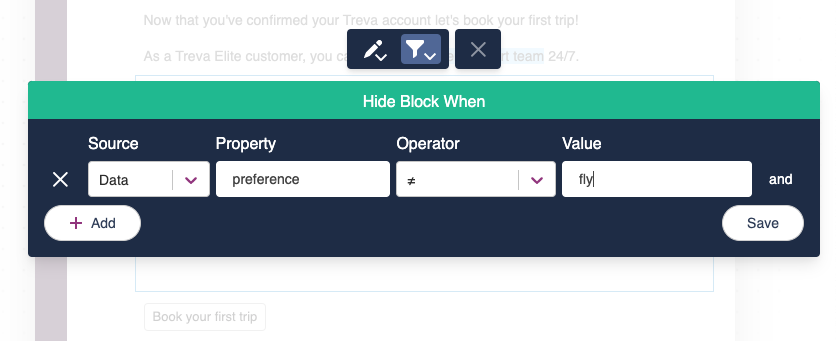
Like other content blocks, you can dynamically show or hide Image Blocks using [conditional filters](/platform/content/template-settings/send-conditions#for-content-blocks).
## Advanced Usage
### Conditional Display
Like other content blocks, you can dynamically show or hide Image Blocks using [conditional filters](/platform/content/template-settings/send-conditions#for-content-blocks).
 ## Best Practices
1. **Optimize for mobile**: Ensure images are responsive and look good on various device sizes
2. **File size**: Keep image file sizes small to improve loading times, especially for email
3. **Relevance**: Use images that are relevant to your message content
4. **Accessibility**: Always include descriptive alt text for screen readers
5. **Fallback**: Provide text alternatives for channels that may not support images
Adding, reordering, and filtering blocks
Add formatted text with inline images
Add buttons and links alongside images
Conditionally show or hide image blocks
## Best Practices
1. **Optimize for mobile**: Ensure images are responsive and look good on various device sizes
2. **File size**: Keep image file sizes small to improve loading times, especially for email
3. **Relevance**: Use images that are relevant to your message content
4. **Accessibility**: Always include descriptive alt text for screen readers
5. **Fallback**: Provide text alternatives for channels that may not support images
Adding, reordering, and filtering blocks
Add formatted text with inline images
Add buttons and links alongside images
Conditionally show or hide image blocks