> ## Documentation Index
> Fetch the complete documentation index at: https://www.courier.com/docs/llms.txt
> Use this file to discover all available pages before exploring further.
# List
> Courier List Blocks render dynamic arrays as styled lists across channels. Support includes simple, nested, and image-based lists. Configure using JSONPath, with scoped variables and conditional formatting.
List Blocks dynamically render arrays of data in your notifications. They come in four types:
1. Simple list
2. List with children
3. List with images (email only)
4. List with children and images (email only)
## Working With List Blocks
**Availability:** Email, SMS, push, and direct-message channels. Inbox (in-app) does not support list blocks — the Inbox body is constrained to plain text only. List blocks, markdown formatting, and Handlebars expressions are not rendered in Inbox notifications.
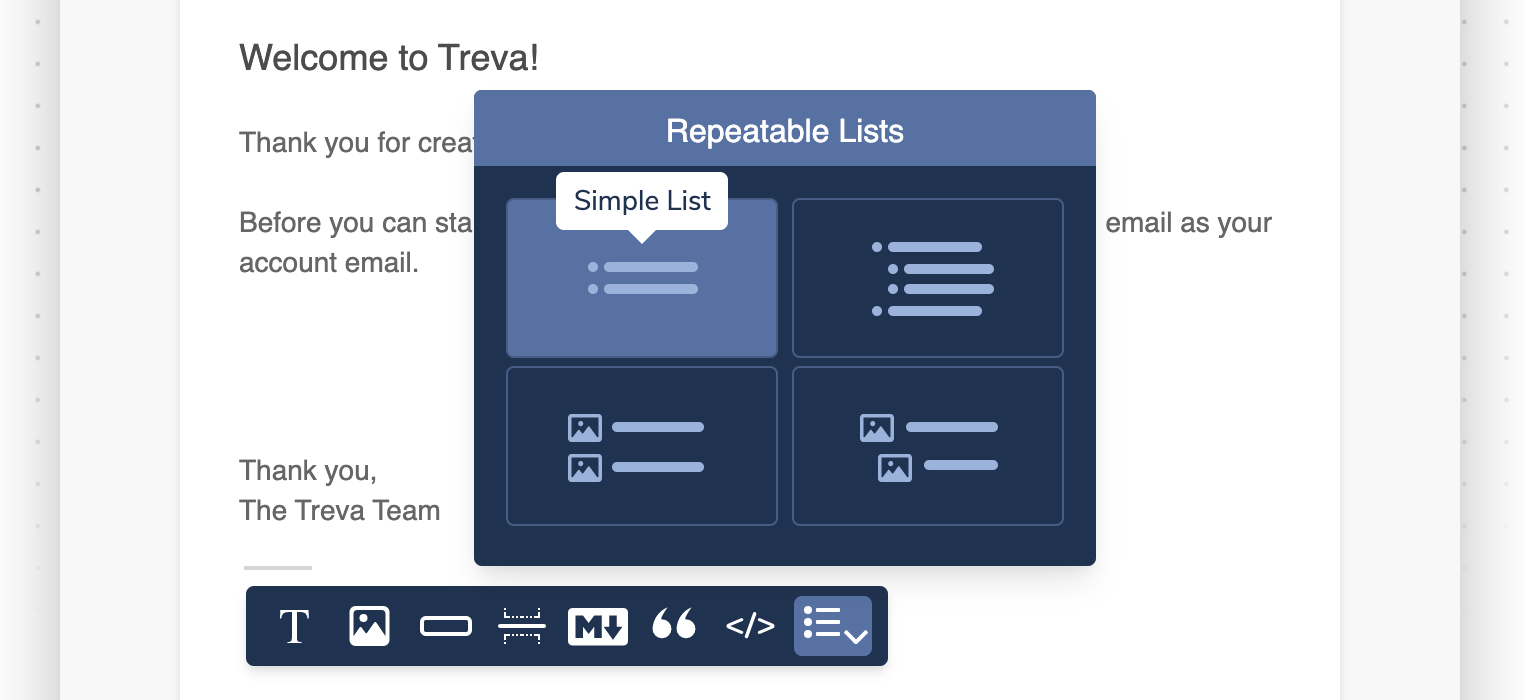
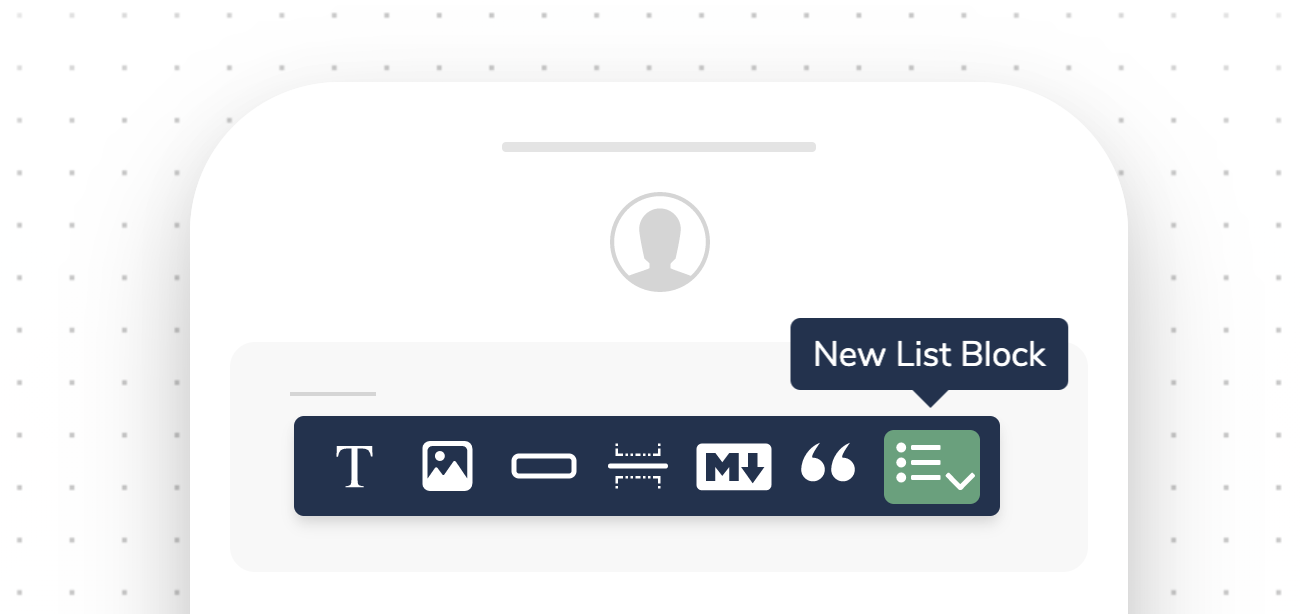 The repeatable list block allows you to easily display more complex layered data. This data is passed in the data object as an array during a send. The option to display an image differs by channel.
The rendered output of a list block is an HTML table element. For more list customization options, use a [template block](/platform/content/content-blocks/template-blocks) with [Handlebars helpers](/platform/content/template-designer/handlebars-helpers).
The repeatable list block allows you to easily display more complex layered data. This data is passed in the data object as an array during a send. The option to display an image differs by channel.
The rendered output of a list block is an HTML table element. For more list customization options, use a [template block](/platform/content/content-blocks/template-blocks) with [Handlebars helpers](/platform/content/template-designer/handlebars-helpers).
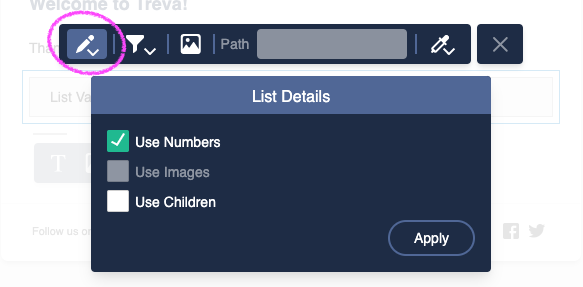
 To switch from a simple list to numbered lists, add a list then open the list details:
 ## Types of List Blocks
### Simple List
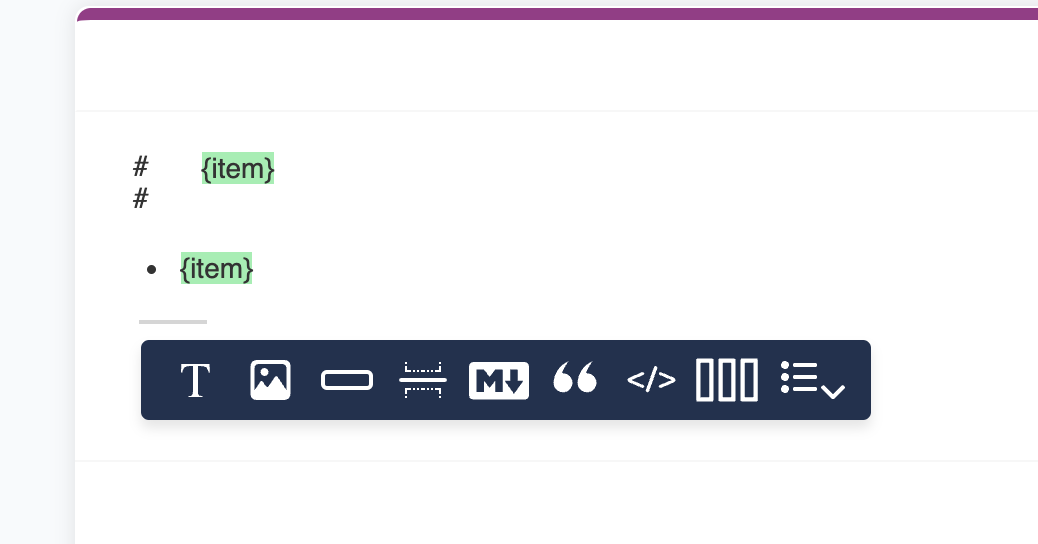
Displays a row for each item in the specified array, similar to a [text block](/platform/content/content-blocks/text-blocks) with variables scoped to the array.
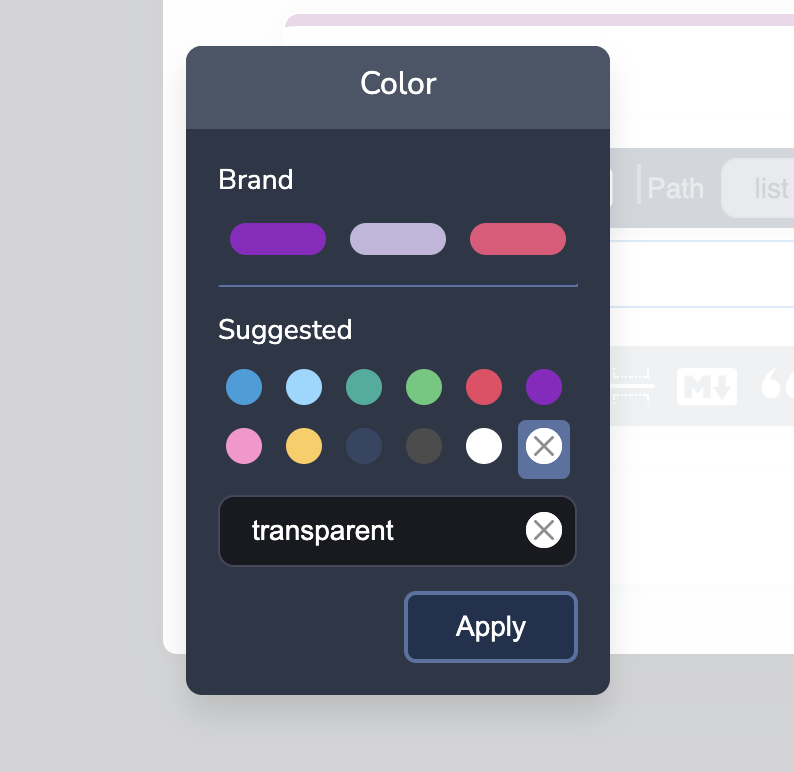
To render a bulleted simple list, the background color for the list block must be set to `transparent`.
## Types of List Blocks
### Simple List
Displays a row for each item in the specified array, similar to a [text block](/platform/content/content-blocks/text-blocks) with variables scoped to the array.
To render a bulleted simple list, the background color for the list block must be set to `transparent`.
 ### List With Children
Similar to a simple list, but includes child rows for nested array data.
### List With Images
Available for email channels only. Other channels display as a list with children.
Includes images alongside list items. Images can be linked and customized using variables.
### List With Children and Images
Combines features of lists with children and lists with images, allowing for complex, hierarchical data representation with visual elements.
## Configuring List Blocks
### Path
Set the JSONPath expression to point to the array you want to display. For example:
```json theme={null}
{
"data": {
"trainers": [ "Ash", "Misty", "Brock"],
"name": "Ash Ketchum",
"region": "Kanto",
"pokemon": [
{
"name": "Bulbasaur",
"image": "https://example.com/001.png",
"types": [
{ "name": "grass", "image": "https://example.com/grass.png" },
{ "name": "poison", "image": "https://example.com/poison.png" }
]
},
{
"name": "Ivysaur",
"image": "https://example.com/002.png",
"types": [
{ "name": "grass", "image": "https://example.com/grass.png" },
{ "name": "poison", "image": "https://example.com/poison.png" }
]
},
{
"name": "Venusaur",
"image": "https://example.com/003.png",
"types": [
{ "name": "grass", "image": "https://example.com/grass.png" },
{ "name": "poison", "image": "https://example.com/poison.png" }
]
}
],
}
}
```
To list all Pokemon, set the path to `pokemon`.
### Data References
* Inside path scope: Use `{propertyName}` to reference each item in the array
* e.g. to display the name of the Pokemon, if the path is set to `pokemon`, you can use the variable `{name}`.
* Outside path scope: Use `{$.data.propertyName}` or `{propertyName}` if there isn't a property name conflict.
* e.g. to display the top level `name` (Ash Ketchum), you can use the variable `{$.data.name}`.
* e.g. to display the region, you can use the variable `{region}`.
* Array of strings: Use `{@}` to reference each item
* e.g. to display each trainer in the `trainers` array, you can use the variable `{@}`.
### Styling
* Switch between bulleted and numbered lists in the list details
* Set background color for supported channels using the color picker
Adding, reordering, and filtering blocks
Custom HTML for advanced list rendering
Loop helpers for dynamic list content
JSONPath expressions for list data
### List With Children
Similar to a simple list, but includes child rows for nested array data.
### List With Images
Available for email channels only. Other channels display as a list with children.
Includes images alongside list items. Images can be linked and customized using variables.
### List With Children and Images
Combines features of lists with children and lists with images, allowing for complex, hierarchical data representation with visual elements.
## Configuring List Blocks
### Path
Set the JSONPath expression to point to the array you want to display. For example:
```json theme={null}
{
"data": {
"trainers": [ "Ash", "Misty", "Brock"],
"name": "Ash Ketchum",
"region": "Kanto",
"pokemon": [
{
"name": "Bulbasaur",
"image": "https://example.com/001.png",
"types": [
{ "name": "grass", "image": "https://example.com/grass.png" },
{ "name": "poison", "image": "https://example.com/poison.png" }
]
},
{
"name": "Ivysaur",
"image": "https://example.com/002.png",
"types": [
{ "name": "grass", "image": "https://example.com/grass.png" },
{ "name": "poison", "image": "https://example.com/poison.png" }
]
},
{
"name": "Venusaur",
"image": "https://example.com/003.png",
"types": [
{ "name": "grass", "image": "https://example.com/grass.png" },
{ "name": "poison", "image": "https://example.com/poison.png" }
]
}
],
}
}
```
To list all Pokemon, set the path to `pokemon`.
### Data References
* Inside path scope: Use `{propertyName}` to reference each item in the array
* e.g. to display the name of the Pokemon, if the path is set to `pokemon`, you can use the variable `{name}`.
* Outside path scope: Use `{$.data.propertyName}` or `{propertyName}` if there isn't a property name conflict.
* e.g. to display the top level `name` (Ash Ketchum), you can use the variable `{$.data.name}`.
* e.g. to display the region, you can use the variable `{region}`.
* Array of strings: Use `{@}` to reference each item
* e.g. to display each trainer in the `trainers` array, you can use the variable `{@}`.
### Styling
* Switch between bulleted and numbered lists in the list details
* Set background color for supported channels using the color picker
Adding, reordering, and filtering blocks
Custom HTML for advanced list rendering
Loop helpers for dynamic list content
JSONPath expressions for list data