> ## Documentation Index
> Fetch the complete documentation index at: https://www.courier.com/docs/llms.txt
> Use this file to discover all available pages before exploring further.
# Template
> Template Blocks in Courier enable custom HTML, CSS, and Handlebars for richly styled emails. Supports dynamic content, markdown, and inline HTML rendering. Not compatible with plain text previews.
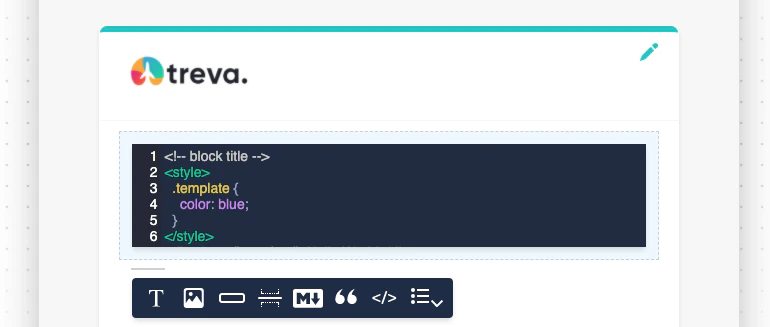
Template Blocks let you write custom HTML, CSS, and Handlebars directly in your email notifications. Use them for dynamic, richly formatted content that goes beyond what the visual block types offer.
Plain Text
Plain text preview is **not supported** for template blocks at this time. Anything created with template blocks will not render as plain text in emails.
 **Email Client Support**
HTML and CSS support [varies by email client](https://www.campaignmonitor.com/css/).
## Handlebars Templating Language
The Template Block supports Handlebars. You can learn about the language syntax from the [Handlebars Language Guide](https://handlebarsjs.com/guide/#language-features).
**Read more:** [Custom Courier Handlebars helpers](/platform/content/template-designer/handlebars-helpers).
## Styling with CSS and Handlebars
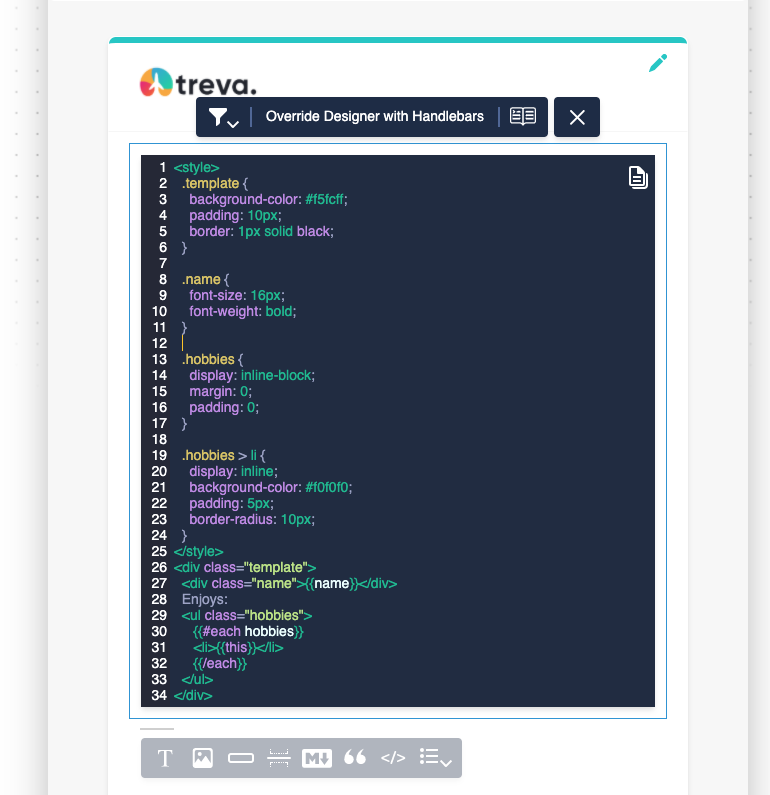
Combine CSS and Handlebars for dynamic styling:
**Email Client Support**
HTML and CSS support [varies by email client](https://www.campaignmonitor.com/css/).
## Handlebars Templating Language
The Template Block supports Handlebars. You can learn about the language syntax from the [Handlebars Language Guide](https://handlebarsjs.com/guide/#language-features).
**Read more:** [Custom Courier Handlebars helpers](/platform/content/template-designer/handlebars-helpers).
## Styling with CSS and Handlebars
Combine CSS and Handlebars for dynamic styling:
 ## Using Markdown in a Template Block
Render markdown between `{{#markdown}}` and `{{/markdown}}` within a template block.
```html theme={null}
## Using Markdown in a Template Block
Render markdown between `{{#markdown}}` and `{{/markdown}}` within a template block.
```html theme={null}
{{#markdown}}
# Your Markdown Content
- List item 1
- List item 2
{{/markdown}}
```
## Using Replacement Variables in Handlebars
Insert variables from your JSON event data:
```handlebars theme={null}
{{var "variable_name"}}
```
## Inserting HTML from Variables
To render HTML stored in a variable, use triple curly braces:
```handlebars theme={null}
{{{htmlContent}}}
```
## Using Brand Snippets
You can reference [Brand Snippets](/platform/content/brands/brand-snippets) in template blocks using Handlebars partial syntax. This is useful for shared components like footers, disclaimers, or promotional banners:
```handlebars theme={null}
{{>legal_footer}}
```
Logic, string, math, and date helpers for templates
Insert dynamic data into template blocks
Reusable Handlebars components across brands
Adding, reordering, and filtering blocks