> ## Documentation Index
> Fetch the complete documentation index at: https://www.courier.com/docs/llms.txt
> Use this file to discover all available pages before exploring further.
# Button Blocks
> Add call-to-action buttons in Design Studio. Set label, link URL, and styling for email, inbox, and other channels.
Button blocks add clickable call-to-action (CTA) buttons to your notifications. Configure the button label, link URL, and optional styling.
## Adding a button block
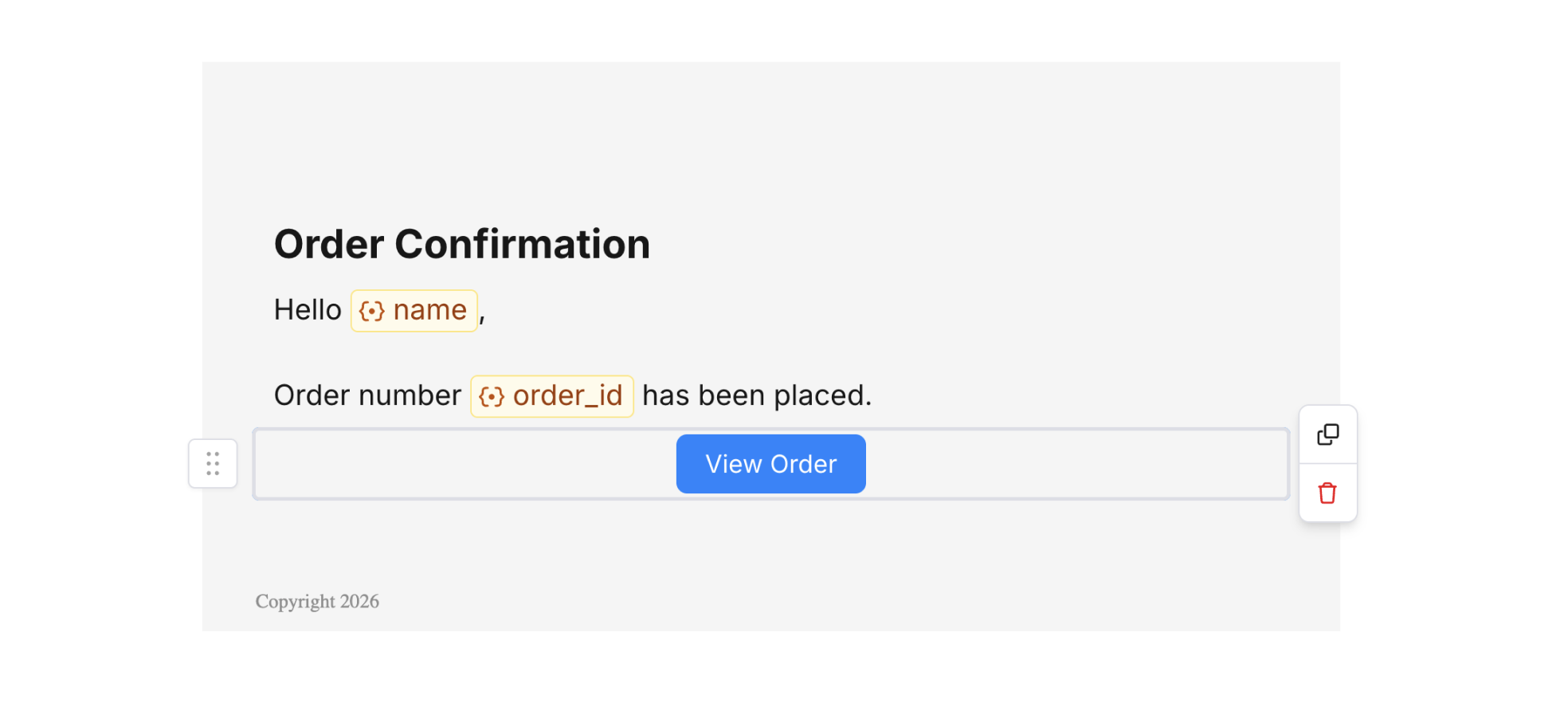
1. In Design Studio, select a channel.
2. Add a **Button** block from the block sidebar or toolbar.
3. Set the button label and link URL.
4. Configure button styles (padding, color, border radius).
 ## Button settings
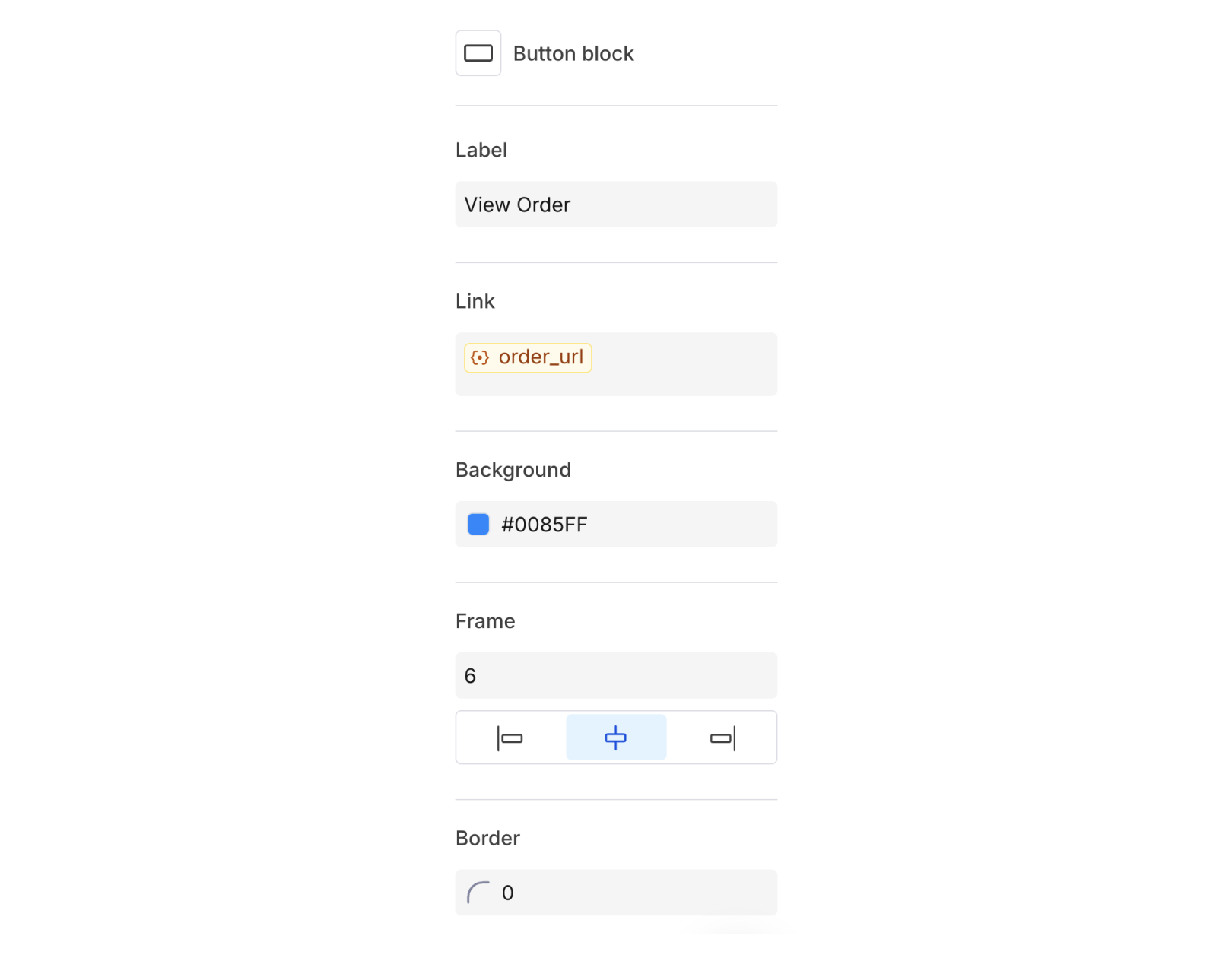
Select a button block to open the settings panel on the right. Here you can configure:
* **Label** – Text shown on the button. You can use [variables](/platform/content/variables/inserting-variables) (e.g. "View `{{product_name}}`").
* **Link URL** – Destination when the button is clicked. Use variables for dynamic URLs.
* **Alignment** – Left, center, or right.
* **Background color** – Button fill color.
* **Border radius** – Corner rounding.
* **Border size** – Outline thickness.
* **Padding** – Space around the button.
## Button settings
Select a button block to open the settings panel on the right. Here you can configure:
* **Label** – Text shown on the button. You can use [variables](/platform/content/variables/inserting-variables) (e.g. "View `{{product_name}}`").
* **Link URL** – Destination when the button is clicked. Use variables for dynamic URLs.
* **Alignment** – Left, center, or right.
* **Background color** – Button fill color.
* **Border radius** – Corner rounding.
* **Border size** – Outline thickness.
* **Padding** – Space around the button.
 ## Related
Dynamic labels and URLs
Clickable images
## Related
Dynamic labels and URLs
Clickable images