> ## Documentation Index
> Fetch the complete documentation index at: https://www.courier.com/docs/llms.txt
> Use this file to discover all available pages before exploring further.
# Channels
> Understand channel-specific behavior in Design Studio.
Design Studio supports multiple notification channels, each with different capabilities and content block support.
## Channel overview
| Channel | Description | Block support |
| ------------ | ------------------------------- | ------------- |
| **Email** | HTML email with full formatting | Full |
| **SMS** | Plain text messages | Limited |
| **Push** | Mobile push notifications | Limited |
| **In-App** | Courier Inbox notifications | Limited |
| **Slack** | Slack workspace messages | Partial |
| **MS Teams** | Microsoft Teams messages | Partial |
## Channel-specific behavior
### Email
Email has the richest formatting options with full support for all content blocks.
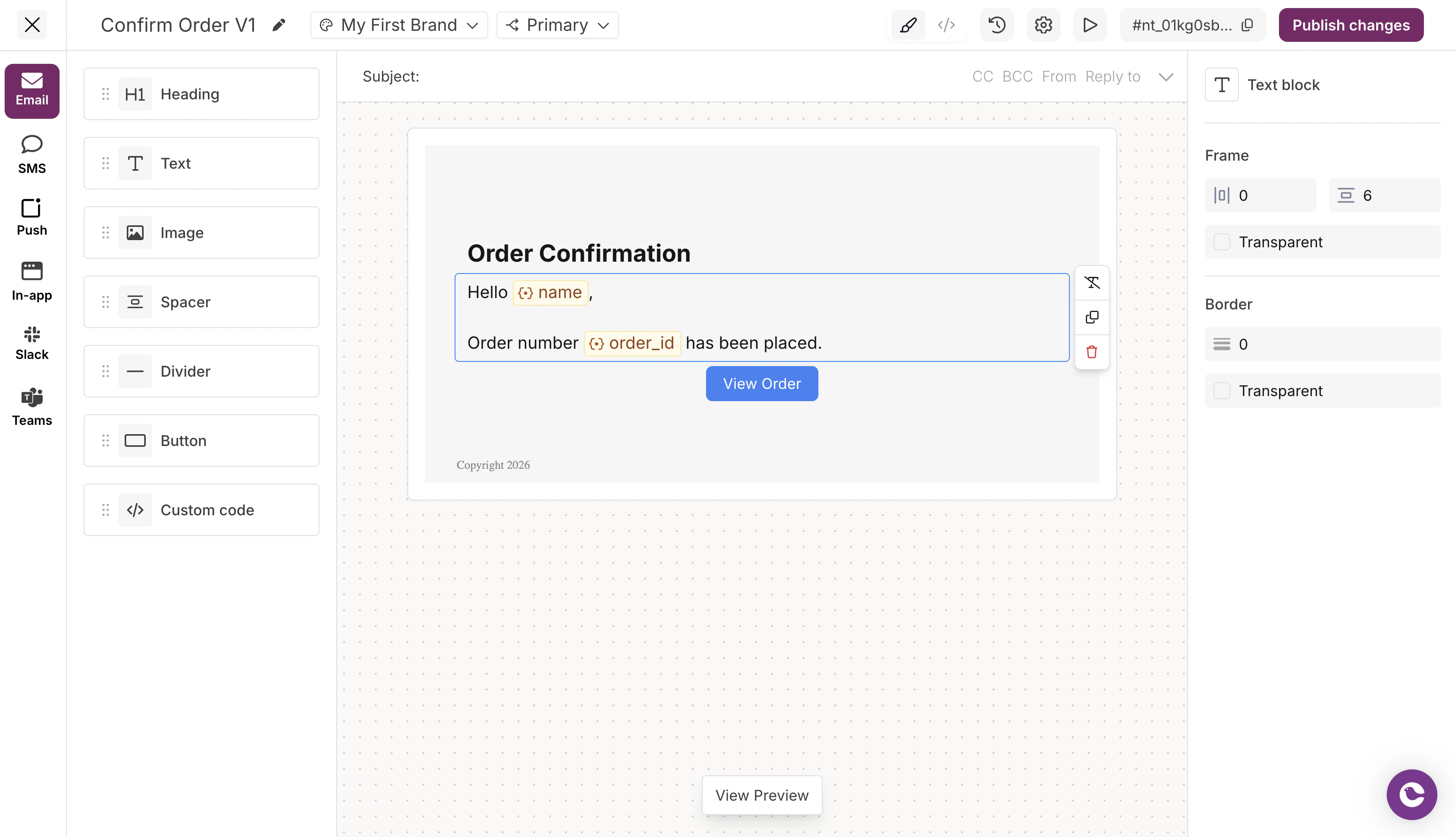 * Full HTML rendering
* All text formatting options (bold, italic, underline, strikethrough, links)
* Image embedding and linking
* Custom markup via HTML blocks
* Brand header and footer support
* [Fonts](/platform/content/elemental/fonts) via the `font_family` field on the Elemental email channel element (Elemental content only)
### SMS
SMS is plain text only. The Text block is the only supported block type.
* Full HTML rendering
* All text formatting options (bold, italic, underline, strikethrough, links)
* Image embedding and linking
* Custom markup via HTML blocks
* Brand header and footer support
* [Fonts](/platform/content/elemental/fonts) via the `font_family` field on the Elemental email channel element (Elemental content only)
### SMS
SMS is plain text only. The Text block is the only supported block type.
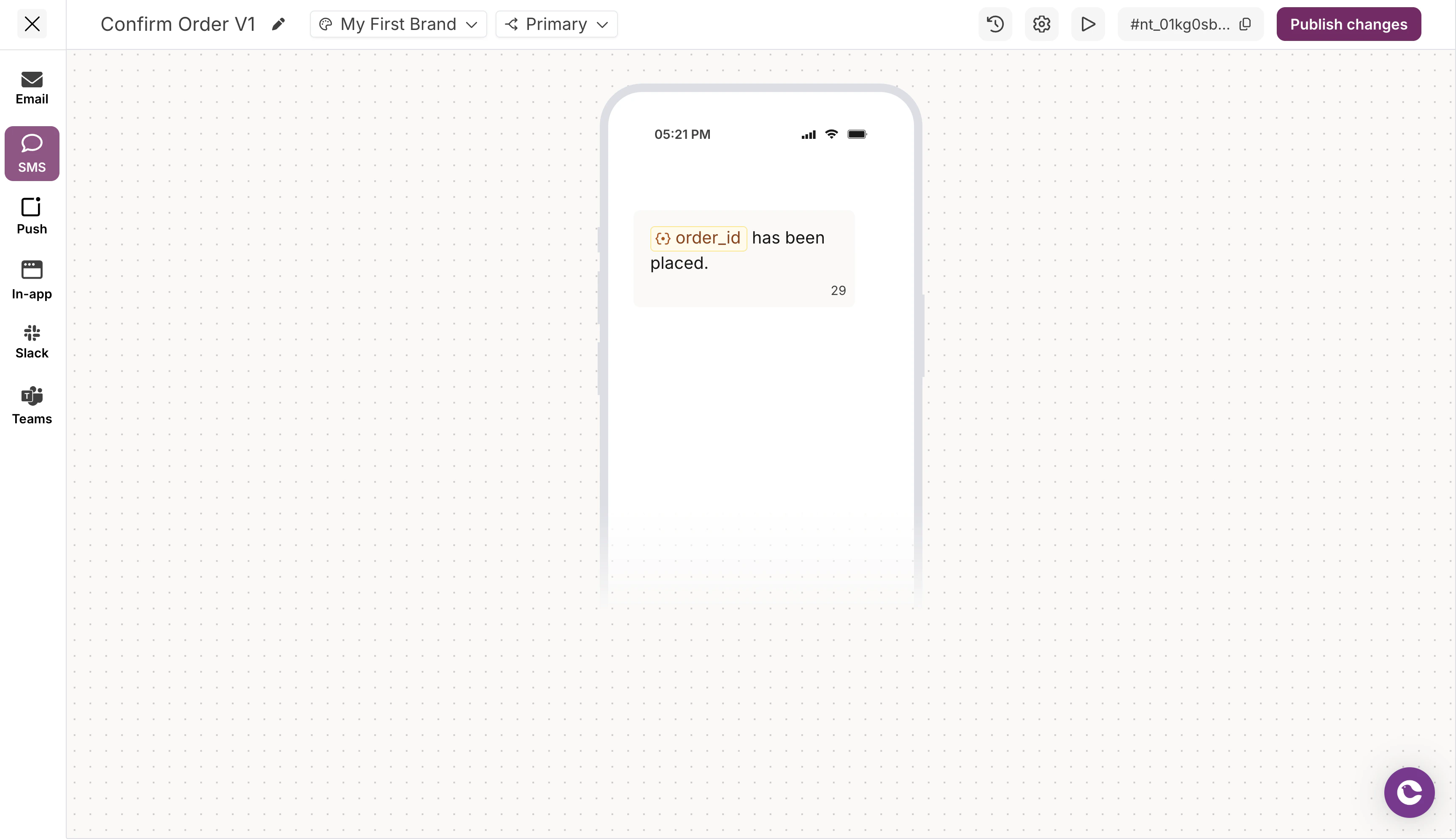 * No formatting (bold, italic, etc.)
* Variables supported via `{{variable}}` syntax
* Character limits apply based on carrier
* Links are sent as plain URLs
### Push
Push notifications have limited content space. Only the Text block is supported.
* No formatting (bold, italic, etc.)
* Variables supported via `{{variable}}` syntax
* Character limits apply based on carrier
* Links are sent as plain URLs
### Push
Push notifications have limited content space. Only the Text block is supported.
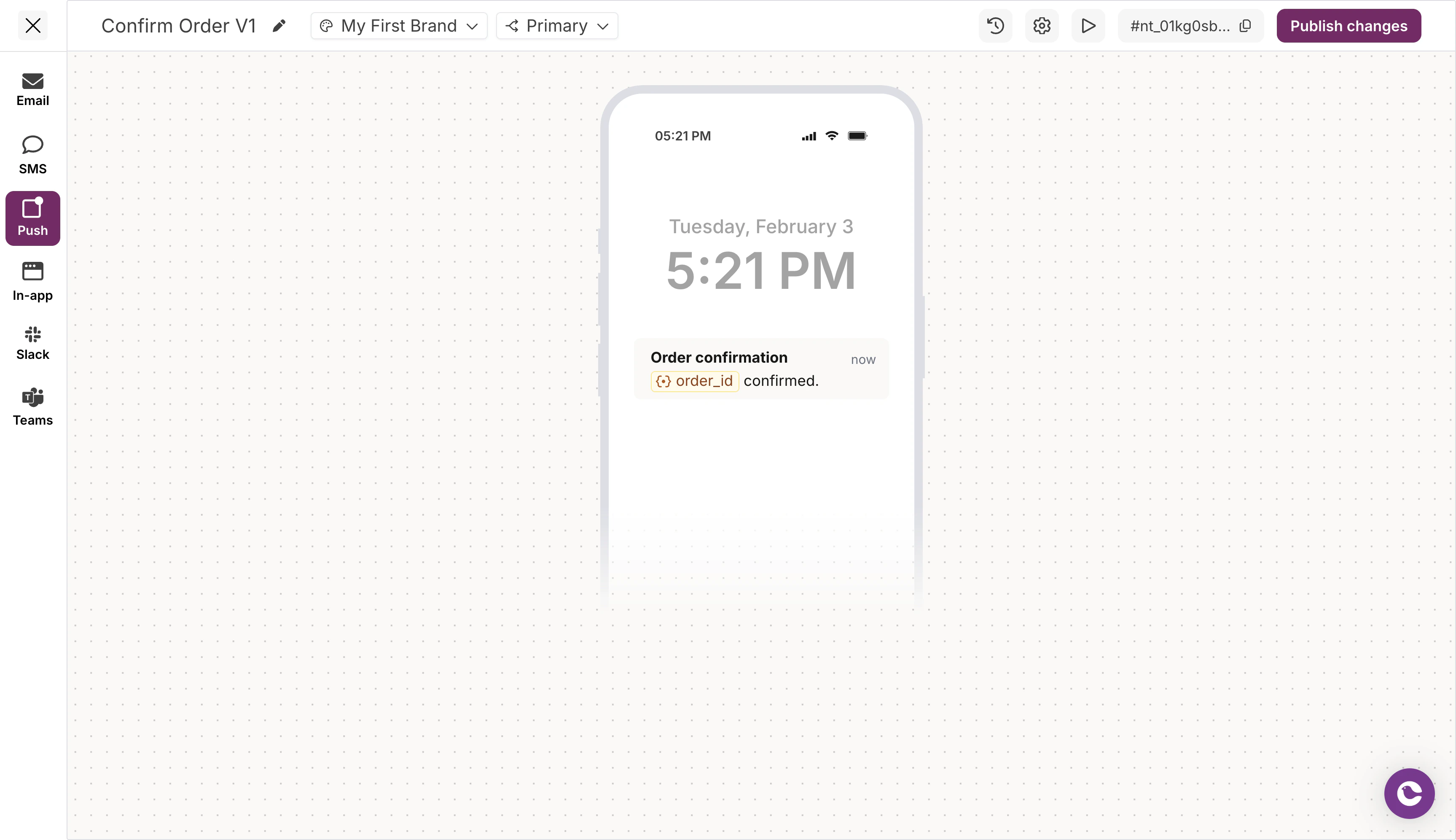 * Title and body text
* Variables supported
* Length limits vary by platform (iOS, Android, Web)
* No rich formatting
### In-App (Inbox)
In-App notifications via [Courier Inbox](/platform/inbox/inbox-overview) support text content.
* Title and body text
* Variables supported
* Length limits vary by platform (iOS, Android, Web)
* No rich formatting
### In-App (Inbox)
In-App notifications via [Courier Inbox](/platform/inbox/inbox-overview) support text content.
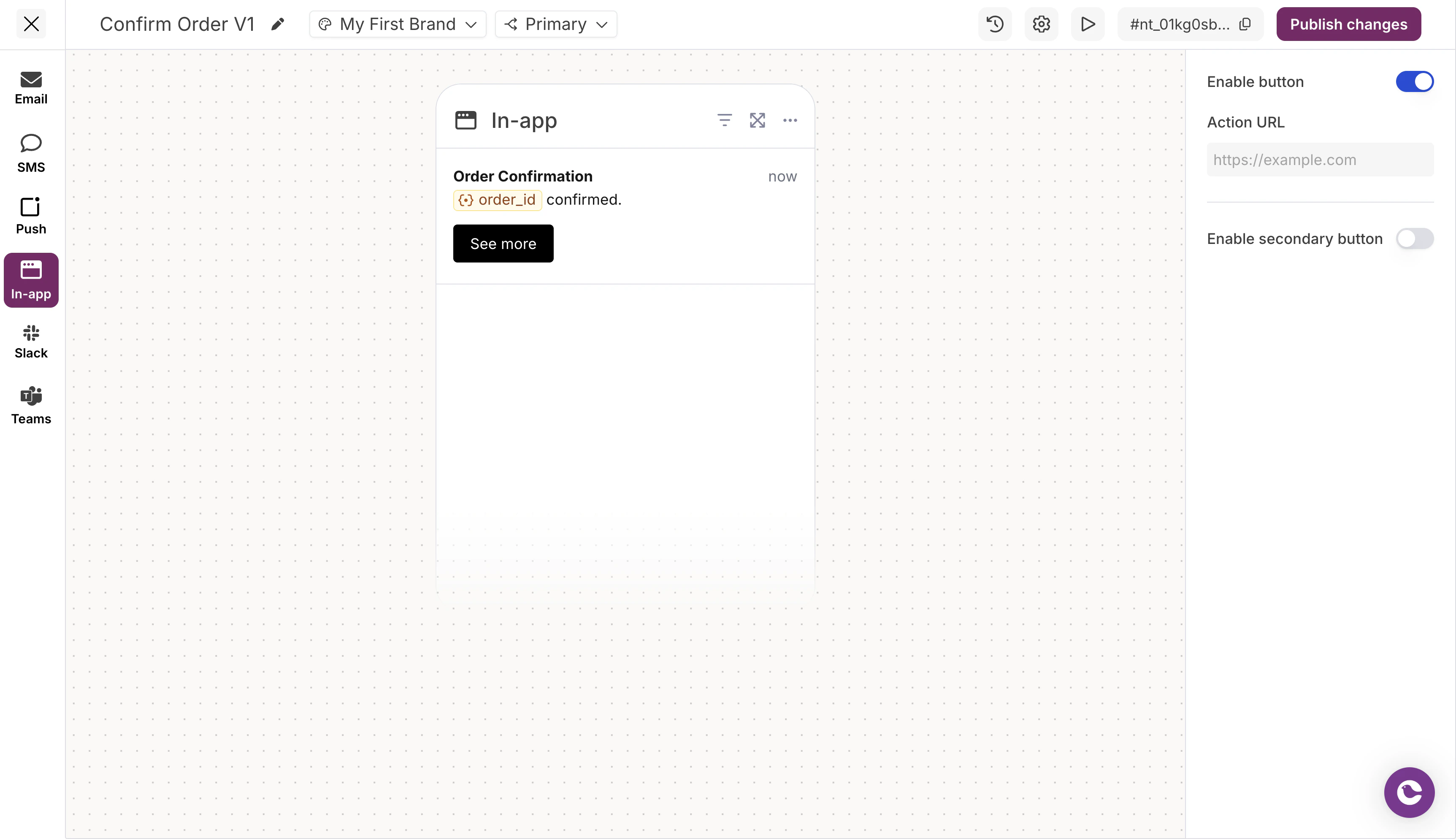 * Title and body text
* Variables supported
* Click actions can be configured (enable button, action URL)
* No rich formatting in the designer
### Slack
Slack supports a subset of blocks with Slack-specific formatting.
* Title and body text
* Variables supported
* Click actions can be configured (enable button, action URL)
* No rich formatting in the designer
### Slack
Slack supports a subset of blocks with Slack-specific formatting.
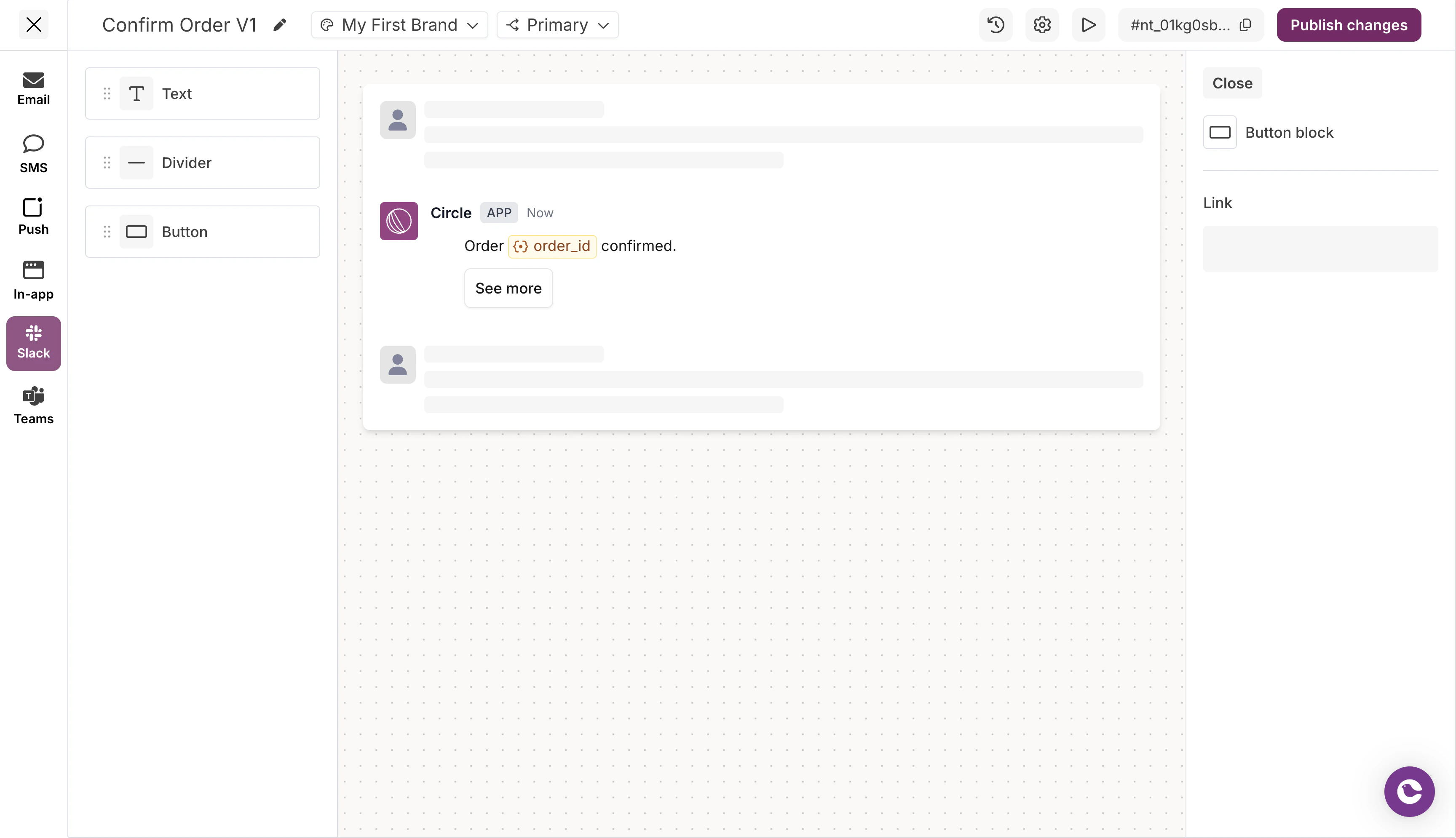 * Text with Slack markdwn formatting (bold, italic, strikethrough, links)
* Buttons as interactive elements
* Dividers between content sections
### MS Teams
MS Teams has similar capabilities to Slack with Adaptive Card formatting.
* Text with Slack markdwn formatting (bold, italic, strikethrough, links)
* Buttons as interactive elements
* Dividers between content sections
### MS Teams
MS Teams has similar capabilities to Slack with Adaptive Card formatting.
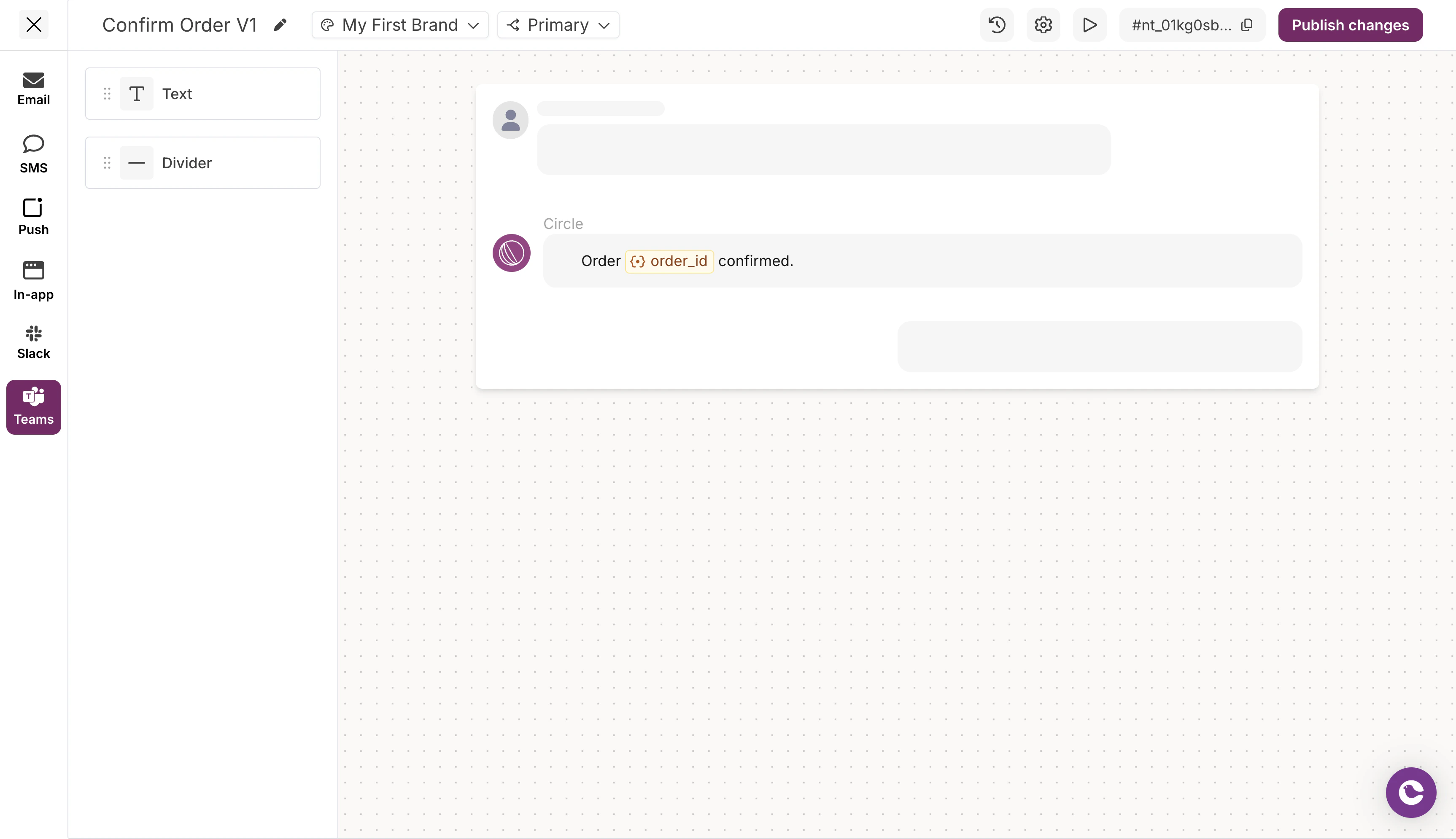 * Text with basic formatting
* Dividers
## Switching between channels
In Design Studio, each channel has its own content editor. Channel tabs appear at the top of the editor.
* Click a channel tab to edit that channel's content
* Each channel maintains its own set of blocks
* Content is not automatically synced between channels
Design your email content first (richest options), then adapt for other channels as needed.
## Related
Working with content blocks
Configure channel routing
* Text with basic formatting
* Dividers
## Switching between channels
In Design Studio, each channel has its own content editor. Channel tabs appear at the top of the editor.
* Click a channel tab to edit that channel's content
* Each channel maintains its own set of blocks
* Content is not automatically synced between channels
Design your email content first (richest options), then adapt for other channels as needed.
## Related
Working with content blocks
Configure channel routing