> ## Documentation Index
> Fetch the complete documentation index at: https://www.courier.com/docs/llms.txt
> Use this file to discover all available pages before exploring further.
# HTML Blocks
> Add HTML markup in Design Studio. Use for advanced layout, tracking, or channel-specific markup.
HTML blocks let you add raw HTML or other markup to your notification content. Use them when you need full control over markup (e.g. tracking pixels, custom layouts, or channel-specific HTML).
## Adding an HTML block
1. In Design Studio, select a channel.
2. Add an **HTML** block from the block sidebar or toolbar.
3. Enter your HTML in the block editor.
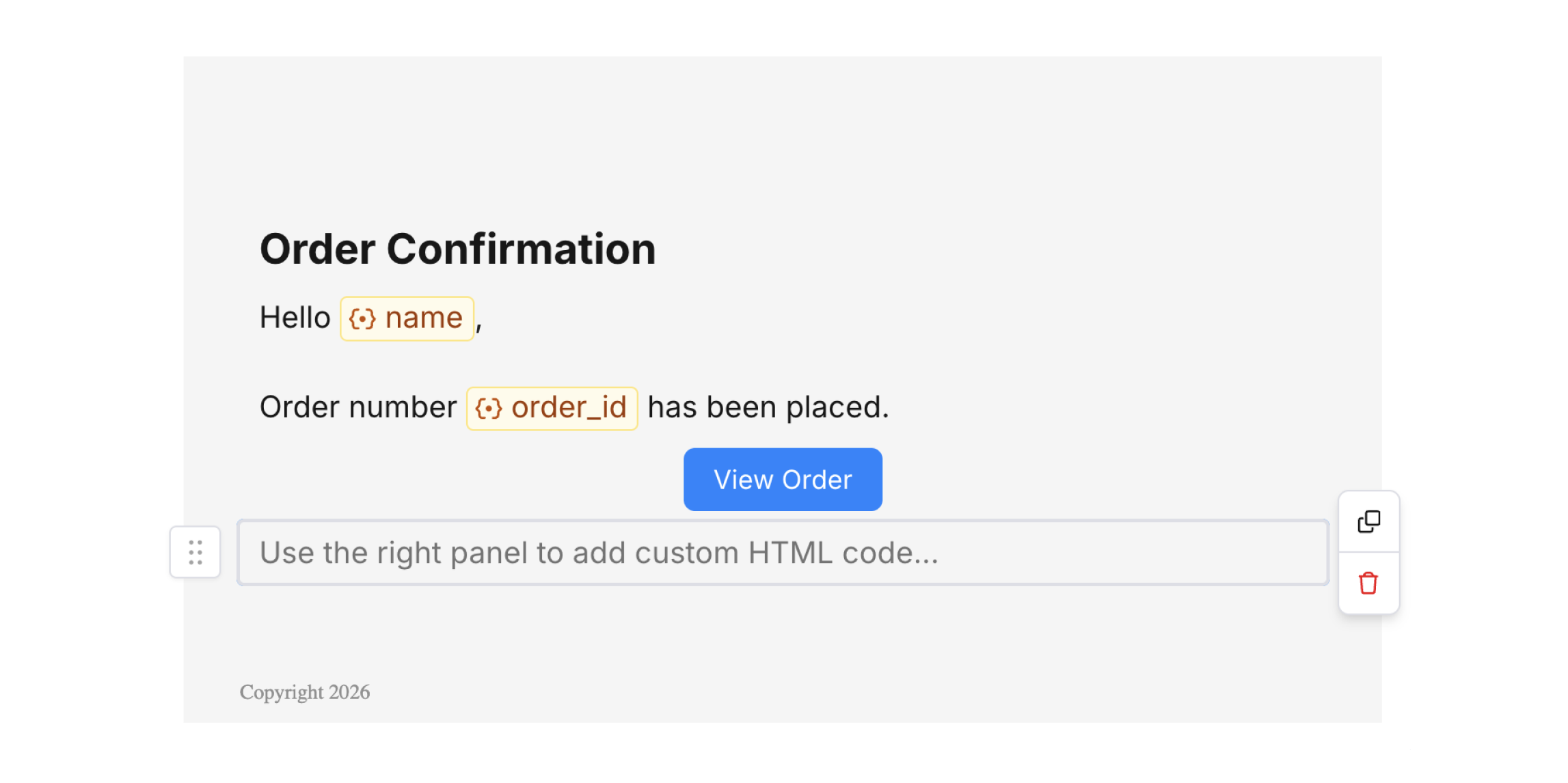 ## HTML editor
The HTML block offers an inline code editor in the right panel. Enter standard HTML (like `
## HTML editor
The HTML block offers an inline code editor in the right panel. Enter standard HTML (like ``, `
`, or `![]() `) and inline CSS for custom layouts or tracking (e.g., analytics pixels).
`) and inline CSS for custom layouts or tracking (e.g., analytics pixels).
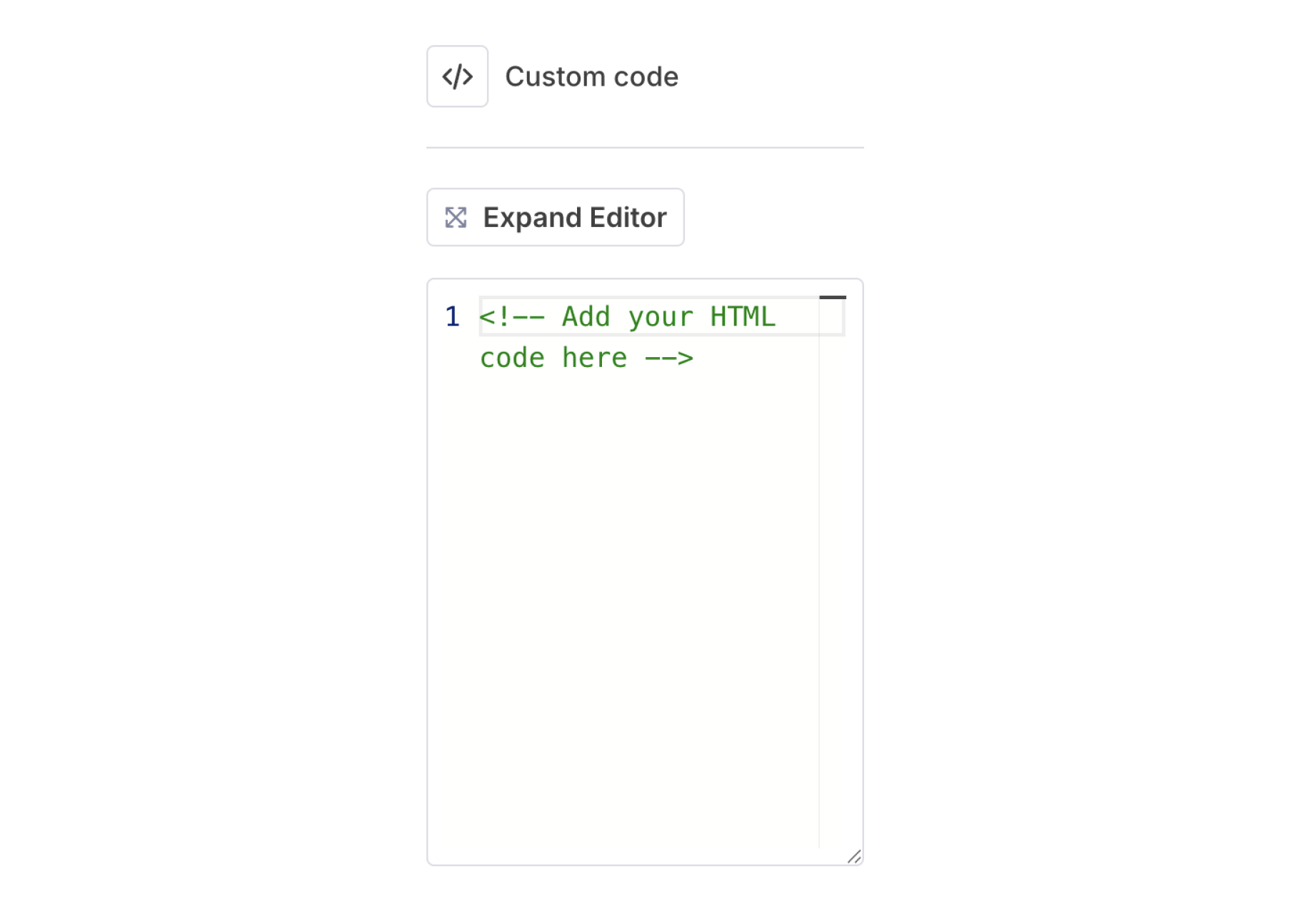 Changes in the editor appear instantly in the canvas preview. You can see your updates reflected in real time as you type.
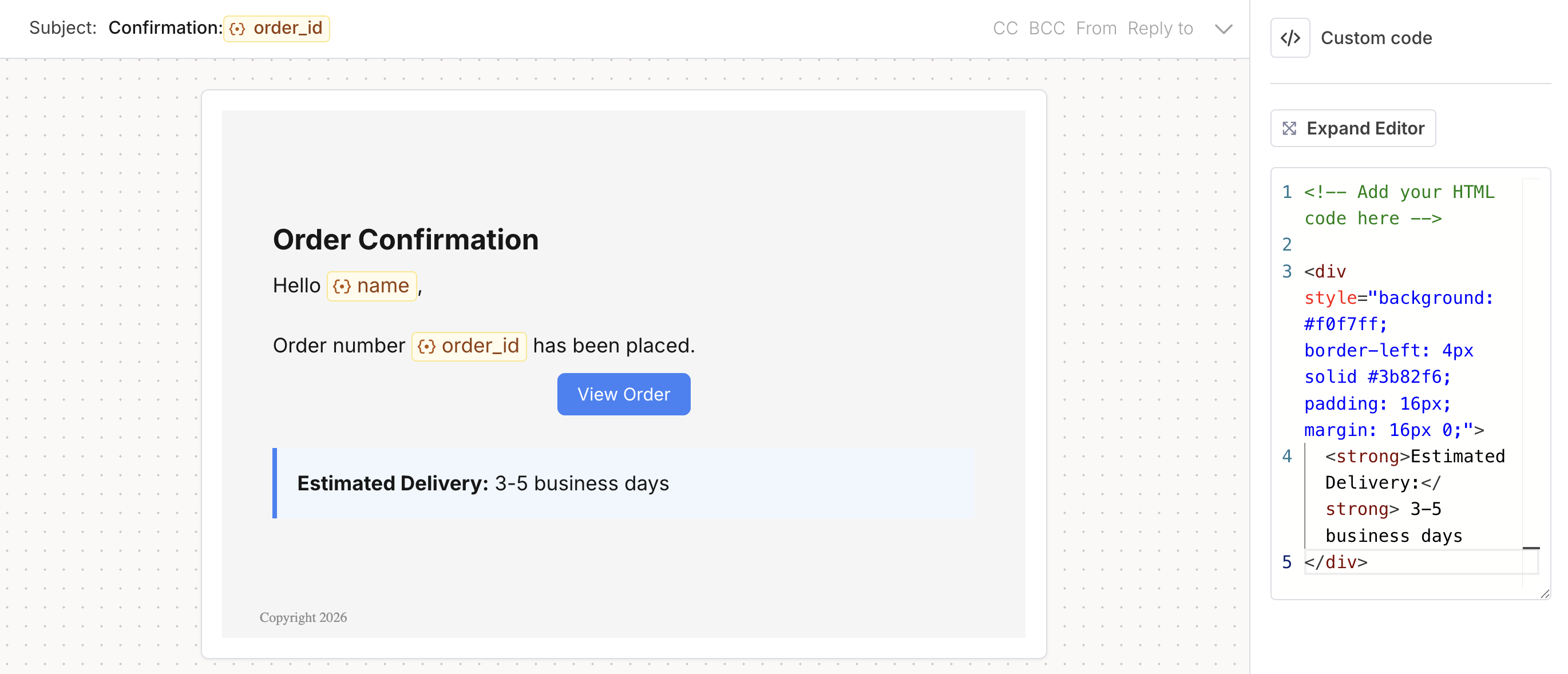 Click the expand icon in the top-right corner of the code editor to open a larger editing window.
## Variables and Handlebars
HTML blocks support [variables](/platform/content/variables/inserting-variables) using the `{{variable}}` syntax and the full range of [Handlebars helpers](/platform/content/template-designer/handlebars-helpers), including `{{#if}}` for conditional logic and `{{#each}}` for looping over arrays.
For example, you can iterate over a `data.items` array to build a custom list:
```handlebars theme={null}
Click the expand icon in the top-right corner of the code editor to open a larger editing window.
## Variables and Handlebars
HTML blocks support [variables](/platform/content/variables/inserting-variables) using the `{{variable}}` syntax and the full range of [Handlebars helpers](/platform/content/template-designer/handlebars-helpers), including `{{#if}}` for conditional logic and `{{#each}}` for looping over arrays.
For example, you can iterate over a `data.items` array to build a custom list:
```handlebars theme={null}
{{#each data.items}}
- {{this.name}} — {{this.price}}
{{/each}}
```
This is useful when you need loop structures beyond what the [List block's Loop on feature](/platform/content/design-studio/list-blocks#looping-over-data) supports, such as nested loops, conditional items within iterations, or fully custom HTML markup.
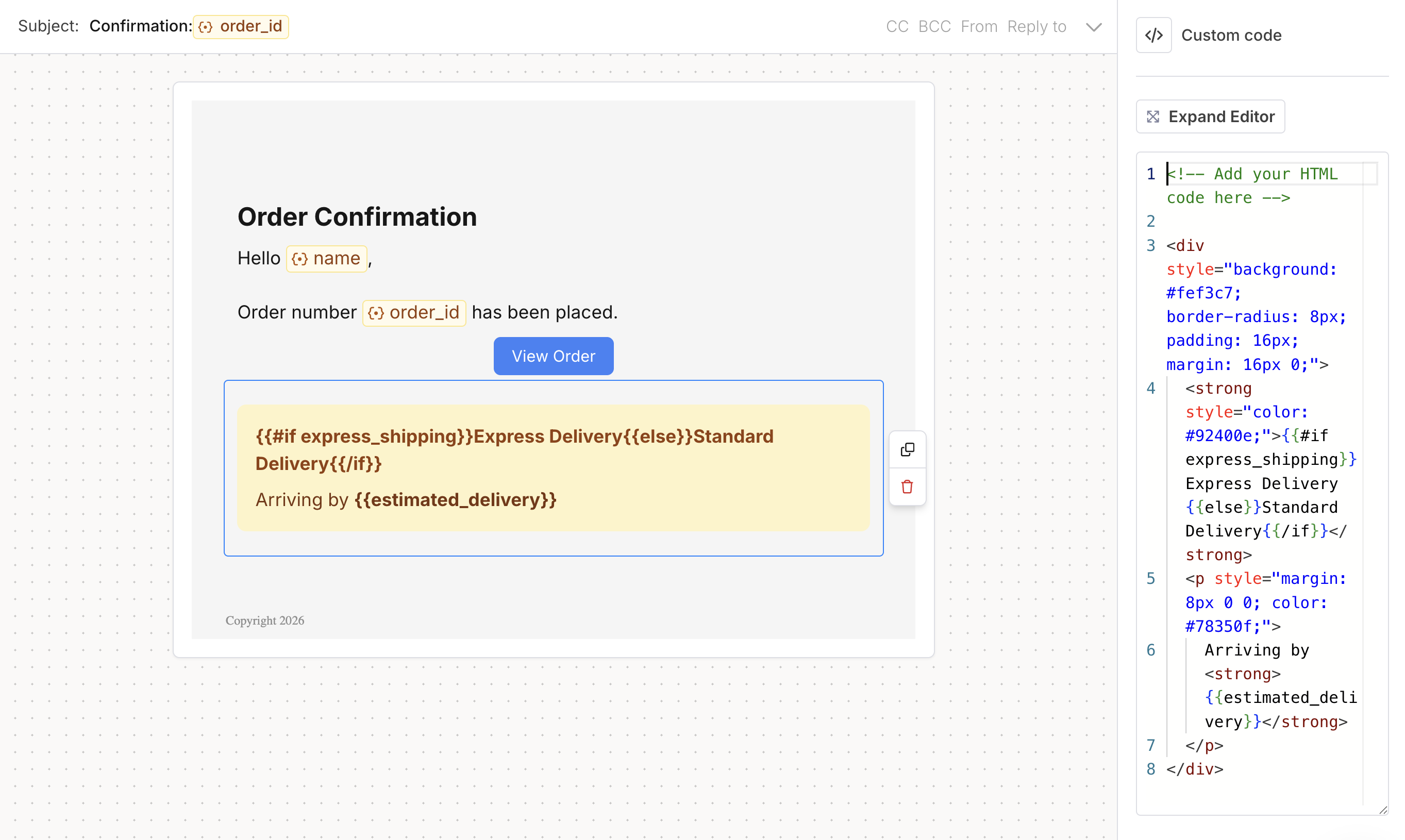 Variables and Handlebars expressions in HTML blocks only resolve on actual send; during [preview mode](/platform/content/template-designer/how-to-preview-notification), you see the raw syntax, not sample values.
## Best practices
* Keep markup minimal and test across channels.
* Use variables for dynamic content rather than hardcoding.
* Validate your HTML and CSS to avoid rendering issues in different email clients.
## Related
Dynamic content in code
Tips for reliable HTML and CSS
Variables and Handlebars expressions in HTML blocks only resolve on actual send; during [preview mode](/platform/content/template-designer/how-to-preview-notification), you see the raw syntax, not sample values.
## Best practices
* Keep markup minimal and test across channels.
* Use variables for dynamic content rather than hardcoding.
* Validate your HTML and CSS to avoid rendering issues in different email clients.
## Related
Dynamic content in code
Tips for reliable HTML and CSS