> ## Documentation Index
> Fetch the complete documentation index at: https://www.courier.com/docs/llms.txt
> Use this file to discover all available pages before exploring further.
# Content Blocks
> Drag-and-drop content blocks for building notifications in Design Studio.
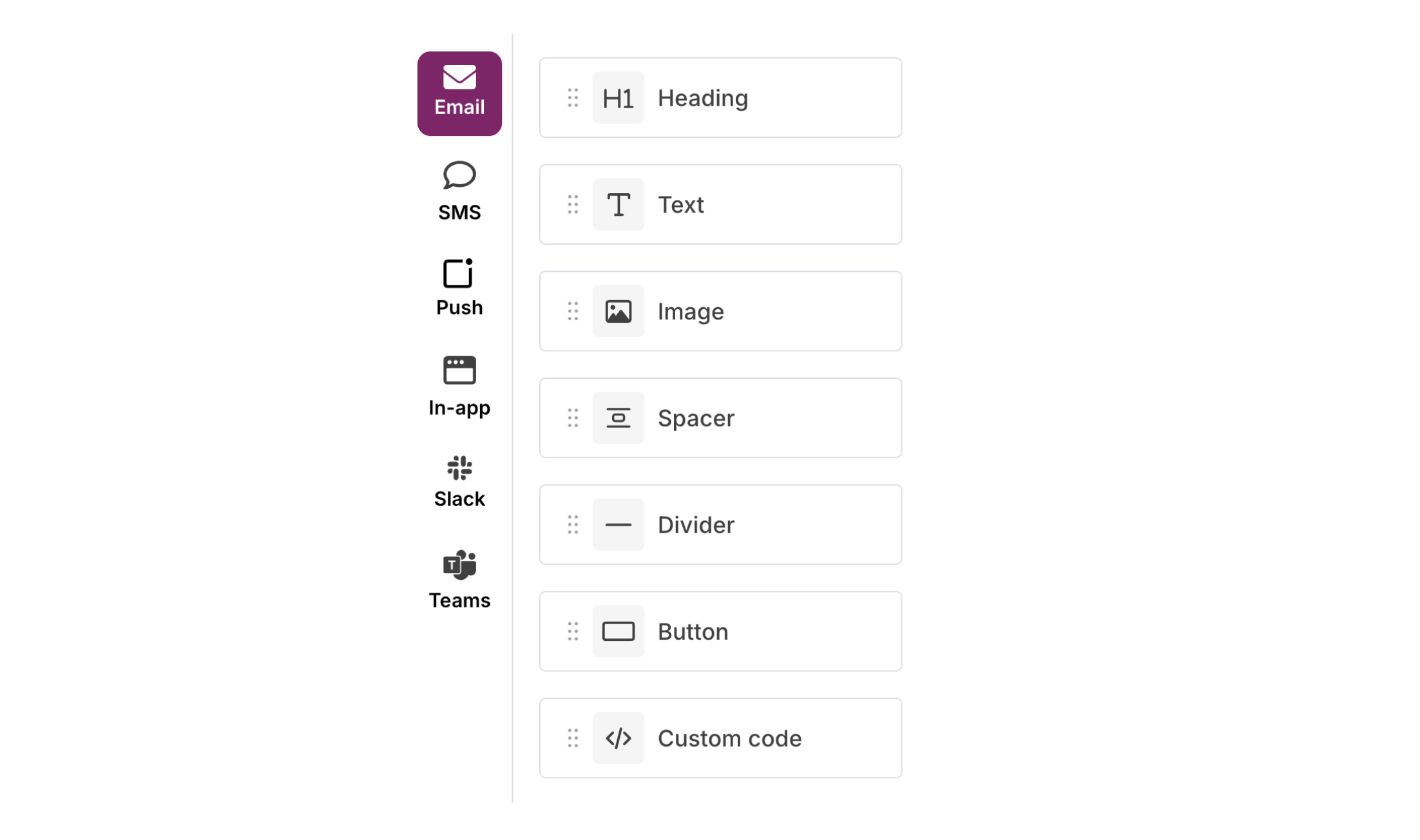
Content blocks are the building blocks for your notification content. Drag them from the sidebar onto the canvas to build your message.
## Available blocks
| Block | Description |
| ----------- | ------------------------------------------------ |
| **Heading** | Large text for titles and section headers |
| **Text** | Paragraphs with formatting, variables, and links |
| **Image** | Embed images with alt text and links |
| **Button** | Call-to-action buttons with customizable styles |
| **Spacer** | Vertical spacing between blocks |
| **Divider** | Horizontal line to separate content |
| **HTML** | Raw HTML for advanced layouts |
Additional blocks (column, blockquote, list) may be available depending on your workspace.
## Channel availability
Not all blocks are available on every channel. Email supports all block types; Slack and MS Teams support a subset. SMS, Push, and Inbox use simplified text editors. See [Channels](/platform/content/design-studio/channels) for details.
## Adding blocks
1. Select a channel from the left sidebar
2. Drag a block from the block sidebar onto the canvas
3. Drop it where you want it to appear
 You can also reorder blocks by dragging them up or down on the canvas.
## Block settings
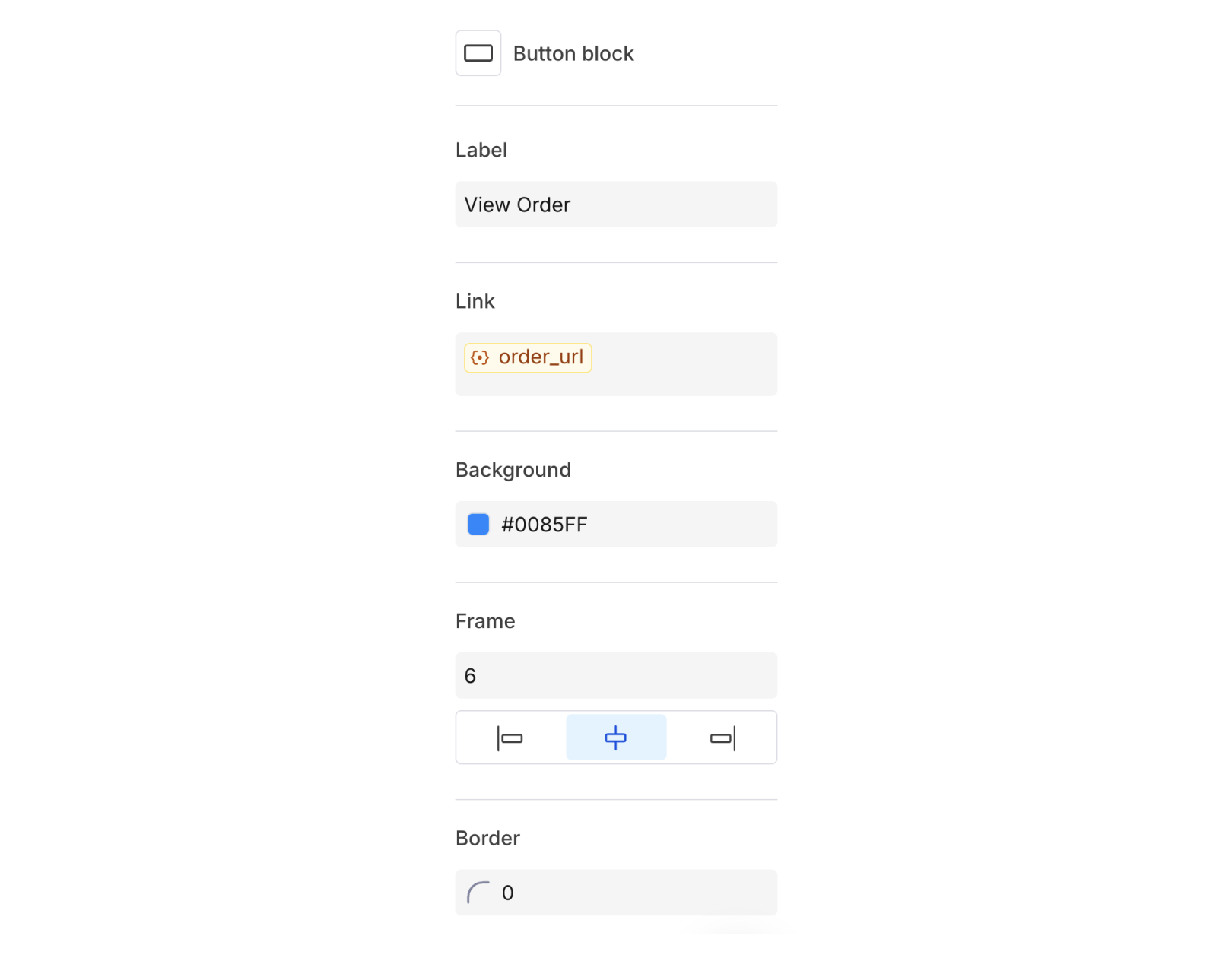
Click on a block to see its settings in the right panel. Settings vary by block type and may include:
* **Frame**: Padding and margin
* **Border**: Border style and radius
* **Alignment**: Text and content alignment
* **Colors**: Background and text colors
You can also reorder blocks by dragging them up or down on the canvas.
## Block settings
Click on a block to see its settings in the right panel. Settings vary by block type and may include:
* **Frame**: Padding and margin
* **Border**: Border style and radius
* **Alignment**: Text and content alignment
* **Colors**: Background and text colors
 ## Copying and removing blocks
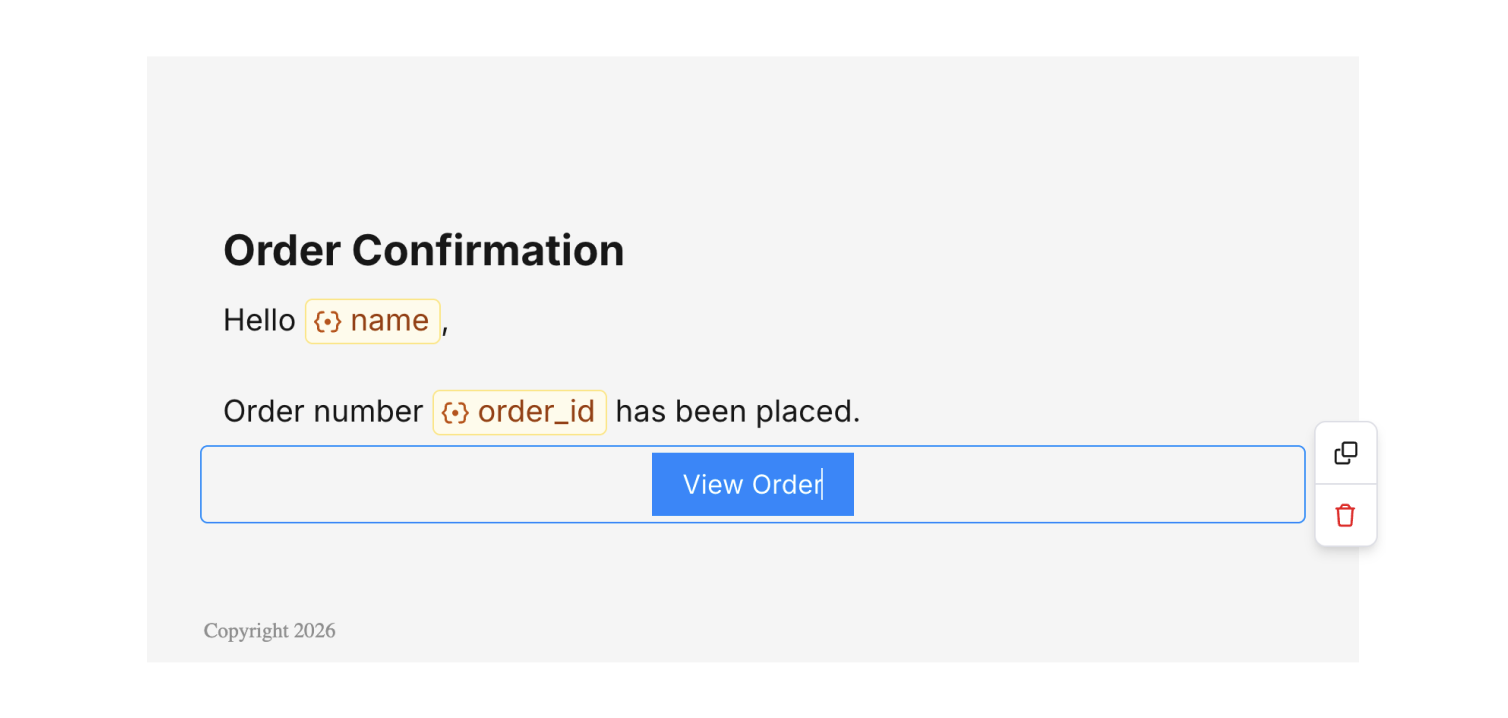
When you select a block, action icons appear:
* **Copy**: Duplicate the block directly below
* **Delete**: Remove the block from the canvas
## Copying and removing blocks
When you select a block, action icons appear:
* **Copy**: Duplicate the block directly below
* **Delete**: Remove the block from the canvas