> ## Documentation Index
> Fetch the complete documentation index at: https://www.courier.com/docs/llms.txt
> Use this file to discover all available pages before exploring further.
# Design Studio Overview
> Build multi-channel notifications with Design Studio, featuring reusable routing, version history, and an improved editing experience.
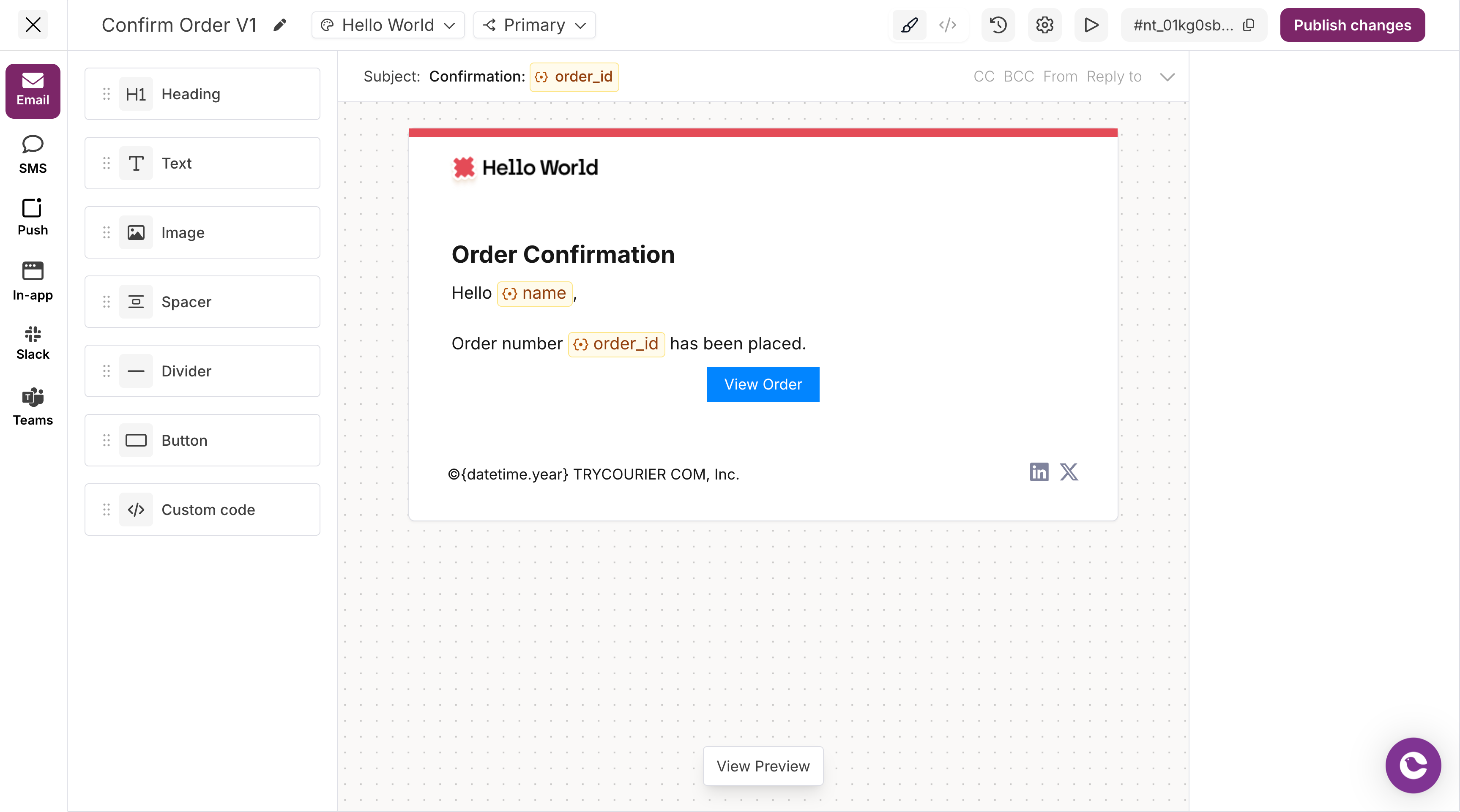
Courier Design Studio is a redesigned notification builder with an improved editing experience, reusable routing configurations, and built-in version history.
 ## What's new in Design Studio
| Feature | Classic Designer | Design Studio |
| --------------------- | ----------------------------------- | -------------------------------------------------------------------------------------------------------------------------------------------------------------------------------------------------------------------------------------------------------------- |
| **Routing** | Configured per template | [Reusable routing configurations](/platform/content/routing) you can apply across templates |
| **Version history** | Publish history only | [Full version history](/platform/content/template-designer/history-compare-mode) with side-by-side comparison |
| **Preview & test** | Basic preview | [Enhanced preview](/platform/content/template-designer/how-to-preview-notification) with test events and send test |
| **Block editing** | Content library | Inline editing with drag-and-drop sidebar |
| **Channel switching** | Tab per channel | Vertical channel tabs with visual previews |
| **Loops / iteration** | Handlebars `{{#each}}` in any block | [List block "Loop on"](/platform/content/design-studio/list-blocks#looping-over-data) toggle with data path and `$.item` references; `{{#each}}` still available in [HTML blocks](/platform/content/design-studio/custom-code-blocks#variables-and-handlebars) |
| **Handlebars** | Full Handlebars in all blocks | Variables use validated names; raw Handlebars (including helpers) supported in [HTML blocks](/platform/content/design-studio/custom-code-blocks) |
## Designer layout
Design Studio has three main areas:
1. **Channel tabs** (left): Switch between Email, SMS, Push, In-App, Slack, and MS Teams
2. **Canvas** (center): Edit your notification content with drag-and-drop blocks
3. **Settings panel** (right): Configure block-specific settings and formatting
The header toolbar provides access to:
* **Brand selector**: Apply a brand to your template
* **Routing selector**: Choose or create routing configurations
* **Version history**: View and compare template versions
* **Preview & test**: Test your template with sample data
* **Settings**: Configure template name, alias, conditions, and channel settings
## Getting started
Build content with drag-and-drop blocks
Channel-specific behavior and formatting
Configure reusable routing
Template and channel settings
## What's new in Design Studio
| Feature | Classic Designer | Design Studio |
| --------------------- | ----------------------------------- | -------------------------------------------------------------------------------------------------------------------------------------------------------------------------------------------------------------------------------------------------------------- |
| **Routing** | Configured per template | [Reusable routing configurations](/platform/content/routing) you can apply across templates |
| **Version history** | Publish history only | [Full version history](/platform/content/template-designer/history-compare-mode) with side-by-side comparison |
| **Preview & test** | Basic preview | [Enhanced preview](/platform/content/template-designer/how-to-preview-notification) with test events and send test |
| **Block editing** | Content library | Inline editing with drag-and-drop sidebar |
| **Channel switching** | Tab per channel | Vertical channel tabs with visual previews |
| **Loops / iteration** | Handlebars `{{#each}}` in any block | [List block "Loop on"](/platform/content/design-studio/list-blocks#looping-over-data) toggle with data path and `$.item` references; `{{#each}}` still available in [HTML blocks](/platform/content/design-studio/custom-code-blocks#variables-and-handlebars) |
| **Handlebars** | Full Handlebars in all blocks | Variables use validated names; raw Handlebars (including helpers) supported in [HTML blocks](/platform/content/design-studio/custom-code-blocks) |
## Designer layout
Design Studio has three main areas:
1. **Channel tabs** (left): Switch between Email, SMS, Push, In-App, Slack, and MS Teams
2. **Canvas** (center): Edit your notification content with drag-and-drop blocks
3. **Settings panel** (right): Configure block-specific settings and formatting
The header toolbar provides access to:
* **Brand selector**: Apply a brand to your template
* **Routing selector**: Choose or create routing configurations
* **Version history**: View and compare template versions
* **Preview & test**: Test your template with sample data
* **Settings**: Configure template name, alias, conditions, and channel settings
## Getting started
Build content with drag-and-drop blocks
Channel-specific behavior and formatting
Configure reusable routing
Template and channel settings