> ## Documentation Index
> Fetch the complete documentation index at: https://www.courier.com/docs/llms.txt
> Use this file to discover all available pages before exploring further.
# Divider Blocks
> Add horizontal dividers in Design Studio. Set color, thickness, and style for email and other channels.
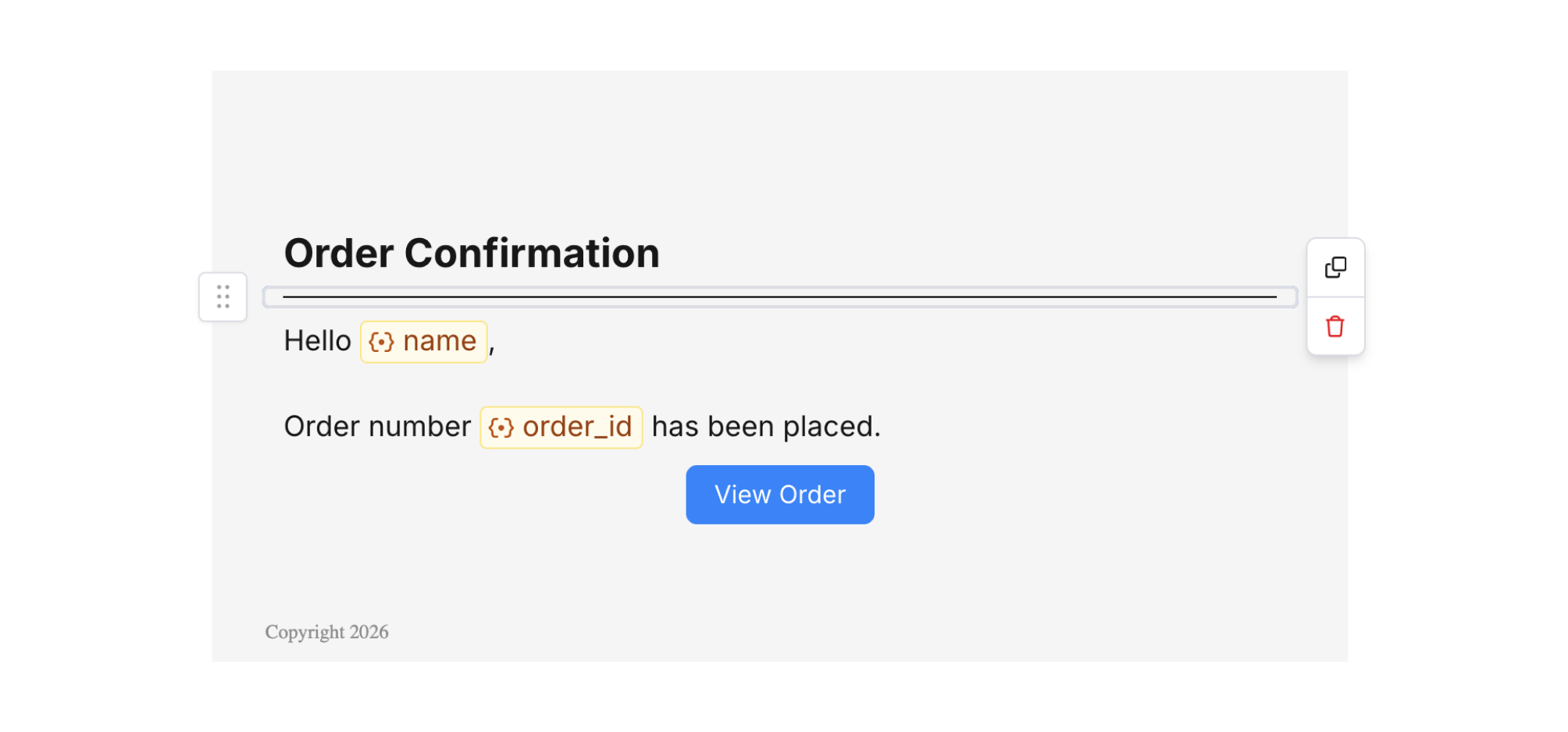
Divider blocks add horizontal lines between sections. Use them to separate content visually (e.g. header from body, footer from main content).
## Adding a divider block
1. In Design Studio, select a channel.
2. Add a **Divider** block from the block sidebar or toolbar.
3. Place it between blocks where you want a horizontal line.
4. Adjust color, thickness, or style in the block settings.
 ## Divider settings
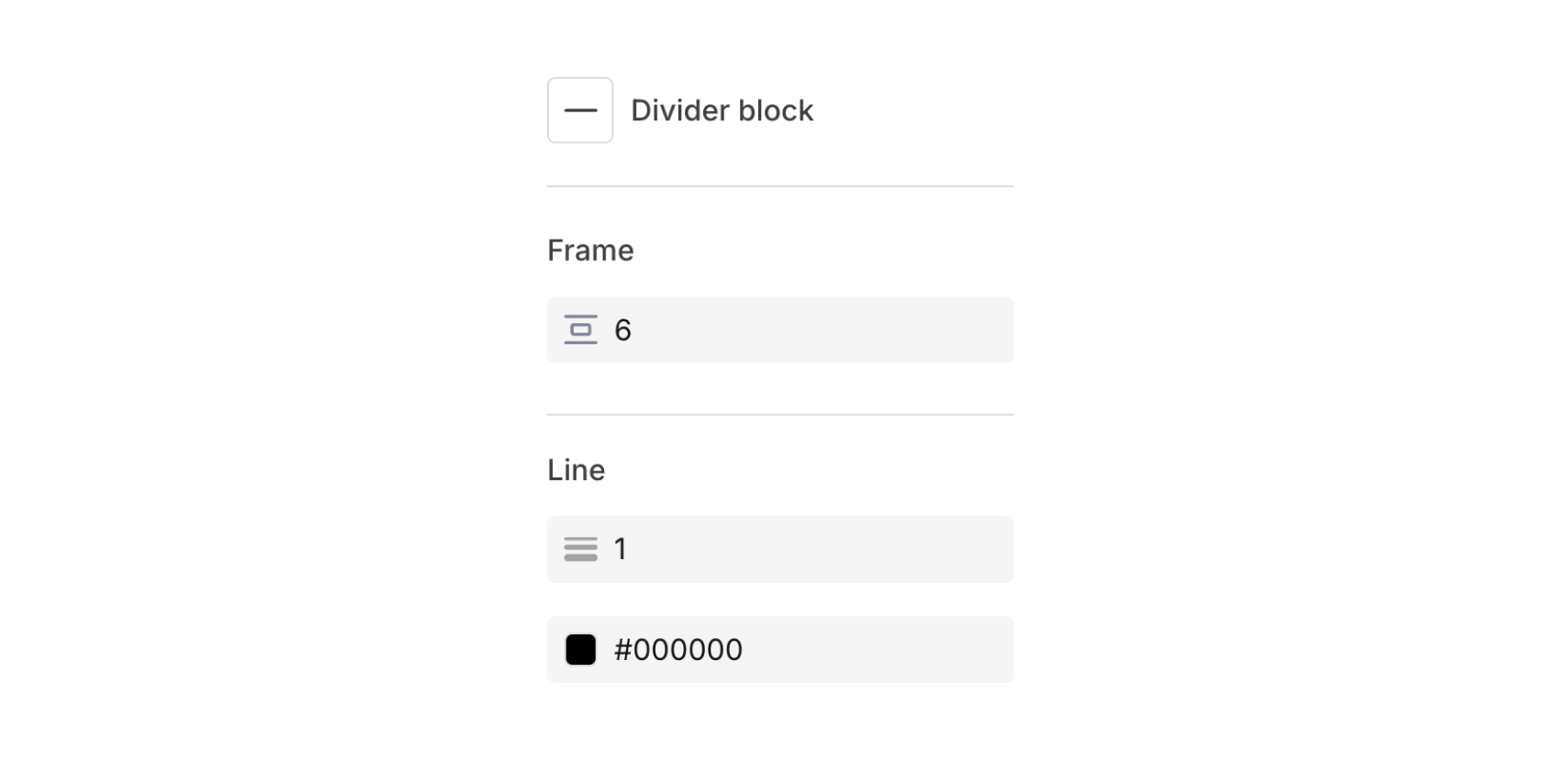
* **Color** – Line color. You can use brand or channel-specific colors.
* **Size / thickness** – Line thickness.
* **Radius** – Optional rounded corners or style variants.
## Divider settings
* **Color** – Line color. You can use brand or channel-specific colors.
* **Size / thickness** – Line thickness.
* **Radius** – Optional rounded corners or style variants.
 ## Related
Vertical spacing
Content blocks v2 basics
## Related
Vertical spacing
Content blocks v2 basics