> ## Documentation Index
> Fetch the complete documentation index at: https://www.courier.com/docs/llms.txt
> Use this file to discover all available pages before exploring further.
# Heading Blocks
> Add section headings in Design Studio. Configure heading level and styling for email, inbox, and other channels.
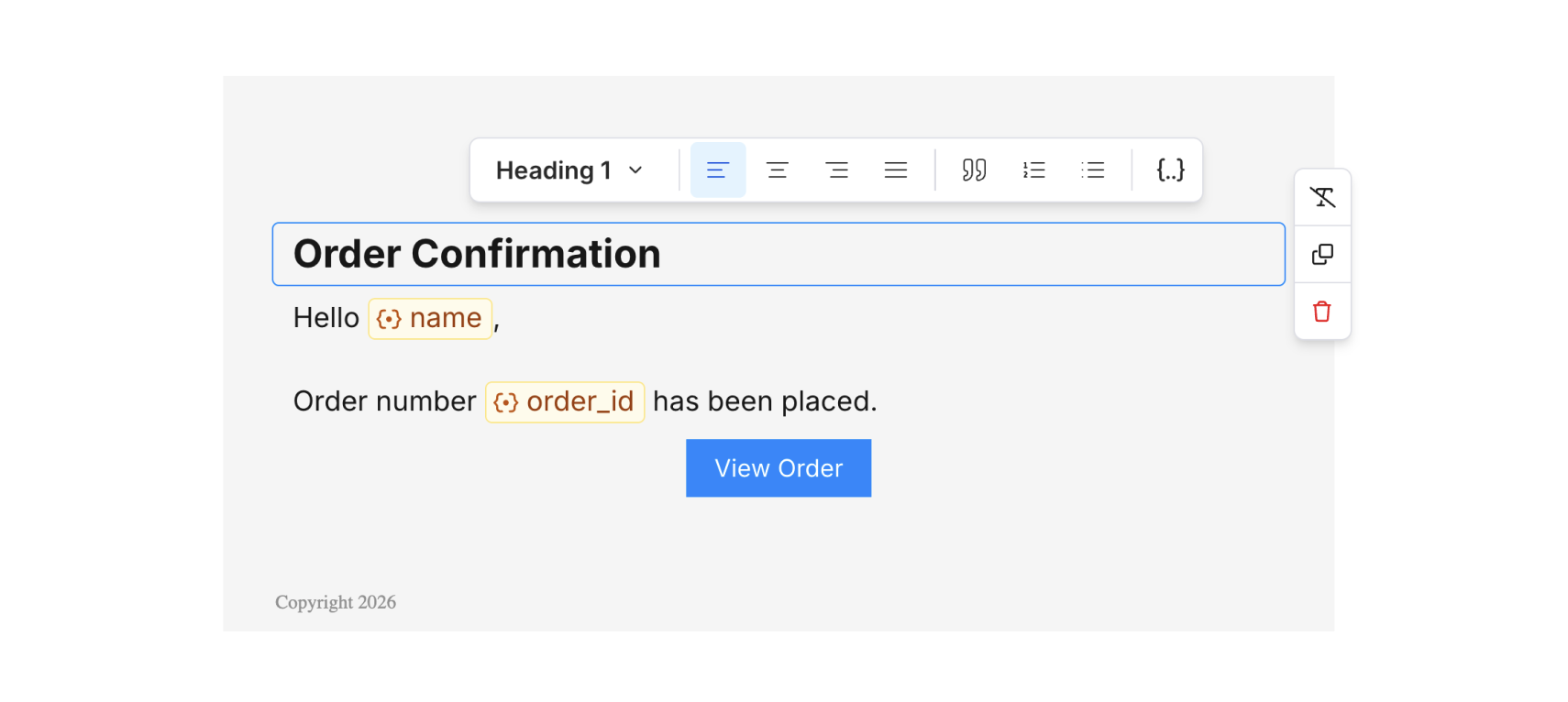
Heading blocks let you add section titles (H1, H2, etc.) to your notification content. Under the hood, heading blocks are text blocks with heading styles applied; they provide a convenient way to access heading formatting without manually styling a text block.
## Adding a heading block
1. In Design Studio, select a channel.
2. Add a **Heading** block from the block sidebar or toolbar.
3. Enter your heading text in the block.
## Heading options
* **Heading level** – Choose Heading 1, Heading 2, Heading 3, etc. for hierarchy.
* **Alignment** – Left, center, or right.
* **Quotes and lists** – Because heading blocks are text blocks under the hood, you can use them to create block quotes and ordered or unordered lists.
 ## Variables
You can use [variables](/platform/content/variables/inserting-variables) in heading text (e.g. `{{first_name}}`). Insert variables by clicking the options toolbar `{..}` icon, or by typing `{{` directly in the text.
## Block options
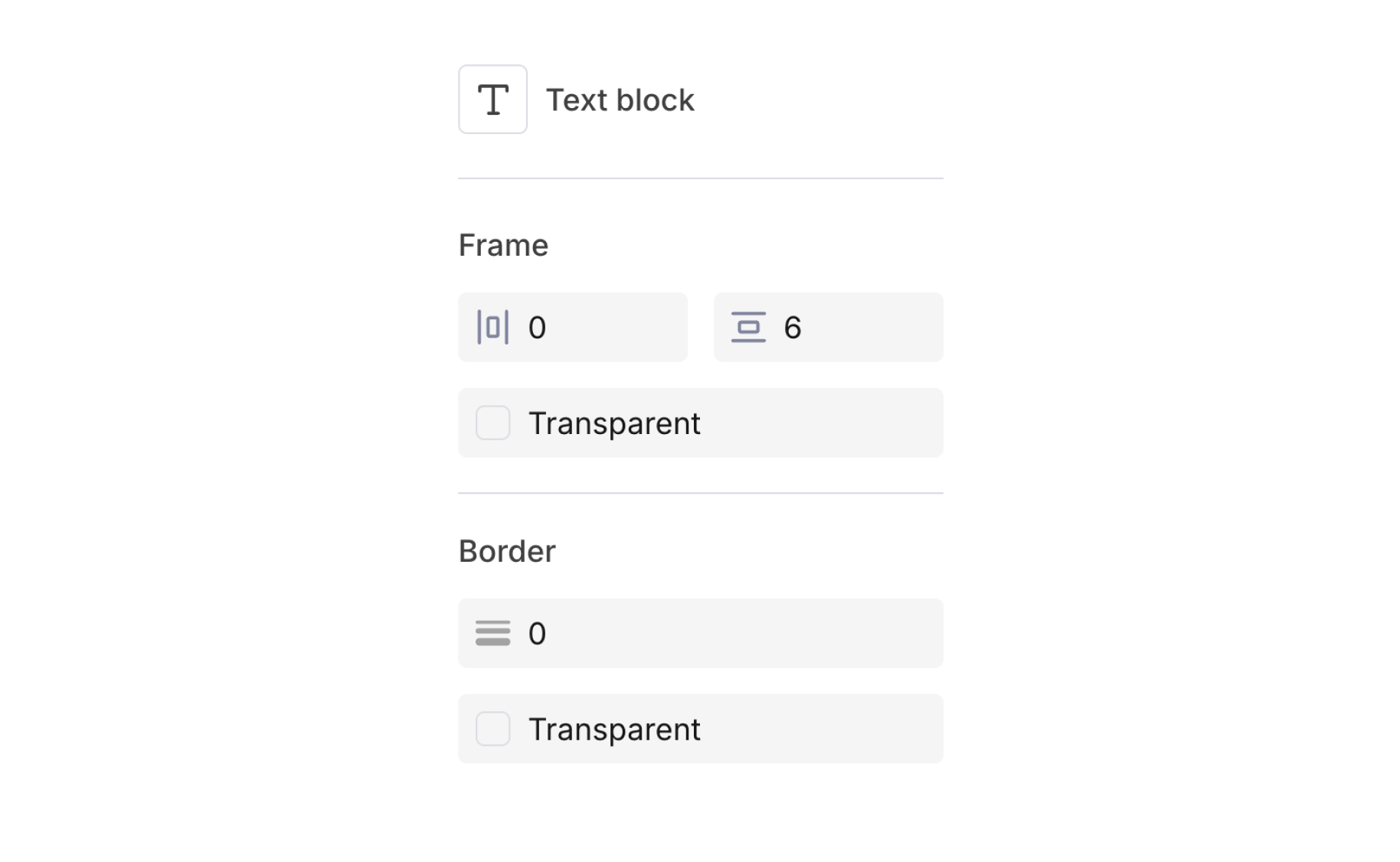
When you add a heading block, the options panel on the right will show "Text Block" as the block type. This is because the heading block is technically a styled text block under the hood. You'll find all default text block options here, including controls for background and border styles for your heading section.
## Variables
You can use [variables](/platform/content/variables/inserting-variables) in heading text (e.g. `{{first_name}}`). Insert variables by clicking the options toolbar `{..}` icon, or by typing `{{` directly in the text.
## Block options
When you add a heading block, the options panel on the right will show "Text Block" as the block type. This is because the heading block is technically a styled text block under the hood. You'll find all default text block options here, including controls for background and border styles for your heading section.
 ## Remove formatting
To clear all text formatting (bold, italic, underline, etc.) from a heading while keeping the heading level:
1. Select the heading block.
2. Click the **Remove Formatting** button (T with a slash) in the block toolbar above the duplicate and delete buttons.
This strips inline styles but preserves the block as a heading.
## Related
Body text and paragraphs
Insert dynamic content
## Remove formatting
To clear all text formatting (bold, italic, underline, etc.) from a heading while keeping the heading level:
1. Select the heading block.
2. Click the **Remove Formatting** button (T with a slash) in the block toolbar above the duplicate and delete buttons.
This strips inline styles but preserves the block as a heading.
## Related
Body text and paragraphs
Insert dynamic content