> ## Documentation Index
> Fetch the complete documentation index at: https://www.courier.com/docs/llms.txt
> Use this file to discover all available pages before exploring further.
# List Blocks
> Add bulleted or numbered lists in Design Studio. Use loops to iterate over data arrays and variables for dynamic content.
List blocks add bulleted or numbered lists to your notifications. Use them for order details, feature lists, or any content that benefits from a structured list format.
## Adding a list block
1. In Design Studio, select a channel.
2. Add a **List** block from the block sidebar, toolbar, or slash menu.
3. Choose **Ordered** (numbered) or **Unordered** (bulleted) from the settings panel.
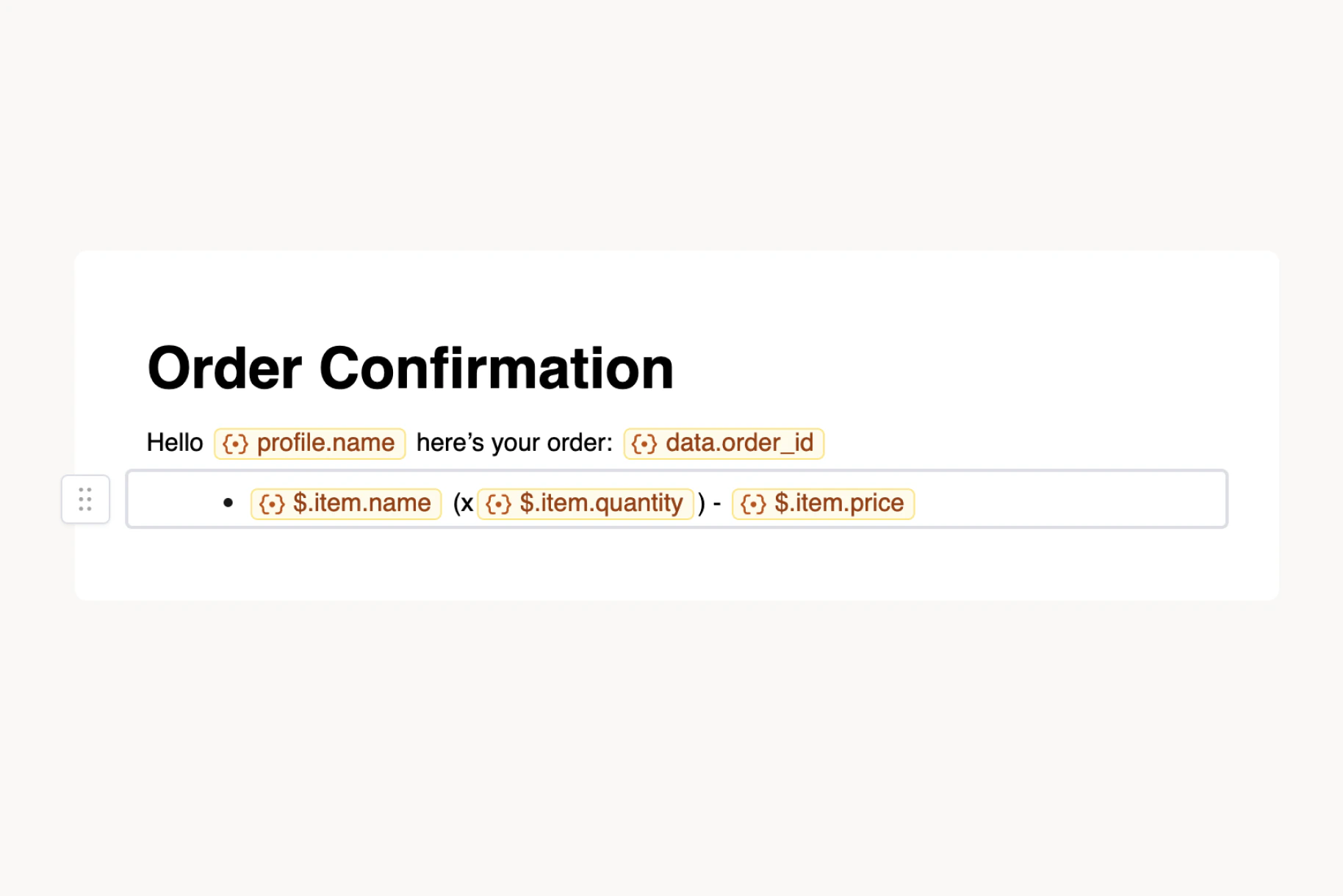
4. Add list items and use [variables](/docs/platform/content/variables/inserting-variables) for dynamic content.
 ## List settings
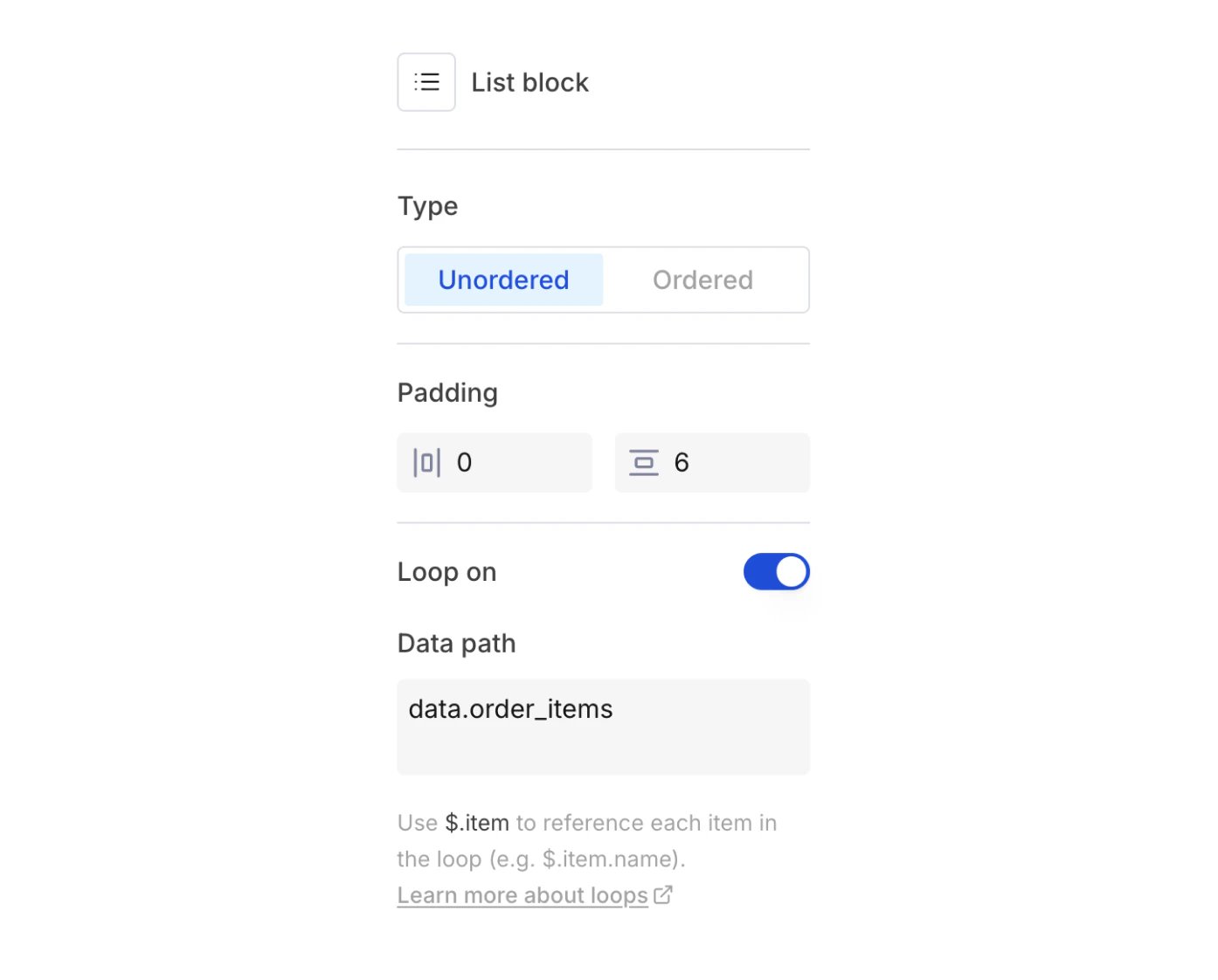
Select a List block to open the settings panel:
* **Type** — toggle between **Unordered** (bulleted) and **Ordered** (numbered)
* **Padding** — horizontal and vertical padding in pixels
* **Loop on** — repeat the list for each item in a data array (see below)
## List settings
Select a List block to open the settings panel:
* **Type** — toggle between **Unordered** (bulleted) and **Ordered** (numbered)
* **Padding** — horizontal and vertical padding in pixels
* **Loop on** — repeat the list for each item in a data array (see below)
 ## Looping over data
The **Loop on** toggle repeats the list for each item in a data array you pass via the [Send API](/docs/api-reference/send/send-a-message). This is the primary way to iterate over dynamic collections (order line items, product lists, notification summaries, etc.) in Design Studio.
To set up a loop:
1. Select the List block and open the settings panel.
2. Enable the **Loop on** toggle.
3. Enter a **Data path** that points to an array in your `data` payload (e.g. `data.order_items`).
4. Inside list item text, reference fields on the current item with `$.item` (e.g. `$.item.name`, `$.item.price`).
For example, given this Send API payload:
```json theme={null}
{
"data": {
"order_items": [
{ "name": "Wireless Mouse", "quantity": 1, "price": "$29.99" },
{ "name": "USB-C Hub", "quantity": 2, "price": "$44.99" },
{ "name": "Laptop Stand", "quantity": 1, "price": "$59.99" }
]
}
}
```
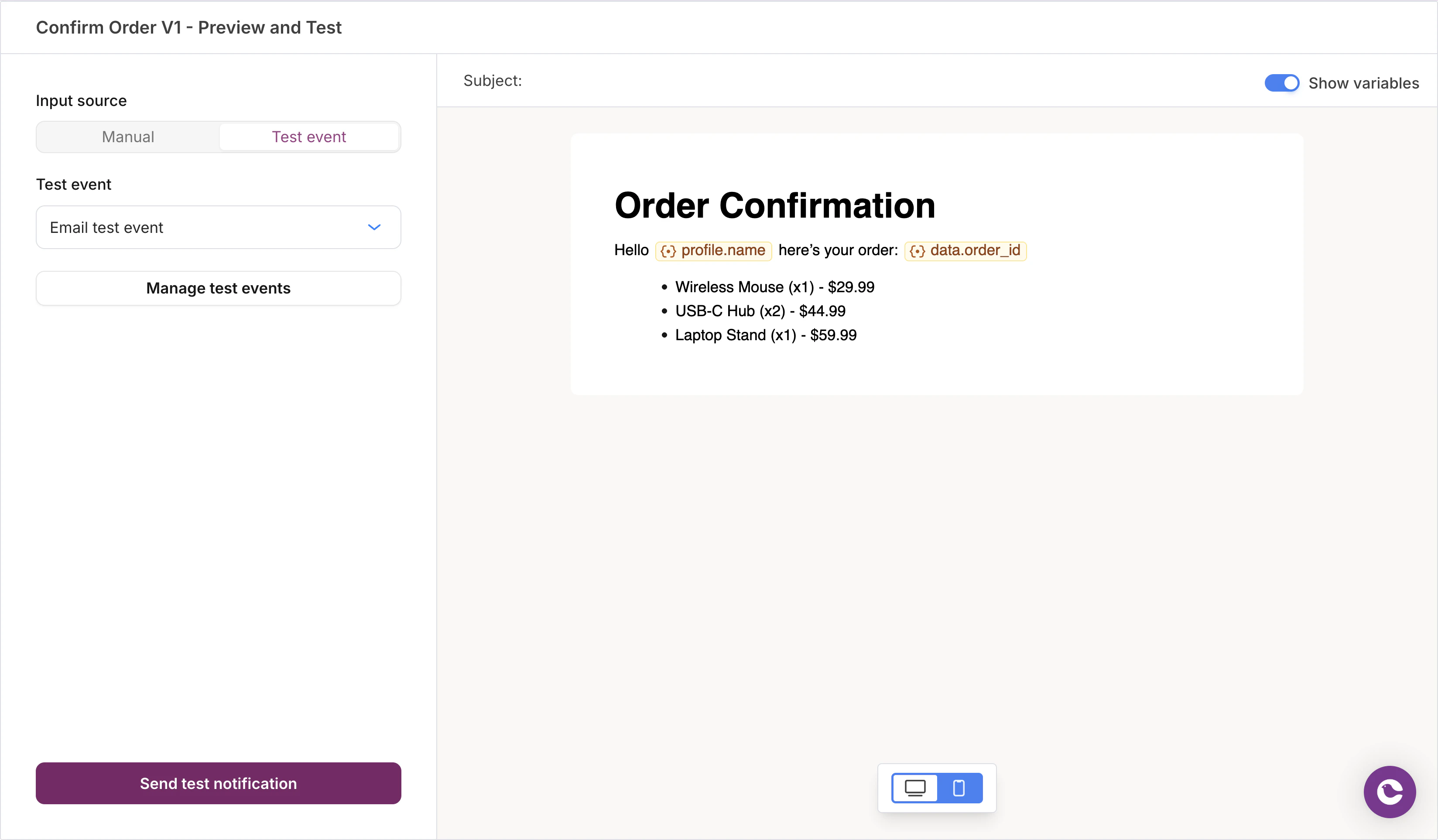
Set the data path to `data.order_items`, then use `$.item.name`, `$.item.quantity`, and `$.item.price` in your list item text. Courier expands the list at send time, producing one list item per array entry.
## Looping over data
The **Loop on** toggle repeats the list for each item in a data array you pass via the [Send API](/docs/api-reference/send/send-a-message). This is the primary way to iterate over dynamic collections (order line items, product lists, notification summaries, etc.) in Design Studio.
To set up a loop:
1. Select the List block and open the settings panel.
2. Enable the **Loop on** toggle.
3. Enter a **Data path** that points to an array in your `data` payload (e.g. `data.order_items`).
4. Inside list item text, reference fields on the current item with `$.item` (e.g. `$.item.name`, `$.item.price`).
For example, given this Send API payload:
```json theme={null}
{
"data": {
"order_items": [
{ "name": "Wireless Mouse", "quantity": 1, "price": "$29.99" },
{ "name": "USB-C Hub", "quantity": 2, "price": "$44.99" },
{ "name": "Laptop Stand", "quantity": 1, "price": "$59.99" }
]
}
}
```
Set the data path to `data.order_items`, then use `$.item.name`, `$.item.quantity`, and `$.item.price` in your list item text. Courier expands the list at send time, producing one list item per array entry.
 The data path must start with `data.` and point to an array. The designer validates the path against your [test event](/docs/platform/content/template-designer/how-to-preview-notification) data so you can catch mismatches before sending.
At render time, Courier's [loop evaluation](/docs/platform/content/elemental/control-flow#loop) expands each iteration into a single consolidated list block so spacing and formatting stay consistent.
### Workaround: Handlebars loops in HTML blocks
If you need loop logic that goes beyond what the List block supports (nested loops, conditional items within each iteration, or custom HTML structure), you can use an [HTML block](/docs/platform/content/design-studio/custom-code-blocks) with raw Handlebars:
```handlebars theme={null}
The data path must start with `data.` and point to an array. The designer validates the path against your [test event](/docs/platform/content/template-designer/how-to-preview-notification) data so you can catch mismatches before sending.
At render time, Courier's [loop evaluation](/docs/platform/content/elemental/control-flow#loop) expands each iteration into a single consolidated list block so spacing and formatting stay consistent.
### Workaround: Handlebars loops in HTML blocks
If you need loop logic that goes beyond what the List block supports (nested loops, conditional items within each iteration, or custom HTML structure), you can use an [HTML block](/docs/platform/content/design-studio/custom-code-blocks) with raw Handlebars:
```handlebars theme={null}
{{#each data.order_items}}
- {{this.name}} (x{{this.quantity}}) — {{this.price}}
{{/each}}
```
Handlebars expressions in HTML blocks compile at send time through the same template pipeline. See [Variables and Handlebars](/docs/platform/content/design-studio/custom-code-blocks#variables-and-handlebars) for details.