> ## Documentation Index
> Fetch the complete documentation index at: https://www.courier.com/docs/llms.txt
> Use this file to discover all available pages before exploring further.
# Template Settings
> Configure template settings in Design Studio, including name, alias, conditions, subscription topics, and channel settings.
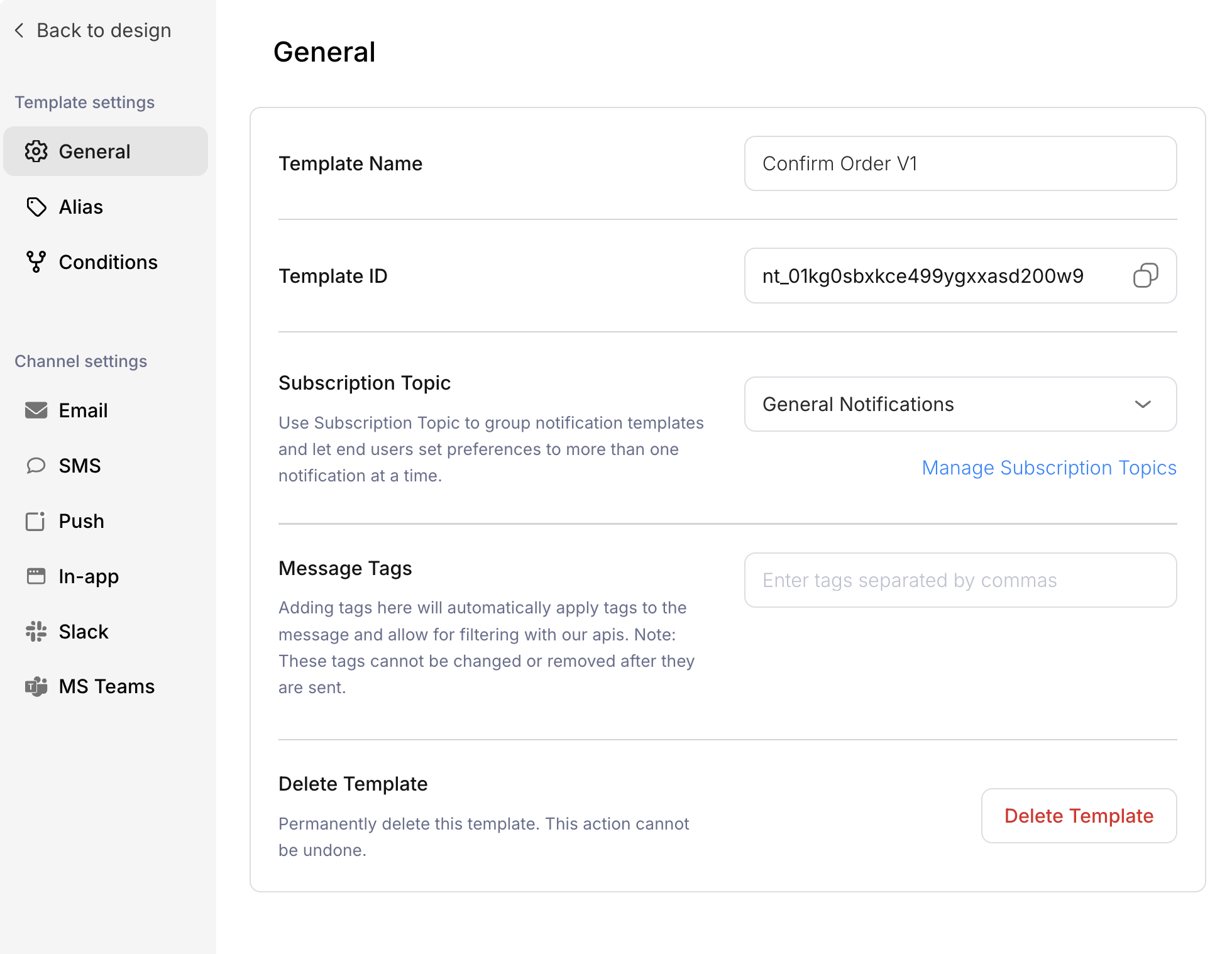
Access template settings by clicking the **gear icon** in the template editor toolbar. The settings panel includes template-level configuration and per-channel settings.
 ## Template settings
### General
| Setting | Description |
| ---------------------- | --------------------------------------------------------------------------------------------------------------------------------------------------------------------------------- |
| **Template Name** | Display name for the template in your template list |
| **Template ID** | Unique identifier used when sending notifications via API. Click the copy icon to copy. |
| **Subscription Topic** | Group templates under a subscription topic to let end users manage preferences for multiple notifications at once. See [Preferences](/platform/preferences/preferences-overview). |
| **Message Tags** | Tags applied to all messages sent from this template. Useful for filtering in logs and analytics. Tags cannot be changed after messages are sent. |
| **Delete Template** | Permanently delete the template. This action cannot be undone. |
### Alias
Create aliases for your template to use in API calls instead of the Template ID. Aliases make your API calls more readable and let you change the underlying template without updating your application code.
## Template settings
### General
| Setting | Description |
| ---------------------- | --------------------------------------------------------------------------------------------------------------------------------------------------------------------------------- |
| **Template Name** | Display name for the template in your template list |
| **Template ID** | Unique identifier used when sending notifications via API. Click the copy icon to copy. |
| **Subscription Topic** | Group templates under a subscription topic to let end users manage preferences for multiple notifications at once. See [Preferences](/platform/preferences/preferences-overview). |
| **Message Tags** | Tags applied to all messages sent from this template. Useful for filtering in logs and analytics. Tags cannot be changed after messages are sent. |
| **Delete Template** | Permanently delete the template. This action cannot be undone. |
### Alias
Create aliases for your template to use in API calls instead of the Template ID. Aliases make your API calls more readable and let you change the underlying template without updating your application code.
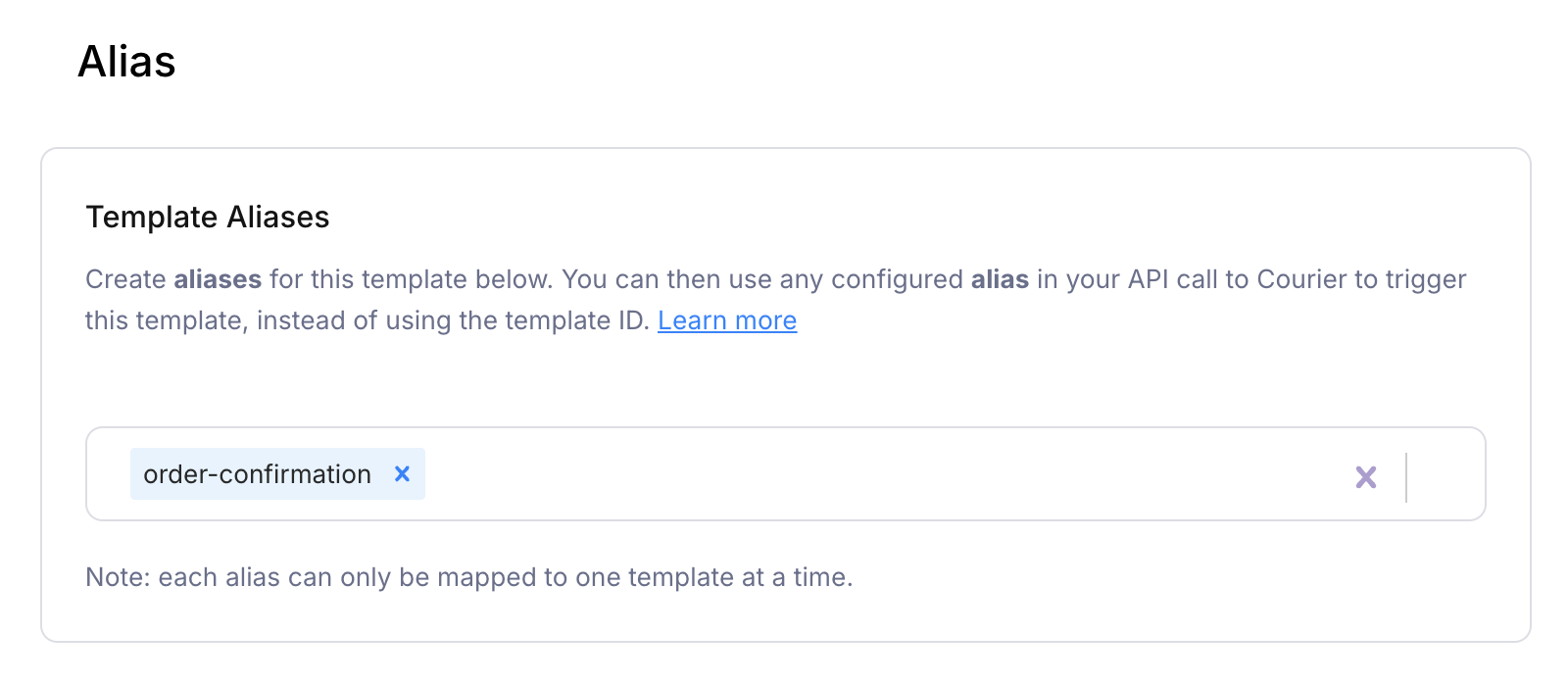 For example, if you create an alias `order-confirmation`, you can reference it in your Send API call:
```json theme={null}
{
"message": {
"template": "order-confirmation",
"to": { "user_id": "user_123" }
}
}
```
Each alias can only be mapped to one template at a time.
### Conditions
Enable or disable the entire template based on conditions evaluated at send time. These conditions apply to all channels in the template, not to a specific channel or integration.
For example, if you create an alias `order-confirmation`, you can reference it in your Send API call:
```json theme={null}
{
"message": {
"template": "order-confirmation",
"to": { "user_id": "user_123" }
}
}
```
Each alias can only be mapped to one template at a time.
### Conditions
Enable or disable the entire template based on conditions evaluated at send time. These conditions apply to all channels in the template, not to a specific channel or integration.
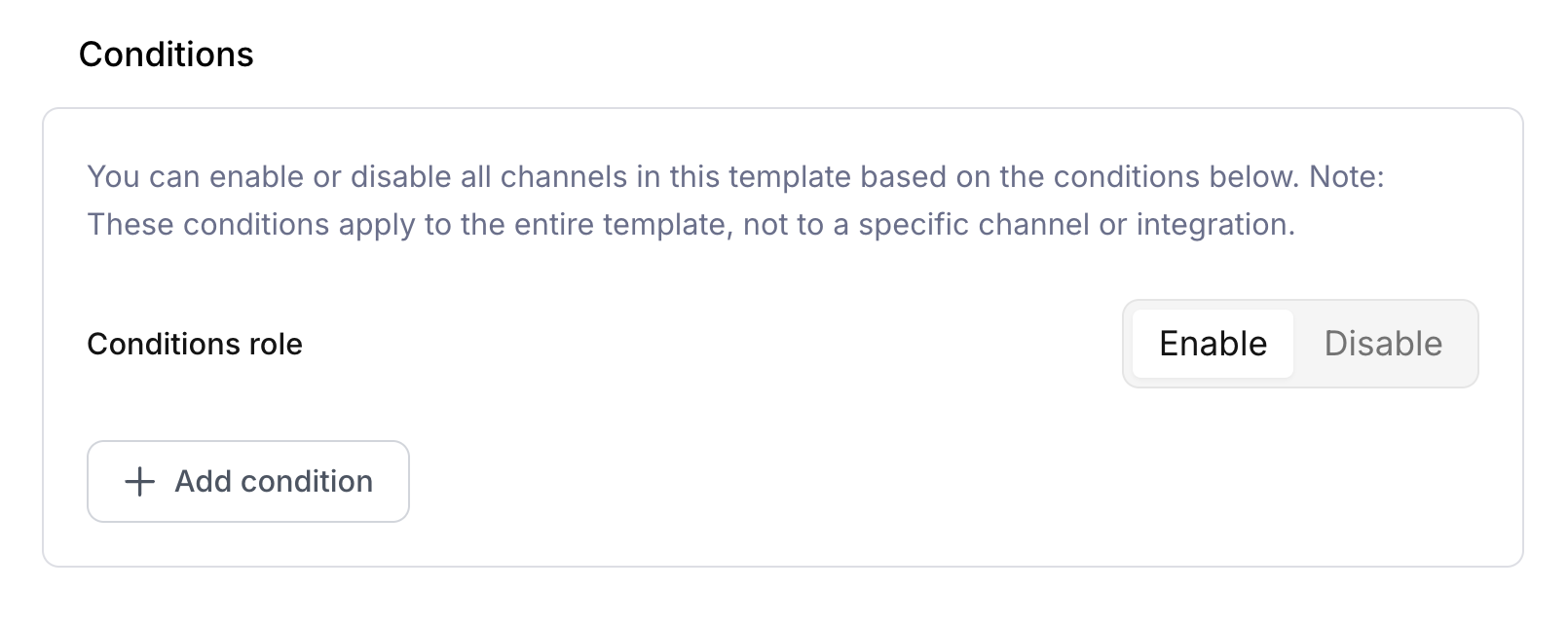 * **Conditions role**: Toggle between Enable (send if conditions match) or Disable (skip if conditions match)
* **Add condition**: Click to add conditions based on data passed in your API request
## Channel settings
Each channel configured in your template has its own settings section. Click a channel in the sidebar to configure channel-specific options.
Channel settings vary by channel type but may include:
* **Provider configuration** - Which integration to use for sending
* **Channel-specific conditions** - Send conditions that apply only to this channel
* **Formatting options** - Channel-specific formatting like email subject lines
For the classic designer settings documentation, see [General Settings](/platform/content/template-settings/general-settings).
## Related
Configure channel routing
User notification preferences
* **Conditions role**: Toggle between Enable (send if conditions match) or Disable (skip if conditions match)
* **Add condition**: Click to add conditions based on data passed in your API request
## Channel settings
Each channel configured in your template has its own settings section. Click a channel in the sidebar to configure channel-specific options.
Channel settings vary by channel type but may include:
* **Provider configuration** - Which integration to use for sending
* **Channel-specific conditions** - Send conditions that apply only to this channel
* **Formatting options** - Channel-specific formatting like email subject lines
For the classic designer settings documentation, see [General Settings](/platform/content/template-settings/general-settings).
## Related
Configure channel routing
User notification preferences