> ## Documentation Index
> Fetch the complete documentation index at: https://www.courier.com/docs/llms.txt
> Use this file to discover all available pages before exploring further.
# Routing Strategies
> Build multi or single channel notifications with reusable routing configurations that can be applied across templates in Design Studio.
Courier's routing templates allow you to create reusable routing configurations that can be applied across templates in Design Studio. Routing templates define the logic for determining which channel(s) to send a notification through based on conditions you specify.
 ## Creating a Routing Template
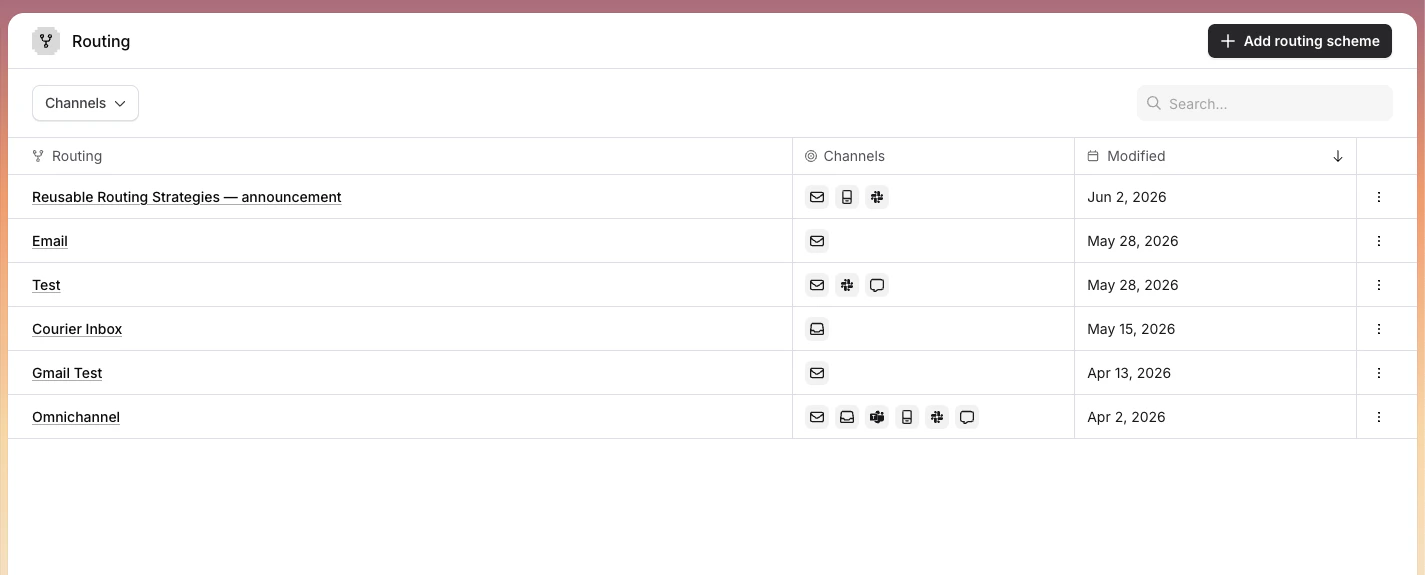
Click on `Add routing scheme` in the maing routing page to create a new routing template from the modal.
### Basic Scheme
The Basic scheme sends notifications to all enabled channels simultaneously.
## Creating a Routing Template
Click on `Add routing scheme` in the maing routing page to create a new routing template from the modal.
### Basic Scheme
The Basic scheme sends notifications to all enabled channels simultaneously.
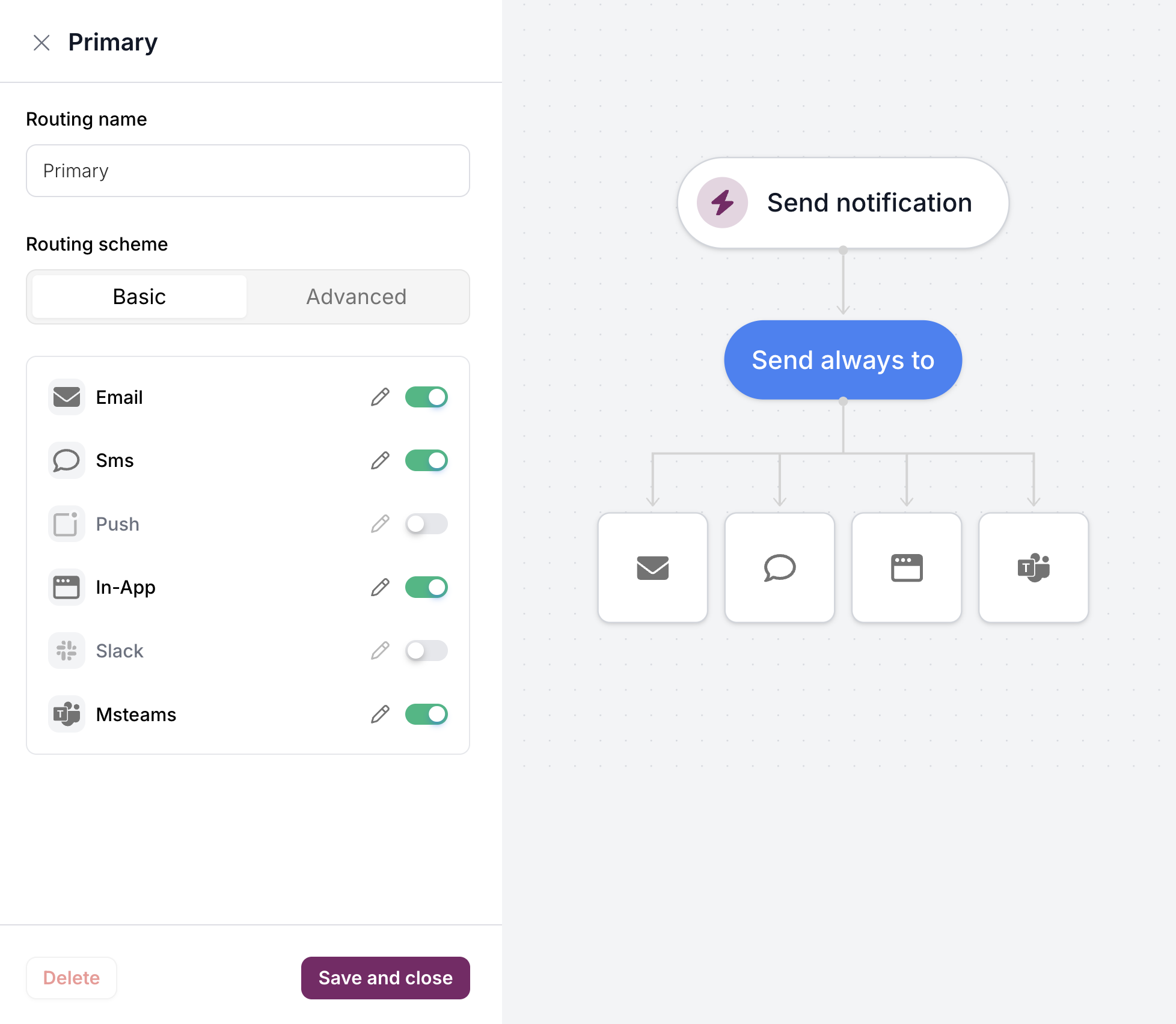 Toggle channels on or off to control which channels receive the notification. The flowchart on the right shows that all enabled channels receive the notification at the same time.
### Advanced Scheme
The Advanced scheme provides cascading fallback logic. Notifications are sent to a required channel first, then fall back to other channels if delivery fails.
Toggle channels on or off to control which channels receive the notification. The flowchart on the right shows that all enabled channels receive the notification at the same time.
### Advanced Scheme
The Advanced scheme provides cascading fallback logic. Notifications are sent to a required channel first, then fall back to other channels if delivery fails.
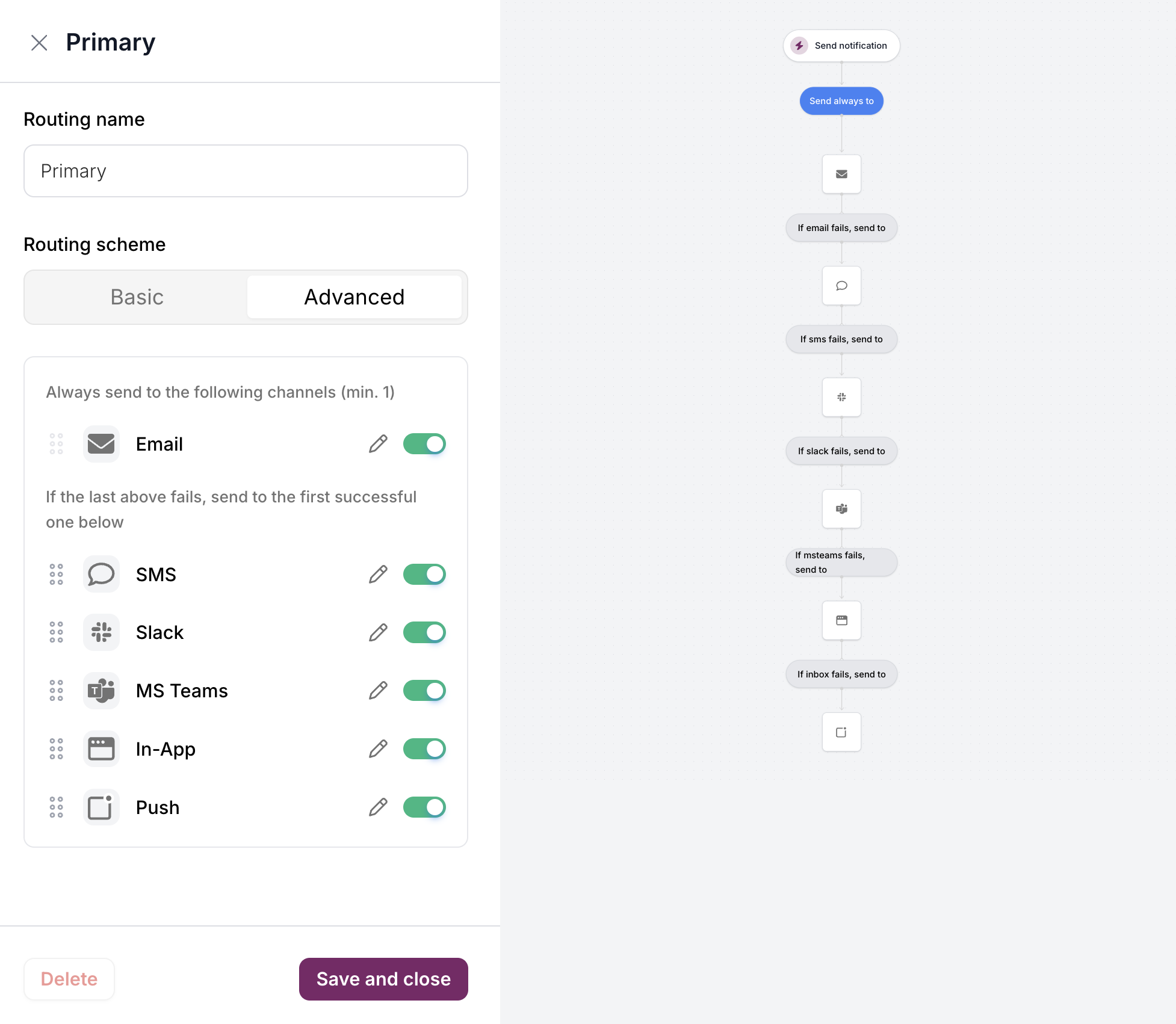 The Advanced scheme has two sections:
| Section | Behavior |
| ------------------------------------ | -------------------------------------------------------- |
| **Always send to** | Required channel(s) that always receive the notification |
| **If the last above fails, send to** | Fallback channels tried in order until one succeeds |
Drag channels to reorder priority. The flowchart visualizes the fallback chain.
### Reusing Routing Strategies
Unlike the classic designer where routing is configured per-template, routing strategies are saved independently and reusable:
1. Create a routing strategy once (e.g., "Primary" with email + SMS fallback)
2. Apply it to multiple templates from the routing dropdown
3. Edit the strategy to update all templates using it
***
## Managing Routing Strategies with the REST API
You can list, create, retrieve, update, and archive routing strategies programmatically. This is useful for infrastructure-as-code workflows, CI/CD pipelines, and any scenario where you manage templates through the API rather than Design Studio.
For full request/response schemas and SDK examples in all languages, see the [Routing Strategies API Reference](/api-reference/routing-strategies/list-routing-strategies).
### List Strategies
Returns metadata only (name, tags, timestamps); use the get endpoint for full routing content.
```bash cURL icon=terminal wrap theme={null}
curl -s "https://api.courier.com/routing-strategies" \
-H "Authorization: Bearer $COURIER_API_KEY" | jq .
```
```javascript Node.js icon=node-js theme={null}
import Courier from "@trycourier/courier";
const client = new Courier();
const { results, paging } = await client.routingStrategies.list();
console.log(results);
```
```python Python icon=python theme={null}
from courier import Courier
client = Courier()
response = client.routing_strategies.list()
print(response.results)
```
The response is paginated. Pass the `cursor` value from `paging` to fetch the next page.
### Create a Strategy
Provide a `name` and a `routing` object at minimum. The `routing.method` controls delivery behavior:
| Method | Behavior |
| -------- | --------------------------------------------------------------- |
| `single` | Try channels in order; stop after the first successful delivery |
| `all` | Send to all listed channels simultaneously |
```bash cURL icon=terminal wrap theme={null}
curl -X POST "https://api.courier.com/routing-strategies" \
-H "Authorization: Bearer $COURIER_API_KEY" \
-H "Content-Type: application/json" \
-d '{
"name": "Email with SMS fallback",
"routing": {
"method": "single",
"channels": ["email", "sms"]
},
"channels": {
"email": { "providers": ["sendgrid", "ses"] }
},
"tags": ["production"]
}'
```
```javascript Node.js icon=node-js theme={null}
const response = await client.routingStrategies.create({
name: "Email with SMS fallback",
routing: { method: "single", channels: ["email", "sms"] },
channels: { email: { providers: ["sendgrid", "ses"] } },
tags: ["production"],
});
console.log(response.id); // rs_...
```
```python Python icon=python theme={null}
response = client.routing_strategies.create(
name="Email with SMS fallback",
routing={"method": "single", "channels": ["email", "sms"]},
channels={"email": {"providers": ["sendgrid", "ses"]}},
tags=["production"],
)
print(response.id)
```
The response returns the new strategy's `id` (e.g., `rs_01abc123`). Use this as `routing.strategy_id` when creating or updating templates.
### Get Full Details
The list endpoint returns metadata only. To see the complete routing, channels, and providers configuration, retrieve a single strategy by ID.
```bash cURL icon=terminal wrap theme={null}
curl -s "https://api.courier.com/routing-strategies/rs_01abc123" \
-H "Authorization: Bearer $COURIER_API_KEY" | jq .
```
### Replace a Strategy
`PUT /routing-strategies/{id}` does a full document replacement. Send the complete desired state; any fields you omit are cleared.
```bash cURL icon=terminal wrap theme={null}
curl -X PUT "https://api.courier.com/routing-strategies/rs_01abc123" \
-H "Authorization: Bearer $COURIER_API_KEY" \
-H "Content-Type: application/json" \
-d '{
"name": "Email with SMS fallback v2",
"routing": {
"method": "single",
"channels": ["email", "sms"]
},
"channels": {
"email": { "providers": ["ses", "sendgrid"] }
},
"tags": ["production", "v2"]
}'
```
### Archive a Strategy
Archiving removes a routing strategy. The strategy must not be linked to any templates; unlink all templates first or the request returns `409 Conflict`.
```bash cURL icon=terminal wrap theme={null}
curl -X DELETE "https://api.courier.com/routing-strategies/rs_01abc123" \
-H "Authorization: Bearer $COURIER_API_KEY"
```
### Using a Strategy with Templates
Every notification template references a routing strategy through `routing.strategy_id`. When you create or replace a template via `POST /notifications` or `PUT /notifications/{id}`, include the strategy ID:
```json theme={null}
{
"notification": {
"name": "Order Confirmation",
"routing": { "strategy_id": "rs_01abc123" },
"content": { ... }
}
}
```
For a full walkthrough of creating templates with the API, see [How to Use the Templates API](/tutorials/content/how-to-use-templates-api).
### Emergency Provider Switchover
Because a single routing strategy can be shared across many templates, updating one strategy immediately changes the provider order for every template that references it. You can use this to do a fast provider switchover without touching individual templates:
```bash cURL icon=terminal wrap theme={null}
# Flip all templates that use rs_01abc123 from SendGrid to SES in one call
curl -X PUT "https://api.courier.com/routing-strategies/rs_01abc123" \
-H "Authorization: Bearer $COURIER_API_KEY" \
-H "Content-Type: application/json" \
-d '{
"name": "Email primary",
"routing": { "method": "single", "channels": ["email"] },
"channels": {
"email": { "providers": ["ses", "sendgrid"] }
}
}'
```
For V1 templates that are not linked to a routing strategy, you can override the provider for a single send without changing the template by passing `message.channels.{channel}.providers` in the send request:
```json theme={null}
{
"message": {
"to": { "user_id": "user-123" },
"template": "legacy-template-id",
"channels": {
"email": { "providers": ["ses"] }
}
}
}
```
This per-send override takes effect immediately and does not require a template change.
## What's Next
Introduction to Design Studio
Manage templates programmatically
How Courier selects delivery channels
Full endpoint schemas and SDK examples
The Advanced scheme has two sections:
| Section | Behavior |
| ------------------------------------ | -------------------------------------------------------- |
| **Always send to** | Required channel(s) that always receive the notification |
| **If the last above fails, send to** | Fallback channels tried in order until one succeeds |
Drag channels to reorder priority. The flowchart visualizes the fallback chain.
### Reusing Routing Strategies
Unlike the classic designer where routing is configured per-template, routing strategies are saved independently and reusable:
1. Create a routing strategy once (e.g., "Primary" with email + SMS fallback)
2. Apply it to multiple templates from the routing dropdown
3. Edit the strategy to update all templates using it
***
## Managing Routing Strategies with the REST API
You can list, create, retrieve, update, and archive routing strategies programmatically. This is useful for infrastructure-as-code workflows, CI/CD pipelines, and any scenario where you manage templates through the API rather than Design Studio.
For full request/response schemas and SDK examples in all languages, see the [Routing Strategies API Reference](/api-reference/routing-strategies/list-routing-strategies).
### List Strategies
Returns metadata only (name, tags, timestamps); use the get endpoint for full routing content.
```bash cURL icon=terminal wrap theme={null}
curl -s "https://api.courier.com/routing-strategies" \
-H "Authorization: Bearer $COURIER_API_KEY" | jq .
```
```javascript Node.js icon=node-js theme={null}
import Courier from "@trycourier/courier";
const client = new Courier();
const { results, paging } = await client.routingStrategies.list();
console.log(results);
```
```python Python icon=python theme={null}
from courier import Courier
client = Courier()
response = client.routing_strategies.list()
print(response.results)
```
The response is paginated. Pass the `cursor` value from `paging` to fetch the next page.
### Create a Strategy
Provide a `name` and a `routing` object at minimum. The `routing.method` controls delivery behavior:
| Method | Behavior |
| -------- | --------------------------------------------------------------- |
| `single` | Try channels in order; stop after the first successful delivery |
| `all` | Send to all listed channels simultaneously |
```bash cURL icon=terminal wrap theme={null}
curl -X POST "https://api.courier.com/routing-strategies" \
-H "Authorization: Bearer $COURIER_API_KEY" \
-H "Content-Type: application/json" \
-d '{
"name": "Email with SMS fallback",
"routing": {
"method": "single",
"channels": ["email", "sms"]
},
"channels": {
"email": { "providers": ["sendgrid", "ses"] }
},
"tags": ["production"]
}'
```
```javascript Node.js icon=node-js theme={null}
const response = await client.routingStrategies.create({
name: "Email with SMS fallback",
routing: { method: "single", channels: ["email", "sms"] },
channels: { email: { providers: ["sendgrid", "ses"] } },
tags: ["production"],
});
console.log(response.id); // rs_...
```
```python Python icon=python theme={null}
response = client.routing_strategies.create(
name="Email with SMS fallback",
routing={"method": "single", "channels": ["email", "sms"]},
channels={"email": {"providers": ["sendgrid", "ses"]}},
tags=["production"],
)
print(response.id)
```
The response returns the new strategy's `id` (e.g., `rs_01abc123`). Use this as `routing.strategy_id` when creating or updating templates.
### Get Full Details
The list endpoint returns metadata only. To see the complete routing, channels, and providers configuration, retrieve a single strategy by ID.
```bash cURL icon=terminal wrap theme={null}
curl -s "https://api.courier.com/routing-strategies/rs_01abc123" \
-H "Authorization: Bearer $COURIER_API_KEY" | jq .
```
### Replace a Strategy
`PUT /routing-strategies/{id}` does a full document replacement. Send the complete desired state; any fields you omit are cleared.
```bash cURL icon=terminal wrap theme={null}
curl -X PUT "https://api.courier.com/routing-strategies/rs_01abc123" \
-H "Authorization: Bearer $COURIER_API_KEY" \
-H "Content-Type: application/json" \
-d '{
"name": "Email with SMS fallback v2",
"routing": {
"method": "single",
"channels": ["email", "sms"]
},
"channels": {
"email": { "providers": ["ses", "sendgrid"] }
},
"tags": ["production", "v2"]
}'
```
### Archive a Strategy
Archiving removes a routing strategy. The strategy must not be linked to any templates; unlink all templates first or the request returns `409 Conflict`.
```bash cURL icon=terminal wrap theme={null}
curl -X DELETE "https://api.courier.com/routing-strategies/rs_01abc123" \
-H "Authorization: Bearer $COURIER_API_KEY"
```
### Using a Strategy with Templates
Every notification template references a routing strategy through `routing.strategy_id`. When you create or replace a template via `POST /notifications` or `PUT /notifications/{id}`, include the strategy ID:
```json theme={null}
{
"notification": {
"name": "Order Confirmation",
"routing": { "strategy_id": "rs_01abc123" },
"content": { ... }
}
}
```
For a full walkthrough of creating templates with the API, see [How to Use the Templates API](/tutorials/content/how-to-use-templates-api).
### Emergency Provider Switchover
Because a single routing strategy can be shared across many templates, updating one strategy immediately changes the provider order for every template that references it. You can use this to do a fast provider switchover without touching individual templates:
```bash cURL icon=terminal wrap theme={null}
# Flip all templates that use rs_01abc123 from SendGrid to SES in one call
curl -X PUT "https://api.courier.com/routing-strategies/rs_01abc123" \
-H "Authorization: Bearer $COURIER_API_KEY" \
-H "Content-Type: application/json" \
-d '{
"name": "Email primary",
"routing": { "method": "single", "channels": ["email"] },
"channels": {
"email": { "providers": ["ses", "sendgrid"] }
}
}'
```
For V1 templates that are not linked to a routing strategy, you can override the provider for a single send without changing the template by passing `message.channels.{channel}.providers` in the send request:
```json theme={null}
{
"message": {
"to": { "user_id": "user-123" },
"template": "legacy-template-id",
"channels": {
"email": { "providers": ["ses"] }
}
}
}
```
This per-send override takes effect immediately and does not require a template change.
## What's Next
Introduction to Design Studio
Manage templates programmatically
How Courier selects delivery channels
Full endpoint schemas and SDK examples