> ## Documentation Index
> Fetch the complete documentation index at: https://www.courier.com/docs/llms.txt
> Use this file to discover all available pages before exploring further.
# Template Approval Workflow
> Require external review before publishing template changes. Courier emits webhooks on submission, locks the draft, and publishes only after checks are resolved via API.
## Overview
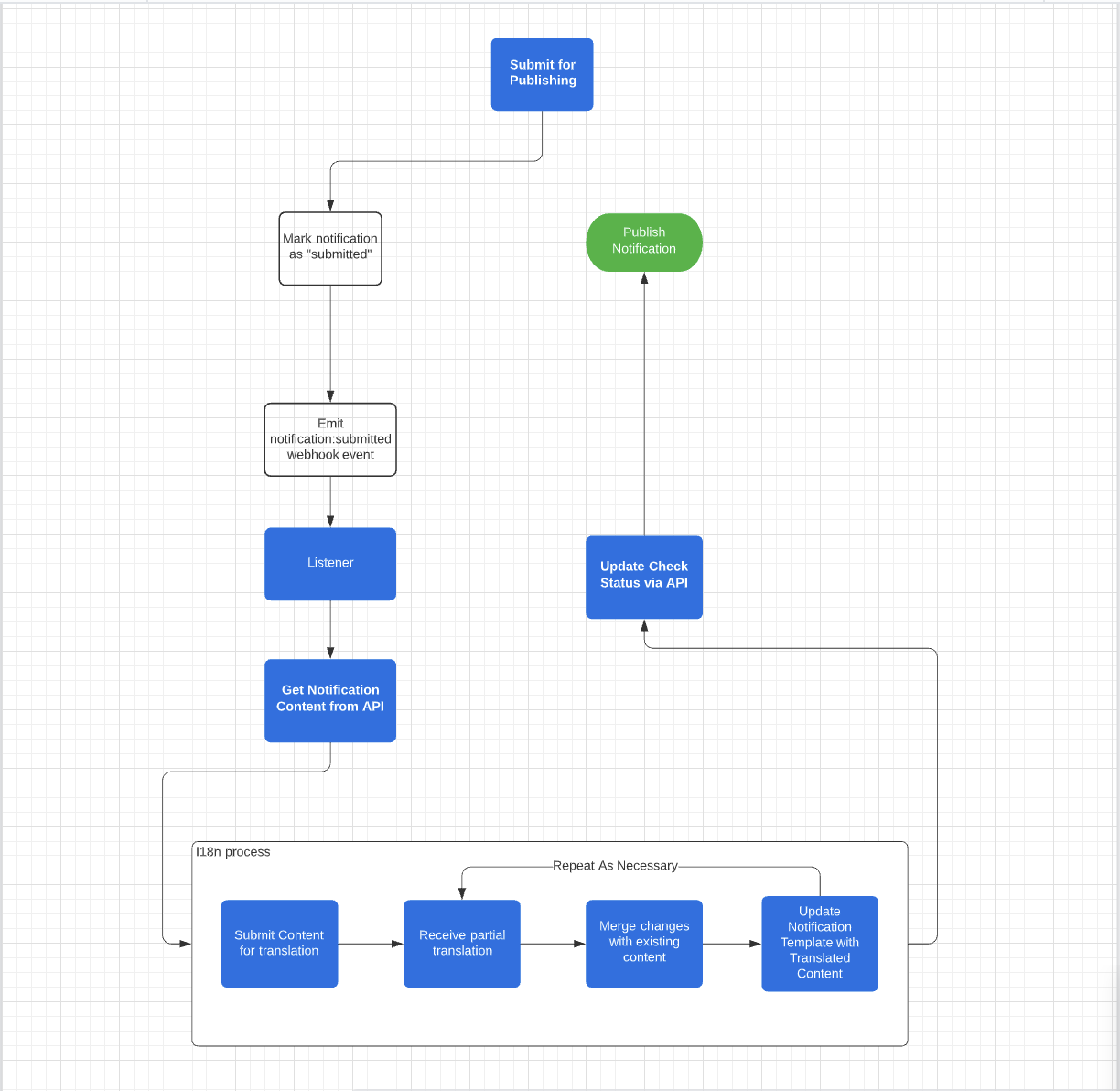
The template approval workflow lets you require external review before publishing template changes. When enabled, templates enter a read-only state after submission and can only be published after checks are resolved via API.
## How It Works
When a template is submitted for review, Courier emits a `notification:submitted` webhook. Your external system receives the event, runs its review process, and calls the Courier API to publish or reject the template.
 ## Enable Checks for a Template
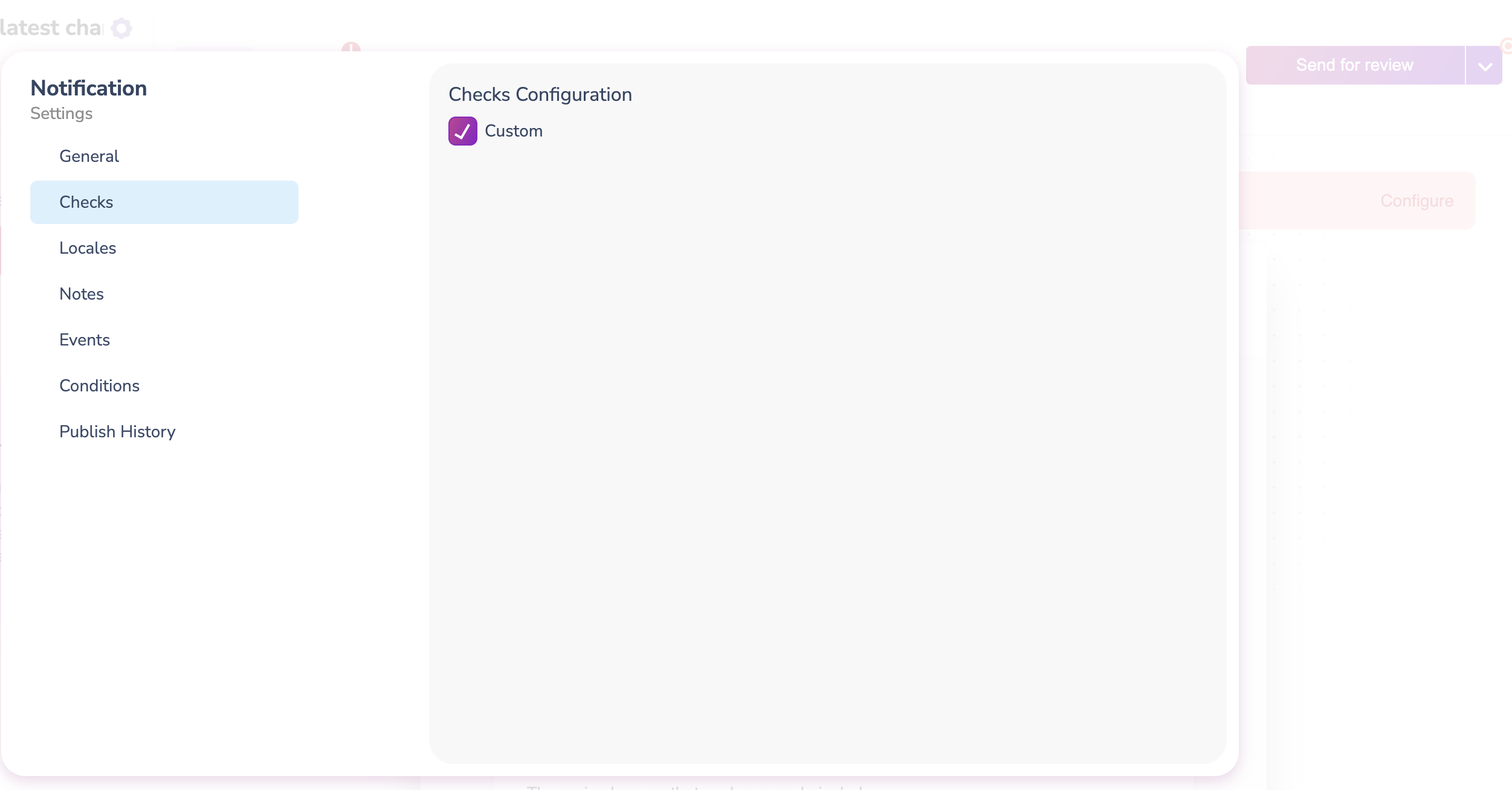
Enable checks on each template that requires an approval workflow:
1. Open the notification template
2. Click the Settings gear
3. Navigate to the **Checks** tab
4. Enable custom checks
## Enable Checks for a Template
Enable checks on each template that requires an approval workflow:
1. Open the notification template
2. Click the Settings gear
3. Navigate to the **Checks** tab
4. Enable custom checks
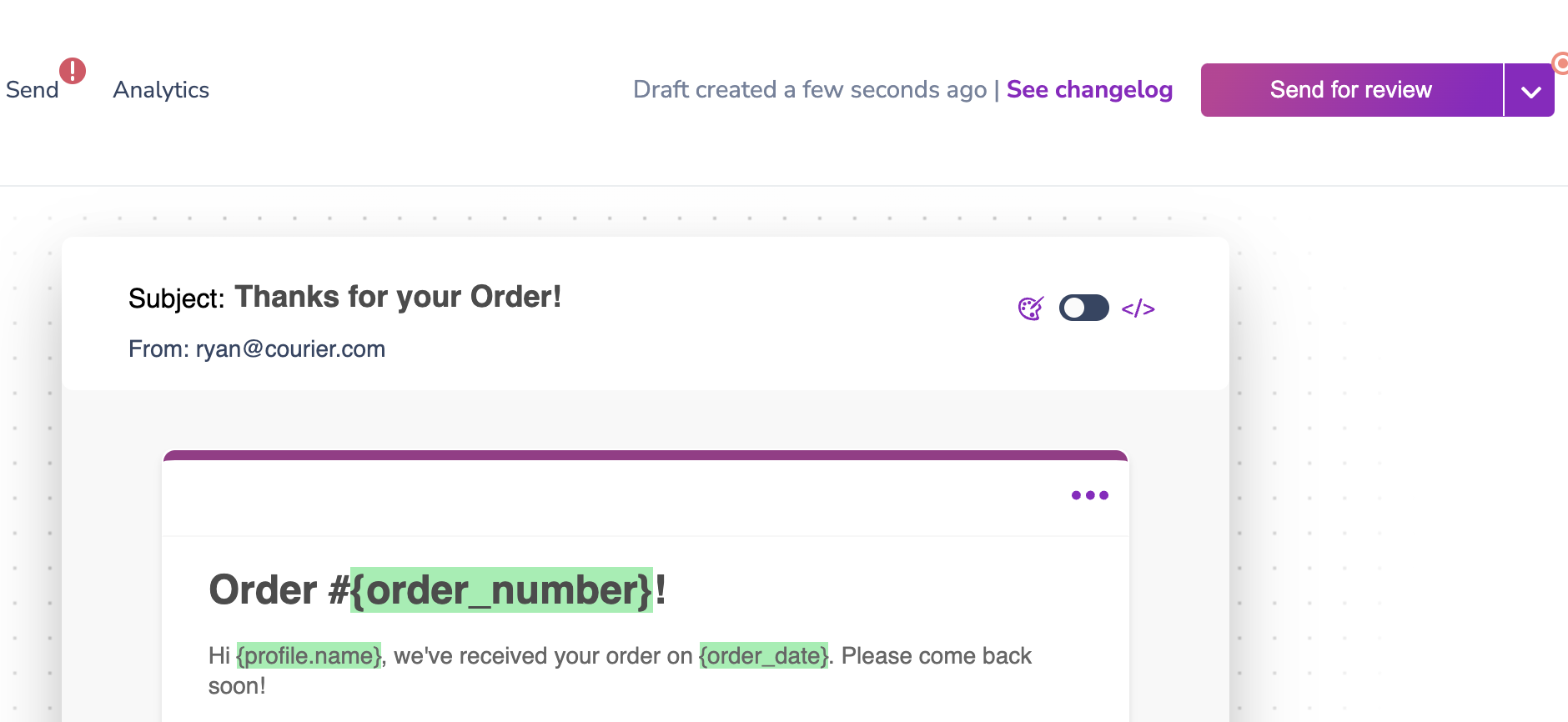
 The template's publish button is replaced with a **Send for Review** option.
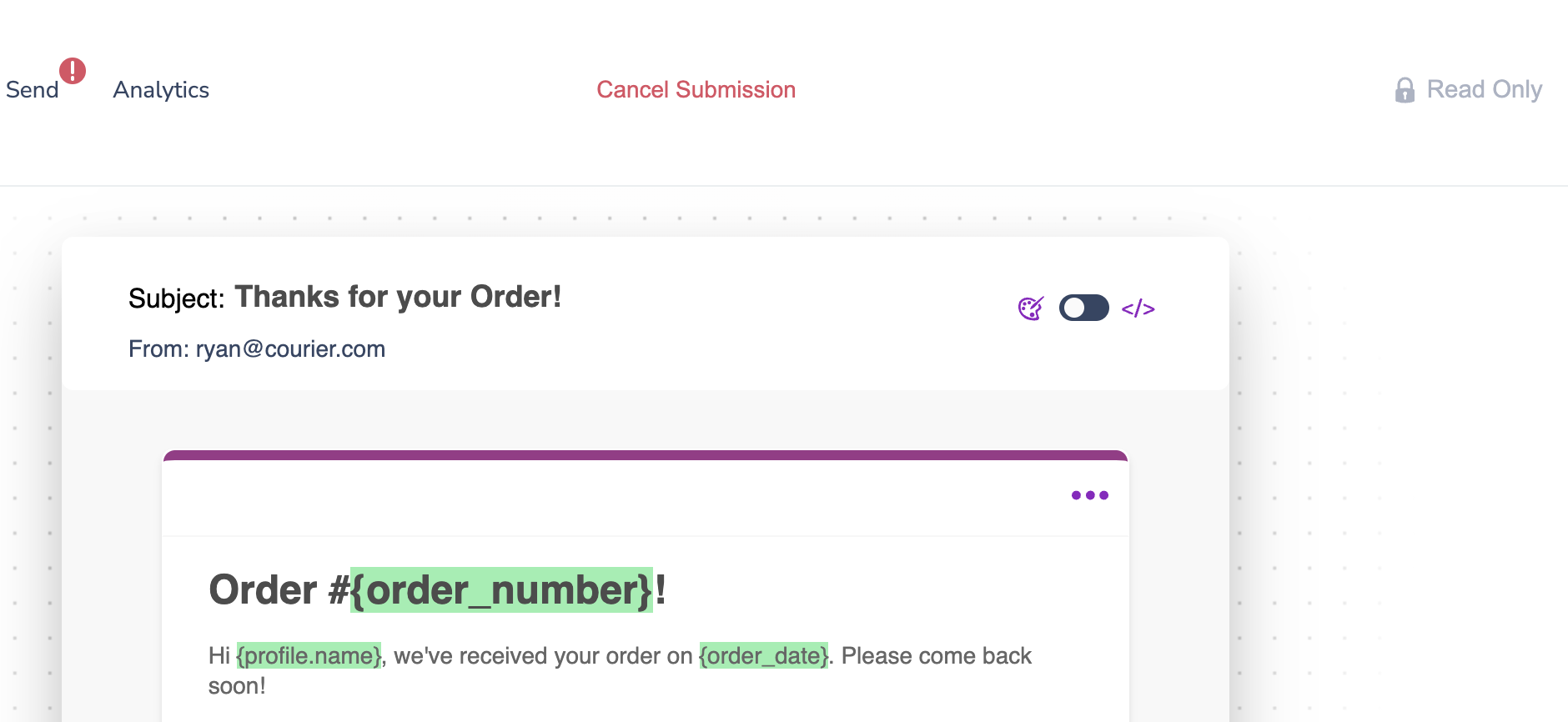
 After submission, the template enters a read-only state. No changes can be made to the latest draft until the submission is resolved or canceled.
 ## Webhooks
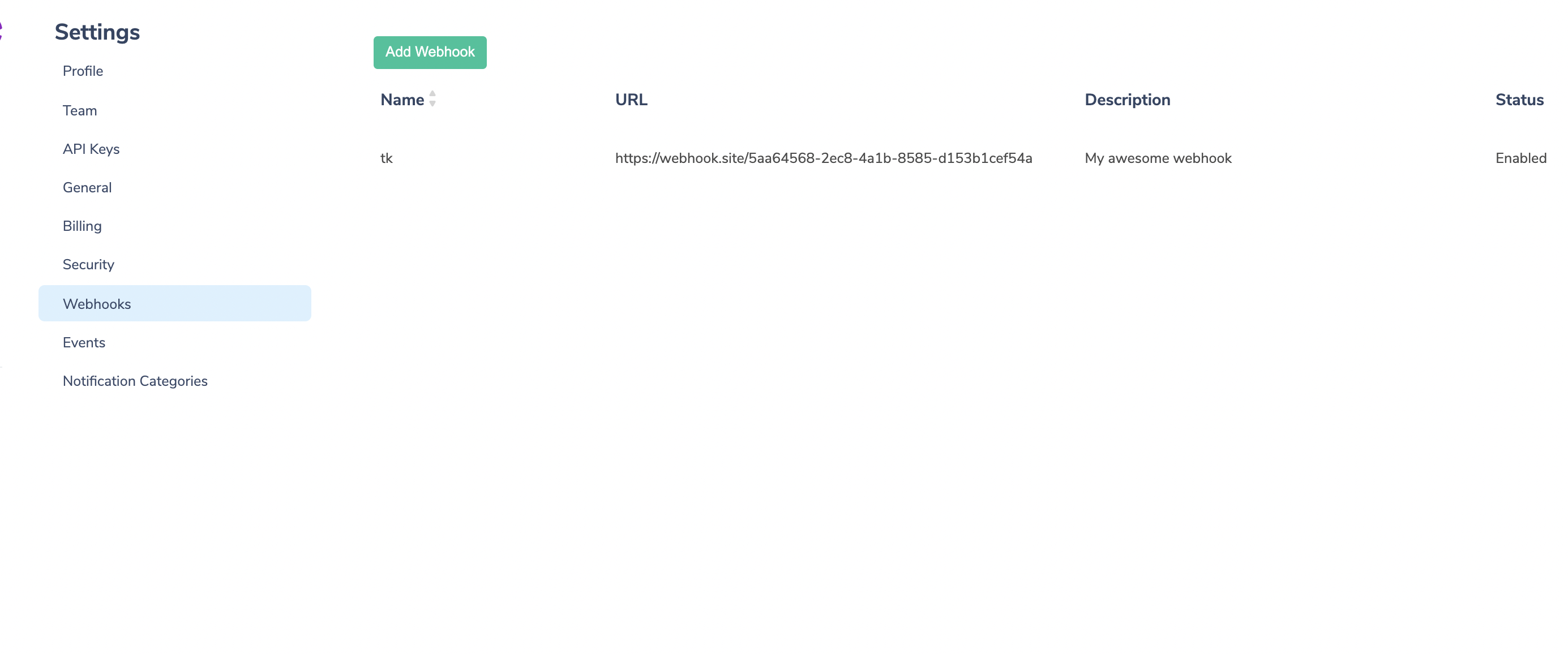
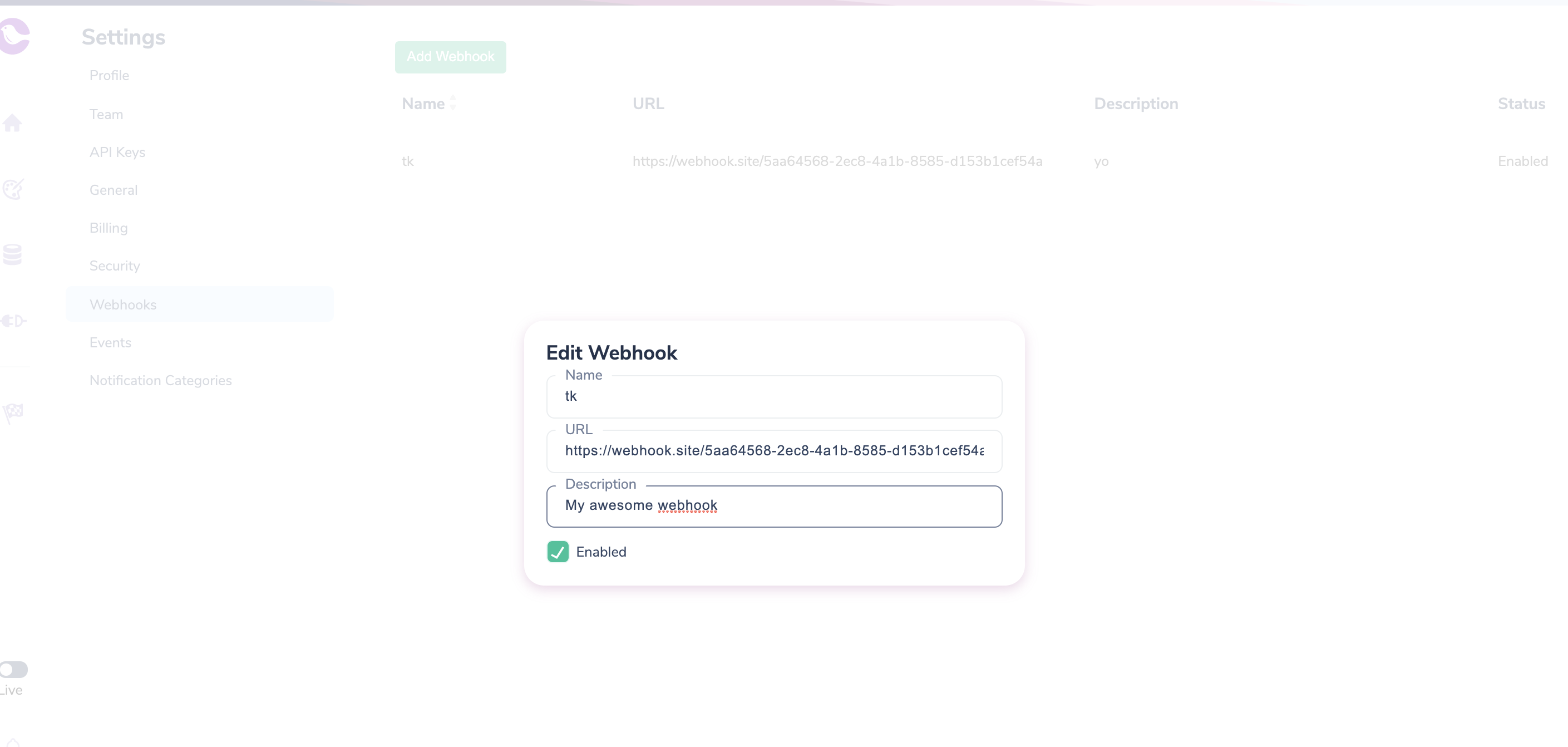
Configure a webhook in **Settings > Webhooks** to receive submission events. The webhook fires when a notification is submitted, canceled, or published. Courier sends all event types to the same webhook endpoint, so filter on the `type` field.
## Webhooks
Configure a webhook in **Settings > Webhooks** to receive submission events. The webhook fires when a notification is submitted, canceled, or published. Courier sends all event types to the same webhook endpoint, so filter on the `type` field.
 ### Event Types
```json theme={null}
{
"data": {
"id": "",
"submission_id": ""
},
"type": "notification:submitted"
}
```
For other notification event types, see the [webhook documentation](/platform/workspaces/outbound-webhooks).
Once you receive a `notification:submitted` event, trigger your external approval workflow. When the review is complete, [publish the template](#publishing-the-template).
## Fetching Content (Optional)
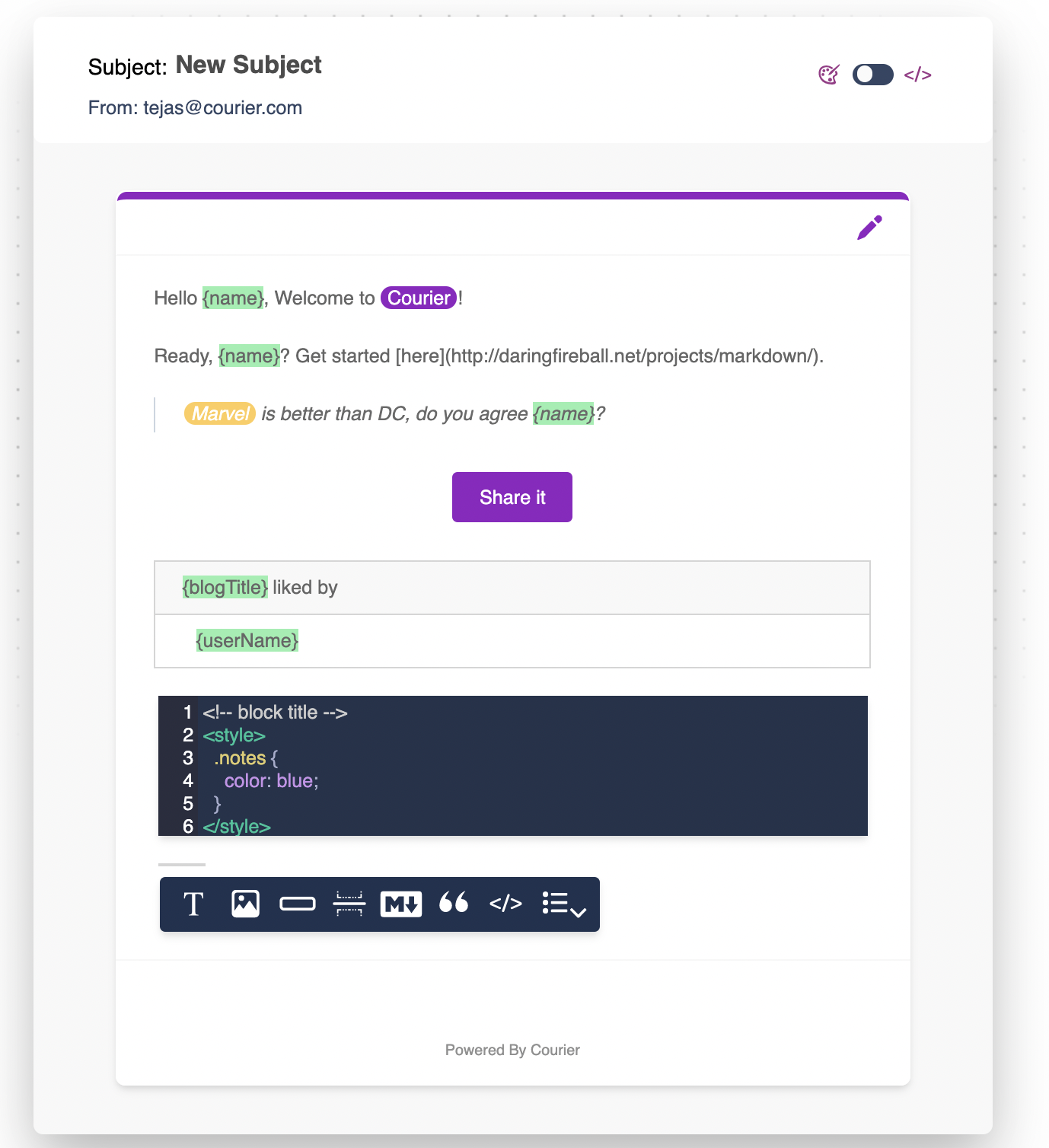
After receiving the `notification:submitted` event, you can retrieve the template content for use in your review process:
```
GET /notifications/:notification_id/draft/content
```
### Event Types
```json theme={null}
{
"data": {
"id": "",
"submission_id": ""
},
"type": "notification:submitted"
}
```
For other notification event types, see the [webhook documentation](/platform/workspaces/outbound-webhooks).
Once you receive a `notification:submitted` event, trigger your external approval workflow. When the review is complete, [publish the template](#publishing-the-template).
## Fetching Content (Optional)
After receiving the `notification:submitted` event, you can retrieve the template content for use in your review process:
```
GET /notifications/:notification_id/draft/content
```
 ### Sample Response
```json theme={null}
{
"blocks": [
{
"alias": "Greetings",
"context": "This is where we greet a new user",
"id": "block_43c114d9-9cfd-4340-808f-17e2fc7a4c87",
"type": "text",
"checksum": "fb60f2098fa407a4ff8d48e3e908d889",
"content": "Hello {name}, Welcome to Courier!"
},
{
"id": "block_f19dd58f-d32c-41b8-911c-239053d34803",
"type": "markdown",
"content": "Ready, {name}? Get started [here](http://daringfireball.net/projects/markdown/).",
"checksum": "d06665ec3f663789db81474bc1a82fc5"
}
],
"channels": [
{
"id": "channel_f2e7b2e9-187f-40d9-9725-636d6c59833a",
"type": "email",
"content": {
"subject": "New Subject"
},
"checksum": "96bcf212afa5cae1c7918280743aec71"
}
],
"checksum": "22d224a20345f1e3d3cf4c231243a747"
}
```
### Checksums
Each block, channel, and notification includes an MD5 checksum. Use these to track content changes across submissions and manage translation workflows.
## Publishing the Template
Once all checks are resolved, call the API to publish the template:
```
PUT /notifications/:notification_id/:submission_id/checks
```
```json theme={null}
{
"checks": [
{
"status": "RESOLVED"
}
]
}
```
To reject a submission, see [Cancel a submission](#cancel-a-submission). You can also set the check status to `FAILED` or `PENDING` for more complex state management in your approval workflow.
### Fetching Checks
```
GET /notifications/:notification_id/:submission_id/checks
```
Example: `GET /notifications/SFTYJKSF0241SVH2TWY97TTFFTQG/1630424150210/checks`
```json theme={null}
{
"checks": [
{
"id": "B5BYH93H4D4XRPJBMZJGB43TJEZ3",
"status": "PENDING",
"type": "custom",
"updated": 1630424150210
}
]
}
```
### Cancel a Submission
Cancel a submission by deleting it. This moves the template back to a draft state and sets all checks to `FAILED`. Once canceled, setting a check to `RESOLVED` will not publish that submission.
```
DELETE /notifications/:notification_id/:submission_id/checks
```
## Submitted Keys
Submitted keys let you send notifications using draft content that has been submitted for review but not yet published. This is useful for testing changes before they go live.
| Template State | What Submitted Key Uses |
| -------------------- | ------------------------------ |
| Published | Published notification content |
| Submitted for review | Latest draft content |
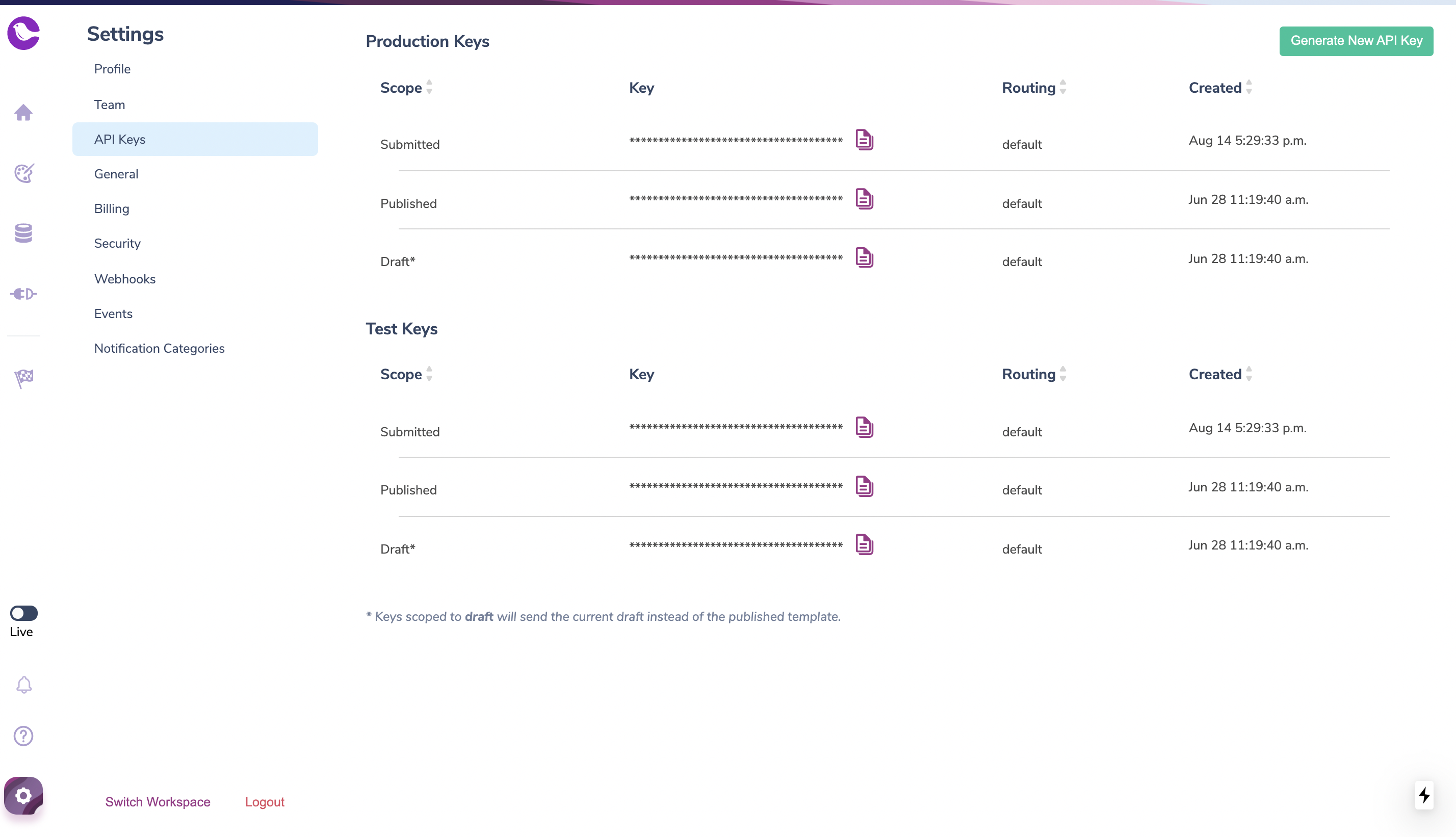
Manage submitted keys in **Settings > API Keys**.
### Sample Response
```json theme={null}
{
"blocks": [
{
"alias": "Greetings",
"context": "This is where we greet a new user",
"id": "block_43c114d9-9cfd-4340-808f-17e2fc7a4c87",
"type": "text",
"checksum": "fb60f2098fa407a4ff8d48e3e908d889",
"content": "Hello {name}, Welcome to Courier!"
},
{
"id": "block_f19dd58f-d32c-41b8-911c-239053d34803",
"type": "markdown",
"content": "Ready, {name}? Get started [here](http://daringfireball.net/projects/markdown/).",
"checksum": "d06665ec3f663789db81474bc1a82fc5"
}
],
"channels": [
{
"id": "channel_f2e7b2e9-187f-40d9-9725-636d6c59833a",
"type": "email",
"content": {
"subject": "New Subject"
},
"checksum": "96bcf212afa5cae1c7918280743aec71"
}
],
"checksum": "22d224a20345f1e3d3cf4c231243a747"
}
```
### Checksums
Each block, channel, and notification includes an MD5 checksum. Use these to track content changes across submissions and manage translation workflows.
## Publishing the Template
Once all checks are resolved, call the API to publish the template:
```
PUT /notifications/:notification_id/:submission_id/checks
```
```json theme={null}
{
"checks": [
{
"status": "RESOLVED"
}
]
}
```
To reject a submission, see [Cancel a submission](#cancel-a-submission). You can also set the check status to `FAILED` or `PENDING` for more complex state management in your approval workflow.
### Fetching Checks
```
GET /notifications/:notification_id/:submission_id/checks
```
Example: `GET /notifications/SFTYJKSF0241SVH2TWY97TTFFTQG/1630424150210/checks`
```json theme={null}
{
"checks": [
{
"id": "B5BYH93H4D4XRPJBMZJGB43TJEZ3",
"status": "PENDING",
"type": "custom",
"updated": 1630424150210
}
]
}
```
### Cancel a Submission
Cancel a submission by deleting it. This moves the template back to a draft state and sets all checks to `FAILED`. Once canceled, setting a check to `RESOLVED` will not publish that submission.
```
DELETE /notifications/:notification_id/:submission_id/checks
```
## Submitted Keys
Submitted keys let you send notifications using draft content that has been submitted for review but not yet published. This is useful for testing changes before they go live.
| Template State | What Submitted Key Uses |
| -------------------- | ------------------------------ |
| Published | Published notification content |
| Submitted for review | Latest draft content |
Manage submitted keys in **Settings > API Keys**.
 Configure webhook endpoints for notification events
Send notifications using template IDs or event aliases
Configure webhook endpoints for notification events
Send notifications using template IDs or event aliases