> ## Documentation Index
> Fetch the complete documentation index at: https://www.courier.com/docs/llms.txt
> Use this file to discover all available pages before exploring further.
# Version History
> View template version history and compare changes between versions
## Overview
Courier maintains version history for all templates created in the Template Designer. Each time you publish a template, Courier creates a new version that preserves the previous state. This allows you to track changes over time, compare different versions, and roll back to previous iterations if needed.
## Accessing Version History
To view version history:
1. Open your template in the designer
2. Click the **History** button in the header toolbar
3. The version history sidebar appears on the right
### Version States
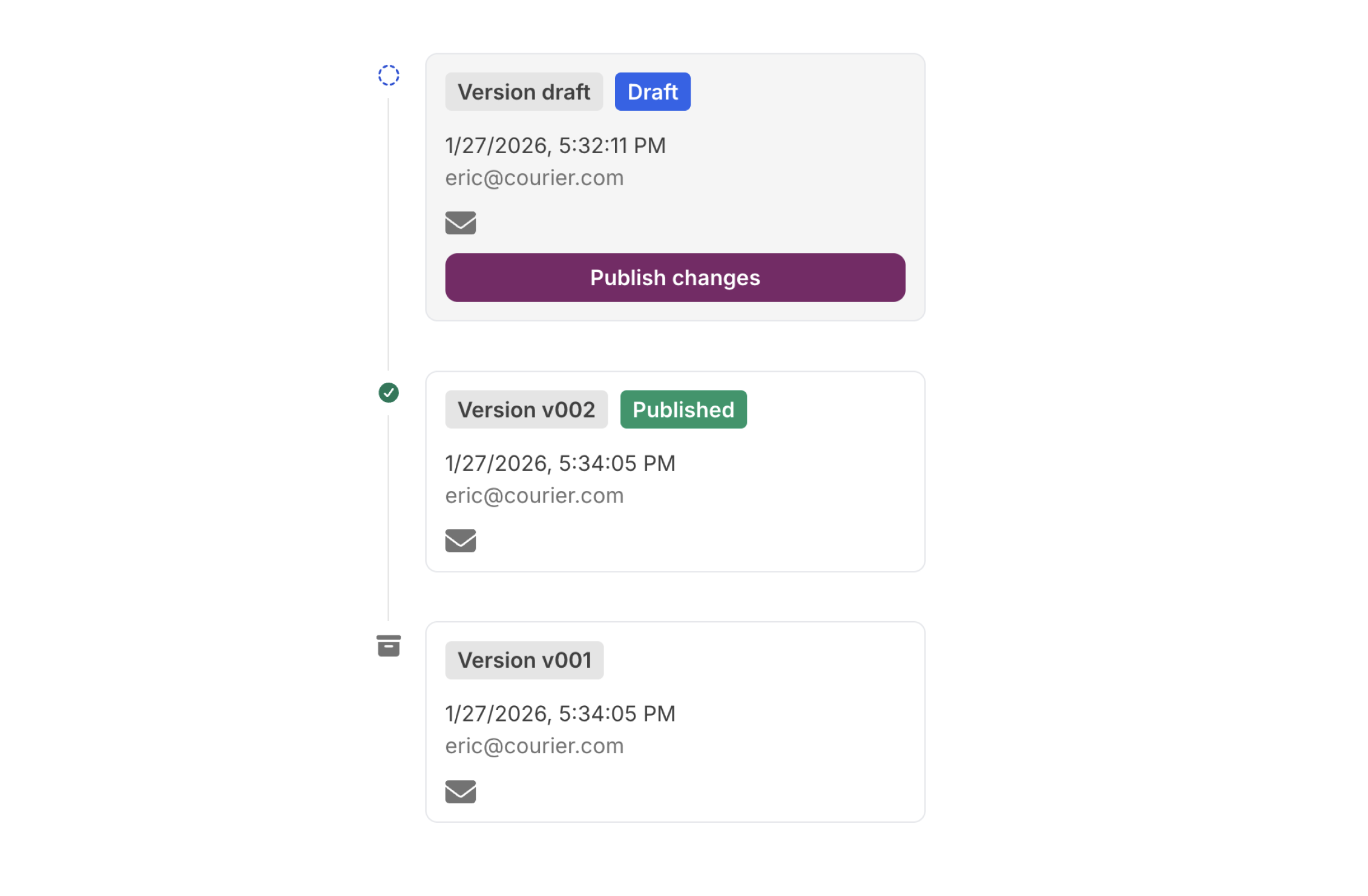
Each version in the history is labeled with one of three states:
| State | Description |
| ------------- | ---------------------------------------------------------------------------------------------------------------------- |
| **Draft** | Unpublished changes to the template. Only shown if there are unsaved changes compared to the latest published version. |
| **Published** | The currently live version that recipients will see when notifications are sent. |
| **Archived** | Previously published versions that have been superseded by newer versions. |
 ### Version Information
Each version entry displays:
* **Version number**: A unique identifier for the version
* **Timestamp**: When the version was created
* **Author**: The name and email of the user who created the version
* **Channels**: Icons showing which notification channels are configured in that version
### Viewing a Version
Click on any version in the history list to load and preview its content. The designer displays the template exactly as it appeared in that version. When viewing historical versions, the editor is read-only to prevent accidental modifications.
### Publishing Changes
When you have a draft with unpublished changes:
1. Select the draft version in the history list
2. Click **Publish changes**
3. The draft becomes the new published version
If your template uses a routing strategy, Courier validates that the strategy includes all channels configured in the template before publishing. If channels are missing, you'll be prompted to update the routing strategy or publish anyway.
### Rolling Back to a Previous Version
You can restore any previously published version:
1. Open version history
2. Select the archived version you want to restore
3. Click **Publish this version**
4. Confirm the rollback in the modal
Rolling back will discard any unpublished changes in the current draft. The rollback creates a new version containing the content from the selected version; it does not delete existing versions.
## Comparison Mode
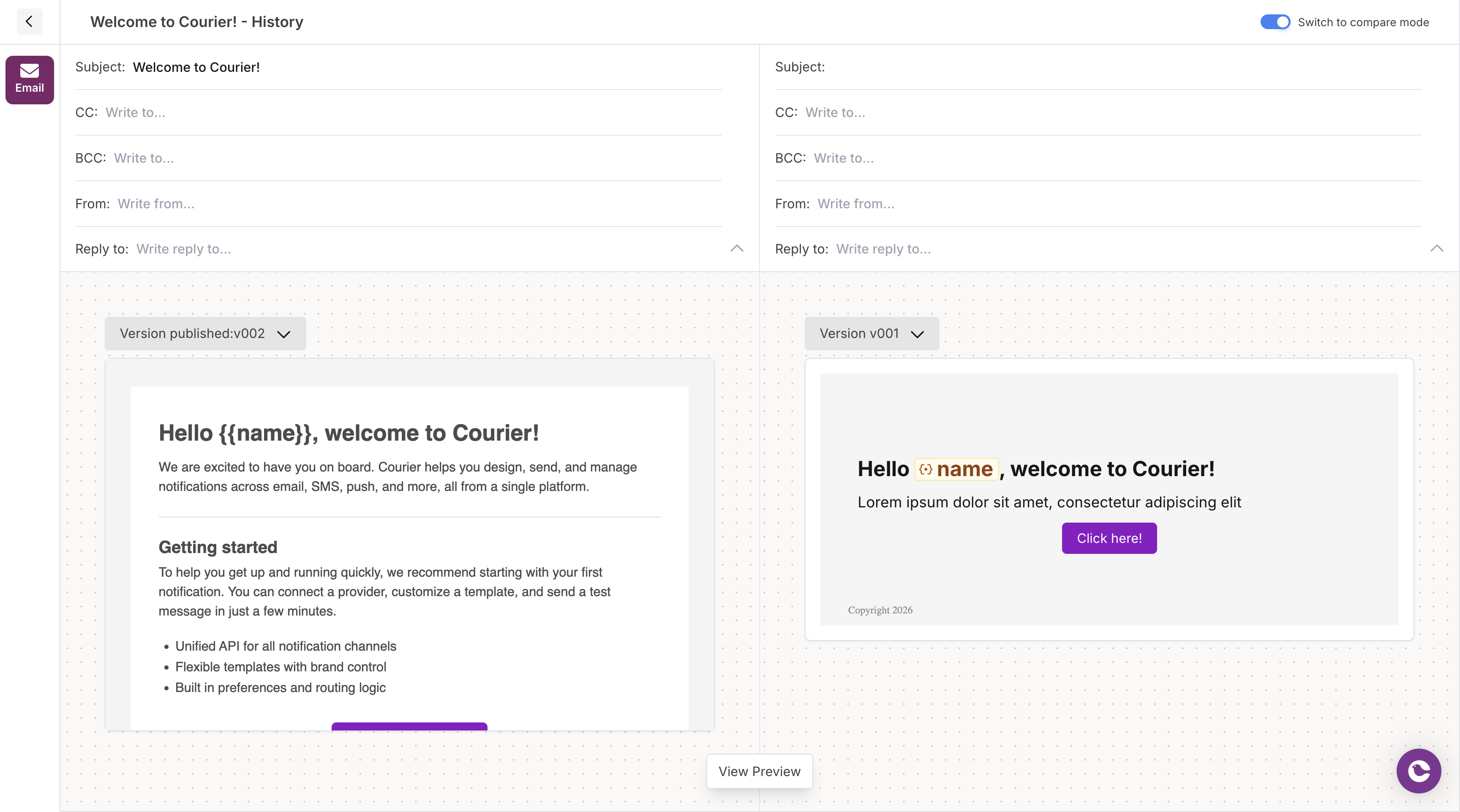
Comparison mode lets you view two versions side by side to see what changed between them.
### Version Information
Each version entry displays:
* **Version number**: A unique identifier for the version
* **Timestamp**: When the version was created
* **Author**: The name and email of the user who created the version
* **Channels**: Icons showing which notification channels are configured in that version
### Viewing a Version
Click on any version in the history list to load and preview its content. The designer displays the template exactly as it appeared in that version. When viewing historical versions, the editor is read-only to prevent accidental modifications.
### Publishing Changes
When you have a draft with unpublished changes:
1. Select the draft version in the history list
2. Click **Publish changes**
3. The draft becomes the new published version
If your template uses a routing strategy, Courier validates that the strategy includes all channels configured in the template before publishing. If channels are missing, you'll be prompted to update the routing strategy or publish anyway.
### Rolling Back to a Previous Version
You can restore any previously published version:
1. Open version history
2. Select the archived version you want to restore
3. Click **Publish this version**
4. Confirm the rollback in the modal
Rolling back will discard any unpublished changes in the current draft. The rollback creates a new version containing the content from the selected version; it does not delete existing versions.
## Comparison Mode
Comparison mode lets you view two versions side by side to see what changed between them.
 This feature is only available in the V2 Courier Template Designer.
### Enabling Comparison Mode
1. Open version history
2. Toggle the **Compare** switch in the header
3. The view splits into two panes, each with a version selector
### What You Can Compare
Comparison mode displays the content for the currently selected channel. To compare a different channel:
1. Select the channel from the channel tabs
2. Both panes update to show that channel's content for their respective versions
Both versions are displayed in read-only mode. You cannot edit content while in comparison mode.
## Classic Designer
For rollback functionality in the classic designer, see [Publish History](/platform/content/template-settings/general-settings#publish-history).
This feature is only available in the V2 Courier Template Designer.
### Enabling Comparison Mode
1. Open version history
2. Toggle the **Compare** switch in the header
3. The view splits into two panes, each with a version selector
### What You Can Compare
Comparison mode displays the content for the currently selected channel. To compare a different channel:
1. Select the channel from the channel tabs
2. Both panes update to show that channel's content for their respective versions
Both versions are displayed in read-only mode. You cannot edit content while in comparison mode.
## Classic Designer
For rollback functionality in the classic designer, see [Publish History](/platform/content/template-settings/general-settings#publish-history).