> ## Documentation Index
> Fetch the complete documentation index at: https://www.courier.com/docs/llms.txt
> Use this file to discover all available pages before exploring further.
# General Settings
> Manage a template's ID, brand, subscription topic, event mapping, conditions, message tags, notes, and publish history.
Each template has a settings panel where you configure identity, behavior, and publishing. Open it by clicking the gear icon next to the publish button in the designer.
## General
 ### Notification ID
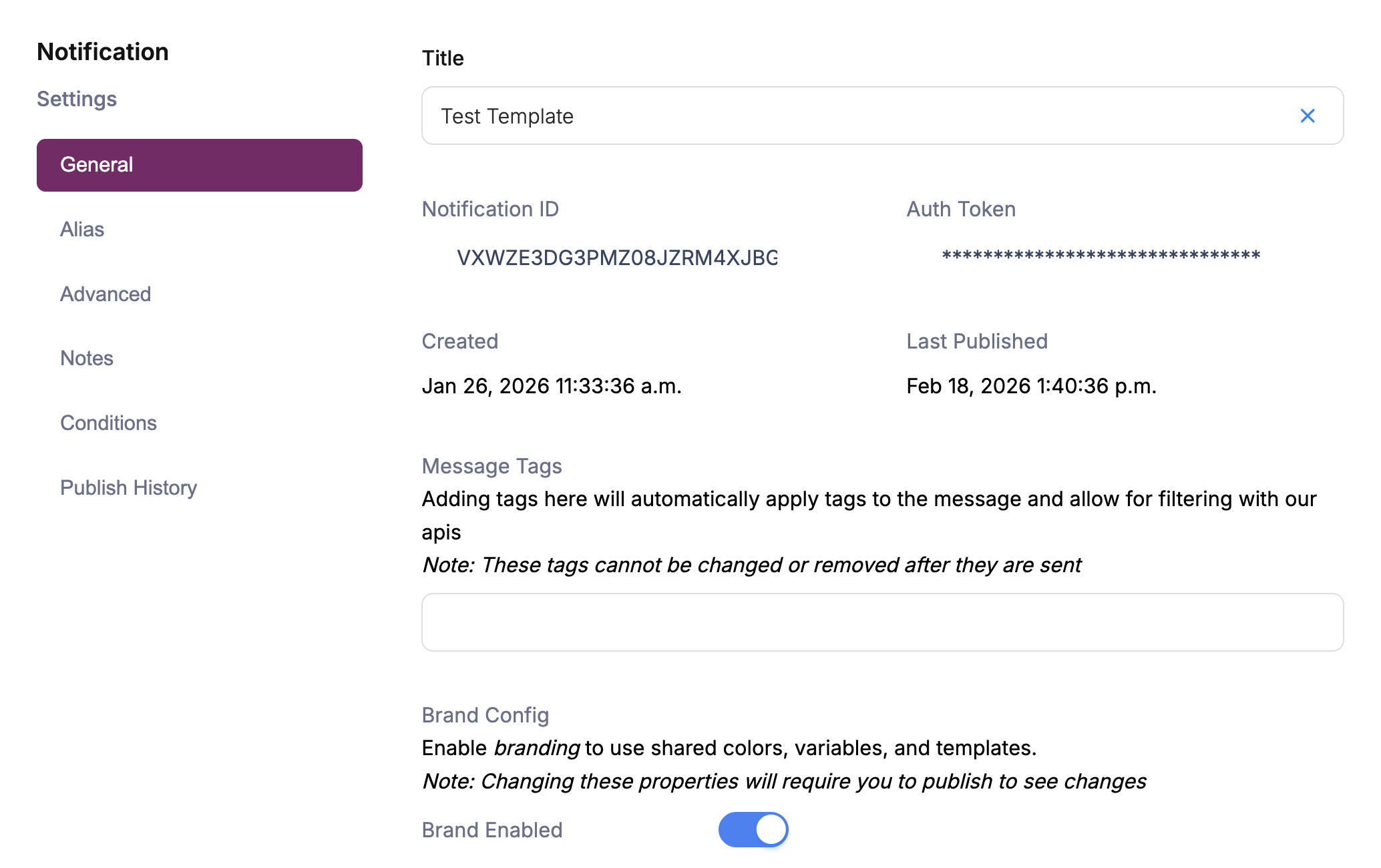
Every template gets a unique Notification ID assigned by Courier. You can use this ID in the `template` field of your [Send API](/api-reference/send/send-a-message) request, or map a human-readable event alias instead (see [Event Mapping](#event-mapping) below).
### Brand Config
Brands are enabled by default, so every new email template uses your [Default Brand](/platform/content/brands/brands-overview#the-default-brand). You can disable branding per template or assign a [Custom Brand](/platform/content/brands/brands-overview#sending-branded-notifications).
### Subscription Topic
Assign a subscription topic to group templates under a single preference. This lets end users opt in or out of a category of notifications at once rather than one template at a time.
### Message Tags
Message tags are behind a feature flag. Contact [Courier Support](mailto:support@courier.com) or your account team to enable them.
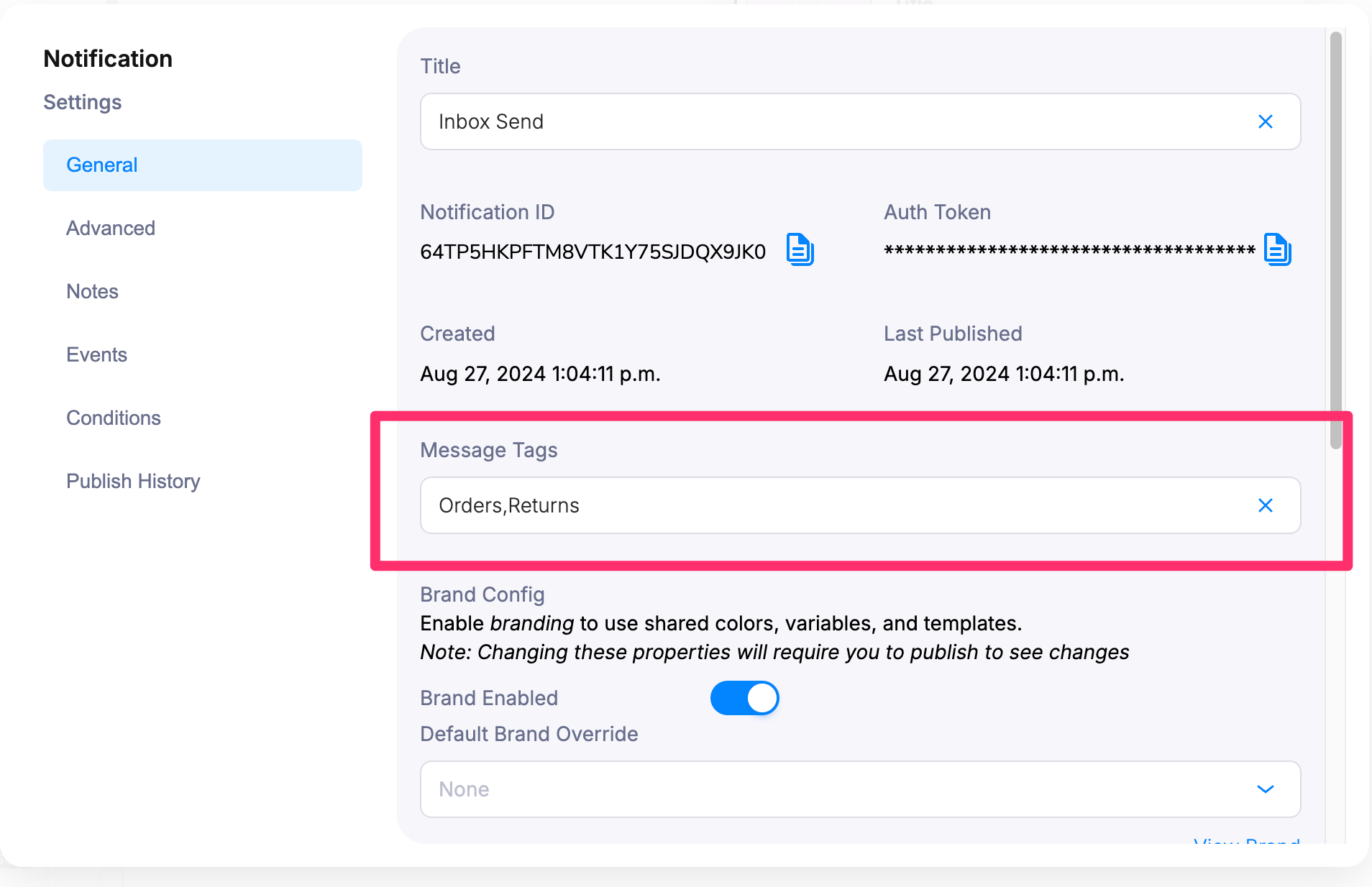
Add a comma-separated list of tags to a template. These tags are automatically included in `metadata.tags` on every message sent from that template, so you can filter by tag in an [Inbox](/platform/inbox/inbox-overview) view or query them through the [Messages API](/api-reference/sent-messages/list-messages).
### Notification ID
Every template gets a unique Notification ID assigned by Courier. You can use this ID in the `template` field of your [Send API](/api-reference/send/send-a-message) request, or map a human-readable event alias instead (see [Event Mapping](#event-mapping) below).
### Brand Config
Brands are enabled by default, so every new email template uses your [Default Brand](/platform/content/brands/brands-overview#the-default-brand). You can disable branding per template or assign a [Custom Brand](/platform/content/brands/brands-overview#sending-branded-notifications).
### Subscription Topic
Assign a subscription topic to group templates under a single preference. This lets end users opt in or out of a category of notifications at once rather than one template at a time.
### Message Tags
Message tags are behind a feature flag. Contact [Courier Support](mailto:support@courier.com) or your account team to enable them.
Add a comma-separated list of tags to a template. These tags are automatically included in `metadata.tags` on every message sent from that template, so you can filter by tag in an [Inbox](/platform/inbox/inbox-overview) view or query them through the [Messages API](/api-reference/sent-messages/list-messages).
 ## Event Mapping
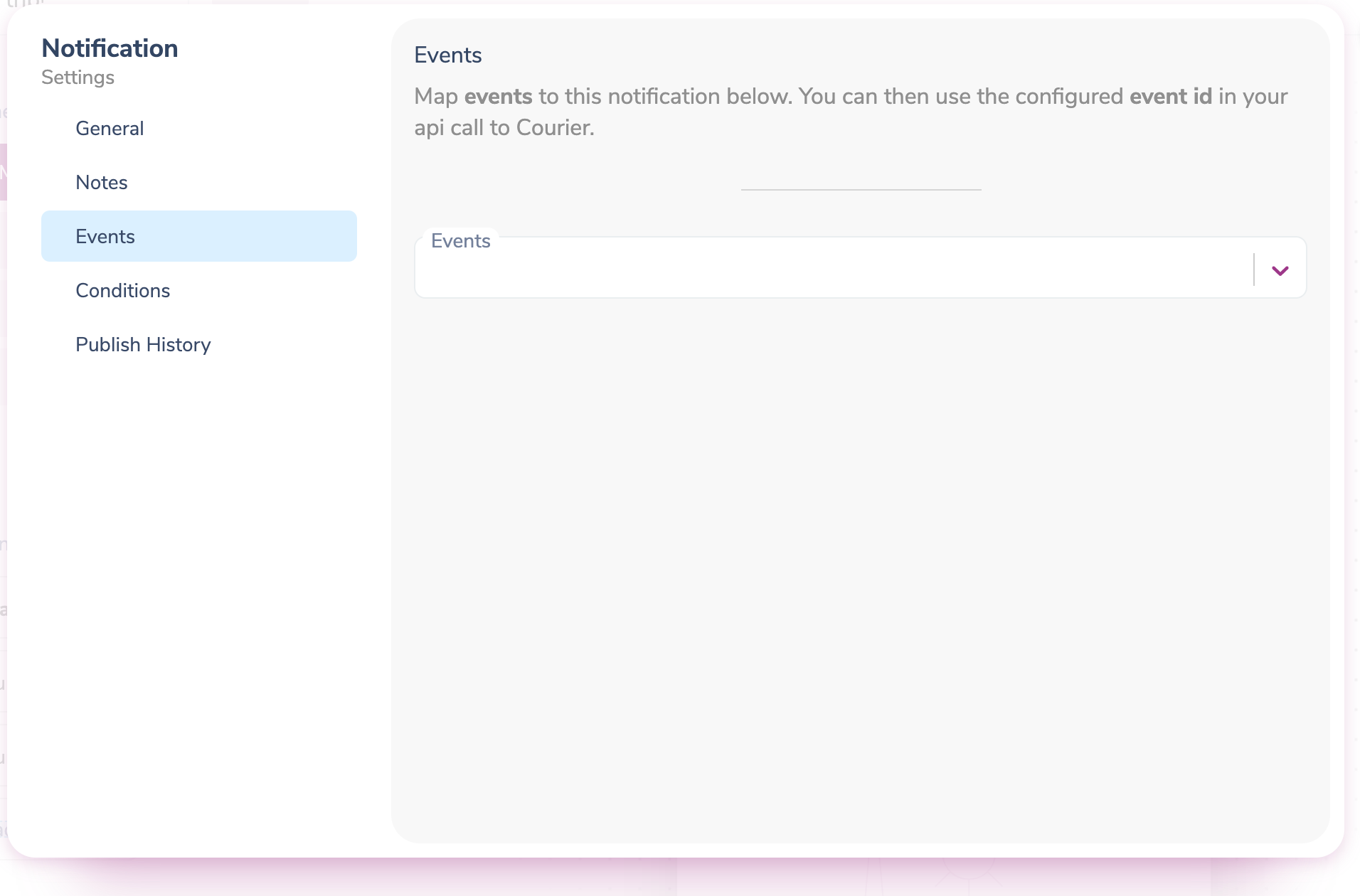
Map an event name to a template so you can reference a readable alias instead of the Notification ID. This decouples your code from specific template IDs, so you can swap the underlying template without redeploying.
## Event Mapping
Map an event name to a template so you can reference a readable alias instead of the Notification ID. This decouples your code from specific template IDs, so you can swap the underlying template without redeploying.
 Once mapped, use the event name in the `template` field of your send request:
```json theme={null}
{
"message": {
"template": "order-confirmation",
"to": { "user_id": "user_123" },
"data": {
"order_id": "ORD-12345"
}
}
}
```
## Conditions
Use conditions to prevent a template from sending when specific criteria are met. You can reference properties from the `data` object in [Send API](/api-reference/send/send-a-message) requests or from the [User Profile](/api-reference/user-profiles/get-a-profile). See [Send Conditions](/platform/content/template-settings/send-conditions) for details.
## Notes
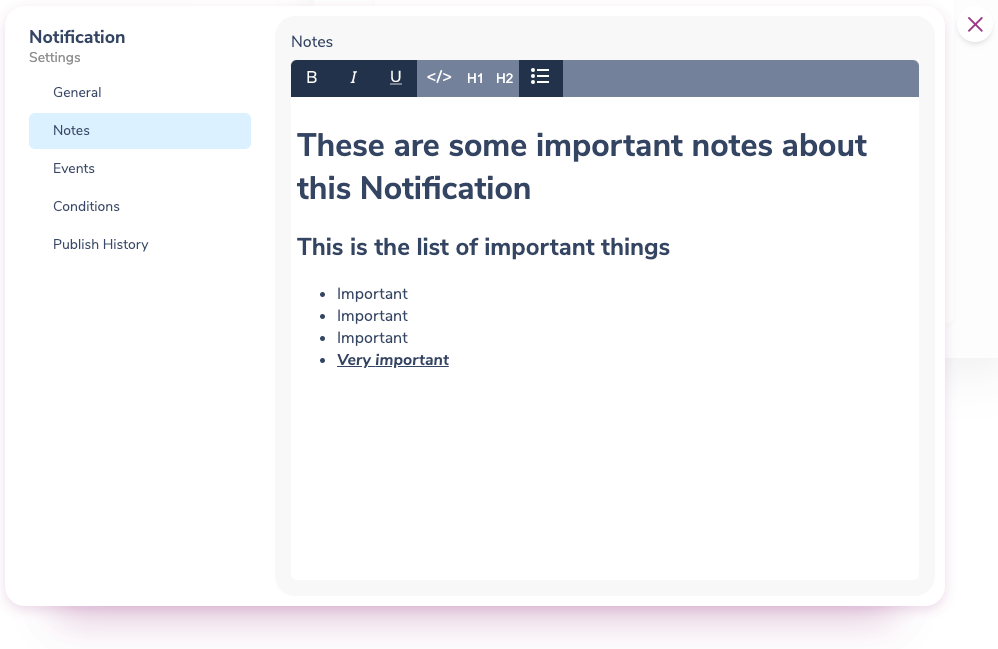
Notes let you attach internal context to a template. Once added, a note icon appears in the template list; clicking it opens a read-only preview without entering the designer.
Once mapped, use the event name in the `template` field of your send request:
```json theme={null}
{
"message": {
"template": "order-confirmation",
"to": { "user_id": "user_123" },
"data": {
"order_id": "ORD-12345"
}
}
}
```
## Conditions
Use conditions to prevent a template from sending when specific criteria are met. You can reference properties from the `data` object in [Send API](/api-reference/send/send-a-message) requests or from the [User Profile](/api-reference/user-profiles/get-a-profile). See [Send Conditions](/platform/content/template-settings/send-conditions) for details.
## Notes
Notes let you attach internal context to a template. Once added, a note icon appears in the template list; clicking it opens a read-only preview without entering the designer.
 ## Publishing & Versioning
Templates follow a publish workflow so you can iterate safely before going live:
* **Draft**: Save changes without affecting live notifications
* **Publish**: Make changes active for all new sends
* **Rollback**: Revert to any previously published version
For API-based templates using Elemental, publishing is handled through your deployment process; new versions become active when you deploy updated code.
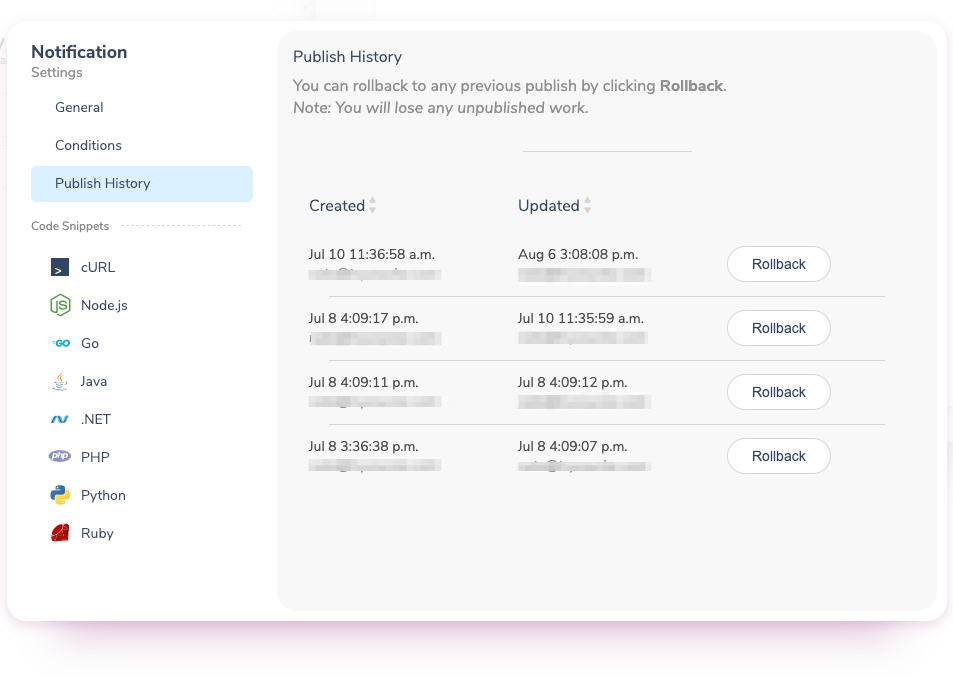
You can view the full publish history to see who published each version and when.
Rolling back overwrites any unpublished draft changes.
## Publishing & Versioning
Templates follow a publish workflow so you can iterate safely before going live:
* **Draft**: Save changes without affecting live notifications
* **Publish**: Make changes active for all new sends
* **Rollback**: Revert to any previously published version
For API-based templates using Elemental, publishing is handled through your deployment process; new versions become active when you deploy updated code.
You can view the full publish history to see who published each version and when.
Rolling back overwrites any unpublished draft changes.