> ## Documentation Index
> Fetch the complete documentation index at: https://www.courier.com/docs/llms.txt
> Use this file to discover all available pages before exploring further.
# Using Send Conditions
> Use send conditions to disable notifications, channels, or content blocks based on `data` or `profile` values.
Use `Conditions` in template and channel settings to control whether content sends. Conditions can reference values from the [Send API](/api-reference/send/send-a-message) `data` object or the [User Profile](/api-reference/user-profiles/get-a-profile).
If you want to disable the *entire* notification, set conditions in [Template Settings](/platform/content/template-settings/general-settings). To disable specific channels, set conditions in [Channel settings](/platform/sending/channel-settings).
For a conceptual overview of when to use template conditions vs channel conditions, see [Channel Settings](/platform/sending/channel-settings#conditions).
* Channel conditions only apply to the channel where you set them.
* [User preferences](/api-reference/user-preferences/get-users-preferences) take precedence over channel conditions. If a user has `custom_routing` configured, only their selected channels are considered. Channel conditions still run for those channels, but cannot override the user's selection.
* A channel can be disabled by using [missing variable guardrails](/platform/content/template-settings/variable-not-found).
## Setting Send Conditions
### For Notifications and Channels
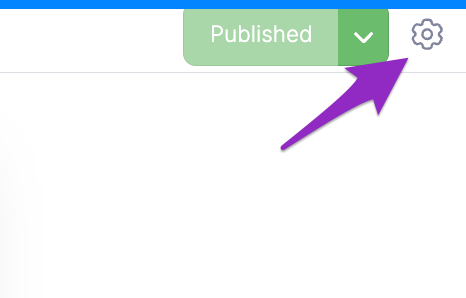
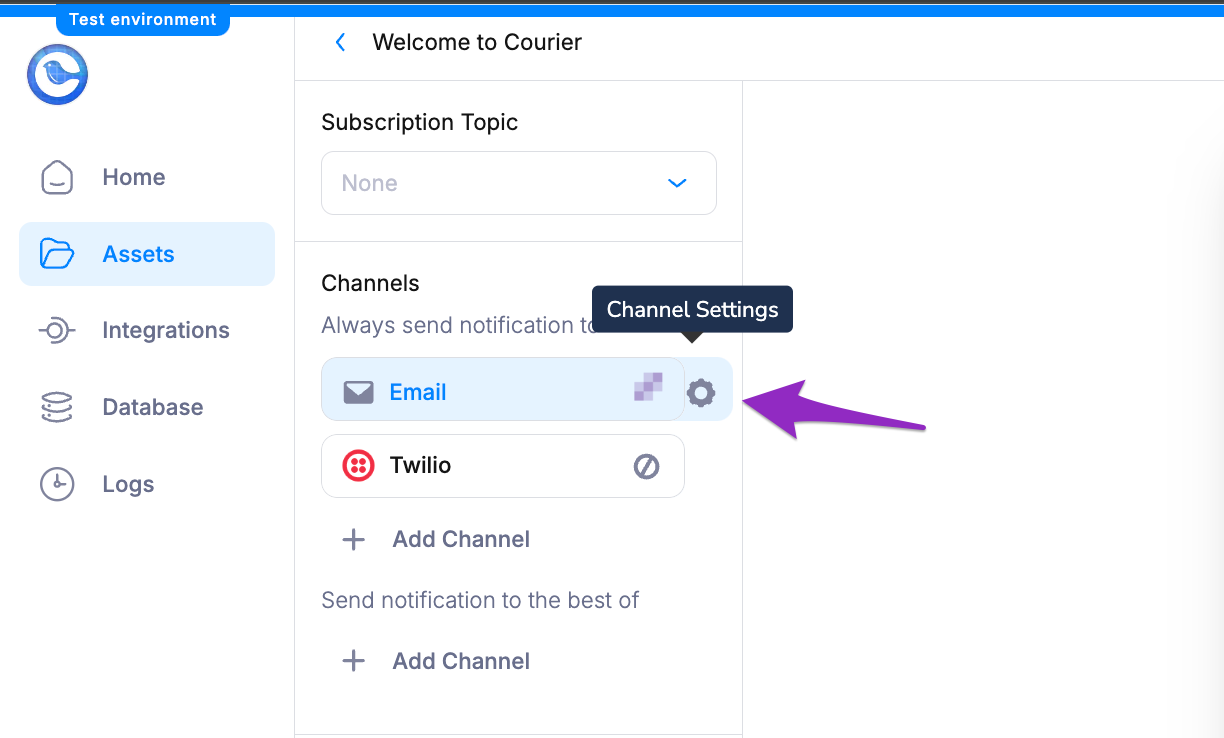
Open template settings or channel settings, then select the Conditions tab.
 ### For Content Blocks
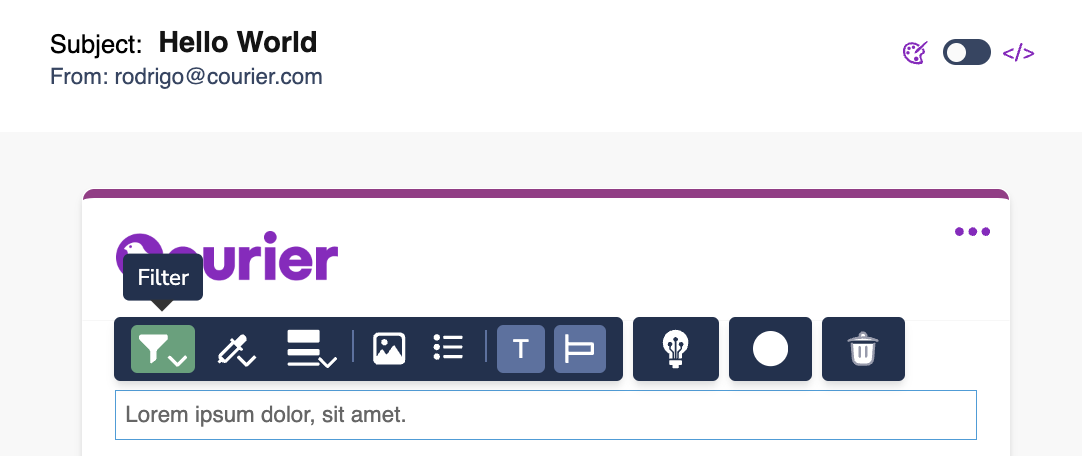
Open the conditional settings modal from the content block you wish to set conditions to.
### For Content Blocks
Open the conditional settings modal from the content block you wish to set conditions to.
 ## Setting Conditions
1. Select the condition source, then choose the property and value you want to evaluate.
You can access nested values using dot notation.
## Setting Conditions
1. Select the condition source, then choose the property and value you want to evaluate.
You can access nested values using dot notation.
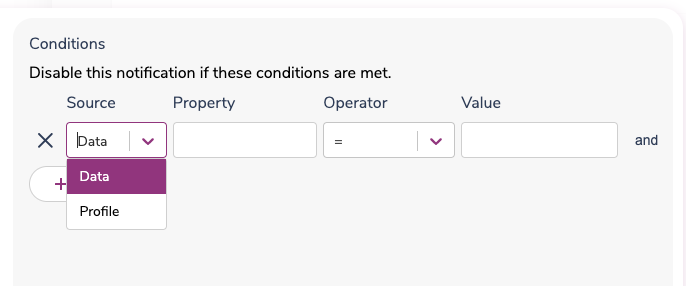 2. Set the property name, operator, and value that controls whether the notification, channel, or content block is disabled.
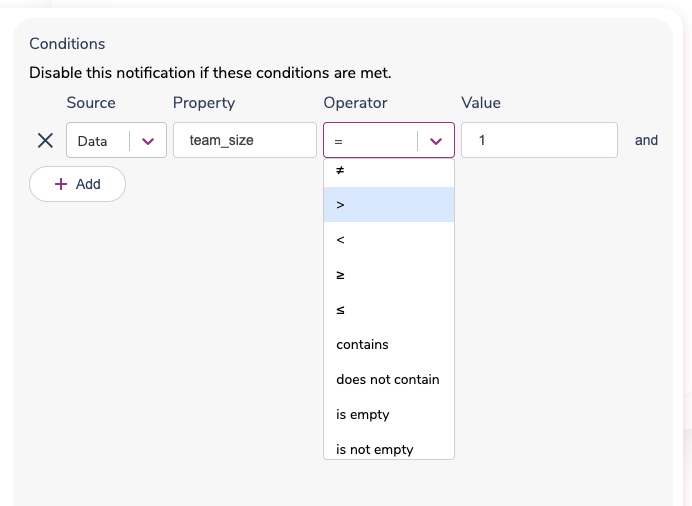 If you set multiple conditions, **all** conditions must be met to disable the message.
 ## Channel Conditions in JSON
Channel conditions can also be configured directly in the Send API using the `message.channels` object. Each channel can include an `if` property containing a JavaScript conditional expression.
### Basic Example
Skip SMS for premium users in Europe:
```json theme={null}
{
"message": {
"to": { "user_id": "user_123" },
"template": "order-confirmation",
"data": {
"order_id": "ORD-12345",
"region": "europe"
},
"channels": {
"sms": {
"if": "profile.custom.subscription_tier === 'premium' && data.region === 'europe'"
}
}
}
}
```
### Custom Routing with Channel Conditions
When using custom routing, channel conditions must be explicitly provided in `message.channels`. Conditions from the template's default routing are not automatically preserved.
When you specify a `routing` object in your message, channel conditions from the template's default routing strategy are not automatically included. Add channel conditions explicitly in `message.channels` if you want them evaluated.
```json theme={null}
{
"message": {
"to": { "user_id": "user_123" },
"template": "order-confirmation",
"data": {
"order_id": "ORD-12345",
"urgency": "high"
},
"routing": {
"method": "single",
"channels": ["email", "sms", "push"]
},
"channels": {
"sms": {
"if": "data.urgency === 'high'"
}
}
}
}
```
For more examples and details, see [Channel Settings - Channel Conditions in JSON](/platform/sending/channel-settings#channel-conditions-in-json).
## What's Next
Configure per-channel behavior, conditions, and integrations.
Set `From`, `Reply-To`, `CC`, and `BCC` values.
Manage template IDs, event mapping, tags, and publishing.
Prevent sends when required template variables are missing.
## Channel Conditions in JSON
Channel conditions can also be configured directly in the Send API using the `message.channels` object. Each channel can include an `if` property containing a JavaScript conditional expression.
### Basic Example
Skip SMS for premium users in Europe:
```json theme={null}
{
"message": {
"to": { "user_id": "user_123" },
"template": "order-confirmation",
"data": {
"order_id": "ORD-12345",
"region": "europe"
},
"channels": {
"sms": {
"if": "profile.custom.subscription_tier === 'premium' && data.region === 'europe'"
}
}
}
}
```
### Custom Routing with Channel Conditions
When using custom routing, channel conditions must be explicitly provided in `message.channels`. Conditions from the template's default routing are not automatically preserved.
When you specify a `routing` object in your message, channel conditions from the template's default routing strategy are not automatically included. Add channel conditions explicitly in `message.channels` if you want them evaluated.
```json theme={null}
{
"message": {
"to": { "user_id": "user_123" },
"template": "order-confirmation",
"data": {
"order_id": "ORD-12345",
"urgency": "high"
},
"routing": {
"method": "single",
"channels": ["email", "sms", "push"]
},
"channels": {
"sms": {
"if": "data.urgency === 'high'"
}
}
}
}
```
For more examples and details, see [Channel Settings - Channel Conditions in JSON](/platform/sending/channel-settings#channel-conditions-in-json).
## What's Next
Configure per-channel behavior, conditions, and integrations.
Set `From`, `Reply-To`, `CC`, and `BCC` values.
Manage template IDs, event mapping, tags, and publishing.
Prevent sends when required template variables are missing.