> ## Documentation Index
> Fetch the complete documentation index at: https://www.courier.com/docs/llms.txt
> Use this file to discover all available pages before exploring further.
# Integrating the Embeddable Designer
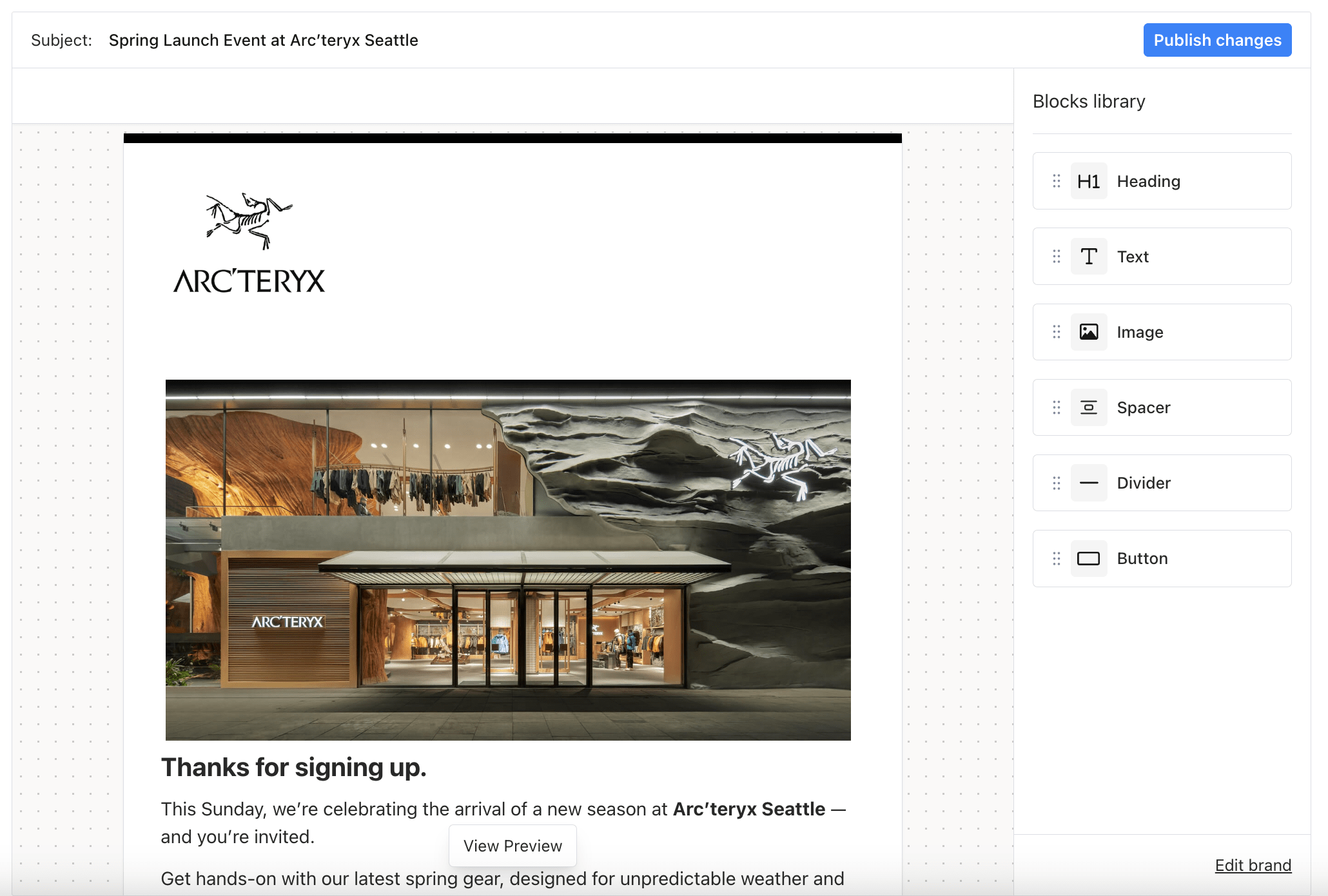
> Courier Create is designed to be simple to embed and customize within your React application. This guide walks you through the basic setup and advanced usage patterns for integrating the Template Editor.
## Basic Setup
To start, install the [package](https://www.npmjs.com/package/@trycourier/react-designer/v/0.0.2):
Minimal supported React version is 18.2.0.
```bash theme={null}
npm install @trycourier/react-designer
# or
yarn add @trycourier/react-designer
```
Import the required components and styles:
```jsx theme={null}
import "@trycourier/react-designer/styles.css";
import { TemplateEditor, TemplateProvider } from "@trycourier/react-designer";
```
Use the components in your app:
```jsx theme={null}
function App() {
return (
);
}
```
The `TemplateProvider` creates the template automatically if it does not already exist.
### Authentication
The `token` prop on `TemplateProvider` accepts a JWT issued by the Courier API. Generate this token server-side and pass it to your frontend; never expose your API key in the browser.
```bash theme={null}
curl --request POST \
--url https://api.courier.com/auth/issue-token \
--header 'Authorization: Bearer $YOUR_AUTH_KEY' \
--header 'Content-Type: application/json' \
--data '{
"scope": "user_id:$YOUR_USER_ID tenants:read tenants:notifications:read tenants:notifications:write",
"expires_in": "30 days"
}'
```
The example above grants access to all tenants. To restrict the token to a single tenant, use tenant-scoped scopes like `tenant:tenant-123:read` instead. See the [Authentication page](/platform/create/authentication) for the full list of available scopes.
### Publishing Hook
Users can override the default publish button with custom logic:
```jsx theme={null}
import { TemplateEditor, TemplateProvider, useTemplateActions } from "@trycourier/react-designer";
function SaveButtonComponent() {
const { publishTemplate } = useTemplateActions();
const handlePublishTemplate = async () => {
// Your custom logic here
await publishTemplate();
};
return (
);
}
```
### Theming Support
You can customize the editor's appearance using the theme prop:
```jsx theme={null}
```
### Disabling Auto-Save
By default, the Courier Create editor auto-saves content. To disable this feature, configure the provider as follows:
```jsx theme={null}
const { saveTemplate, publishTemplate } = useTemplateActions();
const handleSaveTemplate = async () => {
await saveTemplate(); // Save first
await publishTemplate(); // Then publish
};
```
### Restricting Visible Channels
You can restrict which channels appear in the template editor by using the `routing.channels` prop. This is useful when your application only uses specific channels (e.g., email-only workflows).
To show only email (hiding Slack, SMS, push, etc.):
```jsx theme={null}
```
The `channels` array controls which channels appear in the editor - any channels not in that array will be hidden. You can include multiple channels if needed:
```jsx theme={null}
```
The `method` property controls delivery strategy:
* `"single"` - delivers via first available channel (fallback routing)
* `"all"` - delivers via all configured channels simultaneously
Available channel values: `"email"`, `"sms"`, `"push"`, `"inbox"`, `"slack"`, `"msteams"`
## Switching Templates Dynamically
If your application lets users select which template to edit (for example, from a dropdown or list), pass the selected template ID to `TemplateProvider`. The provider creates templates automatically if they don't exist, so you don't need to check beforehand.
```jsx theme={null}
function App() {
const [selectedTemplateId, setSelectedTemplateId] = useState("welcome-email");
return (
<>
);
}
```
The `key` prop on `TemplateProvider` forces React to remount the component when the template changes. Without it, the editor may show stale content from the previous template because the internal state does not fully reset on prop changes alone.
Always include the `key` prop when `templateId` changes dynamically. This applies whether the editor is on a regular page, inside a modal, or in any other context.
### Using in Modals and Dialogs
Courier Create works inside modals and dialogs. The same `key` prop pattern applies; React portals (used by most modal libraries) can prevent proper state updates when props change.
```jsx theme={null}
import { Modal } from "@mantine/core"; // or any modal library
function App() {
const [templateId, setTemplateId] = useState("welcome-email");
const [opened, setOpened] = useState(false);
return (
<>
setOpened(false)} size="xl">
);
}
```
## Using Variables
Variables are placeholders in your template that get replaced with actual data when the email is sent. For example, instead of writing `Hello customer` you can write Hello `{{user.firstName}}`, which will display the recipient's actual name.
The Courier Embeddable editor supports nested variable structures:
```jsx theme={null}
```
### How to Insert Variables
1. When editing text, type `{{` to open the variable suggestions dropdown. Select the variable you want to insert from the list.
2. Via curly braces `{}` icon in top toolbar (if the variables are available for selected element).
## Sending a Message
Ensure you include the `tenant_id` in the message `context` and `template` identifier.
```jsx theme={null}
import { CourierClient } from "@trycourier/courier";
const courier = new CourierClient({ authorizationToken: "your-auth-token" });
const { requestId } = await courier.send({
message: {
context: {
tenant_id: "tenant-123",
},
to: {
email: "user@example.com",
data: {
name: "Spike Spiegel",
},
},
template: "tenant/template-123", //`tenant/` must be prefixed with the template_id
},
});
```
## Overview
Your sample implementation will look something like this:
```jsx theme={null}
import React from "react";
import "@trycourier/react-designer/styles.css";
import {
TemplateEditor,
TemplateProvider,
BrandEditor,
BrandProvider
} from "@trycourier/react-designer";
// Replace with your own values
const token = process.env.REACT_APP_COURIER_TOKEN;
const tenantId = "test-tenant";
const templateId = "template-123";
function App() {
return (
);
}
export default App;
```
## Troubleshooting
### Template content not updating when switching templates
If the editor shows stale content after changing the `templateId` prop, add a `key` prop to `TemplateProvider` that changes with the template ID:
```jsx theme={null}
```
This forces React to remount the provider and reset its internal state. This issue is most common when the editor is inside a modal or dialog (React portal), but can occur in any context where `templateId` changes dynamically.
### Editor not loading inside a modal
Verify that `TemplateProvider` receives a valid `token` when the modal opens. If you generate the JWT lazily, the token may not be ready on first render. Either generate the token before opening the modal or conditionally render the provider:
```jsx theme={null}
setOpened(false)}>
{token && (
)}
```
## What's Next
JWT scopes and token generation for Courier Create
Full list of configuration options for Template and Brand Editors
 ## Troubleshooting
### Template content not updating when switching templates
If the editor shows stale content after changing the `templateId` prop, add a `key` prop to `TemplateProvider` that changes with the template ID:
```jsx theme={null}
## Troubleshooting
### Template content not updating when switching templates
If the editor shows stale content after changing the `templateId` prop, add a `key` prop to `TemplateProvider` that changes with the template ID:
```jsx theme={null}