> ## Documentation Index
> Fetch the complete documentation index at: https://www.courier.com/docs/llms.txt
> Use this file to discover all available pages before exploring further.
# Send Node
> Configure which channels your journey uses, set recipients, add per-node conditions, and schedule send windows.
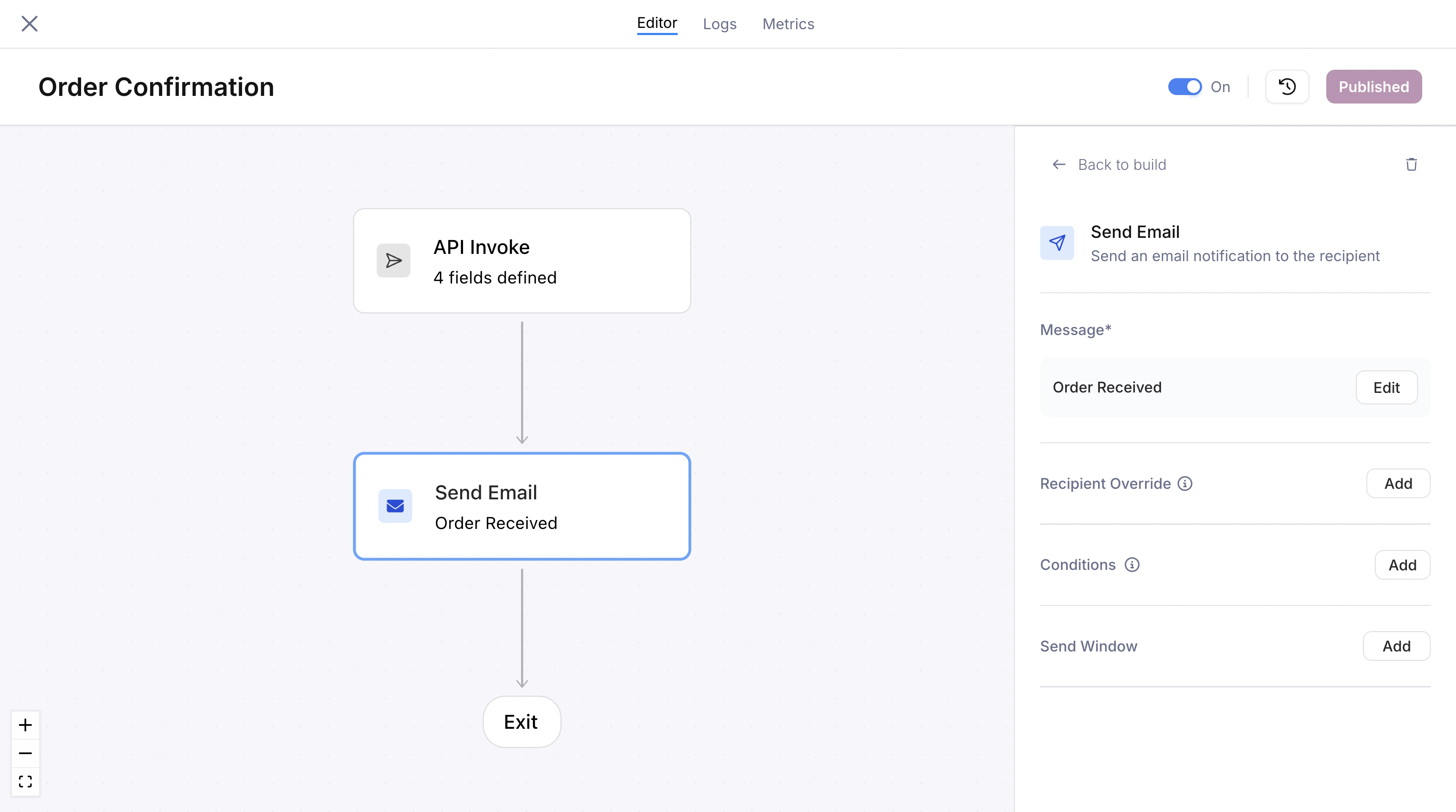
Send nodes deliver messages to users through a specific channel. Each send node targets one channel (email, SMS, push, etc.) and is linked to a [journey template](/platform/journeys/journey-templates) that defines the content.
You can add multiple send nodes to a journey to reach users across different channels, and each node can have its own conditions, recipient overrides, and delivery timing.
## Adding a Send Node
Drag a **Send** node from the palette onto the journey canvas, or drop it onto an edge between two existing nodes. When you add a send node, you'll first choose the channel.
### Supported Channels
| Channel | Description |
| ------------------ | --------------------------------------------------------------------------------- |
| **Email** | Messages delivered to the recipient's email address |
| **SMS** | Text messages via configured SMS provider |
| **Push** | Mobile or web push notifications |
| **In-app / Inbox** | Messages delivered to Courier's [Inbox](/platform/inbox/inbox-overview) component |
 ## Recipient Override
By default, a send node delivers to the user who entered the journey (identified by the `user_id` or `profile` from the [invocation](/platform/journeys/invocation)). You don't need to configure anything for this default behavior.
To send to a different recipient, click **Add** next to "Recipient Override" in the send node's configuration panel. This opens a single field where you can either:
* **Select a field reference** from the dropdown. Courier shows all available fields from the trigger schema, profile, and upstream fetch node responses. At runtime, the field value is resolved and used as the recipient address.
* **Type a hardcoded value** directly (e.g., `ops@yourcompany.com` or `+15551234567`). The field is creatable; type your value and click away to commit it.
The field Courier writes to depends on the channel:
| Channel | Recipient field |
| ------------ | --------------------- |
| Email | `email` |
| SMS | `phone_number` |
| Push / Inbox | `email` (user lookup) |
To remove the override and revert to the default recipient, click **Remove**.
## Recipient Override
By default, a send node delivers to the user who entered the journey (identified by the `user_id` or `profile` from the [invocation](/platform/journeys/invocation)). You don't need to configure anything for this default behavior.
To send to a different recipient, click **Add** next to "Recipient Override" in the send node's configuration panel. This opens a single field where you can either:
* **Select a field reference** from the dropdown. Courier shows all available fields from the trigger schema, profile, and upstream fetch node responses. At runtime, the field value is resolved and used as the recipient address.
* **Type a hardcoded value** directly (e.g., `ops@yourcompany.com` or `+15551234567`). The field is creatable; type your value and click away to commit it.
The field Courier writes to depends on the channel:
| Channel | Recipient field |
| ------------ | --------------------- |
| Email | `email` |
| SMS | `phone_number` |
| Push / Inbox | `email` (user lookup) |
To remove the override and revert to the default recipient, click **Remove**.
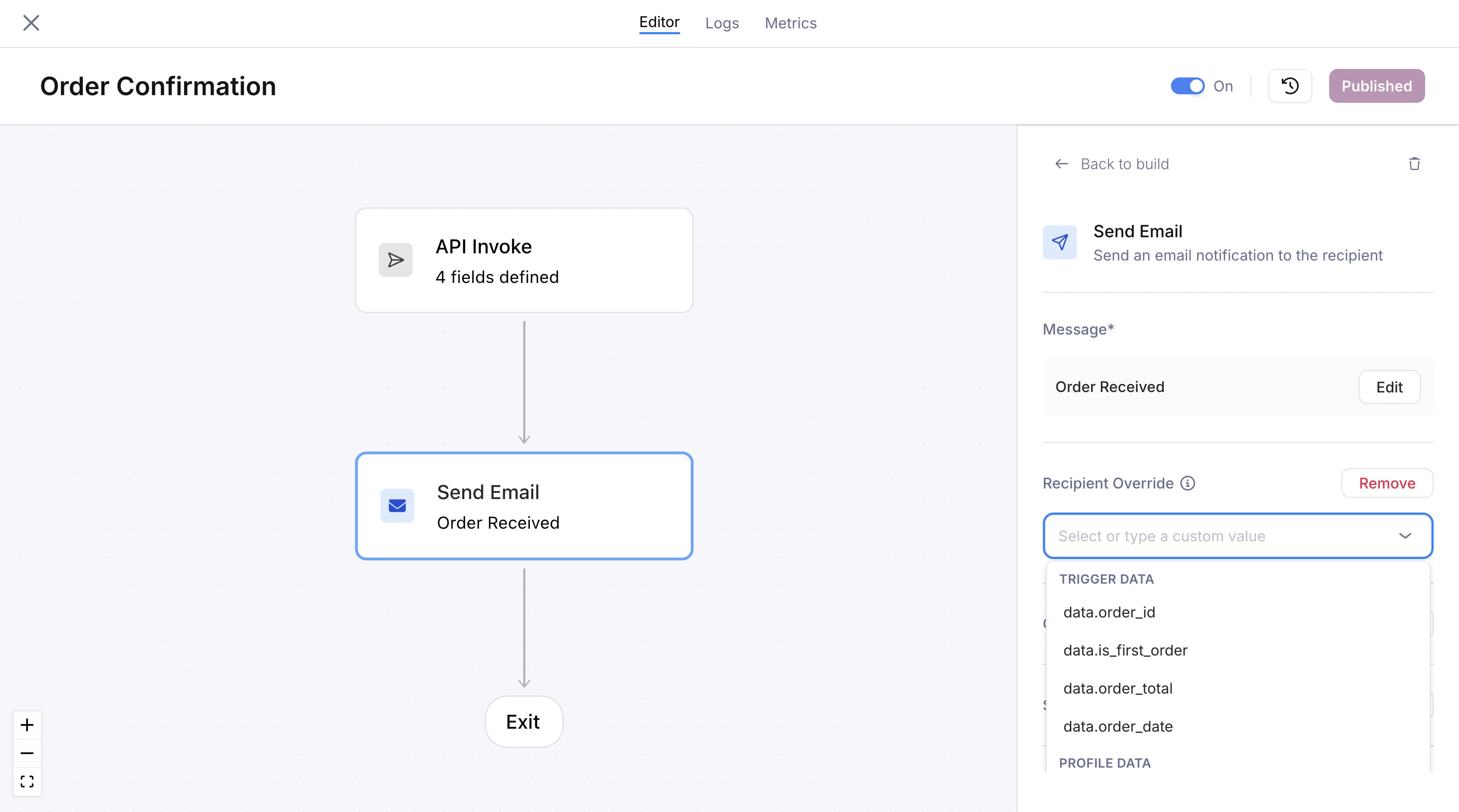 A common pattern is adding a schema field like `manager_email` to your API trigger, then selecting it as the recipient override on a send node. This lets your application control who receives a specific notification without changing the journey.
## Conditions
Each send node can have conditions that are evaluated at runtime. If the conditions are not met, the node is skipped and the journey continues to the next step.
Conditions use the same operators and field references as [branch nodes](/platform/journeys/nodes/branch). Common patterns:
* Skip a push notification if `profile.push_tokens` is empty
* Only send an email if `data.notification_preference` equals `"email"`
* Send only when a fetch node response indicates the user hasn't completed an action
## Send Window
A send window controls when a message is actually delivered. If the journey reaches a send node outside the configured window, delivery is held until the window opens.
This is useful for respecting business hours, avoiding late-night messages, or batching sends into a specific time range.
A common pattern is adding a schema field like `manager_email` to your API trigger, then selecting it as the recipient override on a send node. This lets your application control who receives a specific notification without changing the journey.
## Conditions
Each send node can have conditions that are evaluated at runtime. If the conditions are not met, the node is skipped and the journey continues to the next step.
Conditions use the same operators and field references as [branch nodes](/platform/journeys/nodes/branch). Common patterns:
* Skip a push notification if `profile.push_tokens` is empty
* Only send an email if `data.notification_preference` equals `"email"`
* Send only when a fetch node response indicates the user hasn't completed an action
## Send Window
A send window controls when a message is actually delivered. If the journey reaches a send node outside the configured window, delivery is held until the window opens.
This is useful for respecting business hours, avoiding late-night messages, or batching sends into a specific time range.
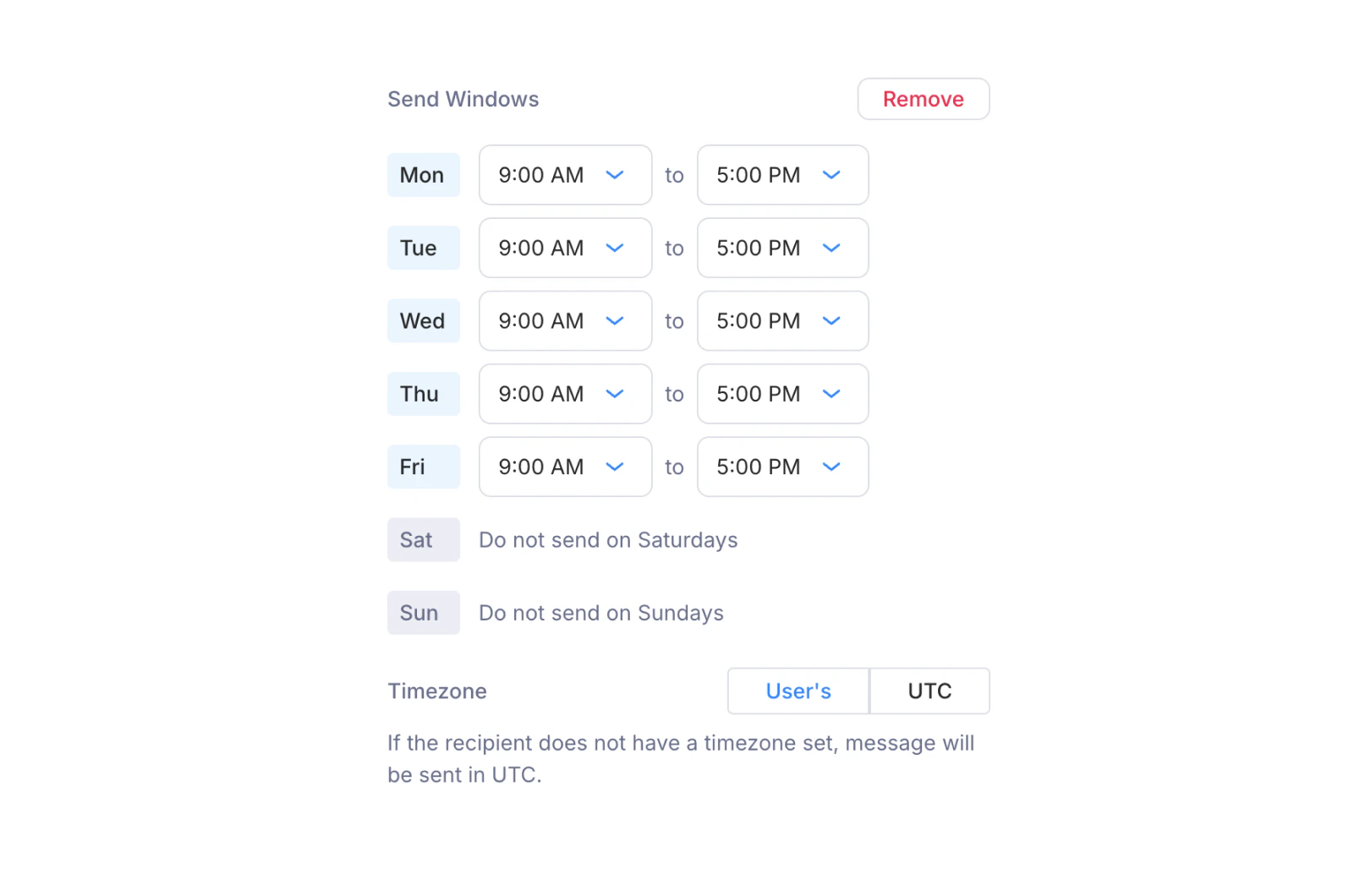 Configure a send window by enabling it in the send node's settings:
* **Day-by-day schedule** — Each day of the week has its own row with an opening and closing time (e.g., Mon through Fri, 9:00 AM to 5:00 PM). Days without a time range are blocked entirely (e.g., "Do not send on Saturdays").
* **Timezone** — Choose between **User's** timezone (resolved from the recipient's profile) or **UTC**. If the recipient doesn't have a timezone set, messages are sent in UTC.
## Provider Resolution
When a message is ready to send, Courier determines which provider to use based on your workspace's configured integrations. You don't need to specify a provider in the send node; Courier matches the channel to an available provider automatically.
For example, if your workspace has SendGrid configured for email, a send node targeting the email channel will route through SendGrid without any explicit configuration on the node.
If you have multiple providers configured for the same channel, Courier uses your [routing rules](/platform/sending/send-message#routing) to determine which one to use.
## What's Next
Create and edit the content your send nodes deliver
Configure triggers and invoke journeys
Add branching, delays, and enrichment between sends
Debug delivery issues by stepping through runs
Configure a send window by enabling it in the send node's settings:
* **Day-by-day schedule** — Each day of the week has its own row with an opening and closing time (e.g., Mon through Fri, 9:00 AM to 5:00 PM). Days without a time range are blocked entirely (e.g., "Do not send on Saturdays").
* **Timezone** — Choose between **User's** timezone (resolved from the recipient's profile) or **UTC**. If the recipient doesn't have a timezone set, messages are sent in UTC.
## Provider Resolution
When a message is ready to send, Courier determines which provider to use based on your workspace's configured integrations. You don't need to specify a provider in the send node; Courier matches the channel to an available provider automatically.
For example, if your workspace has SendGrid configured for email, a send node targeting the email channel will route through SendGrid without any explicit configuration on the node.
If you have multiple providers configured for the same channel, Courier uses your [routing rules](/platform/sending/send-message#routing) to determine which one to use.
## What's Next
Create and edit the content your send nodes deliver
Configure triggers and invoke journeys
Add branching, delays, and enrichment between sends
Debug delivery issues by stepping through runs