> ## Documentation Index
> Fetch the complete documentation index at: https://www.courier.com/docs/llms.txt
> Use this file to discover all available pages before exploring further.
# Metrics
> Track send volume, delivery rates, opens, and clicks across every template in a journey.
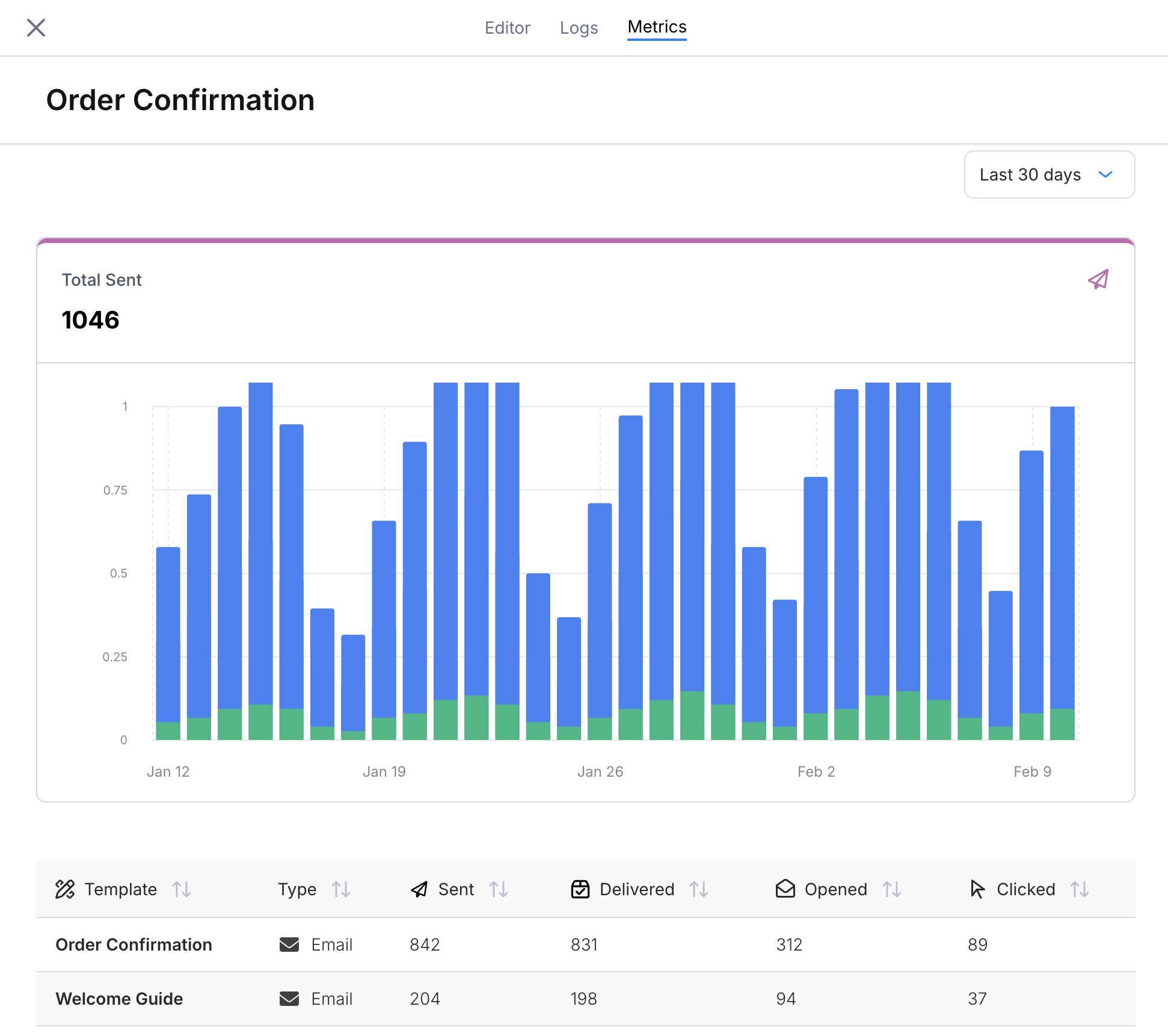
The **Metrics** tab in the journey editor shows delivery performance for the journey's send nodes. Open any journey and click the **Metrics** tab (next to Editor and Logs) to access it.
 ## Send Volume Chart
The top panel displays **Total Sent** as a stacked bar chart over time. Each bar represents one day, and each color corresponds to a journey template (one per send node). The total count above the chart is the sum across all templates in the selected time range.
## Template Breakdown Table
Below the chart, a table lists every template associated with the journey's send nodes.
| Column | Description |
| ------------- | ------------------------------------------------------------- |
| **Template** | The journey template name (matches the name in the send node) |
| **Type** | The channel (Email, SMS, Push, etc.) |
| **Sent** | Total messages sent in the time range |
| **Delivered** | Delivery rate as a percentage of sent (excluding errors) |
| **Opened** | Open rate as a percentage of sent |
| **Clicked** | Click rate as a percentage of sent |
Columns with insufficient data display `--`.
## Template Detail Drawer
Click any row in the table to open a detail drawer on the right side of the screen. The drawer shows metrics for that individual template with five chart tabs:
* **Total Sent** — send volume over time (bar chart)
* **Delivery Rate** — percentage delivered over time (line chart)
* **Open Rate** — percentage opened over time (line chart)
* **Click Rate** — percentage clicked over time (line chart)
* **Error Rate** — percentage of sends that errored over time (line chart)
Below the chart, a provider-level breakdown table shows: Provider, Sent, Delivered, Opened, Clicked, and Errors. The drawer has its own time range picker so you can zoom into a different window without changing the main view.
Templates from older published versions that no longer exist in the current draft appear with an "Inactive" prefix. This lets you track metrics for templates that were removed in a later version.
## Time Range
Use the dropdown in the top-right corner to filter the chart and table to a specific window:
* **Last 7 days**
* **Last 30 days**
* **Last 90 days**
Changing the time range updates both the chart and the table totals.
## Metrics vs Run Inspection
Metrics answer "How is this journey performing overall?" [Run Inspection](/platform/journeys/run-inspection) answers "What happened in this specific run?"
Use metrics to spot trends (send volume changes, delivery rate drops), then switch to run inspection to diagnose individual failures.
## What's Next
Step through individual runs to debug issues
Track changes and correlate version publishes with metric shifts
Configure triggers and invocation
Add branching, delays, and orchestration nodes
## Send Volume Chart
The top panel displays **Total Sent** as a stacked bar chart over time. Each bar represents one day, and each color corresponds to a journey template (one per send node). The total count above the chart is the sum across all templates in the selected time range.
## Template Breakdown Table
Below the chart, a table lists every template associated with the journey's send nodes.
| Column | Description |
| ------------- | ------------------------------------------------------------- |
| **Template** | The journey template name (matches the name in the send node) |
| **Type** | The channel (Email, SMS, Push, etc.) |
| **Sent** | Total messages sent in the time range |
| **Delivered** | Delivery rate as a percentage of sent (excluding errors) |
| **Opened** | Open rate as a percentage of sent |
| **Clicked** | Click rate as a percentage of sent |
Columns with insufficient data display `--`.
## Template Detail Drawer
Click any row in the table to open a detail drawer on the right side of the screen. The drawer shows metrics for that individual template with five chart tabs:
* **Total Sent** — send volume over time (bar chart)
* **Delivery Rate** — percentage delivered over time (line chart)
* **Open Rate** — percentage opened over time (line chart)
* **Click Rate** — percentage clicked over time (line chart)
* **Error Rate** — percentage of sends that errored over time (line chart)
Below the chart, a provider-level breakdown table shows: Provider, Sent, Delivered, Opened, Clicked, and Errors. The drawer has its own time range picker so you can zoom into a different window without changing the main view.
Templates from older published versions that no longer exist in the current draft appear with an "Inactive" prefix. This lets you track metrics for templates that were removed in a later version.
## Time Range
Use the dropdown in the top-right corner to filter the chart and table to a specific window:
* **Last 7 days**
* **Last 30 days**
* **Last 90 days**
Changing the time range updates both the chart and the table totals.
## Metrics vs Run Inspection
Metrics answer "How is this journey performing overall?" [Run Inspection](/platform/journeys/run-inspection) answers "What happened in this specific run?"
Use metrics to spot trends (send volume changes, delivery rate drops), then switch to run inspection to diagnose individual failures.
## What's Next
Step through individual runs to debug issues
Track changes and correlate version publishes with metric shifts
Configure triggers and invocation
Add branching, delays, and orchestration nodes