> ## Documentation Index
> Fetch the complete documentation index at: https://www.courier.com/docs/llms.txt
> Use this file to discover all available pages before exploring further.
# Branch
> Split a journey into multiple conditional paths based on data from triggers, profiles, or upstream nodes.
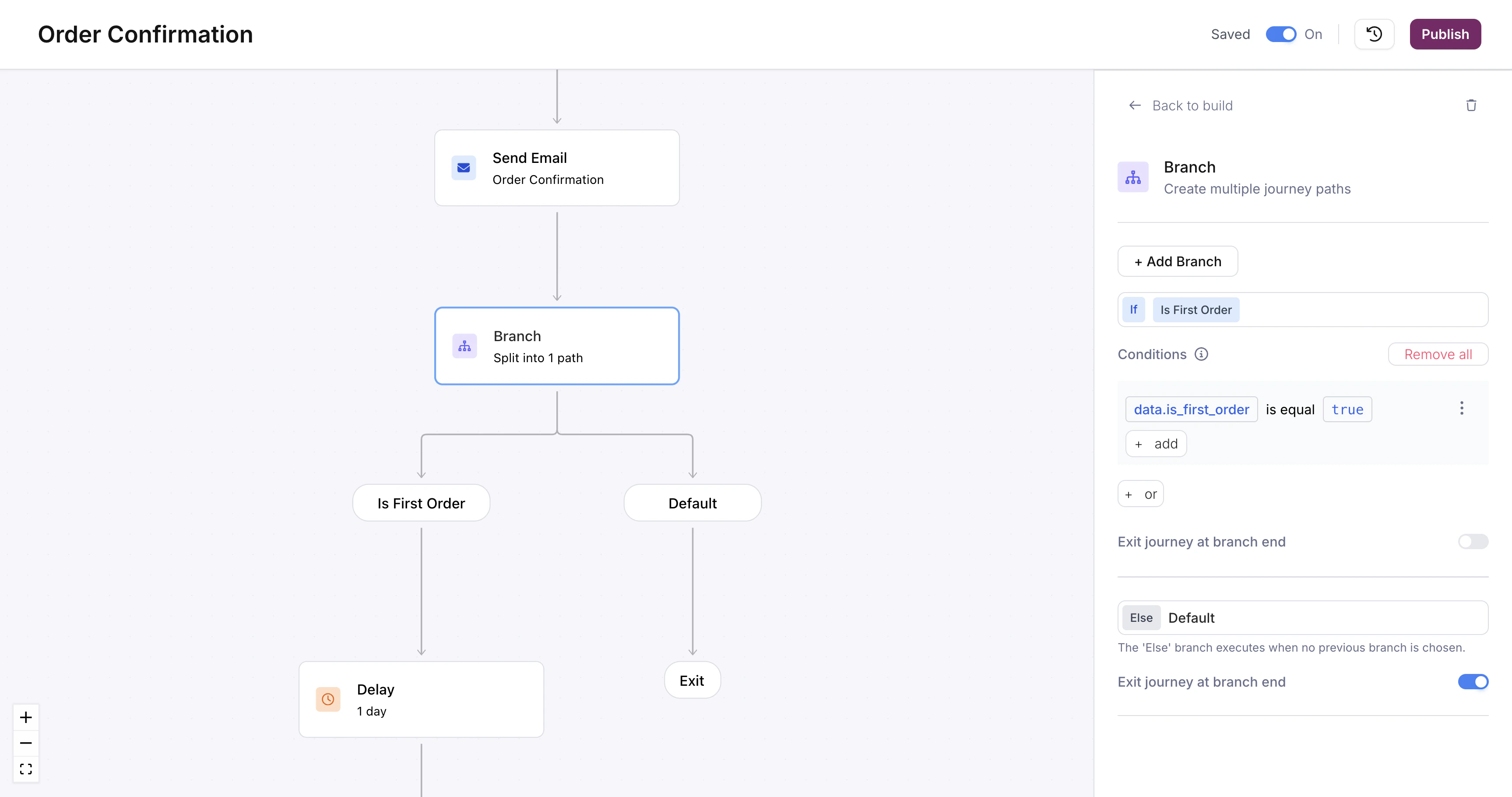
Branch nodes split the journey into multiple paths based on conditions. Each path has a set of conditions; the journey follows the first path whose conditions are all met. If no conditions match, execution follows the **Default** path (always present as a fallback).
 ## Configuring Conditions
Click the branch node to open the condition editor. Each path has one or more conditions. A condition reads like a sentence: pick a **field** from the journey context (trigger schema, profile, or fetch response), choose an **operator**, and enter a **value** to compare against.
## Configuring Conditions
Click the branch node to open the condition editor. Each path has one or more conditions. A condition reads like a sentence: pick a **field** from the journey context (trigger schema, profile, or fetch response), choose an **operator**, and enter a **value** to compare against.
 ## Multiple Conditions per Path
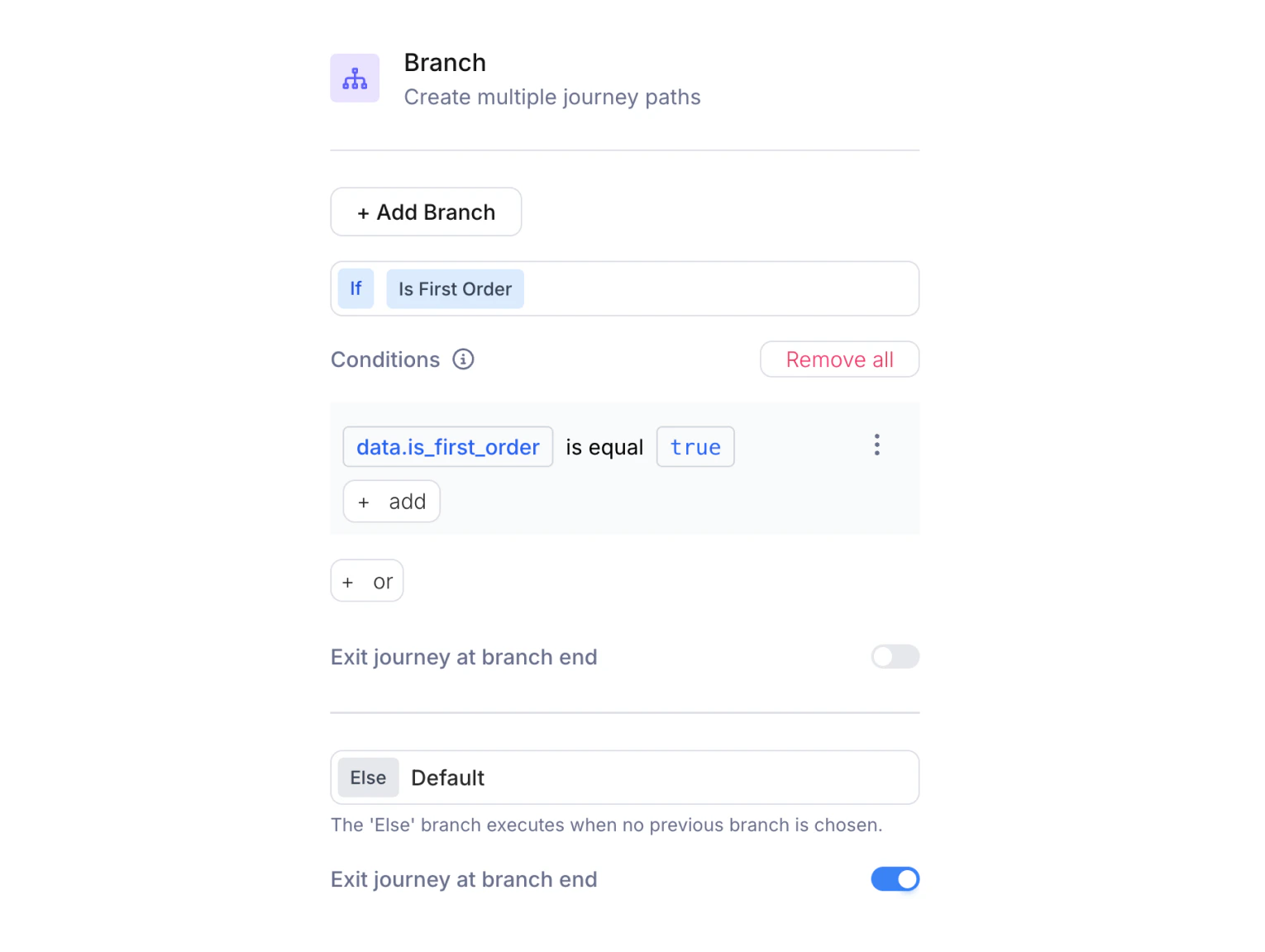
A path supports both AND and OR logic. Within a condition group, click **+ add** to add another condition; all conditions in the same group must be true (AND). Click **+ or** at the bottom to add a separate condition group; the path executes if any group is satisfied (OR).
For example, you could route to a VIP path if the user is a first-time buyer with a high-value order, *or* a returning buyer who's spent over a threshold:
* **Group 1**: `data.is_first_order` is equal `true` AND `data.order_total` greater than `50`
* **Group 2**: `data.is_first_order` is equal `false` AND `data.order_total` greater than `200`
Click the path name in the condition editor (default is "Path 1", "Path 2", etc.) to rename it. The name updates on the canvas label, making it easier to read the journey at a glance (e.g., "First Order" instead of "Path 1").
## Common Patterns
**Tiered notifications**: Branch on a numeric field (e.g., `data.priority`) to send urgent messages via SMS and lower-priority messages via email.
**Feature gating**: Branch on a boolean field (e.g., `data.is_premium`) to send premium users richer content.
**Fallback handling**: Use the Default path to catch unexpected values and send a generic message or skip sending entirely.
## Debugging Branch Decisions
When a branch takes an unexpected path, open [Run Inspection](/platform/journeys/run-inspection) and click the branch node. The step context shows every condition that was evaluated, the actual values compared, and which path was selected.
## What's Next
Pause execution between steps
Enrich journeys with external data
Tutorial: branching, delays, and data enrichment
Step through runs to debug branch decisions
## Multiple Conditions per Path
A path supports both AND and OR logic. Within a condition group, click **+ add** to add another condition; all conditions in the same group must be true (AND). Click **+ or** at the bottom to add a separate condition group; the path executes if any group is satisfied (OR).
For example, you could route to a VIP path if the user is a first-time buyer with a high-value order, *or* a returning buyer who's spent over a threshold:
* **Group 1**: `data.is_first_order` is equal `true` AND `data.order_total` greater than `50`
* **Group 2**: `data.is_first_order` is equal `false` AND `data.order_total` greater than `200`
Click the path name in the condition editor (default is "Path 1", "Path 2", etc.) to rename it. The name updates on the canvas label, making it easier to read the journey at a glance (e.g., "First Order" instead of "Path 1").
## Common Patterns
**Tiered notifications**: Branch on a numeric field (e.g., `data.priority`) to send urgent messages via SMS and lower-priority messages via email.
**Feature gating**: Branch on a boolean field (e.g., `data.is_premium`) to send premium users richer content.
**Fallback handling**: Use the Default path to catch unexpected values and send a generic message or skip sending entirely.
## Debugging Branch Decisions
When a branch takes an unexpected path, open [Run Inspection](/platform/journeys/run-inspection) and click the branch node. The step context shows every condition that was evaluated, the actual values compared, and which path was selected.
## What's Next
Pause execution between steps
Enrich journeys with external data
Tutorial: branching, delays, and data enrichment
Step through runs to debug branch decisions