> ## Documentation Index
> Fetch the complete documentation index at: https://www.courier.com/docs/llms.txt
> Use this file to discover all available pages before exploring further.
# Run Inspection
> Step through individual journey runs to see exactly what happened at every node: payloads, branch decisions, delivery status, and errors.
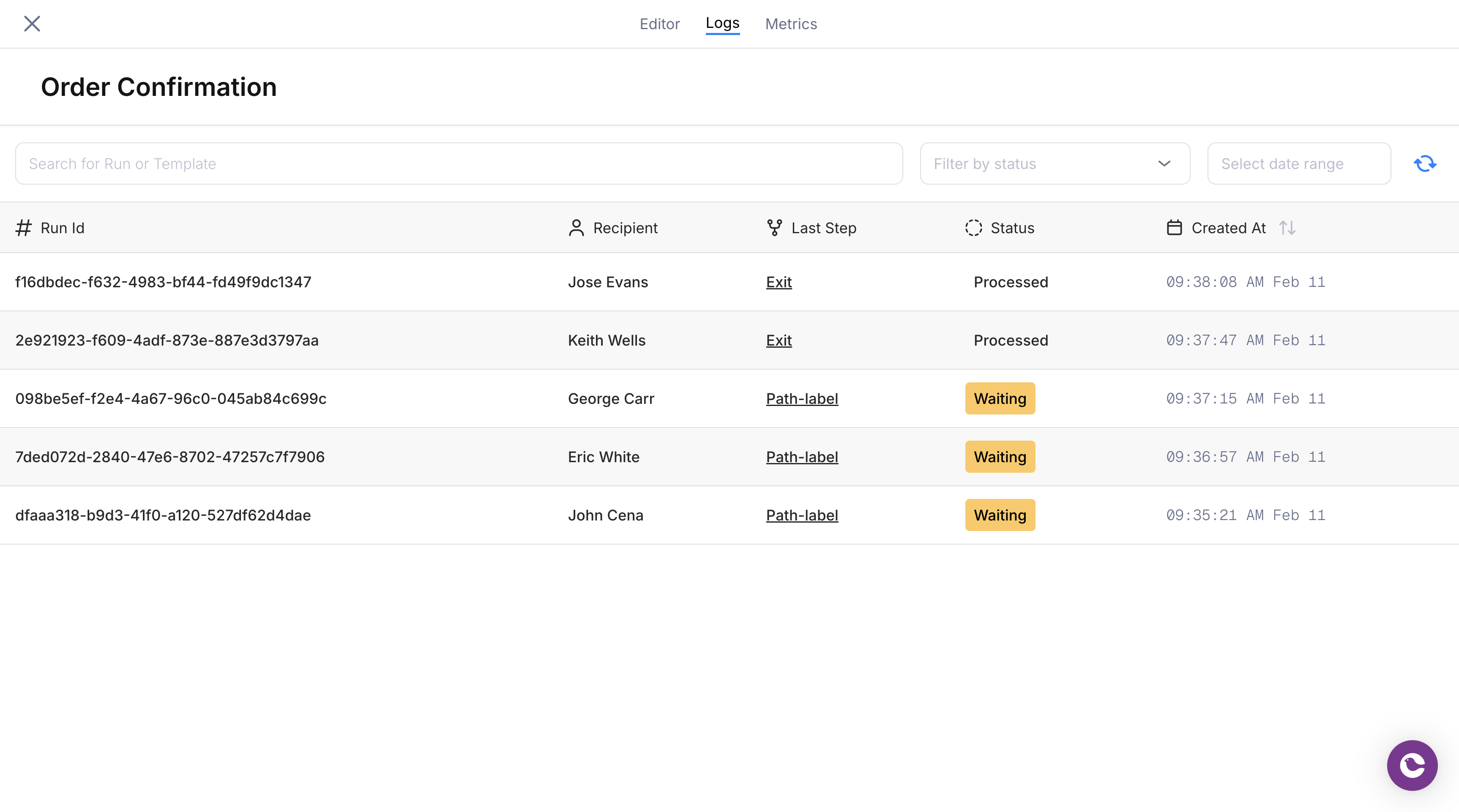
Every time a journey is invoked, Courier records a **run**: the complete execution trace of that journey for that user. Run inspection lets you step through individual runs node by node, see the data at each step, understand which branches were taken and why, and diagnose delivery issues against real production data.
Open the **Logs** tab in any journey to access run inspection.
 ## Finding a Run
The run list shows every execution of the current journey, sorted by most recent. You can narrow results with:
* **Search** — Find runs by run ID or template ID
* **Status filter** — Show only runs in a specific state
* **Date range** — Limit to a specific time window
* **Recipient** — Filter by the user who entered the journey
| Status | Meaning |
| -------------- | ------------------------------------------ |
| **Processing** | The run is actively executing |
| **Processed** | All nodes completed successfully |
| **Error** | A node encountered a failure |
| **Waiting** | The run is paused (delay node or throttle) |
| **Canceled** | The run was stopped before completing |
Click any run to open the detail view.
## Run Detail View
The detail view overlays execution status onto the journey graph. You see the same canvas you designed in the editor, but each node is annotated with its execution outcome for this specific run.
## Finding a Run
The run list shows every execution of the current journey, sorted by most recent. You can narrow results with:
* **Search** — Find runs by run ID or template ID
* **Status filter** — Show only runs in a specific state
* **Date range** — Limit to a specific time window
* **Recipient** — Filter by the user who entered the journey
| Status | Meaning |
| -------------- | ------------------------------------------ |
| **Processing** | The run is actively executing |
| **Processed** | All nodes completed successfully |
| **Error** | A node encountered a failure |
| **Waiting** | The run is paused (delay node or throttle) |
| **Canceled** | The run was stopped before completing |
Click any run to open the detail view.
## Run Detail View
The detail view overlays execution status onto the journey graph. You see the same canvas you designed in the editor, but each node is annotated with its execution outcome for this specific run.
 At a glance, you can see:
* Which nodes executed and in what order
* Which branch path was taken at each decision point
* Where the run is currently paused (if still in progress)
* Which node failed (if the run errored)
### Step Context
Click any node in the run detail view to inspect the data context at that point in the execution. The step context viewer shows:
* **Input data** — The payload available to this node when it executed
* **Profile data** — The user's profile as it existed at this step
* **Conditions evaluated** — For branch and conditional nodes, which conditions were checked and whether they passed
* **Output** — For fetch nodes, the response data; for send nodes, the delivery status
At a glance, you can see:
* Which nodes executed and in what order
* Which branch path was taken at each decision point
* Where the run is currently paused (if still in progress)
* Which node failed (if the run errored)
### Step Context
Click any node in the run detail view to inspect the data context at that point in the execution. The step context viewer shows:
* **Input data** — The payload available to this node when it executed
* **Profile data** — The user's profile as it existed at this step
* **Conditions evaluated** — For branch and conditional nodes, which conditions were checked and whether they passed
* **Output** — For fetch nodes, the response data; for send nodes, the delivery status
 This is useful for debugging why a branch took an unexpected path ("the condition checked `data.plan` which was `free`, not `pro`") or why a send failed ("the email field was empty in the profile").
## Version Matching
When you inspect a run, Courier displays the journey version that was active when the run started. If you've published changes since the run executed, the detail view shows the historical version, not the current draft. This ensures you see exactly what the user experienced.
## Accessing Run Inspection
There are two ways to reach run inspection:
1. **From a journey** — Open a journey and click the **Logs** tab. This shows runs for that specific journey.
2. **From the global logs page** — Navigate to the Journeys logs page to see runs across all journeys, with an additional template ID column for identification.
## What's Next
View aggregate performance data for your journeys
Configure triggers and test invocations
Add branching, delays, and conditional logic
Compare versions and revert changes
This is useful for debugging why a branch took an unexpected path ("the condition checked `data.plan` which was `free`, not `pro`") or why a send failed ("the email field was empty in the profile").
## Version Matching
When you inspect a run, Courier displays the journey version that was active when the run started. If you've published changes since the run executed, the detail view shows the historical version, not the current draft. This ensures you see exactly what the user experienced.
## Accessing Run Inspection
There are two ways to reach run inspection:
1. **From a journey** — Open a journey and click the **Logs** tab. This shows runs for that specific journey.
2. **From the global logs page** — Navigate to the Journeys logs page to see runs across all journeys, with an additional template ID column for identification.
## What's Next
View aggregate performance data for your journeys
Configure triggers and test invocations
Add branching, delays, and conditional logic
Compare versions and revert changes