> ## Documentation Index
> Fetch the complete documentation index at: https://www.courier.com/docs/llms.txt
> Use this file to discover all available pages before exploring further.
# Hosted Preference Center
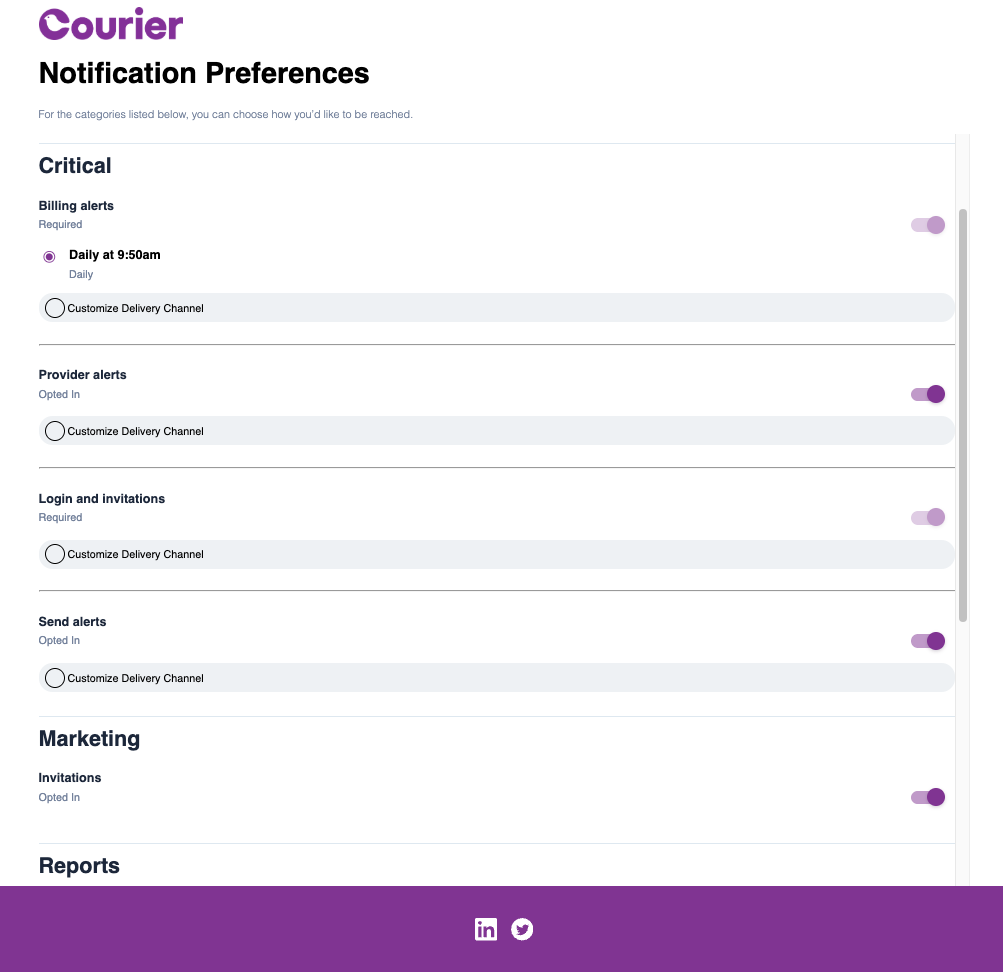
> Deploy a customizable, Courier-hosted page where users can manage notification preferences, delivery channels, and unsubscribe settings.
## Overview
The Hosted Preference Center provides a turnkey solution for user preference management without any development effort required. Courier hosts and maintains the preference interface, handling user authentication, preference updates, and data persistence while you focus on your core application. Users access their preferences through a branded, responsive interface that seamlessly integrates with your notification workflow.
 ## Key Features
* **Zero Development Required** - Fully hosted solution with automatic updates and maintenance
* **Custom Branding** - Match your brand colors, logos, and styling for consistent user experience
* **Subscription Management** - Users can opt in/out of notification topics you've configured
* **Channel Selection** - Enterprise customers can enable user choice of delivery channels (email, SMS, push, chat)
* **Unsubscribe Handling** - Built-in compliance with one-click unsubscribe and confirmation pages
* **Mobile Responsive** - Optimized interface that works across all devices and screen sizes
## Core Components
#### Preference Center URLs
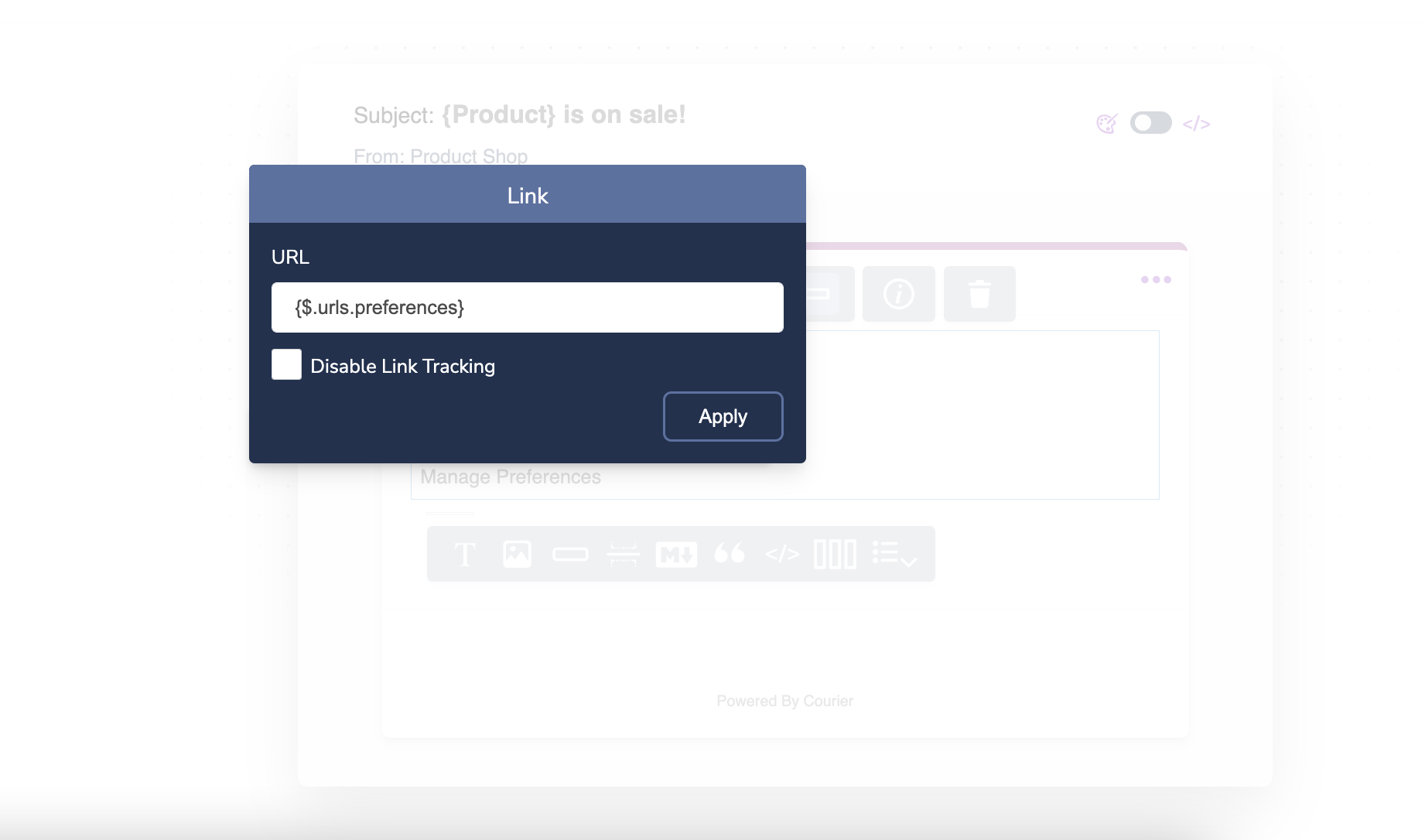
Insert preference center URL variables in your notification templates to provide users with secure, auto-generated links to their preference management interface.
**Variable Format by Context:**
* **Content Blocks** (Text, Markdown, Quote, List): `{$.urls.preferences}`
* **Handlebars Templates** (Template blocks, Email templates, Brand templates): `{{var "urls.preferences"}}`
* **Elemental JSON** (Action buttons, link elements): `"href": "{$.urls.preferences}"`
**Elemental Example:**
```json theme={null}
{
"type": "action",
"content": "Manage Preferences",
"href": "{$.urls.preferences}",
"style": "button"
}
```
**User ID Required**: Include `to.user_id` in your [Send request](/api-reference/send/send-a-message) for preference links to work correctly. The user ID maps recipients to their preference profiles.
**Variable Context Matters**: Using the wrong format will prevent the URL from rendering correctly. For comprehensive variable documentation, see [Inserting Variables](/platform/content/variables/inserting-variables).
#### Implementation Options
**In Notification Content**
Add preference links directly within notification body content for contextual access to settings.
## Key Features
* **Zero Development Required** - Fully hosted solution with automatic updates and maintenance
* **Custom Branding** - Match your brand colors, logos, and styling for consistent user experience
* **Subscription Management** - Users can opt in/out of notification topics you've configured
* **Channel Selection** - Enterprise customers can enable user choice of delivery channels (email, SMS, push, chat)
* **Unsubscribe Handling** - Built-in compliance with one-click unsubscribe and confirmation pages
* **Mobile Responsive** - Optimized interface that works across all devices and screen sizes
## Core Components
#### Preference Center URLs
Insert preference center URL variables in your notification templates to provide users with secure, auto-generated links to their preference management interface.
**Variable Format by Context:**
* **Content Blocks** (Text, Markdown, Quote, List): `{$.urls.preferences}`
* **Handlebars Templates** (Template blocks, Email templates, Brand templates): `{{var "urls.preferences"}}`
* **Elemental JSON** (Action buttons, link elements): `"href": "{$.urls.preferences}"`
**Elemental Example:**
```json theme={null}
{
"type": "action",
"content": "Manage Preferences",
"href": "{$.urls.preferences}",
"style": "button"
}
```
**User ID Required**: Include `to.user_id` in your [Send request](/api-reference/send/send-a-message) for preference links to work correctly. The user ID maps recipients to their preference profiles.
**Variable Context Matters**: Using the wrong format will prevent the URL from rendering correctly. For comprehensive variable documentation, see [Inserting Variables](/platform/content/variables/inserting-variables).
#### Implementation Options
**In Notification Content**
Add preference links directly within notification body content for contextual access to settings.
 **In Brand Footer**
Include preference links in your brand footer for consistent access across all notifications.
**In Brand Footer**
Include preference links in your brand footer for consistent access across all notifications.
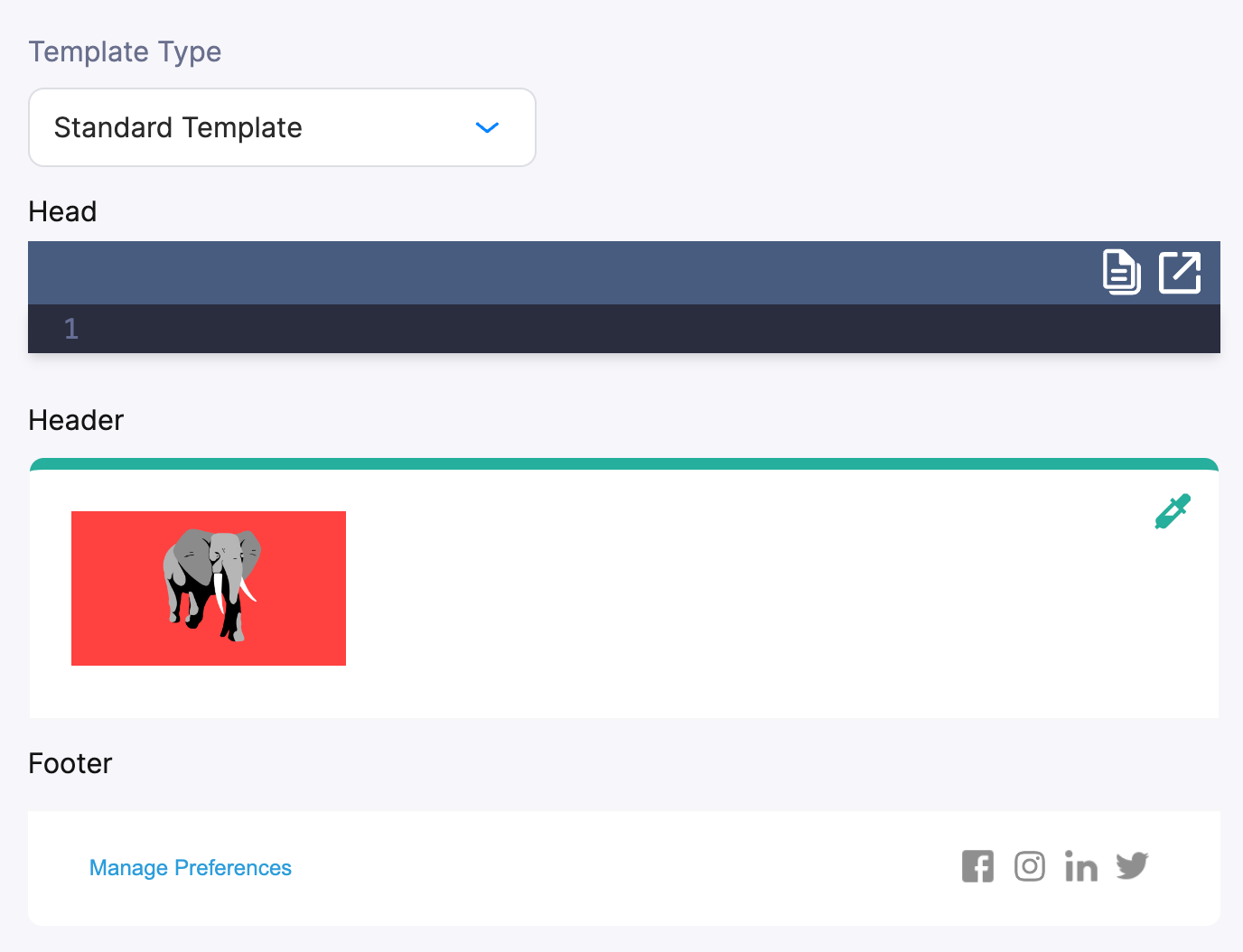 **Preview Behavior**: Preview emails show mock URLs instead of functional preference links since they're not sent to actual users.
### Unsubscribe Management
#### Quick Unsubscribe Links
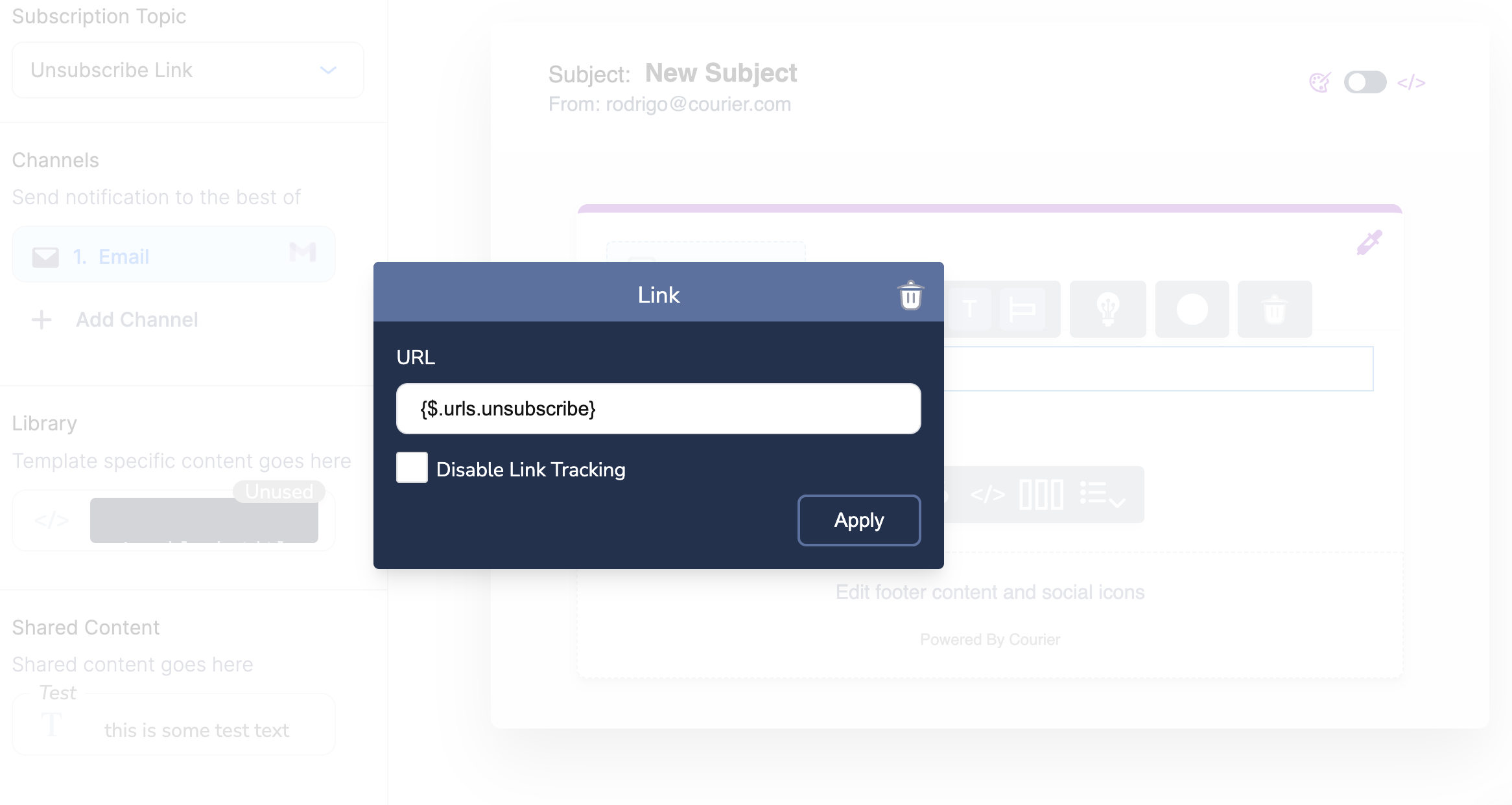
Provide users with one-click unsubscribe functionality using unsubscribe URL variables. This link removes users from the specific subscription topic associated with the notification.
**Variable Format by Context:**
* **Content Blocks** (Text, Markdown, Quote, List): `{$.urls.unsubscribe}`
* **Handlebars Templates** (Template blocks, Email templates, Brand templates): `{{var "urls.unsubscribe"}}`
* **Elemental JSON** (Action buttons, link elements): `"href": "{$.urls.unsubscribe}"`
**Elemental Example:**
```json theme={null}
{
"type": "action",
"content": "Unsubscribe",
"href": "{$.urls.unsubscribe}",
"style": "link"
}
```
**Variable Context Matters**: Using the wrong format will prevent the URL from rendering correctly. For comprehensive variable documentation, see [Inserting Variables](/platform/content/variables/inserting-variables).
**Subscription topic required**: The unsubscribe URL resolves to an empty string if the template has no subscription topic assigned. Always [assign a subscription topic](/platform/content/template-settings/general-settings#subscription-topic) before using unsubscribe links. For templates mapped to a [Required topic](/platform/preferences/preferences-editor#default-states), the unsubscribe page renders but the opt-out silently fails; avoid including unsubscribe links in those templates.
**Preview Behavior**: Preview emails show mock URLs instead of functional preference links since they're not sent to actual users.
### Unsubscribe Management
#### Quick Unsubscribe Links
Provide users with one-click unsubscribe functionality using unsubscribe URL variables. This link removes users from the specific subscription topic associated with the notification.
**Variable Format by Context:**
* **Content Blocks** (Text, Markdown, Quote, List): `{$.urls.unsubscribe}`
* **Handlebars Templates** (Template blocks, Email templates, Brand templates): `{{var "urls.unsubscribe"}}`
* **Elemental JSON** (Action buttons, link elements): `"href": "{$.urls.unsubscribe}"`
**Elemental Example:**
```json theme={null}
{
"type": "action",
"content": "Unsubscribe",
"href": "{$.urls.unsubscribe}",
"style": "link"
}
```
**Variable Context Matters**: Using the wrong format will prevent the URL from rendering correctly. For comprehensive variable documentation, see [Inserting Variables](/platform/content/variables/inserting-variables).
**Subscription topic required**: The unsubscribe URL resolves to an empty string if the template has no subscription topic assigned. Always [assign a subscription topic](/platform/content/template-settings/general-settings#subscription-topic) before using unsubscribe links. For templates mapped to a [Required topic](/platform/preferences/preferences-editor#default-states), the unsubscribe page renders but the opt-out silently fails; avoid including unsubscribe links in those templates.
 #### Unsubscribe Confirmation
Users who click unsubscribe links are redirected to a confirmation page that clearly indicates their subscription status and provides options for preference management.
#### Unsubscribe Confirmation
Users who click unsubscribe links are redirected to a confirmation page that clearly indicates their subscription status and provides options for preference management.
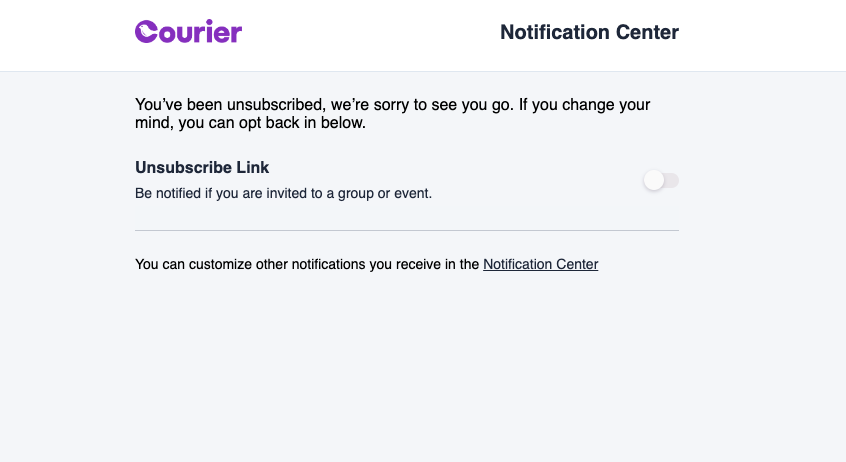 **Scope**: Unsubscribe links remove users from the entire subscription topic, including all associated notification templates and delivery channels.
### Customization Options
#### Brand Integration
The hosted preference center automatically applies your [brand styling](/platform/content/brands/brands-overview) including logos, colors, and typography from your [default brand configuration](https://app.courier.com/database/brands).
#### Channel Selection
**Availability**: Delivery Channel customization is available for Enterprise customers. Contact [Courier Support](mailto:support@courier.com) for access or [Request a Demo](https://www.courier.com/request-demo) to learn more about how Courier could help you.
Enterprise customers can enable users to select their preferred delivery channels for each subscription topic. User selections are reflected in the `custom_routing` array when querying the [User Preferences API](/api-reference/user-preferences/get-user-subscription-topic).
```json theme={null}
{
"topic": {
"custom_routing": [
"email"
],
"has_custom_routing": true,
"default_status": "OPTED_IN",
"section_id": "_ysuowndfnousd",
"section_name": "Notifications",
"status": "OPTED_IN",
"topic_id": "TOPIC_ID",
"topic_name": "Tips and Tricks"
}
}
```
**Channel Conditions**: Template-level [send conditions](/platform/content/template-settings/send-conditions) will not override user `custom_routing` preferences. Use [variable guardrails](/platform/content/template-settings/variable-not-found) to disable channels when required data is missing.
## Implementation Workflow
### Setup and Configuration
1. **Configure Subscription Topics** - Use the [Preferences Editor](/platform/preferences/preferences-editor) to create notification categories
2. **Map Templates** - Associate notification templates with subscription topics for automatic preference enforcement
3. **Add Preference Links** - Insert `{$.urls.preferences}` variables in templates or brand footers
4. **Test User Flow** - Preview the preference center and verify user experience
### Preview and Testing
Preview your hosted preference center before deploying:
**Scope**: Unsubscribe links remove users from the entire subscription topic, including all associated notification templates and delivery channels.
### Customization Options
#### Brand Integration
The hosted preference center automatically applies your [brand styling](/platform/content/brands/brands-overview) including logos, colors, and typography from your [default brand configuration](https://app.courier.com/database/brands).
#### Channel Selection
**Availability**: Delivery Channel customization is available for Enterprise customers. Contact [Courier Support](mailto:support@courier.com) for access or [Request a Demo](https://www.courier.com/request-demo) to learn more about how Courier could help you.
Enterprise customers can enable users to select their preferred delivery channels for each subscription topic. User selections are reflected in the `custom_routing` array when querying the [User Preferences API](/api-reference/user-preferences/get-user-subscription-topic).
```json theme={null}
{
"topic": {
"custom_routing": [
"email"
],
"has_custom_routing": true,
"default_status": "OPTED_IN",
"section_id": "_ysuowndfnousd",
"section_name": "Notifications",
"status": "OPTED_IN",
"topic_id": "TOPIC_ID",
"topic_name": "Tips and Tricks"
}
}
```
**Channel Conditions**: Template-level [send conditions](/platform/content/template-settings/send-conditions) will not override user `custom_routing` preferences. Use [variable guardrails](/platform/content/template-settings/variable-not-found) to disable channels when required data is missing.
## Implementation Workflow
### Setup and Configuration
1. **Configure Subscription Topics** - Use the [Preferences Editor](/platform/preferences/preferences-editor) to create notification categories
2. **Map Templates** - Associate notification templates with subscription topics for automatic preference enforcement
3. **Add Preference Links** - Insert `{$.urls.preferences}` variables in templates or brand footers
4. **Test User Flow** - Preview the preference center and verify user experience
### Preview and Testing
Preview your hosted preference center before deploying:
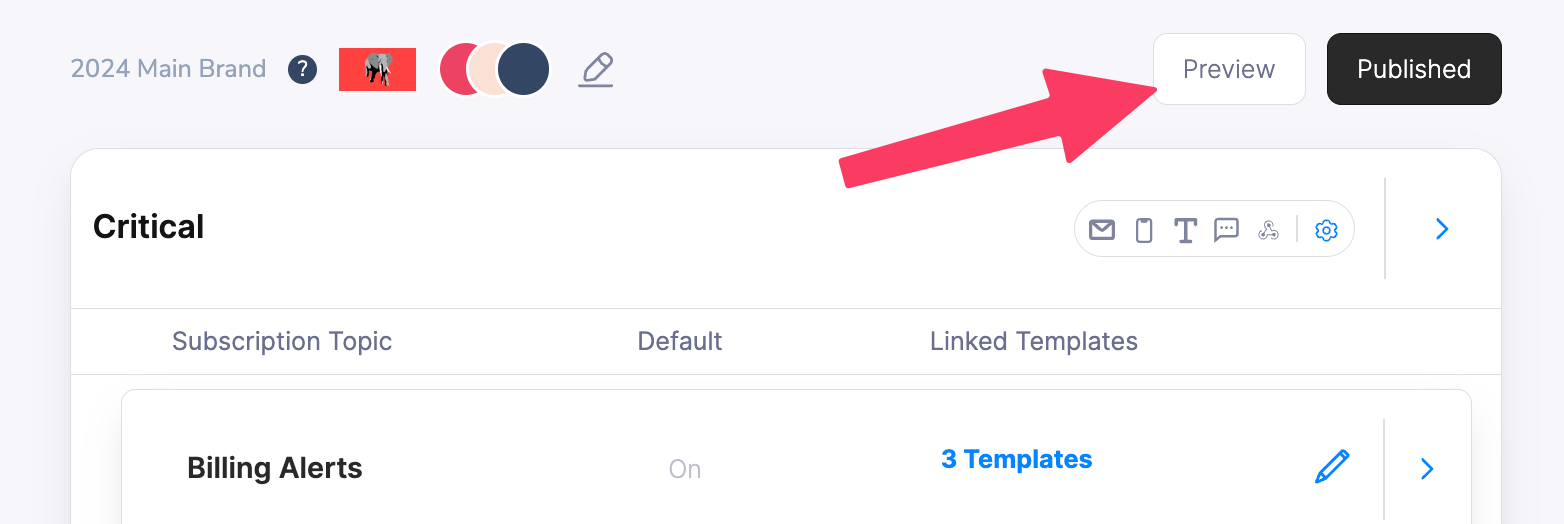 Access preview functionality through the [Preferences Editor](https://app.courier.com/settings/preferences) to validate styling, content, and user workflow.
**Best Practice**: Test preference changes with real user data to ensure notifications respect user choices and custom routing works as expected.
## Next Steps
Configure subscription topics and preference sections for your hosted center
Compare with embedded preference components for in-app integration
Programmatically query and manage user preference data
Customize the visual styling of your hosted preference center
Access preview functionality through the [Preferences Editor](https://app.courier.com/settings/preferences) to validate styling, content, and user workflow.
**Best Practice**: Test preference changes with real user data to ensure notifications respect user choices and custom routing works as expected.
## Next Steps
Configure subscription topics and preference sections for your hosted center
Compare with embedded preference components for in-app integration
Programmatically query and manage user preference data
Customize the visual styling of your hosted preference center