> ## Documentation Index
> Fetch the complete documentation index at: https://www.courier.com/docs/llms.txt
> Use this file to discover all available pages before exploring further.
# Channel Priority
> Configure Courier's channel and integration priority to control notification routing, fallbacks, and overrides—ensuring delivery via the best available method based on user data and preferences.
## Overview
Channel priority controls the order in which Courier attempts to deliver notifications across different channels and provider integrations. This configurable routing system handles message delivery to users through their most accessible channel while providing fallback options for reliable delivery.
## Key Concepts
### Priority Hierarchy
Channels and integrations are arranged in a **top-to-bottom hierarchy**. Courier attempts delivery starting from the highest priority option and moves down the list until successful delivery or all options are exhausted. However, user preferences will supersede these configurations, resulting in the following rule order:
1. **User Preferences**: Individual recipient settings override all other routing rules
2. **Channel Priority**: Order of channels (email, SMS, push, etc.)
3. **Integration Priority**: Order of providers within each channel (e.g., SendGrid vs Mailgun for email)
### Routing Methods
* **"Best Of"**: Try channels in priority order until one succeeds
* **"Always Send"**: Send through specific channels regardless of priority hierarchy
## Configuring Priority
### Setting Channel and Integration Priority
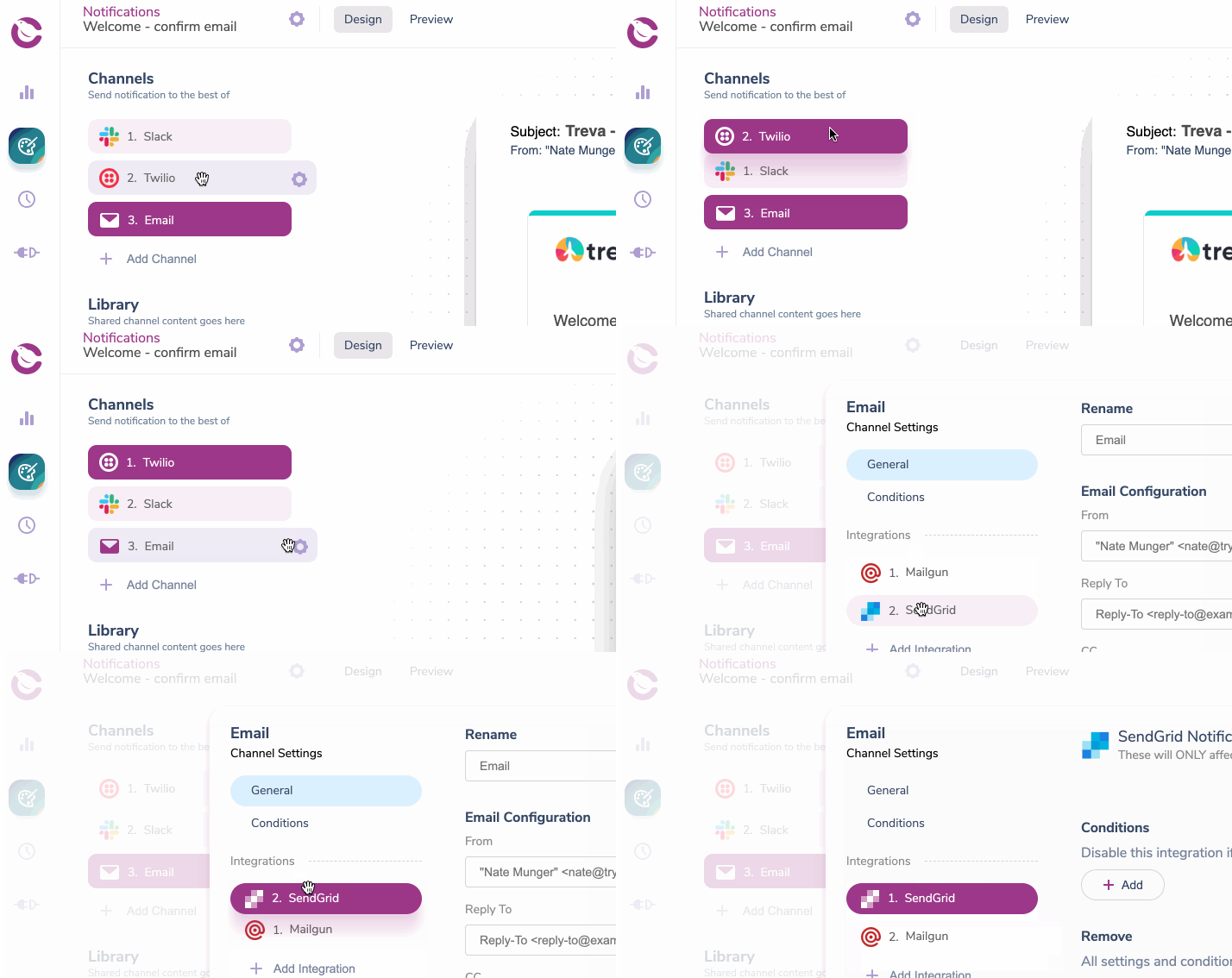
Priority is managed through a simple drag-and-drop interface. Channels and integrations are arranged in a top-to-bottom hierarchy:
 ## How Priority Works
### Priority Logic Flow
Courier follows this decision process for each recipient:
1. **Check highest priority channel** - Does the user have the required contact info (email address, phone number, device token, etc.)?
2. **Attempt delivery** - Try the preferred integration for that channel
3. **Handle failures** - If delivery fails, try the next integration if available or move on to next channel
4. **Continue until success** - Stop when message is successfully delivered
### Integration Priority Within Channels
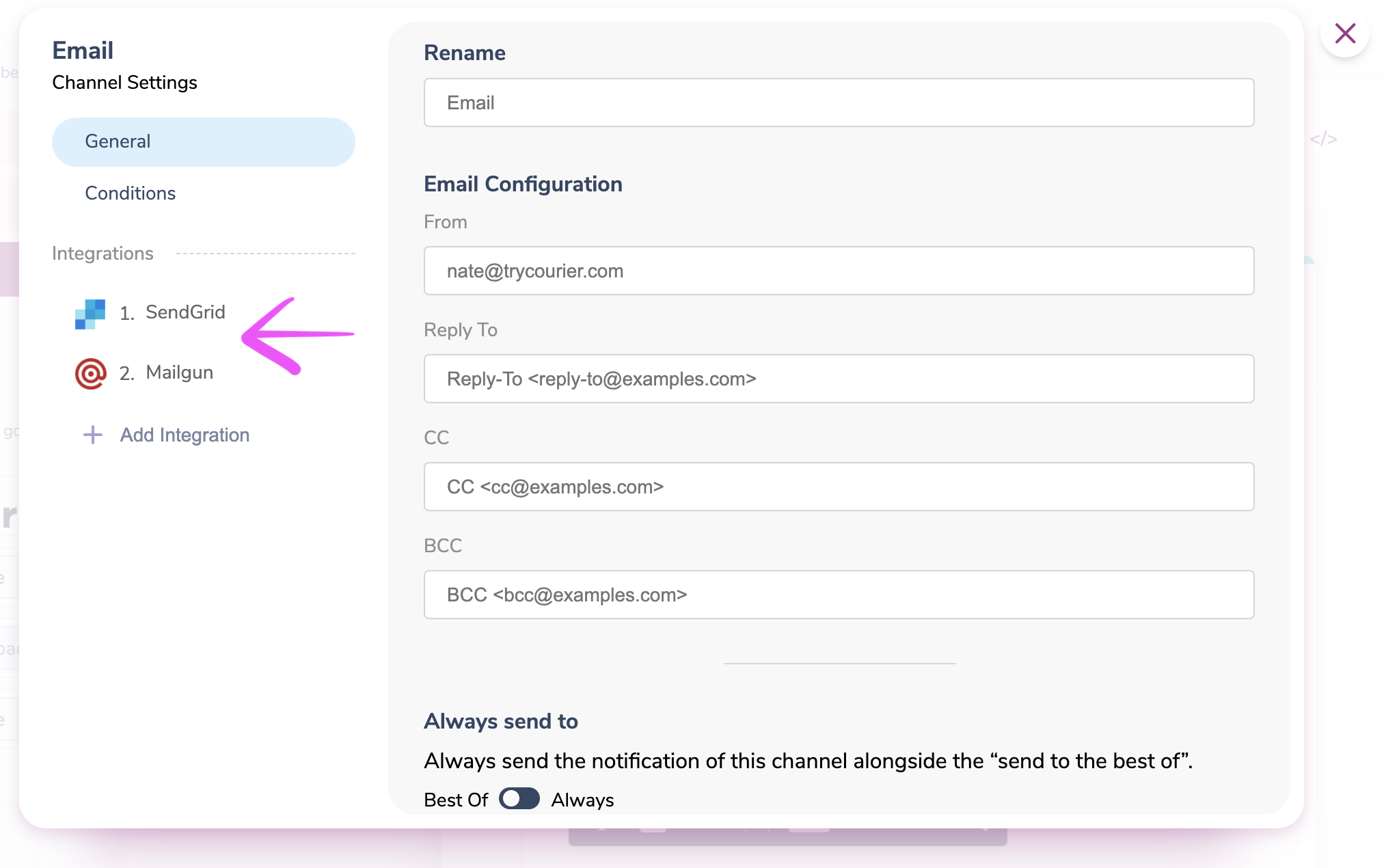
Within each channel, you can configure multiple provider integrations with their own priority order:
## How Priority Works
### Priority Logic Flow
Courier follows this decision process for each recipient:
1. **Check highest priority channel** - Does the user have the required contact info (email address, phone number, device token, etc.)?
2. **Attempt delivery** - Try the preferred integration for that channel
3. **Handle failures** - If delivery fails, try the next integration if available or move on to next channel
4. **Continue until success** - Stop when message is successfully delivered
### Integration Priority Within Channels
Within each channel, you can configure multiple provider integrations with their own priority order:
 **Integration Fallback Logic:**
* **Primary**: SendGrid attempts delivery first
* **Fallback**: If SendGrid fails, Mailgun attempts delivery
Using multiple providers can help increase reliability and delivery rates.
**Cost Optimization Tip**: You can combine multiple providers with condition rules around location to help control costs for a channel by using the best provider for that location.
## Always Send Rule
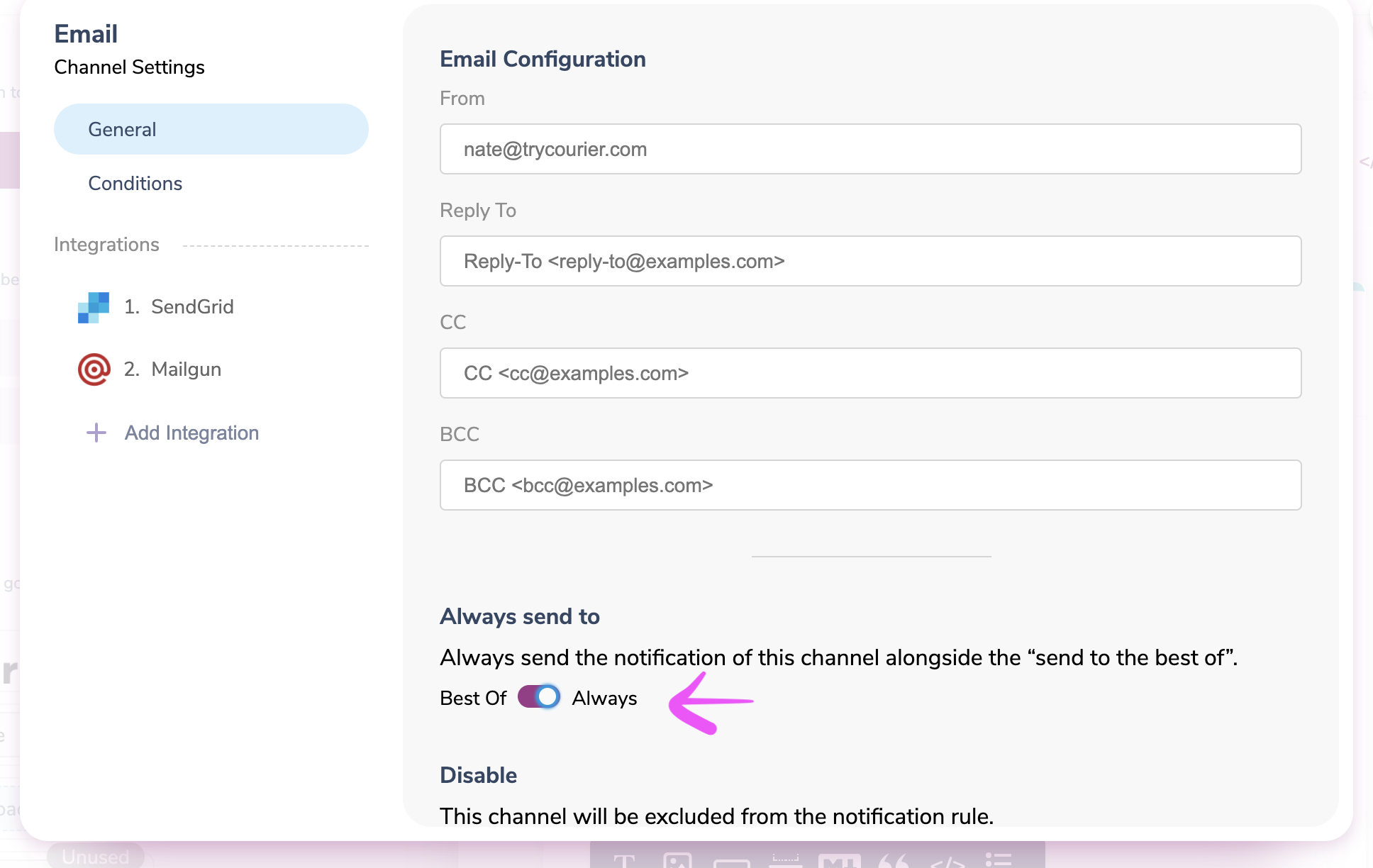
The "Always Send" option overrides priority hierarchy to guarantee delivery through specific channels. This is useful for critical notifications that must reach users through multiple channels.
#### How Always Send Works
**Example**: Notification configured for **SMS → Slack → Email** with **Email set to "Always Send"**
**Result for each user:**
* **User with phone + Slack + email** → Gets Email + SMS ✅
* **User with Slack + email only** → Gets Email + Slack ✅
* **User with email only** → Gets Email ✅
* **User with no email** → No delivery ❌
#### Configuring Always Send
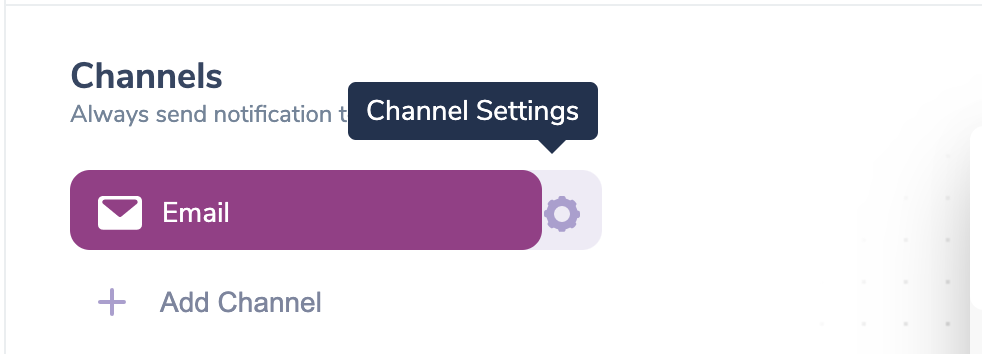
Set the "Always Send" option in the Channel Settings for any channel:
**Integration Fallback Logic:**
* **Primary**: SendGrid attempts delivery first
* **Fallback**: If SendGrid fails, Mailgun attempts delivery
Using multiple providers can help increase reliability and delivery rates.
**Cost Optimization Tip**: You can combine multiple providers with condition rules around location to help control costs for a channel by using the best provider for that location.
## Always Send Rule
The "Always Send" option overrides priority hierarchy to guarantee delivery through specific channels. This is useful for critical notifications that must reach users through multiple channels.
#### How Always Send Works
**Example**: Notification configured for **SMS → Slack → Email** with **Email set to "Always Send"**
**Result for each user:**
* **User with phone + Slack + email** → Gets Email + SMS ✅
* **User with Slack + email only** → Gets Email + Slack ✅
* **User with email only** → Gets Email ✅
* **User with no email** → No delivery ❌
#### Configuring Always Send
Set the "Always Send" option in the Channel Settings for any channel:
 ## User Preferences Override
You can let your users override all priority and always send rules through preference centers. Users can set their preferred notification channels using either Courier's [hosted preference center](/platform/preferences/hosted-page) or a custom preference center you build using the [Preferences API](/api-reference/user-preferences/get-users-preferences). When users have specific channel preferences configured, Courier respects these choices above all other routing rules.
### Priority Override Hierarchy
1. **User Preferences** (highest priority)
2. **Always Send rules**
3. **Channel Priority hierarchy** (lowest priority)
This allows users to maintain control over how they receive notifications while providing defaults for users who haven't set preferences.
### What preferences control (and what they don't)
User preferences affect which channels are **available and in what order** within the template's routing method — they do not change the routing method itself. A template set to "Best Of" remains "Best Of" regardless of a user's channel preferences; preferences only influence which channels are considered eligible.
For example, if a user opts out of email, Courier skips email in the priority list and attempts the next channel. It does not switch the template from "Best Of" to "Always Send."
The `has_custom_routing` field on a user's subscription topic preference only takes effect when the corresponding Preference Center **section** also has custom routing enabled. If the section does not allow custom routing, `has_custom_routing: true` on the user record is silently ignored.
## Putting It All Together
### Example: Multi-Channel Fallback
Consider a notification configured to send via **SMS → Slack → Email** in priority order:
## User Preferences Override
You can let your users override all priority and always send rules through preference centers. Users can set their preferred notification channels using either Courier's [hosted preference center](/platform/preferences/hosted-page) or a custom preference center you build using the [Preferences API](/api-reference/user-preferences/get-users-preferences). When users have specific channel preferences configured, Courier respects these choices above all other routing rules.
### Priority Override Hierarchy
1. **User Preferences** (highest priority)
2. **Always Send rules**
3. **Channel Priority hierarchy** (lowest priority)
This allows users to maintain control over how they receive notifications while providing defaults for users who haven't set preferences.
### What preferences control (and what they don't)
User preferences affect which channels are **available and in what order** within the template's routing method — they do not change the routing method itself. A template set to "Best Of" remains "Best Of" regardless of a user's channel preferences; preferences only influence which channels are considered eligible.
For example, if a user opts out of email, Courier skips email in the priority list and attempts the next channel. It does not switch the template from "Best Of" to "Always Send."
The `has_custom_routing` field on a user's subscription topic preference only takes effect when the corresponding Preference Center **section** also has custom routing enabled. If the section does not allow custom routing, `has_custom_routing: true` on the user record is silently ignored.
## Putting It All Together
### Example: Multi-Channel Fallback
Consider a notification configured to send via **SMS → Slack → Email** in priority order:
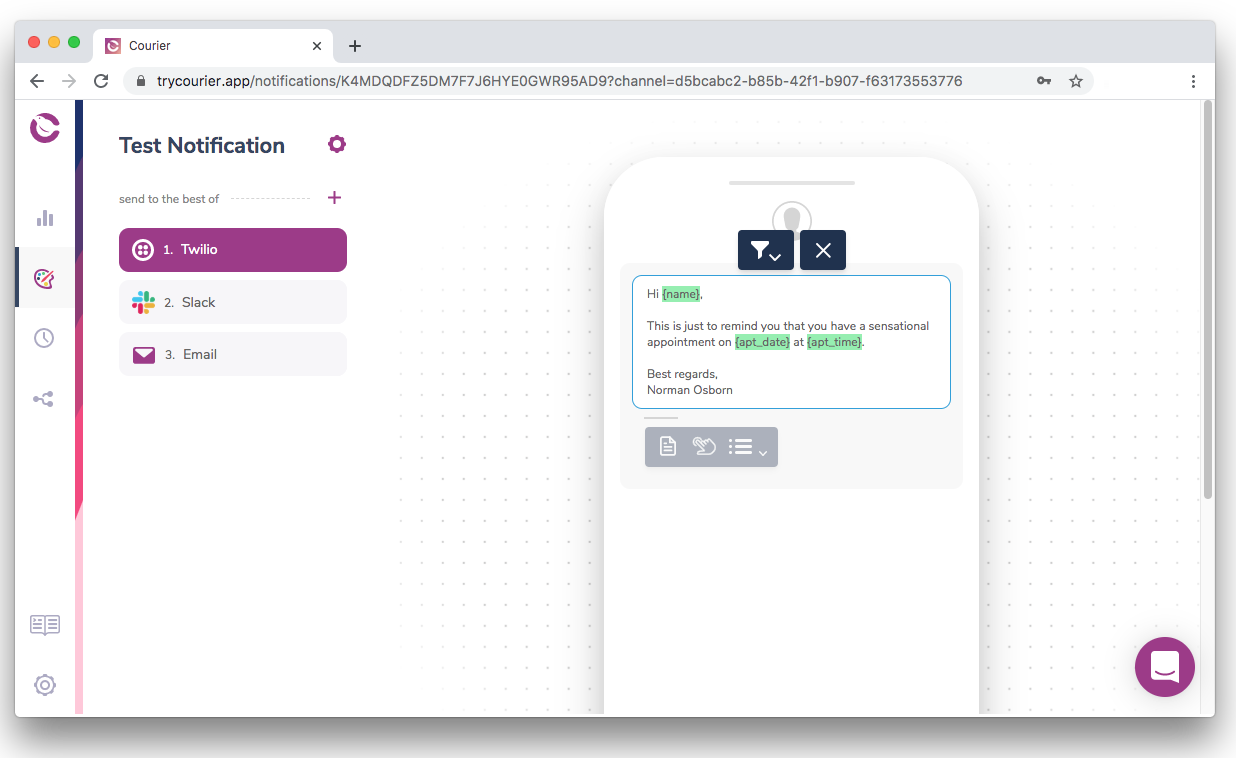 **Delivery Logic:**
* **User has phone number** → Sends via SMS (Twilio) ✅ Done
* **User has no phone, but has Slack** → Sends via Slack ✅ Done
* **User has no phone or Slack, but has email** → Sends via Email ✅ Done
* **User has none of the above** → Delivery fails ❌
* **User has phone and Slack, but turned off phone notifications in their preferences** → Sends via Slack, logs reflect unsubscribed from text notifications ✅ Done
This example demonstrates how all three priority concepts work together: user preferences override everything, then channel priority determines the fallback order, and integration priority handles provider-level routing within each channel.
## Use Cases
### When to Use Each Approach
* **Channel Priority**: Standard fallback logic for reliable delivery
* **Always Send**: Critical notifications that must reach users through multiple channels
* **User Preferences**: Let users customize their notification experience
### Best Practices
* **Start with priority hierarchy** for most notifications
* **Use always send sparingly** for truly critical messages only
* **Respect user preferences** to maintain good user experience
* **Test with multiple provider integrations** to improve delivery rates
## Related Resources
Configure individual channel behavior and routing rules
Learn how users can control their notification preferences
**Delivery Logic:**
* **User has phone number** → Sends via SMS (Twilio) ✅ Done
* **User has no phone, but has Slack** → Sends via Slack ✅ Done
* **User has no phone or Slack, but has email** → Sends via Email ✅ Done
* **User has none of the above** → Delivery fails ❌
* **User has phone and Slack, but turned off phone notifications in their preferences** → Sends via Slack, logs reflect unsubscribed from text notifications ✅ Done
This example demonstrates how all three priority concepts work together: user preferences override everything, then channel priority determines the fallback order, and integration priority handles provider-level routing within each channel.
## Use Cases
### When to Use Each Approach
* **Channel Priority**: Standard fallback logic for reliable delivery
* **Always Send**: Critical notifications that must reach users through multiple channels
* **User Preferences**: Let users customize their notification experience
### Best Practices
* **Start with priority hierarchy** for most notifications
* **Use always send sparingly** for truly critical messages only
* **Respect user preferences** to maintain good user experience
* **Test with multiple provider integrations** to improve delivery rates
## Related Resources
Configure individual channel behavior and routing rules
Learn how users can control their notification preferences