> ## Documentation Index
> Fetch the complete documentation index at: https://www.courier.com/docs/llms.txt
> Use this file to discover all available pages before exploring further.
# Send Limits
> Cap message volume by user, topic, or tenant across time periods to ensure compliance, reduce overload, and protect delivery reliability.
## Overview
Send Limits help you control message volume and prevent notification overload by setting caps on how many notifications can be sent within specific time periods. These limits can be applied globally, per-user, per-subscription topic, or per-tenant to maintain compliance and provide a positive user experience.
**Availability**: Send Limits are available for Enterprise customers. Contact [Courier Support](mailto:support@courier.com) for access or [Request a Demo](https://www.courier.com/request-demo) to learn more about how Courier could help you.
## Limit Types
You can set limits on any combination of the following:
* Global (all messages)
* Per-user
* Per-user per-subscription topic
* Per-tenant
In addition, you may exclude some subscription topics from the global and per-user limits.
Available time periods are:
* billing period
* hour
* day
* week (starting on Sunday)
* month
## How It Works
Each time you send a message, Courier increments a counter against each applicable limit. If the message would push a counter over its threshold, Courier blocks the message instead of sending it. The message appears in your logs with a `THROTTLED` status.
Inline sends (messages with `content` instead of a `template`) are subject to the same send limits as template-based sends. To exempt specific messages, assign them a subscription topic listed in your limit exclusions (see [Limit Exclusions](#limit-exclusions)).
Courier sends an email to your workspace administrator(s) when a message is throttled. You receive at most one notification email per 24-hour period; check [Message Logs](/platform/analytics/message-logs) for the full list of affected messages.
## Observability
If you use Courier's Observability features, you receive a metric counting throttled messages as well as a log record.
## Settings
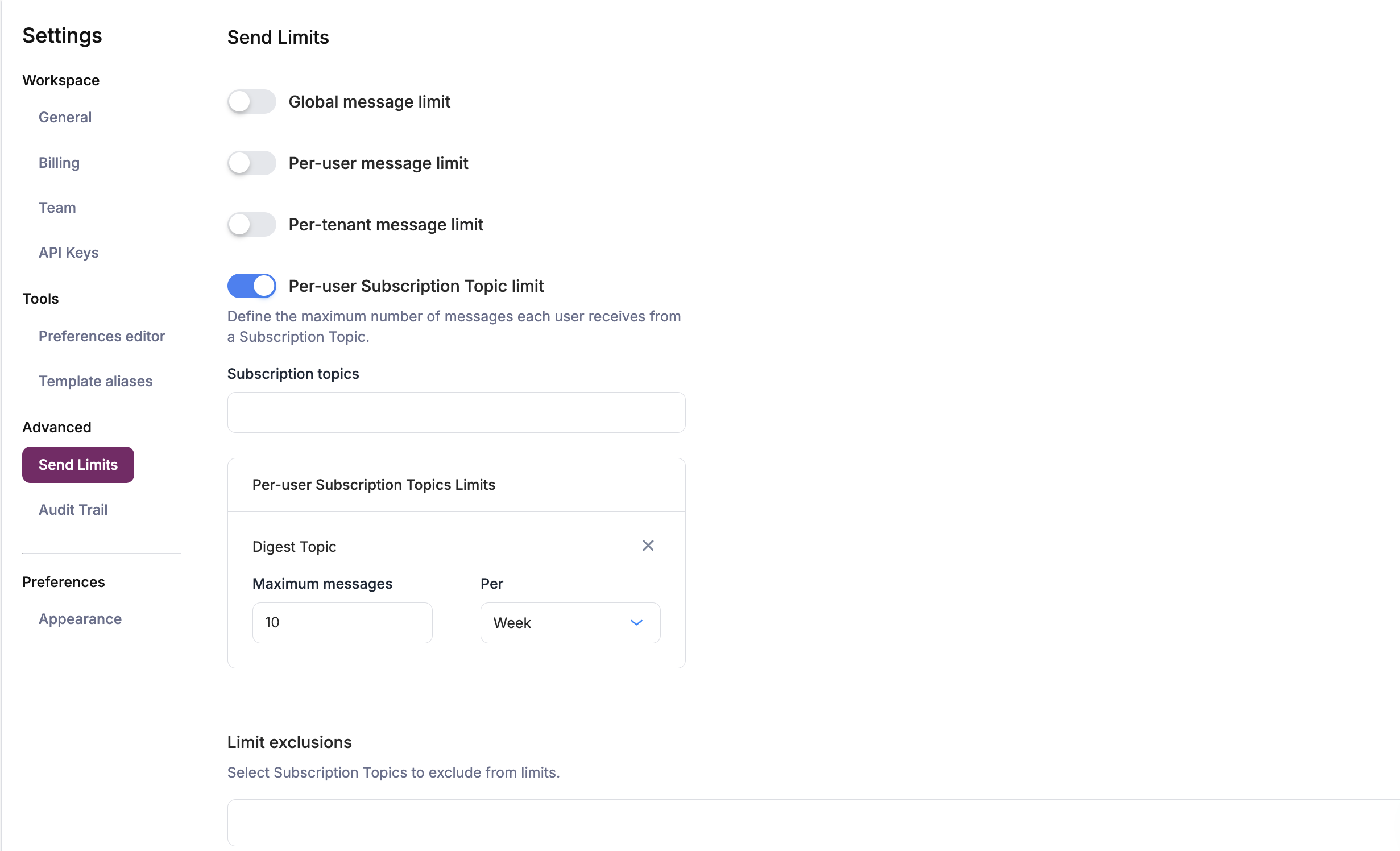
Configure Send Limits in your [workspace settings](https://app.courier.com/settings/guard-rails).
### Global Message Limit
Caps the total number of messages you can send during each time period. Messages with an excluded subscription topic still count toward the limit but are never themselves throttled.
### Per-User Message Limit
Caps the number of messages you can send to an individual user. Users must have a [Courier profile](/platform/users/users-overview) for per-user limits to apply. Messages with an excluded subscription topic still count toward the limit but are never themselves throttled.
### Subscription Topic Limit
Caps the number of messages you can send to an individual user for a specific subscription topic. You can set a different limit per topic, or no limit at all.
### Per-Tenant Message Limit
Caps the number of messages you can send to an individual tenant. The tenant must be created using the [Tenants API](/api-reference/tenants/create-or-replace-a-tenant). Messages sent to [users associated with a tenant](/api-reference/tenants/get-a-tenant) count toward the tenant limit. Messages sent to users without a tenant do not count.
### Limit Exclusions
Some messages should always be sent, even if they would exceed a limit; for example, password resets and critical system alerts. Add the subscription topic(s) you want excluded from limits. Messages with these topics still count toward limits but are never themselves throttled.
 You can use limit exclusions with inline content to bypass send limits on raw HTML messages. Pass `message.preferences.subscription_topic_id` in the send request.
```json theme={null}
{
"message": {
"to": {
"user_id": "user_123"
},
"content": {
"title": "Password Reset",
"body": "Click the link below to reset your password."
},
"preferences": {
"subscription_topic_id": "CRITICAL_ALERTS"
}
}
}
```
## Related Resources
View throttled messages and monitor send limit impacts
Understand platform-wide API rate limiting policies
You can use limit exclusions with inline content to bypass send limits on raw HTML messages. Pass `message.preferences.subscription_topic_id` in the send request.
```json theme={null}
{
"message": {
"to": {
"user_id": "user_123"
},
"content": {
"title": "Password Reset",
"body": "Click the link below to reset your password."
},
"preferences": {
"subscription_topic_id": "CRITICAL_ALERTS"
}
}
}
```
## Related Resources
View throttled messages and monitor send limit impacts
Understand platform-wide API rate limiting policies