> ## Documentation Index
> Fetch the complete documentation index at: https://www.courier.com/docs/llms.txt
> Use this file to discover all available pages before exploring further.
# Environments, API Keys, and Assets
> Courier provides isolated Test and Production environments with distinct API keys, enabling safe template development, testing, asset migration, and integration management without affecting live data or configurations.
Every Courier workspace has two default environments: **Production** and **Test**. The two environments are fully isolated; all assets within them (templates, brands, tags, subscription topics, integrations, API keys, log data) belong only to that environment. Users have the ability to rename and/or add more environments (excluding Production).
## Custom Environments
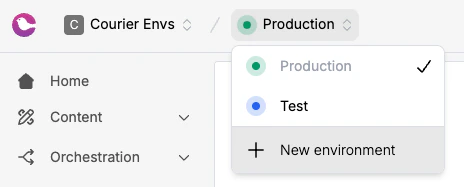
Courier workspaces support multiple environment creation. Each environment is a complete, isolated workspace. Templates, brands, tags, subscription topics, integrations, journeys, API keys, and logs all belong to that environment alone.
To create a new environment:
* Select the environment dropdown from the top navigation
* Select `New environment`
 ### Production and Environments
Apart from the `Production` environment, `Test` and any newly created environments can be renamed based on your workflow's needs. Any changes made to a template and its associated assets are only applied within the current environment until you migrate the template and overwrite any changes to the corresponding `Notification ID` and assets in the other environment.
## Switching Between Environments
Use the environments toggle in environments dropdown at the top left of the navigation bar to switch between your environments.
### Production and Environments
Apart from the `Production` environment, `Test` and any newly created environments can be renamed based on your workflow's needs. Any changes made to a template and its associated assets are only applied within the current environment until you migrate the template and overwrite any changes to the corresponding `Notification ID` and assets in the other environment.
## Switching Between Environments
Use the environments toggle in environments dropdown at the top left of the navigation bar to switch between your environments.
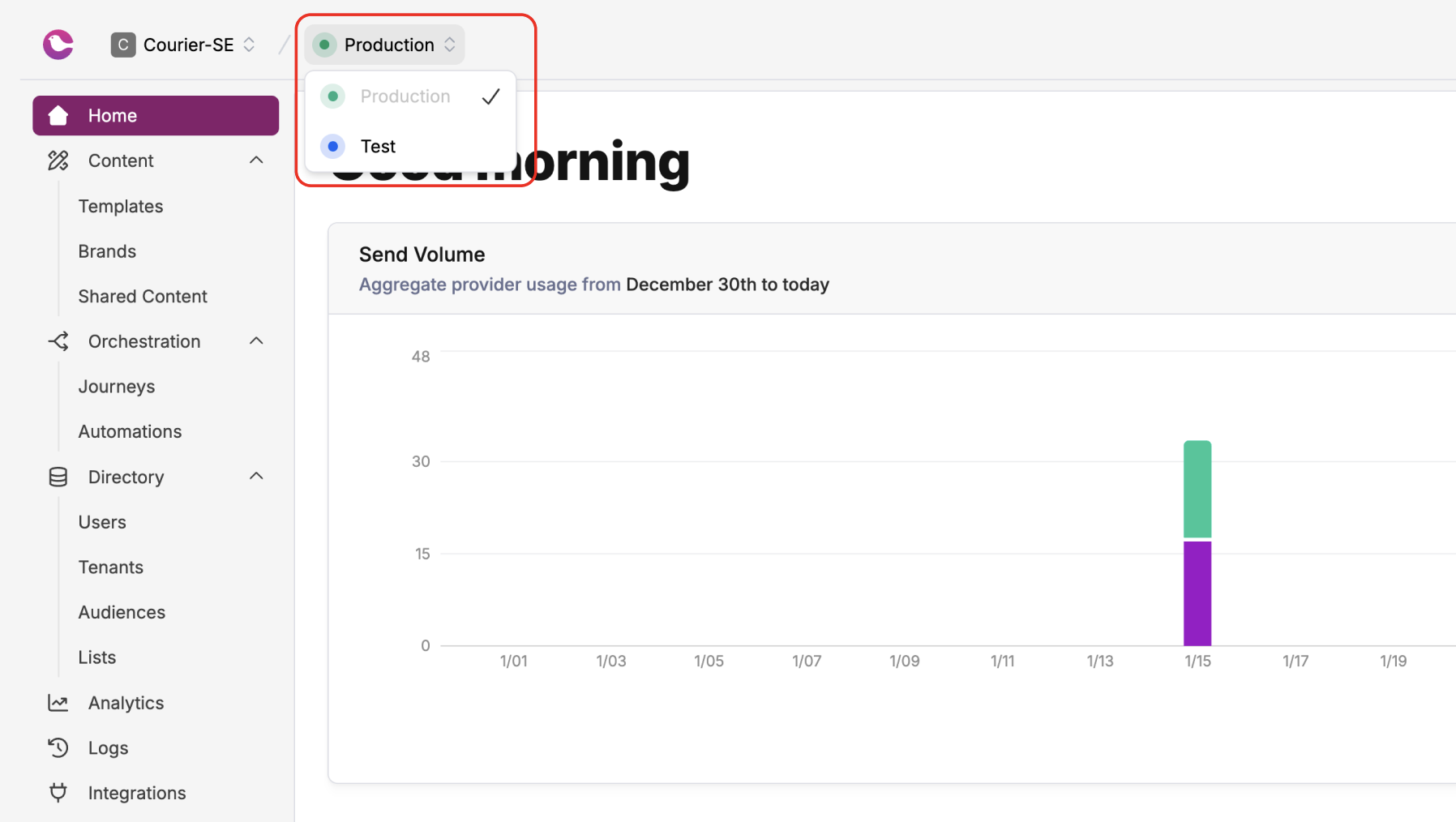 Switching environments does not impact your notifications in either environment in any way. It just changes the environment you are viewing.
## API Keys and Environments
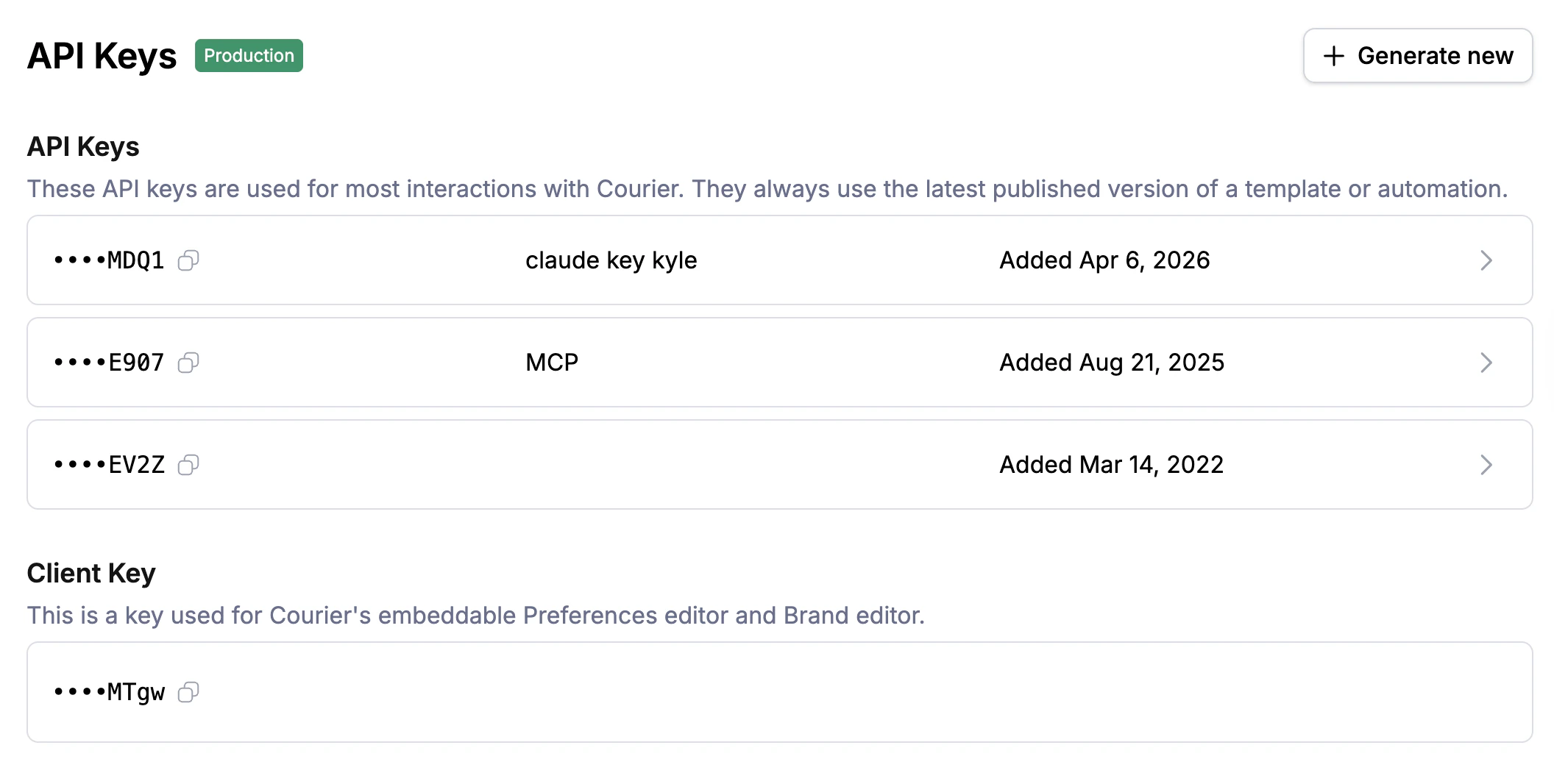
API keys can be found in your workspace's main settings page.
Switching environments does not impact your notifications in either environment in any way. It just changes the environment you are viewing.
## API Keys and Environments
API keys can be found in your workspace's main settings page.
 ### Define the Routing Behavior of Custom API Keys
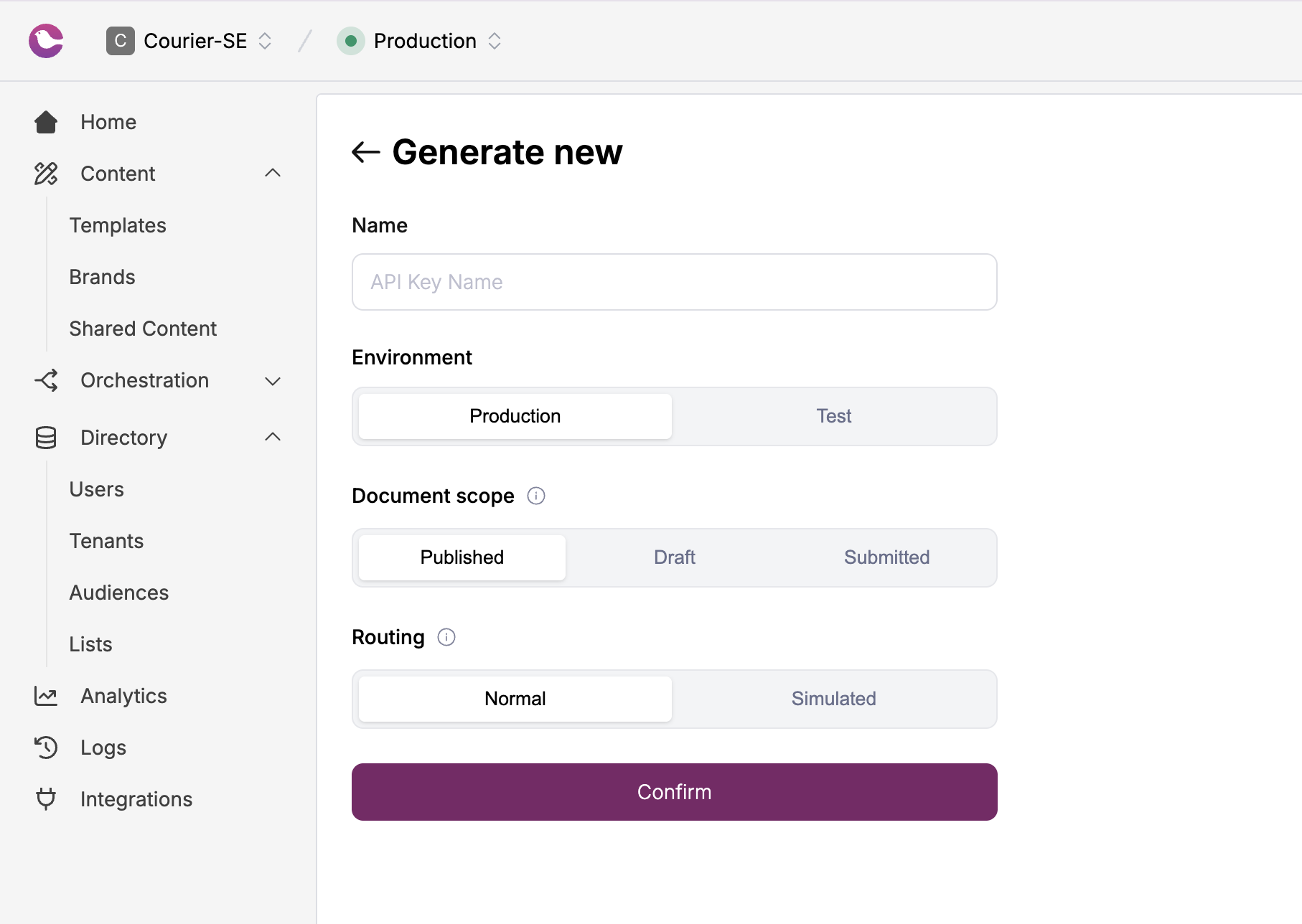
Business Tier customers can also define the routing behavior of their API keys. A `mock` key simulates the full notification lifecycle without invoking the downstream provider, so you can see how a request flows through Courier without incurring any send cost.
### Define the Routing Behavior of Custom API Keys
Business Tier customers can also define the routing behavior of their API keys. A `mock` key simulates the full notification lifecycle without invoking the downstream provider, so you can see how a request flows through Courier without incurring any send cost.
 ## Notifications, Assets and Environments
You can move a template and its associated assets (brands, tags, subscription topics) between environments in either direction. You can also select a destination workspace when migrating assets.
To copy a template between environments, Courier also copies all dependencies attached to it so functionality is preserved. After you've copied associated assets once (e.g. a brand or category), you can choose to overwrite them in future migrations.
Courier will copy the current template. All other assets copied will be their most recent published version.
### Migrating Templates and Assets Between Environments
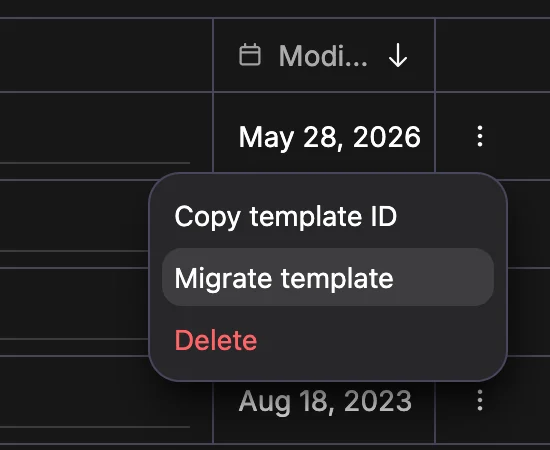
1. Open the ellipsis menu from the `templates` page for the template you wish to migrate.
2. Select 'Migrate Assets'.
3. Follow the prompts in the modal to complete the migration.
## Notifications, Assets and Environments
You can move a template and its associated assets (brands, tags, subscription topics) between environments in either direction. You can also select a destination workspace when migrating assets.
To copy a template between environments, Courier also copies all dependencies attached to it so functionality is preserved. After you've copied associated assets once (e.g. a brand or category), you can choose to overwrite them in future migrations.
Courier will copy the current template. All other assets copied will be their most recent published version.
### Migrating Templates and Assets Between Environments
1. Open the ellipsis menu from the `templates` page for the template you wish to migrate.
2. Select 'Migrate Assets'.
3. Follow the prompts in the modal to complete the migration.
 ### Migrating Templates to Another Workspace
If you have multiple workspaces, you can migrate a template to another workspace from the same modal.
1. In the migrate assets modal, choose a `Destination Workspace` from the dropdown menu.
### Migrating Templates to Another Workspace
If you have multiple workspaces, you can migrate a template to another workspace from the same modal.
1. In the migrate assets modal, choose a `Destination Workspace` from the dropdown menu.
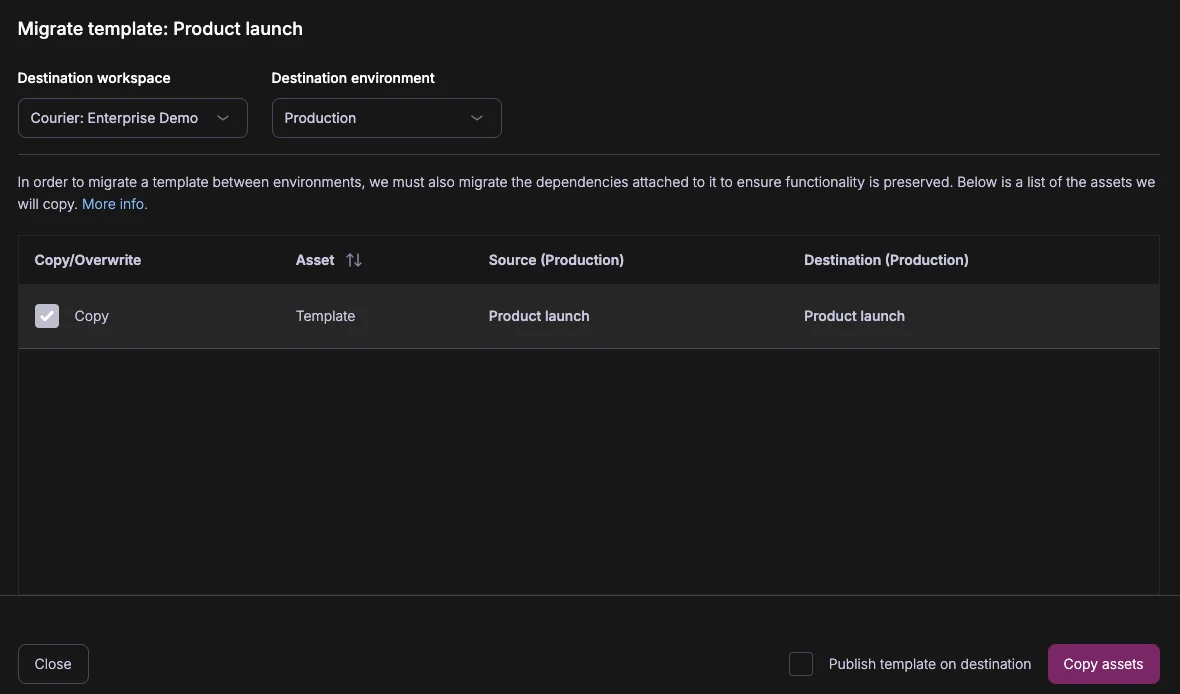 2. Select the workspace and environment you wish to migrate your template to.
3. The template will be migrated to the selected workspace and environment.
4. If the template has dependencies, you can choose to migrate them as well. If you have already migrated a dependency, you can choose to overwrite it or keep the existing asset in the destination environment.
### Event Mapping and Template Migration
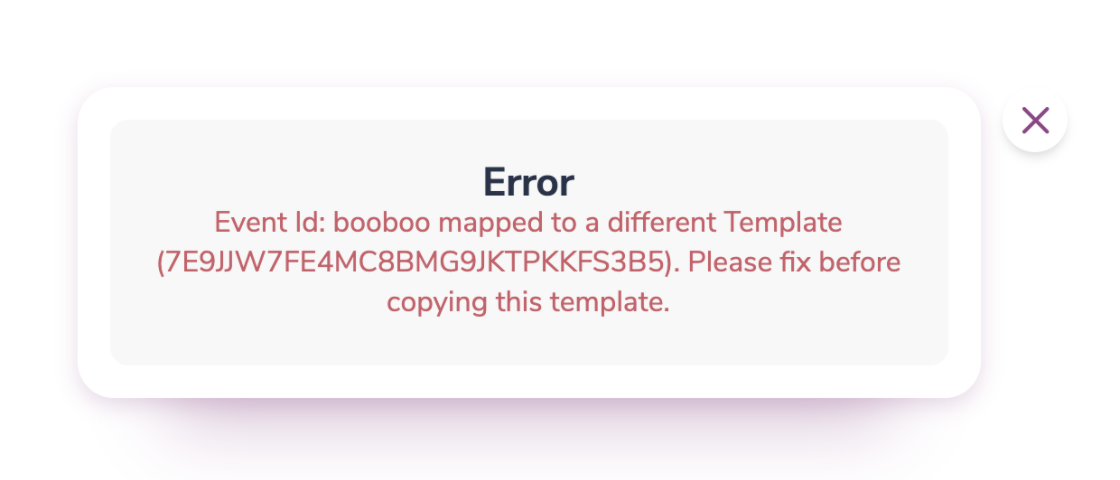
If you have an event mapped to a template that you are migrating between environments, the event and its mapping will automatically migrate as well.
If the associated event is already mapped to a different template in the destination environment, then you will receive an error:
2. Select the workspace and environment you wish to migrate your template to.
3. The template will be migrated to the selected workspace and environment.
4. If the template has dependencies, you can choose to migrate them as well. If you have already migrated a dependency, you can choose to overwrite it or keep the existing asset in the destination environment.
### Event Mapping and Template Migration
If you have an event mapped to a template that you are migrating between environments, the event and its mapping will automatically migrate as well.
If the associated event is already mapped to a different template in the destination environment, then you will receive an error:
 ## Data Logs, Metrics, and Environments
[Data Logs](/platform/analytics/message-logs) and Metrics are environment-specific. Sends made with a test API key only appear in the Test environment dashboard, and sends made with a production key only appear in the Production dashboard.
## Segment and Environments
To use Courier environments with Segment, create multiple Courier destinations in Segment with different environment API keys:
1. Send production data from Segment using your production API key.
2. Set up a second destination using your test API key for development and QA.
See the [Segment integration guide](/platform/automations/segment) for setup details.
## Content Promotion Best Practices
Courier's environment model is designed to give you confidence when moving notification changes to production. Here's a recommended workflow:
1. **Build and test in Test/Staging.** Create or edit templates, brands, and subscription topics using your test API key. Test sends only appear in the Test dashboard and never reach real users (unless you use real contact info).
2. **Validate with draft keys.** If your workspace has draft keys, use them to preview unpublished template changes against real send payloads before publishing. This lets you catch rendering issues before they affect live notifications.
3. **Migrate to Production.** Use the "Migrate Assets" flow to copy templates and their dependencies (brands, tags, subscription topics) from Test to Production. Courier copies all dependencies automatically so nothing breaks.
4. **Verify after promotion.** Check [Message Logs](/platform/analytics/message-logs) in the Production environment to confirm sends are rendering and delivering as expected.
Use separate provider configurations for Test and Production (e.g., a sandbox SendGrid key for Test) to prevent test sends from reaching real inboxes. Configure this under each integration's Test Configuration.
## Environments and Billing
Billing takes all environment sends into account.
## Data Logs, Metrics, and Environments
[Data Logs](/platform/analytics/message-logs) and Metrics are environment-specific. Sends made with a test API key only appear in the Test environment dashboard, and sends made with a production key only appear in the Production dashboard.
## Segment and Environments
To use Courier environments with Segment, create multiple Courier destinations in Segment with different environment API keys:
1. Send production data from Segment using your production API key.
2. Set up a second destination using your test API key for development and QA.
See the [Segment integration guide](/platform/automations/segment) for setup details.
## Content Promotion Best Practices
Courier's environment model is designed to give you confidence when moving notification changes to production. Here's a recommended workflow:
1. **Build and test in Test/Staging.** Create or edit templates, brands, and subscription topics using your test API key. Test sends only appear in the Test dashboard and never reach real users (unless you use real contact info).
2. **Validate with draft keys.** If your workspace has draft keys, use them to preview unpublished template changes against real send payloads before publishing. This lets you catch rendering issues before they affect live notifications.
3. **Migrate to Production.** Use the "Migrate Assets" flow to copy templates and their dependencies (brands, tags, subscription topics) from Test to Production. Courier copies all dependencies automatically so nothing breaks.
4. **Verify after promotion.** Check [Message Logs](/platform/analytics/message-logs) in the Production environment to confirm sends are rendering and delivering as expected.
Use separate provider configurations for Test and Production (e.g., a sandbox SendGrid key for Test) to prevent test sends from reaching real inboxes. Configure this under each integration's Test Configuration.
## Environments and Billing
Billing takes all environment sends into account.