> ## Documentation Index
> Fetch the complete documentation index at: https://www.courier.com/docs/llms.txt
> Use this file to discover all available pages before exploring further.
# Workspace Security Settings
> Manage team invites, enable Google or Okta SSO, and control workspace discoverability for verified domains in Courier’s workspace settings for enhanced access control and security.
## Inviting Team Members to Your Workspace
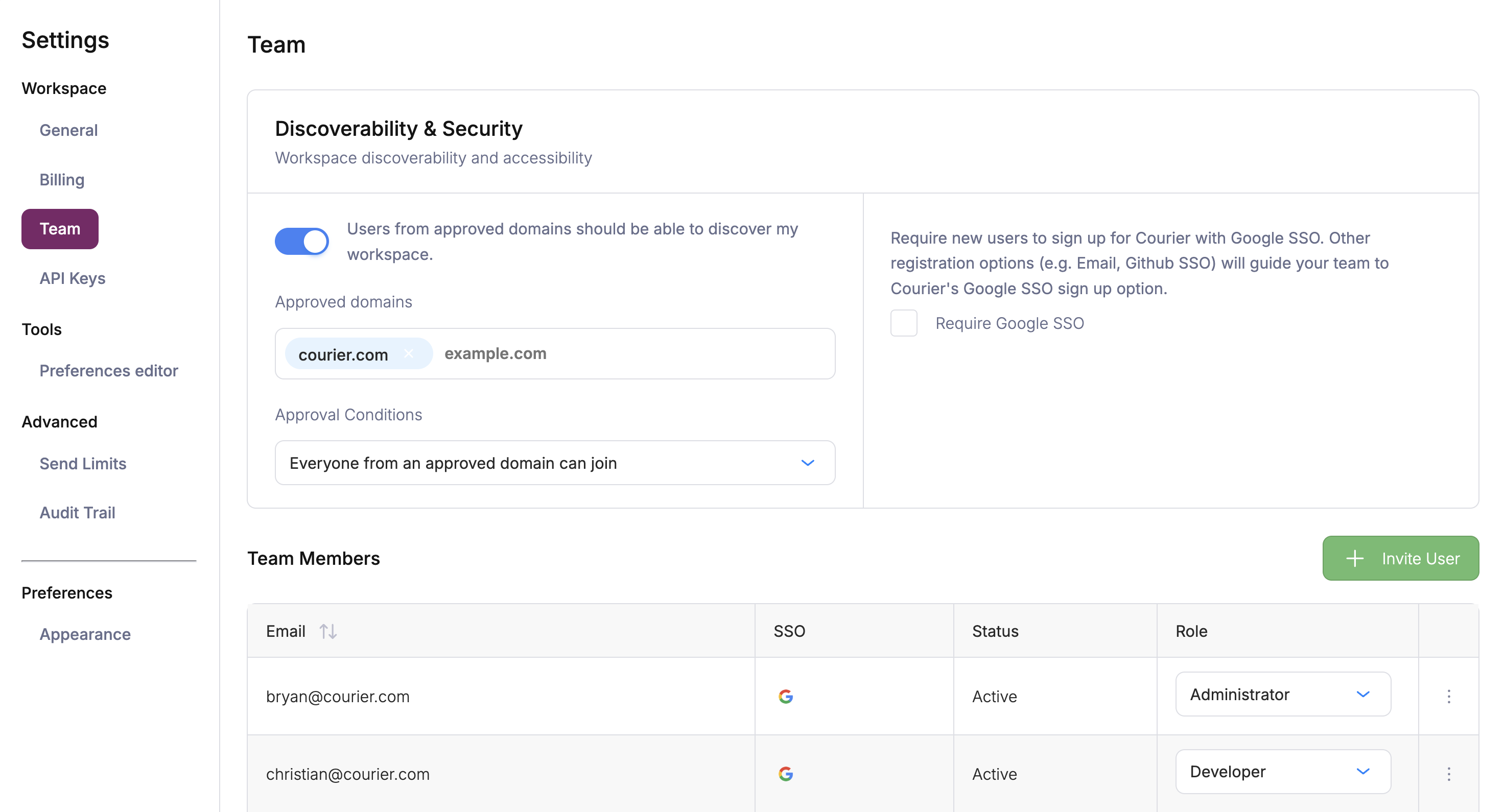
1. Open [Settings](https://app.courier.com/settings) > Team
2. Click the green **+ Invite User** button
3. Enter the user's email address and select a [role](/platform/workspaces/roles-permissions) from the list
4. Send the invite (one email at a time)
 ## Security Settings
Courier supports Google SSO and [Okta SSO](/platform/workspaces/okta-integration) to control how your team authenticates. You can also make your workspace discoverable so colleagues with a matching email domain can find and request access. For Courier's overall security posture, compliance certifications, and data handling practices, visit the [Security Portal](https://security.courier.com/).
### Require Google SSO
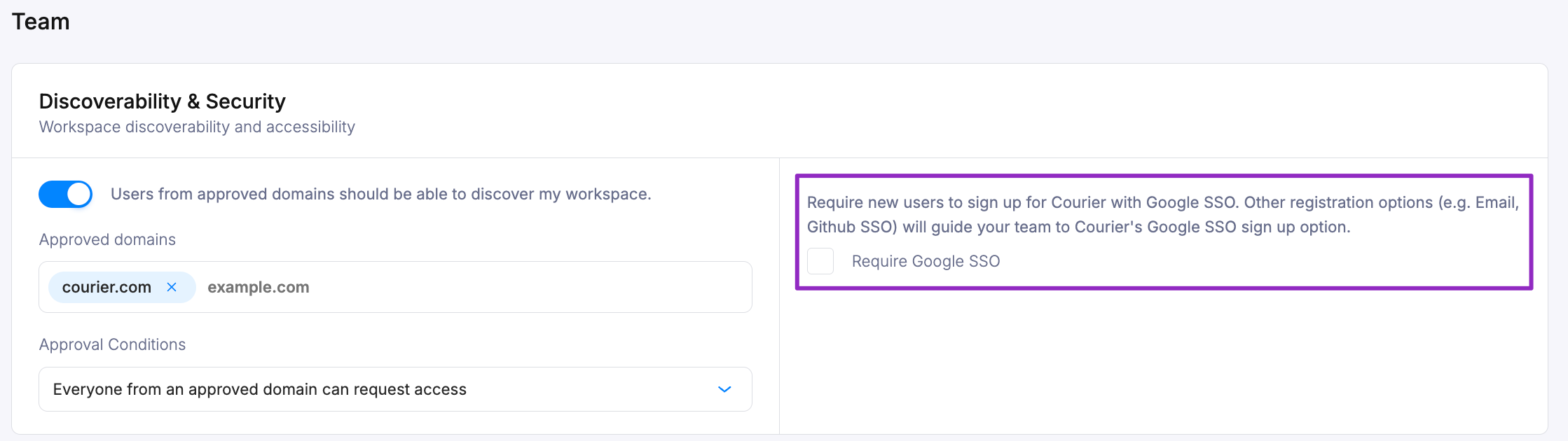
To require your teammates to log in via Google SSO:
1. Open [Settings](https://app.courier.com/settings) > Team
2. Check `Require Google SSO` from configured domains
## Security Settings
Courier supports Google SSO and [Okta SSO](/platform/workspaces/okta-integration) to control how your team authenticates. You can also make your workspace discoverable so colleagues with a matching email domain can find and request access. For Courier's overall security posture, compliance certifications, and data handling practices, visit the [Security Portal](https://security.courier.com/).
### Require Google SSO
To require your teammates to log in via Google SSO:
1. Open [Settings](https://app.courier.com/settings) > Team
2. Check `Require Google SSO` from configured domains
 ### Make Your Workspace Discoverable
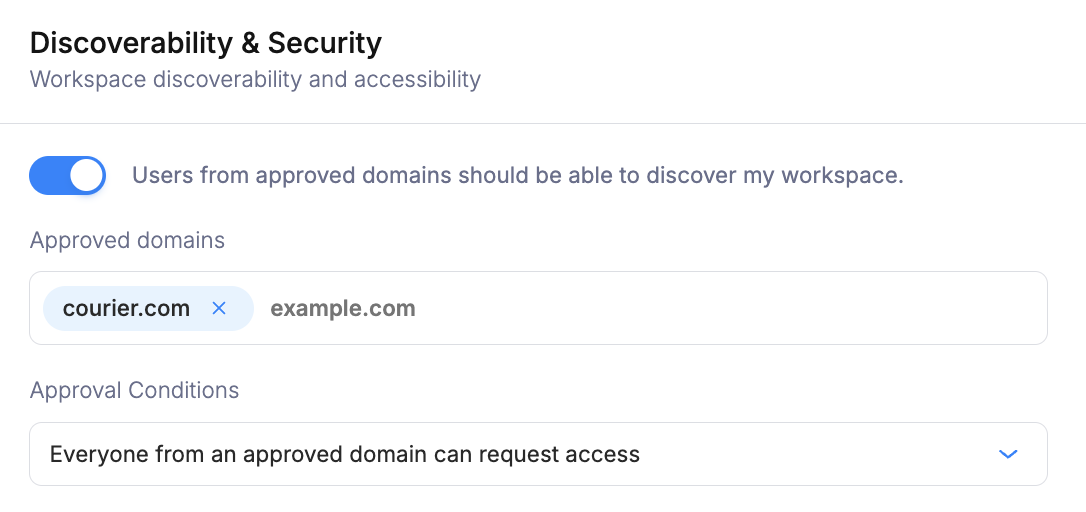
Allow people who sign up with a matching email domain to discover and request access to your workspace. They won't have access until you grant it.
1. Open [Settings](https://app.courier.com/settings) > Team
2. Confirm your email domain is in the list of Approved Domains (if not, contact support).
3. Check `Users from approved domains should be able to discover my workspace` under **Discoverability & Security**.
4. Choose a discoverability level:
* **Request access**: Users from an approved domain can request access; an admin must approve.
* **Join directly**: Users from an approved domain can join without approval.
* **IT admin only**: Members must be added manually by an IT admin (used with Okta provisioning).
### Make Your Workspace Discoverable
Allow people who sign up with a matching email domain to discover and request access to your workspace. They won't have access until you grant it.
1. Open [Settings](https://app.courier.com/settings) > Team
2. Confirm your email domain is in the list of Approved Domains (if not, contact support).
3. Check `Users from approved domains should be able to discover my workspace` under **Discoverability & Security**.
4. Choose a discoverability level:
* **Request access**: Users from an approved domain can request access; an admin must approve.
* **Join directly**: Users from an approved domain can join without approval.
* **IT admin only**: Members must be added manually by an IT admin (used with Okta provisioning).
 ### Okta SSO
Allow your team members to sign in to Courier with Okta Single-Sign-On.
Okta SSO is a Courier Enterprise feature. [Contact Courier](https://www.courier.com/request-demo/) for pricing details.
See [Okta Integration](/platform/workspaces/okta-integration) for full setup instructions.
## Removing Users
To remove a user, open the dropdown menu to the right of their email address and select `Remove User`.
### Okta SSO
Allow your team members to sign in to Courier with Okta Single-Sign-On.
Okta SSO is a Courier Enterprise feature. [Contact Courier](https://www.courier.com/request-demo/) for pricing details.
See [Okta Integration](/platform/workspaces/okta-integration) for full setup instructions.
## Removing Users
To remove a user, open the dropdown menu to the right of their email address and select `Remove User`.
