> ## Documentation Index
> Fetch the complete documentation index at: https://www.courier.com/docs/llms.txt
> Use this file to discover all available pages before exploring further.

# Courier Web Components SDK

> Embed a customizable in-app notification center, toasts, and notification preferences in your web app using Web Components. Works with any JavaScript framework.

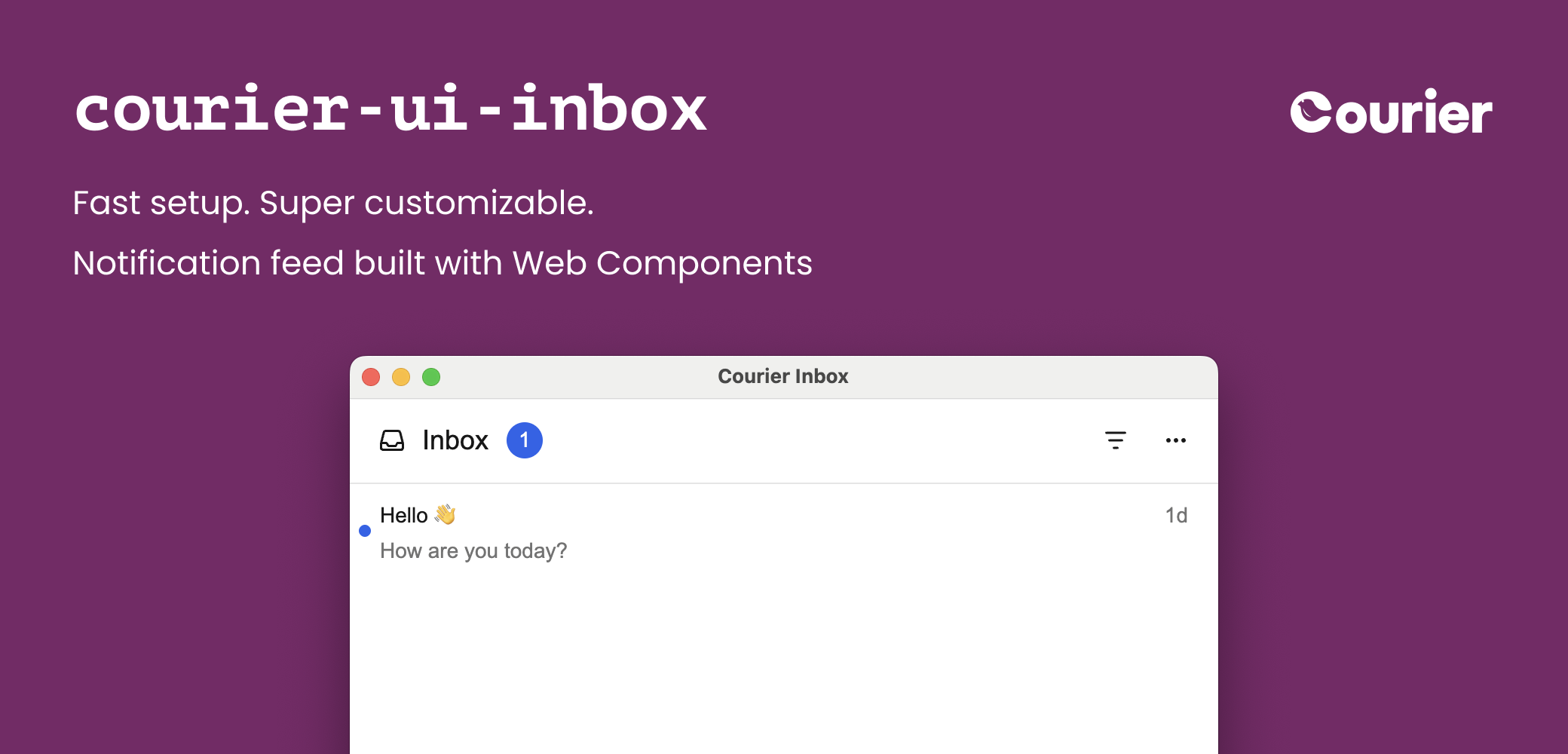
<img src="https://mintcdn.com/courier-4f1f25dc/2GNhpTa50HDyTjlu/assets/sdks/courier-ui-inbox-banner.png?fit=max&auto=format&n=2GNhpTa50HDyTjlu&q=85&s=62e1070d293958588e2508714ce1e5a8" alt="Inbox UI Preview" width="2080" height="1000" data-path="assets/sdks/courier-ui-inbox-banner.png" />

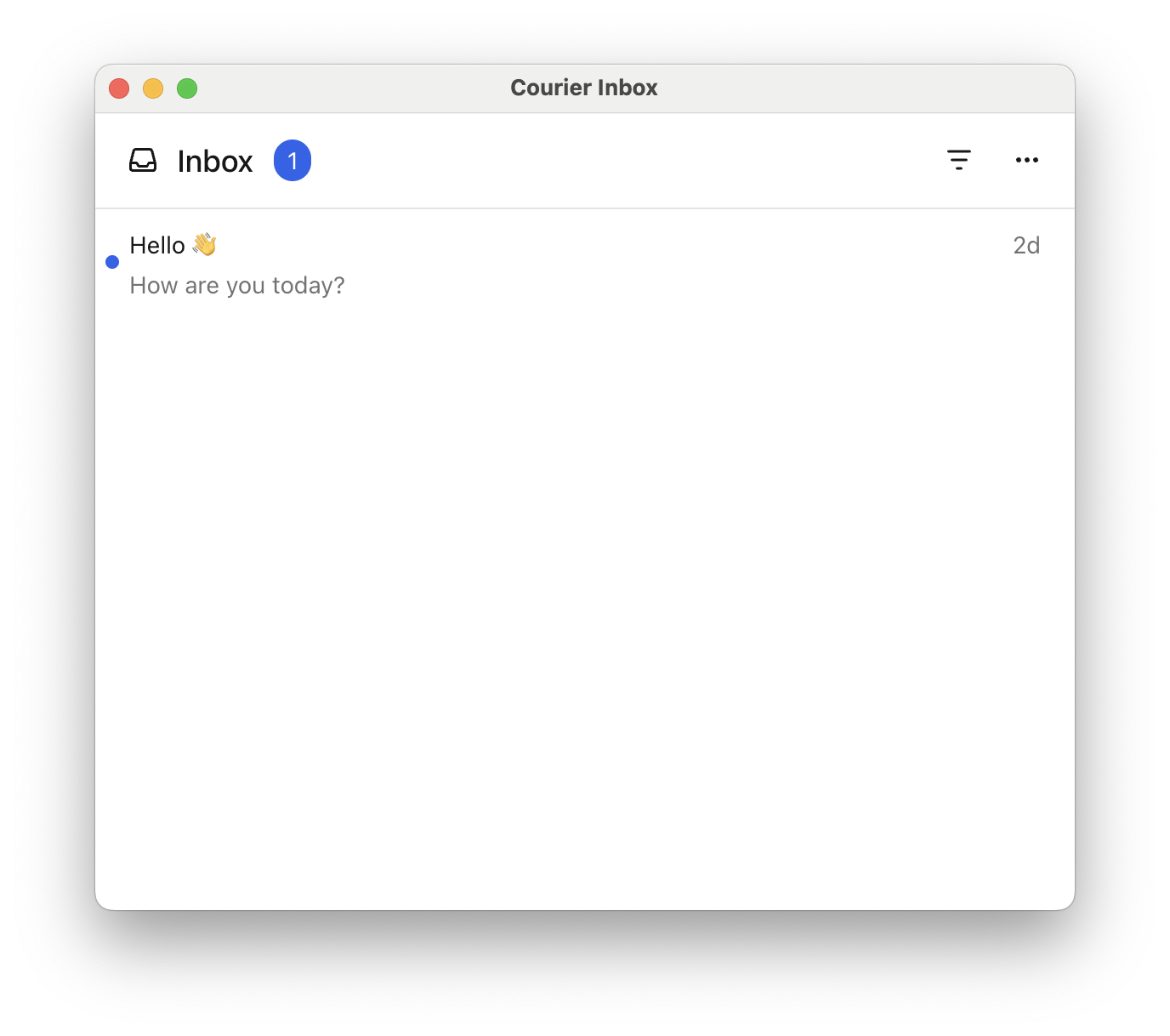
The Courier Web Components SDK provides drop-in components for building notification experiences in any JavaScript project:

* `<courier-inbox>` — full-featured inbox for displaying and managing messages
* `<courier-inbox-popup-menu>` — popup menu version of the inbox
* `<courier-toast>` — toast notifications for time-sensitive alerts
* `<courier-preferences>` — notification preferences center for managing topic subscriptions and delivery

<Tip>
  This is the latest version of the Courier Web Components SDK, recommended for new and existing apps.

  Coming from an earlier version? We recommend upgrading -- check out the
  [migration guide for the React SDK](/sdk-libraries/courier-react-v8-migration-guide), which
  is a thin wrapper around these Web Components and exposes a similar API.
</Tip>

## Installation

Inbox and Toast are published as separate packages. Install one or both depending on your needs.

```bash theme={null}
npm install @trycourier/courier-ui-inbox @trycourier/courier-ui-toast
```

Available on GitHub and npm:
<Link href="https://github.com/trycourier/courier-web/tree/main/%40trycourier/courier-ui-inbox"><Icon icon="github" iconType="solid" /> Inbox</Link> ·
<Link href="https://www.npmjs.com/package/@trycourier/courier-ui-inbox"><Icon icon="npm" iconType="solid" /> Inbox</Link> ·
<Link href="https://github.com/trycourier/courier-web/tree/main/%40trycourier/courier-ui-toast"><Icon icon="github" iconType="solid" /> Toast</Link> ·
<Link href="https://www.npmjs.com/package/@trycourier/courier-ui-toast"><Icon icon="npm" iconType="solid" /> Toast</Link>

The Courier SDKs work with any JavaScript build system and do not require any additional build configuration.

<Note>
  Using React? Check out the [Courier React SDK](/sdk-libraries/courier-react-web/), which provides React components and hooks built on top of these Web Components.
</Note>

## Authentication

To use the SDK, you need to generate a JWT (JSON Web Token) for your user. **This JWT should always be generated by your backend server, never in client-side code.**

<Tip>
  Inbox and Toast share the same `Courier.shared` authentication instance and connection to the Courier backend. Authenticate once and both components work.
</Tip>

***

### JWT Authentication Flow

<Steps>
  <Step title="Your client calls your backend">
    When your app needs to authenticate a user, your client
    should make a request to your own backend (ex. `GET https://your-awesome-app.com/api/generate-courier-jwt`).
  </Step>

  <Step title="Your backend calls Courier">
    In your backend endpoint, use your [Courier API Key](/platform/workspaces/environments-api-keys/) to call the [Courier Issue Token Endpoint](/api-reference/authentication/create-a-jwt) and generate a JWT for the user.
  </Step>

  <Step title="Your backend returns the JWT to your client">
    Having received the JWT from Courier, your backend should return it to your client and pass it to the Courier SDK.
  </Step>
</Steps>

<Tip>
  See [all available user scopes](/api-reference/authentication/create-a-jwt) for the Courier APIs.
</Tip>

***

### Development Authentication with cURL

To quickly test JWT generation for development only, you can use cURL to call the [Courier Issue Token Endpoint](/api-reference/authentication/create-a-jwt) directly.

<Note>
  Do not call the Issue Token API from client-side code. Always keep your Courier API keys secure.
</Note>

```bash wrap theme={null}
curl --request POST \
     --url https://api.courier.com/auth/issue-token \
     --header 'Accept: application/json' \
     --header 'Authorization: Bearer $YOUR_API_KEY' \
     --header 'Content-Type: application/json' \
     --data \
 '{
    "scope": "user_id:$YOUR_USER_ID write:user-tokens inbox:read:messages inbox:write:events read:preferences write:preferences read:brands",
    "expires_in": "$YOUR_NUMBER days"
  }'
```

## Inbox Web Components

***

### `<courier-inbox>`

<Frame caption="Default Courier Inbox component">
  <img src="https://mintcdn.com/courier-4f1f25dc/2GNhpTa50HDyTjlu/assets/sdks/courier-inbox-react-preview.png?fit=max&auto=format&n=2GNhpTa50HDyTjlu&q=85&s=83e9f4165bdc1a9d3ef87b20e38511f2" alt="Default Courier Inbox component" width="1376" height="1218" data-path="assets/sdks/courier-inbox-react-preview.png" />
</Frame>

<Tip>
  Importing the Courier SDK registers Courier's Web Components (`<courier-inbox>`, `<courier-inbox-popup-menu>`).
</Tip>

```html highlight={2,5} theme={null}
<body>
  <courier-inbox id="inbox"></courier-inbox>

  <script type="module">
    import { Courier } from '@trycourier/courier-ui-inbox';

    // Generate a JWT for your user on your backend server
    const jwt = 'eyJhbGciOiJIUzI1NiIsInR5cCI6IkpXVCJ9...';

    // Authenticate the user with the inbox
    Courier.shared.signIn({
      userId: $YOUR_USER_ID,
      jwt: jwt
    });
  </script>
</body>
```

<Tip>
  **Sample App**: See a complete working example in our [Vanilla JS Inbox sample app](https://github.com/trycourier/courier-samples/tree/main/web/vanilla/inbox).
</Tip>

<Note>
  If you're using [tenants](/platform/tenants/tenants-overview), you can scope requests to a particular
  tenant by passing its ID to the `signIn` request.

  ```js theme={null}
  Courier.shared.signIn({
    userId: "my-user-id",
    jwt: jwt,
    tenantId: "my-tenant-id"
  });
  ```

  For the full reference of sign in parameters, see the [Courier JS docs](/sdk-libraries/courier-js-web#courierclient-options).
</Note>

***

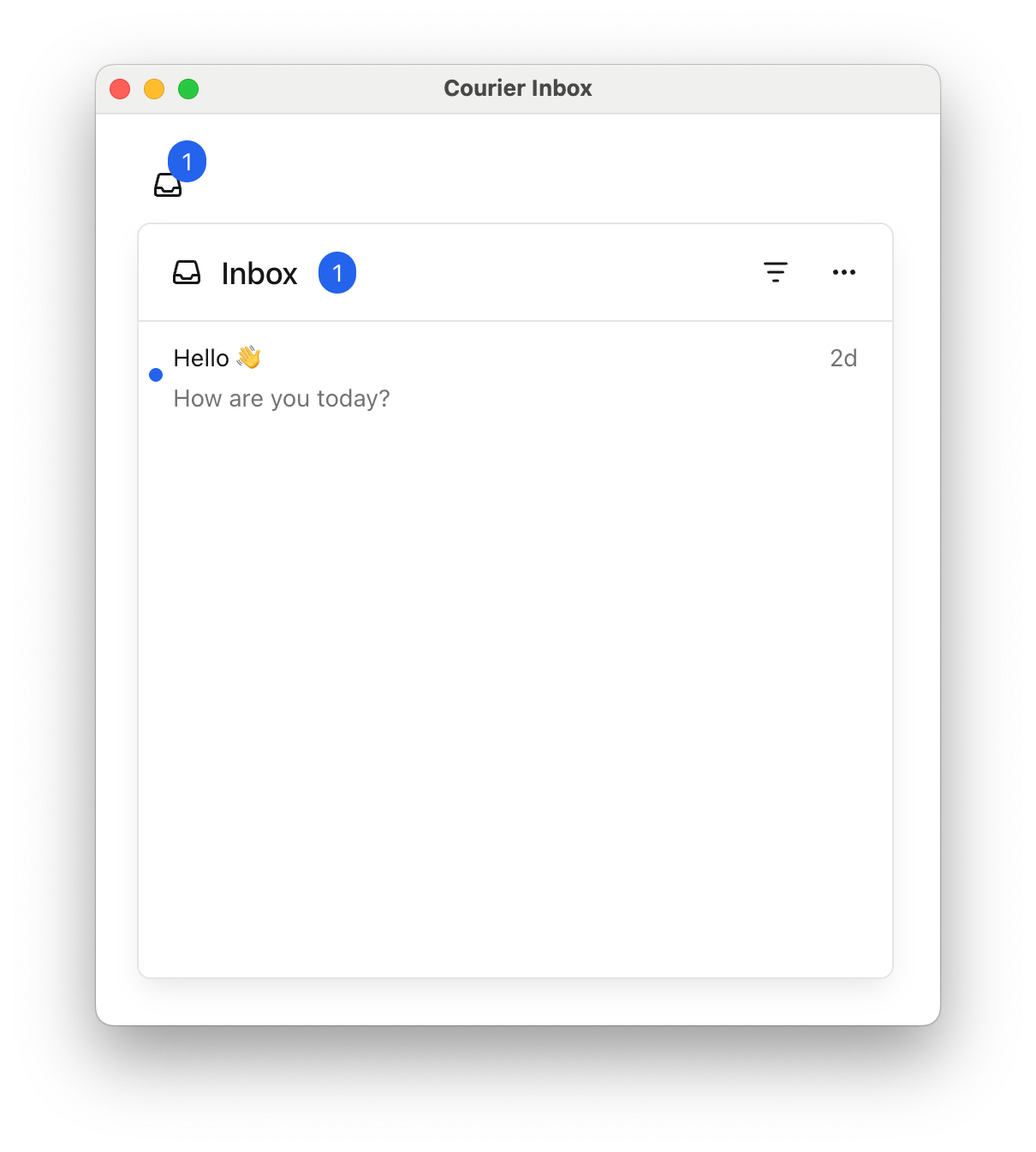
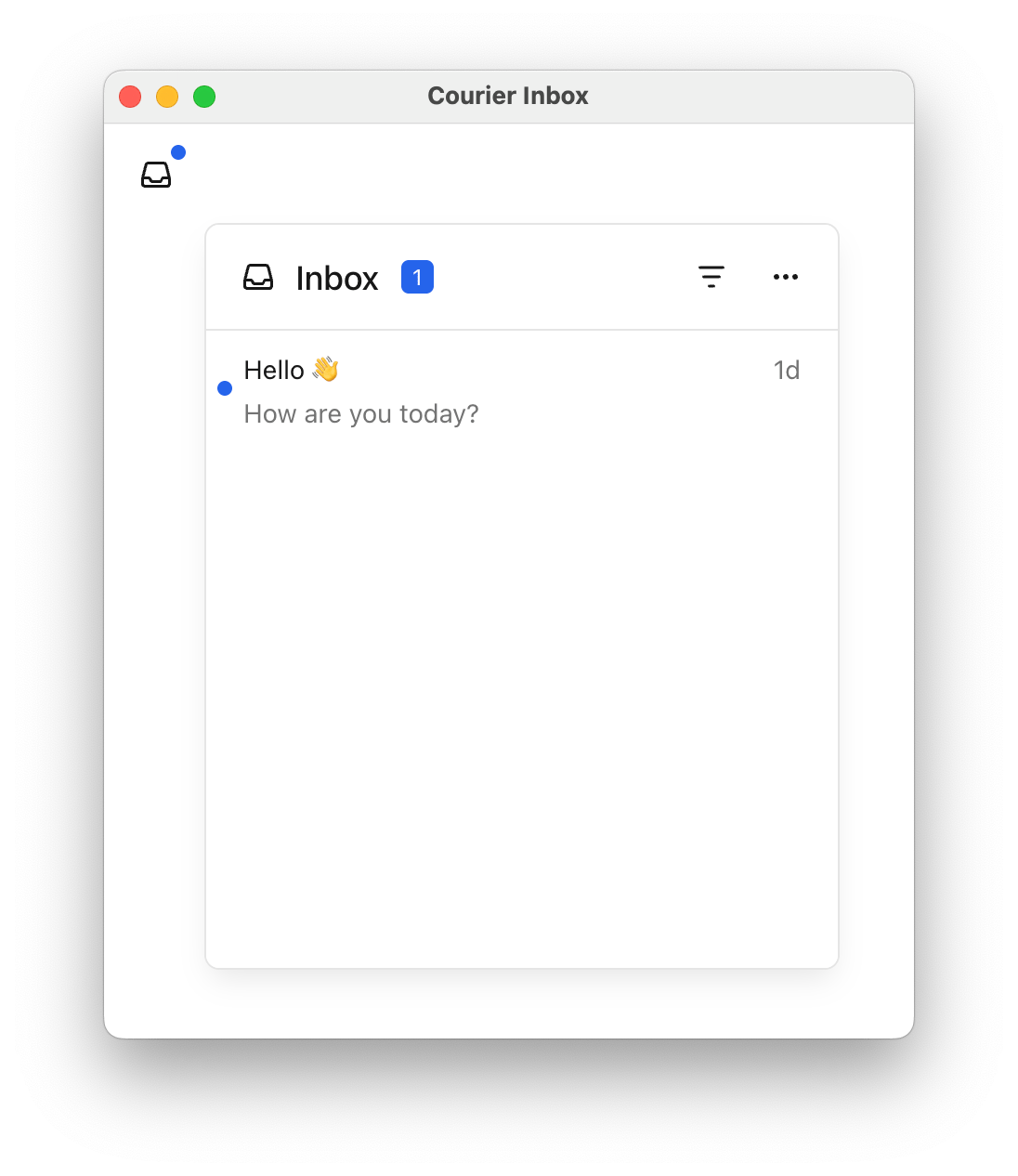
### `<courier-inbox-popup-menu>`

<Frame caption="Default Courier Inbox Popup Menu component">
  <img src="https://mintcdn.com/courier-4f1f25dc/2GNhpTa50HDyTjlu/assets/sdks/courier-inbox-popupmenu.png?fit=max&auto=format&n=2GNhpTa50HDyTjlu&q=85&s=46706ec548f8cbba7e0820ab41355945" alt="Default Courier Inbox Popup Menu component" width="1210" height="1346" data-path="assets/sdks/courier-inbox-popupmenu.png" />
</Frame>

```html highlight={3,7} theme={null}
<body>
  <div style="padding: 24px;">
    <courier-inbox-popup-menu id="inbox"></courier-inbox-popup-menu>
  </div>

  <script type="module">
    import { Courier } from '@trycourier/courier-ui-inbox';

    // Generate a JWT for your user on your backend server
    const jwt = 'eyJhbGciOiJIUzI1NiIsInR5cCI6IkpXVCJ9...';

    // Authenticate the user with the inbox
    Courier.shared.signIn({
      userId: $YOUR_USER_ID,
      jwt: jwt
    });
  </script>
</body>
```

<Tip>
  **Sample App**: See a complete working example in our [Vanilla JS Popup Menu sample app](https://github.com/trycourier/courier-samples/tree/main/web/vanilla/popup-menu).
</Tip>

***

## Tabs and Feeds

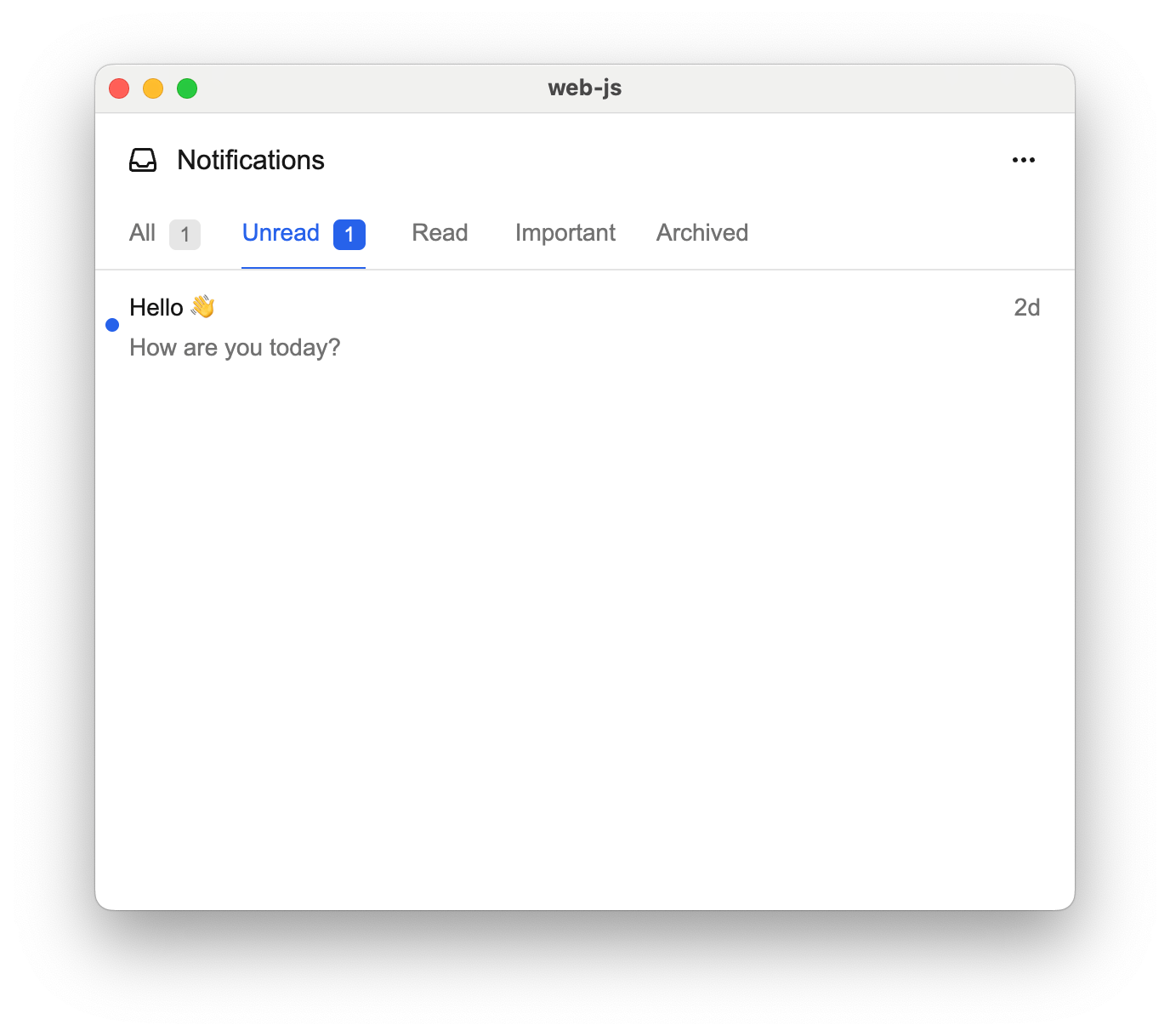
Tabs and feeds allow you to organize and filter messages in your inbox. A **feed** is a container that groups related **tabs** together. Each tab represents a filtered view of messages.

<Note>
  If there is only one feed, the feed selection dropdown is hidden. If a feed has only one tab, the tab bar is hidden and the unread count appears next to the feed.
</Note>

| Filter Property | Type                 | Description                                                         |
| :-------------- | :------------------- | :------------------------------------------------------------------ |
| `tags`          | `string[]`           | Messages that have any of the specified tags                        |
| `archived`      | `boolean`            | Whether to include archived messages (defaults to `false` if unset) |
| `status`        | `'read' \| 'unread'` | Filter by read/unread status                                        |

<Frame caption="CourierInbox with many tabs">
  <img src="https://mintcdn.com/courier-4f1f25dc/mOW6mQnwKJiRu-Dd/assets/sdks/courier-ui-inbox-tabs.png?fit=max&auto=format&n=mOW6mQnwKJiRu-Dd&q=85&s=f86c7d37886dd76c4c53d4e8d97876c0" alt="Preview of CourierInbox with tabs" width="1376" height="1218" data-path="assets/sdks/courier-ui-inbox-tabs.png" />
</Frame>

```html theme={null}
<body>
  <courier-inbox id="inbox"></courier-inbox>

  <script type="module">
    import { Courier } from '@trycourier/courier-ui-inbox';

    const inbox = document.getElementById('inbox');

    // Set feeds with multiple tabs
    inbox.setFeeds([
      {
        feedId: 'notifications',
        title: 'Notifications',
        tabs: [
          {
            datasetId: 'all-notifications',
            title: 'All',
            filter: {}
          },
          {
            datasetId: 'unread-notifications',
            title: 'Unread',
            filter: { status: 'unread' }
          },
          {
            datasetId: 'important',
            title: 'Important',
            filter: { tags: ['important'] }
          },
          {
            datasetId: 'archived',
            title: 'Archived',
            filter: { archived: true }
          }
        ]
      }
    ]);

    // Authenticate the user
    Courier.shared.signIn({
      userId: $YOUR_USER_ID,
      jwt: 'eyJhbGciOiJIUzI1NiIsInR5cCI6IkpXVCJ9...'
    });
  </script>
</body>
```

<Expandable title="Multiple feeds example">
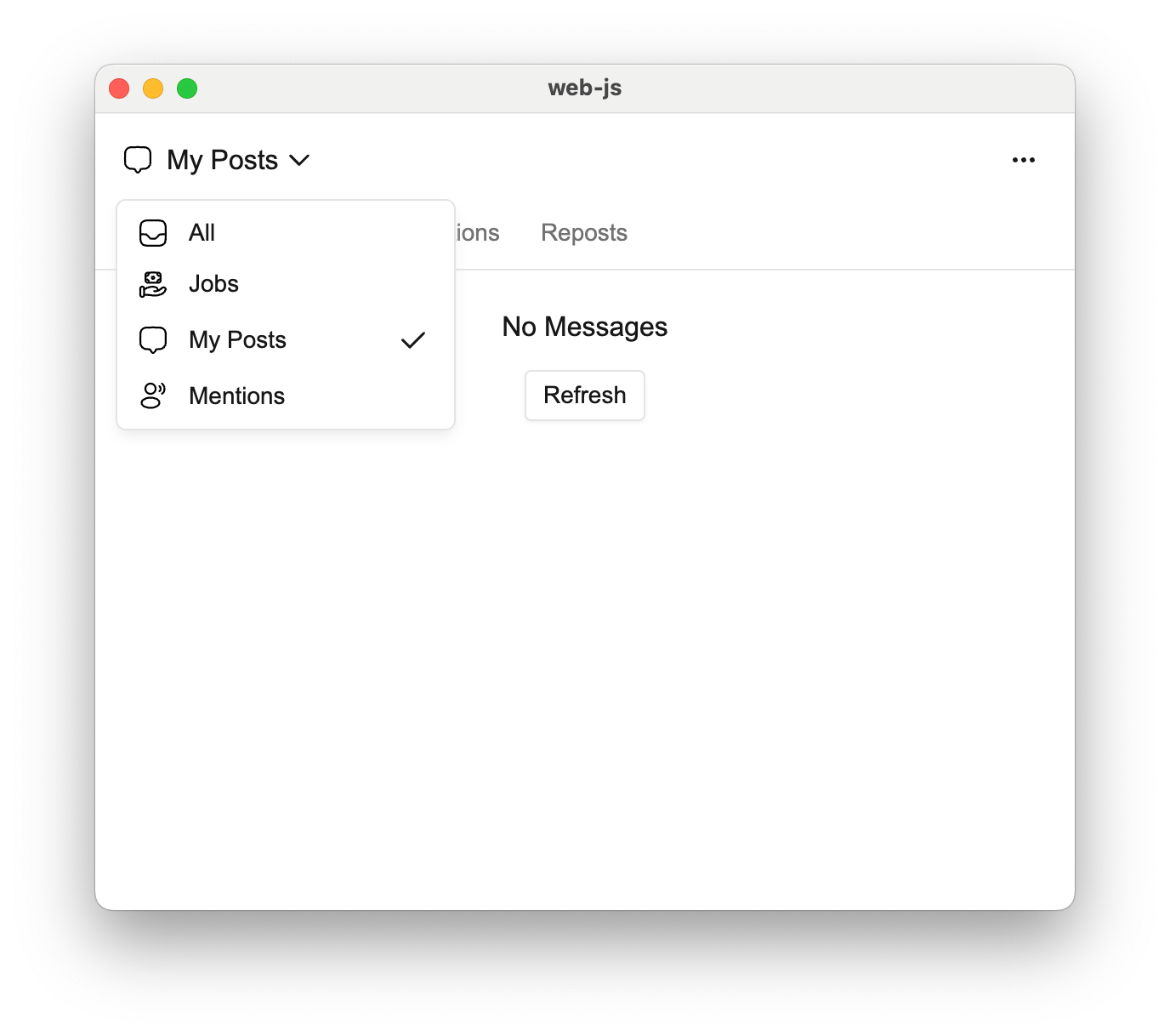
  You can define multiple feeds to organize messages into different categories. Each feed appears as a selectable option in the inbox header.

  <Frame caption="CourierInbox with many feeds">
    <img src="https://mintcdn.com/courier-4f1f25dc/mOW6mQnwKJiRu-Dd/assets/sdks/courier-ui-inbox-feeds.png?fit=max&auto=format&n=mOW6mQnwKJiRu-Dd&q=85&s=0cf11f7c31f2601acdcf8327827ae351" alt="Preview of CourierInbox with feeds" width="1376" height="1218" data-path="assets/sdks/courier-ui-inbox-feeds.png" />
  </Frame>

  ```html theme={null}
  <body>
    <courier-inbox id="inbox"></courier-inbox>

    <script type="module">
      import { Courier } from '@trycourier/courier-ui-inbox';

      const inbox = document.getElementById('inbox');

      inbox.setFeeds([
        {
          feedId: 'all',
          title: 'All',
          iconSVG: '...',
          tabs: [
            { datasetId: 'all', title: 'All', filter: {} }
          ]
        },
        {
          feedId: 'jobs',
          title: 'Jobs',
          tabs: [
            { datasetId: 'jobs', title: 'Jobs', filter: { tags: ['job'] } }
          ]
        },
        {
          feedId: 'my-posts',
          title: 'My Posts',
          tabs: [
            { datasetId: 'all-my-posts', title: 'All', filter: {} },
            { datasetId: 'comments', title: 'Comments', filter: { tags: ['comment'] } },
            { datasetId: 'reactions', title: 'Reactions', filter: { tags: ['reaction'] } },
            { datasetId: 'reposts', title: 'Reposts', filter: { tags: ['repost'] } }
          ]
        },
        {
          feedId: 'mentions',
          title: 'Mentions',
          tabs: [
            { datasetId: 'mentions', title: 'Mentions', filter: { tags: ['mention'] } }
          ]
        }
      ]);

      Courier.shared.signIn({
        userId: $YOUR_USER_ID,
        jwt: 'eyJhbGciOiJIUzI1NiIsInR5cCI6IkpXVCJ9...'
      });
    </script>
  </body>
  ```
</Expandable>

***

### Handle Clicks and Presses

Use the `onMessageClick()`, `onMessageActionClick()`, and `onMessageLongPress()` methods to handle clicks and presses in the inbox.

<Tip>
  `onMessageLongPress()` is only applicable on devices that support touch events.
</Tip>

```html highlight={2,18-40} wrap theme={null}
<body>
  <courier-inbox id="inbox"></courier-inbox>

  <!-- Uncomment the line below to use the popup menu instead -->
  <!-- <courier-inbox-popup-menu id="inbox"></courier-inbox-popup-menu> -->

  <script type="module">
    import { Courier } from '@trycourier/courier-ui-inbox';

    // Generate a JWT for your user on your backend server
    const jwt = 'eyJhbGciOiJIUzI1NiIsInR5cCI6IkpXVCJ9...';

    // Authenticate the user with the inbox
    Courier.shared.signIn({
      userId: $YOUR_USER_ID,
      jwt: jwt
    });

    const inbox = document.getElementById('inbox');

    // Handle message clicks
    inbox.onMessageClick(({ message, index }) => {
      alert("Message clicked at index " + index +
            ":\n" + JSON.stringify(message, null, 2));
    });

    // Handle message action clicks (these are buttons on individual messages)
    inbox.onMessageActionClick(({ message, action, index }) => {
      alert(
        "Message action clicked at index " + index + ":\n" +
        "Action: " + JSON.stringify(action, null, 2) + "\n" +
        "Message: " + JSON.stringify(message, null, 2)
      );
    });

    // Handle message long presses (useful for mobile web)
    inbox.onMessageLongPress(({ message, index }) => {
      alert("Message long pressed at index " + index +
            ":\n" + JSON.stringify(message, null, 2));
    });
  </script>
</body>
```

***

### Styles and Theming

The fastest way to style the Courier Inbox to match your app is with a custom theme.

<Tip>
  You can customize fonts, icons, text, and more. Check out the [`CourierInboxTheme` reference](/sdk-libraries/courier-react-web#courierinboxtheme-reference).
</Tip>

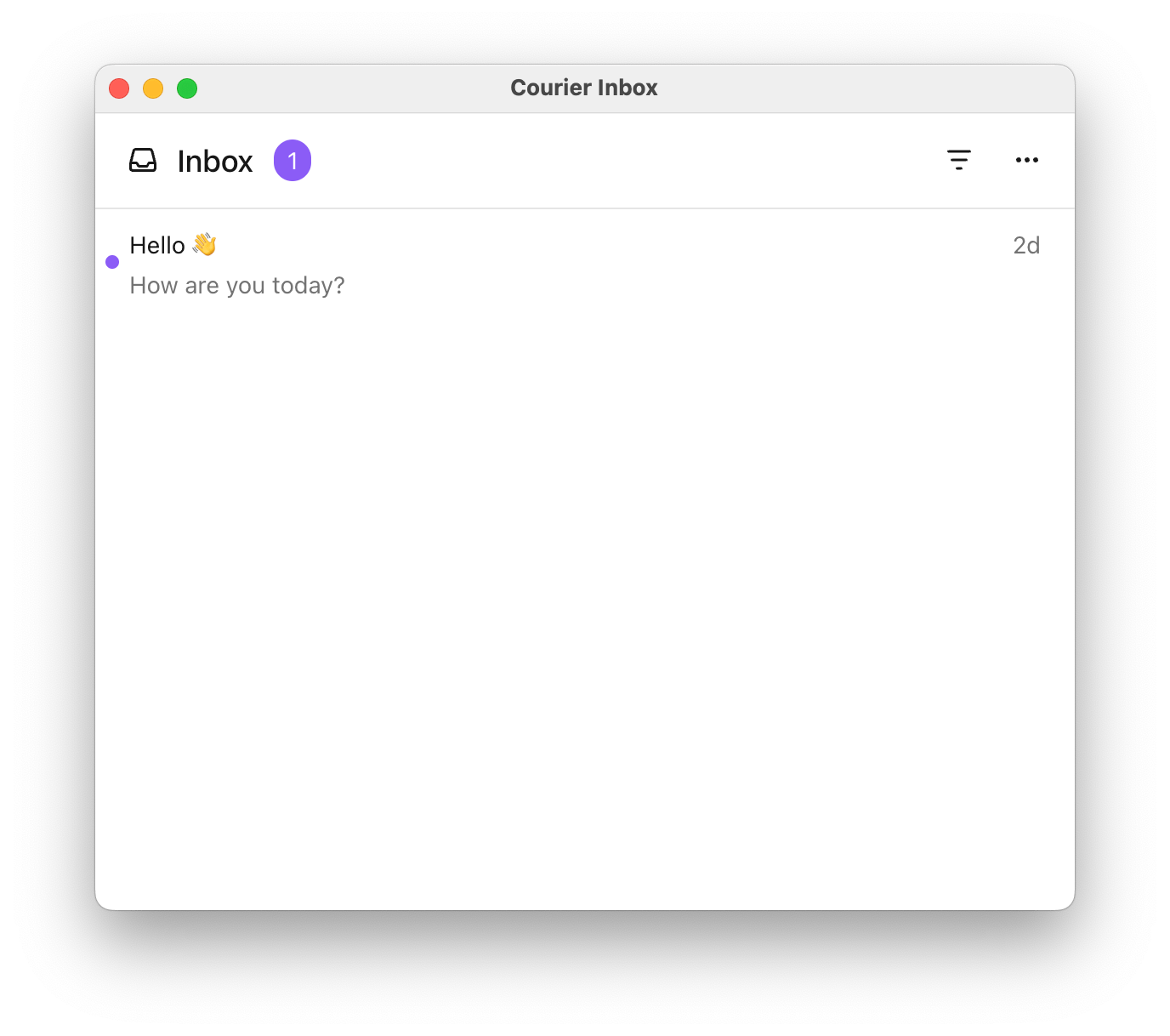
<Frame caption="Courier Inbox with a custom unread indicator style">
  <img src="https://mintcdn.com/courier-4f1f25dc/2GNhpTa50HDyTjlu/assets/sdks/courier-inbox-theme.png?fit=max&auto=format&n=2GNhpTa50HDyTjlu&q=85&s=69a5d3d6a364a05202eaa29eb5d09ac6" alt="Courier Inbox with a custom unread indicator style" width="1376" height="1218" data-path="assets/sdks/courier-inbox-theme.png" />
</Frame>

```html highlight={2,11-35} theme={null}
<body>
  <courier-inbox id="inbox"></courier-inbox>

  <!-- Uncomment the line below to use the popup menu instead -->
  <!-- <courier-inbox-popup-menu id="inbox"></courier-inbox-popup-menu> -->

  <script type="module">
    import { Courier } from '@trycourier/courier-ui-inbox';

    // Courier authentication...

    const inbox = document.getElementById('inbox');
    const theme = {
      inbox: {
        header: {
          filters: {
            unreadIndicator: {
              backgroundColor: "#8B5CF6"
            }
          }
        },
        list: {
          item: {
            unreadIndicatorColor: "#8B5CF6"
          }
        }
      }
    };

    // Apply the theme
    inbox.setLightTheme(theme);
    inbox.setDarkTheme(theme);

    // Set the mode ('light', 'dark', or 'system')
    inbox.setMode('light');
  </script>
</body>
```

### Popup alignment, position, and dimensions

<Frame caption="Customizing the popup menu's alignment, position, and dimensions">
  <img src="https://mintcdn.com/courier-4f1f25dc/2GNhpTa50HDyTjlu/assets/sdks/courier-inbox-popupmenu-position.png?fit=max&auto=format&n=2GNhpTa50HDyTjlu&q=85&s=38df5e6240fda84069c666ebe681d189" alt="Customizing the popup menu's alignment, position, and dimensions" width="1096" height="1266" data-path="assets/sdks/courier-inbox-popupmenu-position.png" />
</Frame>

| Vertical Alignment | Options                                              |
| ------------------ | ---------------------------------------------------- |
| Top                | `"top-right"`, `"top-center"`, `"top-left"`          |
| Center             | `"center-right"`, `"center-center"`, `"center-left"` |
| Bottom             | `"bottom-right"`, `"bottom-center"`, `"bottom-left"` |

```html highlight={4-10} wrap theme={null}
<body>
  <div style="display: flex; justify-content: center; align-items: center; padding: 100px;">

    <courier-inbox-popup-menu
      popup-alignment="top-right"
      top="44px"
      right="44px"
      popup-width="340px"
      popup-height="400px">
    </courier-inbox-popup-menu>
  </div>
</body>
```

**Fixed height:** `<courier-inbox>` has a default height of `auto`. Set a fixed height with the `height` attribute:

```html highlight={2} theme={null}
<body>
  <courier-inbox height="50vh"></courier-inbox>
</body>
```

***

### Custom Elements

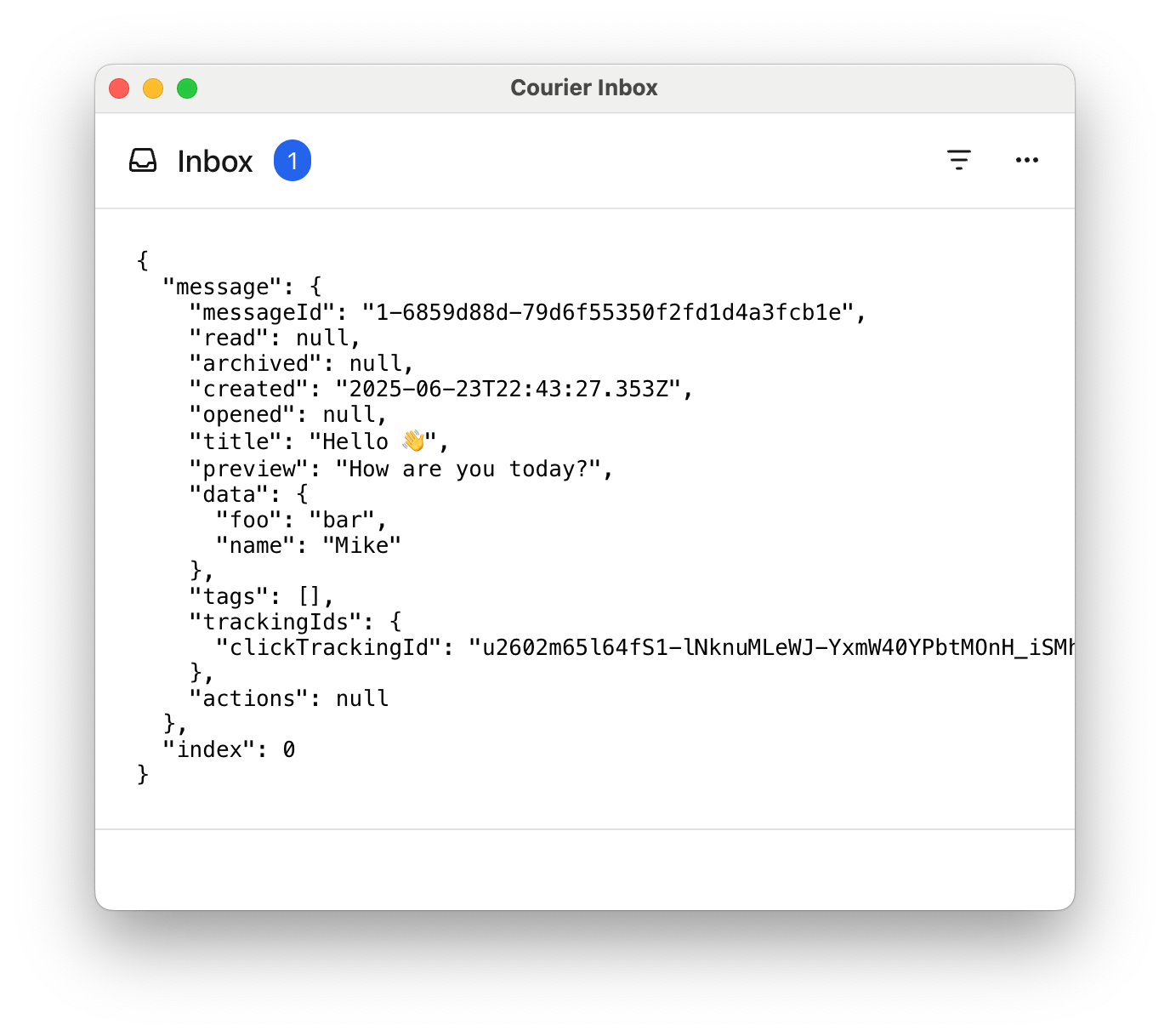
Customize individual parts of the inbox by passing factory functions that return HTML elements.

<Expandable title="Custom list item">
  ```html theme={null}
  <body>
    <courier-inbox id="inbox"></courier-inbox>

    <script type="module">
      const inbox = document.getElementById('inbox');

      inbox.setListItem(({ message, index }) => {
        const pre = document.createElement('pre');
        pre.style.padding = '24px';
        pre.style.borderBottom = '1px solid #e0e0e0';
        pre.style.margin = '0';
        pre.textContent = JSON.stringify({ message, index }, null, 2);

        return pre;
      });
    </script>
  </body>
  ```

  <Frame caption="Custom inbox message list item displaying the message object">
    <img src="https://mintcdn.com/courier-4f1f25dc/2GNhpTa50HDyTjlu/assets/sdks/courier-inbox-list-items.png?fit=max&auto=format&n=2GNhpTa50HDyTjlu&q=85&s=f6db4e077e25539782f0c521591a14d8" alt="Custom inbox message list item displaying the message object" width="1376" height="1218" data-path="assets/sdks/courier-inbox-list-items.png" />
  </Frame>
</Expandable>

<Expandable title="Custom header">
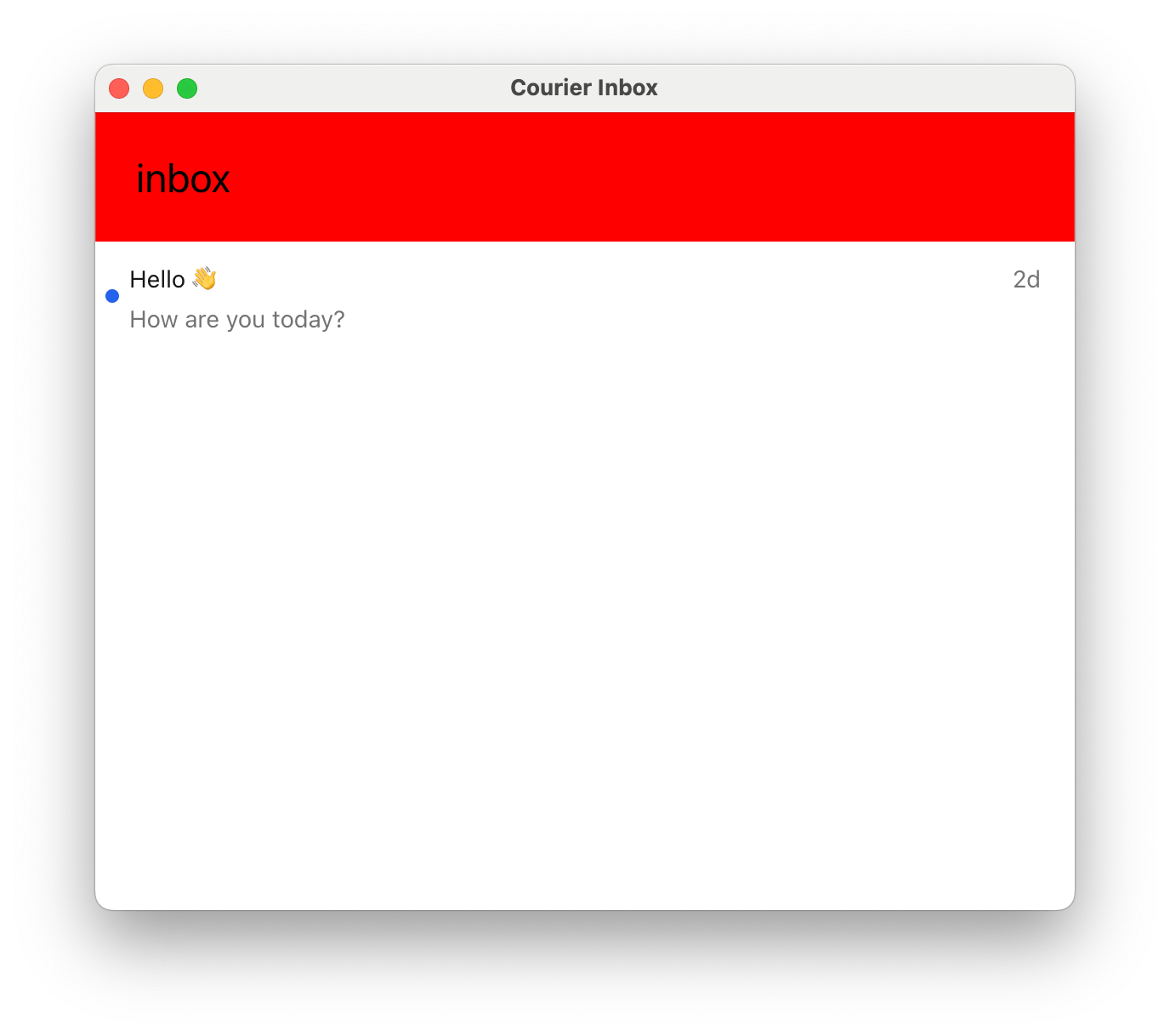
  Call `removeHeader()` to remove the header entirely.

  The `setHeader` callback receives a `props` object with a `feeds` array. Each feed includes selection state, tabs with unread counts, and filter information.

  ```html highlight={2,8-46} wrap theme={null}
  <body>
    <courier-inbox id="inbox"></courier-inbox>

    <script type="module">
      import { Courier } from '@trycourier/courier-ui-inbox';

      const inbox = document.getElementById('inbox');

      inbox.setHeader((props) => {
        const headerDiv = document.createElement('div');
        headerDiv.style.background = 'red';
        headerDiv.style.fontSize = '20px';
        headerDiv.style.color = 'white';
        headerDiv.style.padding = '20px';
        headerDiv.style.width = '100%';
        headerDiv.style.fontFamily = 'monospace';

        const selectedFeed = props.feeds.find(feed => feed.isSelected);
        const selectedTab = selectedFeed?.tabs.find(tab => tab.isSelected);

        let feedPart = selectedFeed ? `${selectedFeed.title}` : 'No Feed Selected';
        let tabPart = selectedTab ? `${selectedTab.title}` : 'No Tab Selected';
        let unreadPart = typeof selectedTab?.unreadCount === 'number' ? `Unread: ${selectedTab.unreadCount}` : '';

        headerDiv.textContent = `${feedPart} / ${tabPart} ${unreadPart && '- ' + unreadPart}`;

        return headerDiv;
      });

      // Set up feeds and authenticate...
    </script>
  </body>
  ```

  <Frame caption="Custom inbox header">
    <img src="https://mintcdn.com/courier-4f1f25dc/2GNhpTa50HDyTjlu/assets/sdks/courier-inbox-custom-header.png?fit=max&auto=format&n=2GNhpTa50HDyTjlu&q=85&s=fd35615d6b4956e702842e92059a755d" alt="Custom inbox header" width="1376" height="1218" data-path="assets/sdks/courier-inbox-custom-header.png" />
  </Frame>

  #### Header Factory Props

  ```ts theme={null}
  {
    feeds: [
      {
        feedId: string;
        title: string;
        iconSVG?: string;
        tabs: [
          {
            datasetId: string;
            title: string;
            unreadCount: number;
            isSelected: boolean;
            filter: {
              tags?: string[];
              archived?: boolean;
              status?: 'read' | 'unread';
            };
          }
        ];
        isSelected: boolean;
      }
    ];
  }
  ```
</Expandable>

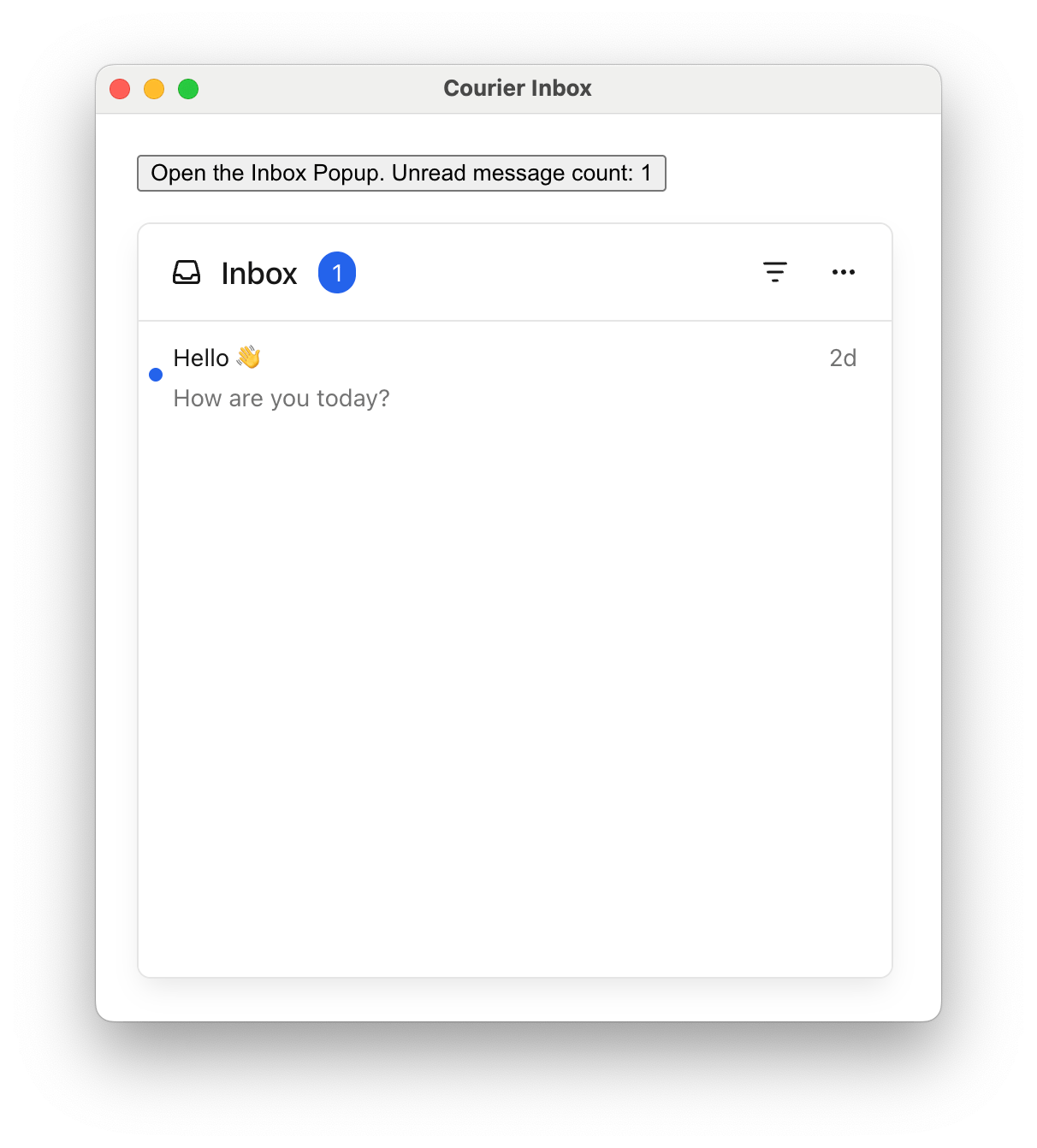
<Expandable title="Custom popup menu button">
  ```html highlight={2,10-16} wrap theme={null}
  <body>
    <div style="display: flex; justify-content: center; align-items: center; padding: 100px;">
      <courier-inbox-popup-menu id="inbox"></courier-inbox-popup-menu>
    </div>

    <script type="module">
      const inbox = document.getElementById('inbox');

      inbox.setMenuButton(({ unreadCount }) => {
        const button = document.createElement('button');
        button.textContent = `Open the Inbox Popup. Unread message count: ${unreadCount}`;
        return button;
      });
    </script>
  </body>
  ```

  <Frame caption="Custom inbox popup menu button">
    <img src="https://mintcdn.com/courier-4f1f25dc/2GNhpTa50HDyTjlu/assets/sdks/courier-inbox-menu-button.png?fit=max&auto=format&n=2GNhpTa50HDyTjlu&q=85&s=c791ccbc4a2f32d74f232a15807218ab" alt="Custom inbox popup menu button" width="1212" height="1342" data-path="assets/sdks/courier-inbox-menu-button.png" />
  </Frame>
</Expandable>

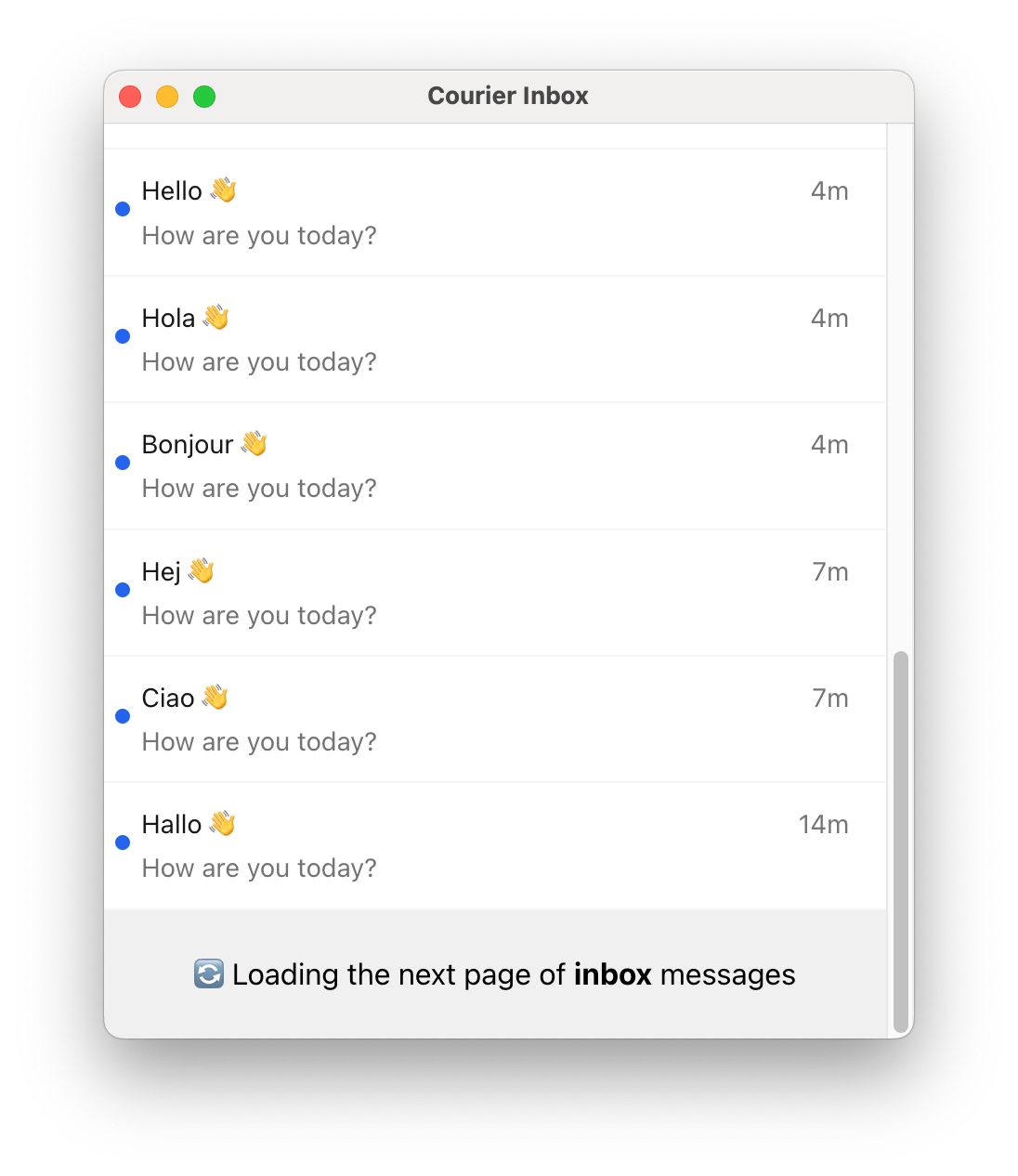
<Expandable title="Custom loading, empty, error, and pagination states">
  <Tip>
    Subsequent pages of messages are loaded automatically when the user scrolls to the bottom of the inbox,
    so the pagination component may only be visible briefly.
  </Tip>

  ```html wrap theme={null}
  <body>
    <courier-inbox id="inbox"></courier-inbox>

    <script type="module">
      const inbox = document.getElementById('inbox');

      inbox.setLoadingState(props => {
        const loading = document.createElement('div');
        loading.style.padding = '24px';
        loading.textContent = 'Custom Loading State';
        return loading;
      });

      inbox.setEmptyState(props => {
        const empty = document.createElement('div');
        empty.style.padding = '24px';
        empty.textContent = 'Custom Empty State';
        return empty;
      });

      inbox.setErrorState(props => {
        const error = document.createElement('div');
        error.style.padding = '24px';
        error.textContent = 'Custom Error State';
        return error;
      });

      inbox.setPaginationItem(props => {
        const pagination = document.createElement('div');
        pagination.style.padding = '24px';
        pagination.style.textAlign = 'center';
        pagination.textContent = 'Loading the next page of messages';
        return pagination;
      });
    </script>
  </body>
  ```

  <Frame caption="Custom pagination state">
    <img src="https://mintcdn.com/courier-4f1f25dc/2GNhpTa50HDyTjlu/assets/sdks/courier-inbox-pagination.png?fit=max&auto=format&n=2GNhpTa50HDyTjlu&q=85&s=2825e20a34a942b2a27433c099bf47b1" alt="Custom pagination state" width="1096" height="1266" data-path="assets/sdks/courier-inbox-pagination.png" />
  </Frame>
</Expandable>

***

### Programmatic Control

The `<courier-inbox>` component exposes methods for programmatic control, allowing you to dynamically manage feeds, tabs, actions, and data refresh.

#### Feed and Tab Selection

| Method                   | Description                                                                  |
| :----------------------- | :--------------------------------------------------------------------------- |
| `selectFeed(feedId)`     | Switch to the specified feed and load its data.                              |
| `selectTab(tabId)`       | Switch to the specified tab within the current feed.                         |
| `getFeeds()`             | Returns the current array of configured feeds.                               |
| `currentFeedId` (getter) | Returns the ID of the currently selected feed.                               |
| `refresh()`              | Forces a reload of inbox data, bypassing the cache. Returns `Promise<void>`. |

#### Header Actions

| Method                        | Description                                                                   |
| :---------------------------- | :---------------------------------------------------------------------------- |
| `setActions(actions)`         | Set header actions. Action IDs: `'readAll'`, `'archiveRead'`, `'archiveAll'`. |
| `setListItemActions(actions)` | Set list item actions. Action IDs: `'read_unread'`, `'archive_unarchive'`.    |

#### Popup Menu Control (on `<courier-inbox-popup-menu>`)

| Method         | Description                                                 |
| :------------- | :---------------------------------------------------------- |
| `showPopup()`  | Open the popup programmatically with transition animation.  |
| `closePopup()` | Close the popup programmatically with transition animation. |

#### Static Helper Methods

| Method                                  | Description                                    |
| :-------------------------------------- | :--------------------------------------------- |
| `CourierInbox.defaultFeeds()`           | Returns the default feeds (Inbox and Archive). |
| `CourierInbox.defaultActions()`         | Returns the default header actions.            |
| `CourierInbox.defaultListItemActions()` | Returns the default list item actions.         |

<Expandable title="Programmatic feed/tab selection example">
  ```html theme={null}
  <body>
    <courier-inbox id="inbox"></courier-inbox>

    <script type="module">
      import { Courier } from '@trycourier/courier-ui-inbox';

      const inbox = document.getElementById('inbox');

      inbox.setFeeds([
        {
          feedId: 'notifications',
          title: 'Notifications',
          tabs: [
            { datasetId: 'all', title: 'All', filter: {} },
            { datasetId: 'unread', title: 'Unread', filter: { status: 'unread' } }
          ]
        },
        {
          feedId: 'archive',
          title: 'Archive',
          tabs: [
            { datasetId: 'archived', title: 'Archived', filter: { archived: true } }
          ]
        }
      ]);

      Courier.shared.signIn({ userId: $YOUR_USER_ID, jwt: '...' });

      // Programmatically select a feed and tab
      inbox.selectFeed('notifications');
      inbox.selectTab('unread');

      // Get current state
      console.log('Current feed:', inbox.currentFeedId);
      console.log('All feeds:', inbox.getFeeds());
    </script>
  </body>
  ```
</Expandable>

<Expandable title="Actions configuration example">
  ```html theme={null}
  <body>
    <courier-inbox id="inbox"></courier-inbox>

    <script type="module">
      import { Courier } from '@trycourier/courier-ui-inbox';

      const inbox = document.getElementById('inbox');

      // Configure header actions
      inbox.setActions([
        { id: 'readAll', iconSVG: '...', text: 'Mark All Read' },
        { id: 'archiveRead', iconSVG: '...', text: 'Archive Read' }
      ]);

      // Configure list item actions
      inbox.setListItemActions([
        { 
          id: 'read_unread',
          readIconSVG: '...',
          unreadIconSVG: '...'
        },
        {
          id: 'archive_unarchive',
          archiveIconSVG: '...',
          unarchiveIconSVG: '...'
        }
      ]);
    </script>
  </body>
  ```
</Expandable>

***

### Attribute vs Method Usage

Many configuration options can be set either via HTML attributes or programmatic methods:

* **HTML attributes**: Best for initial, static configuration
* **Programmatic methods**: Best for dynamic, runtime configuration

```html theme={null}
<!-- Using HTML attributes -->
<courier-inbox 
  mode="light"
  light-theme='{"inbox": {"backgroundColor": "#fff"}}'>
</courier-inbox>

<!-- Using programmatic methods -->
<courier-inbox id="inbox"></courier-inbox>
<script type="module">
  const inbox = document.getElementById('inbox');
  inbox.setMode('light');
  inbox.setLightTheme({
    inbox: { backgroundColor: '#fff' }
  });
</script>
```

Some features are only available via methods (e.g., `selectFeed()`, `refresh()`, `getFeeds()`) and cannot be set via attributes.

## Toast Web Components

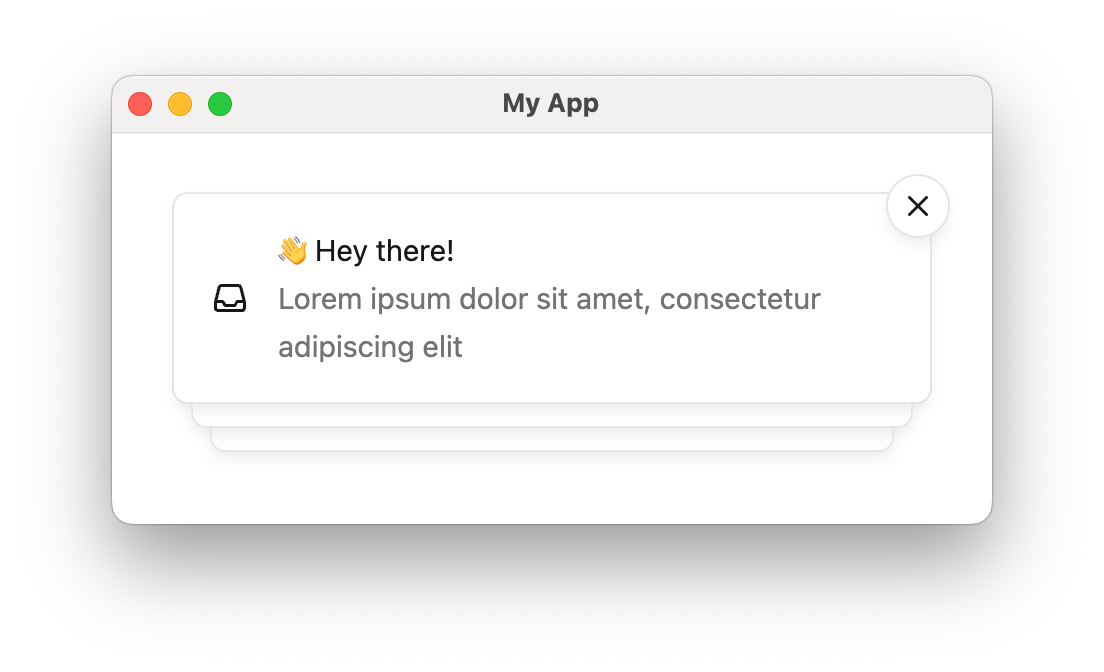
Toasts are short-lived notifications that notify users and prompt them to take action.
The Toast component is connected to the feed of Courier Inbox messages.

<Tip>
  Toasts are synced with the Inbox message feed. You can use both components together to provide persistent and temporary notifications.
</Tip>

***

### `<courier-toast>`

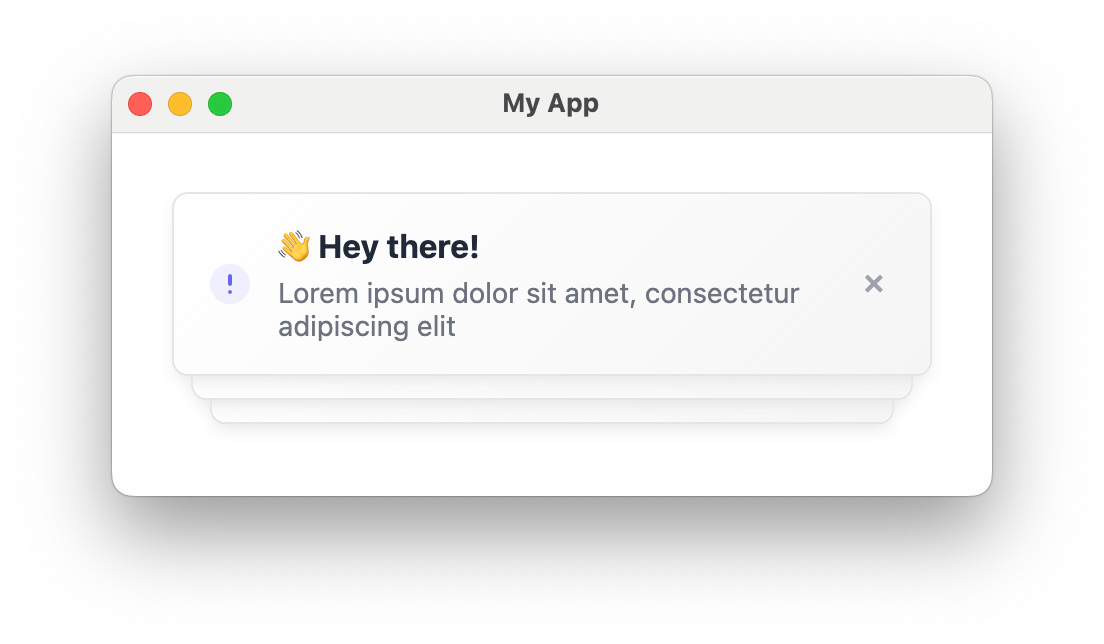
<Frame caption="Courier Toast component">
  <img width="552px" src="https://mintcdn.com/courier-4f1f25dc/d_Nx8S3pul6-jZOx/assets/sdks/courier-toast-stack.png?fit=max&auto=format&n=d_Nx8S3pul6-jZOx&q=85&s=23b61aaa1b8a89cf34d5891fcf8076e7" data-path="assets/sdks/courier-toast-stack.png" />
</Frame>

<Tip>
  Importing `@trycourier/courier-ui-toast` registers Courier's Web Components (`<courier-toast>`).
</Tip>

```html lines highlight={2,5} theme={null}
<body>
  <courier-toast></courier-toast>

  <script type="module">
    import { Courier } from "@trycourier/courier-ui-toast";

    // Generate a JWT for your user on your backend server
    const jwt = "eyJhbGciOiJIUzI1NiIsInR5cCI6IkpXVCJ9...";

    // Authenticate the user
    Courier.shared.signIn({
      userId: $YOUR_USER_ID,
      jwt: jwt
    });
  </script>
</body>
```

<Tip>
  **Sample App**: See a complete working example in our [Vanilla JS Toast sample app](https://github.com/trycourier/courier-samples/tree/main/web/vanilla/toast).
</Tip>

***

### HTML Attributes

<Tip>
  A note on terminology: **toast** refers to the entire stack of toasts managed by `<courier-toast>`, while **toast item** refers to a single toast displayed for a message.
</Tip>

| Attribute                 | Type                                         | Default     | Description                                                                                                                                                 |
| :------------------------ | :------------------------------------------- | :---------- | :---------------------------------------------------------------------------------------------------------------------------------------------------------- |
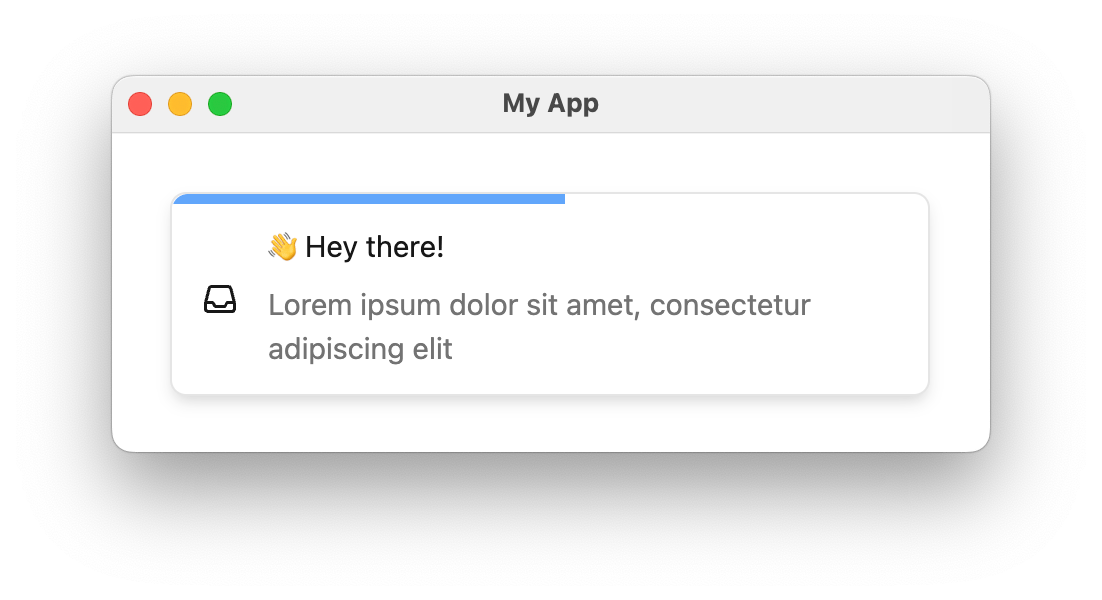
| `auto-dismiss`            | `boolean`                                    | `false`     | Whether toast items should auto-dismiss.                                                                                                                    |
| `auto-dismiss-timeout-ms` | `integer`                                    | `5000`      | If `auto-dismiss` is enabled, the timeout in milliseconds before dismissal.                                                                                 |
| `dismiss-button`          | `"visible" \| "hidden" \| "hover" \| "auto"` | `"auto"`    | Display option for the dismiss button. `"auto"` makes the button always visible if `auto-dismiss` is false, and visible on hover if `auto-dismiss` is true. |
| `light-theme`             | `json`                                       | `undefined` | JSON-stringified `CourierToastTheme` applied in light mode. Merged with defaults.                                                                           |
| `dark-theme`              | `json`                                       | `undefined` | JSON-stringified `CourierToastTheme` applied in dark mode. Merged with defaults.                                                                            |
| `mode`                    | `"light" \| "dark" \| "system"`              | `"system"`  | Theme mode for the toast component.                                                                                                                         |

<Frame caption="Toast component with auto-dismiss enabled.">
  <img width="552px" src="https://mintcdn.com/courier-4f1f25dc/d_Nx8S3pul6-jZOx/assets/sdks/courier-toast-auto-dismiss.png?fit=max&auto=format&n=d_Nx8S3pul6-jZOx&q=85&s=c01306115adcab00fa7f0344eb7abc20" data-path="assets/sdks/courier-toast-auto-dismiss.png" />
</Frame>

If the `auto-dismiss` attribute is set, the dismiss button (**x**) will only be visible on hover
and each toast item will automatically be dismissed. A countdown bar is shown to indicate the time
remaining before the toast disappears.

***

### Handle Clicks

| API Method                        | Description                                              |
| :-------------------------------- | :------------------------------------------------------- |
| `onToastItemClick(handler)`       | Called when a toast item is clicked.                     |
| `onToastItemActionClick(handler)` | Called when an action button on a toast item is clicked. |

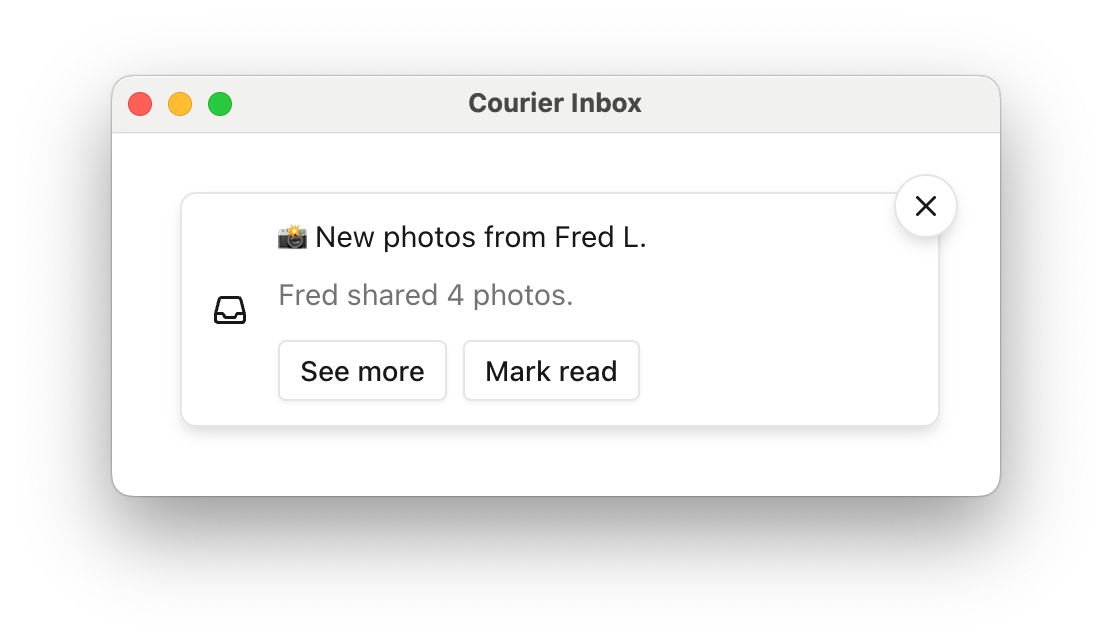
<Frame caption="Courier Toast with action buttons">
  <img width="552px" src="https://mintcdn.com/courier-4f1f25dc/d_Nx8S3pul6-jZOx/assets/sdks/courier-toast-action-buttons.png?fit=max&auto=format&n=d_Nx8S3pul6-jZOx&q=85&s=32dab2e3e0ad863fae60c4e65b881e4f" data-path="assets/sdks/courier-toast-action-buttons.png" />
</Frame>

If a message contains [actions](/platform/content/content-blocks/action-blocks), toast items
will include a button for each. By default, these buttons do not implement any functionality.

```html index.html lines highlight={12-15} theme={null}
<body>
  <courier-toast id="my-toast"></courier-toast>

  <script type="module">
    import {
      Courier,
      CourierToastDatastore
    } from "@trycourier/courier-ui-toast";

    const toast = document.getElementById("my-toast");

    toast.onToastItemClick(({ message, toastItem }) => {
      window.open(message.actions[0].href);
    });

    toast.onToastItemActionClick(({ message, action }) => {
      window.open(action.href);
      CourierToastDatastore.shared.removeMessage(message);
    });

    Courier.shared.signIn({ userId, jwt });
  </script>
</body>
```

<Expandable title="Click event types">
  ```ts theme={null}
  type CourierToastItemClickEvent = {
    message: InboxMessage;
    toastItem: CourierToastItem | HTMLElement;
  };

  type CourierToastItemActionClickEvent = {
    message: InboxMessage;
    action: InboxAction;
  };
  ```
</Expandable>

***

### Styles and Theming

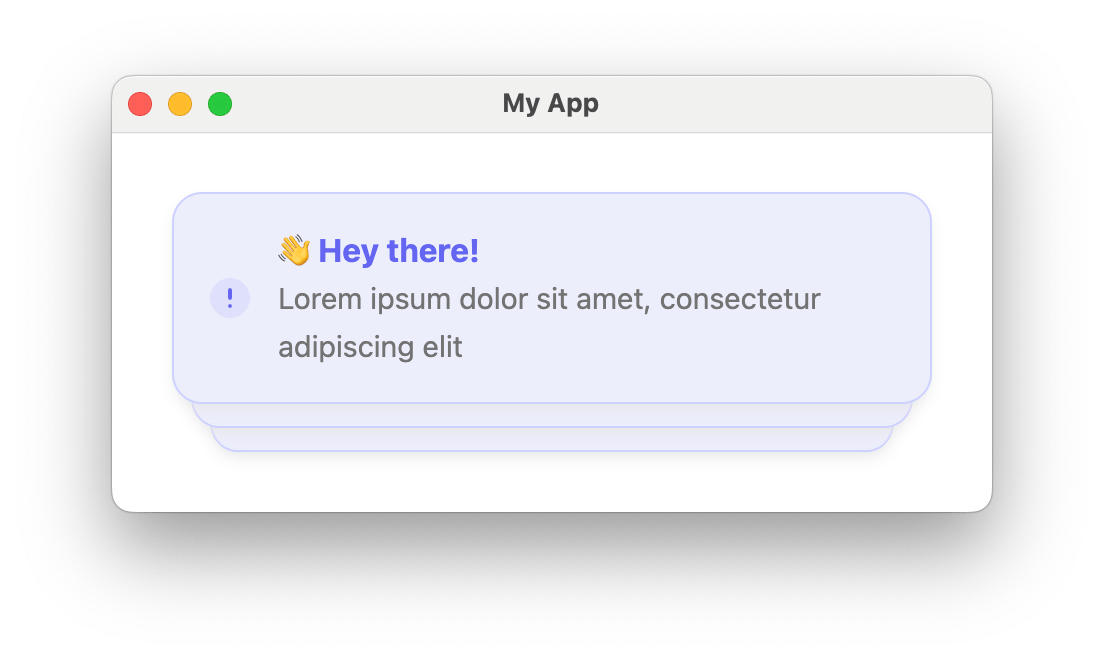
<Frame caption="Courier toasts with a custom light theme">
  <img width="552px" src="https://mintcdn.com/courier-4f1f25dc/d_Nx8S3pul6-jZOx/assets/sdks/courier-toast-custom-theme.png?fit=max&auto=format&n=d_Nx8S3pul6-jZOx&q=85&s=766c15b8b329ce06f83f1a1c3a400904" data-path="assets/sdks/courier-toast-custom-theme.png" />
</Frame>

```html index.html lines highlight={2,10-25} theme={null}
<body>
  <courier-toast dismiss-button="hidden" id="my-toast"></courier-toast>

  <script type="module">
    import { Courier, CourierToastDatastore } from "@trycourier/courier-ui-toast";
    import ToastIcon from "./toast-icon.svg?raw";

    const toast = document.getElementById("my-toast");

    toast.setLightTheme({
      toast: {
        item: {
          title: {
            color: "#6366f1",
            weight: "bold",
          },
          backgroundColor: "#edeefc",
          border: "1px solid #cdd1ff",
          borderRadius: "15px",
          icon: {
            svg: ToastIcon
          }
        }
      }
    });

    toast.onToastItemClick((props) => {
      window.open(props.message.actions[0].href);
      CourierToastDatastore.shared.removeMessage(props.message);
    });

    Courier.shared.signIn({ userId, jwt });
  </script>
</body>
```

<Expandable title="type CourierToastTheme">
  ```ts theme={null}
  export type CourierToastTheme = {
    item?: {
      backgroundColor?: string;
      hoverBackgroundColor?: string;
      autoDismissBarColor?: string;
      title?: {
        family?: string;
        weight?: string;
        size?: string;
        color?: string;
      };
      body?: {
        family?: string;
        weight?: string;
        size?: string;
        color?: string;
      };
      icon?: {
        color?: string;
        svg?: string;
      };
      dismissIcon?: {
        color?: string;
        svg?: string;
      };
      shadow?: string;
      border?: string;
      borderRadius?: string;
      actions?: {
        backgroundColor?: string;
        hoverBackgroundColor?: string;
        activeBackgroundColor?: string;
        border?: string;
        borderRadius?: string;
        shadow?: string;
        font?: {
          family?: string;
          weight?: string;
          size?: string;
          color?: string;
        };
      }
    }
  }
  ```
</Expandable>

***

### Custom Elements

| Method                         | Description                                                     |
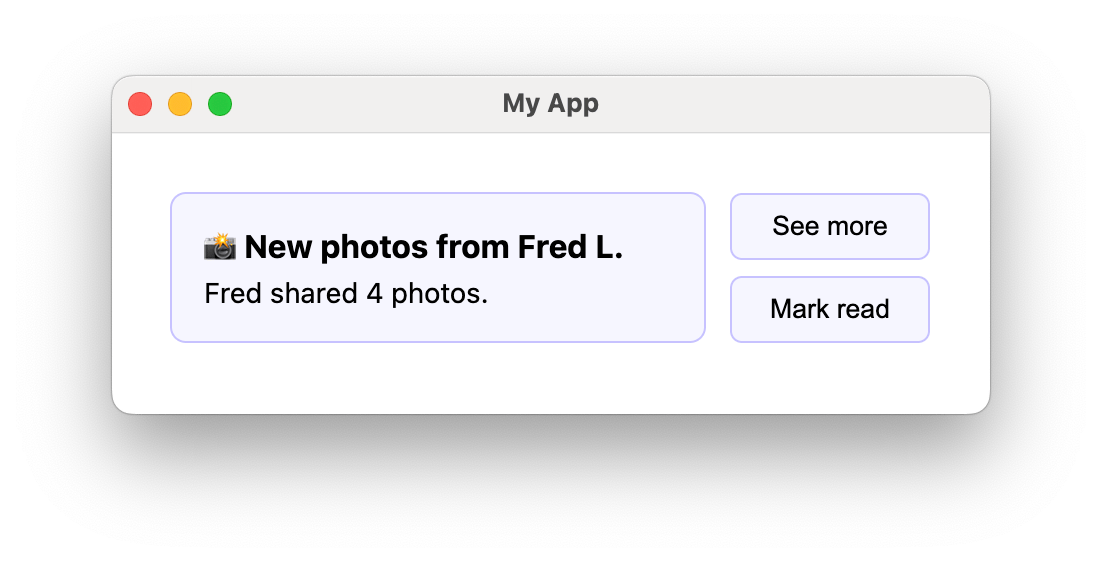
| :----------------------------- | :-------------------------------------------------------------- |
| `setToastItemContent(factory)` | Customize the content area only, keeping default stack styling. |
| `setToastItem(factory)`        | Fully replace each toast item for complete control.             |

<Expandable title="Custom toast content example">
  ```html index.html lines highlight={6,37-42} theme={null}
  <html>
  <head>
    <link href="./styles.css" rel="stylesheet">
  </head>
  <body>
    <courier-toast id="my-toast" dismiss-button="hidden"></courier-toast>

    <script type="module">
      import { CourierToastDatastore } from "@trycourier/courier-ui-toast";

      const toast = document.getElementById("my-toast");

      toast.setToastItemContent(({ message }) => {
        const content = document.createElement("div");
        content.className = "toast-content";

        const icon = document.createElement("img");
        icon.className = "toast-icon";
        icon.src = "./toast-icon.svg";
        icon.width = 24;
        icon.height = 24;

        const textContainer = document.createElement("div");
        textContainer.className = "toast-text";

        const title = document.createElement("strong");
        title.className = "toast-title";
        title.textContent = message.title;

        const body = document.createElement("p");
        body.className = "toast-body";
        body.textContent = message.body;

        textContainer.appendChild(title);
        textContainer.appendChild(body);

        const dismissButton = document.createElement("button");
        dismissButton.className = "toast-dismiss";
        dismissButton.textContent = "\u00d7";
        dismissButton.addEventListener("click", () => {
          CourierToastDatastore.shared.removeMessage(message);
        });

        content.appendChild(icon);
        content.appendChild(textContainer);
        content.appendChild(dismissButton);

        return content;
      });

      Courier.shared.signIn({ userId, jwt });
    </script>
  </body>
  ```

  <Frame caption="Toast with custom item content">
    <img width="552px" src="https://mintcdn.com/courier-4f1f25dc/d_Nx8S3pul6-jZOx/assets/sdks/courier-toast-custom-item-content.png?fit=max&auto=format&n=d_Nx8S3pul6-jZOx&q=85&s=0e7dc6855e4f25900aebbc58b1ce3bab" data-path="assets/sdks/courier-toast-custom-item-content.png" />
  </Frame>
</Expandable>

<Expandable title="Fully custom toast item example">
  `auto-dismiss` and `auto-dismiss-timeout-ms` remain valid when using custom items. If `auto-dismiss` is `true`, custom items are automatically removed after the timeout.

  ```html index.html lines theme={null}
  <html>
  <head>
    <link href="./styles.css" rel="stylesheet">
  </head>
  <body>
    <courier-toast id="my-toast"></courier-toast>

    <script type="module">
      const toast = document.getElementById("my-toast");

      toast.setToastItem((props) => {
        const { message, dismiss } = props;

        const container = document.createElement("div");
        container.className = "toast-content";

        const messageDiv = document.createElement("div");
        messageDiv.className = "toast-message";

        const title = document.createElement("strong");
        title.className = "toast-title";
        title.textContent = message.title;

        const body = document.createElement("p");
        body.className = "toast-body";
        body.textContent = message.body;

        messageDiv.appendChild(title);
        messageDiv.appendChild(body);

        const actionsDiv = document.createElement("div");
        actionsDiv.className = "toast-actions";

        if (message.actions) {
          message.actions.forEach(action => {
            const button = document.createElement("button");
            button.className = "toast-action-button";
            button.textContent = action.content;
            button.onclick = () => {
              if (action.href) {
                window.open(action.href);
              }
            };
            actionsDiv.appendChild(button);
          });
        }

        container.appendChild(messageDiv);
        container.appendChild(actionsDiv);

        return container;
      });

      Courier.shared.signIn({ userId, jwt });
    </script>
  </body>
  </html>
  ```

  <Frame caption="Toast with a fully custom item">
    <img width="552px" src="https://mintcdn.com/courier-4f1f25dc/d_Nx8S3pul6-jZOx/assets/sdks/courier-toast-custom-item.png?fit=max&auto=format&n=d_Nx8S3pul6-jZOx&q=85&s=7892a3935731468e0dd4c8c04c1909ab" data-path="assets/sdks/courier-toast-custom-item.png" />
  </Frame>
</Expandable>

***

### Programmatic Control

| Method                        | Description                                                                     |
| :---------------------------- | :------------------------------------------------------------------------------ |
| `enableAutoDismiss()`         | Enable auto-dismiss for toast items.                                            |
| `disableAutoDismiss()`        | Disable auto-dismiss. Items remain visible until manually dismissed.            |
| `setAutoDismissTimeoutMs(ms)` | Set the auto-dismiss timeout in milliseconds.                                   |
| `setDismissButton(option)`    | Set dismiss button visibility: `'visible'`, `'hidden'`, `'hover'`, or `'auto'`. |
| `setMode(mode)`               | Set theme mode: `'light'`, `'dark'`, or `'system'`.                             |
| `setLightTheme(theme)`        | Set the light theme programmatically.                                           |
| `setDarkTheme(theme)`         | Set the dark theme programmatically.                                            |

***

### Toast Datastore

`CourierToastDatastore` is the central repository of Inbox messages from which
`<courier-toast>` listens for messages to display and dismiss. It is a singleton accessed through `CourierToastDatastore.shared`.

| Method                   | Description                                                             |
| :----------------------- | :---------------------------------------------------------------------- |
| `addMessage(message)`    | Add a message to display as a toast. Messages must include `messageId`. |
| `removeMessage(message)` | Remove a message, dismissing any displayed toast for it.                |

```ts theme={null}
import { CourierToastDatastore } from "@trycourier/courier-ui-toast";

// Add a test message (useful for prototyping)
CourierToastDatastore.shared.addMessage({
  title: "Lorem ipsum dolor sit",
  body: "Lorem ipsum dolor sit amet",
  messageId: "abcd-1234-abcd-1234",
  actions: [{ "content": "Click me!" }]
});

// Remove a message (dismiss its toast)
CourierToastDatastore.shared.removeMessage(message);
```

***

## Preferences Web Components

The Preferences component lets your users manage which topics they're subscribed to and how each topic is delivered (per-channel routing and digest schedules), directly inside your app.

<Tip>
  Preferences ship in a separate package, `@trycourier/courier-ui-preferences`. Install it alongside the inbox package:

  ```bash theme={null}
  npm install @trycourier/courier-ui-preferences
  ```
</Tip>

### `<courier-preferences>`

<Tip>
  Importing `@trycourier/courier-ui-preferences` registers the `<courier-preferences>` Web Component.
</Tip>

```html lines highlight={2,5} theme={null}
<body>
  <courier-preferences id="preferences"></courier-preferences>

  <script type="module">
    import { Courier } from "@trycourier/courier-ui-preferences";

    // Generate a JWT for your user on your backend server
    const jwt = "eyJhbGciOiJIUzI1NiIsInR5cCI6IkpXVCJ9...";

    // Authenticate the user
    Courier.shared.signIn({
      userId: $YOUR_USER_ID,
      jwt: jwt
    });
  </script>
</body>
```

<Note>
  Preferences use the same [authentication](#authentication) mechanism as the inbox, but the JWT must include the `read:preferences` and `write:preferences` scopes.
</Note>

***

### Preferences HTML Attributes

| Attribute     | Type                            | Default     | Description                                                                             |
| :------------ | :------------------------------ | :---------- | :-------------------------------------------------------------------------------------- |
| `light-theme` | `json`                          | `undefined` | JSON-stringified `CourierPreferencesTheme` applied in light mode. Merged with defaults. |
| `dark-theme`  | `json`                          | `undefined` | JSON-stringified `CourierPreferencesTheme` applied in dark mode. Merged with defaults.  |
| `mode`        | `"light" \| "dark" \| "system"` | `"system"`  | Theme mode for the component.                                                           |
| `tenant-id`   | `string`                        | `undefined` | Scope preferences to a specific tenant (multi-tenant apps).                             |
| `brand-id`    | `string`                        | `undefined` | Render preferences using a specific brand's styling.                                    |

***

### Preferences Styling and Theming

Set themes programmatically with `setLightTheme()`, `setDarkTheme()`, and `setMode()`. Themes are merged with the defaults, so you only need to specify what you want to override. The default accent color matches the Inbox component for a consistent look.

```html index.html lines highlight={2,9-29} theme={null}
<body>
  <courier-preferences id="prefs"></courier-preferences>

  <script type="module">
    import { Courier } from "@trycourier/courier-ui-preferences";

    const prefs = document.getElementById("prefs");

    prefs.setLightTheme({
      primaryColor: "#8B5CF6",
      container: { font: { family: "Poppins", color: "#1E1B2E" } },
      topic: {
        title: { family: "Poppins", size: "16px", weight: "500", color: "#1E1B2E" },
        toggle: {
          trackColor: "#D9D3EC",
          trackActiveColor: "#8B5CF6",
          thumbColor: "#FFFFFF",
          borderRadius: "12px"
        }
      },
      digest: {
        font: { family: "Poppins", size: "14px", weight: "400", color: "#6B6580" },
        radio: { ringColor: "#D9D3EC", checkedColor: "#8B5CF6" }
      },
      channelChip: {
        font: { family: "Poppins", size: "14px", weight: "400", color: "#6B6580" },
        checkbox: { checkedColor: "#8B5CF6" }
      }
    });

    prefs.setMode("light");

    Courier.shared.signIn({ userId, jwt });
  </script>
</body>
```

Theme utilities are also exported: `defaultLightTheme` / `defaultDarkTheme` for the defaults, and `mergeTheme(mode, overrideTheme)` to merge a partial theme.

<Expandable title="type CourierPreferencesTheme">
  ```ts theme={null}
  type CourierPreferencesFontTheme = {
    family?: string;
    weight?: string;
    size?: string;
    color?: string;
  };

  type CourierPreferencesTheme = {
    primaryColor?: string;
    title?: CourierPreferencesFontTheme;
    subtitle?: CourierPreferencesFontTheme;
    container?: {
      font?: CourierPreferencesFontTheme;
    };
    loading?: {
      animation?: {
        barColor?: string;
        barHeight?: string;
        barBorderRadius?: string;
        duration?: string;
      };
    };
    error?: CourierPreferencesInfoStateTheme;
    empty?: CourierPreferencesInfoStateTheme;
    section?: {
      title?: CourierPreferencesFontTheme;
      backgroundColor?: string;
    };
    topic?: {
      backgroundColor?: string;
      border?: string;
      borderRadius?: string;
      title?: CourierPreferencesFontTheme;
      statusLabel?: CourierPreferencesFontTheme;
      toggle?: {
        trackColor?: string;
        trackActiveColor?: string;
        thumbColor?: string;
        borderRadius?: string;
      };
    };
    digest?: {
      font?: CourierPreferencesFontTheme;
      selectedFont?: CourierPreferencesFontTheme;
      iconColor?: string;
      radio?: {
        ringColor?: string;
        checkedColor?: string;
        font?: CourierPreferencesFontTheme;
        selectedFont?: CourierPreferencesFontTheme;
      };
    };
    channelChip?: {
      font?: CourierPreferencesFontTheme;
      selectedFont?: CourierPreferencesFontTheme;
      divider?: string;
      checkbox?: {
        checkedColor?: string;
        font?: CourierPreferencesFontTheme;
        selectedFont?: CourierPreferencesFontTheme;
      };
    };
  };

  // Title text, font, and button styling for the error and empty states.
  type CourierPreferencesInfoStateTheme = {
    title?: {
      text?: string;
      font?: CourierPreferencesFontTheme;
    };
    button?: {
      text?: string;
      font?: CourierPreferencesFontTheme;
      backgroundColor?: string;
      hoverBackgroundColor?: string;
      border?: string;
      borderRadius?: string;
    };
  };
  ```
</Expandable>

***

### Custom Channel Labels

Topics can be delivered over multiple channels. Use `setChannelLabels()` to rename how those channels appear in the UI.

```html index.html lines highlight={9-13} theme={null}
<body>
  <courier-preferences id="prefs"></courier-preferences>

  <script type="module">
    import { Courier } from "@trycourier/courier-ui-preferences";

    const prefs = document.getElementById("prefs");

    prefs.setChannelLabels({
      email: "E-mail",
      push: "Mobile Push",
      sms: "Text Message"
    });

    Courier.shared.signIn({ userId, jwt });
  </script>
</body>
```

The default labels are:

| Channel key      | Default label |
| :--------------- | :------------ |
| `direct_message` | Chat          |
| `email`          | Email         |
| `push`           | Push          |
| `sms`            | SMS           |
| `webhook`        | Webhook       |
| `inbox`          | Inbox         |

## EU and regional endpoints

Only if your workspace uses the [EU datacenter](/platform/workspaces/eu-datacenter): pass EU URLs in `Courier.shared.signIn`. This package re-exports `EU_COURIER_API_URLS` and `getCourierApiUrlsForRegion` from `@trycourier/courier-js`.

```js icon="square-js" theme={null}
import { EU_COURIER_API_URLS } from "@trycourier/courier-ui-inbox";

Courier.shared.signIn({
  userId: "my-user-id",
  jwt: "eyJ.mock.jwt",
  apiUrls: EU_COURIER_API_URLS,
});
```

See [Courier JS — EU and regional endpoints](/sdk-libraries/courier-js-web#eu-and-regional-endpoints) for hostnames, helpers, and JWT issuance.

## Related Documentation

<CardGroup cols={2}>
  <Card title="React SDK" icon="react" href="/sdk-libraries/courier-react-web">
    React components and hooks built on top of the web components.
  </Card>

  <Card title="Inbox Theme Reference" icon="paintbrush" href="/sdk-libraries/courier-react-web#courierinboxtheme-reference">
    Full CourierInboxTheme type definition for customizing the inbox.
  </Card>
</CardGroup>