> ## Documentation Index
> Fetch the complete documentation index at: https://www.courier.com/docs/llms.txt
> Use this file to discover all available pages before exploring further.
# How to Use Test Events
> Use Test Events in the Template Designer to preview and validate variables, branding, and message content across channels before sending.
This step-by-step guide helps you define test events and use the preview function across multiple delivery channels.
## Previewing Your Notification
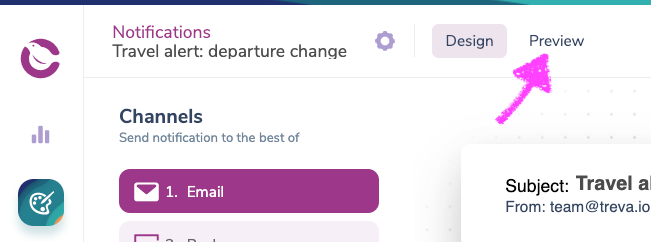
To preview a notification, open it in the designer and select the **Preview** tab.
 ## Using Test Events
When you initially open the preview tab on the demo Welcome to Courier email, there will be a generic "Welcome Example" event with an empty profile.
Any variables you insert into the template will not render until you add your own custom test event or update the JSON of the Welcome Example.
## Using Test Events
When you initially open the preview tab on the demo Welcome to Courier email, there will be a generic "Welcome Example" event with an empty profile.
Any variables you insert into the template will not render until you add your own custom test event or update the JSON of the Welcome Example.
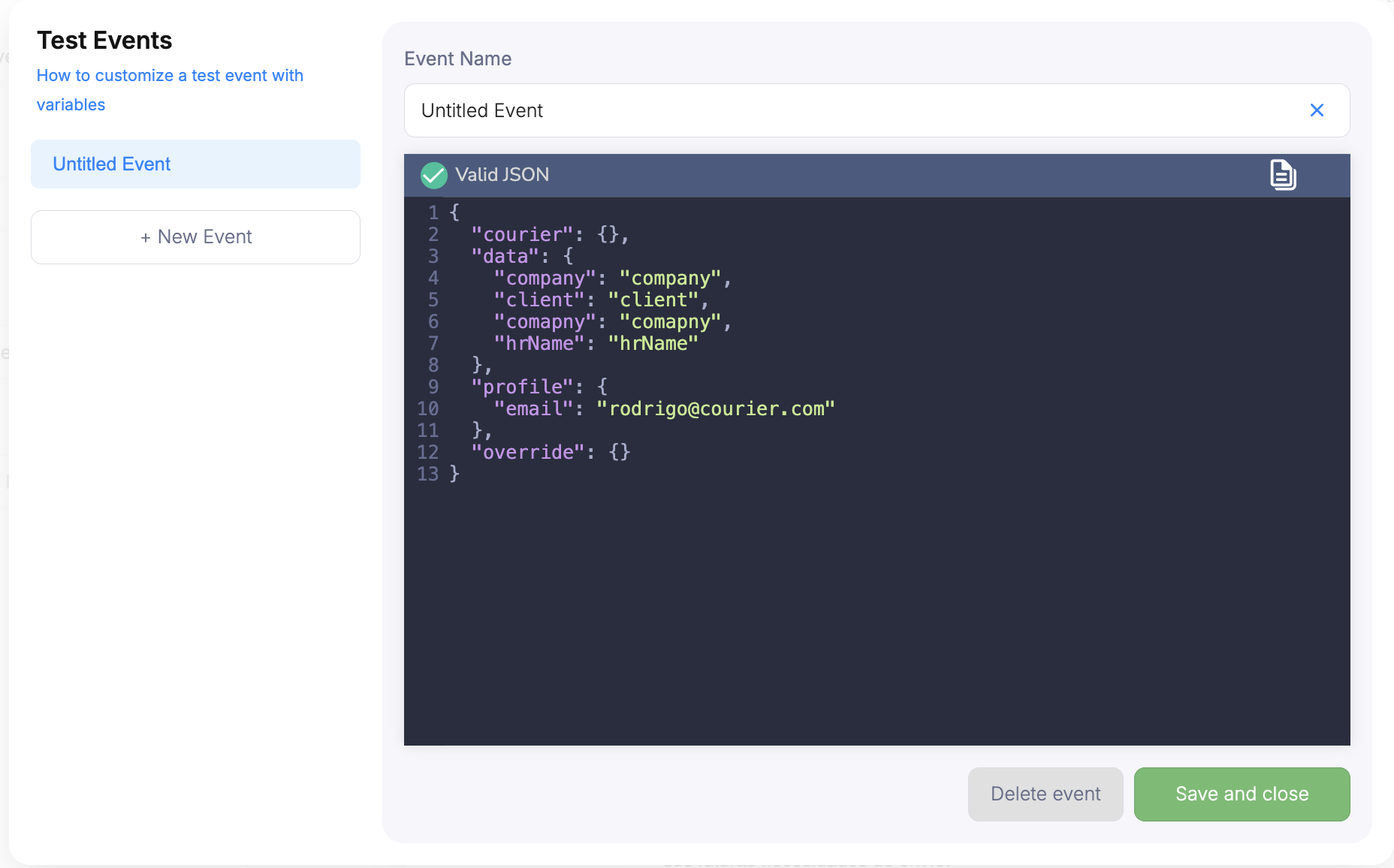 To send a test email or SMS via the [Send Tab](/platform/content/template-designer/template-designer-overview), you need to include an email and/or phone number in the `profile` object of the test event JSON.
 ## Previewing Variables
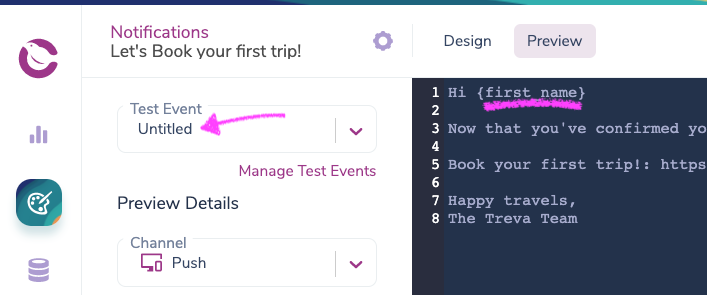
To preview and validate any variables you've built into your notification, create a test event:
Click **Manage Test Events** in the Preview tab.
## Previewing Variables
To preview and validate any variables you've built into your notification, create a test event:
Click **Manage Test Events** in the Preview tab.
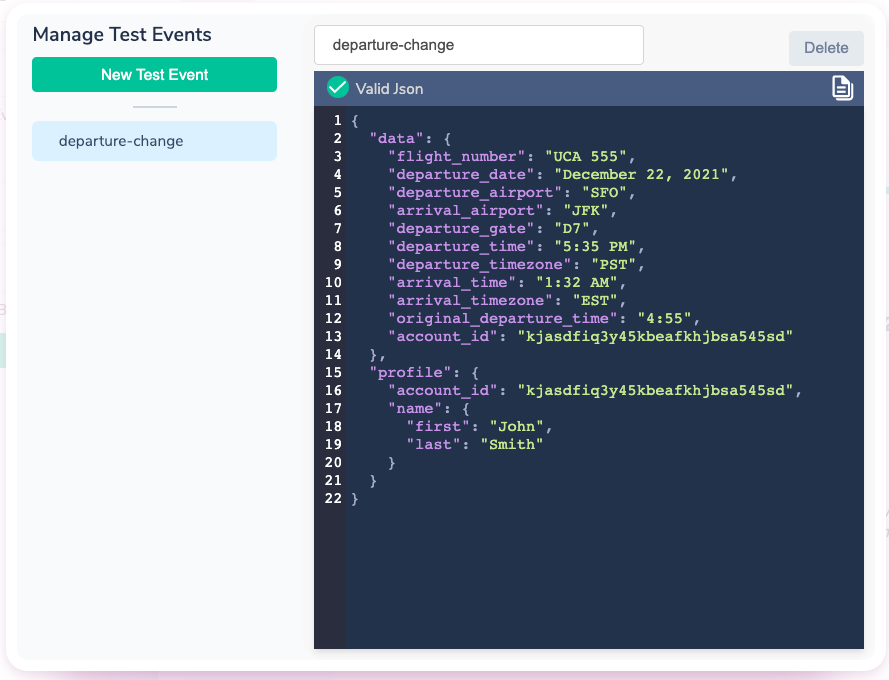 Add valid JSON with values in the `data` and/or `profile` objects for your variables.
 **Related:** [Variables](/platform/content/variables/inserting-variables)
## Creating Test Events From Logs
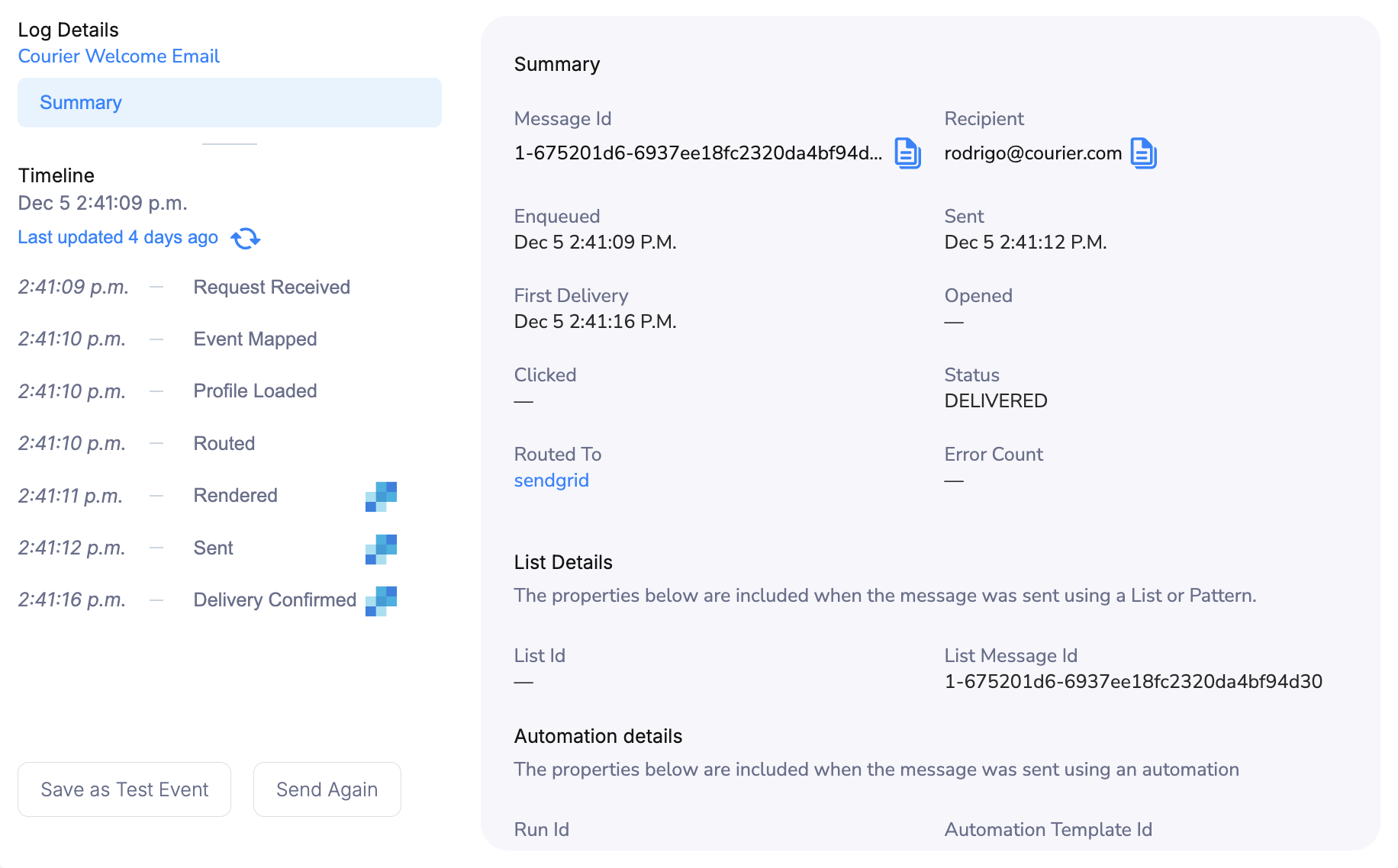
When you send an event to Courier, that event appears in the [Data Log](/platform/analytics/message-logs). You can convert logged events into test events:
1. Open an event in the Data Log
2. Click **Event Received** in the Timeline
3. Click **Save as Test Event**
The test event will appear in the preview tab of the template it's mapped to.
**Related:** [Variables](/platform/content/variables/inserting-variables)
## Creating Test Events From Logs
When you send an event to Courier, that event appears in the [Data Log](/platform/analytics/message-logs). You can convert logged events into test events:
1. Open an event in the Data Log
2. Click **Event Received** in the Timeline
3. Click **Save as Test Event**
The test event will appear in the preview tab of the template it's mapped to.
 ## Email Preview
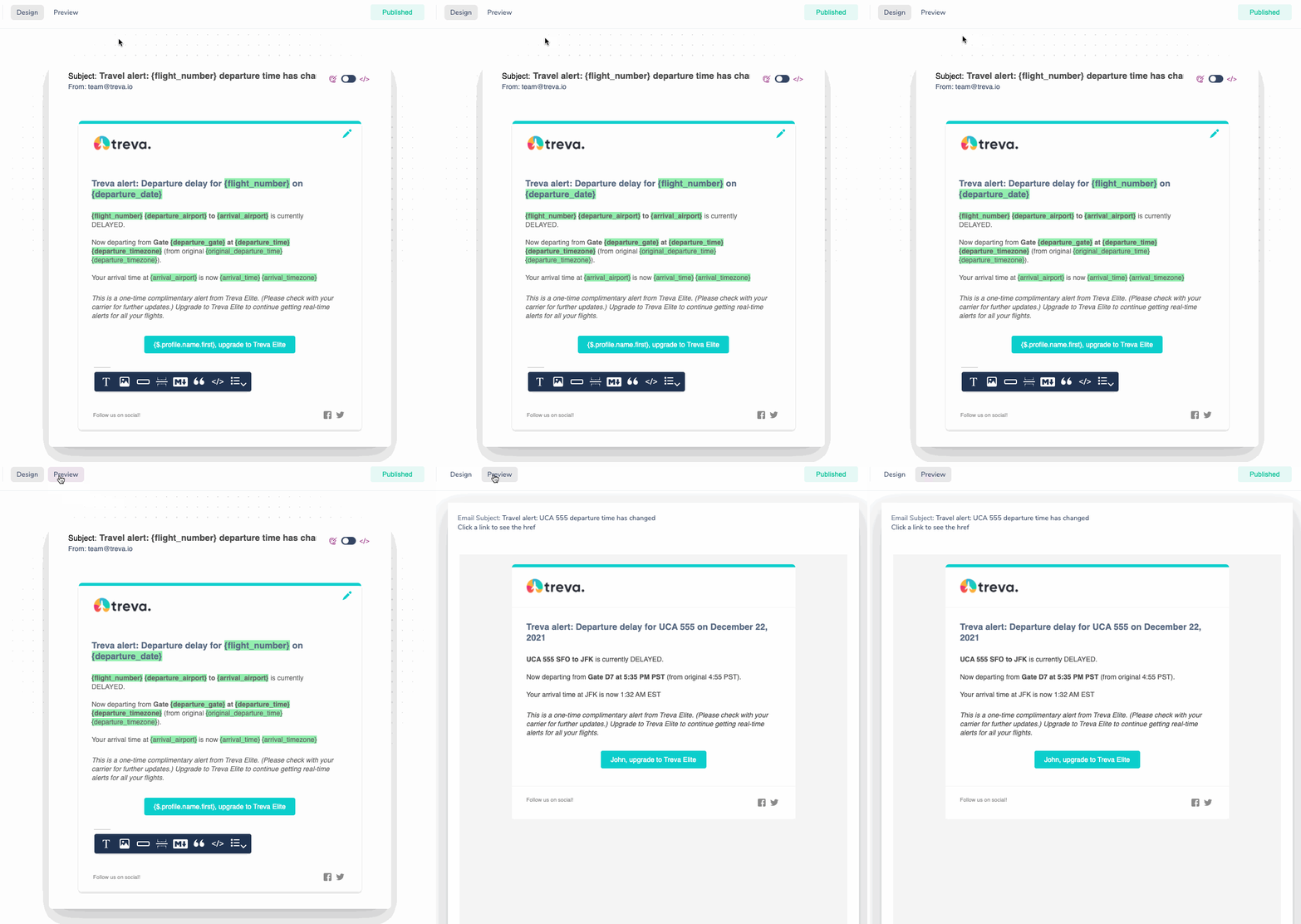
Email is the only channel that shows a fully rendered preview as it will appear to recipients. Other channels only display variable validation.
## Email Preview
Email is the only channel that shows a fully rendered preview as it will appear to recipients. Other channels only display variable validation.
 ### Plain Text Preview
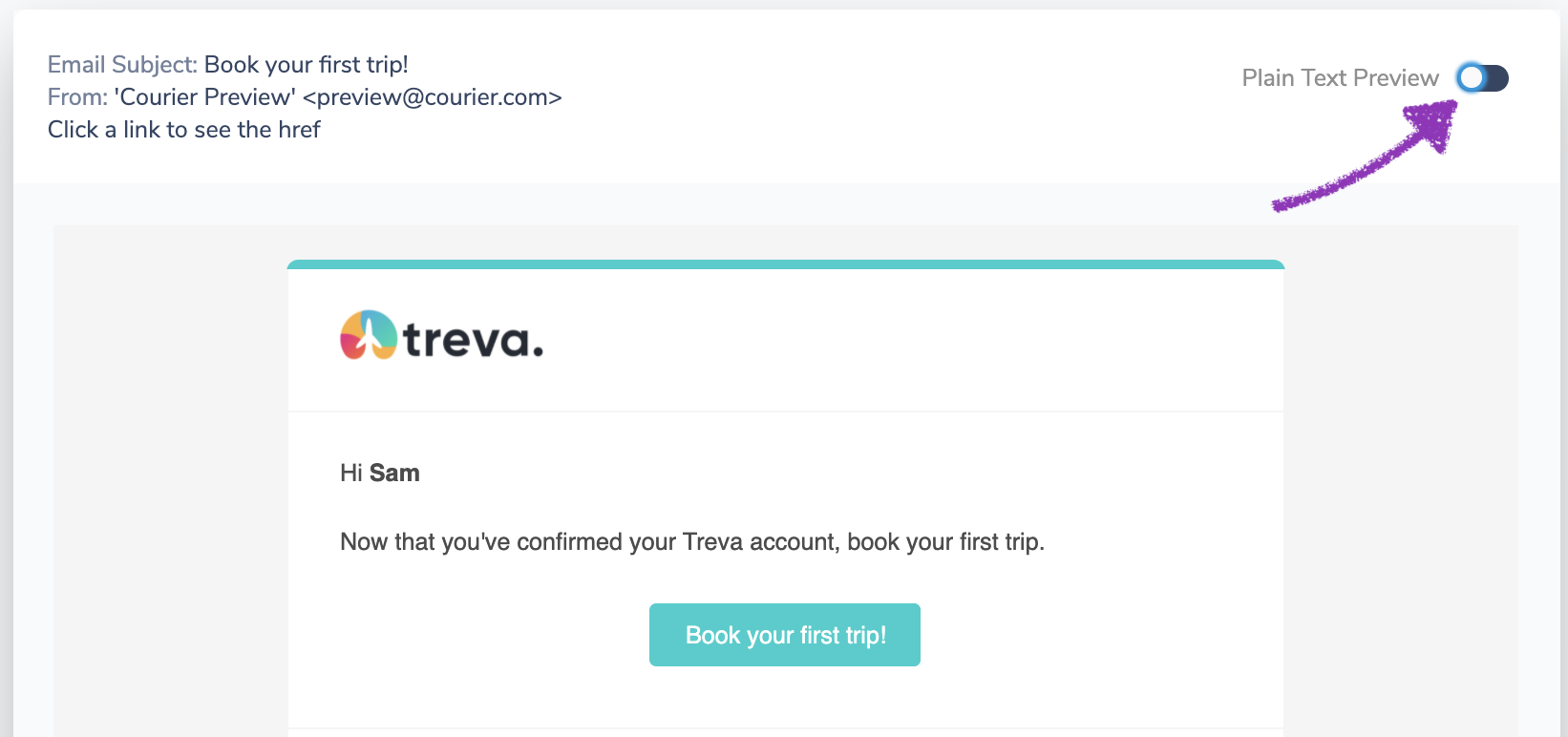
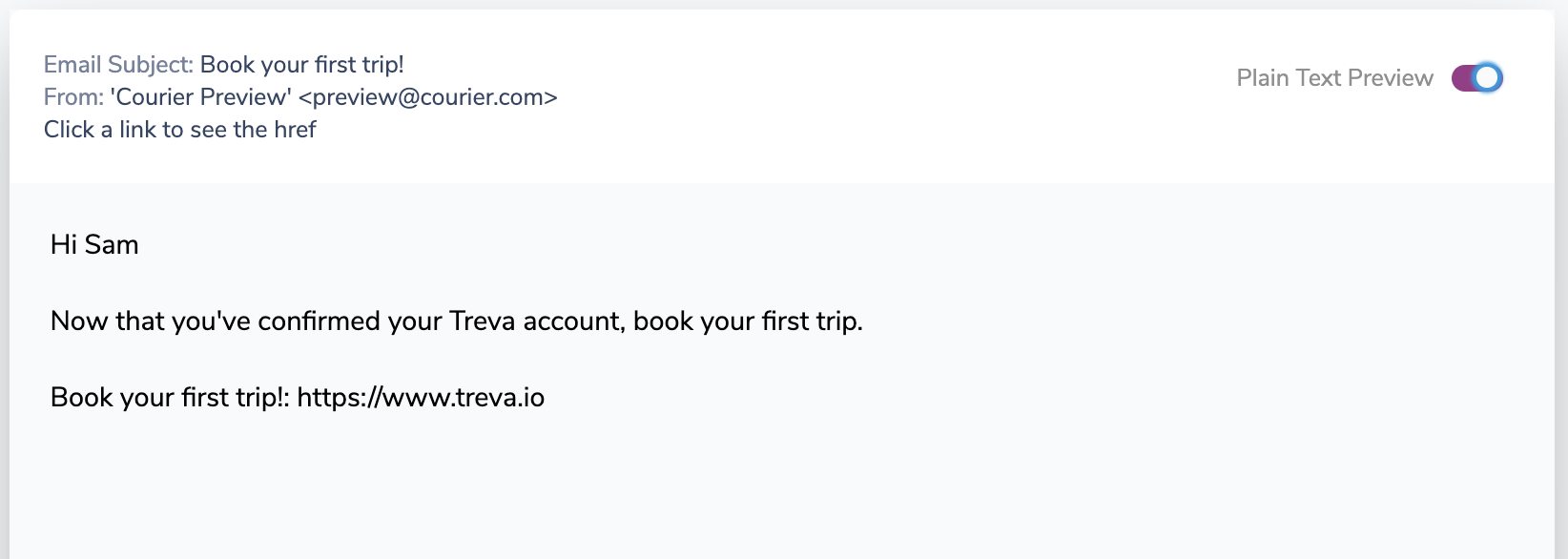
Toggle between HTML and plain text versions of your email using the Plain Text Preview switch.
### Plain Text Preview
Toggle between HTML and plain text versions of your email using the Plain Text Preview switch.
 ### Sending a Test Email
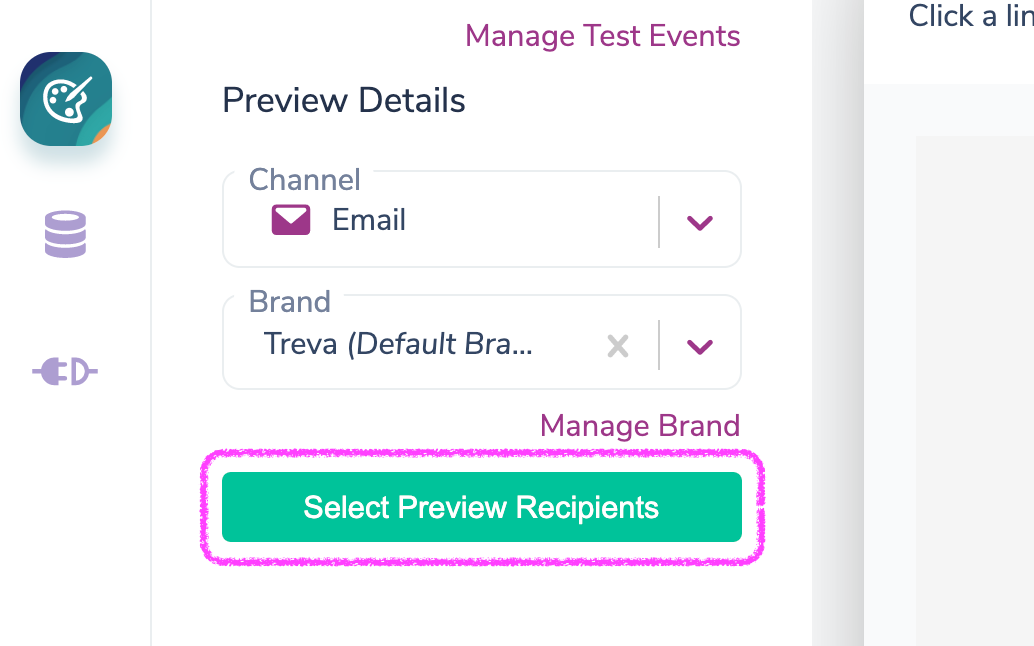
When previewing an email, you can send a test to yourself or other members of your workspace.
### Sending a Test Email
When previewing an email, you can send a test to yourself or other members of your workspace.
 ### Preview With Different Brands
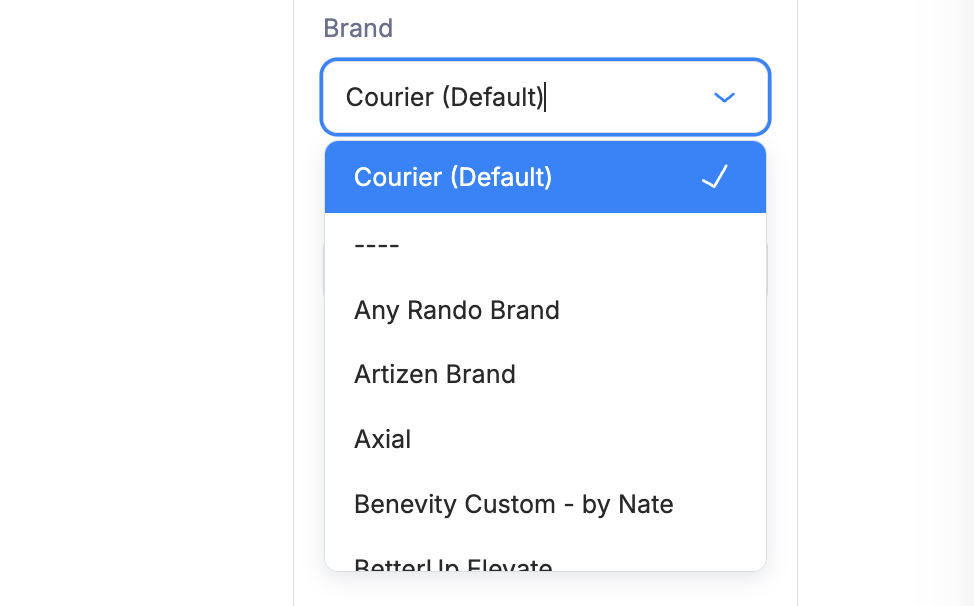
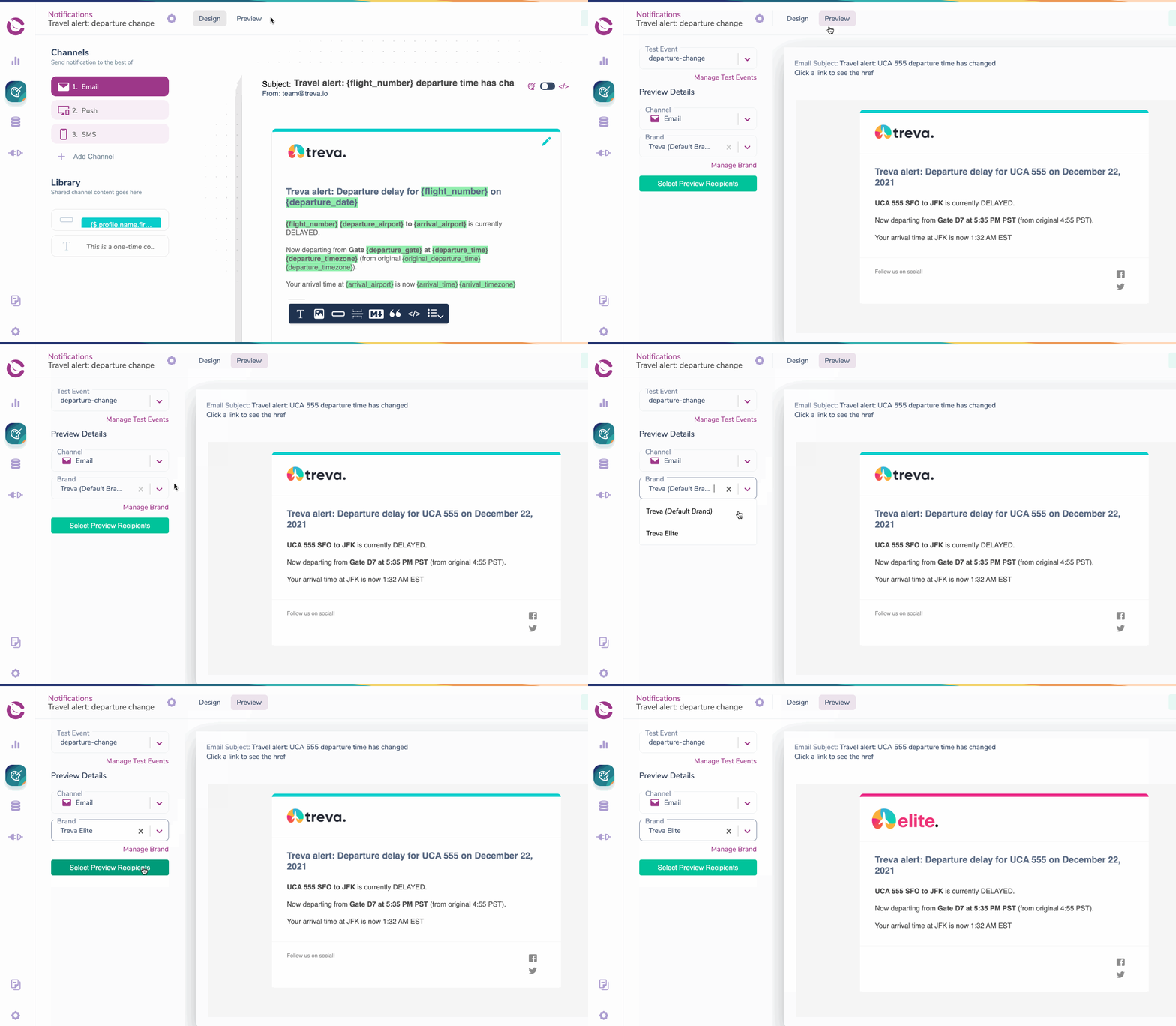
If you have multiple [Brand Templates](/platform/content/brands/brands-overview#customizing-brands), you can switch between them in the preview. Otherwise, the preview uses your [Default Brand](/platform/content/brands/brands-overview#the-default-brand).
### Preview With Different Brands
If you have multiple [Brand Templates](/platform/content/brands/brands-overview#customizing-brands), you can switch between them in the preview. Otherwise, the preview uses your [Default Brand](/platform/content/brands/brands-overview#the-default-brand).
 ## SMS Preview