> ## Documentation Index
> Fetch the complete documentation index at: https://www.courier.com/docs/llms.txt
> Use this file to discover all available pages before exploring further.
# How to Internationalize Notifications
> Send multi-language notifications using locale-based conditions, separate templates, or dynamic variables.
There are multiple ways to internationalize your notifications with Courier. The best option depends on the number of languages you support and the complexity of your templates.
## Choose Your Approach
| Approach | Best For | Logic Location |
| ------------------------------- | -------------------------------------------- | ------------------------- |
| Multiple channels, one template | Few languages, single channel type | Courier (send conditions) |
| Multiple templates | Many languages, multi-channel | Your system |
| Variables from data payload | Dynamic content, external translation system | Your system |
### Multiple Channels, One Template
In this model, you create one channel per language within a single template. Courier routes to the correct channel based on [send conditions](/platform/content/template-settings/send-conditions).
This works well for single-channel notifications or when you support just a few languages. Templates can get complex when you have multiple channel types (email, SMS, push) and many languages.
**Requirements:**
* [Channel-level conditionals](/platform/content/template-settings/send-conditions#for-notifications-and-channels)
* User locale stored in [profile](/api-reference/user-profiles/get-a-profile) or sent with the request
Add a `locale` property with [ISO 639-1](https://www.andiamo.co.uk/resources/iso-language-codes/) language codes like `en`, `en_US`, `fr`, `fr_FR`, etc.
You can store this in Courier profiles or include it in the send request.
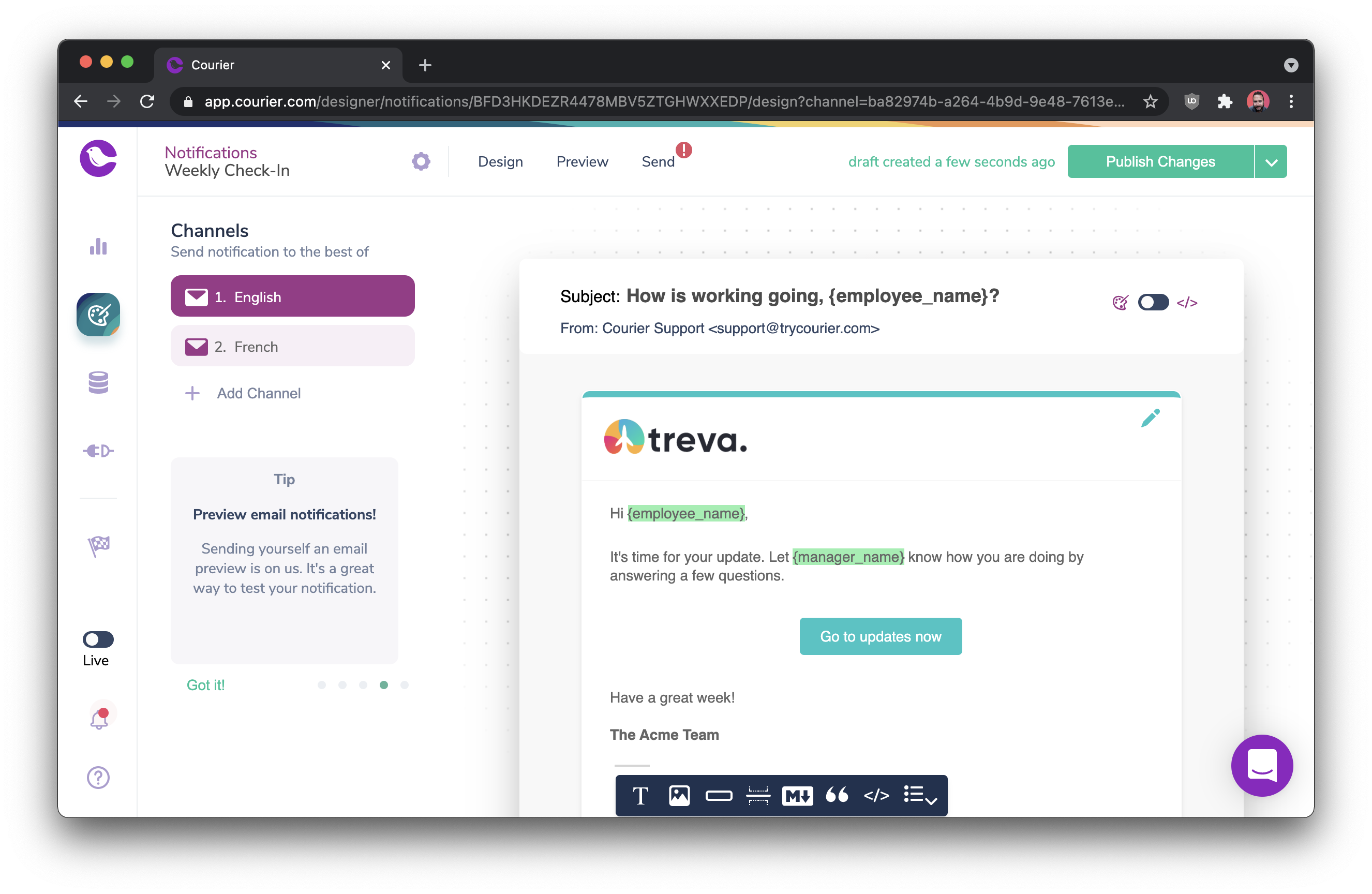
Create separate channels in your template for each language you support.
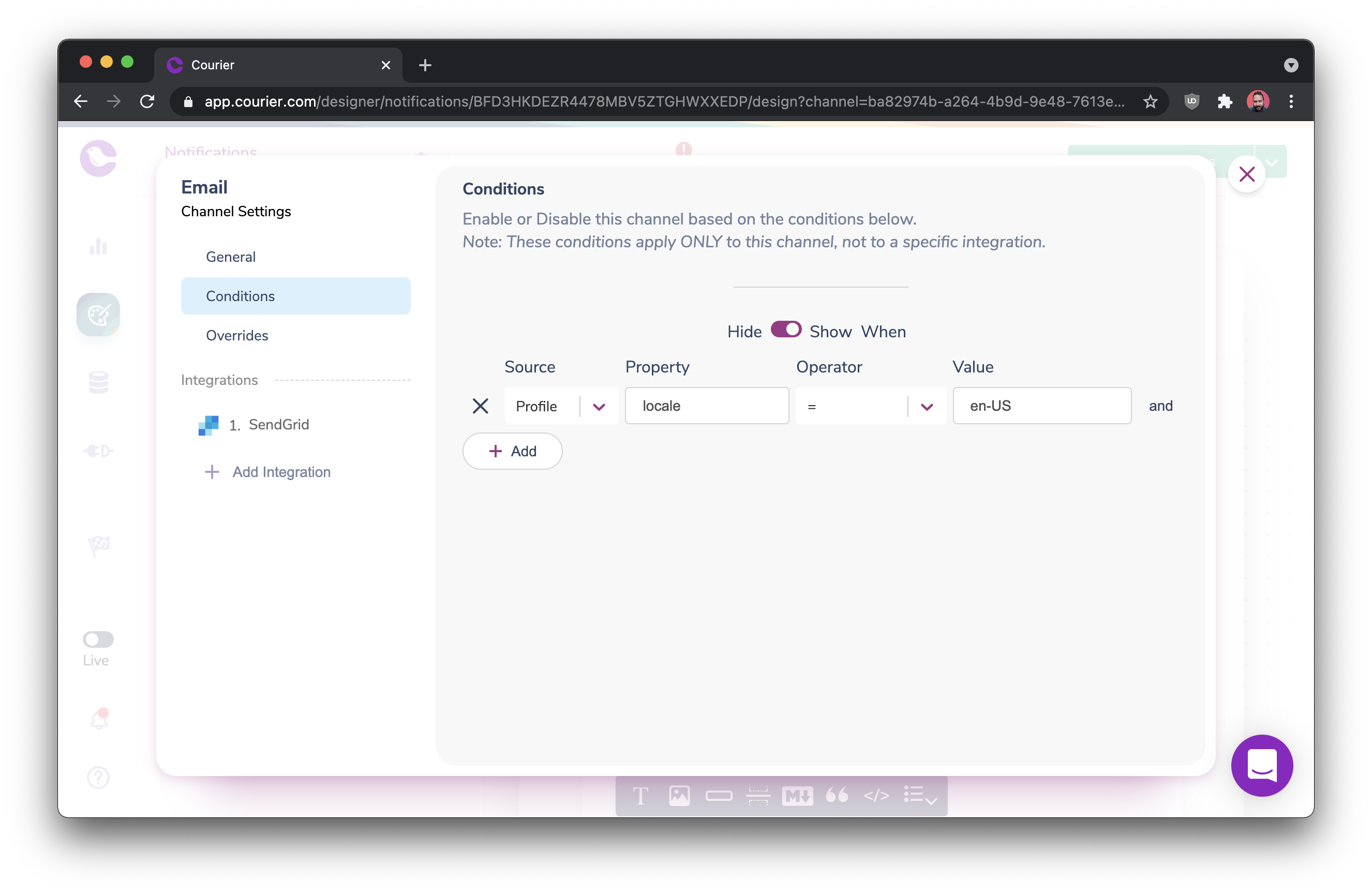
 Configure each channel's send condition to match the corresponding locale.
 ### Multiple Templates
In this model, you create a separate template for each language. Your system determines which template to trigger based on the user's language.
This is best for multi-channel notifications when you support many languages, as it keeps each template simple and focused.
For five supported languages, create five versions of the same template.
### Multiple Templates
In this model, you create a separate template for each language. Your system determines which template to trigger based on the user's language.
This is best for multi-channel notifications when you support many languages, as it keeps each template simple and focused.
For five supported languages, create five versions of the same template.
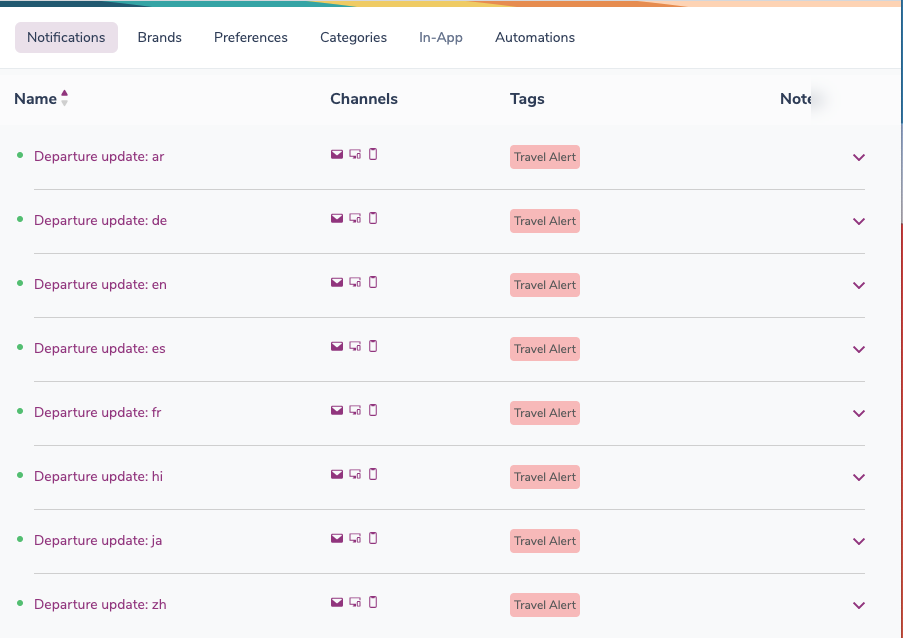 Assign a unique event name to each template (e.g., `welcome-email-en`, `welcome-email-fr`).
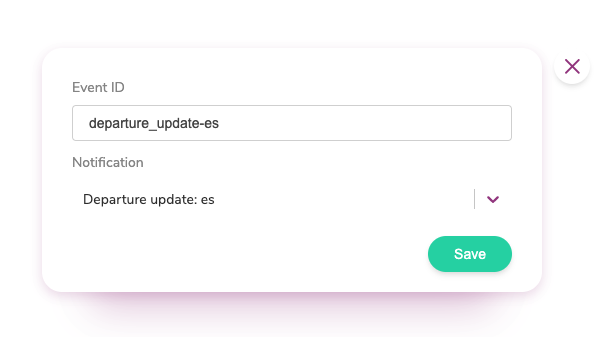 In your application, determine the user's language and trigger the corresponding event.
### Variables From Data Payload
In this model, you maintain a single template and pass translated content in your send request. The template uses variables to display the localized content.
This approach works well when you manage translations in your own backend or use an external translation service.
Store translated strings in your database or translation management system.
Pass the translated content in the `data` object:
```json theme={null}
{
"message": {
"to": { "email": "user@example.com" },
"template": "TEMPLATE_ID",
"data": {
"greeting": "Bonjour",
"welcome_message": "Bienvenue sur notre plateforme!",
"cta_text": "Commencer"
}
}
}
```
Reference the translated content using variables.
In your application, determine the user's language and trigger the corresponding event.
### Variables From Data Payload
In this model, you maintain a single template and pass translated content in your send request. The template uses variables to display the localized content.
This approach works well when you manage translations in your own backend or use an external translation service.
Store translated strings in your database or translation management system.
Pass the translated content in the `data` object:
```json theme={null}
{
"message": {
"to": { "email": "user@example.com" },
"template": "TEMPLATE_ID",
"data": {
"greeting": "Bonjour",
"welcome_message": "Bienvenue sur notre plateforme!",
"cta_text": "Commencer"
}
}
}
```
Reference the translated content using variables.
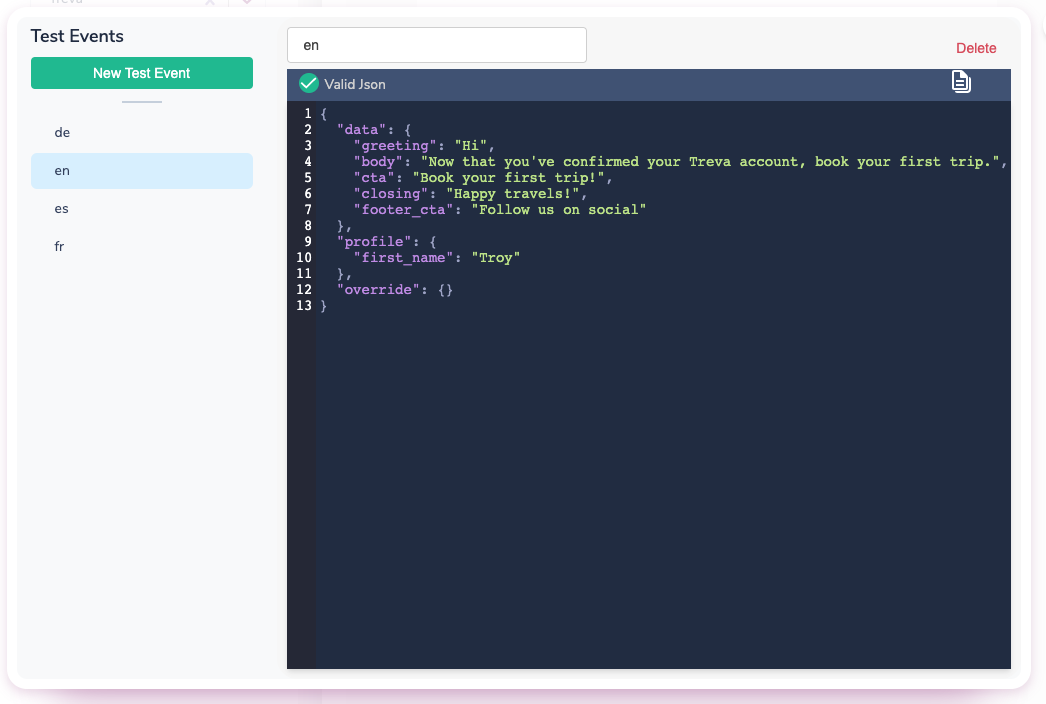
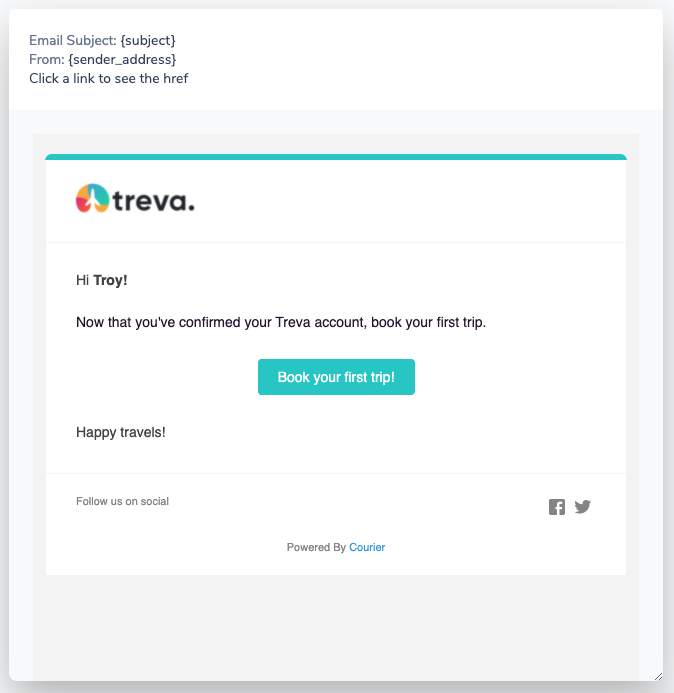
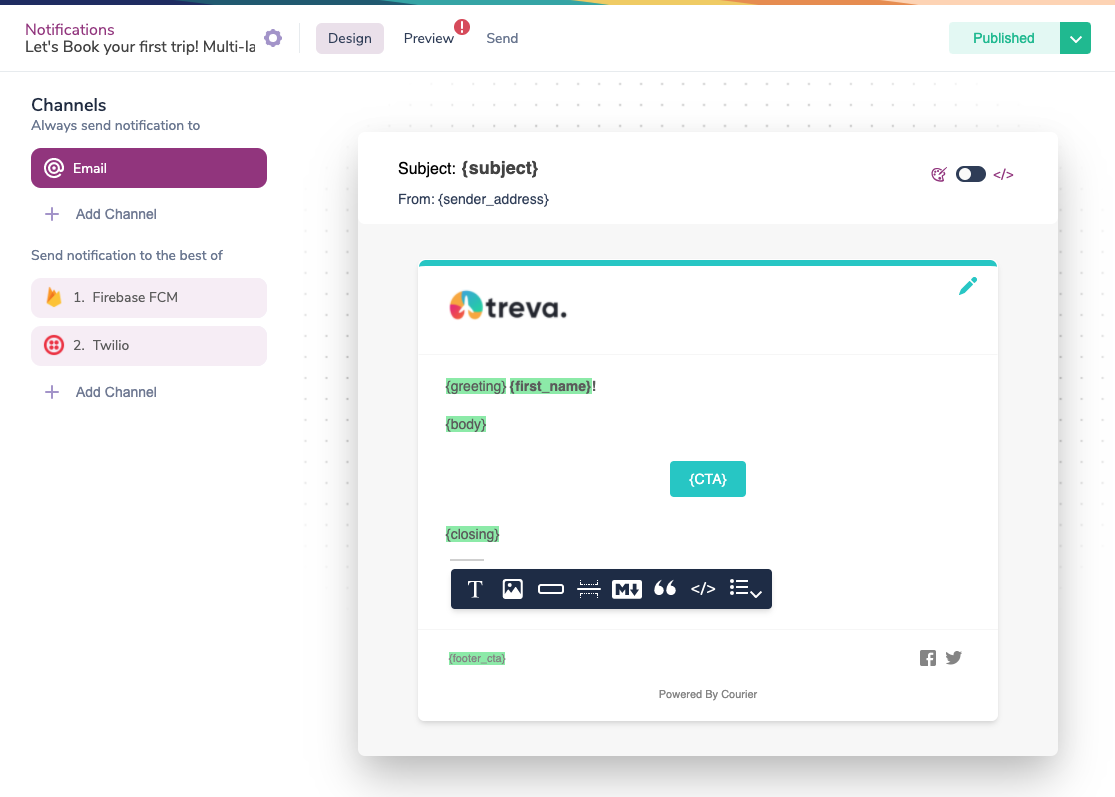 Create test events with translated values to preview the result.
 ## API-Driven Localization
For teams using translation management systems (TMS), Courier provides APIs to programmatically manage translations at the block level. This feature is available on Business and Enterprise plans.
See [Localization](/platform/content/localization) for API details.
## Formatting Dates and Numbers
For locale-specific date and number formatting, see [Handlebars Helpers](/platform/content/template-designer/handlebars-designer#use-cases).
## API-Driven Localization
For teams using translation management systems (TMS), Courier provides APIs to programmatically manage translations at the block level. This feature is available on Business and Enterprise plans.
See [Localization](/platform/content/localization) for API details.
## Formatting Dates and Numbers
For locale-specific date and number formatting, see [Handlebars Helpers](/platform/content/template-designer/handlebars-designer#use-cases).