> ## Documentation Index
> Fetch the complete documentation index at: https://www.courier.com/docs/llms.txt
> Use this file to discover all available pages before exploring further.
# Translate templates with AI
> Add locales to a notification template and translate content with AI in Design Studio.
Courier can send the same notification in multiple languages. In Design Studio, you write content once in a default language, add locales, and let AI translate each field. When you update the source copy later, Courier flags outdated translations so you can refresh them in one click.
This tutorial walks through the full flow: open the translation editor, add a locale, review AI-generated translations, and keep them in sync when your default content changes. Prefer to manage translations in code? Use the [localization API](/tutorials/content/localize-notifications-with-api) instead.
## Add a locale
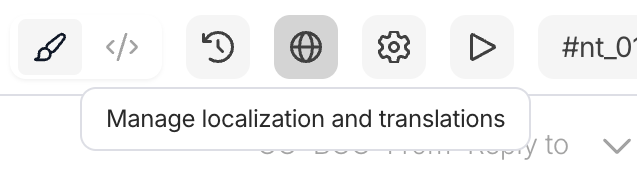
Open your template in Design Studio, then click the **globe** icon in the toolbar (**Manage localization and translations**). The **Add locale** modal opens.
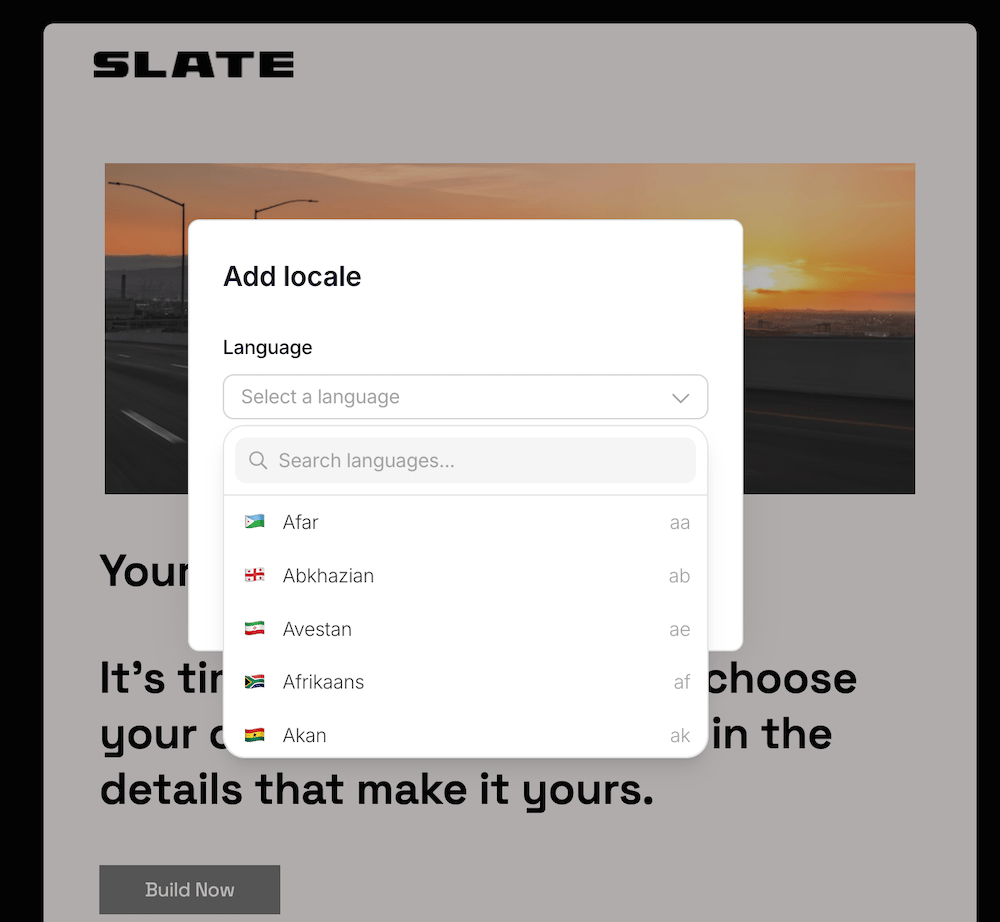
 Search for your target language and select it.
 Check **Translate with AI** to generate translations automatically when you add the locale. You can also translate manually or run AI translation later from the review screen.
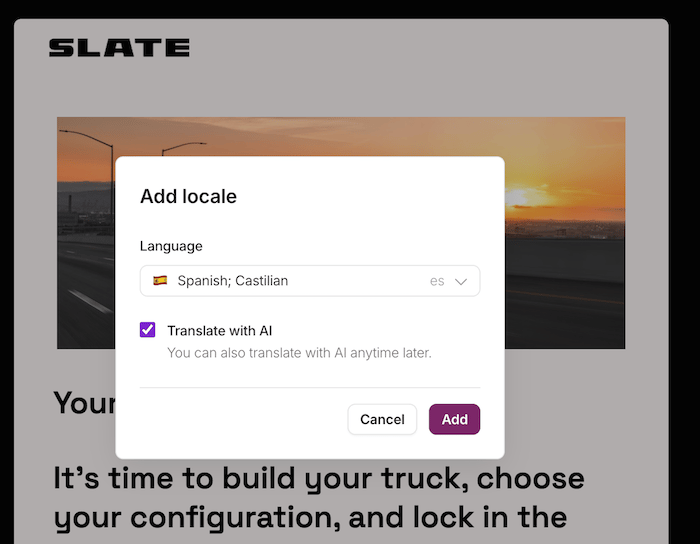 Click **Add**. Courier creates the locale and runs AI translation across all translatable fields in the template, including email subjects, body text, and button labels.
## Review translations
After translation completes, the review screen shows a side-by-side table: **Default** on the left, your target locale on the right. Each row maps one content field (subject line, paragraph, call-to-action, and so on).
Click **Add**. Courier creates the locale and runs AI translation across all translatable fields in the template, including email subjects, body text, and button labels.
## Review translations
After translation completes, the review screen shows a side-by-side table: **Default** on the left, your target locale on the right. Each row maps one content field (subject line, paragraph, call-to-action, and so on).
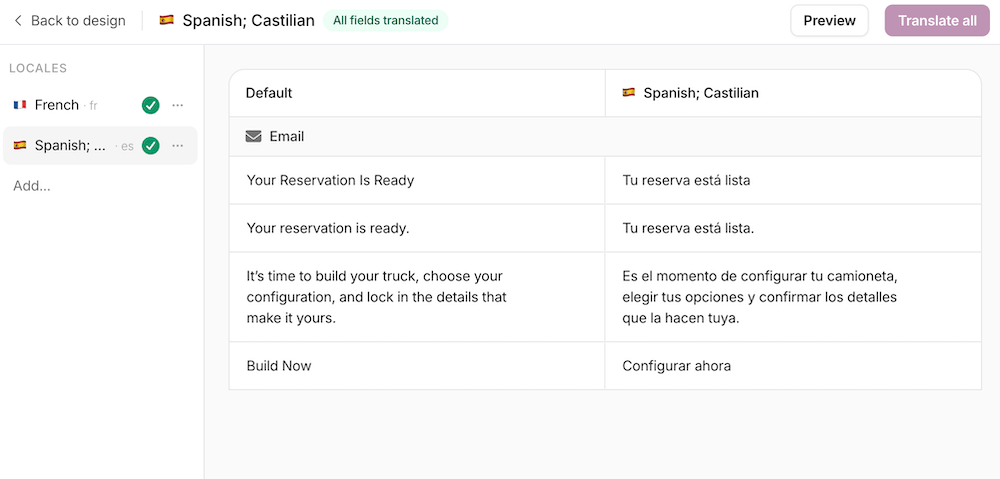 Use the locale list in the sidebar to switch between languages. The status badge at the top shows how many fields are translated for the active locale.
To preview how a locale renders, click **Preview**. Edit any field directly in the right column if you want to adjust the AI output before publishing.
AI translation preserves [variables](/platform/content/variables/inserting-variables) in your template. Review fields that contain dynamic placeholders to confirm the translated text still reads naturally around `{variable}` tokens.
## Update outdated translations
When you change content in the default language, Courier marks existing translations as **outdated**. The review screen highlights the changed source string and shows a warning on the affected translation.
Use the locale list in the sidebar to switch between languages. The status badge at the top shows how many fields are translated for the active locale.
To preview how a locale renders, click **Preview**. Edit any field directly in the right column if you want to adjust the AI output before publishing.
AI translation preserves [variables](/platform/content/variables/inserting-variables) in your template. Review fields that contain dynamic placeholders to confirm the translated text still reads naturally around `{variable}` tokens.
## Update outdated translations
When you change content in the default language, Courier marks existing translations as **outdated**. The review screen highlights the changed source string and shows a warning on the affected translation.
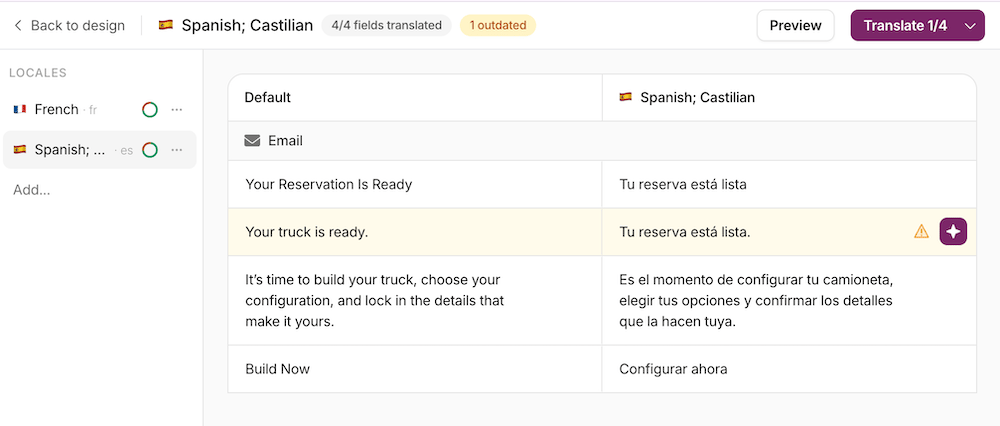 Click the **Translate all** button (or the per-field AI action) to re-translate outdated fields. Courier uses the current default text as the source and updates the locale in place.
You can also translate individual fields without re-running the full locale.
## Send localized notifications
Courier picks the right locale at send time based on the recipient's profile or the `locale` field in your send request:
```json theme={null}
{
"message": {
"to": {
"email": "user@example.com",
"locale": "es"
},
"template": "TEMPLATE_ID",
"data": {
"name": "Alex"
}
}
}
```
To verify before sending, create a [test event](/tutorials/content/how-to-preview-notification) with a `locale` on the profile. The preview shows the localized version instead of the default language.
## What's next
Push translations from a script or translation management system.
Locale formats, RTL support, and full API details.
Format dates and numbers for a user's locale.
Route to channels based on locale or other profile data.
Click the **Translate all** button (or the per-field AI action) to re-translate outdated fields. Courier uses the current default text as the source and updates the locale in place.
You can also translate individual fields without re-running the full locale.
## Send localized notifications
Courier picks the right locale at send time based on the recipient's profile or the `locale` field in your send request:
```json theme={null}
{
"message": {
"to": {
"email": "user@example.com",
"locale": "es"
},
"template": "TEMPLATE_ID",
"data": {
"name": "Alex"
}
}
}
```
To verify before sending, create a [test event](/tutorials/content/how-to-preview-notification) with a `locale` on the profile. The preview shows the localized version instead of the default language.
## What's next
Push translations from a script or translation management system.
Locale formats, RTL support, and full API details.
Format dates and numbers for a user's locale.
Route to channels based on locale or other profile data.