> ## Documentation Index
> Fetch the complete documentation index at: https://www.courier.com/docs/llms.txt
> Use this file to discover all available pages before exploring further.
# How to Create Your First Journey
> Build a journey from scratch: choose a trigger, define a schema, add a send node, design a message, publish, and invoke.
This tutorial walks you through creating a simple journey end-to-end: one trigger, one send node, one email. By the end, you'll have a working journey that sends an email when invoked via API.
Journeys can do much more than send a single email. Add [delays](/platform/journeys/nodes/delay) to space out messages, [branches](/platform/journeys/nodes/branch) to send users down different paths, [fetch nodes](/platform/journeys/nodes/fetch-data) to pull in data from external APIs, or [throttles](/platform/journeys/nodes/throttle) to prevent over-messaging. Once you're comfortable with the basics, check out [Build an Onboarding Journey](/tutorials/journeys/how-to-build-a-multi-step-onboarding-journey) for a more advanced example.
## Prerequisites
* A [Courier account](https://app.courier.com/) with at least one email provider configured (e.g., SendGrid, Postmark, Amazon SES)
* Your Courier API key (found in [Settings > API Keys](https://app.courier.com/settings/api-keys))
## Build the Journey
Navigate to [Journeys](https://app.courier.com/journeys) and click **New Journey**. You'll see the trigger selection screen.
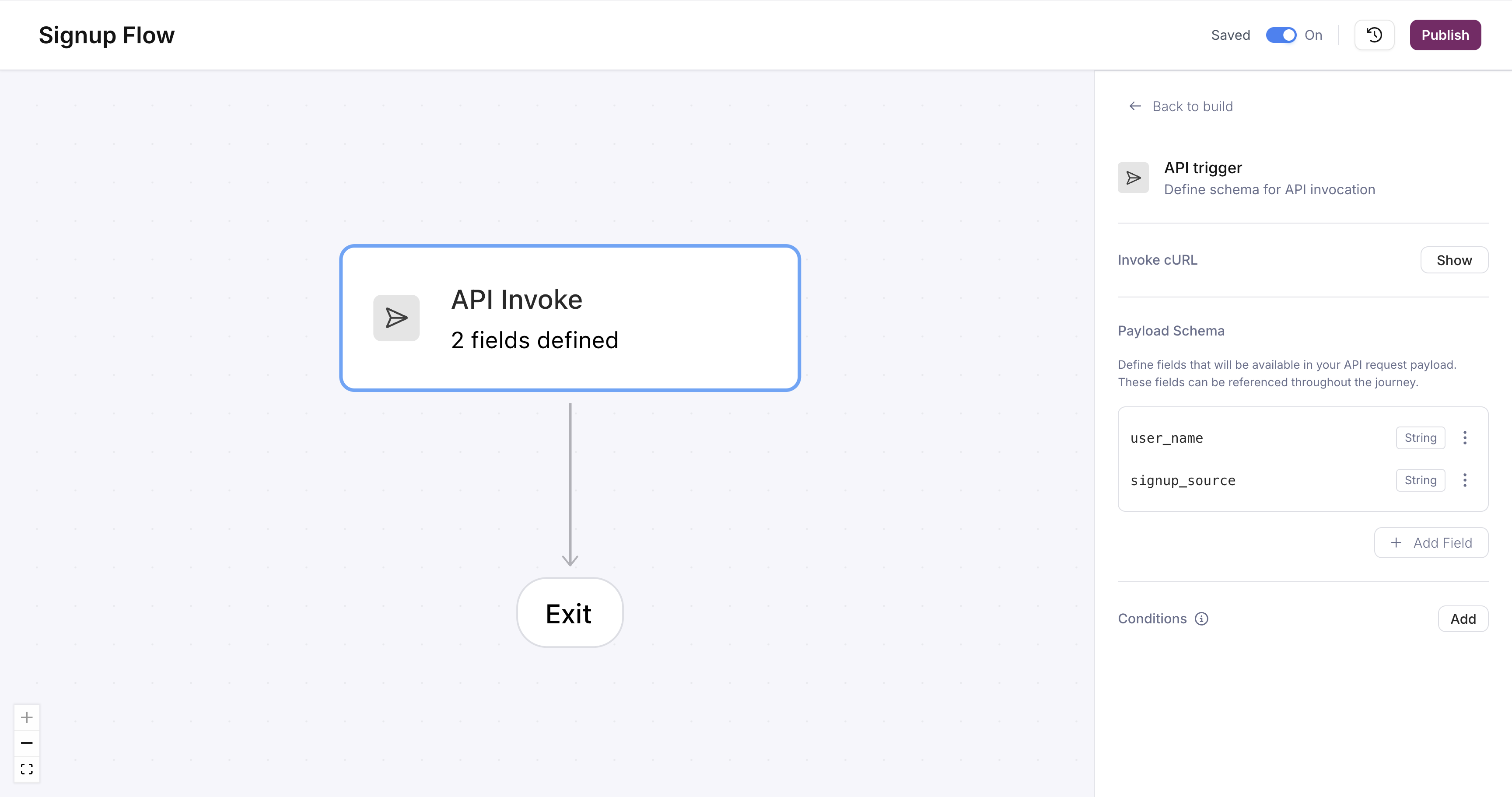
 Click **API**. This creates a journey that starts when your code sends a POST request. Courier adds a trigger node to the canvas and opens its configuration panel.
Schema fields define the data contract between your application and this journey. Every invocation must include these fields.
Add two fields:
| Field name | Type |
| --------------- | ------ |
| `user_name` | String |
| `signup_source` | String |
Click **Add Field** for each one, enter the name, select the type, and save. These fields will be available as variables throughout the journey.
Click **API**. This creates a journey that starts when your code sends a POST request. Courier adds a trigger node to the canvas and opens its configuration panel.
Schema fields define the data contract between your application and this journey. Every invocation must include these fields.
Add two fields:
| Field name | Type |
| --------------- | ------ |
| `user_name` | String |
| `signup_source` | String |
Click **Add Field** for each one, enter the name, select the type, and save. These fields will be available as variables throughout the journey.
 Drag a **Send** node from the palette onto the canvas below the trigger, or click the **+** button on the edge below the trigger node. Select **Email** as the channel.
In the send node's configuration panel, click **+ Create** next to "Message." Courier creates a new template and opens the template designer.
Design your welcome email:
1. In the **Subject** field at the top, type `Welcome,` then insert the `user_name` variable so it reads `Welcome, {{user_name}}!`
2. In the body editor, add a **Text** block and write something like `Thanks for signing up via {{signup_source}}. We're glad you're here.`
Close the designer when you're done. The send node now shows the template name.
Drag a **Send** node from the palette onto the canvas below the trigger, or click the **+** button on the edge below the trigger node. Select **Email** as the channel.
In the send node's configuration panel, click **+ Create** next to "Message." Courier creates a new template and opens the template designer.
Design your welcome email:
1. In the **Subject** field at the top, type `Welcome,` then insert the `user_name` variable so it reads `Welcome, {{user_name}}!`
2. In the body editor, add a **Text** block and write something like `Thanks for signing up via {{signup_source}}. We're glad you're here.`
Close the designer when you're done. The send node now shows the template name.
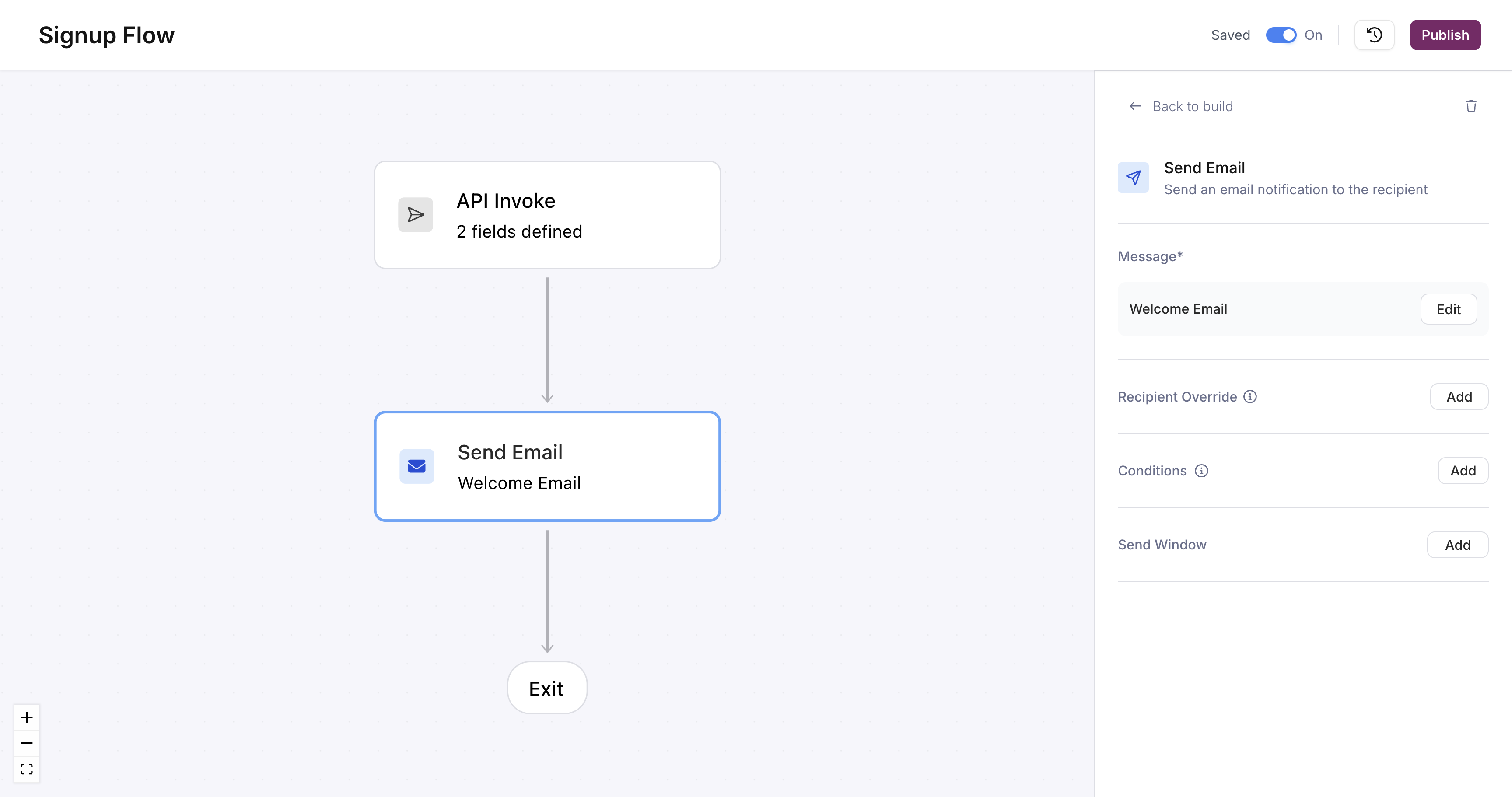 Click **Publish** in the top-right corner. The journey is now live and ready to receive invocations.
## Invoke the Journey
Copy the journey ID from the URL bar (`app.courier.com/journeys/:journeyId/design`) and invoke it with your schema fields.
```bash cURL icon="terminal" wrap theme={null}
curl -X POST https://api.courier.com/journeys/YOUR_JOURNEY_ID/invoke \
-H "Authorization: Bearer $COURIER_API_KEY" \
-H "Content-Type: application/json" \
-d '{
"user_id": "user_123",
"data": {
"user_name": "Jane",
"signup_source": "homepage"
}
}'
```
```javascript Node.js icon="node-js" theme={null}
import Courier from "@trycourier/courier";
const client = new Courier({ apiKey: "your_api_key" });
const { runId } = await client.journeys.invoke("YOUR_JOURNEY_ID", {
userId: "user_123",
data: {
user_name: "Jane",
signup_source: "homepage",
},
});
console.log("Run ID:", runId);
```
```python Python icon="python" theme={null}
from courier import Courier
client = Courier(api_key="your_api_key")
response = client.journeys.invoke(
"YOUR_JOURNEY_ID",
user_id="user_123",
data={
"user_name": "Jane",
"signup_source": "homepage",
},
)
print("Run ID:", response.run_id)
```
You should get a `202` response with a `runId`.
Make sure user `user_123` has an email address in their Courier profile, or include it in the `profile` field of the request. Without an email, the send node won't have a delivery address.
## Inspect the Run
Open your journey and click the **Logs** tab. You should see the run you just triggered. Click it to open the detail view.
The run detail overlays execution status on the journey canvas. You can see that the trigger node started the run and the send node delivered (or attempted to deliver) the email. Click the send node to inspect the payload and delivery status.
See [Run Inspection](/platform/journeys/run-inspection) for a full guide on debugging runs.
## What's Next
Multi-step journey with delays, branching, and data enrichment
Full reference for API and Segment triggers
Reference for all node types: branch, delay, fetch, throttle
Configure recipients, conditions, and send windows
Click **Publish** in the top-right corner. The journey is now live and ready to receive invocations.
## Invoke the Journey
Copy the journey ID from the URL bar (`app.courier.com/journeys/:journeyId/design`) and invoke it with your schema fields.
```bash cURL icon="terminal" wrap theme={null}
curl -X POST https://api.courier.com/journeys/YOUR_JOURNEY_ID/invoke \
-H "Authorization: Bearer $COURIER_API_KEY" \
-H "Content-Type: application/json" \
-d '{
"user_id": "user_123",
"data": {
"user_name": "Jane",
"signup_source": "homepage"
}
}'
```
```javascript Node.js icon="node-js" theme={null}
import Courier from "@trycourier/courier";
const client = new Courier({ apiKey: "your_api_key" });
const { runId } = await client.journeys.invoke("YOUR_JOURNEY_ID", {
userId: "user_123",
data: {
user_name: "Jane",
signup_source: "homepage",
},
});
console.log("Run ID:", runId);
```
```python Python icon="python" theme={null}
from courier import Courier
client = Courier(api_key="your_api_key")
response = client.journeys.invoke(
"YOUR_JOURNEY_ID",
user_id="user_123",
data={
"user_name": "Jane",
"signup_source": "homepage",
},
)
print("Run ID:", response.run_id)
```
You should get a `202` response with a `runId`.
Make sure user `user_123` has an email address in their Courier profile, or include it in the `profile` field of the request. Without an email, the send node won't have a delivery address.
## Inspect the Run
Open your journey and click the **Logs** tab. You should see the run you just triggered. Click it to open the detail view.
The run detail overlays execution status on the journey canvas. You can see that the trigger node started the run and the send node delivered (or attempted to deliver) the email. Click the send node to inspect the payload and delivery status.
See [Run Inspection](/platform/journeys/run-inspection) for a full guide on debugging runs.
## What's Next
Multi-step journey with delays, branching, and data enrichment
Full reference for API and Segment triggers
Reference for all node types: branch, delay, fetch, throttle
Configure recipients, conditions, and send windows