> ## Documentation Index
> Fetch the complete documentation index at: https://www.courier.com/docs/llms.txt
> Use this file to discover all available pages before exploring further.
# How To Configure Multi-Channel Routing
> Configure multi-channel routing in Courier using the routing object in the Send API or the visual designer to prioritize, fallback, or deliver messages across email, SMS, push, and chat channels.
Courier makes it easy to set custom routing rules and ensure your users get exactly the product notification experience you intend.
## Routing in the Send API
The `routing` object allows you to select various channels and decide which ones you want to send messages to.
When the `method` property is defined as `single`, Courier will attempt to the send messages to only one channel. In the example below, it will first attempt SMS and fail since `phone_number` is not included in the user profile. Next, it will attempt to send via email *instead*. If the email is sent successfully, it will not attempt to send a push or chat notification.
```json theme={null}
"message": {
"to": {
"email": "example@email.com",
},
"routing": {
"method": "single",
"channels": ["email", "sms", "push", "chat"],
},
},
```
When the `method` property is defined as `all`, Courier will attempt to send messages to all listed channels. In the example below, Courier will send the message via email and SMS. Since the push and chat profile requirements are not completed, it will not be able to send via those channels.
```json theme={null}
"to": {
"phone_number": "123456789",
"email": "example@email.com",
"slack": {
"access_token": "xoxb-xxxxx",
"email": "user@example.com"
},
"apn": {
"token": "YOUR_APNS_TOKEN"
}
},
"routing": {
"method": "all",
"channels": ["sms", "email", "push", "chat"],
}
```
Ensure that for all channels listed, the profile requirements are met. You can find information about profile requirements for a provider in the respective integration documentation.
### Combining Routing with Channel Conditions
When using custom routing in the Send API, you can combine it with channel conditions using the `message.channels` object.
**Important**: When you specify a `routing` object, channel conditions configured in the template's default routing strategy are not automatically included. You must explicitly provide channel conditions in `message.channels` if you want them evaluated.
```json theme={null}
{
"message": {
"to": { "user_id": "user_123" },
"template": "order-confirmation",
"data": {
"order_id": "ORD-12345",
"urgency": "high"
},
"routing": {
"method": "single",
"channels": ["email", "sms", "push"]
},
"channels": {
"sms": {
"if": "data.urgency === 'high'"
},
"push": {
"if": "profile.custom.push_enabled === true"
}
}
}
}
```
For more details on channel conditions, see [Channel Settings](/platform/sending/channel-settings#channel-conditions-in-json).
## Routing in the Designer
The priority of the channels you select for your notification are arranged in a top-to-bottom hierarchy. To change priority, simply drag and drop your notification channels.
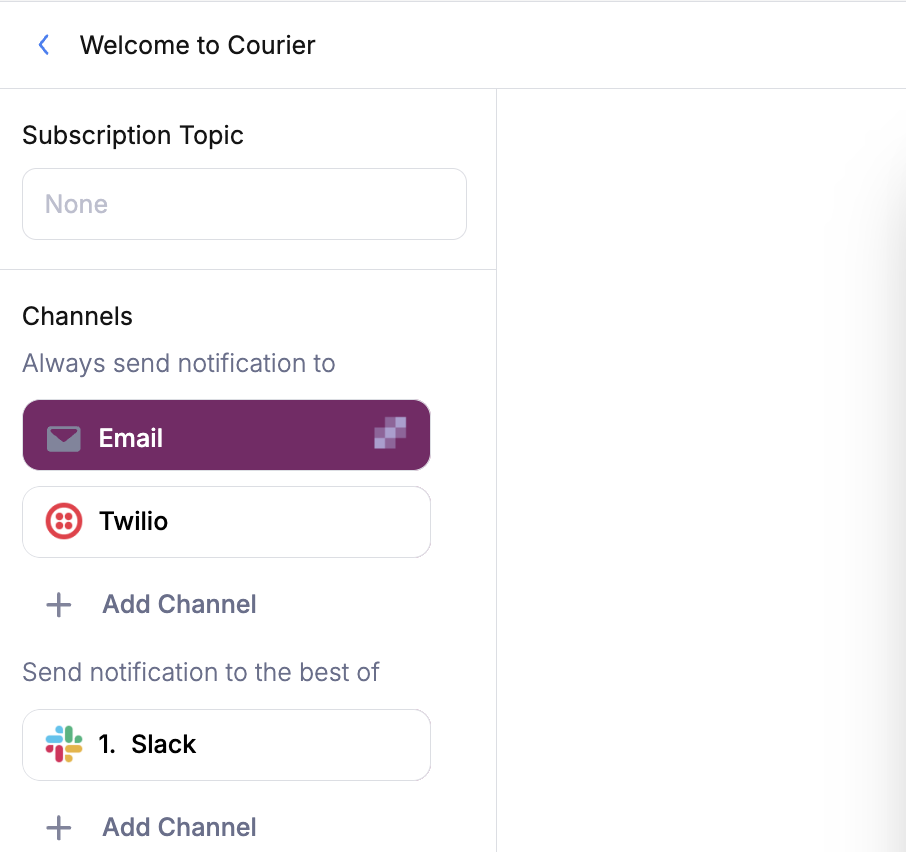 Courier will attempt to send the notification to the best channel possible, starting from the top and going to the bottom, based on the provided user contact information. You must provide Courier with user's contact information within their [Courier recipient profile](/api-reference/user-profiles/get-a-profile) or via the [Send API](/api-reference/send/send-a-message) call itself.
Take, for example, a notification that is designed to send via `email`, `SMS` or `push`, in that order of priority:
Courier will attempt to send the notification to the best channel possible, starting from the top and going to the bottom, based on the provided user contact information. You must provide Courier with user's contact information within their [Courier recipient profile](/api-reference/user-profiles/get-a-profile) or via the [Send API](/api-reference/send/send-a-message) call itself.
Take, for example, a notification that is designed to send via `email`, `SMS` or `push`, in that order of priority:
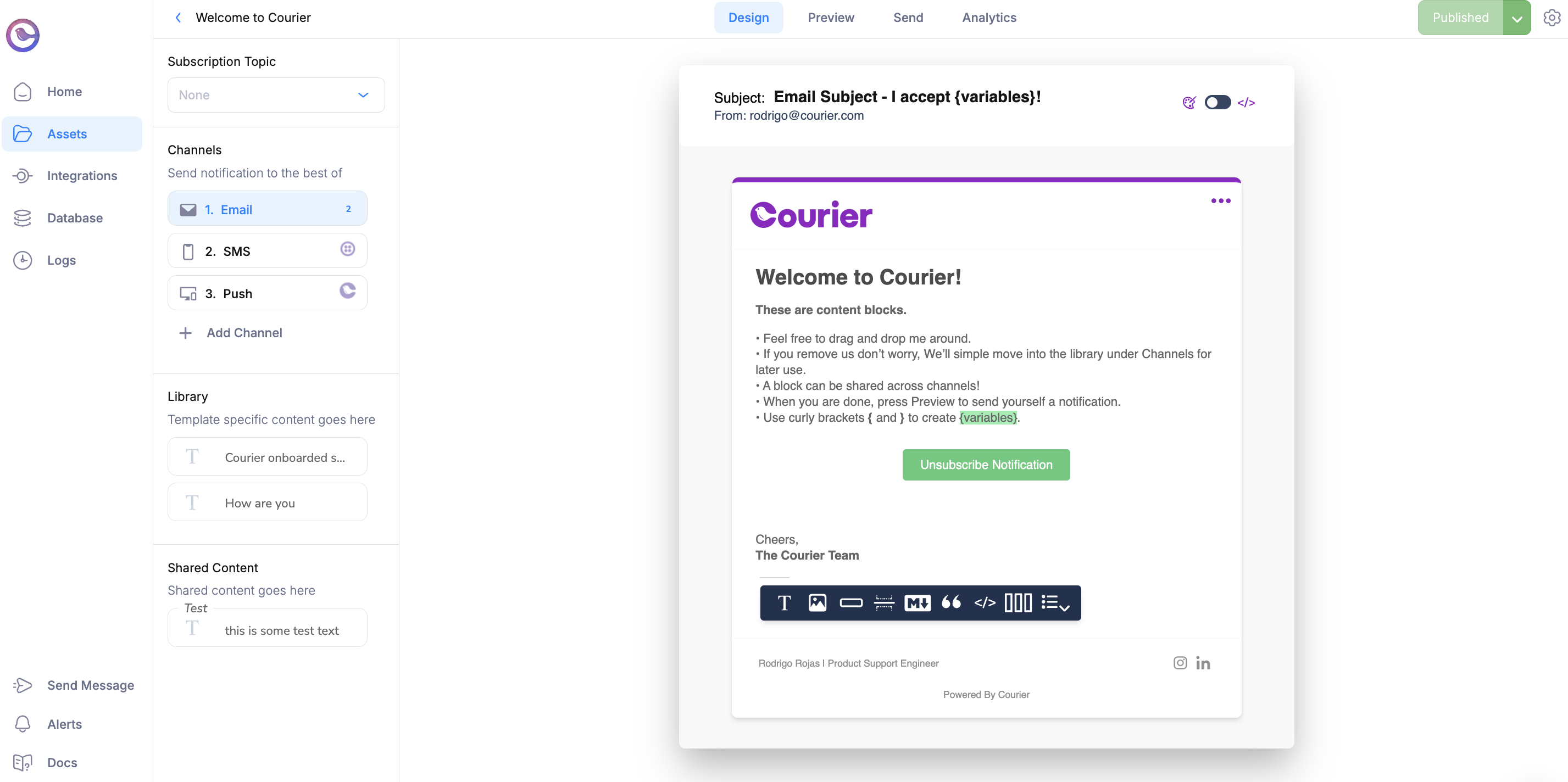 Courier will first attempt to send the notification via email. If the recipient has an email address in their profile, the notification will send via email only. If they don't have an email address, Courier will look for a phone number. Finally, if they don't have an email or phone number, Courier will look for a push configuration.
You can also choose to 'always send' to a specific channel. In order to do this, select the channel settings and turn on `Always`.
Courier will first attempt to send the notification via email. If the recipient has an email address in their profile, the notification will send via email only. If they don't have an email address, Courier will look for a phone number. Finally, if they don't have an email or phone number, Courier will look for a push configuration.
You can also choose to 'always send' to a specific channel. In order to do this, select the channel settings and turn on `Always`.
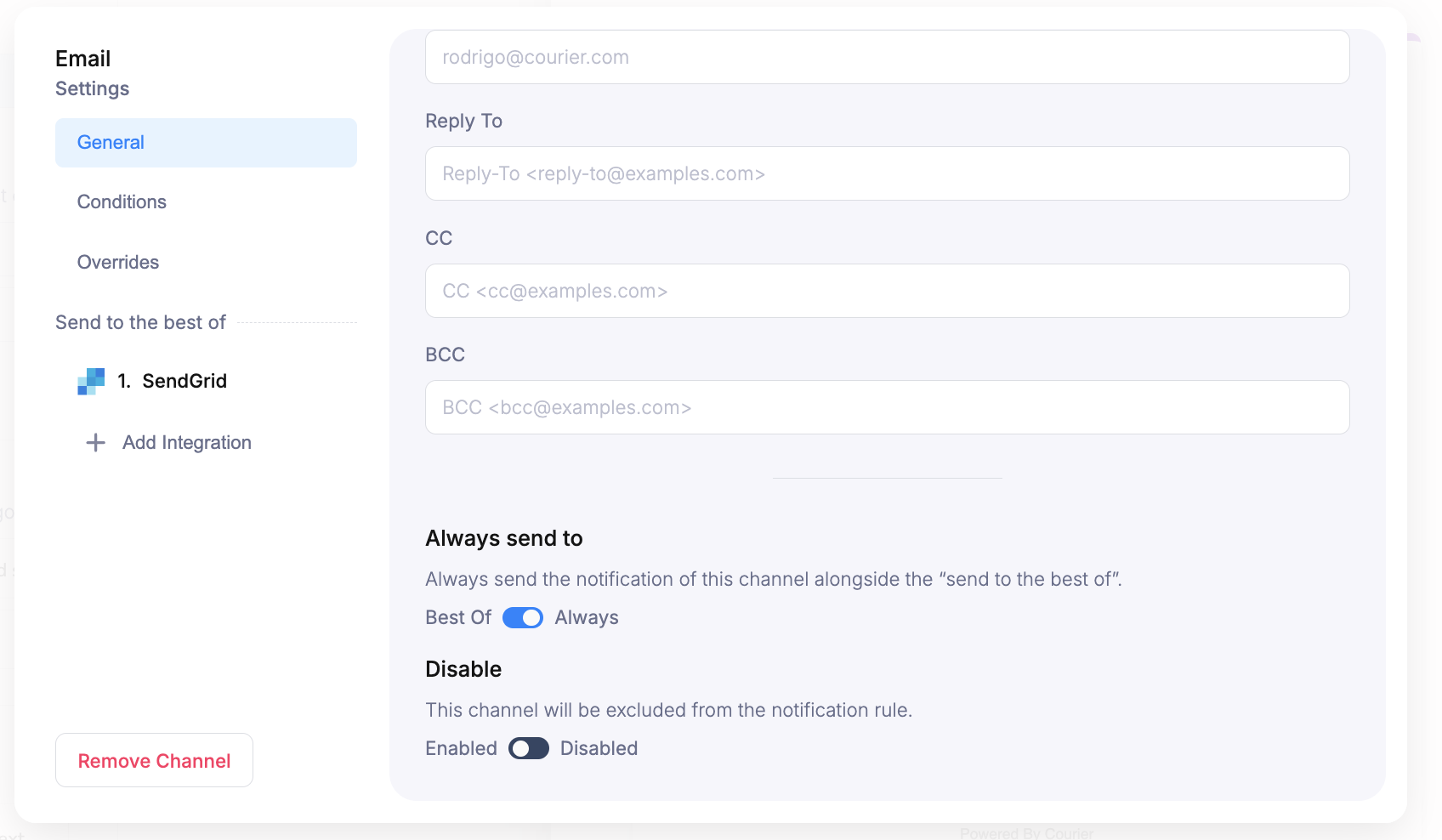 Now Courier will always send this notification via email as well as to the best of the other channels.
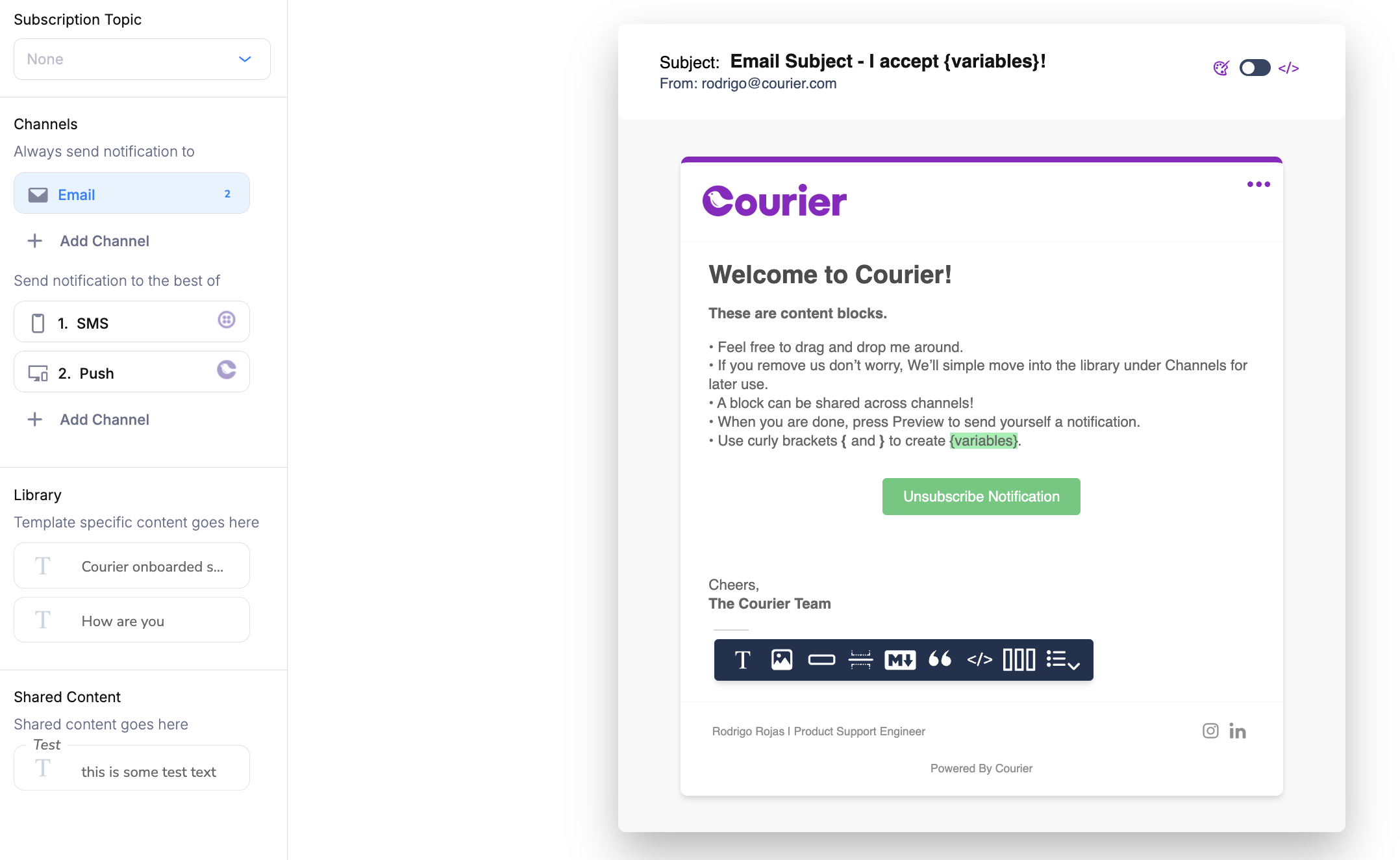 The routing settings created in the designer can always be overridden using the [preferences API](/api-reference/user-preferences/get-users-preferences). This will override the hierarchy of the channel rules and send the message only via the Integration specified in the recipient's [profile](/api-reference/user-profiles/get-a-profile).
## What's Next
End-to-end guide for creating and sending notifications
Let users control which channels they receive notifications on
Deep dive into routing strategies and priority rules
Configure conditions, timeouts, and overrides per channel
The routing settings created in the designer can always be overridden using the [preferences API](/api-reference/user-preferences/get-users-preferences). This will override the hierarchy of the channel rules and send the message only via the Integration specified in the recipient's [profile](/api-reference/user-profiles/get-a-profile).
## What's Next
End-to-end guide for creating and sending notifications
Let users control which channels they receive notifications on
Deep dive into routing strategies and priority rules
Configure conditions, timeouts, and overrides per channel