> ## Documentation Index
> Fetch the complete documentation index at: https://www.courier.com/docs/llms.txt
> Use this file to discover all available pages before exploring further.
# How To Send Digests
> Learn how to build scheduled digests using Courier's preferences, automation workflows, and subscription topics to batch and send grouped event data.
Digests let you batch incoming events over a time period and send them as a single notification. For example, instead of notifying a user every time someone likes their post, you can send a daily summary: "Your posts received 47 likes today."
Courier's digest system uses three pieces working together:
1. **A subscription topic** with a digest schedule (how often to send)
2. **Two automations**: one that collects events, and one that fires when the schedule triggers
3. **A notification template** that renders the batched data
## Prerequisites
* A [Courier account](https://app.courier.com/) with a configured provider (email, push, etc.)
* A published notification template for the digest content
* Familiarity with [Courier Automations](/tutorials/automations/how-to-automate-message-sequences)
## Building a Digest
Head to the [Preferences Editor](https://app.courier.com/settings/preferences) and create a new subscription topic for your digest (e.g. "Daily Activity Summary").
Once created, enable the **Digests** toggle. This unlocks schedule and category settings.
Add at least one **schedule** (e.g. "Every day at 9am"). You can add multiple schedules to let users choose their preferred frequency through the [hosted preference page](/platform/preferences/hosted-page/).
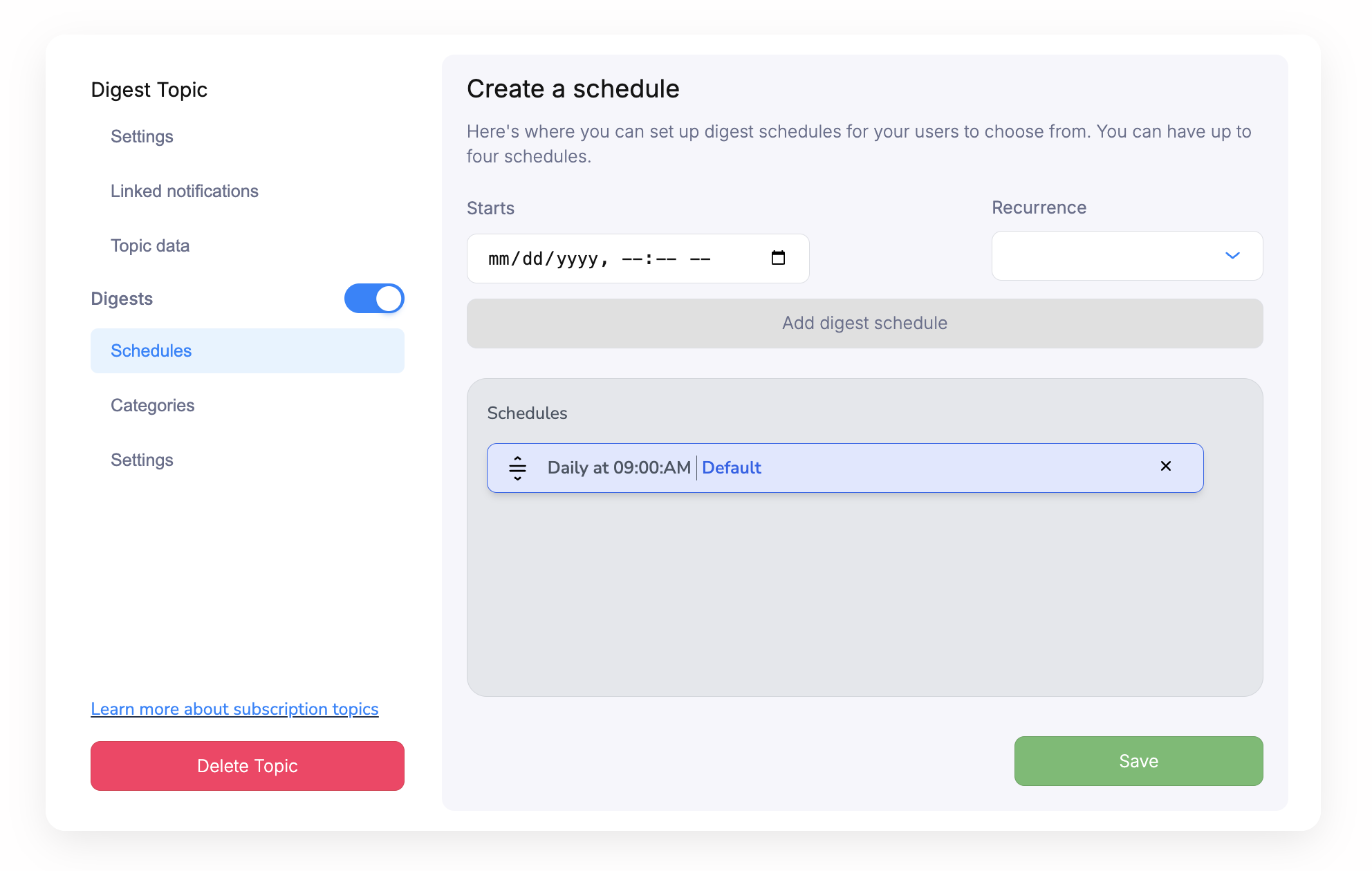 Notification templates **don't need to be mapped** to the digest subscription topic. The digest is triggered through an automation, not a direct template mapping.
Every digest needs at least one **category**. The category key (default: `digest`) determines how batched data is grouped and released to the automation.
You can configure the **retain strategy** to control which events are kept:
| Strategy | Description |
| ---------- | -------------------------------------------------------- |
| All items | Keep every event in the batch |
| 10 highest | Keep the 10 events with the highest value for a sort key |
| 10 lowest | Keep the 10 events with the lowest value for a sort key |
Notification templates **don't need to be mapped** to the digest subscription topic. The digest is triggered through an automation, not a direct template mapping.
Every digest needs at least one **category**. The category key (default: `digest`) determines how batched data is grouped and released to the automation.
You can configure the **retain strategy** to control which events are kept:
| Strategy | Description |
| ---------- | -------------------------------------------------------- |
| All items | Keep every event in the batch |
| 10 highest | Keep the 10 events with the highest value for a sort key |
| 10 lowest | Keep the 10 events with the lowest value for a sort key |
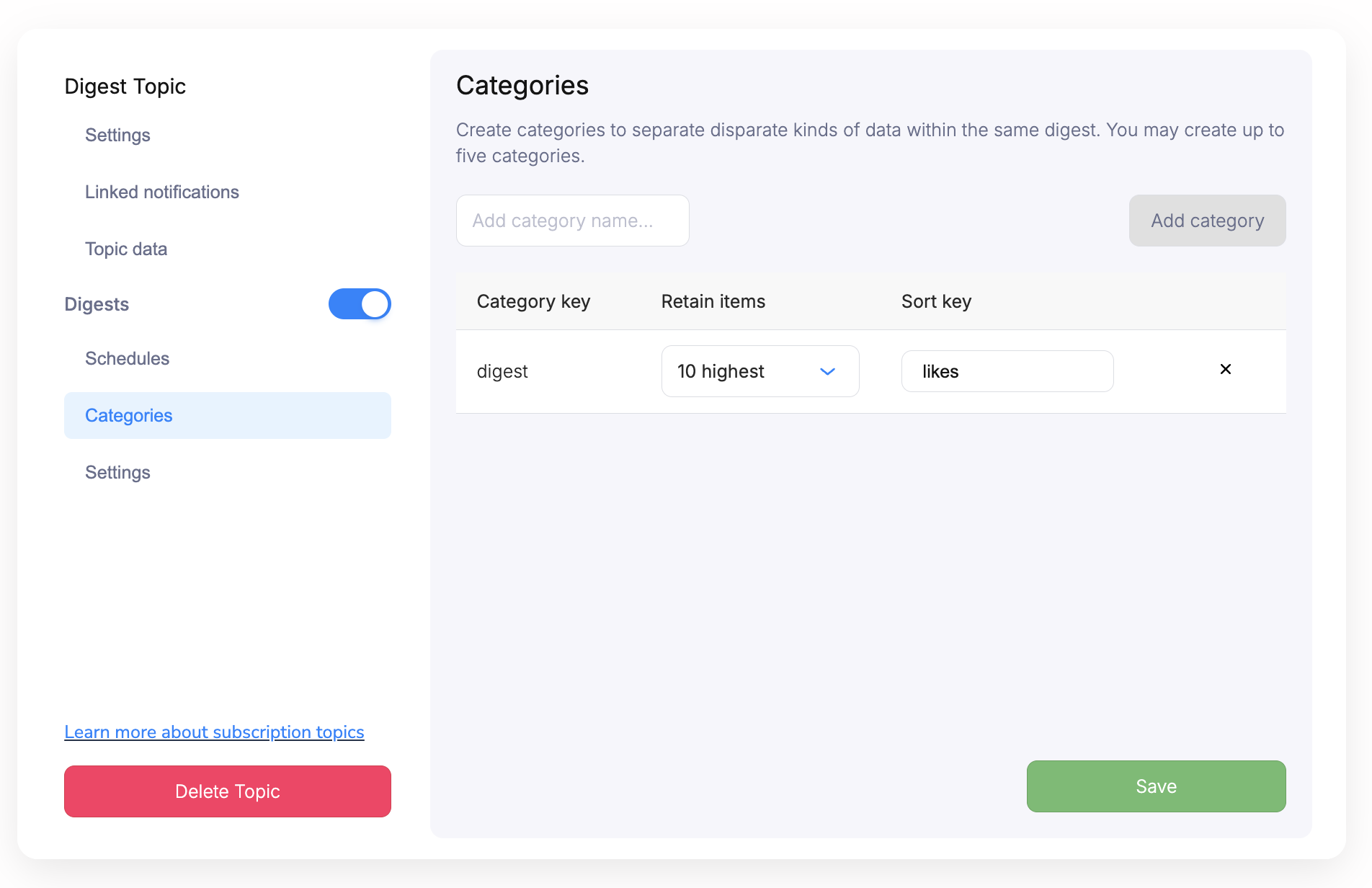 For example, with "10 highest" and a sort key of `likes`, Courier will batch incoming events and keep only the 10 with the most likes. A sample incoming event payload might look like:
```json theme={null}
{
"userId": "user_123",
"event": "post_liked",
"likes": 20,
"tweet": "Hello World",
"timestamp": "2025-01-10T16:57:29.568Z"
}
```
You need two automations for a digest. The first one collects incoming events into the digest bucket.
In the [Automations Designer](https://app.courier.com/designer/automations), create an automation with:
1. A **trigger** that fires on the events you want to digest (e.g. a Segment event, API call, etc.)
2. A **digest node** mapped to the subscription topic you created in Step 1
The digest node should reference the preference topic that holds your digest settings.
For example, with "10 highest" and a sort key of `likes`, Courier will batch incoming events and keep only the 10 with the most likes. A sample incoming event payload might look like:
```json theme={null}
{
"userId": "user_123",
"event": "post_liked",
"likes": 20,
"tweet": "Hello World",
"timestamp": "2025-01-10T16:57:29.568Z"
}
```
You need two automations for a digest. The first one collects incoming events into the digest bucket.
In the [Automations Designer](https://app.courier.com/designer/automations), create an automation with:
1. A **trigger** that fires on the events you want to digest (e.g. a Segment event, API call, etc.)
2. A **digest node** mapped to the subscription topic you created in Step 1
The digest node should reference the preference topic that holds your digest settings.
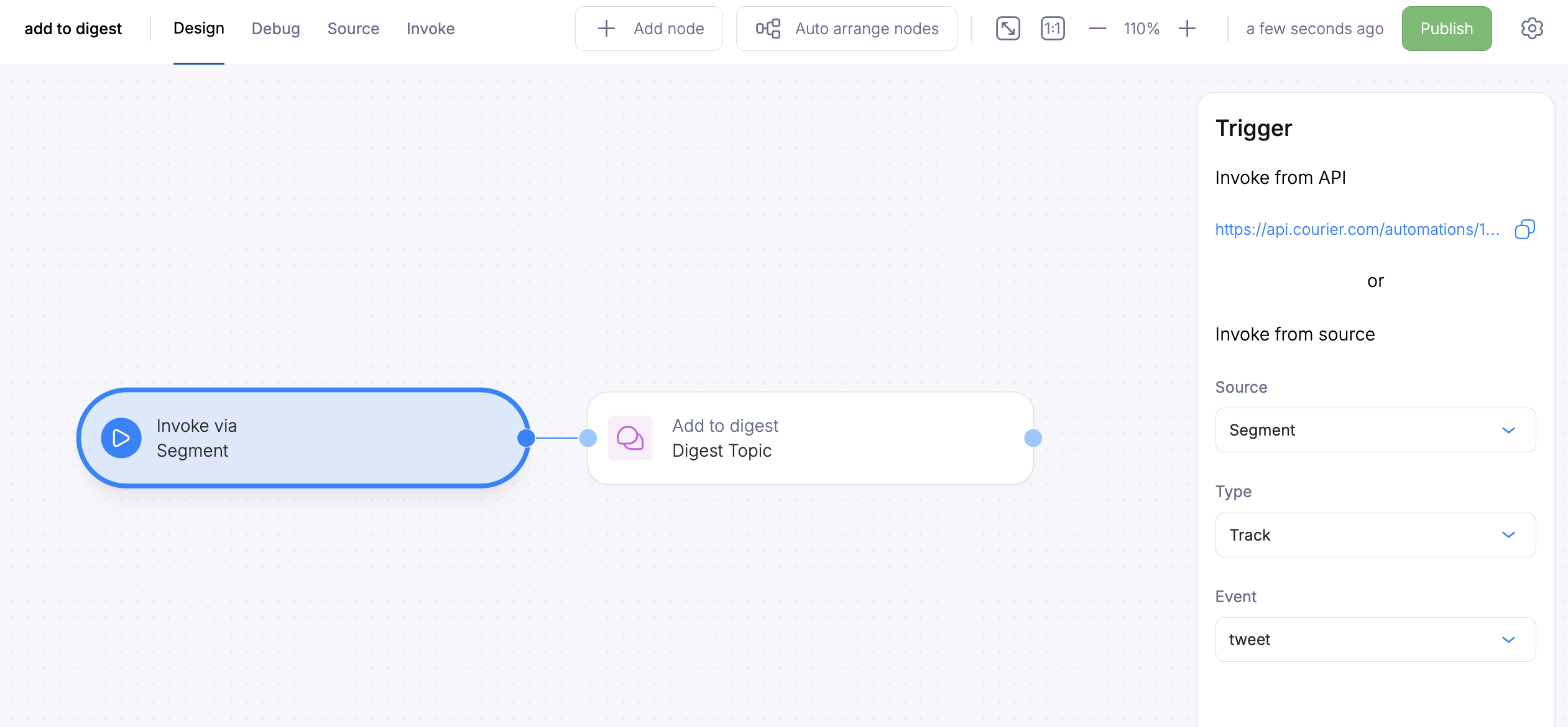 Every time this automation runs, it adds the event data to the digest bucket for the relevant user.
The second automation fires when the digest schedule triggers. It receives the batched event data and sends the notification.
Create a new automation with:
1. A **digest trigger** step linked to the same subscription topic
2. A **send step** that references your digest notification template
The send step will receive the accumulated events as template data, so make sure your template is set up to iterate over the batched items.
Every time this automation runs, it adds the event data to the digest bucket for the relevant user.
The second automation fires when the digest schedule triggers. It receives the batched event data and sends the notification.
Create a new automation with:
1. A **digest trigger** step linked to the same subscription topic
2. A **send step** that references your digest notification template
The send step will receive the accumulated events as template data, so make sure your template is set up to iterate over the batched items.
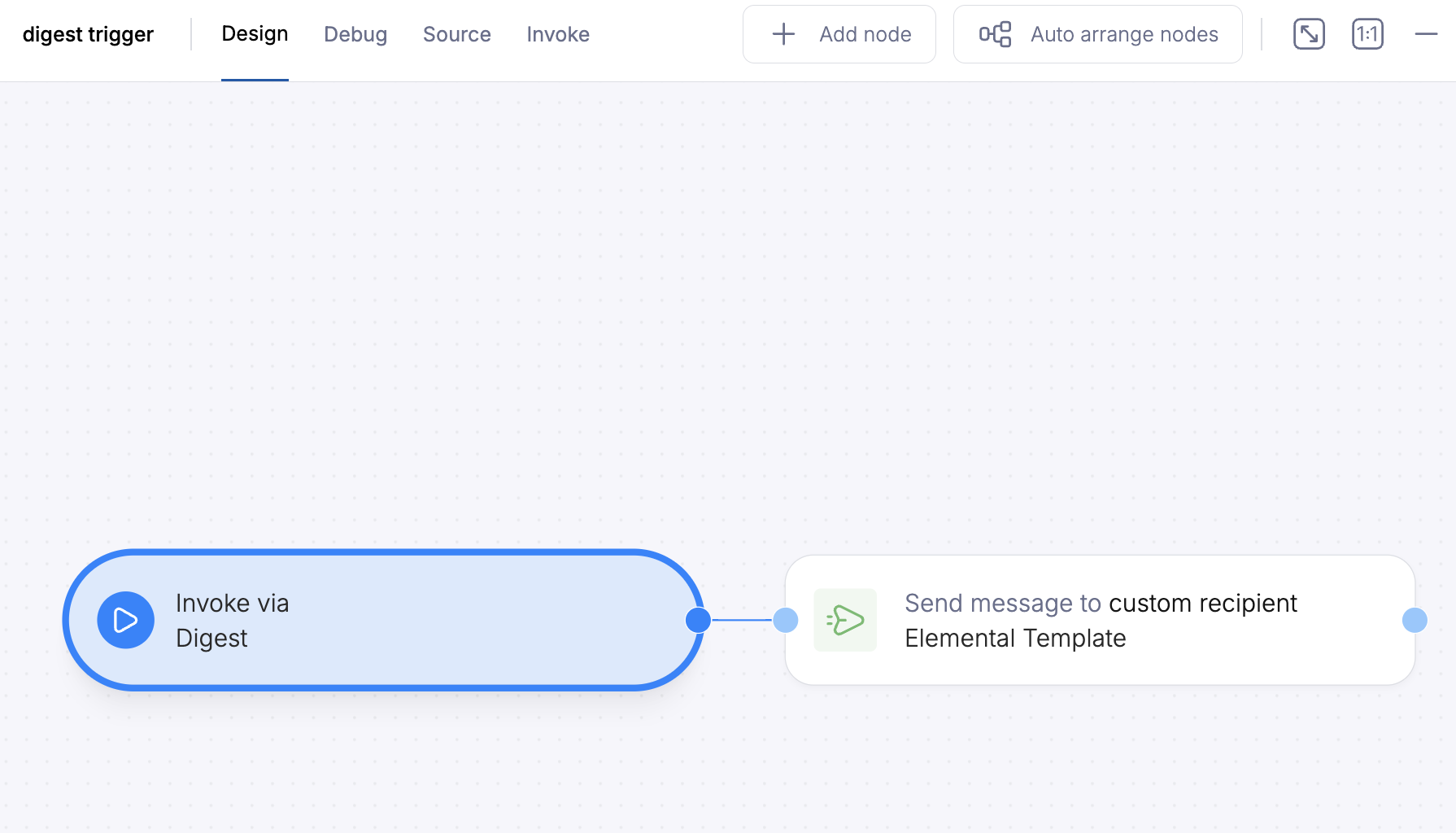 The digest trigger automation is automatically invoked by Courier when the schedule fires. Do not invoke this automation manually via the API; doing so will bypass the digest system and result in empty event data. To manually test a digest release, use the `/digests/schedules/{schedule_id}/trigger` endpoint instead.
Make sure all your templates are published before sending any events.
Once events start flowing, you can track the digest in two places:
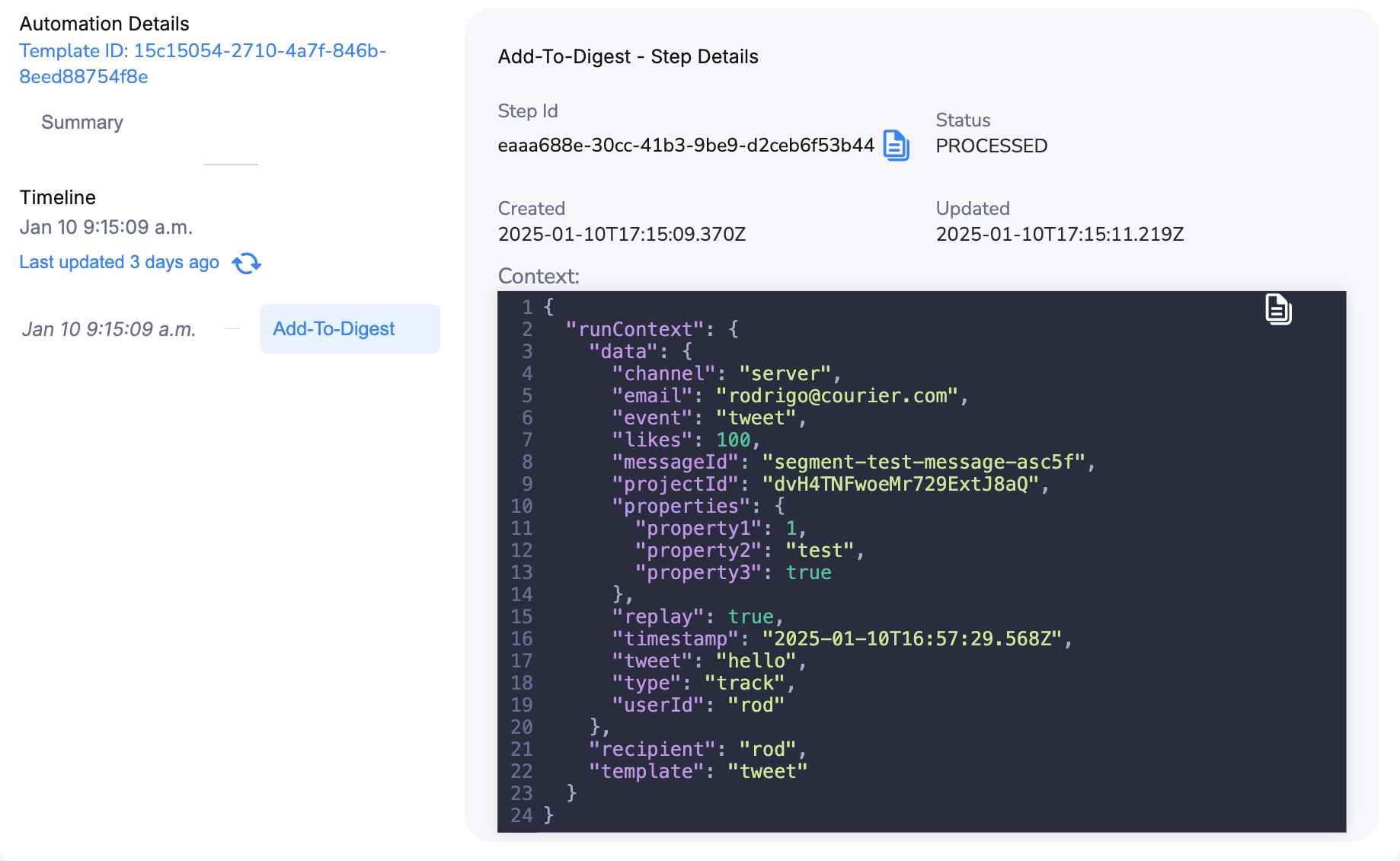
**Automation Logs**: Each incoming event appears as an `add-to-digest` entry.
The digest trigger automation is automatically invoked by Courier when the schedule fires. Do not invoke this automation manually via the API; doing so will bypass the digest system and result in empty event data. To manually test a digest release, use the `/digests/schedules/{schedule_id}/trigger` endpoint instead.
Make sure all your templates are published before sending any events.
Once events start flowing, you can track the digest in two places:
**Automation Logs**: Each incoming event appears as an `add-to-digest` entry.
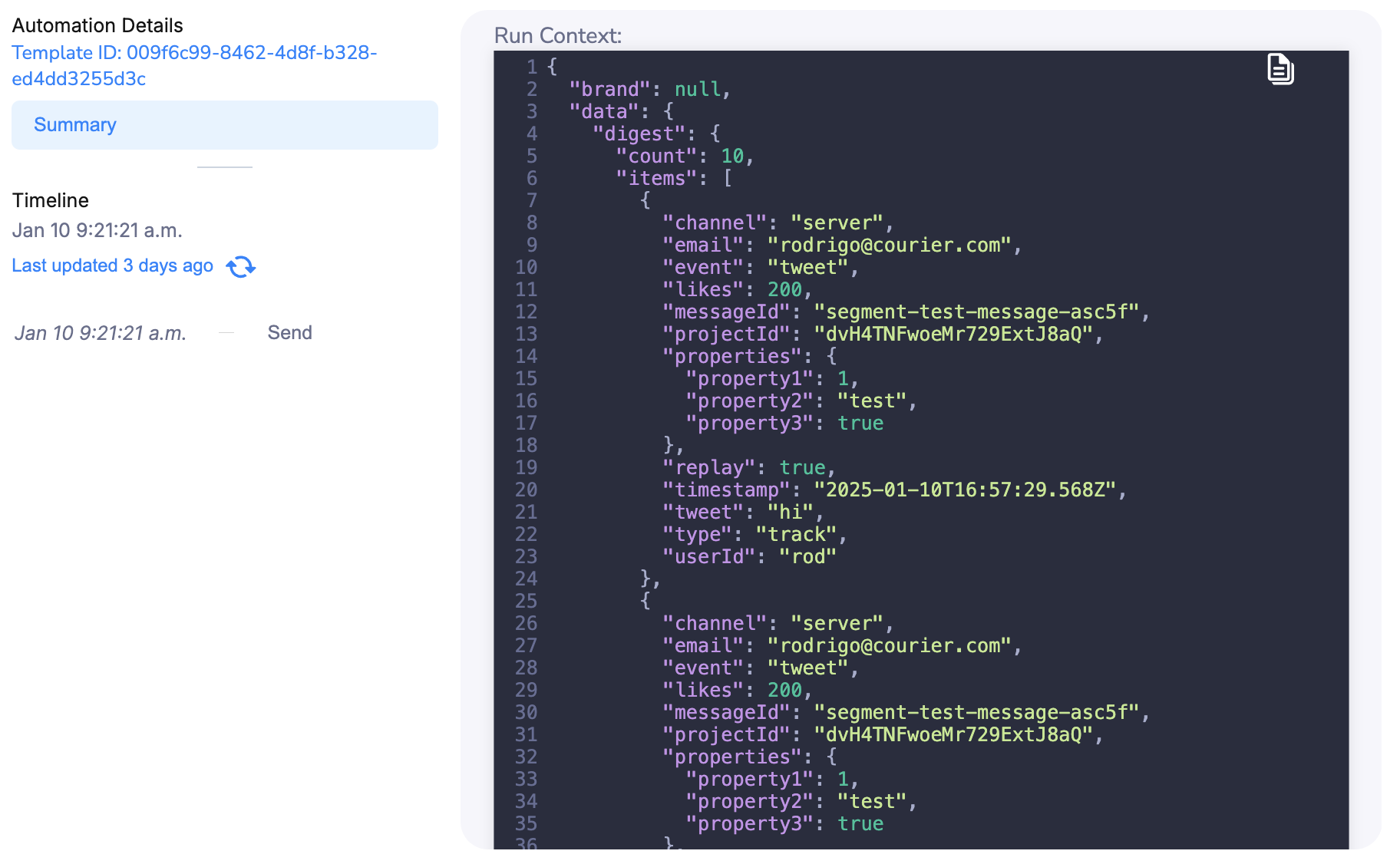
 When the schedule fires, you'll see the trigger event with the accumulated data (in our example, the top 10 posts by likes).
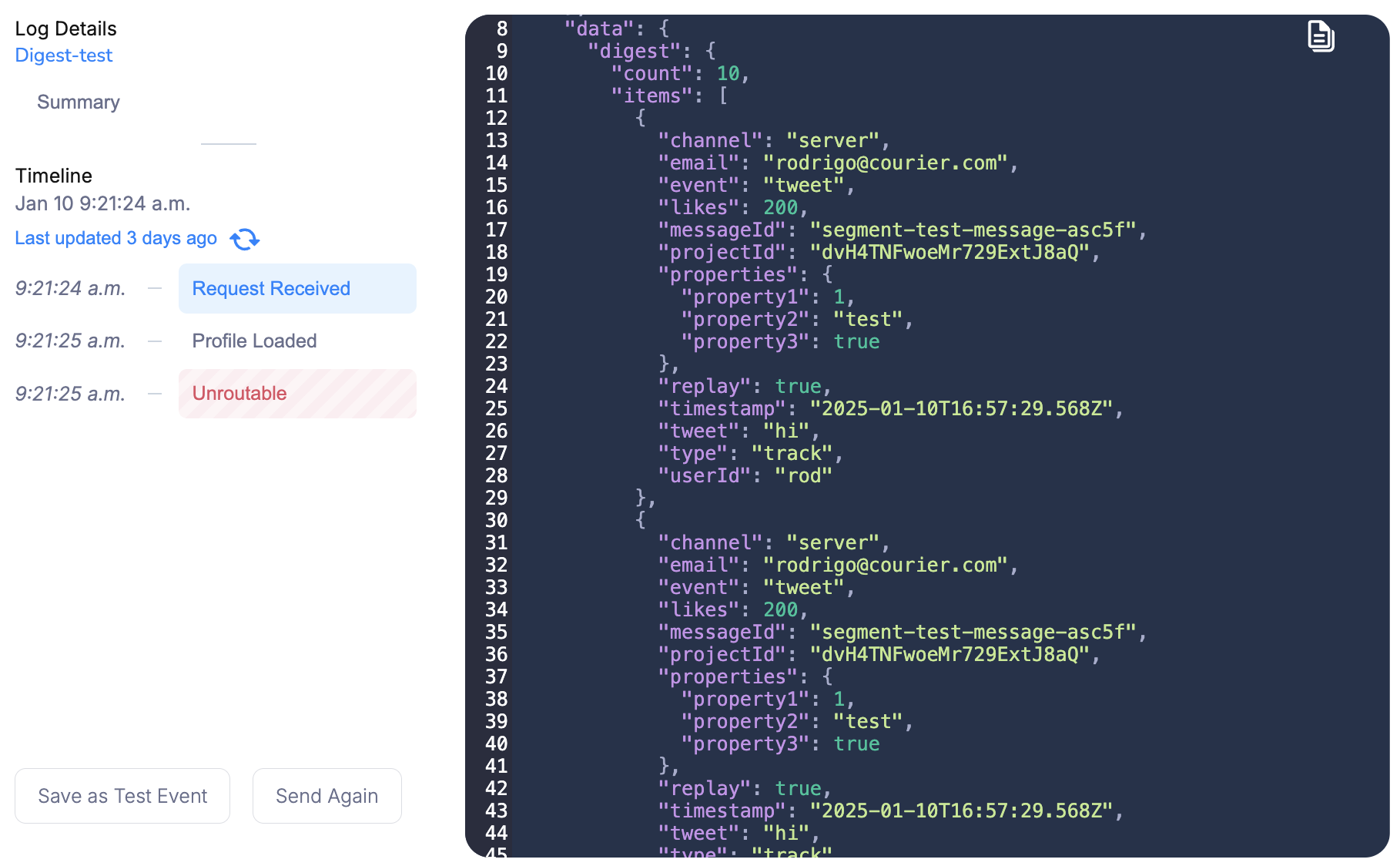
 **Message Logs**: The sent message will contain the full digested data payload that was passed to the notification template.
 ## What's Next
Learn about automation steps, triggers, and sequences
Set up subscription topics and preference controls
Configure digest schedules and subscription topics
Full reference for automation steps and triggers
## What's Next
Learn about automation steps, triggers, and sequences
Set up subscription topics and preference controls
Configure digest schedules and subscription topics
Full reference for automation steps and triggers