

Prerequisites
- An HTTPS endpoint you control, ready to receive Courier’s webhook
- The authentication your endpoint expects, if any
Setup
Open the . Enter your webhook HTTP address and choose an authentication model.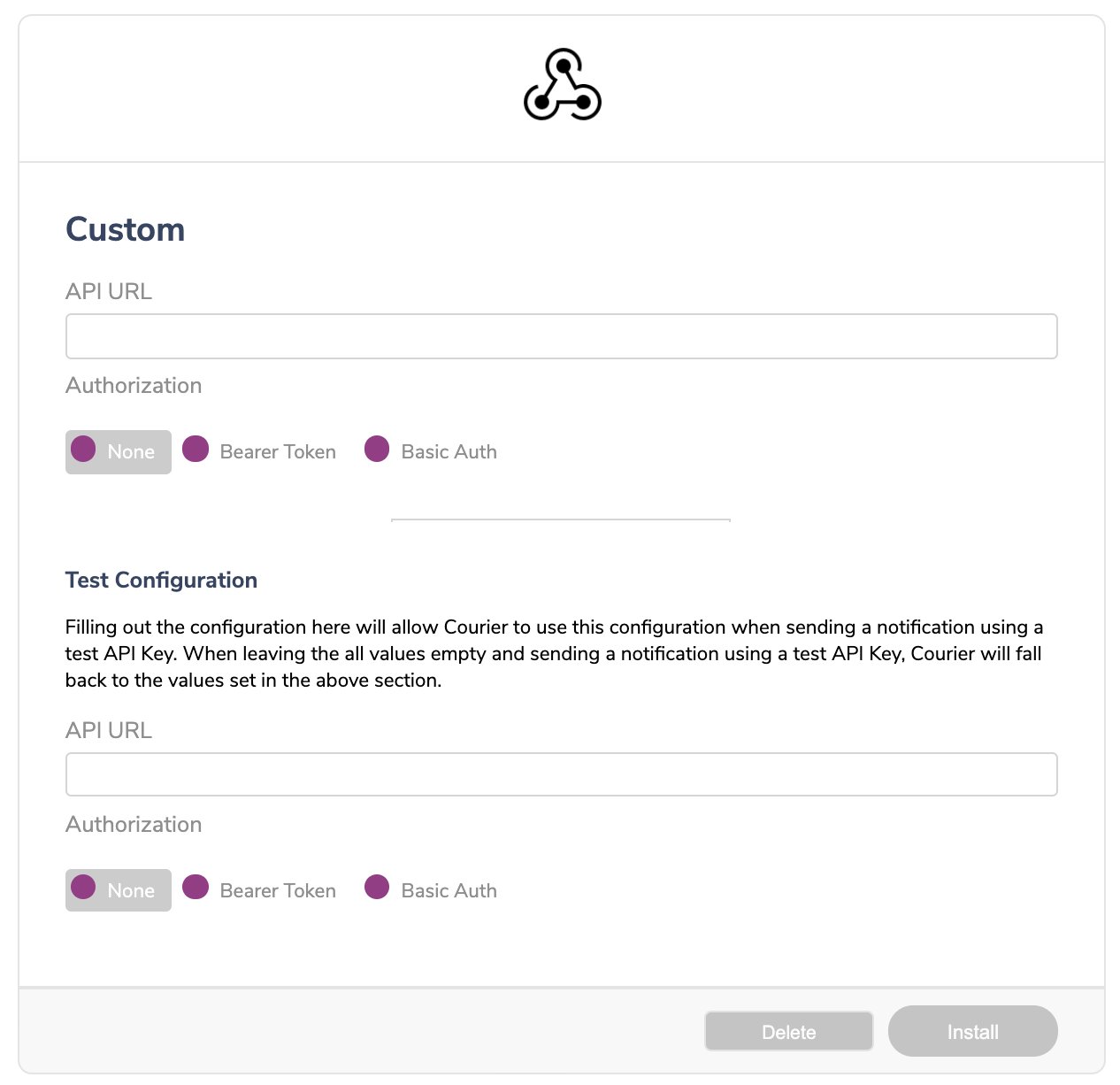
Profile requirements
No profile data is required. Courier posts the rendered message to your endpoint, and your endpoint decides how to address the recipient.Overrides
covers the two levels and which one wins. An override changes what Courier sends to your custom provider. You can override thebody, headers, method, and url fields. body is deep-merged into the request, so fields you leave out are still sent.
Provider details
routing.channels instead is supported, and sends through just this provider.
Send to a specific provider
When that is worth doing, and what you give up: failover, channel priority, and providers you add later.