

Setup
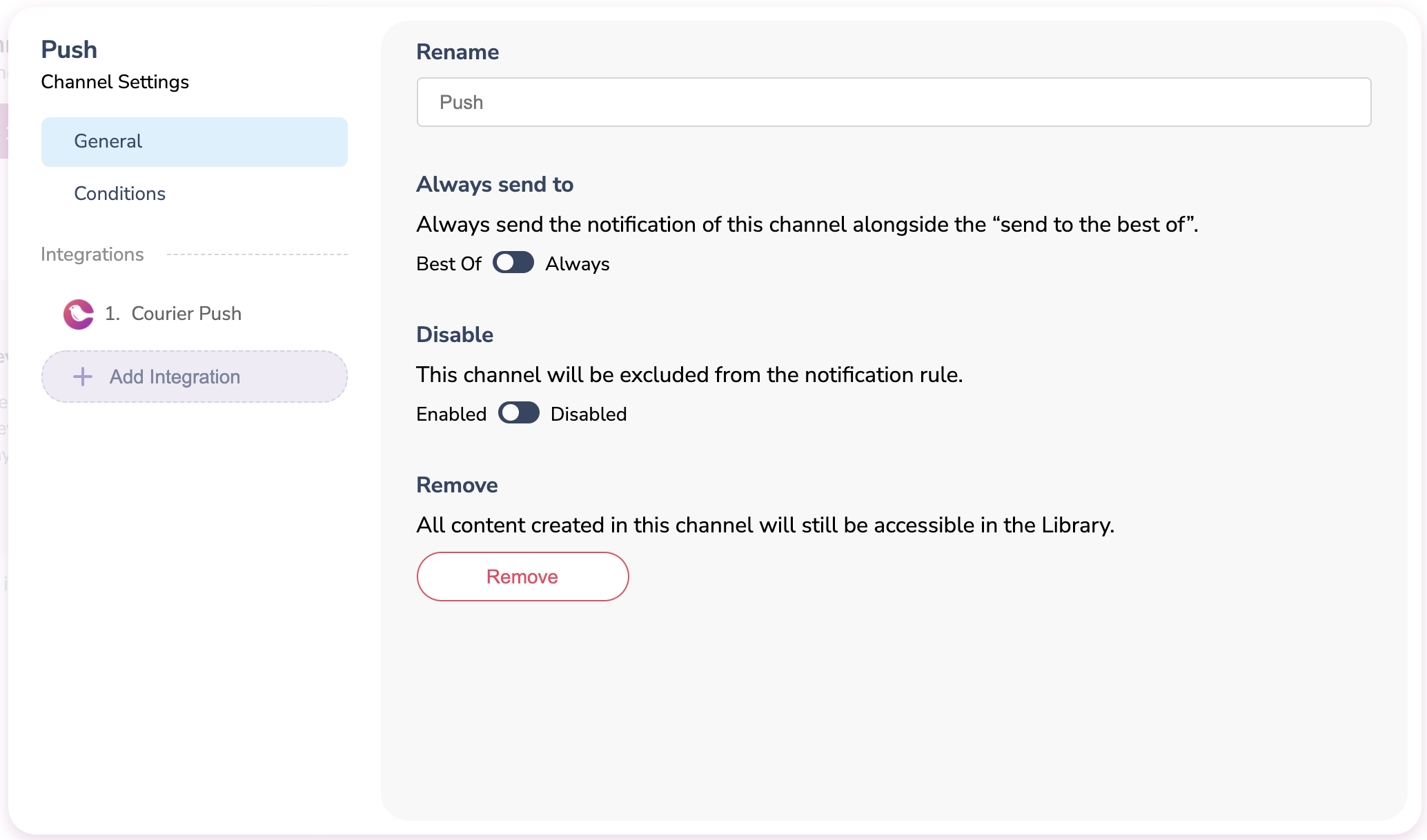
The AWS SNS provider is listed as a Push integration but can handle push, SMS, and email notifications. To add it to your workflow in the designer, follow one of these paths:- Add AWS SNS as a channel provider: Click “Add Channel” and select the Push channel. A Push option will be added to the left menu under “Channels”. Hover over this and click on the Settings icon that will appear. In the pop-up, navigate to ”+ Add Integration” and search for AWS SNS.
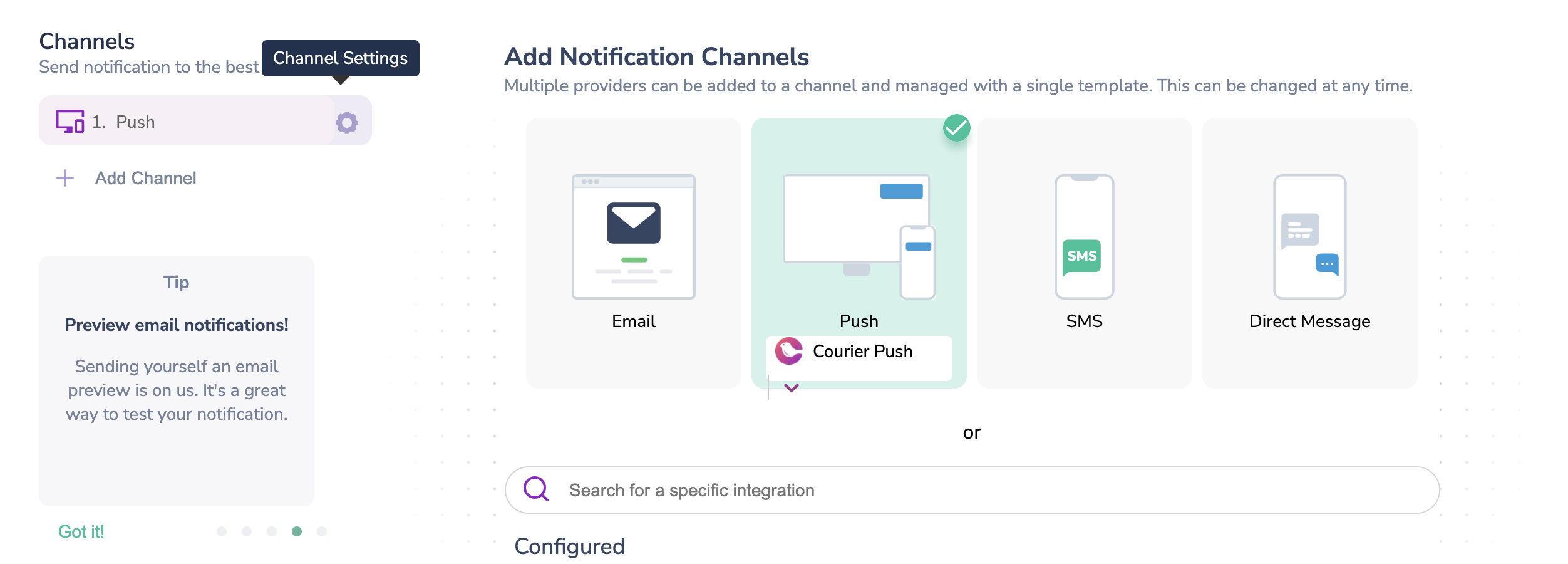
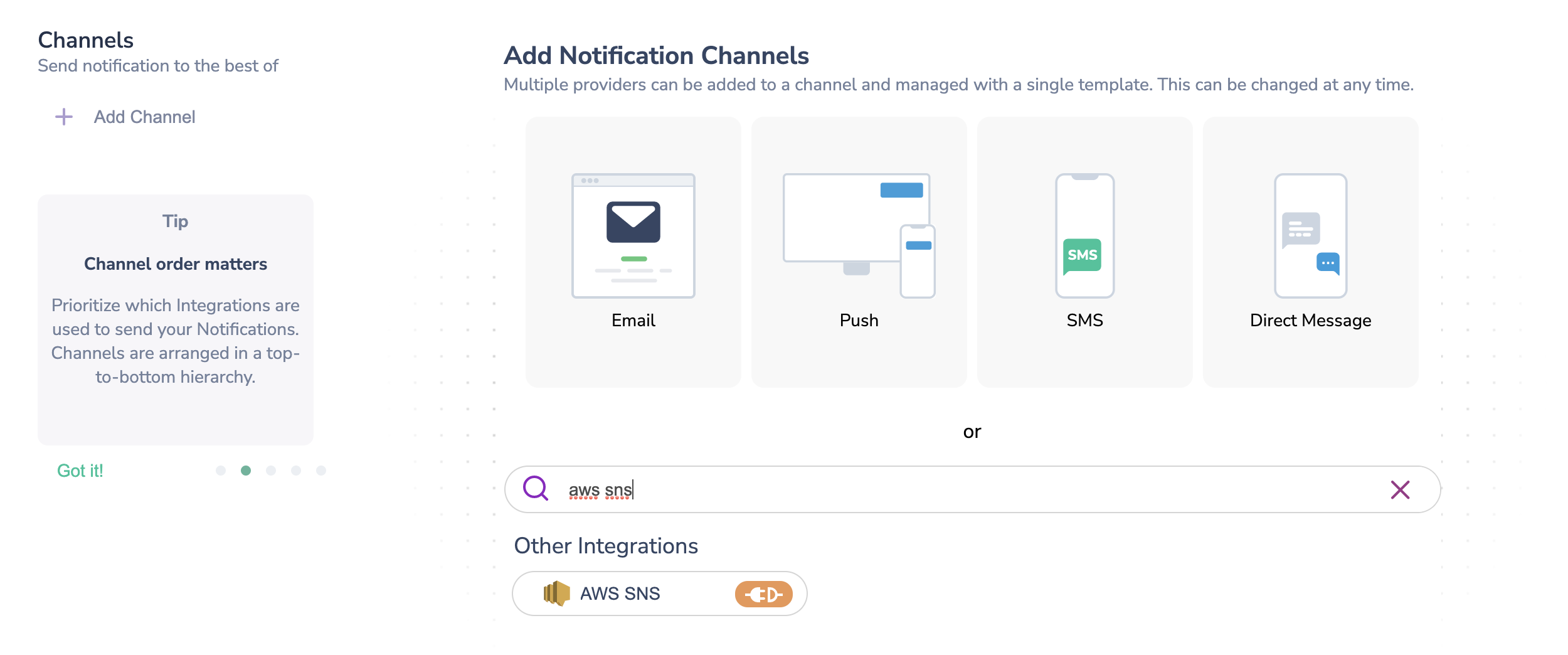
- Add AWS SNS as a provider: Click “Add Channel” and use the search bar to find “AWS SNS”
Profile Requirements
Push
To deliver a message to a mobile device over SNS, Courier must be provided either the Topic ARN, that the device is subscribed to, or the Target ARN that the device is subscribed to. If using a Target ARN, then this value should be included in the recipient profile astarget_arn.
target_arn is provided in the recipient profile then the Topic ARN will be used from the Courier configuration.
Either the Target ARN or the Topic ARN should be provided, not both.
SMS
To deliver a message to a recipient over AWS SNS, Courier must be provided the recipient’s phone number. This value should be included in the recipient profile asphone_number.
Overrides
You can override the Access Key ID, Secret Access Key, and region via theconfig override. See all SNS publish properties.