

Prerequisites
To get started, you’ll need: What you’ll do:- Add the Slack integration in Courier
- Create and configure a Slack app
- Design a notification template
- Send a test message
Step-by-Step: Send Your First Slack Message
Add Slack Integration in Courier
Once logged in to Courier, go to the Integrations page and select Slack. Click “Install” to add the integration.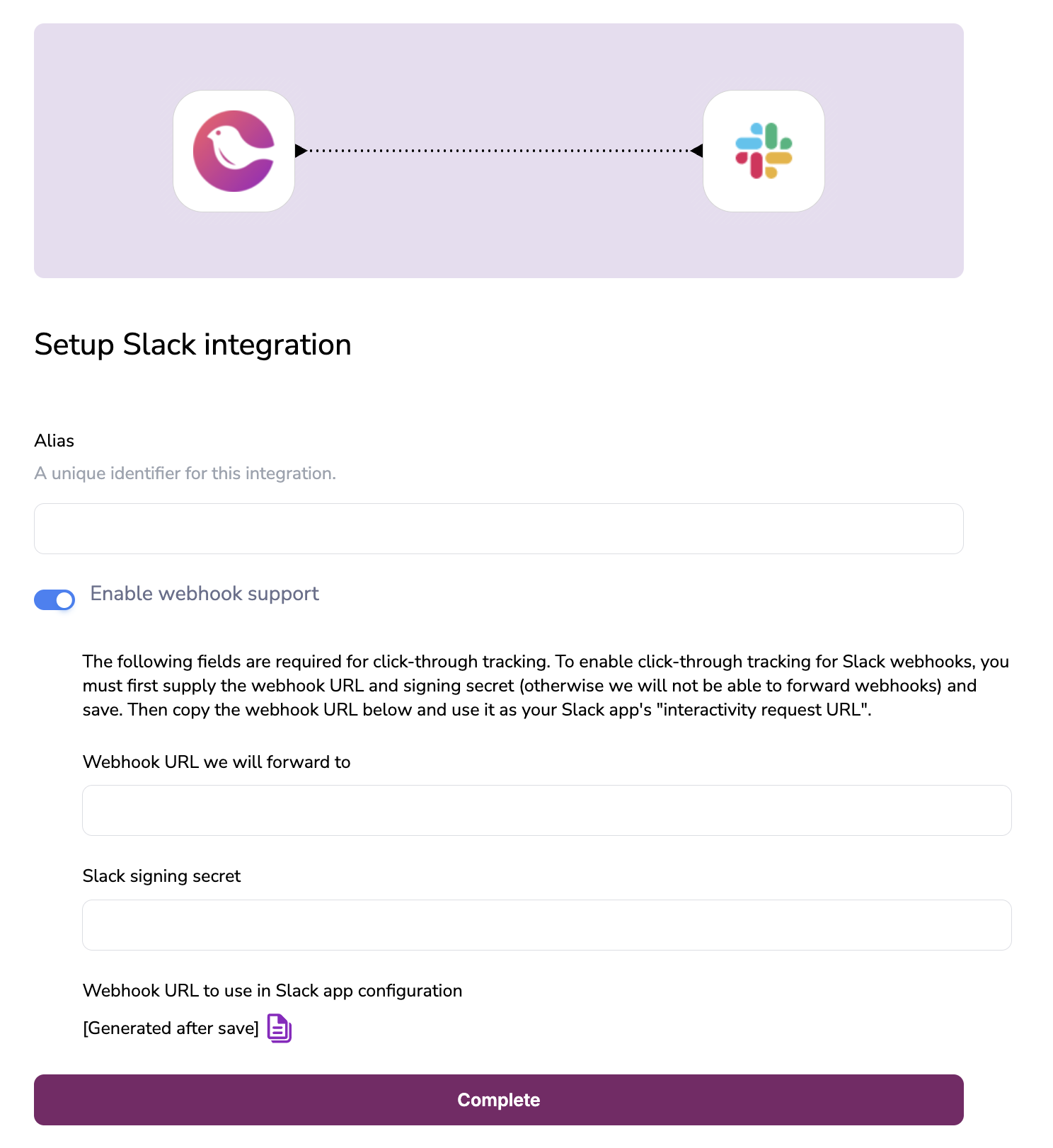
Create and Configure a Slack App
- Go to the Slack Apps page and click “Create an App”.
- Choose “From scratch”, give your app a name, and select your development workspace.
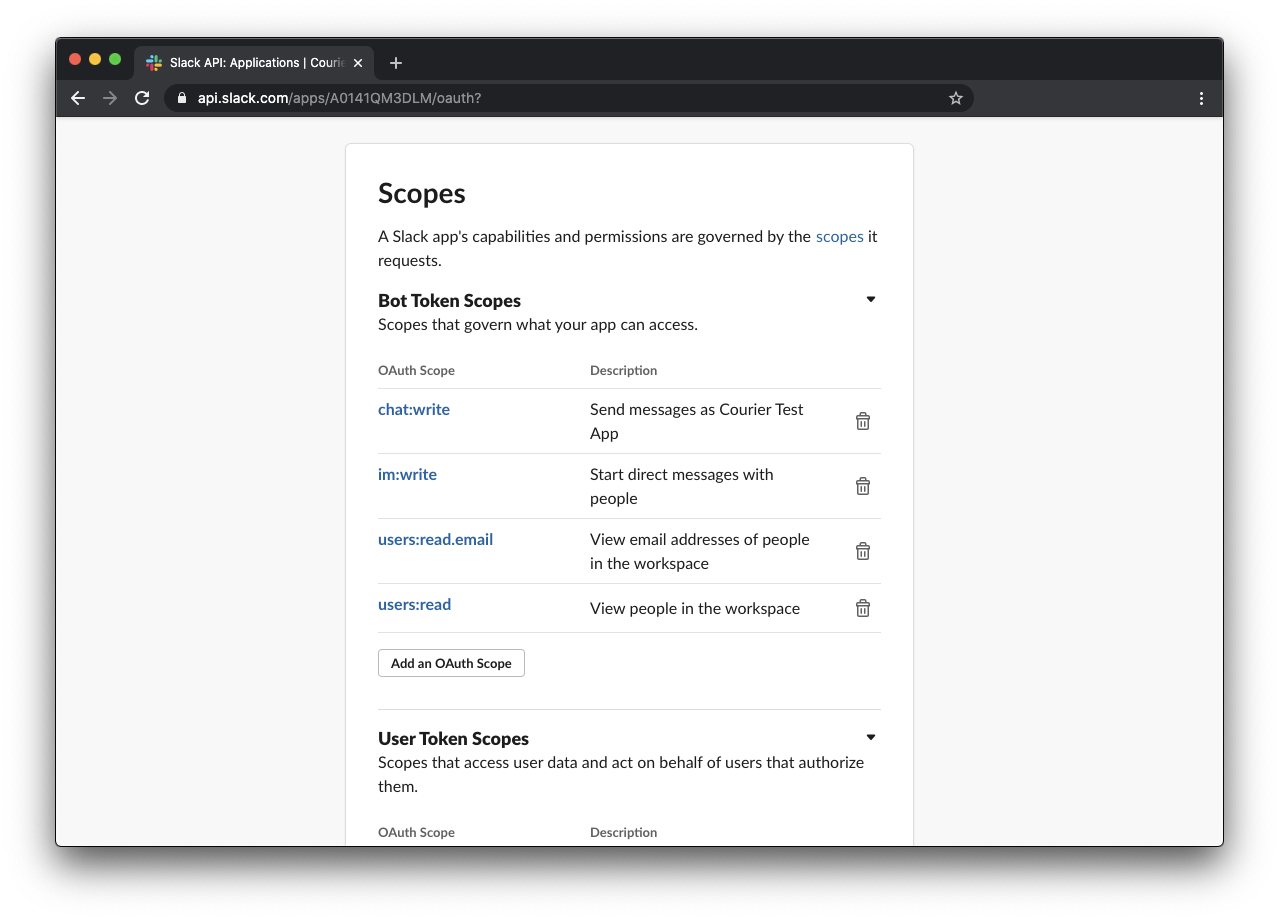
- Under “OAuth & Permissions”, add these Bot Token Scopes:
chat:write,im:write,users:read,users:read.email. - Click “Install App to Workspace” and authorize.
- Copy the Bot User OAuth Access Token (starts with
xoxb-).
Design a Slack Notification Template
Go to the Courier Assets page and click + New > Message Template.
Select Slack from your list of integrations.
In the sidebar, click the newly added Slack block to open the Slack template editor.
Add your desired message content to the template.
Message Targeting Reference
Courier supports sending Slack messages to users and channels in several ways. Here are the most common targeting methods:Overrides
You can override the payload sent to Slack’s chat.postMessage usingproviders.slack.override.body. This is useful for advanced formatting, interactivity, and threading.
Unfurl Links
Slack Blocks (Block Kit)
Send rich, interactive layouts using Slack blocks:Replying in a Thread
To reply to a thread, set thethread_ts value:
Mentioning Users
Mention a user in your message using<@USER_ID> syntax in your template:
Slash Command Responses
If responding to a Slash Command, use theresponse_url as an incoming webhook:
override.slack.body.response_type to in_channel or ephemeral as needed.
Incoming Webhooks
You can send messages to a channel using a Slack Incoming Webhook:Updating Notifications
To update a previously sent Slack message, set a “replacement key” (usuallyts) in your notification template’s Slack channel settings. Courier will use this key to update the message instead of posting a new one.
Troubleshooting
-
Missing or incorrect Slack scopes:
- Double-check your app has all required scopes (
chat:write,im:write,users:read,users:read.email, andchat:write.publicfor channels). - Reinstall your Slack app after updating scopes.
- Double-check your app has all required scopes (
-
Bot not invited to channel:
- Make sure your Slack app/bot is a member of the channel you want to message.
-
Invalid or missing tokens:
- Ensure you are using the correct Bot User OAuth Access Token (starts with
xoxb-). - Never use a user token or an expired token.
- Ensure you are using the correct Bot User OAuth Access Token (starts with
-
Permission errors or message not delivered:
- Check the Courier Message Logs for error details and troubleshooting tips.
-
User or channel not found:
- Double-check the email, user_id, or channel ID. For channels, copy the ID from the Slack URL.
-
Message Truncated:
- Slack blocks limit the characters in a single section to 3k characters. Courier automatically truncates Slack messages over 3k characters by removing escape and formating characters that are added by Slack after submitting the block.