Use this file to discover all available pages before exploring further.
The Courier Android SDK provides prebuilt UI components and APIs for building notification experiences in Kotlin. It handles authentication, token management, and real-time message delivery so you can focus on your app.
Inbox — prebuilt notification center for Jetpack Compose and XML layouts
Replace LATEST_VERSION with the current version from GitHub Releases.
3
Initialize the SDK
Call Courier.initialize() in your Application class before using other SDK features. This gives Courier access to SharedPreferences for persisting state across sessions.
class YourApplication : Application() { override fun onCreate() { super.onCreate() Courier.initialize(this) }}
If you only plan to use CourierClient APIs directly, you can skip the initialize step.
All SDK features (Inbox, Push, Preferences) require a signed-in user. Authentication is JWT-based; your backend generates a token and the SDK manages credentials across app sessions.
Pass the JWT to the SDK where you manage user state. Credentials persist across app sessions. If the token expires, generate a new one from your backend and call signIn again; the SDK does not handle token refresh automatically.
val userId = Courier.shared.userIdval isSignedIn = Courier.shared.isUserSignedInval listener = Courier.shared.addAuthenticationListener { userId -> print(userId ?: "No user signed in")}listener.remove()
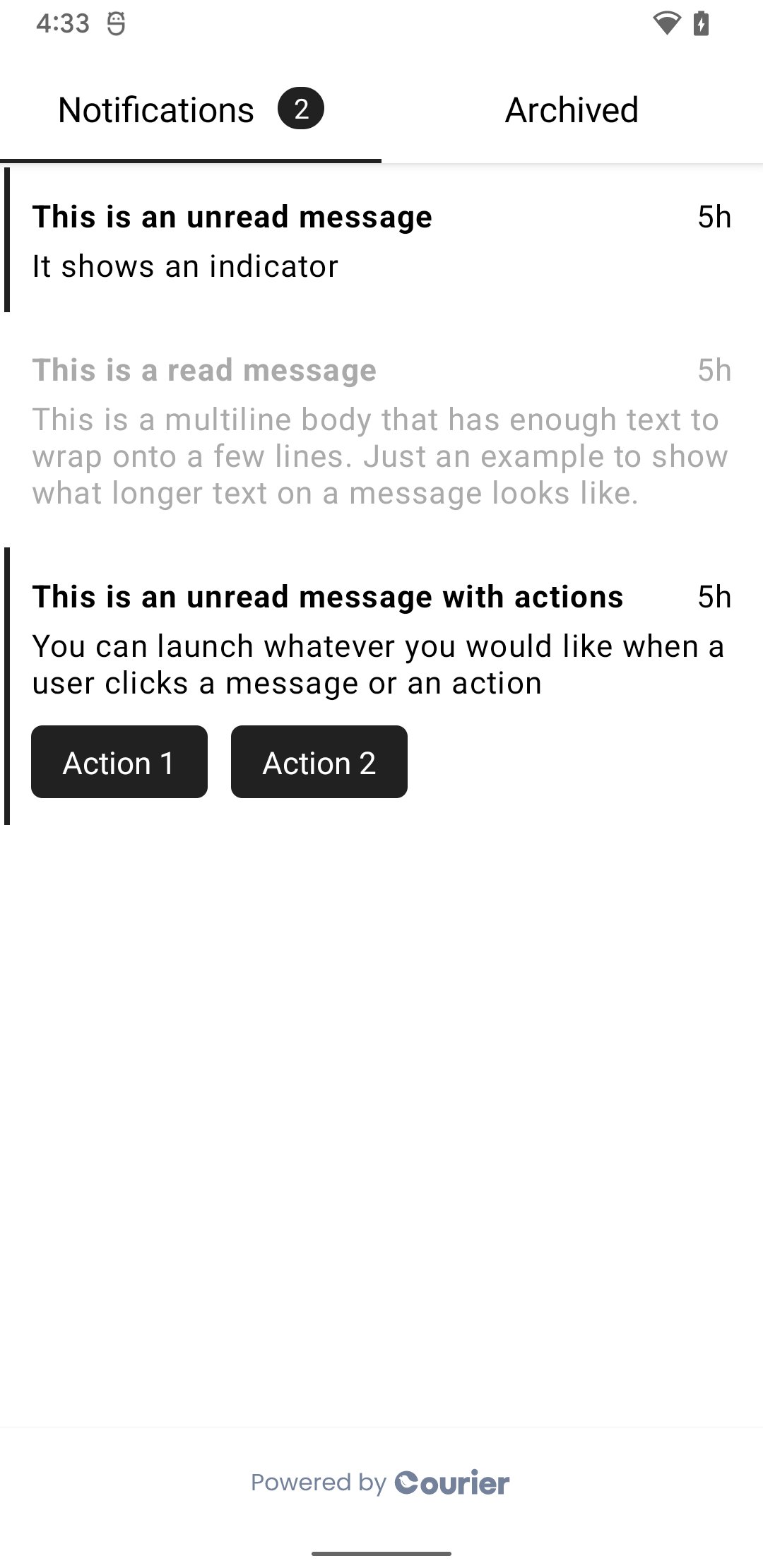
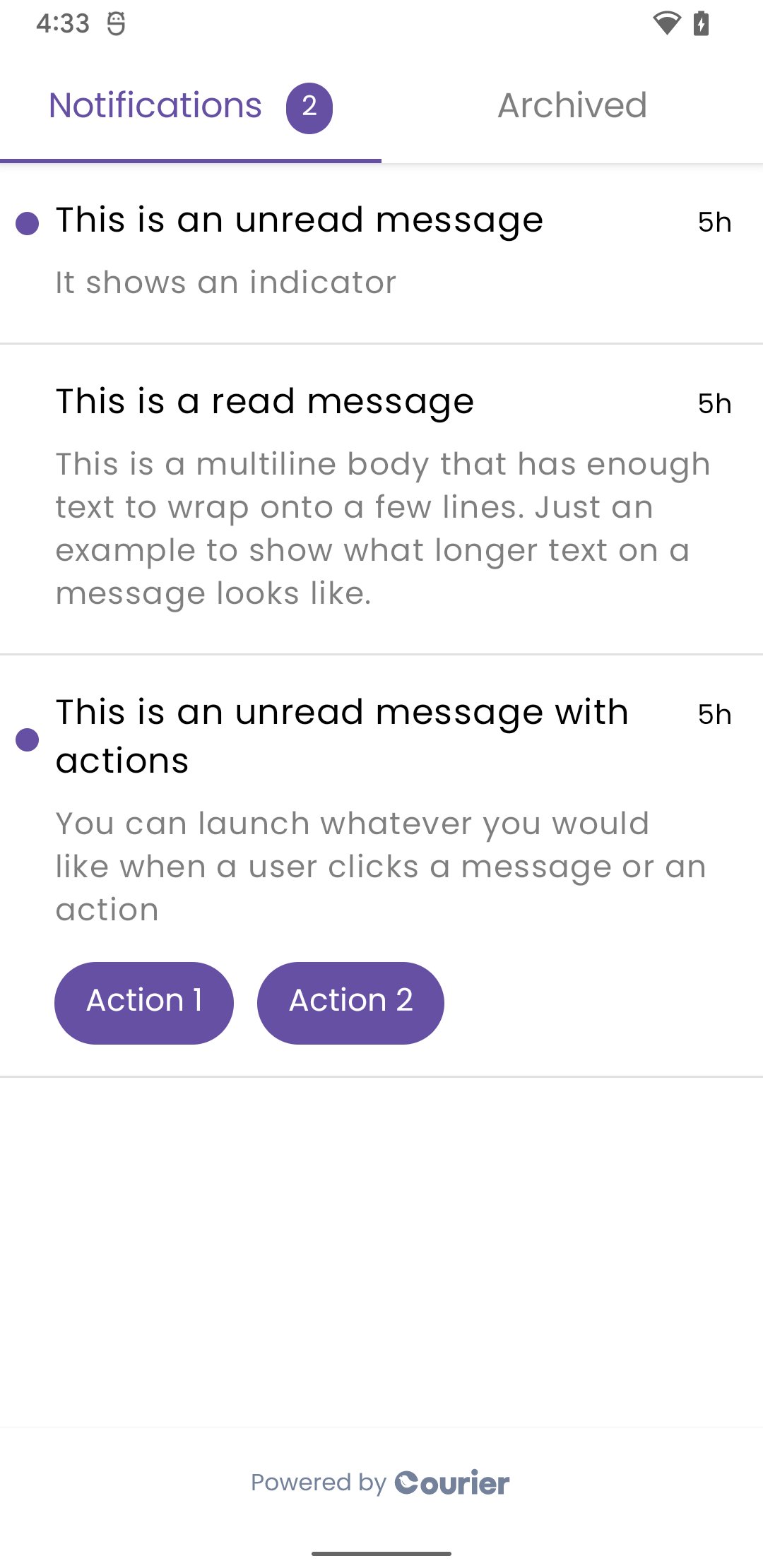
Courier Inbox provides a prebuilt notification center UI for Jetpack Compose and XML layouts. It supports theming, custom renderers, and real-time updates.
Inbox requires the Courier Inbox provider to be enabled in your workspace. If using JWT authentication, enable JWT support in the provider settings.
Your app theme must extend Theme.MaterialComponents for the prebuilt UI to render correctly. Set this in your res/values/themes.xml.
Inspect the loaded inbox without subscribing to a listener:
val feedMessages = Courier.shared.feedMessagesval archivedMessages = Courier.shared.archivedMessageslifecycleScope.launch { // Pagination is automatic in the prebuilt UI; you can also drive it manually: Courier.shared.fetchNextInboxPage(InboxMessageFeed.FEED) // Pull-to-refresh Courier.shared.refreshInbox()}// Adjust how many messages are loaded per page (default: 32)Courier.shared.inboxPaginationLimit = 50
The SDK simplifies push notification setup with automatic FCM token syncing, delivery tracking, and permission management.
Firebase is now a separate dependency. Starting with Courier Android 6.x, the SDK no longer bundles Firebase Messaging as a transitive dependency. Your app must add its own Firebase BoM and firebase-messaging artifact so you can subclass FirebaseMessagingService.
Push notifications require a physical device and a release build for reliable token registration and delivery. Emulators are best-effort.
Subclass Firebase’s FirebaseMessagingService directly and forward both callbacks to Courier. The SDK caches the token, uploads it to Courier when a user is signed in, and broadcasts delivery events through its event bus.
package your.app.packageimport com.courier.android.Courierimport com.courier.android.notifications.CourierPushNotificationIntentimport com.courier.android.notifications.presentNotificationimport com.google.firebase.messaging.FirebaseMessagingServiceimport com.google.firebase.messaging.RemoteMessageclass CourierPushNotificationService : FirebaseMessagingService() { override fun onMessageReceived(message: RemoteMessage) { super.onMessageReceived(message) // Tell the Courier SDK that a push was delivered Courier.onMessageReceived(message.data) // Build the PendingIntent that opens your Activity and carries the original payload val notificationIntent = CourierPushNotificationIntent( context = this, target = MainActivity::class.java, payload = message ) // Show the notification. Prefer data-only FCM so this service runs even when the app is killed. notificationIntent.presentNotification( title = message.data["title"] ?: message.notification?.title, body = message.data["body"] ?: message.notification?.body ) } override fun onNewToken(token: String) { super.onNewToken(token) // Register/refresh the FCM token with Courier and link it to the current user Courier.onNewToken(token) }}
For Expo, OneSignal, Pusher Beams, or any other provider, sync tokens by string key:
lifecycleScope.launch { // Save a token. If the user is signed in it uploads immediately; // otherwise it is stored locally and uploaded on sign-in. Courier.shared.setToken( provider = "your-provider-key", token = "your_messaging_token" ) val token = Courier.shared.getToken(provider = "your-provider-key")}
Once you’ve completed the setup above, send a test push using the Send API with push as the routing channel. See the FCM sending guide for a complete example.
Pass a CourierPreferencesTheme to customize fonts, colors, toggle styles, and section headers. Light and dark themes are both supported, and Courier Studio branding is automatically applied when a brandId is provided.
For advanced use cases, CourierClient is a low-level wrapper around the Courier API. Each client holds its own credentials, so you can spin up as many as you need.
val client = CourierClient( jwt = "...", // Optional. Required for most authenticated calls clientKey = "...", // Optional. Used only for Inbox client-key auth userId = "your_user_id", connectionId = "...", // Optional. Used for the inbox websocket tenantId = "...", // Optional. Scopes the client to a tenant apiUrls = CourierClient.ApiUrls.eu(), // Optional. Use for EU-hosted workspaces showLogs = true // Optional. Defaults to your build configuration)val options = client.optionsclient.log("...")client.warn("...")client.error("...")