The Courier Flutter SDK provides prebuilt widgets and APIs for building notification experiences in Dart. It handles authentication, token management, and real-time message delivery across iOS and Android from a single codebase.
  • Inbox — prebuilt notification center widget with theming and custom rendering
  • Push Notifications — automatic token syncing and delivery tracking for APNS and FCM
  • Preferences — prebuilt widget for users to manage their notification settings
Available on GitHub and pub.dev.
RequirementValue
Min iOS version15.0
Min Android SDK23
Gradle8.4+

Installation

flutter pub add courier_flutter

iOS Setup

Update your deployment target to iOS 15+, then install the CocoaPod:
cd ios && pod install

Android Setup

1

Add the Jitpack repository

In your android/build.gradle:
allprojects {
    repositories {
        google()
        mavenCentral()
        maven { url 'https://jitpack.io' }
    }
}
2

Set minimum SDK version

In your app/build.gradle:
minSdkVersion 23
targetSdkVersion 33
compileSdkVersion 33
3

Gradle sync

Your app must support at least Gradle 8.4.

Authentication

All SDK features (Inbox, Push, Preferences) require a signed-in user. Authentication is JWT-based; your backend generates a token and the SDK manages credentials across app sessions.
For a full walkthrough of JWT generation, see the Inbox Authentication guide.
1

Generate a JWT on your backend

Call the Issue Token endpoint from your server:
curl -X POST https://api.courier.com/auth/issue-token \
  -H "Authorization: Bearer $YOUR_API_KEY" \
  -H "Content-Type: application/json" \
  -d '{
    "scope": "user_id:YOUR_USER_ID write:user-tokens inbox:read:messages inbox:write:events read:preferences write:preferences read:brands",
    "expires_in": "2 days"
  }'
2

Sign in the user

Pass the JWT to the SDK where you manage user state. Credentials persist across app sessions. If the token expires, generate a new one from your backend and call signIn again; the SDK does not handle token refresh automatically.
await Courier.shared.signIn(
    userId: "your_user_id",
    accessToken: jwt,
);
3

Sign out when done

await Courier.shared.signOut();
You can listen for authentication state changes:
final listener = await Courier.shared.addAuthenticationListener((userId) {
    print(userId ?? "No user signed in");
});

await listener.remove();

Inbox

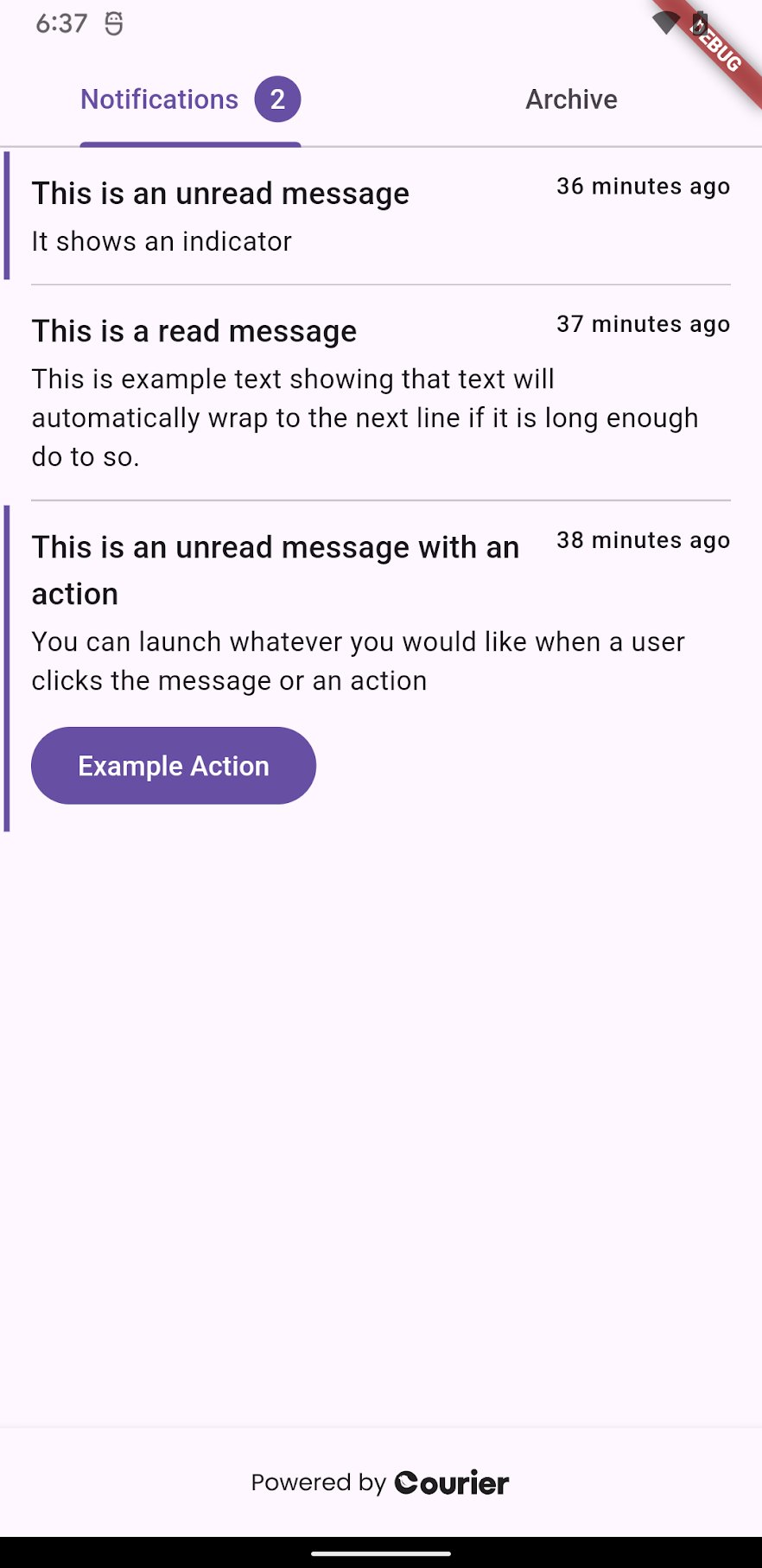
Courier Inbox provides a prebuilt notification center widget. It supports theming, custom renderers, and real-time updates. The widget automatically adapts to your app’s Flutter Theme unless you provide a custom CourierInboxTheme.
Inbox requires the Courier Inbox provider to be enabled in your workspace. If using JWT authentication, enable JWT support in the provider settings.JWT toggle in Courier provider settings
For an overview of how Courier Inbox works and how to send messages to it from your backend, see Get Started with Inbox and Send an Inbox Message.

Prebuilt Widget

Default Inbox on iOSDefault Inbox on Android
CourierInbox(
  onMessageClick: (message, index) {
    message.isRead ? message.markAsUnread() : message.markAsRead();
  },
  onActionClick: (action, message, index) {
    print(action);
  },
)
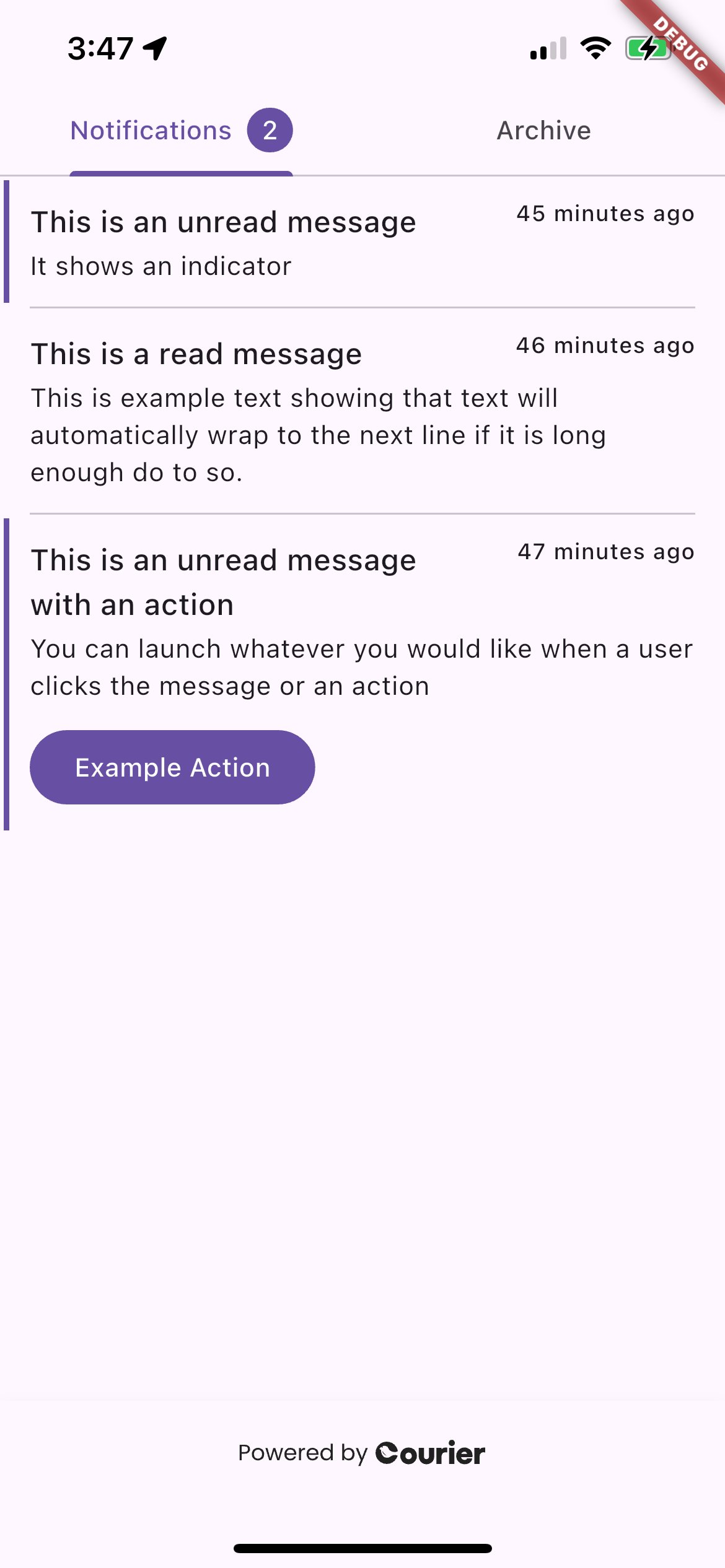
The widget automatically picks up your app’s Flutter theme:
  • Button style from Theme.of(context).elevatedButtonTheme.style
  • Loading/unread indicator color from Theme.of(context).primaryColor
  • Text styles from Theme.of(context).textTheme
Theming

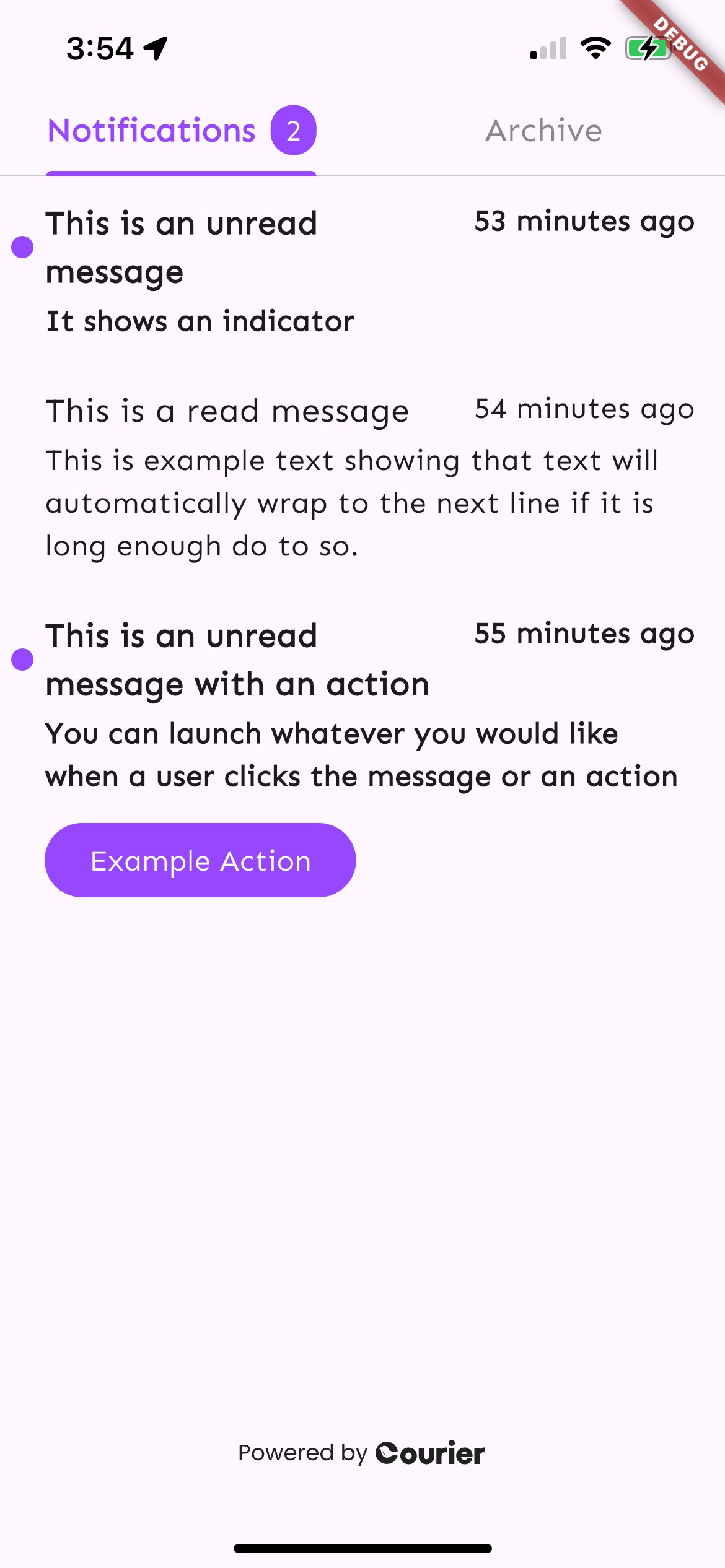
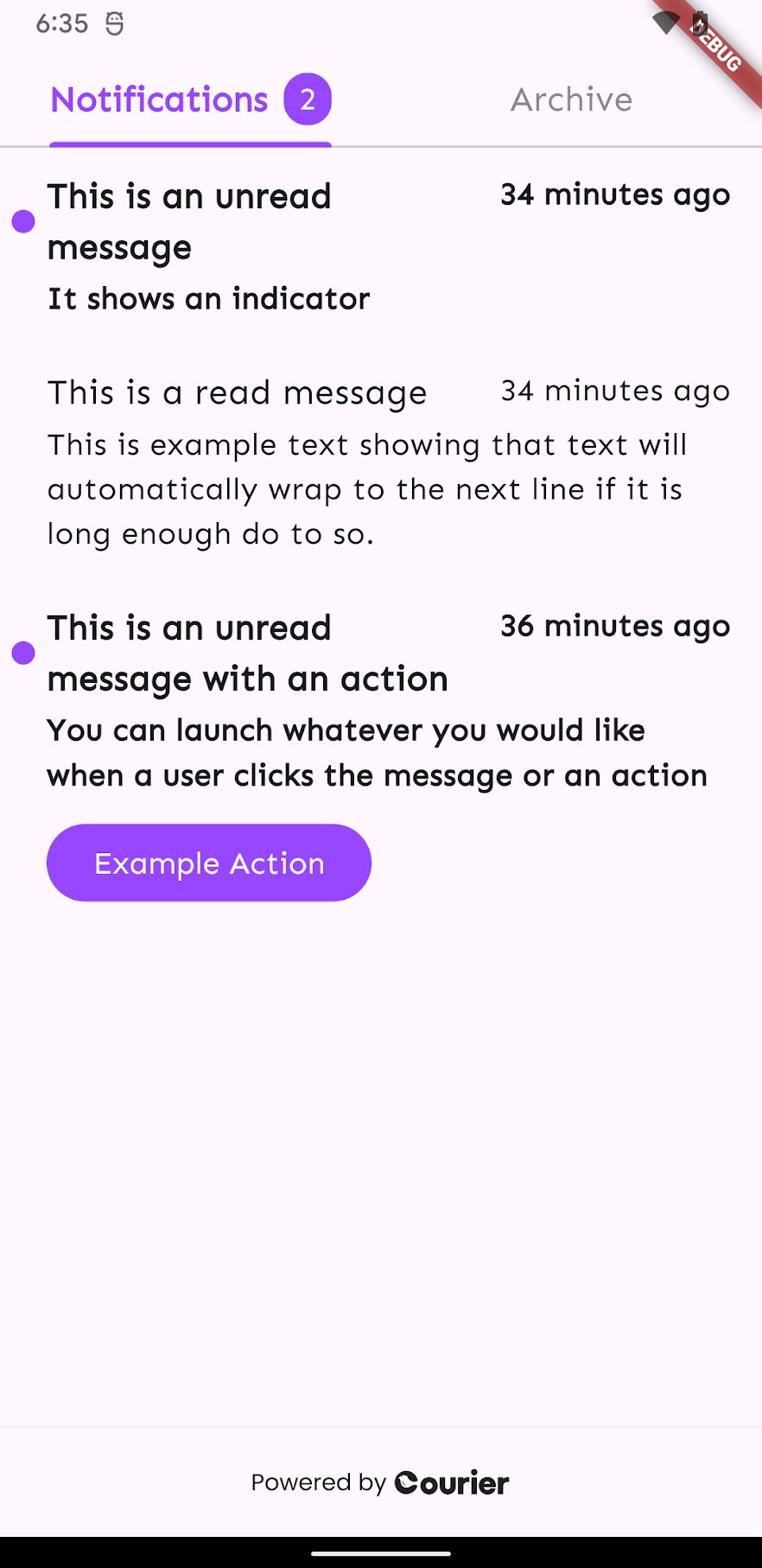
Pass a CourierInboxTheme to override the default styles. This controls fonts, colors, unread indicators, swipe actions, tab styles, and button styles.
final theme = CourierInboxTheme(
    loadingIndicatorColor: Color(0xFF9747FF),
    tabIndicatorColor: Color(0xFF9747FF),
    unreadIndicatorStyle: CourierInboxUnreadIndicatorStyle(
        indicator: CourierInboxUnreadIndicator.dot,
        color: Color(0xFF9747FF),
    ),
    // ... additional style properties
);

CourierInbox(
  canSwipePages: true,
  lightTheme: theme,
  darkTheme: theme,
  onMessageClick: (message, index) { ... },
)
Styled Inbox on iOSStyled Inbox on Android
You can also apply branding from Courier Studio. The SDK supports primary color and footer visibility from your brand settings.

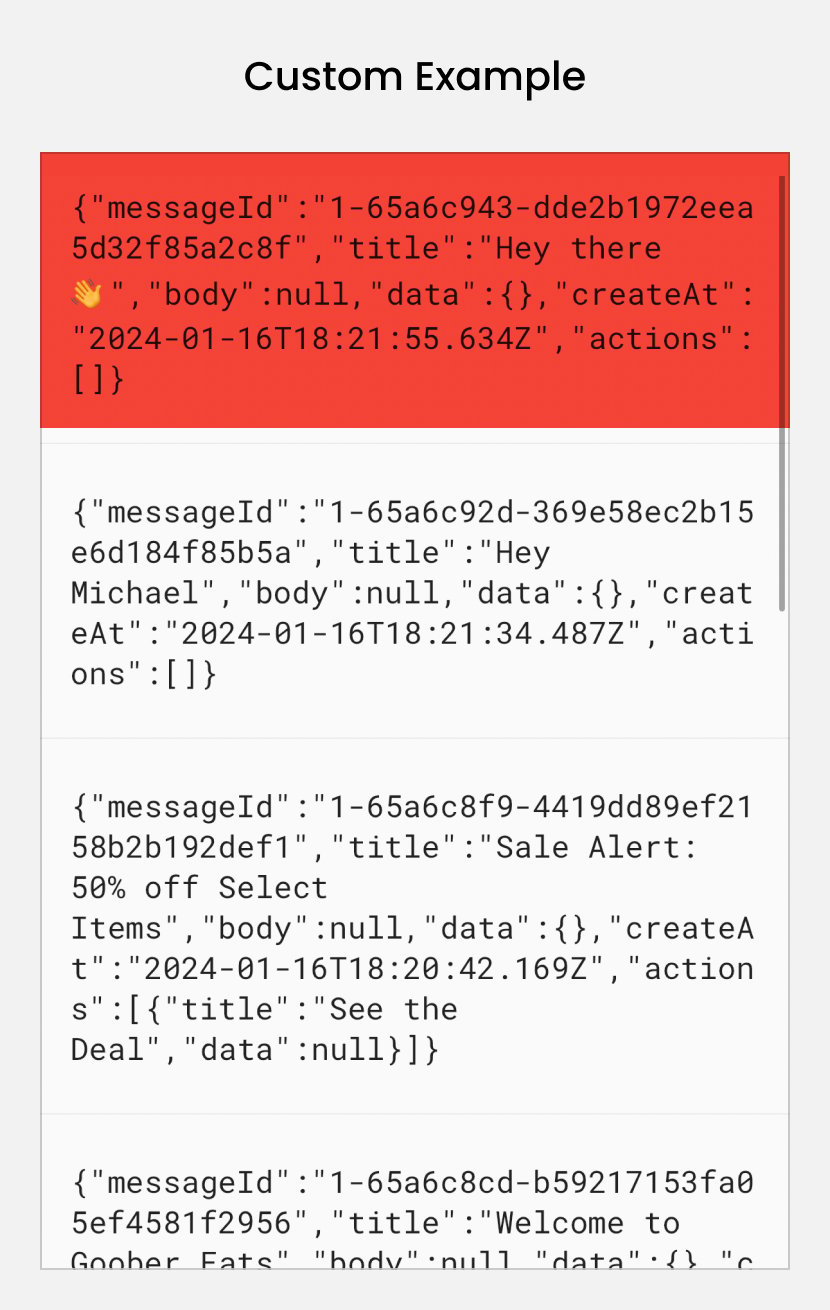
Custom Inbox UI

For full control over rendering, use addInboxListener to receive raw message data and build your own UI:
final listener = await Courier.shared.addInboxListener(
  onLoading: (isRefresh) {
    // Show loading state
  },
  onError: (error) {
    // Handle error
  },
  onMessagesChanged: (messages, canPaginate, feed) {
    // Update your custom UI with messages
  },
  onUnreadCountChanged: (unreadCount) {
    // Update badge indicators
  },
  onTotalCountChanged: (feed, totalCount) {
    // Track total messages per feed
  },
  onPageAdded: (messages, canPaginate, isFirstPage, feed) {
    // Efficiently append new pages during pagination
  },
  onMessageEvent: (message, index, feed, event) {
    // React to individual events: read, unread, archived, opened, added
  },
);

// Clean up
await listener.remove();
Custom Inbox list item rendering

Message Actions

await Courier.shared.readMessage(messageId: messageId);
await Courier.shared.unreadMessage(messageId: messageId);
await Courier.shared.archiveMessage(messageId: messageId);
await Courier.shared.readAllInboxMessages();

// Or via message object
await message.markAsRead();
await message.markAsUnread();
await message.markAsArchived();

Push Notifications

The SDK simplifies push notification setup with automatic token syncing and delivery tracking for both APNS (iOS) and FCM (Android).
Push notifications require a physical device. Simulators and emulators do not reliably support push token registration or notification delivery.
FeatureiOSAndroid
Automatic token managementYesYes
Notification trackingYesYes
Permission requestsYesNo

Provider Setup

Configure your push provider in the Courier dashboard:
  • iOS: APNS (recommended) or FCM
  • Android: FCM (recommended)
For step-by-step provider credential setup, see the APNS integration guide or FCM integration guide.

iOS Push Setup

1

Enable Push Notifications capability

In Xcode: select your target > Signing & Capabilities > add Push Notifications. Watch the video walkthrough on GitHub for a step-by-step guide.
2

Add a Notification Service Extension

Follow the iOS SDK Notification Service Extension setup or add the extension manually. This enables delivery tracking when the app is not running.

Android Push Setup

1

Set up Firebase

Follow the Firebase Android setup guide and add the google-services.json to your app.
2

Create a notification service

Add a class extending CourierService and register it in AndroidManifest.xml. See the Android SDK push setup for the full steps. Watch the video walkthrough on GitHub for a step-by-step guide.

Token Syncing and Permissions

Request notification permission (iOS shows a system dialog; safe to call on Android where it’s a no-op below API 33) and manually sync tokens if you’re not using automatic syncing.
final status = await Courier.shared.requestNotificationPermission();

// Manual token sync (if not using automatic syncing)
await Courier.shared.setToken(provider: "firebase-fcm", token: fcmToken);

Handling Push Events

Register a listener to respond when notifications are delivered or tapped. This is useful for deep linking, analytics, or showing in-app alerts.
// Listen for push notification events
final listener = await Courier.shared.addPushNotificationListener(
  onPushNotificationDelivered: (push) {
    print("Delivered: ${push.body}");
  },
  onPushNotificationClicked: (push) {
    print("Clicked: ${push.body}");
  },
);

listener.remove();

Send a Test Notification

Once you’ve completed the setup above, send a test push using the Send API with push as the routing channel. See the APNS sending guide or FCM sending guide for complete examples.

Preferences

Courier Preferences provides a prebuilt widget for users to manage which notification topics and channels they subscribe to.
Topics and sections are configured in the Preferences Editor. See Preferences Overview for how preference enforcement works at send time.
Default Preferences on Flutter
import 'package:courier_flutter/ui/preferences/courier_preferences.dart';

CourierPreferences(
  mode: TopicMode(),
)

Preference Modes

  • Topic mode (TopicMode()): shows subscription topics the user can toggle on or off
  • Channels mode (ChannelsMode(channels: [push, sms, email])): shows per-channel controls for each topic

Theming

Pass a CourierPreferencesTheme to customize fonts, colors, toggle styles, and section headers. Light and dark themes are both supported, and Courier Studio branding is automatically applied when a brandId is provided.
final theme = CourierPreferencesTheme(
    brandId: "YOUR_BRAND_ID",
    sectionTitleStyle: TextStyle(fontWeight: FontWeight.bold, fontSize: 20),
    topicTitleStyle: TextStyle(fontSize: 18),
    // ... additional style properties
);

CourierPreferences(
  mode: TopicMode(),
  lightTheme: theme,
  darkTheme: theme,
)
Styled Preferences on Flutter

CourierClient

For advanced use cases, CourierClient provides direct access to the Courier API:
final client = CourierClient(
    jwt: "...",
    userId: "your_user_id",
);

// Token management
await client.tokens.putUserToken(token: "...", provider: "apns");       // iOS
await client.tokens.putUserToken(token: "...", provider: "firebase-fcm"); // Android

// Inbox
final messages = await client.inbox.getMessages(paginationLimit: 25);
final unreadCount = await client.inbox.getUnreadMessageCount();
await client.inbox.read(messageId: "...");
await client.inbox.readAll();

// Preferences
final prefs = await client.preferences.getUserPreferences();
await client.preferences.putUserPreferenceTopic(
    topicId: "...",
    status: CourierUserPreferencesStatus.optedIn,
    hasCustomRouting: true,
    customRouting: [CourierUserPreferencesChannel.push],
);

// Branding
final brand = await client.brands.getBrand(brandId: "...");

// URL tracking (from push payloads or inbox messages)
await client.tracking.postTrackingUrl(url: trackingUrl, event: CourierTrackingEvent.delivered);
See the full API reference on GitHub.