The Courier Android SDK provides prebuilt UI components and APIs for building notification experiences in Kotlin. It handles authentication, token management, and real-time message delivery so you can focus on your app.
  • Inbox — prebuilt notification center for Jetpack Compose and XML layouts
  • Push Notifications — automatic FCM token syncing and delivery tracking
  • Preferences — prebuilt UI for users to manage their notification settings
Available on GitHub.

Installation

1

Add the Jitpack repository

In your settings.gradle or settings.gradle.kts:
2

Add the dependency

In your app’s build.gradle:
Replace LATEST_VERSION with the current version from GitHub Releases.
3

Initialize the SDK

Call Courier.initialize() in your Application class before using other SDK features. This gives Courier access to SharedPreferences for persisting state across sessions.
If you only plan to use CourierClient APIs directly, you can skip the initialize step.

Authentication

All SDK features (Inbox, Push, Preferences) require a signed-in user. Authentication is JWT-based; your backend generates a token and the SDK manages credentials across app sessions.
For a full walkthrough of JWT generation, see the Inbox Authentication guide.
1

Generate a JWT on your backend

Call the Issue Token endpoint from your server:
2

Sign in the user

Pass the JWT to the SDK where you manage user state. Credentials persist across app sessions. If the token expires, generate a new one from your backend and call signIn again; the SDK does not handle token refresh automatically.
3

Sign out when done

EU-hosted workspaces

For EU-hosted Courier workspaces, pass the built-in EU preset through apiUrls:

Authentication state

Inbox

Courier Inbox provides a prebuilt notification center UI for Jetpack Compose and XML layouts. It supports theming, custom renderers, and real-time updates.
Inbox requires the Courier Inbox provider to be enabled in your workspace. If using JWT authentication, enable JWT support in the provider settings.JWT toggle in Courier provider settings
Your app theme must extend Theme.MaterialComponents for the prebuilt UI to render correctly. Set this in your res/values/themes.xml.
For an overview of how Courier Inbox works and how to send messages to it from your backend, see Get Started with Inbox and Send an Inbox Message.

Prebuilt UI

Theming

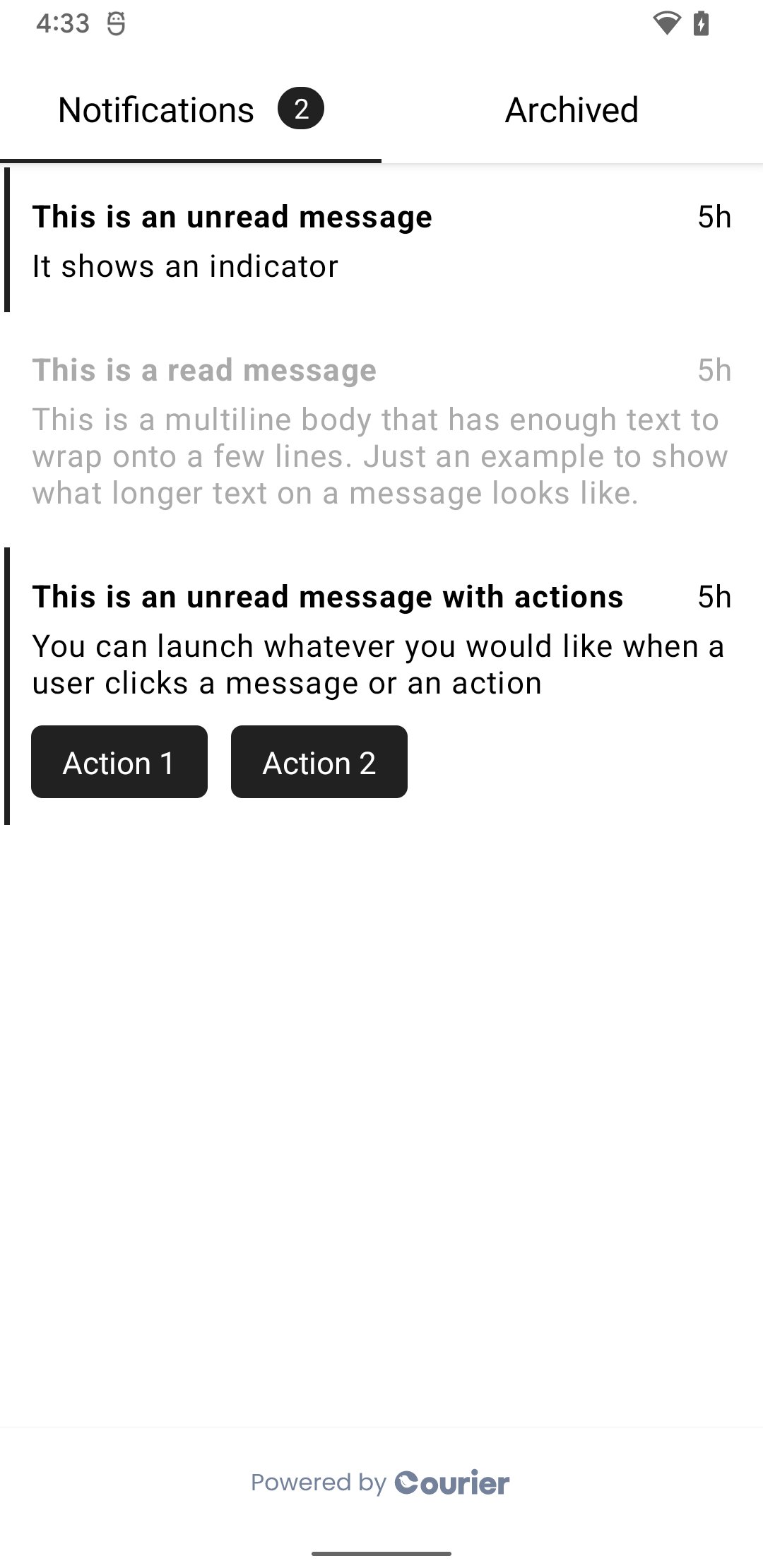
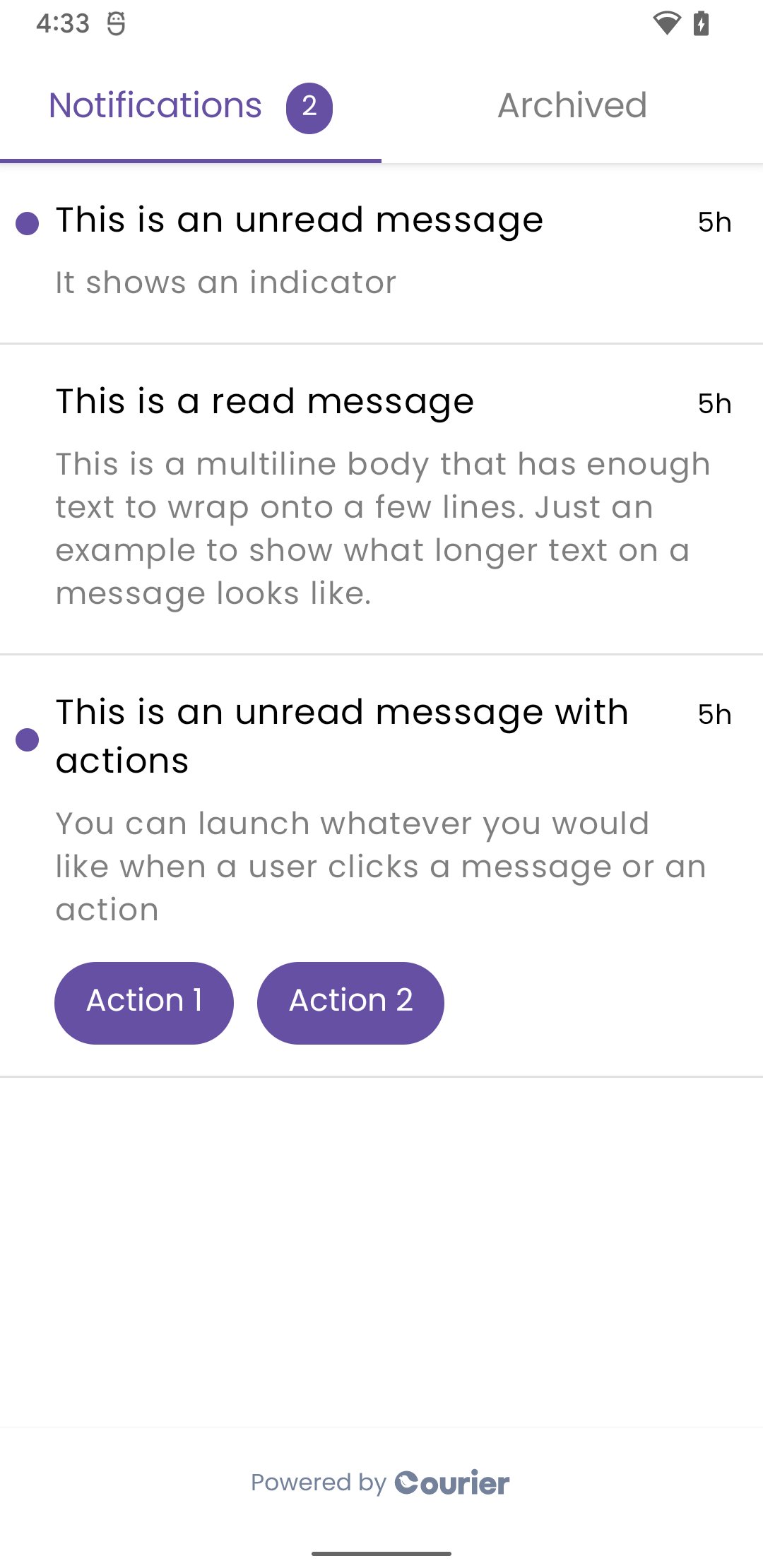
Pass a CourierInboxTheme to customize fonts, colors, unread indicators, swipe actions, and button styles. Both light and dark themes are supported.
Default InboxStyled Inbox

Default and styled Inbox on Android

You can also apply branding from Courier Studio. The SDK supports primary color and footer visibility from your brand settings.

Custom Inbox UI

For full control over rendering, use addInboxListener to receive raw message data and build your own UI:

Message Actions

Reading the feed

Inspect the loaded inbox without subscribing to a listener:

Push Notifications

The SDK simplifies push notification setup with automatic FCM token syncing, delivery tracking, and permission management.
Firebase is now a separate dependency. Starting with Courier Android 6.x, the SDK no longer bundles Firebase Messaging as a transitive dependency. Your app must add its own Firebase BoM and firebase-messaging artifact so you can subclass FirebaseMessagingService.
Push notifications require a physical device and a release build for reliable token registration and delivery. Emulators are best-effort.

Provider Setup

For step-by-step provider credential setup, see the FCM integration guide. Initialize the Firebase SDK in your project before continuing.

Add Firebase to your app

In your app’s build.gradle, declare Firebase Messaging alongside the Courier SDK:
Then complete the Firebase Android setup (download google-services.json, apply the Google Services plugin, etc.).

Automatic Token Syncing (FCM)

1

Create a FirebaseMessagingService

Subclass Firebase’s FirebaseMessagingService directly and forward both callbacks to Courier. The SDK caches the token, uploads it to Courier when a user is signed in, and broadcasts delivery events through its event bus.
2

Register the service in AndroidManifest.xml

3

Handle clicks with CourierActivity

Extend CourierActivity (typically your MainActivity) to receive delivery and click events while your app is foregrounded.

Reading and refreshing the FCM token

The SDK caches the FCM token locally after Firebase delivers it. You can read or force-refresh it at any time:

Non-FCM Providers

For Expo, OneSignal, Pusher Beams, or any other provider, sync tokens by string key:

Manual Notification Tracking

If you are not using the FirebaseMessagingService + CourierActivity setup above, you can post tracking events yourself:

Requesting Permission

Android 13+ (API 33) requires a runtime permission. The call is safe to make on older versions too.

Send a Test Notification

Once you’ve completed the setup above, send a test push using the Send API with push as the routing channel. See the FCM sending guide for a complete example.

Preferences

Courier Preferences provides a prebuilt UI for users to manage which notification topics and channels they subscribe to.
Topics and sections are configured in the Preferences Editor. See Preferences Overview for how preference enforcement works at send time.

Preference Modes

  • Topic mode (Mode.Topic): shows subscription topics the user can toggle on or off
  • Channels mode (Mode.Channels(listOf(PUSH, SMS, EMAIL))): shows per-channel controls for each topic

Theming

Pass a CourierPreferencesTheme to customize fonts, colors, toggle styles, and section headers. Light and dark themes are both supported, and Courier Studio branding is automatically applied when a brandId is provided.

Default and styled Preferences on Android

CourierClient

For advanced use cases, CourierClient is a low-level wrapper around the Courier API. Each client holds its own credentials, so you can spin up as many as you need.

Initialization

Token Management

Inbox

Inbox websocket

Receive real-time updates across devices:

Preferences

Branding

URL Tracking

Pass any tracking URL found inside a push notification payload or inbox message:
See the full Courier API reference.

Inbox Overview

Learn about Courier Inbox and how to set it up

Push Integrations

Configure FCM and other push providers

Preferences

Set up notification preference topics and channels

GitHub

Source code, examples, and changelog