A quick introduction to the Template settings: where they are, what information they provide and what you can do with them.There are five sections of the Template Settings.
- General
- Notes
- Events
- Conditions
- Publish History
Opening the Template Settings
To view the Template settings, open the notification in the designer list, then click the settings icon next to the Notification name.
General Settings

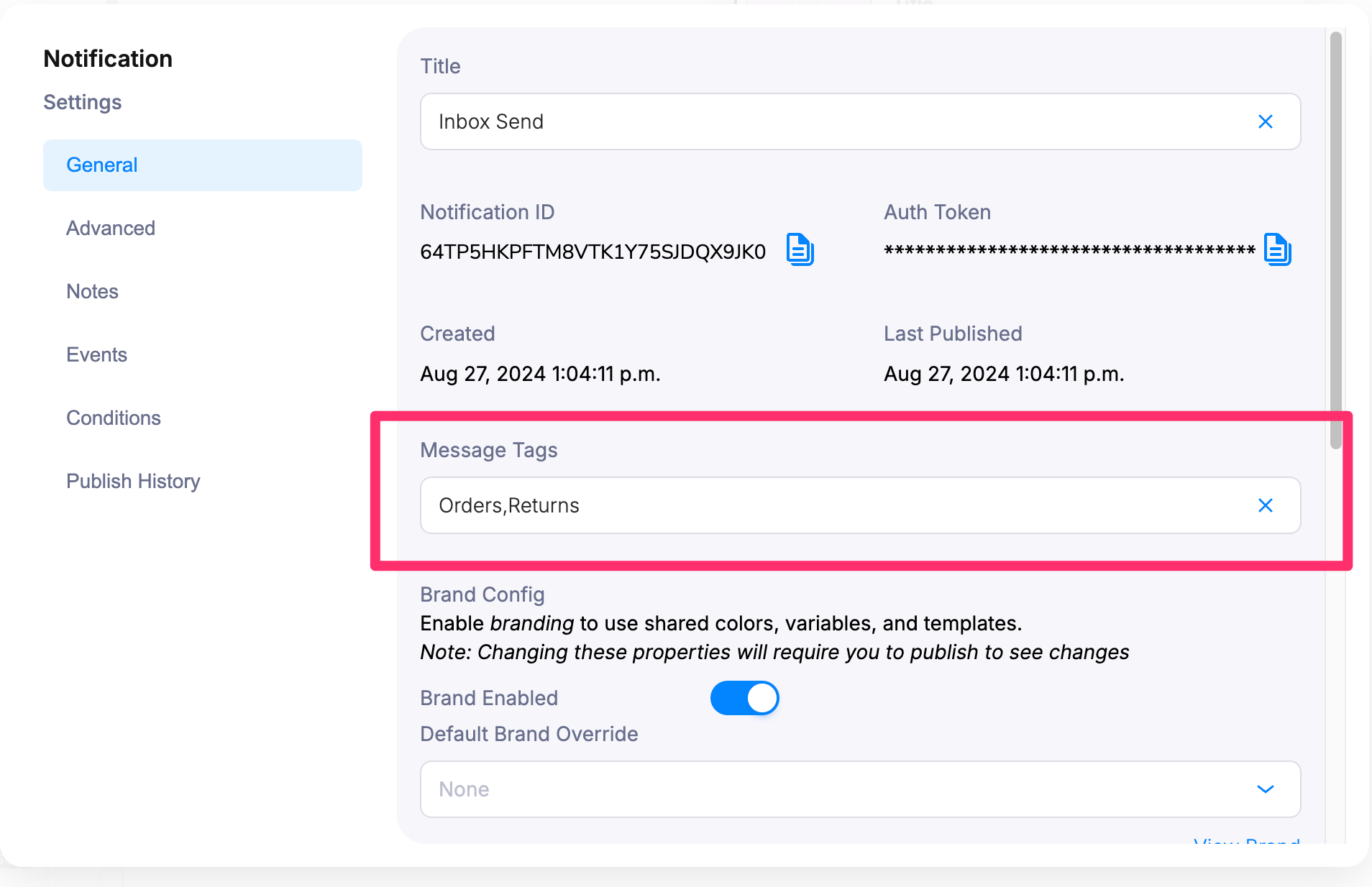
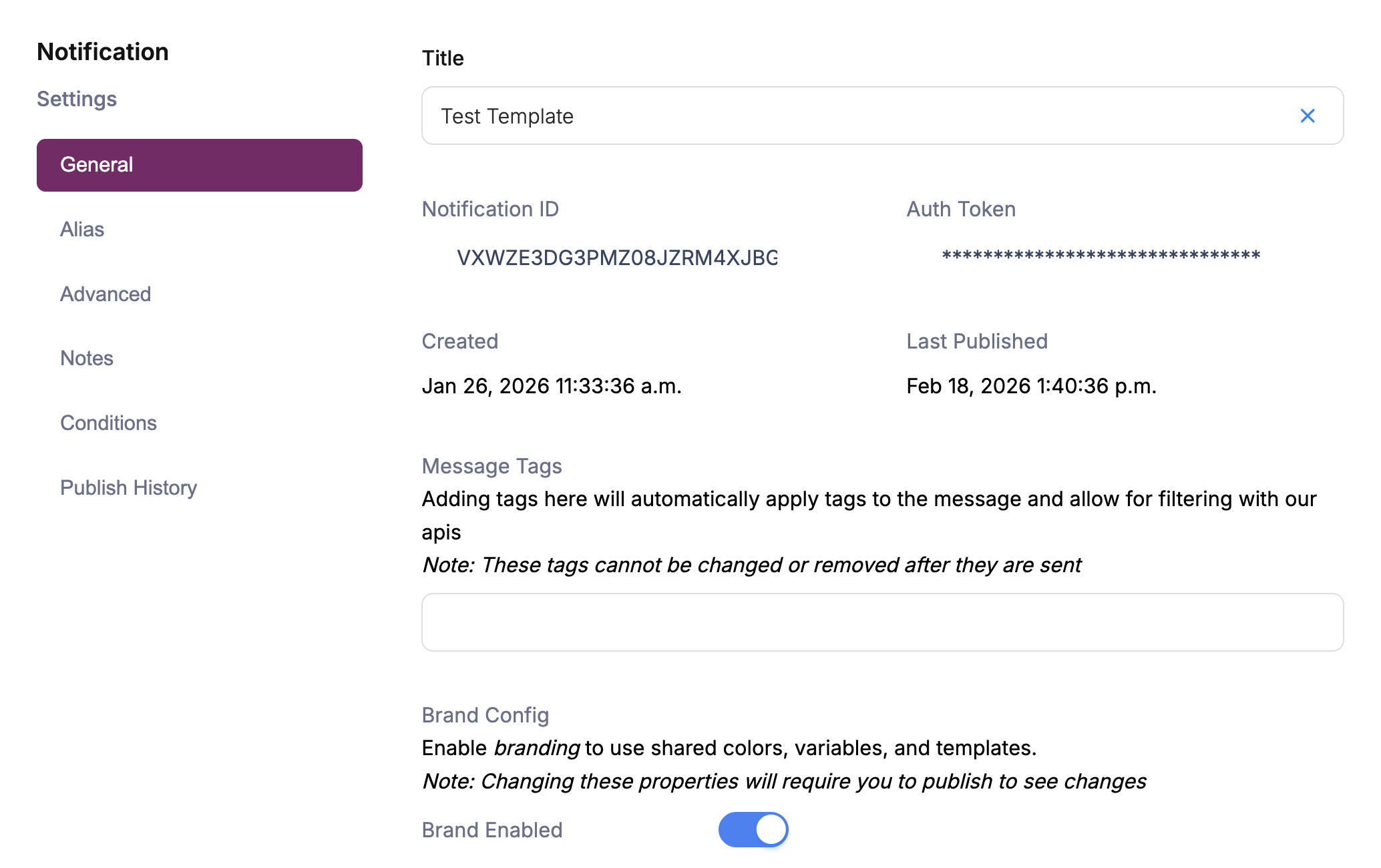
Notification ID
- The Notification ID is a unique string assigned to the notification by Courier.
- When you make a successful Send API request, Courier returns the Notification ID mapped to the event used to trigger it.
- You can also use the Notification ID as the event object in your Send
Auth Token
- A Tenant-level token required to send Notifications.
- You can also find your Tenant’s AuthToken in the General Settings.
Brand Config
- Brands are “enabled” by default so each new email notification will use your Default Brand template unless you disable it.
- Brands must be “enabled” to use Custom Brands on email notifications.
Subscription Topic
- Use Subscription Topic to group notification templates and let end users set preferences to more than one notification at a time.
Message Tags
NOTEThis is under a feature flag currently, please reach out to Courier support or your account team to turn on.
- While designing a template, you may want to select which view you would like this appear in an inbox or how to internally tag your messages.
- You can enter a comma separated list of tags and those will automatically be put into the
metadata.tagsdocs field when sending to the user. - This allows them to be filtered in a view on the inbox using one of those tags or filtered with our Messages API.

Notification Config
- Even if you’ve assigned a notification to a Category, you can define whether or not you want the notification to inherit settings from the category or define them at the Notification level with this setting.

Created
- Timestamp of when the notification was created.
Duplicate
- The Duplicate button allows you to duplicate all content, channels and configurations created in this notification into a new notification.
- The duplicate will not share the same Notification ID.
Delete
- The Delete button permanently deletes the notification and all its content.
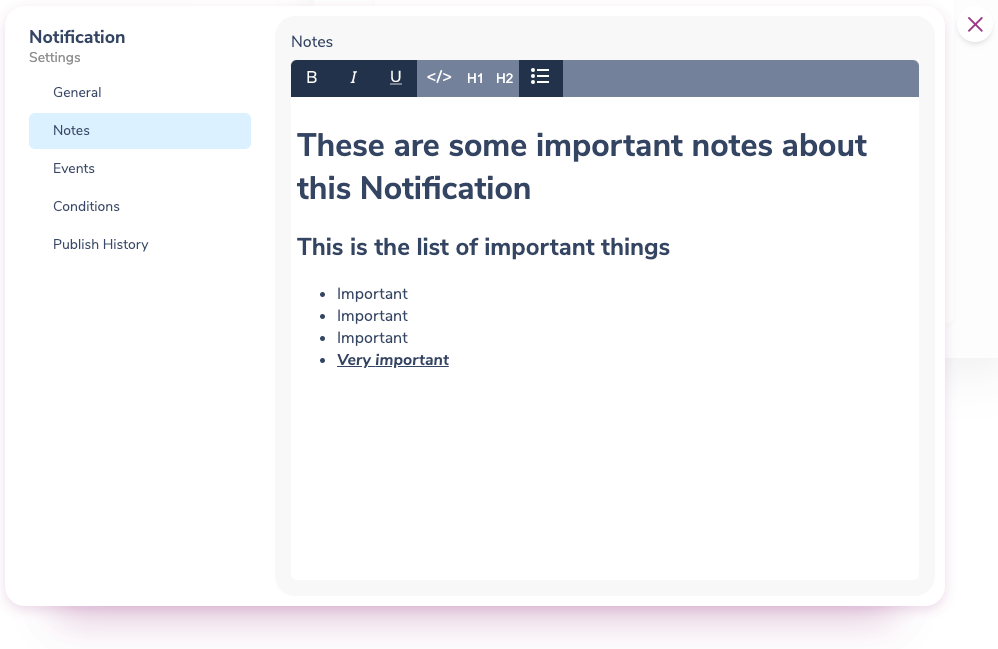
Notes


Events
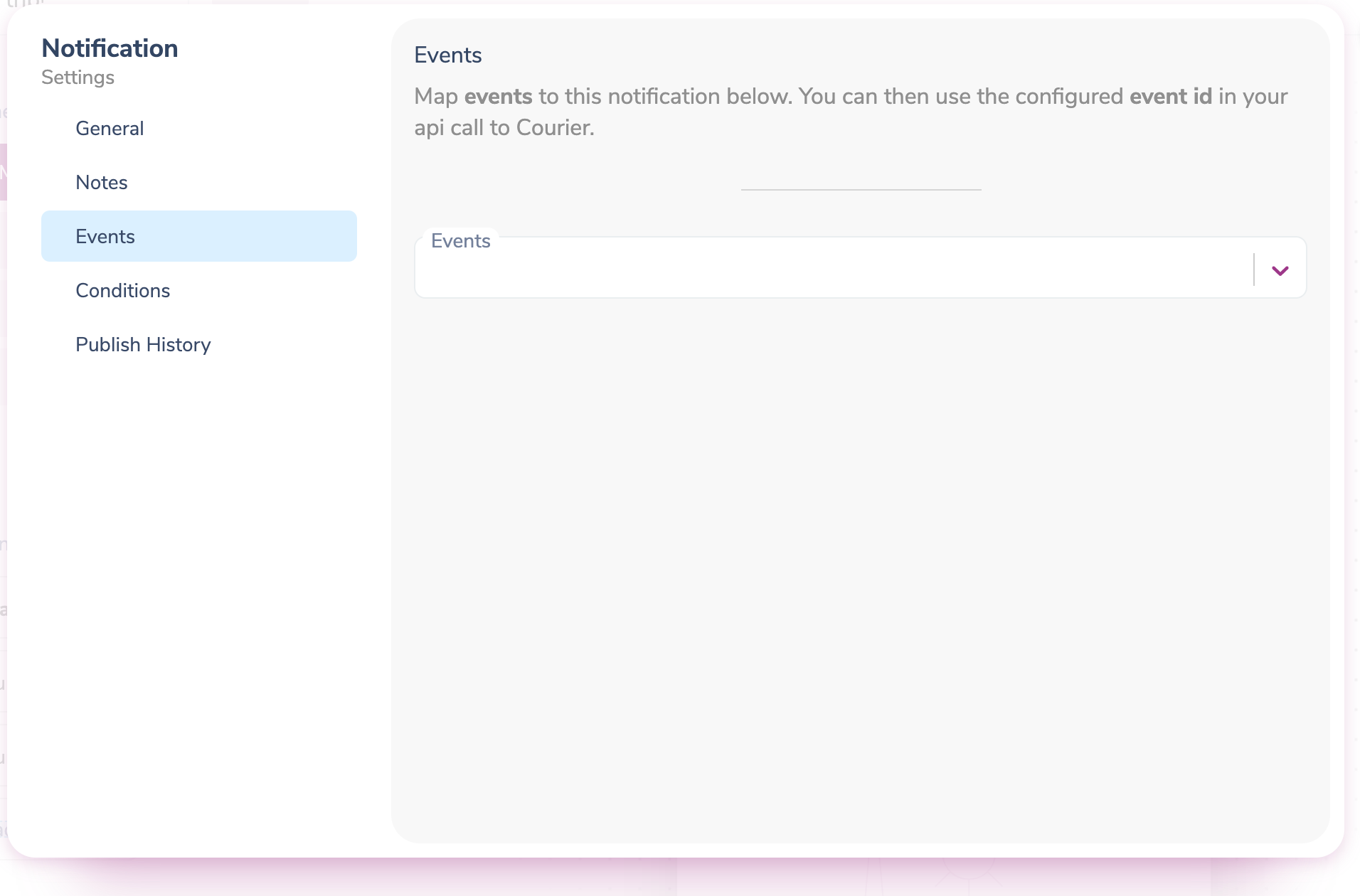
You can map an existing Event trigger to the notification in the Events section of the Template settings.
template field when sending messages through the Send API. This allows you to trigger notifications using human-readable event names instead of template IDs.
Conditions
Using the Conditions tool in the Template settings allows you to use properties from the data or profile objects provided by the Send API call or User Profile to prevent the notification from sending when specific conditions are met.Publishing Workflow
Templates follow a publishing workflow that controls when changes become active. You can save drafts for testing and iteration before publishing changes to production.- Drafts: Save work-in-progress templates without affecting live notifications
- Publishing: Make template changes active for all new sends
- Rollback: Revert to any previously published version if needed
Template Aliases
When sending notifications through the API, you can reference templates by their unique Notification ID or by an event alias. Aliases let you change the underlying template without changing your application code. To set up an alias, map an event name to a template in the Events section. Then use the event name in your API calls:Publish History
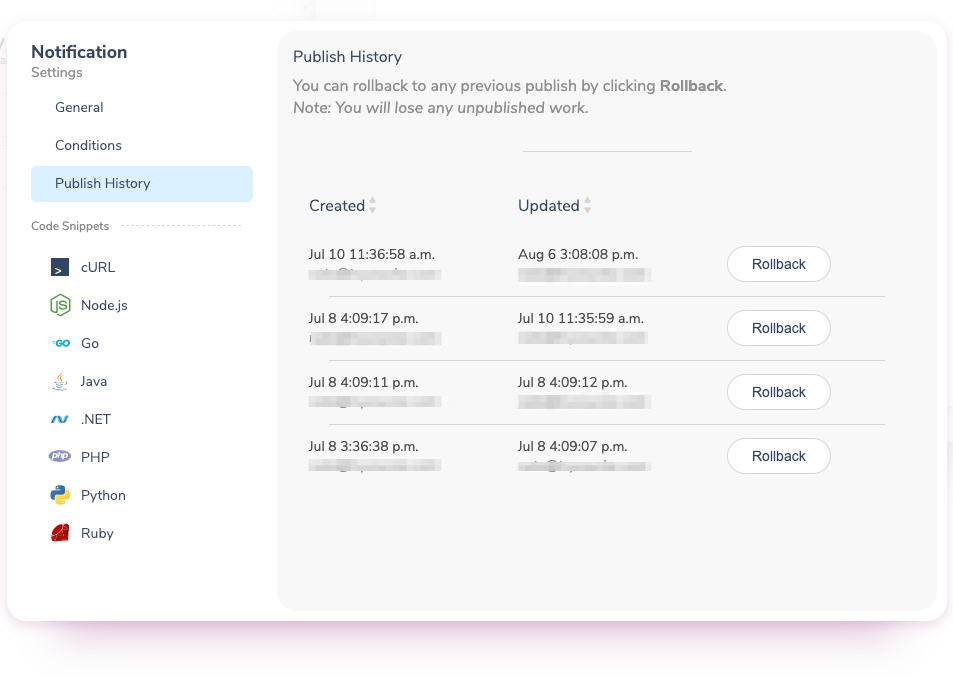
- Publish History allows you to see who published versions of the Notification and when they published it.
- Rollback allows you to revert to any previously published version.
NOTEYou will lose any unpublished work if you click Rollback.