

Inviting Team Members to Your Workspace
- Open Settings > Team
- Click the green + Invite User button
- Enter the user’s email address and select a role from the list
- Send the invite (one email at a time)
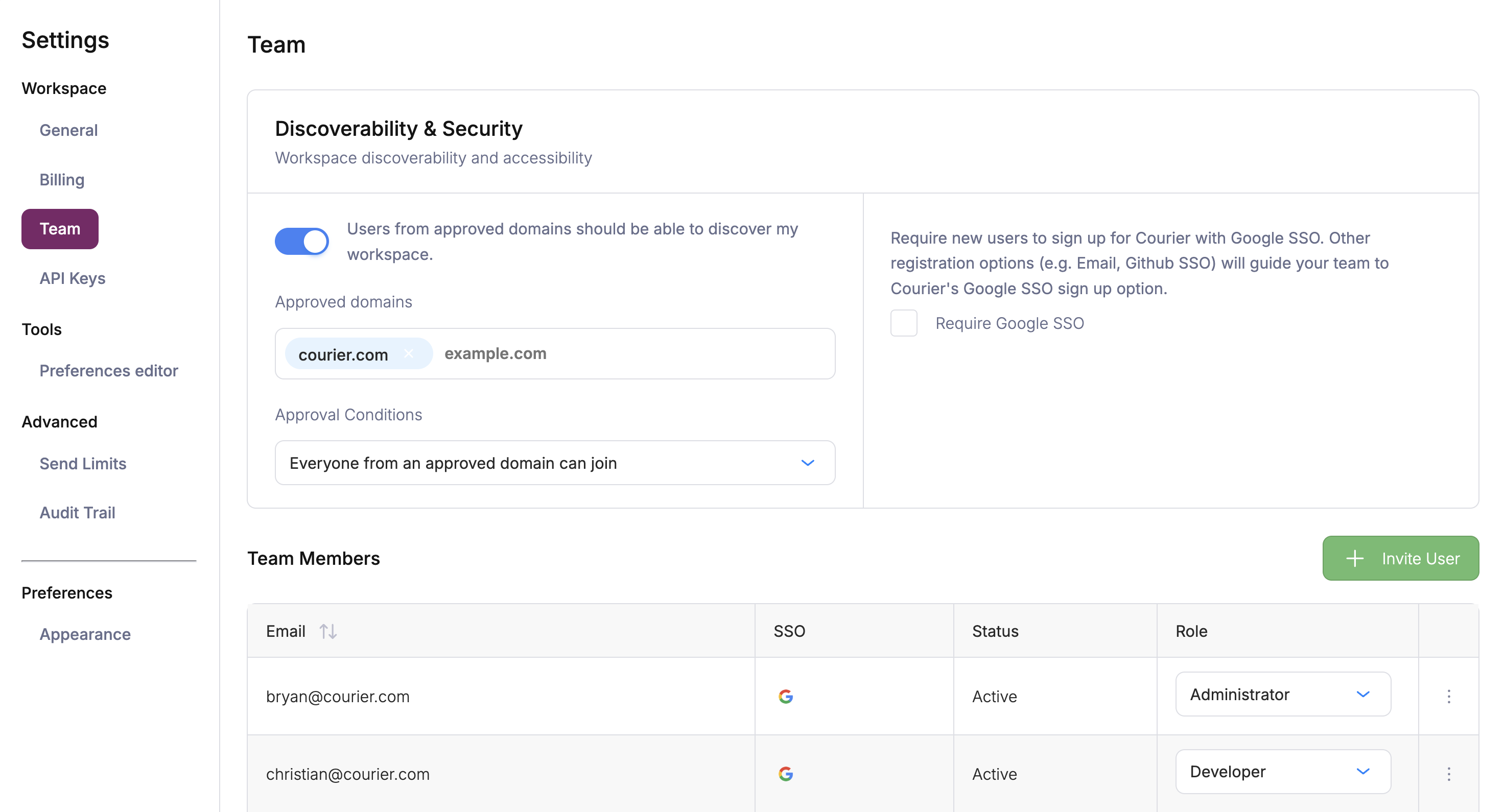
Invite a User from Settings > Team
Security Settings
Courier supports Google SSO and Okta SSO to control how your team authenticates. You can also make your workspace discoverable so colleagues with a matching email domain can find and request access. For Courier’s overall security posture, compliance certifications, and data handling practices, visit the Security Portal.Require Google SSO
To require your teammates to log in via Google SSO:- Open Settings > Team
- Check
Require Google SSOfrom configured domains
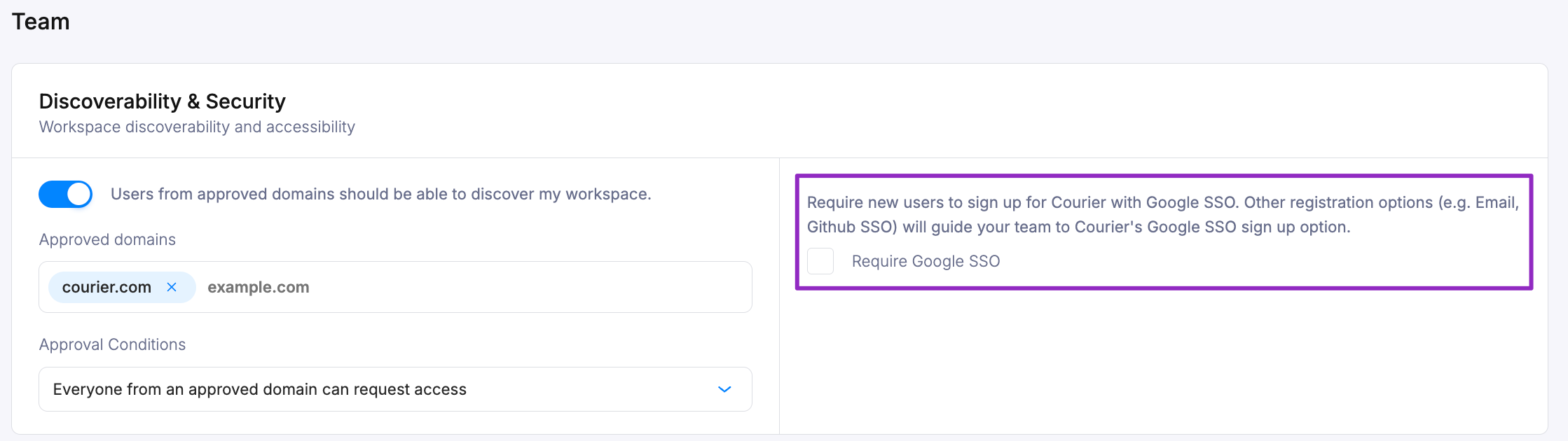
SSO Settings
Make Your Workspace Discoverable
Allow people who sign up with a matching email domain to discover and request access to your workspace. They won’t have access until you grant it.- Open Settings > Team
- Confirm your email domain is in the list of Approved Domains (if not, contact support).
- Check
Users from approved domains should be able to discover my workspaceunder Discoverability & Security. - Choose a discoverability level:
- Request access: Users from an approved domain can request access; an admin must approve.
- Join directly: Users from an approved domain can join without approval.
- IT admin only: Members must be added manually by an IT admin (used with Okta provisioning).
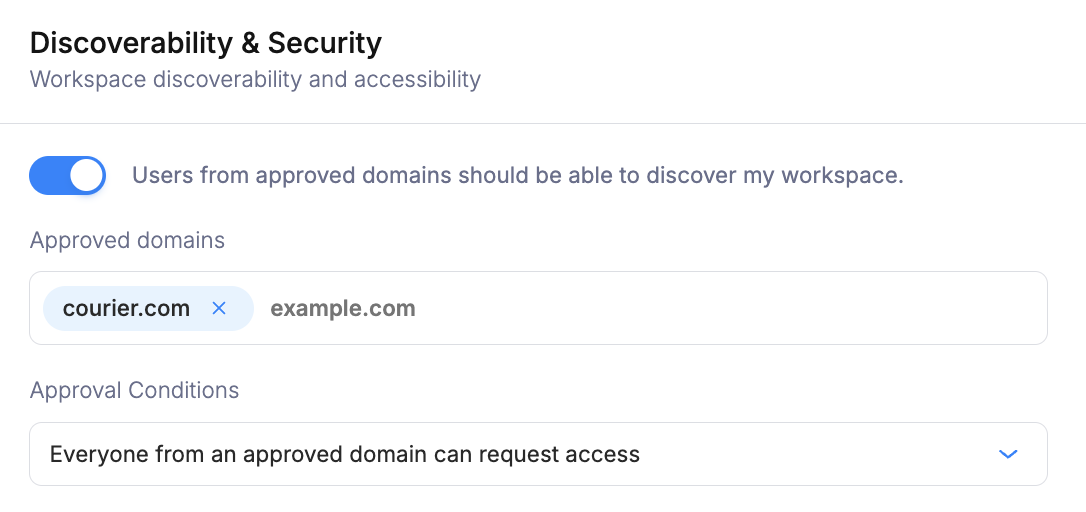
Discoverability Settings
Okta SSO
Allow your team members to sign in to Courier with Okta Single-Sign-On.Okta SSO is a Courier Enterprise feature. Contact Courier for pricing details.
Removing Users
To remove a user, open the dropdown menu to the right of their email address and selectRemove User.

Remove a User